When HAIKYU!! FLY HIGH keeps crashing on Android or gets stuck on a black screen, the failure is typically caused by an outdated Android System WebView component, corrupted temporary cache files, or a device running below the required Android 9 operating system. Working through a sequential troubleshooting checklist—starting with app-level cache wipes and ending with system recovery maintenance—isolates the exact conflict and gets the game running.
Check HAIKYU!! FLY HIGH Android System Requirements
Before adjusting settings, check your device against baseline specifications: Uptodown lists Android 9 or higher as the operating system requirement for HAIKYU!! FLY HIGH.
Devices running Android 8.1 or older lack the modern API libraries necessary to initialize the game's 3D engine. This incompatibility causes the application to crash immediately on startup or hang indefinitely on an empty black screen. If your phone runs an unsupported OS version, no client tweak will fix the startup failure.
Troubleshooting Checklist for Startup Crashes
Follow these steps in order. They begin with non-destructive, low-friction fixes before moving to deeper system configurations.
| Step | Action | Primary Target | Data Risk |
|---|
| 1 | Clear App Cache | Corrupted temporary assets | None (User data safe) |
| 2 | Update WebView & Chrome | Web rendering runtime conflicts | None |
| 3 | Perform Play Store App Update | Outdated client builds | None |
| 4 | Force Restart & Check OS | OS task locks & pending firmware | None |
| 5 | Re-sync Google Date & Time | Clock validation handshake errors | None |
| 6 | Verify SEA Regional Build | Server-region channel mismatches | None |
| 7 | Wipe Cache Partition | Deep-seated OS partition junk | None (Recovery mode) |
Step 1: Clear the Game App Cache
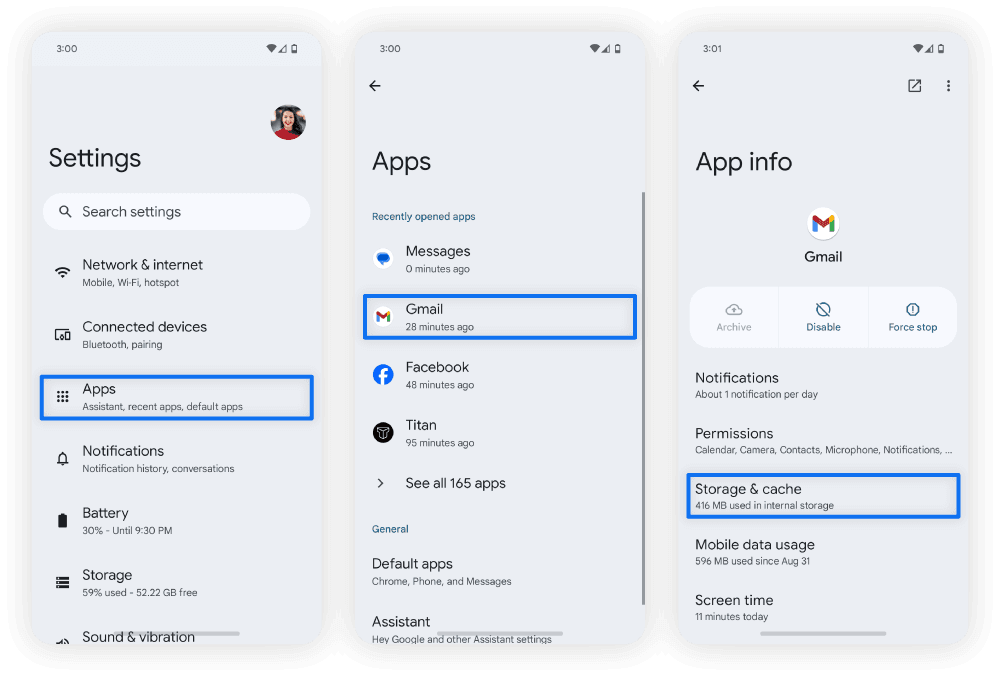
Corrupted temporary files from patch downloads often prevent the client from loading assets. As Android Help explains, wiping an app's cache removes these broken files without deleting your account or saved player progress.
- Open your device Settings menu.
- Tap Apps (or Applications, depending on your Android skin).
- Scroll down and select HAIKYU!! FLY HIGH.
- Tap Storage.
- Tap Clear cache.
Do not select "Clear data" or "Clear storage" unless you have already linked your account to an external login service, as doing so wipes local guest credentials.
Step 2: Update Android System WebView and Google Chrome
Android System WebView handles in-game browser displays, login prompts, and authentication pop-ups. When WebView or Google Chrome fall behind on releases, mobile games can fail immediately on launch—a recurring failure documented by Yahoo Support.
- Launch the Google Play Store.
- Search for Android System WebView and tap Update if an update is available.
- Search for Google Chrome and tap Update.
- If the Play Store fails to complete these updates, navigate to device Settings > Apps & notifications > Google Play Store > Storage & cache > Clear Data, then retry.
Restart the game after both components finish updating.
Step 3: Check for Official Client Updates
Live servers reject outdated client builds during the opening handshake. Verify your installation through the storefront as outlined by Google Play Help:
- Open the Google Play Store.
- Tap your profile icon in the top-right corner.
- Select Manage apps & devices.
- Look under Updates available to see if a newer build for HAIKYU!! FLY HIGH is waiting to install.
Step 4: Force a Hard Restart and Run System Updates
Restarting your phone terminates frozen background processes and frees volatile RAM needed by 3D engines. Google Play Help advises a full reboot before adjusting deeper settings.
- Press and hold your phone's physical Power button for about 30 seconds until the device shuts down and restarts.
- Once rebooted, open Settings.
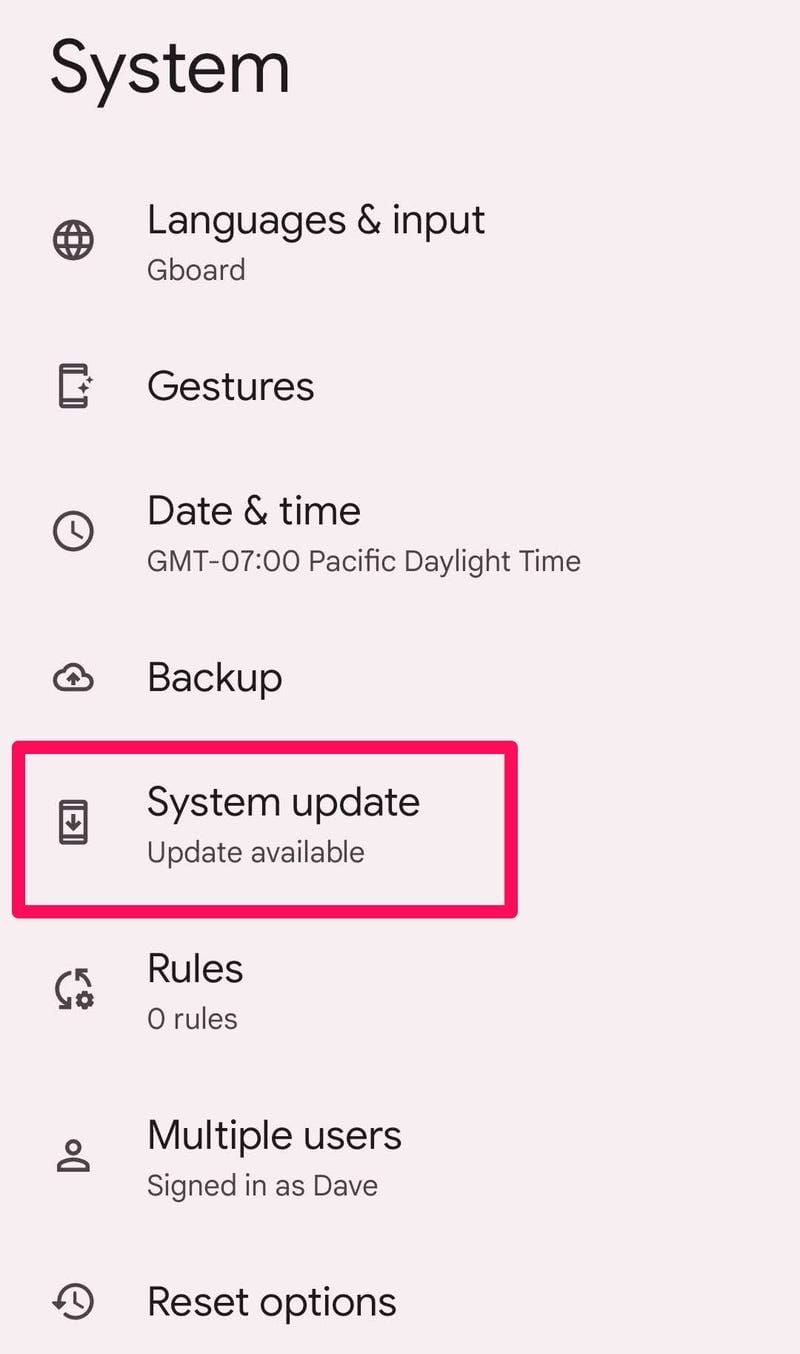
- Scroll near the bottom and tap System > Advanced > System update (or About phone / About tablet > Software update).
- Download and install any pending firmware releases.
Step 5: Re-Sync Device Clock with Google Servers
An out-of-sync system clock fails SSL/TLS certificate validation, freezing the game on initial connection. To force a clean time sync using the method outlined by Google Play Help:
- Open your phone's Settings app.
- Navigate to System > Date & Time.
- Toggle off both Automatic Time Zone and Automatic Date & Time.
- Manually set the date and time to an incorrect time.
- Toggle both Automatic Time Zone and Automatic Date & Time back on.
This toggle forces your device to reconnect to Google's network time servers and corrects any timestamp offset.
Step 6: Verify SEA Regional Client Compatibility
HAIKYU!! FLY HIGH operates region-specific client distributions. The Southeast Asian service specifically supports Malaysia, Singapore, Philippines, Indonesia, Thailand, and Vietnam.
As noted by BitTopup, accounts tied to Japanese, Korean, or Global server instances cannot interact with the SEA server channel. If you manually side-loaded an APK from an incompatible region or switched Google Play storefront regions, the app may crash while attempting to reach servers outside your region. Ensure your client was obtained from a supported Southeast Asian storefront.
Players using the regional client can safely acquire Star Gems—used for Recruit Tickets, stamina resets, and growth materials—via HAIKYU!! FLY HIGH SEA Top Up provided their account ID matches the SEA channel.
Step 7: Wipe the Android System Cache Partition
If crashes persist after clearing the app cache and updating WebView, corrupted OS-level temporary files could be blocking background processes. Android Help notes that wiping the system cache partition through Android Recovery Mode leaves personal data, photos, and apps intact:
- Turn off your device completely.
- Press and hold the Volume Up button and the Power / Side button simultaneously.
- Release both buttons once the phone vibrates and the Android logo appears on screen.
- Use the Volume Down button to navigate through the recovery menu and highlight Wipe cache partition.
- Press the Power / Side button to confirm the selection.
- Once the wipe completes, use the volume keys to highlight Reboot system now and confirm with the Power button.
Frequently Asked Questions
What is the minimum Android version required to run HAIKYU!! FLY HIGH?
HAIKYU!! FLY HIGH requires Android 9 or higher. Devices running older versions fail to initialize the client and often crash immediately upon launch according to Uptodown.
Does clearing the app cache delete my player data?
No. Clearing the app cache only removes temporary files, downloaded unpack archives, and image assets. Your account credentials and saved progress remain intact on the device and server as noted by Android Help.
Why does Android System WebView cause the game to crash?
Android System WebView acts as the embedded browser engine for Android apps. Bugs in this component cause unexpected termination across apps that load web-based login prompts or notices, which Google resolves via updates through the Play Store as reported by Yahoo Support.