To remove registered devices on StarzPlay when you reach the hardware ceiling, log into your account using a desktop web browser (PC or Mac) at starzplay.com, open the Settings menu, and unpair inactive hardware from your account dashboard. StarzPlay does not provide a universal remote sign-out button across its apps, and native smart TV or mobile client menus generally lack device unpairing tools, so de-registering old hardware requires managing your session directly through web settings.
Why StarzPlay Blocks New Device Logins
StarzPlay enforces strict hardware registration thresholds. Depending on your plan type (regional telecom partner vs. global prepaid voucher), your account allows setup on either 4 or 5 compatible devices.
According to regional telecommunications partner du (UAE), a standard regional subscription allows users to set up the service on up to 5 compatible devices while simultaneously streaming on up to 2 screens. In contrast, global prepaid voucher plans—such as 1-Month, 3-Month, 6-Month, and 12-Month tiers cataloged on BitTopup—specify support for up to 4 registered devices for HD and 4K UHD streaming.
Once your account reaches this cap, attempting to sign in on a sixth (or fifth) screen triggers an authorization block. You must deregister an existing screen before pairing a new one.
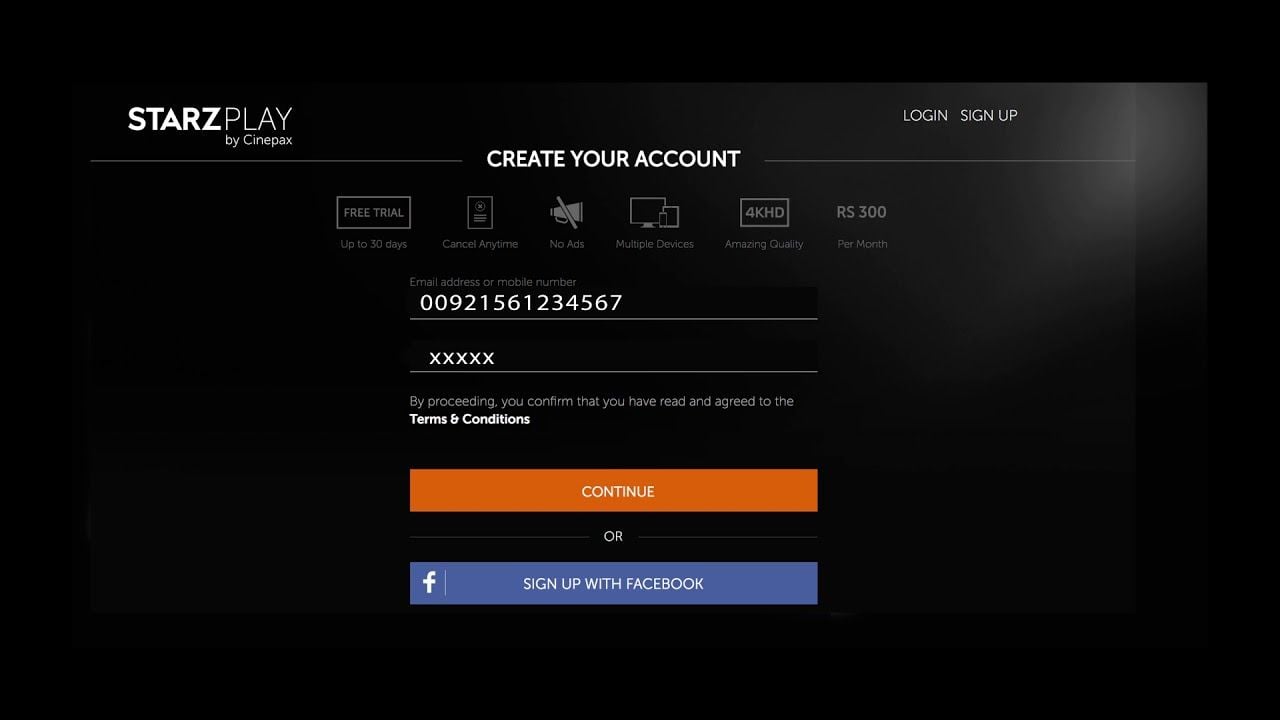
How to Deregister a Device on StarzPlay Step-by-Step
Smart TV operating systems, streaming sticks, and standard mobile apps frequently omit device management menus. Do not waste time hunting through your television's display options.
Follow these steps to clear registered hardware via a web client:
- Open a desktop web browser on a PC or Mac and navigate to
starzplay.com (as noted by du). - Log in using your primary account credentials.
- Click your profile icon or user initials in the top right corner of the interface.
- Select Settings from the drop-down menu.
- Locate the hardware or device management section within your account settings.
- Review the list of active screens, select the inactive or outdated hardware, and confirm deletion.
Once an inactive device is cleared, launch the StarzPlay application on your new screen and complete the sign-in prompt.
Device Limits vs. Simultaneous Stream Limits
A common point of confusion is the distinction between registered devices and concurrent streams. Registering hardware authorizes an application or browser to access your account. Streaming refers to the number of authorized screens actively playing video simultaneously.
| Subscription / Plan Type | Registered Device Ceiling | Concurrent Stream Limit | Source Document |
|---|
| Partner Plan (e.g., du UAE) | Up to 5 compatible devices | Up to 2 simultaneous streams | du.ae FAQ |
| Global Prepaid Voucher | Up to 4 registered devices | Up to 4 screens (HD / 4K UHD) | BitTopup Product Catalog |
| STARZ US Platform | Profile-based (5 profiles) | Up to 4 simultaneous streams | Starz CSR FAQ |
If you have four registered screens but your plan only allows two concurrent streams, launching a third stream causes an immediate error—even though your hardware list has open registration room.
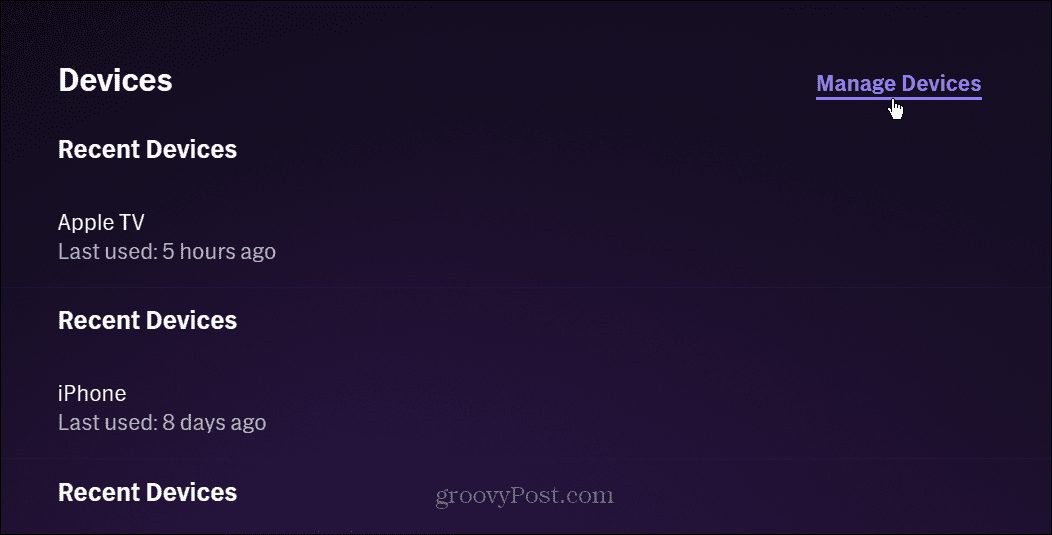
Deleting Profiles Does Not Revoke Device Access
Many users attempt to clear their hardware list by wiping viewing profiles. On the US sister platform STARZ, a subscription supports up to 5 user profiles managed under starz.com via Profiles > Edit, according to the Starz CSR FAQ. However, official support notes confirm that editing or deleting a viewing profile does not log out an authorized device or revoke its access token.
Profiles merely isolate watch history, watchlists, and age ratings. If an ex-roommate, guest, or old tablet is signed into a deleted profile, the hardware remains registered to your primary account subscription until removed through device settings.
Fixing the Exceeded Maximum Streams Error
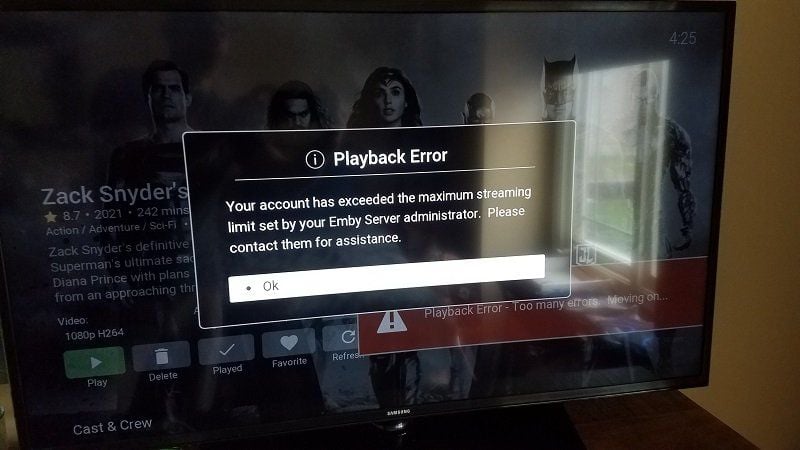
Sometimes an error banner appears stating you have exceeded your stream limit even when no other screens are running video. This scenario occurs when an active stream was terminated improperly, leaving an orphan session running on the content delivery network.
Support diagnostics documented by MakeUseOf detail the recovery sequence for clearing ghost sessions:
- Force-close the StarzPlay application on all active phones, tablets, or smart TVs.
- Do not attempt an immediate re-login.
- Wait a minimum of 10 minutes to allow server-side background playback tokens to expire.
- Relaunch the application and test playback on your primary screen.
If the error persists after 10 minutes, another device on your account is actively running content in the background.
The Absence of a Universal Remote Sign-Out Button
Unlike platforms that offer a single button to sign out of every screen at once, STARZ-based platforms lack a universal global sign-out mechanism. The official Starz CSR Documentation confirms that the domestic service provides no feature to remotely log out of all devices simultaneously.
Because of this constraint, device management must be handled individually within account settings. If you suspect unauthorized access from a device you cannot physically access or locate on your dashboard, change your account password to invalidate session tokens across external clients.
If you find your current voucher or provider tier restricts you to fewer screens than your household requires, review the device specifications on a StarzPlay Subscription (Global) pass, which confirms support for up to 4 registered hardware connections across 1-Month to 12-Month terms.