To prevent unauthorized spending of your redeemed Apple Gift Card credit, turn off in-app purchases through iOS Screen Time via Settings > Screen Time > Content & Privacy Restrictions > iTunes & App Store Purchases > In-app Purchases > Don't Allow, and enforce strict authentication by selecting Always Require under Settings > [Your Name] > Media & Purchases > Password Settings. Once a 16-digit voucher is redeemed, the credit binds permanently to your Apple Account and is consumed first before charging backup payment methods, making device-level restrictions the only barrier against unintended drainage.
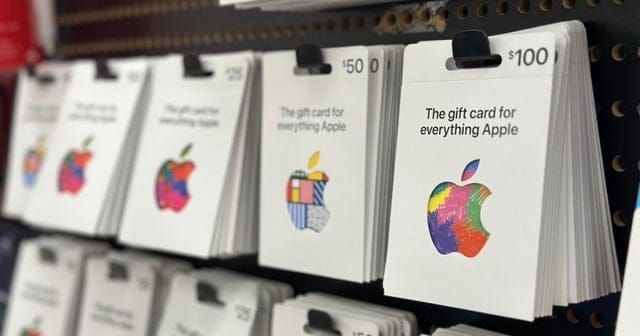
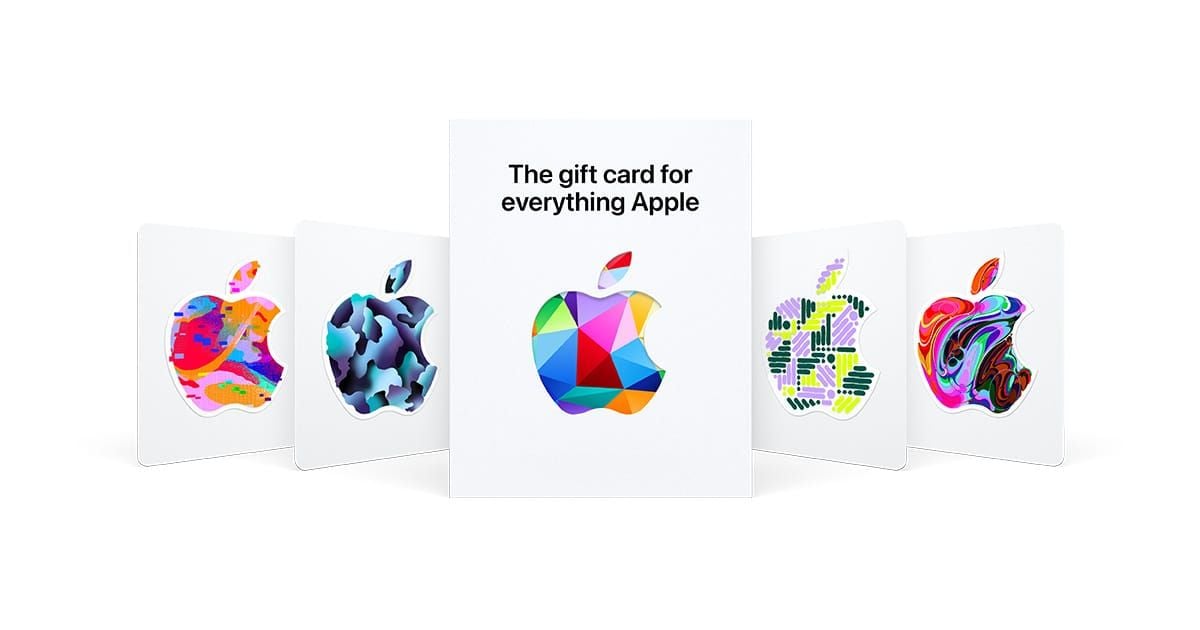
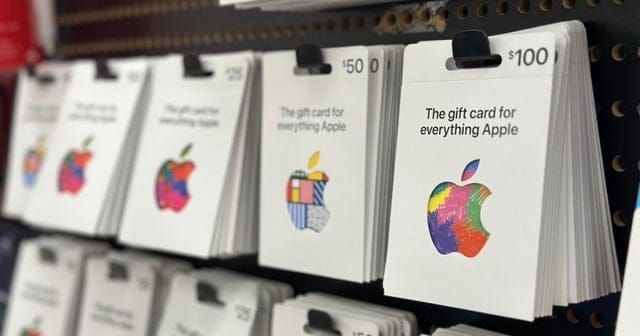
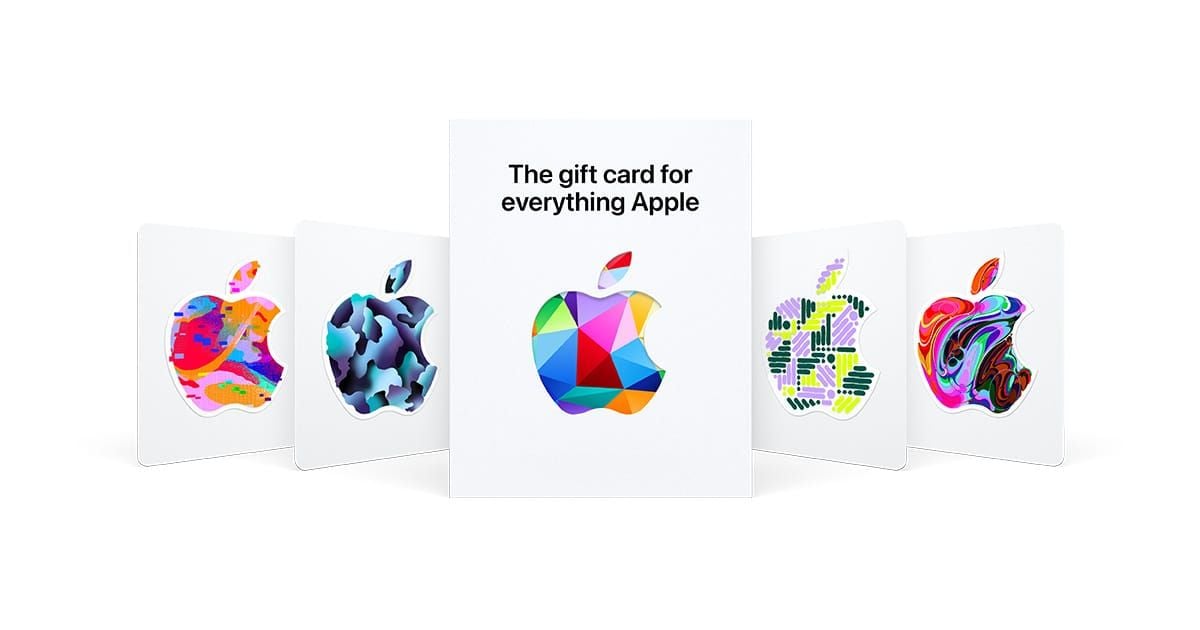
An Apple Gift Card (US) is a universal digital voucher designed specifically for Apple Accounts set to the United States region that loads funds into an Apple Account balance to purchase apps, games, in-app purchases, digital subscriptions, media, and hardware on official Apple storefronts. Because the balance acts as liquid store credit rather than an interactive game mechanic, physical keybinds or controller mappings do not apply. Securing your funds requires configuring operating system spending controls, password prompt timers, and family permissions.
Core Purchase Control Methods on iOS
Apple provides distinct layers of spending friction depending on whether you share a physical device with a child or manage multiple accounts remotely.
| Control Objective | Configuration Path | Image | Documentation Reference |
|---|---|---|---|
| Block In-App Purchases Completely | Settings > Screen Time > Content & Privacy Restrictions > iTunes & App Store Purchases > In-app Purchases > Don't Allow | 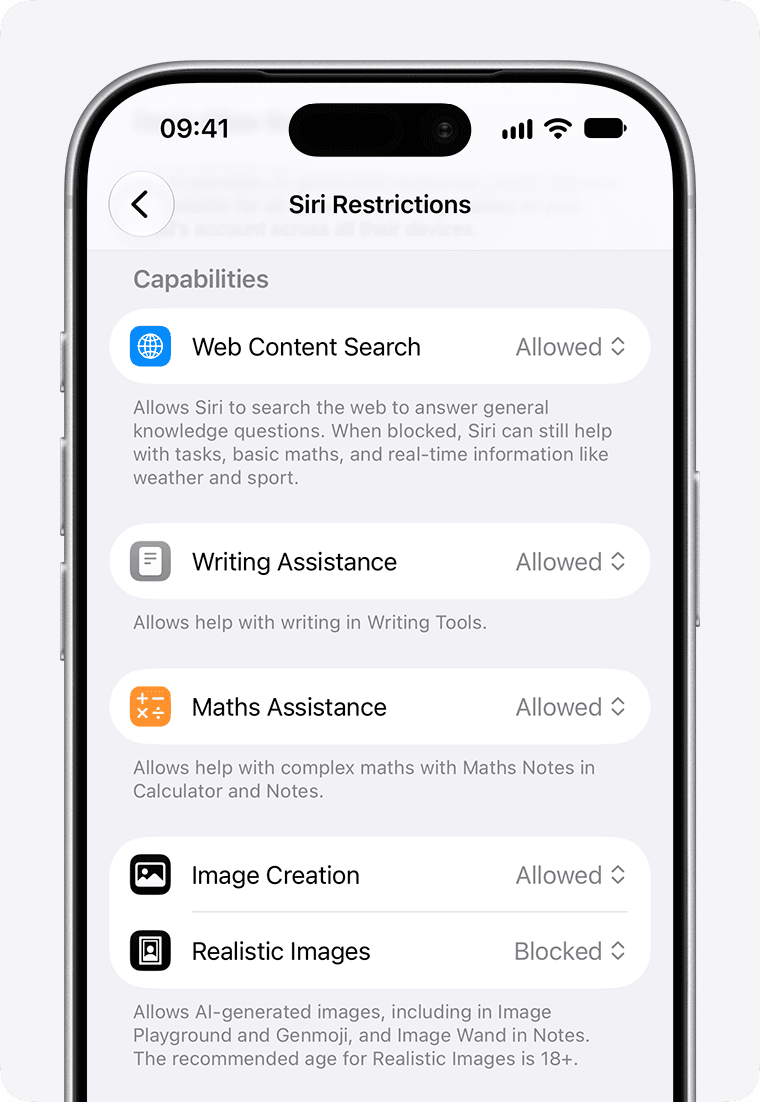 | OSXDaily Guide |
Selecting the right control depends on how the device is handled day to day. If children play games on your personal iPhone, shutting off in-app purchases via Screen Time provides complete defense. If you only want to eliminate accidental one-tap spending while preserving the ability to buy games yourself, biometric prompts or 0-minute password buffers are better options.
How to Block In-App Purchases via Screen Time
When a child or guest plays games on your device, accidental microtransactions inside freemium titles can deplete an account balance rapidly. Documented by OSXDaily, iOS allows users to disable in-app purchases entirely through the Screen Time architecture.
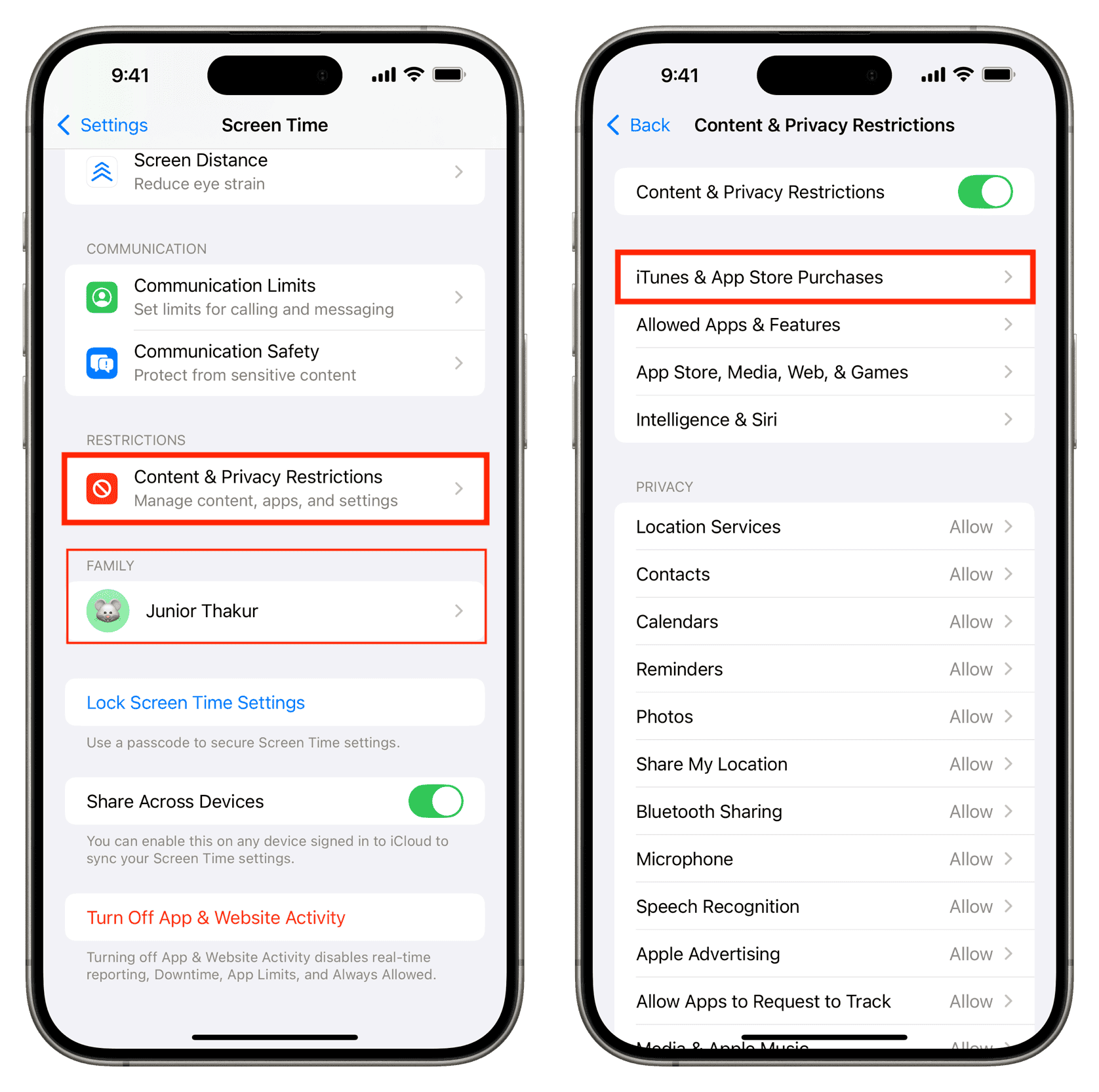
- Open the Settings app on your iPhone.
- Tap Screen Time.
- Tap Content & Privacy Restrictions and toggle the feature on if it is disabled.
- Select iTunes & App Store Purchases.
- Tap In-app Purchases under the Store Purchases & Redownloads heading.
- Select Don't Allow.
- Return to the main Screen Time screen and select Lock Screen Time Settings to assign a dedicated Screen Time passcode.
Setting a standalone Screen Time passcode is necessary. If the device uses the general lock-screen passcode for Screen Time, anyone who knows how to unlock your phone can revert the spending settings. When "Don't Allow" is active, any attempt to purchase virtual currency or upgrades triggers an operating system error blocking the transaction. Existing apps, game progress, and pre-existing subscriptions remain completely unaffected.
Configuring Media & Purchases Password Prompts
If you prefer to keep in-app purchases enabled but want to eliminate the risk of background billing or unattended taps, configure your Apple Account password requirements.
- Always Require: Every single purchase or download attempt demands your Apple Account password, even if you just completed another transaction moments earlier.
- Require After 15 Minutes: Entering your password opens a 15-minute window during which subsequent purchases occur immediately without prompting for credentials.
The 15-minute window is a frequent culprit when gift card balances disappear unexpectedly. Setting this toggle to "Always Require" closes that exposure window.
The Hidden Password Settings Submenu
A common issue occurs when users open Settings > [Your Name] > Media & Purchases and find that Password Settings is missing. This occurs by design.
If Face ID or Touch ID is active for App Store transactions, iOS hides the manual password timer menu entirely. Under biometric authentication, Apple requires a Face ID scan or fingerprint verification on every download by default, rendering the 15-minute manual password window irrelevant.
If you prefer manual text passwords instead of biometric scanning, navigate to Settings > Face ID & Passcode (or Touch ID & Passcode), enter your device lock code, and toggle off iTunes & App Store. Returning to Media & Purchases will reveal the Password Settings menu, allowing you to select Always Require.
Setting Up Remote Ask to Buy in Family Sharing
For households managing multiple Apple devices across Family Sharing, the family organizer can manage spending remotely. Enabling "Ask to Buy" ensures that any purchase attempt initiated on a dependent's device routes a push notification to the organizer or designated parent/guardian for review.
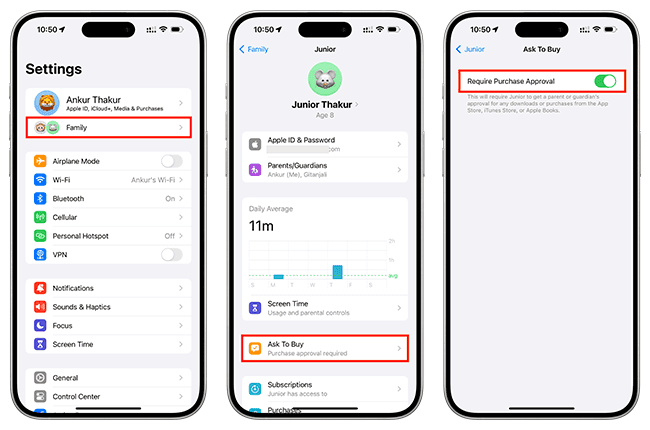
Menu locations for purchase controls differ across iOS releases:
Enter your Screen Time passcode when prompted. - Earlier iOS Versions: Go to Settings > Family > [Child's Name] > Ask to Buy (or via Settings > [Your Name] > Family Sharing).
When Ask to Buy is active, transactions cannot execute against the Apple Account balance unless the parent approves the item via notification on their own hardware.
| Setting Type | Primary Device Affected | Authorization Method | Reversal Risk Without Master Code |
|---|---|---|---|
| Screen Time In-App Toggle | Host iPhone | System block (Don't Allow) | Zero, if secured with a unique Screen Time passcode |
| Password Settings (Always Require) | Host iPhone | Apple Account Password or Biometrics | Low, requires entry of master Apple Account credentials |
| Ask to Buy (Family Sharing) | Child's iPhone / iPad | Remote push notification to Family Organizer | Zero, child cannot self-authorize spending |
Balance Handling and Regional Rules
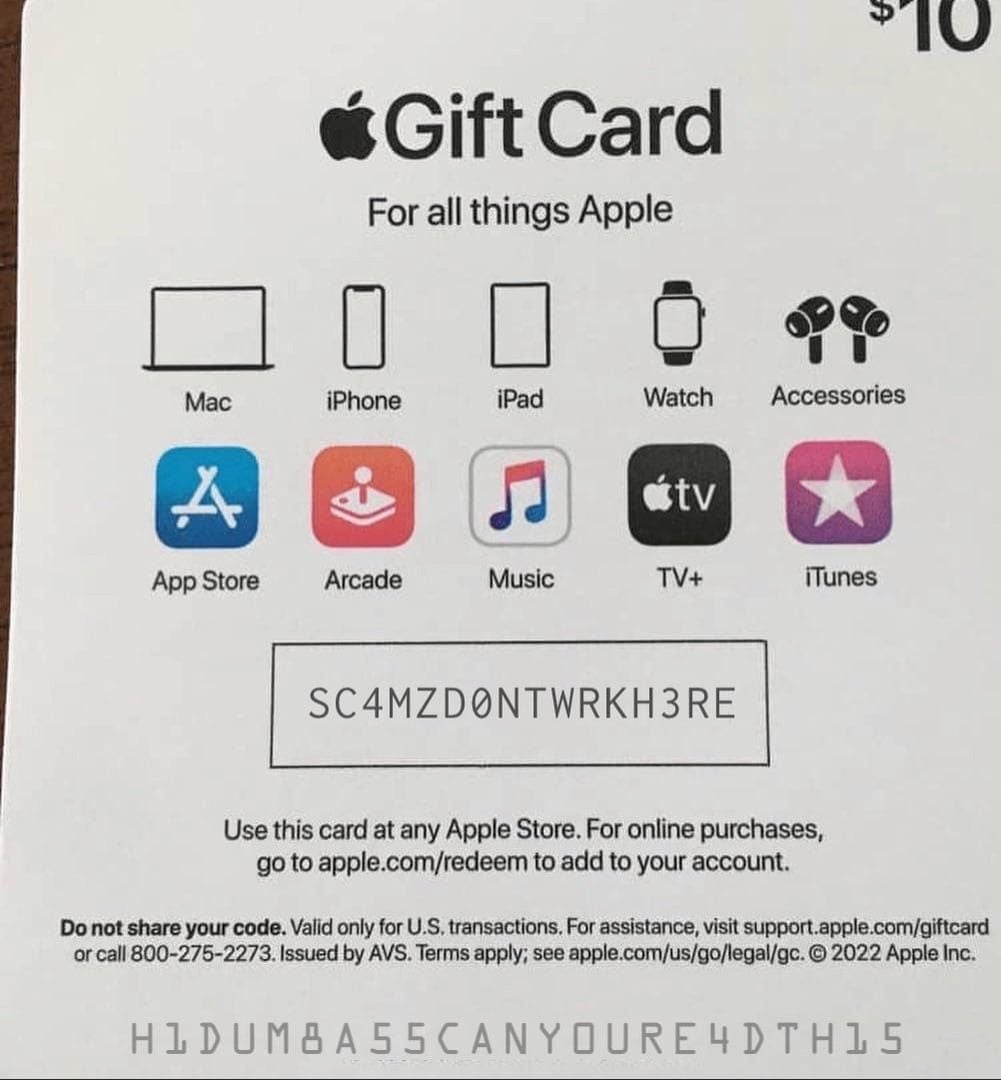
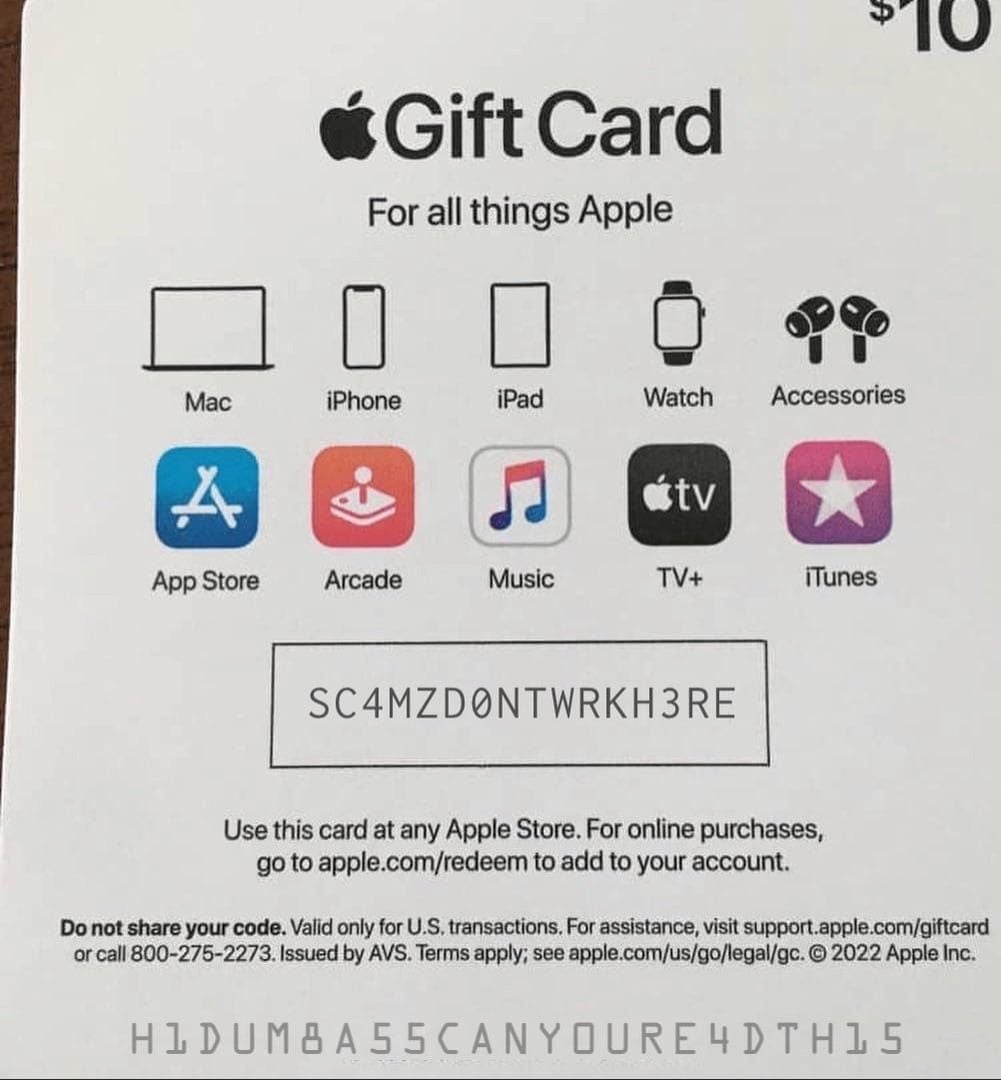
When a 16-digit Apple Gift Card is redeemed, funds transfer directly into the Apple Account balance (BitTopup). Digital balance rules create specific spending behaviors you should account for before applying restrictions.
Priority Deduction
Apple's billing engine automatically charges account balance credit before routing remaining charges to backup debit cards, credit cards, or PayPal accounts. You cannot choose to "save" your gift card balance for a future purchase while charging an active in-app transaction to a credit card. Any authorized transaction will draw from the gift card funds first until the balance reaches zero.
Permanent Account Binding
As verified by MyGiftCardSupply, redeemed gift card funds bind permanently to the submitting account. Apple does not transfer credit balances between separate Apple Accounts or convert them into cash. If you intended to load funds onto a child's account but redeemed the 16-digit voucher on your own device, those funds cannot be transferred. Setting the appropriate purchase controls on the specific account that holds the balance is your only defense against unwanted charges.
Regional Storefront Mismatches
Apple Gift Cards are strictly region-locked. A card denominated in USD requires an Apple ID configured to the United States storefront (BitTopup). If a user attempts to redeem a US voucher onto an account registered in the United Kingdom, Canada, Australia, or the European Union, the App Store rejects the voucher with the error message:
"This code can only be redeemed in the country or region in which it was issued."
If you maintain secondary accounts across multiple regions, ensure your active App Store profile matches the currency region before locking down device restrictions.
| Issue / Condition | Observed Storefront Behavior | Resolution Path |
|---|---|---|
| Cross-Border Voucher Redemption | Returns error: "This code can only be redeemed in the country or region in which it was issued" | Redeem exclusively on an Apple ID set to the United States region (BitTopup) |
| Accidental Multi-Purchase Exposure | 15-minute gap allows repeated charges without prompts | Set Password Settings to "Always Require" or enable Biometric controls |
| Redeemed on Wrong Account | Funds cannot be transferred to family member | Enable Screen Time "Don't Allow" on the host device; account migration is impossible (MyGiftCardSupply) |
Troubleshooting Purchase Control Failures
If spending still occurs after adjusting device settings, work through these diagnostic checks in order.
Check for an unprotected Screen Time Passcode. If you turned off In-app Purchases under Screen Time but did not set an independent passcode, anyone using the phone can navigate back to Content & Privacy Restrictions and toggle the setting back to "Allow". 2. Verify Face ID status for Media & Purchases. If biometric scanning is turned on under Settings > Face ID & Passcode, double-clicking the side button and glancing at the phone authorizes payments instantly. If children hold the device near your face, disabling Face ID for iTunes & App Store forces a typed password instead. 3. Audit Active Subscriptions. Blocking in-app purchases prevents new microtransactions, but active subscriptions continue to renew automatically and draw down gift card balances. Open Settings > [Your Name] > Subscriptions to cancel unwanted recurring commitments. 4. Confirm Family Sharing account hierarchy. If Ask to Buy prompts are not appearing on your parent device, check your child's age configuration and family role. Ask to Buy applies automatically to children under 13, but must be manually verified for older members via Settings > Family > [Child's Name].
Frequently Asked Questions
Why is "Password Settings" missing under Media & Purchases on iPhone?
Password Settings is hidden when Face ID or Touch ID is enabled for purchases.
Can I transfer an Apple Gift Card balance to another family member's Apple Account after redeeming?
No. Once an Apple Gift Card is redeemed, the balance binds permanently to that specific Apple Account and cannot be transferred or converted to cash (MyGiftCardSupply).
Does turning off in-app purchases delete existing apps or active subscriptions?
No. Setting In-app Purchases to "Don't Allow" blocks new in-app spending attempts with an error message, without deleting apps or removing previously purchased content (OSXDaily).