To top up Etheria: Restart outside platform storefronts, enter your numeric Player ID and your assigned regional server cluster (Asia, Europe, or Global) at checkout; no account password or login credentials are required according to BitTopup. If your purchased Hydra Crystals do not appear on your PC or mobile client right away, fully terminate the game from your background applications to force a server connection refresh, inspect your in-game mailbox to collect bundled items manually, and verify that the checkout server matches your active character node.
Locating your Player ID and active server cluster
Etheria: Restart uses a direct identifier called the Player ID (UID) to route premium purchases to your account. You can retrieve this identifier directly from the client on both PC and mobile platforms.
- Launch Etheria: Restart and load into the main lobby.
- Tap the Avatar/Profile Icon in the upper-left corner of the screen.
- Open the profile overview tab.
- Locate the Player ID printed beneath your nickname and character level.
- Select the Copy icon beside the number to store it to your clipboard.
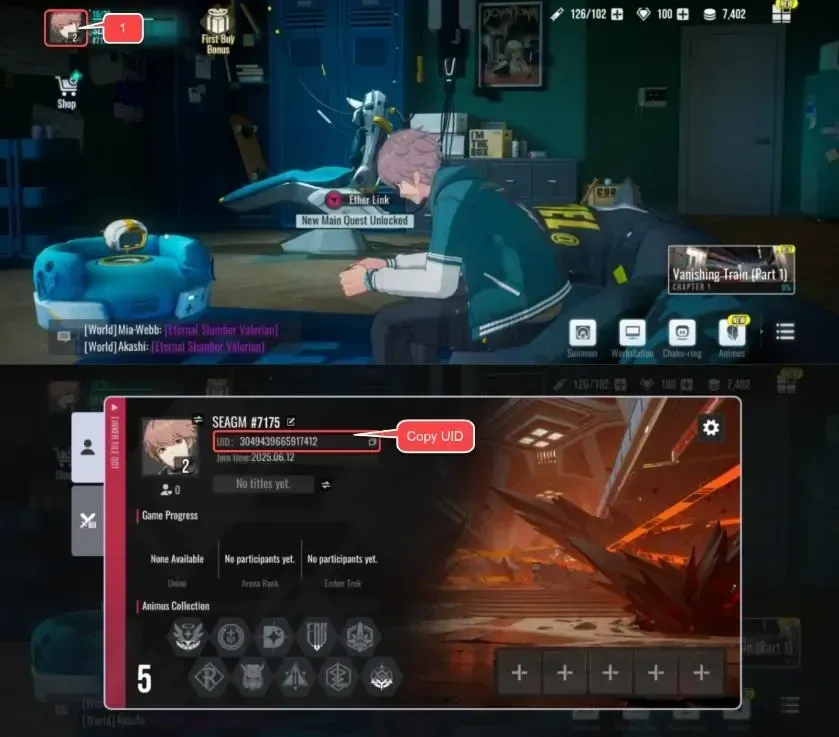
Check your server region on the same overview screen or on the initial doorway title screen before entering the game world. Because Etheria: Restart character data and currency inventories remain strictly server-bound, entering a mismatched cluster prevents the automated fulfillment system from finding your profile, as detailed by BitTopup's delivery instructions.
| Server Cluster | Regional Coverage | Account Routing Requirement |
|---|
| Asia | East Asia, Southeast Asia, Oceania | Required for Asian regional profiles (Source) |
| Europe | Western Europe, Eastern Europe, Middle East | Required for European server profiles (Source) |
| Global | North America, South America, International | Required for international profiles (Source) |
Cross-platform UID recharge workflow
In Etheria: Restart, players assume the role of Hyperlinkers commanding Animus units in turn-based battles. Premium progression runs on Hydra Crystals, which fund banner summons, Monthly Supply Cards, Hyperlink Passes, and stamina refills, while standard Coins handle basic unit and skill leveling (Packsify).
Third-party top-up services use two distinct fulfillment methods. Automated UID delivery platforms require only your Player ID and server selection, crediting orders directly without access to private credentials. By contrast, other providers rely on manual buyer agents logging into user accounts or applying mobile store gift cards through official app stores (Packsify). Sticking to UID recharge avoids sharing account passwords or one-time verification codes.
When ordering through an external Etheria: Restart top up service, select your target pack, paste your copied Player ID, pick your regional server node, and proceed through checkout. Because accounts sync across PC and mobile builds under the same server identity, delivered currency displays on whichever platform you log into next.
Troubleshooting missing or delayed Hydra Crystals
If an order completes but your Hydra Crystal balance does not update, check for local client caching issues, uncollected mailbox attachments, and server routing mismatches.
Force-closing the game client
Background standby states frequently prevent the local game cache from polling updated currency data from the server. Close the Etheria: Restart application completely on your mobile device or exit the PC executable via the task manager. Relaunching the title forces a fresh handshake with game servers and pulls updated wallet balances (BitTopup).
Checking the in-game mailbox
Direct crystal purchases do not always deposit straight into your active balance counter. Certain promotional bundles, subscription items, and packaged rewards route directly to the in-game system mail. Open your mailbox from the lobby interface and verify whether an unclaimed message contains your purchased items as attachments.
Verifying server compatibility
If you play on the Global server but inadvertently selected Asia during checkout, the fulfillment API cannot map the transaction to your character. Character progress cannot transfer across server boundaries. Check your order confirmation receipt against your profile screen to ensure the server strings match identically.
Submitting a ticket through the login screen
When local restarts, mailbox checks, and server audits confirm that currency failed to arrive, official customer service must resolve the transaction on the database side. You can submit an inquiry directly without accessing the lobby, as documented by GamingonPhone.
- Launch Etheria: Restart and stay on the initial login screen.
- Tap the headset icon positioned on the right side of the screen.
- Tap the green headset icon located at the bottom right of the support window.
- Select Contact Customer Service from the menu.
- Choose your specific issue category (such as account or billing issues).
- Enter your transaction details, state your Player ID and server cluster, attach receipts or screenshots, and submit the support ticket.