Lords Mobile error code 11001 flags an interrupted handshake between the game client and your platform's store billing system during checkout. The prompt appears when a pack request stalls before authorization or when store receipt data fails to register on game servers. Resolving it requires checking your store billing history to confirm whether a charge occurred, verifying local device restrictions, resynchronizing your client, or submitting an uncredited payment ticket to IGG using your numeric customer ID.
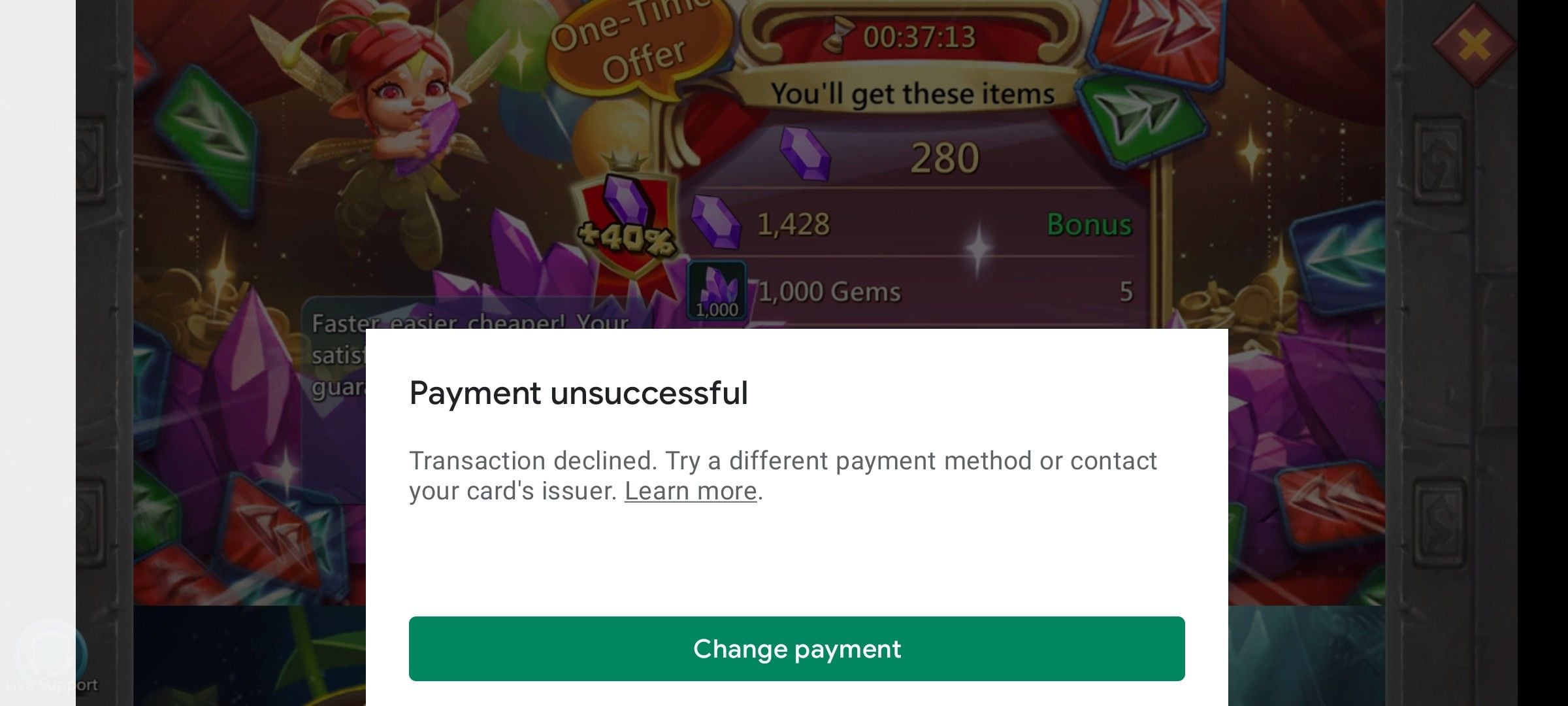
Step 1: Verify Whether Your Account Was Billed
Before re-attempting a transaction or changing settings, determine if the payment processed. An on-screen error does not always mean the charge was rejected by your payment provider.
Checking Google Play on Android
- Open the Google Play Store app.
- Tap your profile icon in the top-right corner.
- Select Payments & subscriptions and open Budget & history (Google Play Help).
- Review the status of the Lords Mobile order. If the entry shows as canceled or does not appear, your card or balance was not charged.
Checking the App Store on iOS
Review your Apple purchase history through your Apple ID account settings. If the transaction was billed without items reaching your inventory, Apple's native in-app restoration tool cannot retrieve them. Consumable in-app purchases, such as game currencies and bundle items, run out upon use and cannot be restored through Apple's standard purchase restoration feature (Apple Support). Any uncredited charges on iOS must be addressed by contacting the developer directly.
Payment deductions accompanied by checkout errors do occur. For example, a player documented a case on January 5, 2025, where an account was debited 35 units for a Diamond Store pack, but an on-screen error alert prevented the pack from crediting (Sikayetvar Report). Checking your official store history first ensures you do not pay twice for the same bundle.
Step 2: Clear Client Sync and Device Time Conflicts
If the store history shows an approved purchase that has not appeared in your bag, or if checkout refuses to initialize, the client session may be desynchronized.
Force a Client Resynchronization
When purchases do not reflect in your account immediately, fully close the Lords Mobile application from your recent apps screen and relaunch it. Relaunching the application forces the client to establish a fresh connection and sync directly with the game server (BitTopup). Pending inventory updates frequently register right after the loading screen finishes.
Align Device Date and Time Settings
Google Play security protocols require precise device clock synchronization to approve billing handshakes. If your phone's clock deviates from network time, checkout tokens fail validation.
- Navigate to your device system settings.
- Locate the Date & Time menu.
- Verify that Set time automatically and Set automatically are toggled on (Google Play Help).
If both automatic settings are already enabled, clock misalignment is eliminated as the cause, and the issue lies in network connectivity or store permission rules.
Step 3: Check In-App Purchase Restrictions and Alternative Clients
Device permissions or corrupted storefront handshakes can block the checkout overlay entirely, triggering error code 11001.
Disable iOS Screen Time Restrictions
Apple devices with Screen Time configurations can silently block checkout requests:
- Open device Settings and tap Screen Time.
- Access Content & Privacy Restrictions.
- Tap iTunes & App Store Purchases.
- If In-app Purchases is set to Don't Allow, change it to Allow (iDownloadBlog Guide).
Keeping in-app purchases blocked causes immediate store rejection when attempting to acquire Diamonds or packs.
Alternative Checkout: The Official IGG Diamond Pack APK
Android players facing persistent Google Play handshake errors can use IGG's alternative client setup. IGG maintains an official Diamond Pack APK that routes purchases through alternative billing rails rather than standard Play Store processing (IGG Payment). Installing this client requires enabling app installations from unknown sources in your Android security settings. This standalone client allows players to bypass Google Play account conflicts entirely.
Submitting a Missing Order Ticket to IGG
When funds are deducted but a client restart fails to deliver the items, escalate the transaction directly through IGG customer support.
Prepare the following account information before submitting a ticket:
- Your numeric customer ID (IGG ID visible in account settings).
- Your account number or registered email address (IGG Customer Service Information).
- A full screenshot of your Google Play Budget & history receipt or Apple invoice displaying the order number, transaction timestamp, and purchase total.
Open in-game settings, select the Support tab, and submit your billing ticket with these details attached to verify account ownership and locate the stranded transaction.
App Store Billing vs. Direct Diamond Packs
Standard mobile purchases require payment methods linked to Google Play or Apple ID accounts. These channels remain vulnerable to device restrictions, regional currency mismatches, and storefront handshake interruptions.
Lords Mobile Diamonds function as the official in-game alternative currency. Stored on your account, Diamonds allow you to unlock Mall bundles, time-limited event packs, hero chests, and gear materials without pinging mobile app store billing at the moment of acquisition. Diamonds match standard Mall pack pricing at fixed tiers:
- 99 Diamonds unlock a tier 1 Mall bundle.
- 499 Diamonds unlock a tier 2 Mall bundle.
- 9,999 Diamonds unlock a top-tier Mall bundle (BitTopup).
Direct web top-ups credit Diamonds directly to your account using only your numeric User ID. Because web crediting bypasses device-level store frameworks entirely, it eliminates local client errors such as code 11001.
Frequently Asked Questions
Can consumable purchases like Lords Mobile Diamonds be restored via the App Store?
No. Consumable purchases run out upon use and cannot be recovered through Apple's native restore purchases tool. Players charged without receiving items must contact IGG support directly (Apple Support).
How can players check if a failed purchase actually billed their Google Play balance or card?
Open Google Play, tap your profile icon, and open Payments & subscriptions > Budget & history to review whether the charge was posted or canceled (Google Play Help).
What account details are necessary when contacting IGG support for failed transactions?
Players must provide their customer ID (numeric IGG ID), account number, or registered email alongside the official store transaction receipt (IGG Customer Service Information).