To lock your redeemed wallet balance behind a controller PIN, head to Settings > Account > Sign-in, security & passkey, select Create my passkey to program a six-digit code on your controller, and switch your preferences to Ask for my passkey so the Microsoft Store requires authentication before completing any transaction. This barrier stops accidental balance deductions immediately, shielding funds deposited from a digital voucher—such as a 25-character Xbox Live Gift Card (BR)—from unintended checkouts on Xbox Series X|S, Xbox One, or shared living room consoles.
Why Your Redeemed Balance Needs Immediate Checkout Defenses
When you redeem a prepaid voucher, the funds sit live in your Microsoft account wallet. Unlike a physical card that you tuck away in a desk drawer, an active balance in Brazilian Real (BRL) or local currency is instantly available as the default tender on your console.
Here is the catch: digital storefronts prioritize fast transactions. If your profile is configured with instant sign-in and open checkout, any user holding the controller can purchase an add-on, a deluxe edition, or an accidental microtransaction with two taps of the A button. Microsoft does offer recourse through digital refund requests, but standard refund policies require claims to be submitted within 14 days of the purchase date and strictly evaluate playtime.
Prevention beats filing support tickets. Setting up proper passkey checkpoints protects your funds permanently, leaving your balance untouched until you explicitly authorize a cart total.
| Protection Tier | Primary Mechanism | Best Suited For | Visual Reference |
|---|
| Purchase Passkey | 6-digit controller sequence | Solo profiles sharing a console with family (Business Insider) | 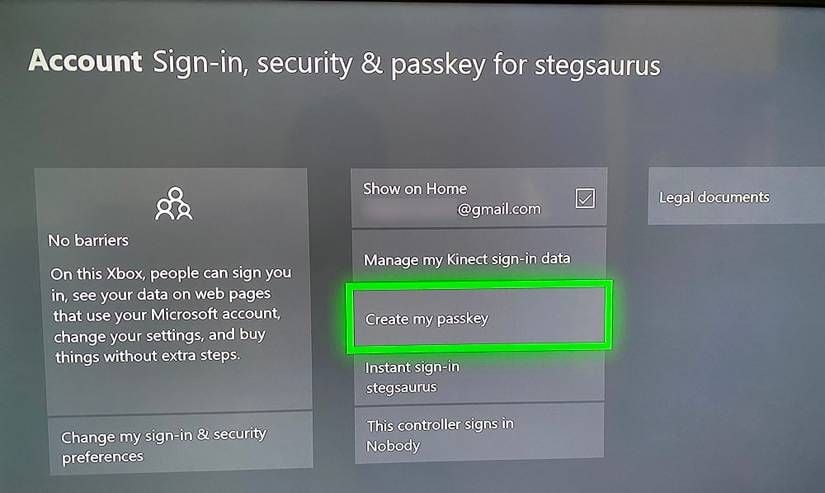 |
| Guest Key | Signed-out restriction code | Shared living-room consoles with multiple household users (IGN) | 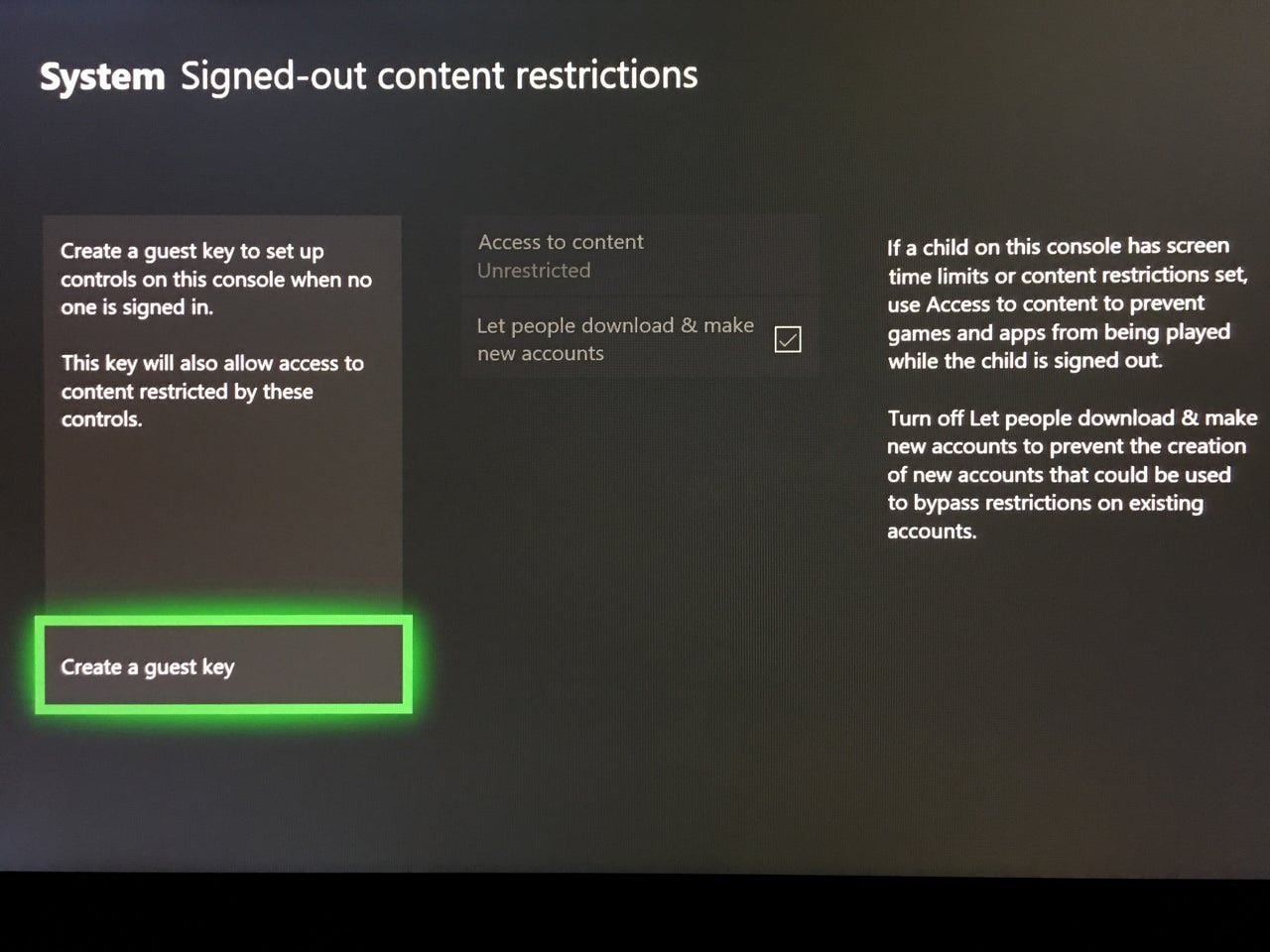 |
| Regional Lock | Account & billing address alignment | Cross-region gift card redemptions (BitTopup) | 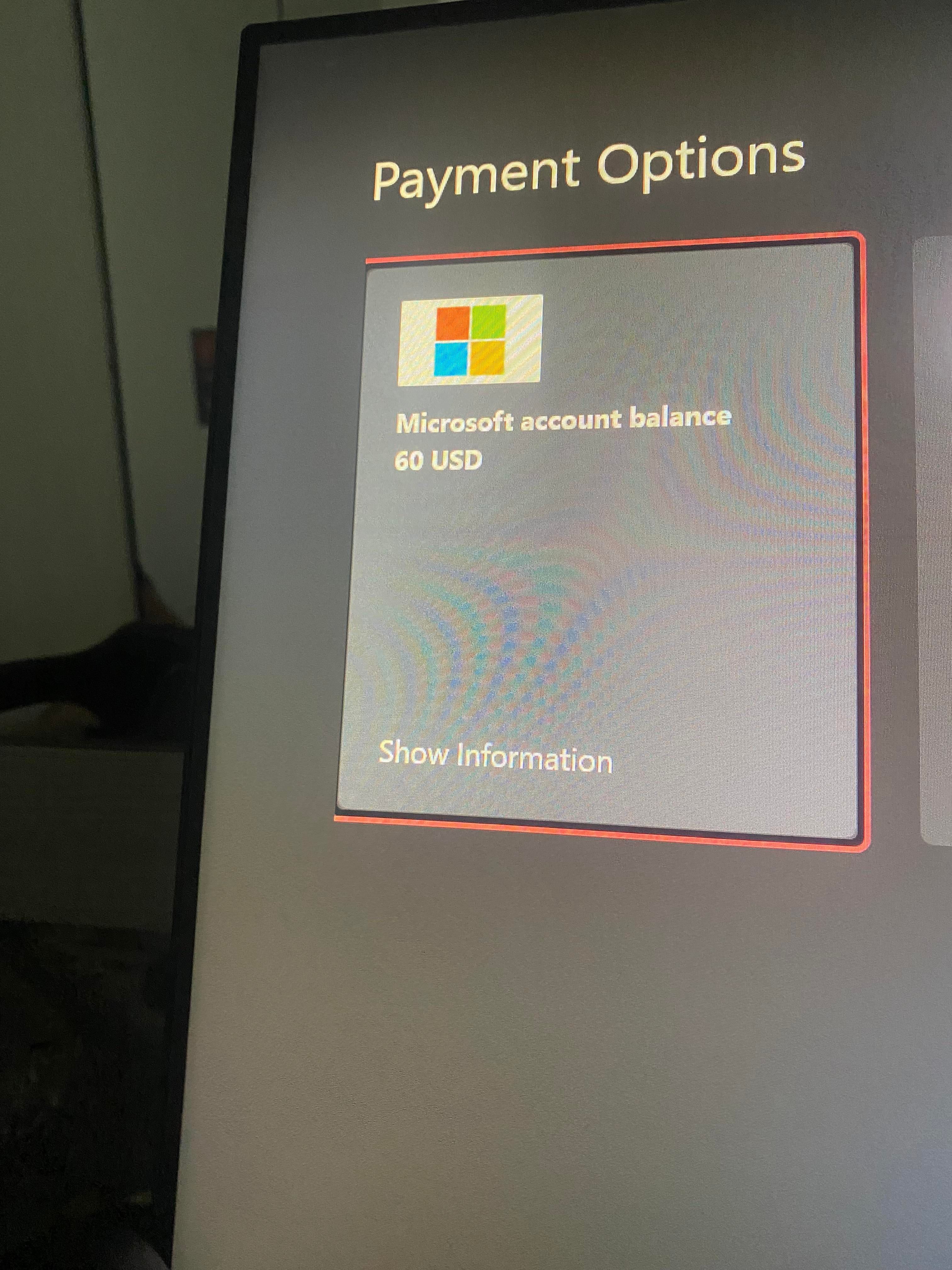 |
Setting Up Xbox Require PIN to Purchase Gift Card Protections
To require a PIN or passkey before spending gift card funds on your console, map a controller-based passkey. This replaces typed alphanumeric passwords with a directional and button sequence you can enter in two seconds, while keeping unauthorized users completely locked out.
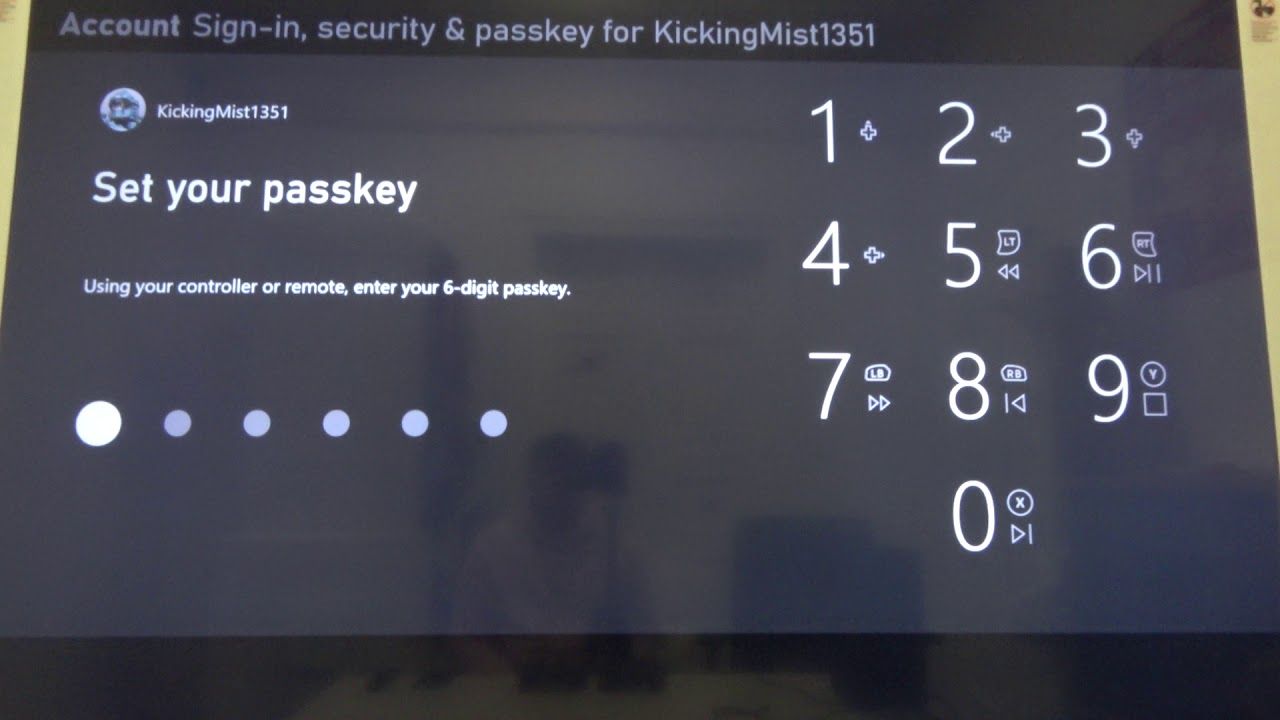
Step-by-Step Passkey Generation
- Press the Xbox button on your controller to summon the guide.
- Scroll to the rightmost tab (Profile & system) and open Settings.
- Under the Account column, select Sign-in, security & passkey.
- Click Create my passkey.
- Use your controller buttons (D-pad directions, triggers, bumpers, and face buttons) to input a custom six-digit sequence as documented by Business Insider.
- Re-enter the exact six-digit sequence to confirm the entry.
Locking Microsoft Store Checkouts Behind Your Code
Creating the passkey is step one. You still have to instruct the console operating system when to demand it.
- While still inside Settings > Account > Sign-in, security & passkey, select Change my sign-in & security preferences.
- Look through the default profiles (such as No barriers or Lock it down).
- Choose Ask for my passkey.
- Verify that the toggle for purchases explicitly states that a passkey is required prior to digital store checkouts.
Once configured, the console will freeze checkout screens on the Microsoft Store until that exact six-digit controller pattern is entered. Your wallet balance cannot be drawn down without that physical verification.
Recommended Xbox Console Passkey Checkout Settings Profile
Different households need different friction levels. If you live alone, high barriers might feel tedious. If you share a console with siblings or children, a permissive profile guarantees drained credit.
Apply this baseline profile first, then adjust depending on who has physical access to your hardware.
- Sign-in Preference: Set to Ask for my passkey.
- Store Purchases: Set to Require passkey.
- Settings Changes: Set to Require passkey.
- Signed-Out Restrictions: Set to Enabled with Guest Key.
When to Deviate from the Baseline Profile
- Dedicated Solo Battlestation: If no one else ever touches your console or controller, you can set sign-in to No barriers, but keep Store Purchases locked behind the passkey. That gives you fast boot times without leaving your BRL wallet exposed to accidental double-clicks.
- Frequent Household Guests: If friends regularly play couch multiplayer on your machine, activate Signed-Out Content Restrictions. Without this, someone can simply sign out of your profile to bypass individual account restrictions and browse unauthenticated stores.
Stopping Profile Bypasses with Signed-Out Restrictions
A common security flaw on Xbox consoles happens when an account has airtight security, but the console itself has no guest barriers. Anyone can log out of your profile and make changes or interact with content anonymously.
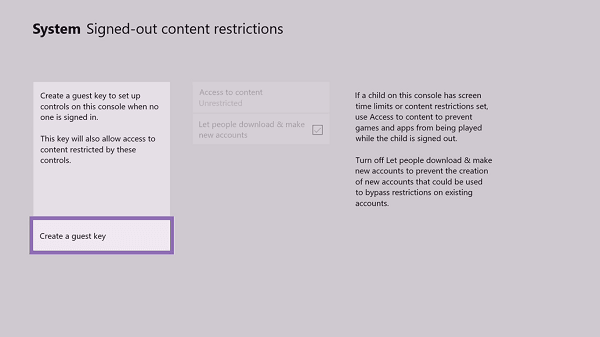
To seal this loophole, head to Settings > System > Signed-Out Content Restrictions as outlined by IGN's security breakdown. From here, select Create a Guest Key. Just like your personal profile passkey, this creates a secondary six-digit controller code for unauthenticated guests.
With a Guest Key active, unauthenticated users cannot bypass parental boundaries, install new titles, or adjust system-level payment parameters when your primary gamertag is signed out.
If you are using regional digital currency like an Xbox Live Gift Card (BR), purchase security is tightly linked to your account's regional setup. Microsoft enforces strict regional matching during both redemption and checkout.
| Specification | Requirement Details | Operational Rule |
|---|
| Voucher Format | 25-character digital alphanumeric code | Applied directly via console or web (BitTopup) |
| Account Region | Must be set to Brazil (BR) | Foreign regions reject voucher redemption (BitTopup) |
| Billing Address | Valid Brazilian address configuration | Must match store region during checkout (BitTopup) |
| Ecosystem Spend | Xbox Series X|S, Xbox One, Windows 10/11 | Shared wallet spend across platform family (BitTopup) |
| Cross-Region Spend | Strictly prohibited | Balance remains locked to the Brazil regional store (BitTopup) |
If your account region and billing address do not match Brazil, redeeming a 25-character BRL voucher triggers an immediate region-mismatch error. You also cannot spend a BRL balance on other regional storefronts. Keeping your security passkey active ensures that once those funds hit your Brazilian wallet, they stay there until an intentional, region-compliant checkout occurs.
Avoiding the 30-Day Security Lockout Trap
When updating your console passkeys and Microsoft account credentials, do not make the mistake of clearing all your historical contact methods at once.
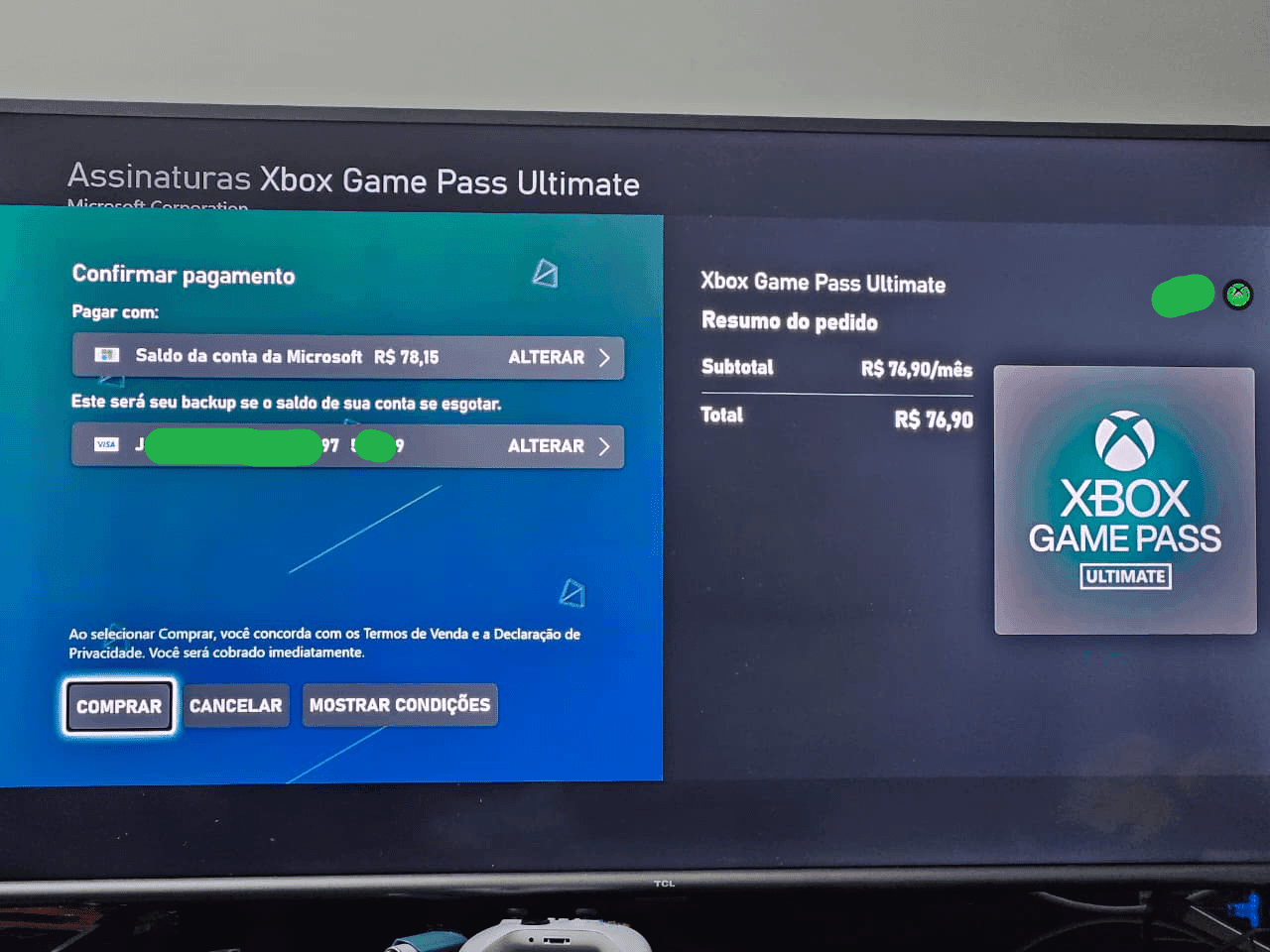
According to official Microsoft security documentation, removing all existing security verification options (such as old backup emails and phone numbers) places the account into an unyielding 30-day restricted state.
During this 30-day lockout window:
- Microsoft will not accept any new additions or edits to security settings.
- You cannot update billing profiles or modify checkout passkey configurations.
- You can still play games and spend existing funds, but administrative control is frozen.
Always add your new authentication path and confirm it is functioning before you remove an obsolete phone number or recovery email address.
Balance Lifespans and Store Refund Limits
Not all wallet funds carry the same lifespan, and recovery windows are tighter than most players realize.
| Policy Type | Timeframe / Limit | Essential Conditions |
|---|
| Retail Gift Card Funds | No expiration | Standard prepaid vouchers maintain balance indefinitely |
| Promotional Credits | 90 days from deposit | Must be spent before 90-day expiration window (Bing Rewards) |
| Accidental Purchase Refunds | 14 calendar days | Requires minimal playtime and prompt submission (Microsoft UK) |
| Security Reset Lockout | 30 calendar days | Occurs when stripping all account recovery info (Microsoft Support) |
Retail cards bought from platforms like BitTopup or Eneba deposit retail balances that never expire. However, if part of your wallet comes from Microsoft Rewards or platform promotional drops, promotional terms enforce a 90-day spend window. If an unverified user bypasses an unsecured console and buys an unwanted game, submit a refund request to Microsoft immediately—the 14-day window closes quickly, and heavy playtime forfeits your eligibility.
Checking Your Xbox Store Notification Settings Gift Card Balance
Configure your system banner alerts so you catch balance changes the second they process.
- Navigate to Settings > Preferences > Notifications.
- Open Xbox notifications and ensure the banner toggles are enabled.
- Check the Store notifications sub-menu to verify that completed transaction notices are set to display on screen.
With these overlay pop-ups active, any checkout attempt immediately pushes a notification across your display, alerting you to changes the moment they process.
Troubleshooting Common Setup Failures
The Store Still Doesn't Ask for a PIN
If you created a passkey but checkouts still complete without asking for it, your sign-in preferences likely defaulted back to a permissive level. Open Settings > Account > Sign-in, security & passkey > Change my sign-in & security preferences and verify that Ask for my passkey is explicitly selected rather than No barriers.
Controller Code Forgotten
If you enter the wrong six-digit sequence three times, the console will prompt you to enter your primary Microsoft account password using the on-screen keyboard. Entering your full master password clears the passkey block, allowing you to establish a new six-digit pattern without losing account access.
Regional Errors on Code Input
If you input your 25-character voucher code and receive a geo-block notification, confirm your account country matches Brazil at account.microsoft.com, and verify that your console location under Settings > System > Language & location is set to Brazil before re-entering the code.
Follow BitTopup for more Xbox Live Gift Card (BR) news~