Step 1: Enter the Public Map
Navigate to the upper-left corner of your screen and select the Public Map.
Once there, find and sit on the floating swing to begin.
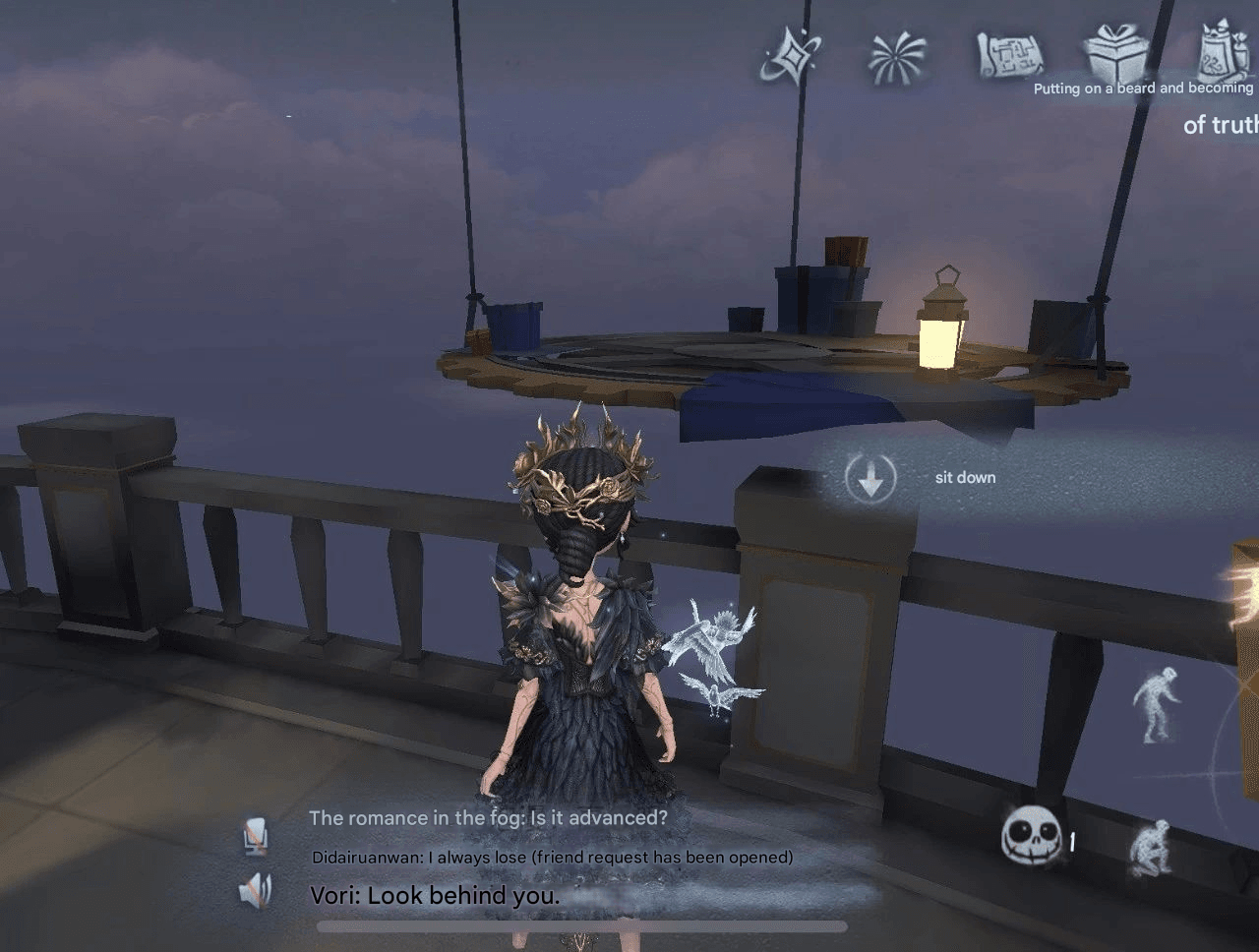

Hey Hunters and Survivors! The Public Map now features a new photo editing mode that allows you to combine multiple photos into a single display. If you're unsure how to create the most authoritative Home photo collage, this guide is for you!
Navigate to the upper-left corner of your screen and select the Public Map.
Once there, find and sit on the floating swing to begin.
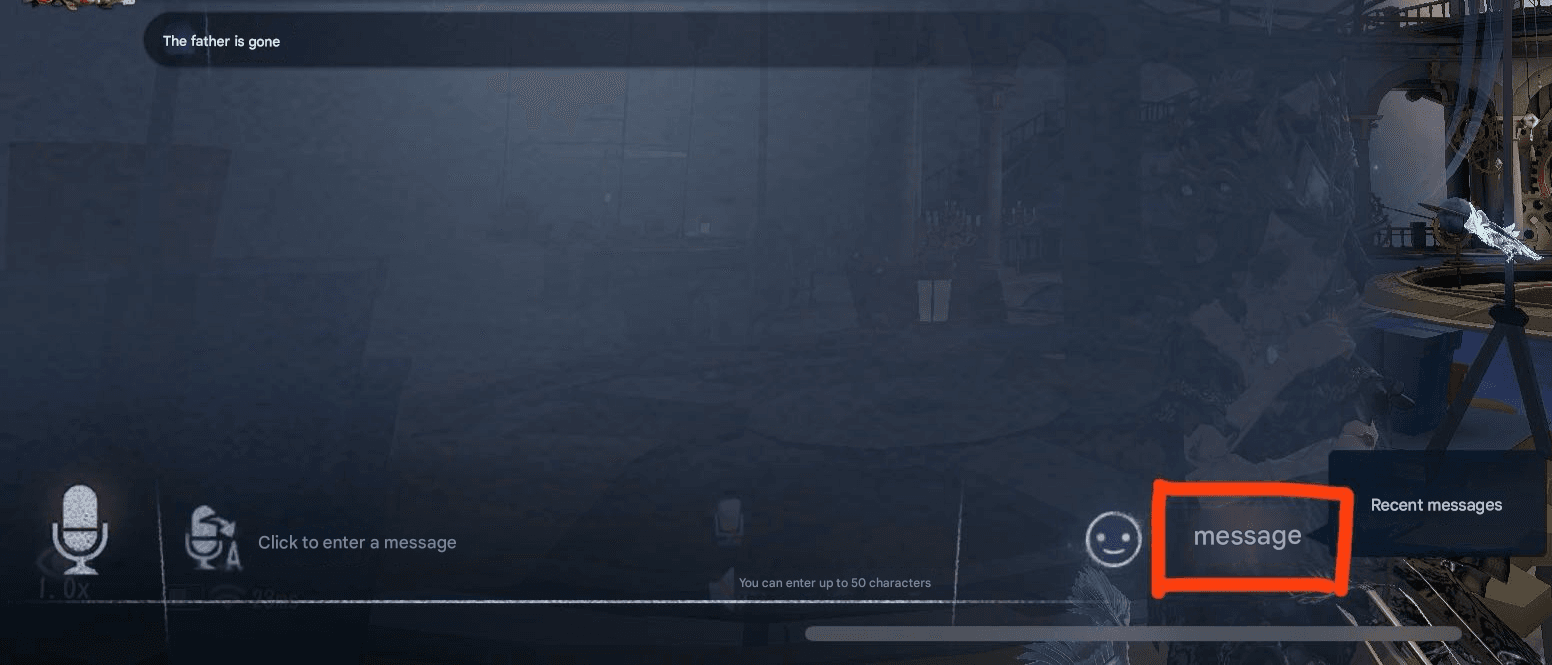
In the Public Map's chat box, type the message you'd like to include in your photo.
Click Leave Message to post it.
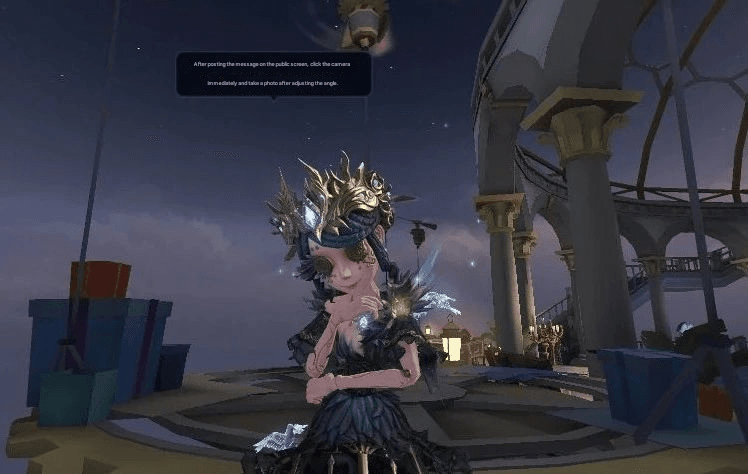
Immediately click the Camera icon on the right side of the screen.
Adjust the angle to frame your character and the message perfectly.
Take the photo to capture both your avatar and the message together.
Repeat Steps 2 and 3 to take a second photo with a different message or pose.
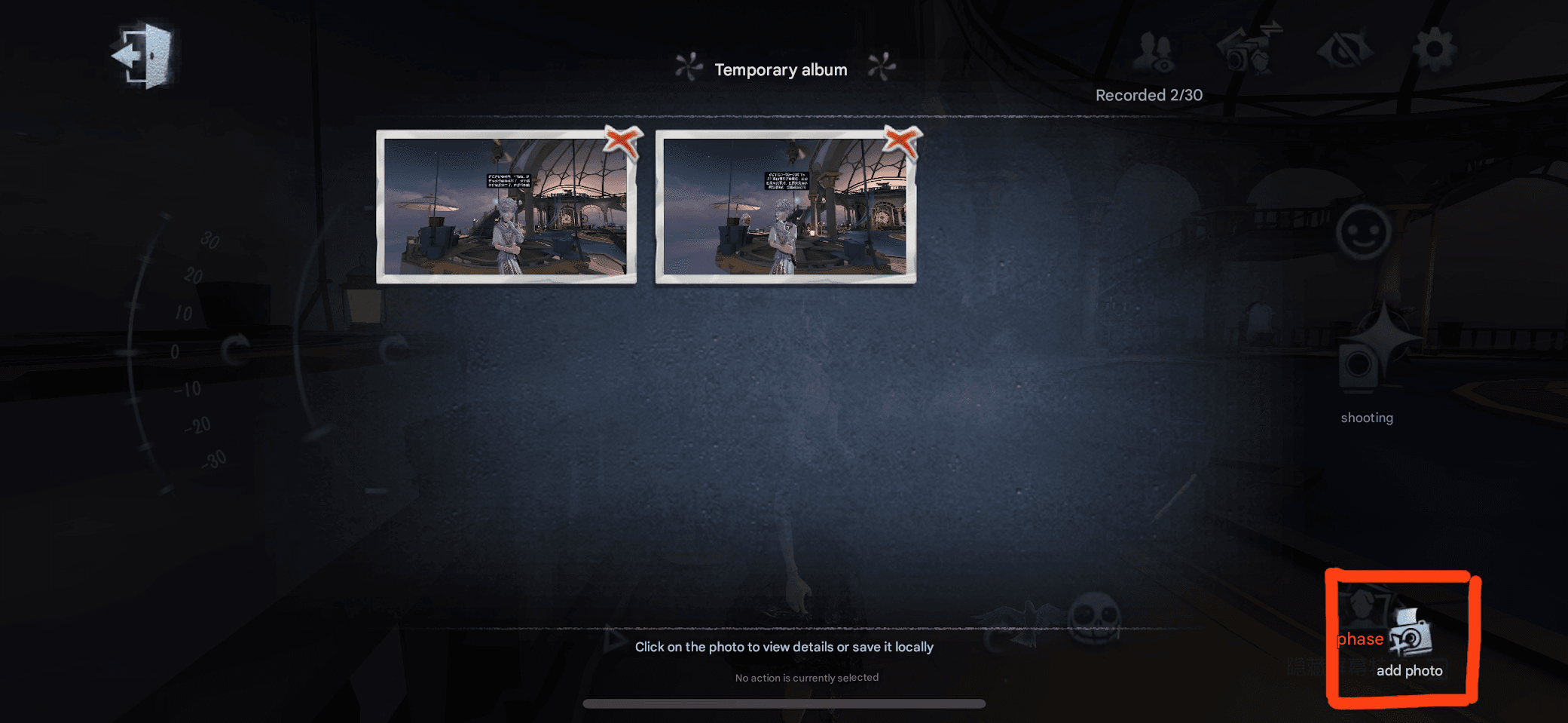
Open the Temporary Album located at the bottom-right corner.
Click the Add Photo button.
Drag and drop the two photos you just took into the blank area to combine them.
Click Next.
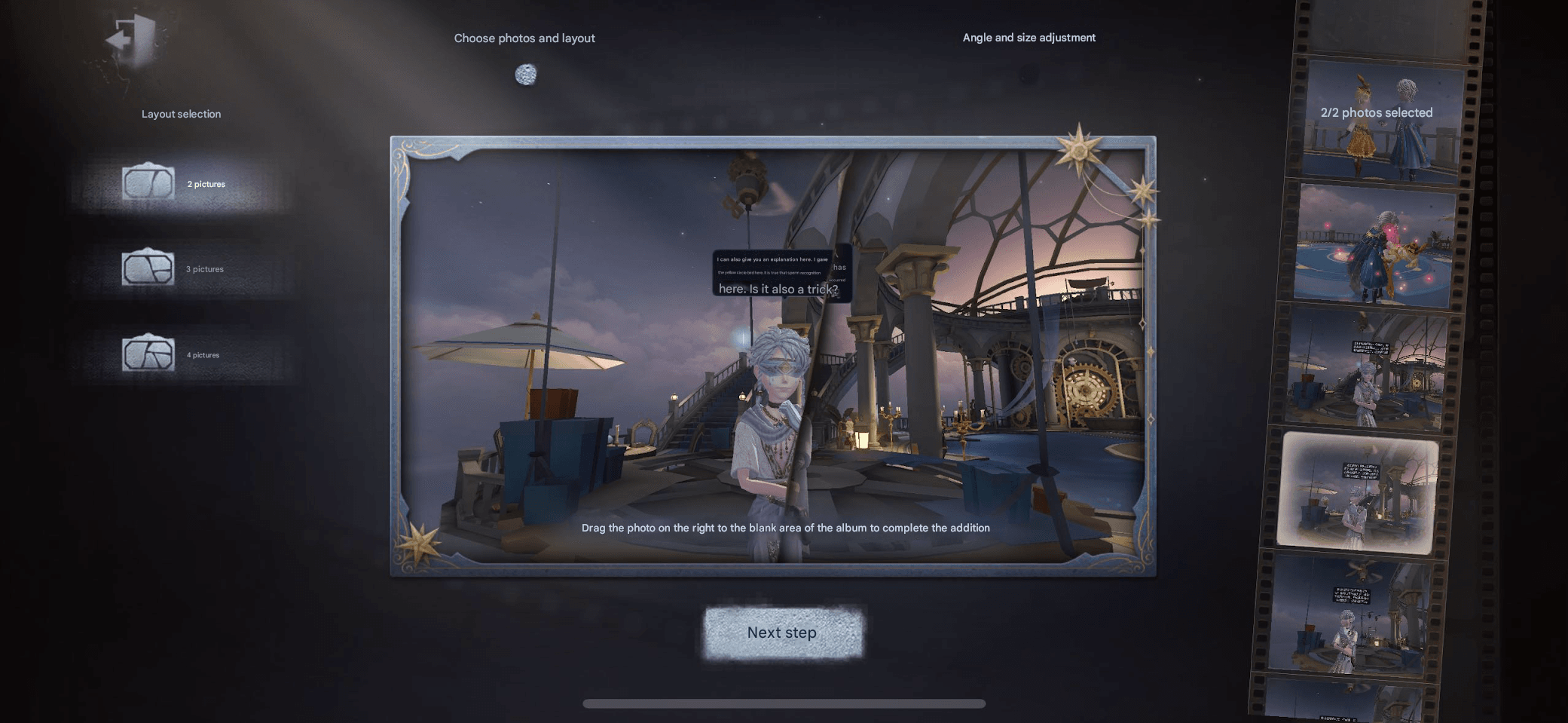
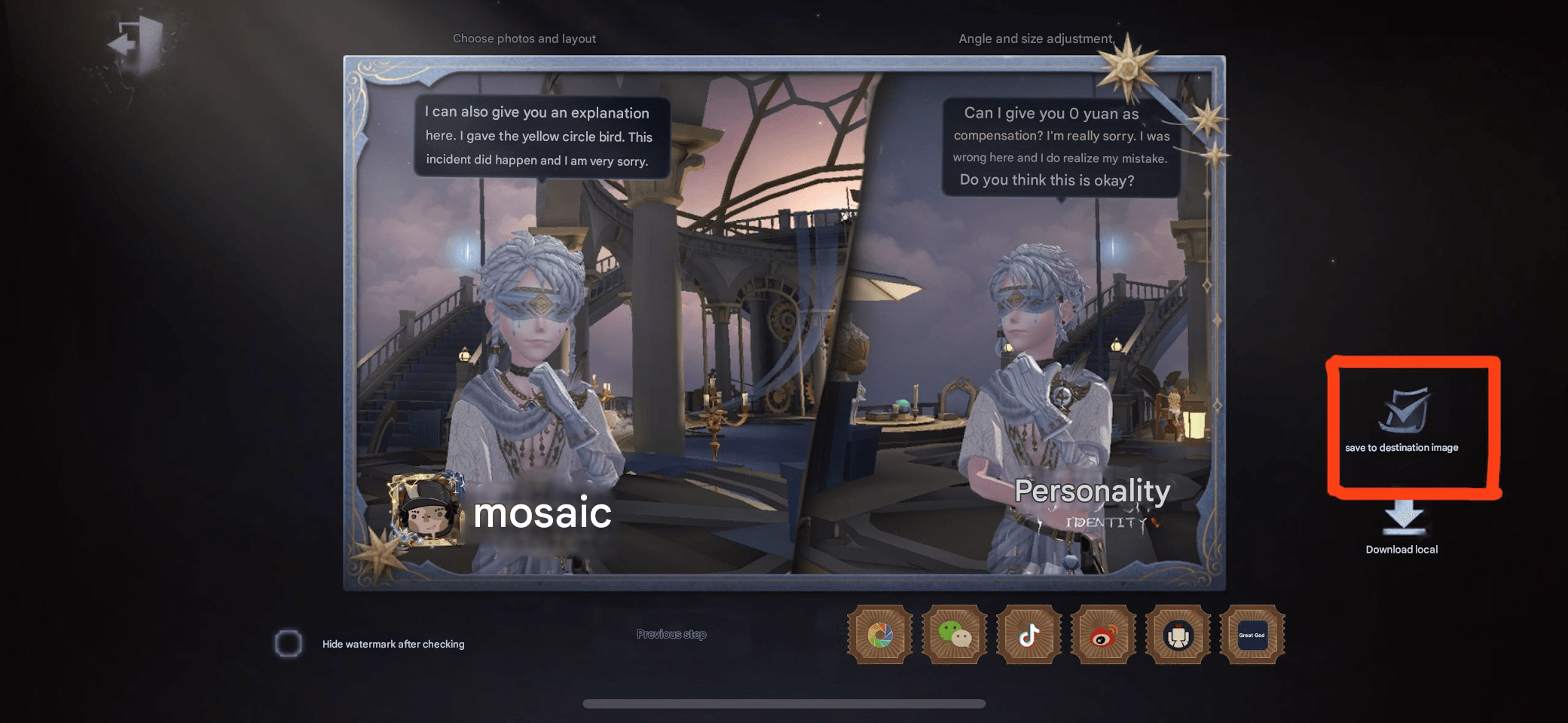
Resize and reposition each photo as desired to create your collage.
Click Save, then Complete and Share.
Select Save to Home Memories to store your collage.
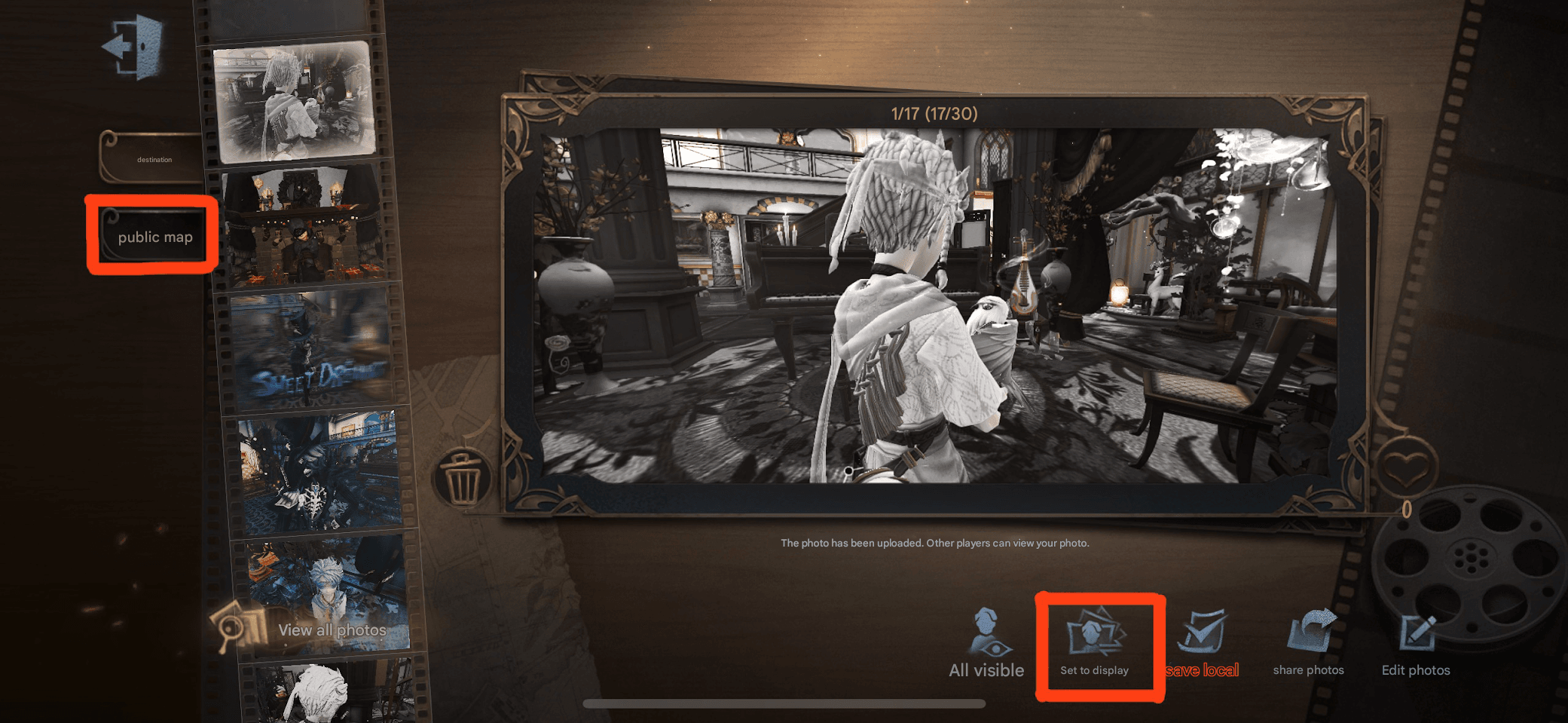
Return to your Home.
Open the Home Memories album.
Choose your new collage and select both Set as Display and Public Map.
Your collage will now be visible as your match display photo!
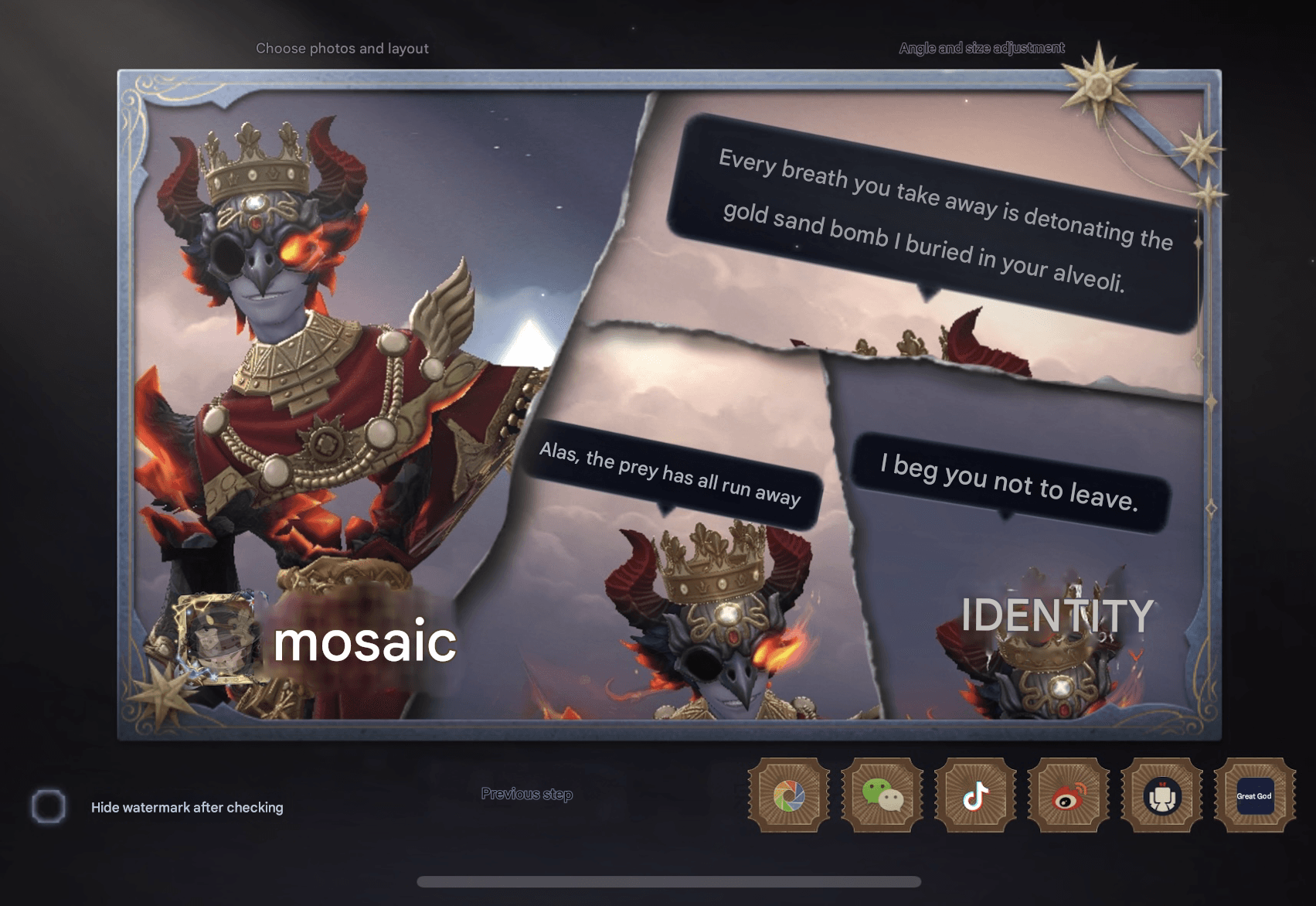
I've also created some other four-photo collages to share with everyone.
Wishing you all the best of luck!



Betaalmethoden