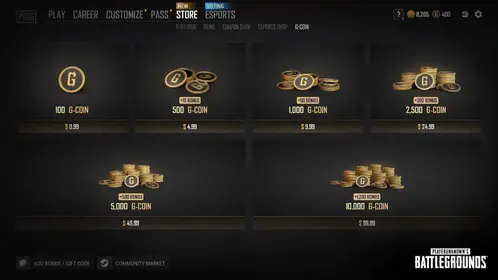
FOV and the default reticle are free. Gold buys a Strike Pass, a second Striker, or a kit. Top up Blood Strike Gold with UID only when you want those.
Blood Strike crosshair and FOV chart (August 2026)
Updated on 2026-08-28: Ranked uses the 60-120 first-person FOV slider. Competitive phones and tablets sit at 100-120 with Associated style. BR TPS (live since 11 August 2026) uses a third-person camera, so copy these numbers only in first-person modes.
Setting | Ranked pick | Drop if the device heats | Why it matters |
|---|
First-person FOV | 120 | 90-100 on a small or hot phone | Wider camera; distant heads shrink |
FOV style | Associated | Independent if ADS feels too wide | Associated keeps side vision while you ADS |
Acceleration | Fixed Speed | Keep Fixed Speed | Cleaner 360 feel after an FOV change |
Global Sensitivity Sync | OFF while you learn | ON after scopes feel even | OFF lets each optic sit on its own number |
Camera (mobile) | 60-80% | 45-65% on tablet | Base turn speed |
Firing | 15-25% below camera | Same ratio | Steadier sprays |
Hip-fire reticle | Small, high-contrast | Leave the default plus | Default white plus fades on bright walls |
Custom ADS crosshair | Green or cyan, small gap | Red or white | Unlocks on weapon mastery; needs an optic |
Motion blur / AA | Off | Leave off | Soft edges hide a thin reticle |
FPS | Extreme | High / Medium | Stable frames beat extra scenery |
Quick locks:
Phone Ranked: FOV 100-120 Associated. Cut Graphics Quality before you cut FOV below 90.
Tablet entry: FOV 120 Associated.
Jump from 90 to 120: raise camera and firing about 10-20%.
PC mouse: keep the same physical 360 after the FOV change. Save the profile in Plan Management.
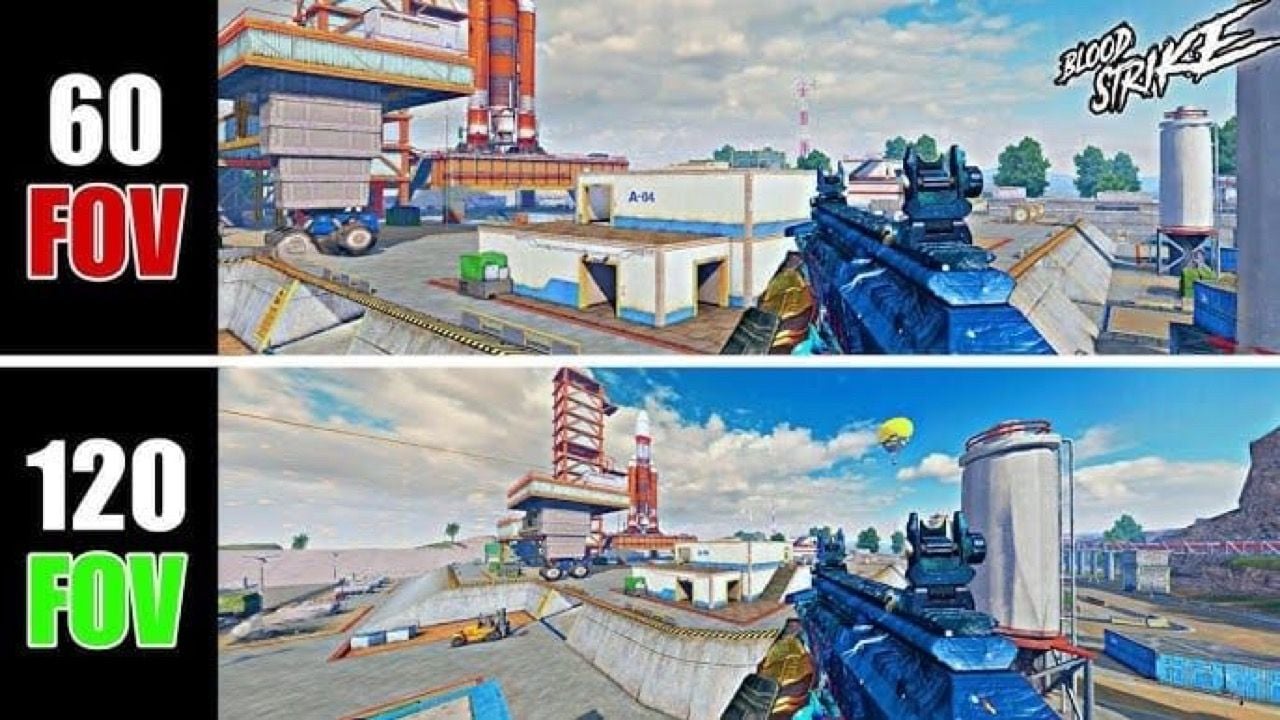
How FOV works in Blood Strike now
Open the lobby gear → Settings → Graphics & Audio. First-person FOV slides from 60 to 120. The slider does not change damage. It changes how much map you see and how small a player looks.
FOV | Who it fits | What you gain | What you lose | Sens after the change |
|---|
60 | Recoil drills, console habits | Targets look huge | Flanks arrive late | Drop camera 10-15% so flicks stop overshooting |
90-100 | Small phones, first week on a new FOV | Heads stay readable | Less side read than 120 | Hold your current sens for 2-3 matches, then nudge 5% |
100-120 | Phone and tablet Ranked | Earlier third parties | Distant heads shrink | Raise camera + firing ~10-20% if tracking feels sticky |
120 Associated | Tablets, aggressive entry | Full peripheral while ADS | Long-range tracking gets harder | Raise 10-20% with Fixed Speed on; more if acceleration is off |
Associated FOV ties ADS width to the slider. Independent zooms harder when you ADS. Ranked default is Associated. Switch to Independent only if 120 ADS feels too wide for your main optic.
The August 2026 BR TPS playlist is a different camera. Use this chart in first-person BR, Squad Fight, TDM, and the range. Recheck the Graphics tab after a TPS session so the first-person slider did not stay at a comfort value you picked for third person.
Client names and download links live on the official Blood Strike site.
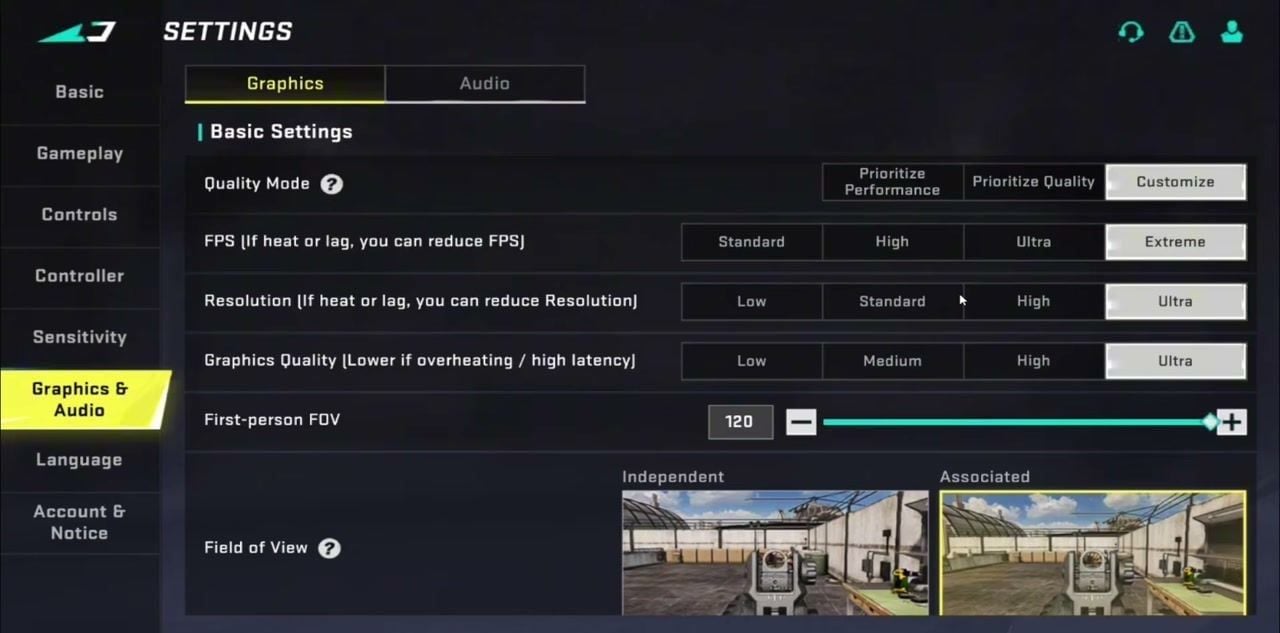
How FOV changes Blood Strike tracking
A higher FOV packs more world into the same screen. The same swipe covers more degrees, so a 90 FOV flick undershoots at 120 until you raise camera and firing together.
Do this after any FOV jump:
Set Acceleration to Fixed Speed on Settings → Sensitivity.
Leave Global Sensitivity Sync OFF until each scope feels even.
Raise camera 10-20% if you moved from 90 toward 120. Raise firing the same percent so the gap stays 15-25% below camera.
Step iron / red-dot near camera. Step 2X-4X down from that. Keep 6X-8X slowest.
Save the set in Plan Management. Phone and tablet need separate plans.
Older notes that treat 120 FOV as a Q4 2025 "coming soon" toggle are stale. The ceiling is live. The September 2025 Global Sensitivity Sync switch is also live. Use it as a helper, not as a reason to paste one number onto all optics.
Full scope ratios sit in the Blood Strike sensitivity guide. Combat, HUD, and audio sit in the July 2026 best settings chart.
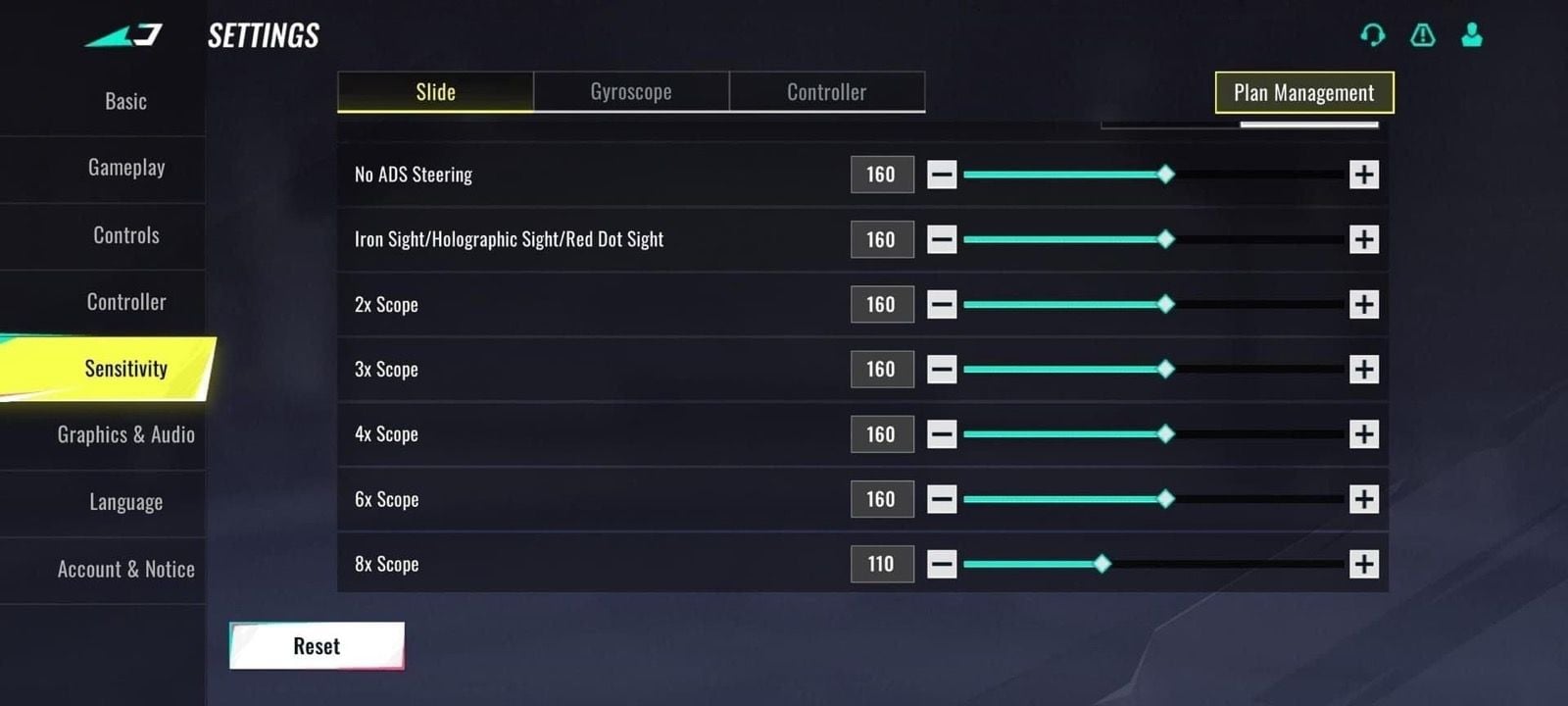
How to set Blood Strike FOV and sensitivity
Open Settings from the lobby gear.
Open Graphics & Audio. Set Quality Mode to Customize, FPS to Extreme, First-person FOV to your row in the chart, FOV style to Associated.
If the phone heats, drop Graphics Quality or Resolution first. Keep FOV at 90 or above until frames fall.
Open Sensitivity. Fixed Speed on. Global Sensitivity Sync off. Apply the camera and firing bump if you raised FOV.
Queue the range or a warm-up BR. Fire 10-round bursts at about 50 m. If the reticle lags a strafe, raise camera and firing a few points. If you overshoot, drop them.
Lock one FOV for a full Ranked session. Switching after each death resets the 360.
Blood Strike crosshair settings that exist in 2026
There is no global Settings → Display → Crosshair page that sets a 2 px hip-fire plus for the whole loadout. The old article path is wrong. You work with two reticles.
Hip-fire. The default plus is a thin white cross. Bright walls, sky, and the Nearby loot window eat it. You cannot treat this like a Valorant editor. Keep HUD noise down so the plus stays visible: Grappling Hook Crosshair Indicator off (Gameplay → Item), Display Weapon Customization off if a skin hides the barrel, motion blur and anti-aliasing off.
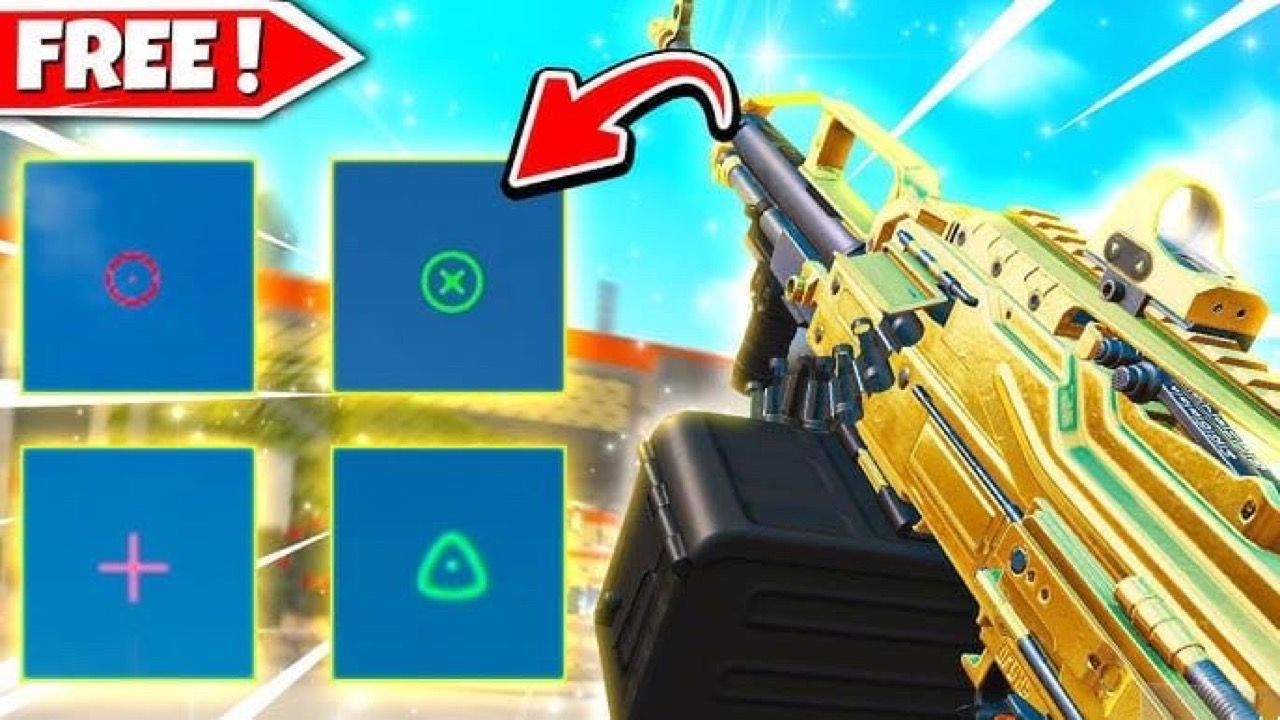
ADS custom crosshair. Weapons that level toward 100 unlock extra reticles on the mastery / achievement track (the first wave hit levels 55, 65, and 80 on guns such as M1887 and PKM; more guns picked up the same track). Equip a reflex or red-dot (Romeo / Romeo3 class). Open that gun's Custom Crosshair slot in the range or loadout. Pick a small green or cyan shape with a tight center. Skip red (health and hit markers) and white (sky, concrete, snow).
Device overlay apps sit outside the client. Skip them.
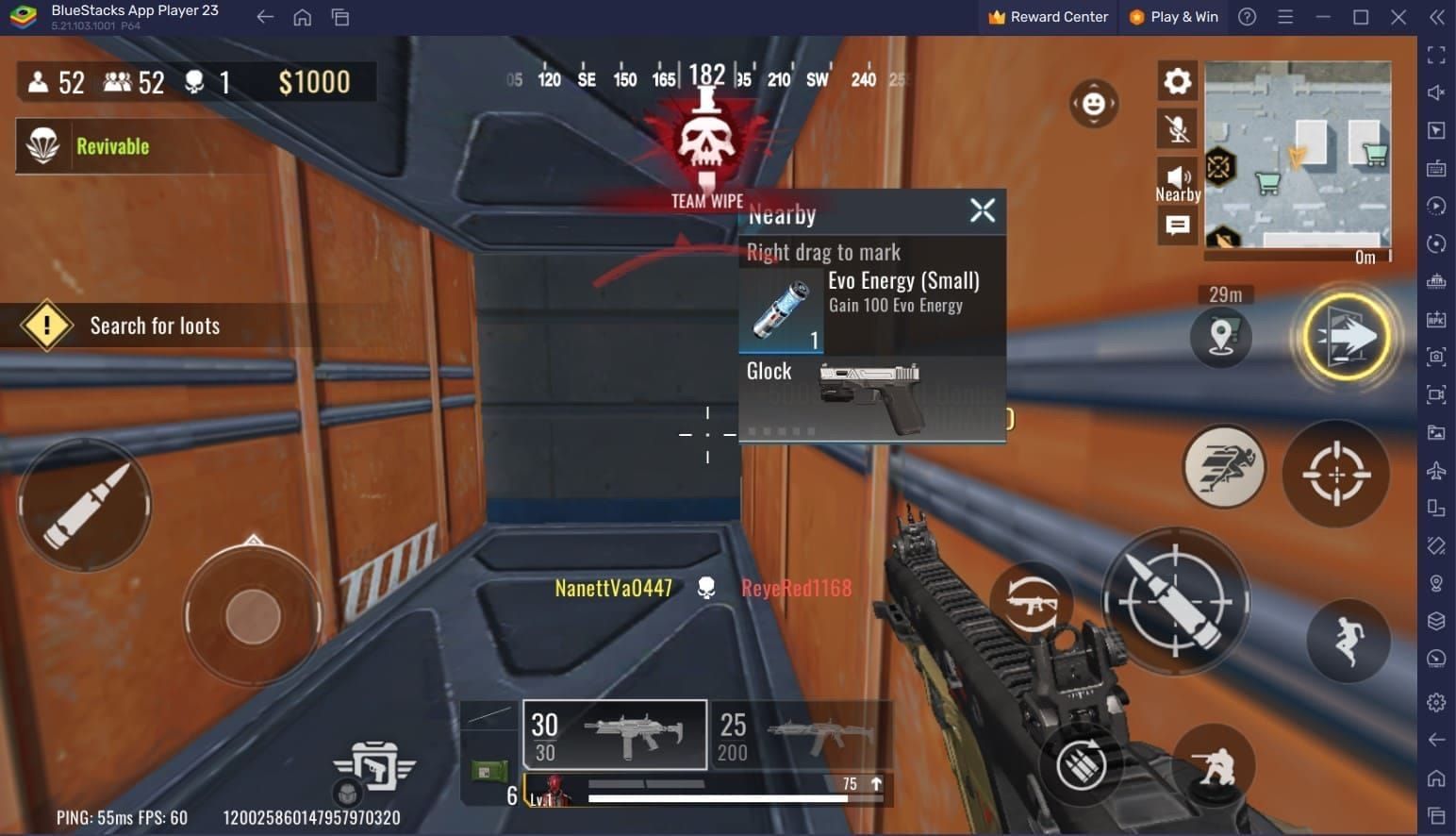
Color, size, and outline once the editor is open
Choice | Use | Avoid |
|---|
Color | Green or cyan | Red, white, blue on sky maps |
Size | Small enough to see a head at 50 m | A circle that covers the torso |
Gap | Tight, center-mass | A hole so wide the head fits inside it |
Outline | Dark / black if the slot exists | Outline blur |
Opacity | Full | Transparent "style" presets |
Center dot | On for AR burst work | Off if an SMG hip-fire already has a busy plus |
Static shapes beat dynamic bloom. A reticle that grows when you fire hides the pixel you are tracking.
Mobile vs PC FOV and crosshair
Platform | FOV start | Crosshair note |
|---|
Phone under 6.5 in | 90-100, then 110-120 if FPS holds | Small green ADS reticle; default plus stays thin |
Phone 6.5 in+ / tablet | 110-120 Associated | Same reticle; lower camera (45-65%) |
PC / emulator | 100-120 | Mouse 360 stays constant after the FOV bump; firing stays 15-25% below camera |
Ultrawide 21:9 / 32:9 | 100-120 | Associated uses the extra width; Independent can feel like a tunnel |
A 75-85 FOV "mobile sweet spot" from older guides fights the current client. Cut shadows and quality before you park FOV under 90. The 60+ FPS low-end setup lists the cut order.
PC firing sensitivity is its own slider. Drop it for AR sprays. Leave camera alone.
Weapon-specific FOV and reticle notes
Class | FOV | Reticle | Sens |
|---|
AR (KAG-6, FAL, SCAR) | 90-100 if you hold mid; 100-120 if you entry | Static green, small gap, center dot on | Firing 15-25% below camera |
SMG (UMP, P90, Bizon) | 110-120 Associated | A larger cyan; hip-fire plus must stay visible | Camera 10-15% above your AR plan |
Sniper | 85-95 while you learn; 100 if you peek a lot | Minimal green for unscoped shots; scope reticle from mastery | ADS 20-30% below camera |
You do not need a new FOV per gun. Change the optic reticle and the firing slider. Keep one first-person FOV for the session.
How to test the setup
Lock one gun. SCAR or KAG-6 10-round bursts at 50 m. Aim for a tight group, not a new FOV after each burst.
Change one thing per session: FOV, or camera, or reticle color.
Time first-shot hits in the range for 10 minutes. Write the FOV number and the camera number.
Play 10 Ranked or TDM matches on that pair. If you lose track on strafes, raise camera 5%. If you overflick, drop 5%.
Revisit after a hardware swap, a new main gun, or a patch that renames Graphics toggles. A bad lobby is not a reason to move FOV.
Fight-selection habits sit in the Blood Strike beginner mistakes list. Fix those before you chase a new reticle.
Common mistakes
Max FOV with last week's sens. Heads shrink. The swipe that used to stop on the chest now stops on the hip. Raise camera and firing before you drop FOV again.
Red or white reticles. Red sits on health and hit markers. White sits on sky and concrete.
A new crosshair after each death. Muscle memory needs 50-100 matches on one shape.
Gold for "premium FOV." The slider is already in Graphics & Audio. Spend Gold on the Elite Strike Pass or a Striker. See the Blood Strike Gold spending guide.
How to get more from this setup
Save phone and tablet plans separately.
Turn device Game Mode on. Stay on 5 GHz Wi-Fi. Keep the phone under about 40°C so Extreme FPS holds.
Music 0, SFX 100. Footsteps replace some of the peripheral you lose at 90 FOV.
Top up Blood Strike Gold when you want the pass or a kit. UID and server only.
FAQ
What is the best Blood Strike crosshair color in 2026?
Green or cyan. They stay visible on most maps and stay off the red damage UI.
How does FOV affect aiming in Blood Strike?
Higher FOV makes players look smaller and shows more of the map. Move from 90 to 120 and raise camera plus firing about 10-20% with Fixed Speed on.
Should I use a dynamic or static crosshair in Blood Strike?
Static. A bloom reticle hides the pixel you are tracking during a spray.
What FOV do competitive Blood Strike players use?
Phones and tablets: 100-120 Associated. Small or hot phones: 90-100. PC: 100-120 with the same 360 you used at 90 after the sens bump.
How do I unlock a custom crosshair in Blood Strike?
Level the gun on the mastery track, attach a reflex or red-dot, then open that weapon's Custom Crosshair slot. Hip-fire uses the default plus.
Does higher FOV always improve tracking?
No. 120 helps you see a third party. It also shrinks the head. If frames drop, cut quality. If you miss strafe tracking, raise sens before you drop FOV.
Conclusion
Lock one first-person FOV from the August 2026 chart, pair it with Fixed Speed and a 10-20% sens bump if you jumped to 120, and run a small green or cyan ADS reticle on a leveled gun. Come back when a patch renames the Graphics tab. When you want the Elite Strike Pass or a second Striker, recharge Gold on BitTopup.