



Honor of Kings V10 Resource Download Failed: 7 Fixes
When teammates can't download your V10 shared skins in Honor of Kings, the culprit is usually network instability, insufficient storage, or corrupted cache. This guide delivers seven proven fixes based on game mechanics and network optimization. You'll get step-by-step troubleshooting for both host and teammate issues—DNS config, cache clearing, storage management. Whether facing download timeouts in ranked or persistent connection errors, these solutions target root causes in the V10 shared skins system.
What Are V10 Shared Skins
V10 privilege lets you share owned skins with teammates during matches. When you select a skin, the game transfers resource files (50-100 MB) temporarily to teammates' devices for that match. Files include textures, animations, and visual effects. Downloads must complete before match countdown ends, making network stability critical.
For seamless sharing, honor of kings token recharge through BitTopup offers fast delivery and secure transactions to maintain V10 status.
Resource Download Mechanism
Honor of Kings uses dynamic resource loading that prioritizes core assets over cosmetics. When sharing a skin, the system checks if teammates have cached files locally. If not, it queues a download requiring 50-100 KB/s bandwidth. The client communicates with regional servers—automatic selection based on account region can cause latency issues when playing cross-region. Checksum verification ensures file integrity, adding processing time.
V10 Requirements and Limitations
Only the V10 player needs this privilege—teammates use shared skins regardless of their V-level. Not all skins qualify: limited editions, collaborations, and new premium skins may have restrictions. Sharing activates only during hero selection in ranked/classic matches. Each V10 player shares one skin per match before final countdown.
Common Error Scenarios
Failures peak during 7-9 PM local time when server load spikes. Mobile data shows higher failure rates than WiFi, especially with inconsistent 4G. Older devices (Android 1GB RAM, iOS 12.0) struggle with simultaneous downloads while loading match assets—the game prioritizes core files over shared skins.
Identifying the Error
Error Messages
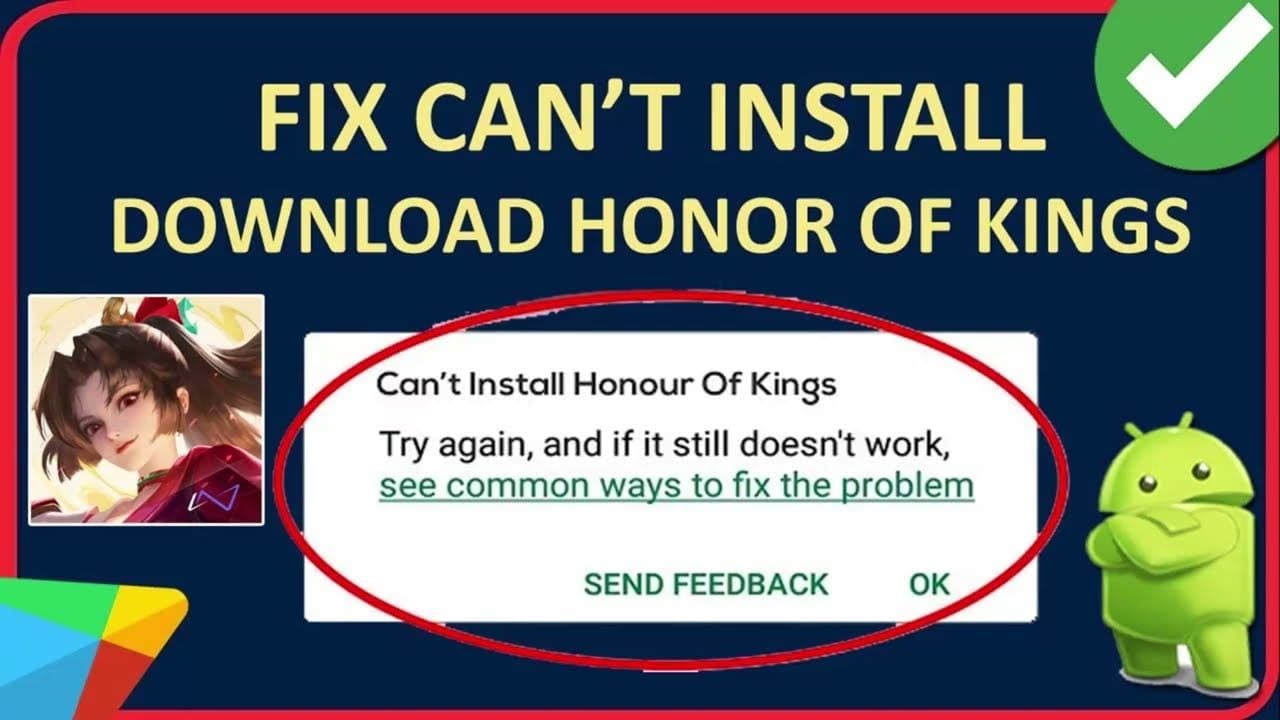
Teammates see Resource download failed,Unable to load skin resources, or Download timeout error during hero selection or match loading. Timing provides clues: errors within 5 seconds suggest connection failures; after 15-20 seconds indicate partial downloads (bandwidth throttling). Inconsistent errors across matches point to device-specific issues.
Host vs Teammate Issues
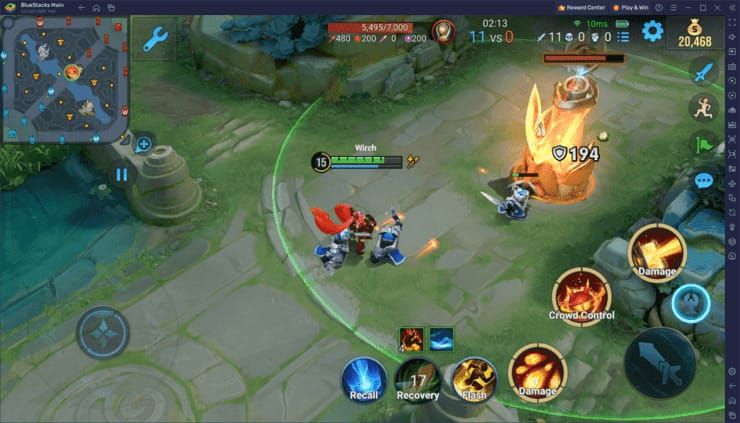
Multiple teammates failing simultaneously = host connection problem. Single teammate failing = their device/network issue. Host-side indicators: ping spikes above 100ms, packet loss exceeding 1%. Check Settings > Display > Performance Display for real-time stats. Green (below 50ms) = good; red (above 100ms) = host problem.
Diagnostic Checklist
- Game version: April 10, 2025 patch 10
- Device specs: Android 5.1+ with 1GB RAM, or iOS 12.0+
- Storage: 804.7 MB app + 500MB extra for downloads
- Network: 2 Mbps minimum download speed
- Device temp below 35°C, battery above 50%
Mid-Match Errors
Errors after match start mean downloads initiated but didn't complete during loading. Teammates see default skins. Game won't retry mid-match to preserve bandwidth for gameplay data. High ping and packet loss during matches require network optimization over repeated download attempts.
Root Causes
Network Instability
Packet loss above 1% disrupts transfers. Ping fluctuations (50-150ms variance) corrupt data packets. Yellow indicators = 50-100ms; red = above 100ms. Even brief interruptions cause failures—no robust resume capability.
Insufficient Storage
Base game needs 804.7 MB, but shared skins require 1GB+ free space for temporary files. Devices with less fail silently. Check: iOS Settings > General > iPhone Storage > Honor of Kings; Android Settings > Apps > Honor of Kings > Storage.
Corrupted Cache
Corrupted files provide incorrect checksums, causing persistent failures. Occurs through incomplete downloads, improper shutdowns, or storage errors. Verification system detects mismatches, triggering failed retries. Clearing cache forces fresh downloads.
Server Region Mismatches
Global servers: North America, Europe, Japan, Korea, Southeast Asia, Latin America. Cross-region play adds 100-200ms latency, often exceeding pre-match window. Some skins cached on regional CDNs—fast locally, slow cross-region.
Outdated Clients
April 10, 2025 patch 10 modified skin resource packaging. Older clients can't process newer formats. Even minor version differences cause protocol mismatches. Verify all players run identical versions.
Solution 1: Network Troubleshooting
Switch WiFi/Mobile Data
Test both connection types. WiFi: use 5GHz band (less interference, higher bandwidth vs 2.4GHz). Mobile: verify 4G/5G (3G lacks bandwidth). 5G improves latency by 10-20ms.
Test Connection
Run speed tests before launching. Need 2 Mbps minimum, but stability matters more than peak speed. Multiple tests over 5-10 minutes: results within 10% variance = stable; 50%+ variance = unstable. Jitter above 20ms = higher failure rates.
DNS Configuration
Manual DNS setup improves routing:
- Primary: 1.1.1.1, Secondary: 1.0.0.1 (Cloudflare)
- Or Primary: 8.8.8.8, Secondary: 8.8.4.4 (Google)
- Advanced: HTTPDNS 180.76.76.76 (reduces ping 250ms → 120ms)
After changing, select Renew Lease, restart router and game. iOS: set Private DNS to 1dot1dot1dot1.cloudflare-dns.com.
Router Configuration
Restart router before sessions. Enable UPnP for automatic port forwarding. Disable bandwidth-heavy activities on other devices (streaming, downloads, video calls). Enable QoS to prioritize gaming traffic.
Disable VPN/Proxy
VPNs add encryption overhead and routing hops, increasing latency. Proxies and optimization apps create more problems. Disable before matches for direct server connections. Check firewall/security software—configure exceptions for Honor of Kings if needed.
Solution 2: Storage and Cache
Check Storage
Need 2GB free beyond 804.7 MB app size. Android: Settings > Storage. iOS: Settings > General > iPhone Storage. Insufficient storage causes silent failures with generic errors.
Clear Cache
Android: Settings > Apps > Honor of Kings > Storage > Clear Cache (keeps login/settings). For thorough reset: Clear Data (requires re-login).
iOS: Settings > General > iPhone Storage > Honor of Kings > Offload App (preserves data), then reinstall. Complete cleanup: delete app entirely and reinstall (re-download 804.7 MB).
Remove Unnecessary Resources
Access in-game resource download section. Deselect optional content: voice packs, HD textures. Audit after updates/events—limited-time files remain after events end.

Optimize Device Storage
Delete unused apps, clear browser cache, remove duplicate photos/videos. Enable Offload Unused Apps (iOS Settings > App Store). Move media to cloud storage. Maintain 15-20% free storage for optimal performance.
Solution 3: Game Client Repair
Built-in Repair Tool
Access from login screen or settings. Scans files, verifies checksums, downloads replacements. Takes 5-15 minutes on stable WiFi. Restart game after completion.
For uninterrupted V10 privileges, top up hok global tokens through BitTopup—24/7 support, competitive pricing.
Verify File Integrity
Check app size matches 804.7 MB. Significant deviations = incomplete installation/corruption. Compare with teammates' installations. Check app store for pending updates.
Update Game
Ensure all players run April 10, 2025 patch 10+. Version mismatches create protocol incompatibilities. Check Settings > About or app store. Download updates over WiFi (may exceed 500MB). Restart device after major updates.
Clean Reinstall
Last resort. Back up account (link to social media/game center). Uninstall completely, restart device, reinstall from official store (804.7 MB). Resolves deep corruption repair tools can't fix. Document settings before uninstalling.
Solution 4: Teammate Troubleshooting
Settings Adjustments
Guide teammates: Settings > Display > Performance Display (shows ping/packet loss). Green below 50ms = good; red above 100ms = needs fixing. Enable Settings > Network > Network Optimization (reduces latency 30-50%). Check Settings > Display > Network Info—packet loss above 1% needs attention.

Permissions
Android: Settings > Apps > Honor of Kings > Permissions—enable storage and network. iOS: Settings > Honor of Kings—allow all permissions, especially local network and cellular data.
Disable battery optimization for Honor of Kings to prevent throttling downloads.
Device-Specific Fixes
iOS 12.0: Update to latest supported version for better memory management. iPhone 6 users verify minimum specs.
Android 1GB RAM: Close background apps, disable system animations (Developer Options), enable Performance Mode.
Coordinate Timing
Share skins early in hero selection for maximum download window. Teammates confirm successful downloads before match start. If fails, switch to default skins quickly.
Solution 5: Advanced Configuration
Lower Graphics
Settings: Graphics Quality to Medium/Low. Lock FPS at 30/60. Disable HD textures and particle effects. Settings > Controls > Battle Settings > Fixed Camera. Frees resources for downloads.
Server Region
Understand server distribution: NA, EU, JP, KR, SEA, LATAM. Cross-region play = higher latency, download complications. Consider accounts on servers closer to team's geographic center.
Background App Management
Close bandwidth-intensive apps. Disable automatic updates and cloud backups during sessions. Android: Recent Apps, close all except Honor of Kings. iOS: double-tap home, swipe away apps.
Network Optimization
Enable Settings > Network > Network Optimization (reduces latency 30-50%). Monitor through performance display—compare ping before/after. If no improvement or worsens, disable and use manual DNS.
Prevention and Best Practices
Pre-Match Checklist
- Verify network: green indicators, below 50ms ping, packet loss under 1%
- Confirm active V10 status and skin downloaded
- All teammates online and ready
- Communicate which skin you'll share
- Teammates verify storage and connection
Device Maintenance
- Restart device daily
- Update OS to latest compatible version
- Monitor temperature (keep below 35°C)
- Maintain battery above 50%
Cache Maintenance
Clear Honor of Kings cache weekly. Additional clearing after major updates/events to remove outdated files.
Team Communication
Use voice/text to confirm skin sharing. Teammates acknowledge successful download. Encourage reporting failures immediately. Quick communication enables rapid problem-solving.
Contact Support
If failures persist after all solutions, contact support with:
- Error messages
- Failure timing
- Device specs
- Network conditions
- Troubleshooting steps attempted
Persistent multi-teammate failures may indicate server-side issues requiring developer intervention.
Common Misconceptions
Myth: Teammates Need V10
False. Only the sharer needs V10. Teammates at any V-level (including V0) can receive shared skins. V-level doesn't affect receiving.
Myth: All Skins Shareable
Limited editions, collaborations, and some premium skins have sharing restrictions. Check if specific skin is eligible before troubleshooting.
Download Limits
No per-match limits or cooldowns under normal use. Rapid failed attempts may trigger temporary rate limiting (rare). You can share different skins every match.
Ownership vs Access
Shared skins provide temporary match-only access. Teammates don't permanently receive skins. Each match requires fresh download—explains why failures need resolution every time.
FAQ
Why does V10 shared skin download fail?
Network instability (ping above 100ms, packet loss over 1%), insufficient storage (below 1GB free), or corrupted cache. Peak hours (7-9 PM) increase failures. Need 50-100 KB/s bandwidth and adequate storage within pre-match window.
How to fix resource download failed error?
Clear cache: Android Settings > Apps > Honor of Kings > Storage > Clear Cache; iOS offload/reinstall. Configure DNS to 1.1.1.1 and 1.0.0.1. Restart router and device. Ensure 2GB free storage. Enable Network Optimization. Verify ping below 100ms. Clean reinstall if needed.
Do teammates need V10 for shared skins?
No. Only sharer needs V10. Teammates at any V-level can use shared skins. Failures stem from technical issues, never V-level requirements.
How much storage needed?
2GB free beyond 804.7 MB app. Individual skins need 50-100 MB for temporary download/extraction. Below 1GB free = frequent silent failures.
Can network issues prevent sharing?
Yes. Ping above 100ms, packet loss over 1%, bandwidth below 2 Mbps cause failures. Use WiFi 5GHz or 5G mobile. Configure DNS to 1.1.1.1 or 8.8.8.8. Enable Network Optimization (reduces latency 30-50%).
How to verify sharing works?
Enable Performance Display (Settings > Display). Green below 50ms, packet loss under 1% = optimal. Teammates confirm downloads before match. Test in custom matches before ranked.
Unlock full V10 shared skins experience! Top up Honor of Kings securely through BitTopup—fast delivery, 24/7 support, competitive pricing. Visit BitTopup for reliable service that keeps you gaming!
Recommended News

Recommend products
Table of Contents
- Understanding V10 Shared Skins System
- What Are V10 Shared Skins
- Resource Download Mechanism
- V10 Requirements and Limitations
- Common Error Scenarios
- Identifying the Error
- Error Messages
- Host vs Teammate Issues
- Diagnostic Checklist
- Mid-Match Errors
- Root Causes
- Network Instability
- Insufficient Storage
- Corrupted Cache
- Server Region Mismatches
- Outdated Clients
- Solution 1: Network Troubleshooting
- Switch WiFi/Mobile Data
- Test Connection
- DNS Configuration
- Router Configuration
- Disable VPN/Proxy
- Solution 2: Storage and Cache
- Check Storage
- Clear Cache
- Remove Unnecessary Resources
- Optimize Device Storage
- Solution 3: Game Client Repair
- Built-in Repair Tool
- Verify File Integrity
- Update Game
- Clean Reinstall
- Solution 4: Teammate Troubleshooting
- Settings Adjustments
- Permissions
- Device-Specific Fixes
- Coordinate Timing
- Solution 5: Advanced Configuration
- Lower Graphics
- Server Region
- Background App Management
- Network Optimization
- Prevention and Best Practices
- Pre-Match Checklist
- Device Maintenance
- Cache Maintenance
- Team Communication
- Contact Support
- Common Misconceptions
- Myth: Teammates Need V10
- Myth: All Skins Shareable
- Download Limits
- Ownership vs Access
- FAQ
Recommended News
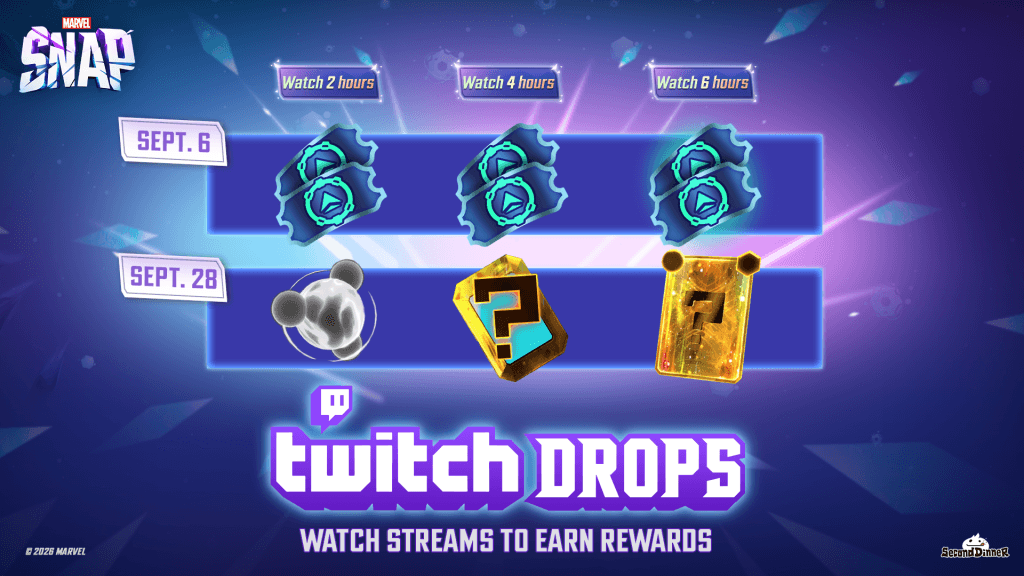
How to Get Free Gold in Marvel Snap in 2026 (All F2P Methods)
Never After Free Gift Packs: Active Codes and Drops Guide (2026)
How to Reach Eggsecutive VP Salmon Run in Solo Freelance Matches
How to Farm Rare Skin Fragments in MLBB | August 2026
Genshin Impact Stygian Onslaught 7.0 Teams | August 2026
Alyosha Best Build, Teams & C6 Guide | August 2026

Be The King Event Guide: Mastering Imperial Hunt in 2026
Honkai Star Rail 4.5 Pull Guide | August 2026


































































































