What Happens During Retry Loops (1-3 Attempts)
Retry loops activate when packet loss exceeds 1% or ping spikes above 300ms. Each attempt lasts 15-30 seconds:
- First retry: Re-establishes connection using current network configuration
- Second retry: Implements automatic network diagnostics, checks DNS and port accessibility
- Third retry: Complete session reset with NetEase servers
Your character operates under AI control during disconnections—basic movement patterns that experienced opponents easily exploit. Visual indicators include frozen screens, unresponsive controls, and Reconnecting overlays with attempt counters.
Common Triggers: Network vs Server vs Device Issues
Network instability (70% of disconnections): Fluctuating ping from green (<100ms) to yellow (100-200ms) to red (200ms+). Jitter exceeding 30ms creates packet delivery inconsistencies.
Server-side issues: Affect multiple players simultaneously. Recent maintenance: November 27, 2025, 240 minutes starting 08:00 UTC+8. Off-peak hours (02:00-08:00 UTC+8) show 350-400ms average ping.
Device problems: Insufficient RAM (<4GB), aggressive battery optimization, OS compatibility issues. iOS 10.0+ and Android 4.3+ minimum; iOS 17/18 and Android 13/14 sometimes introduce compatibility issues.
Impact on Ranked Progress
Ranked disconnections carry double penalties—match defeat points plus abandonment penalties. Three disconnections within 24 hours trigger escalating bans: 30 minutes to 24 hours. Credibility score decreases with each disconnection, creating negative matchmaking loops with unreliable teammates.
Diagnostic Step: Identify Root Cause in 3 Minutes
Before fixes, diagnose accurately:
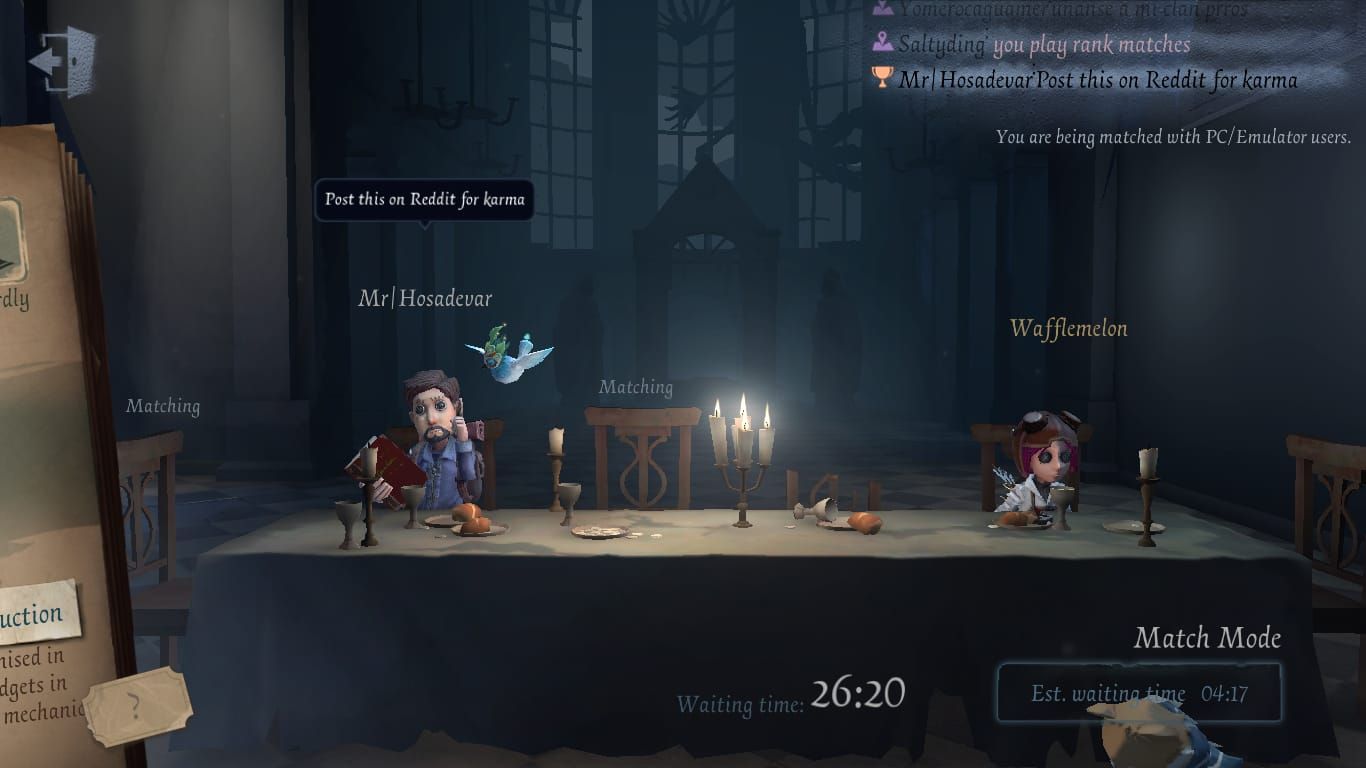
- Check lobby ping: Green (<100ms) = stable, yellow (100-200ms) = marginal, red (200ms+) = immediate action needed
- Test network switching: Toggle WiFi/mobile data. Significant improvement on one type = router/ISP issue
- Monitor consistency: Stable connections vary ±20-30ms; problematic connections fluctuate 100ms+ within seconds
Quick Network Test
Enter Quick Match (400ms average ping) instead of risking ranked points. Monitor ping throughout—stable connections maintain values within 20-30ms variation. Document scenarios triggering disconnections: during chases, match start, or post-match screens.
Verify NetEase Server Status
Check community channels for widespread reports. If dozens report identical issues simultaneously, server-side problems exist. Regional servers: Singapore, Hong Kong, Japan—test each for optimal ping based on your location.
Device Performance Checks
- RAM: 4GB minimum; close background apps if available memory <1GB
- Storage: Maintain 3-5GB free; <2GB causes performance degradation
- Temperature: Hot devices = thermal throttling affecting network processing
Reading Error Messages
- Network timeout: Packet loss during transmission—fix with DNS optimization
- Connection lost: Session terminated unexpectedly—disable battery optimization
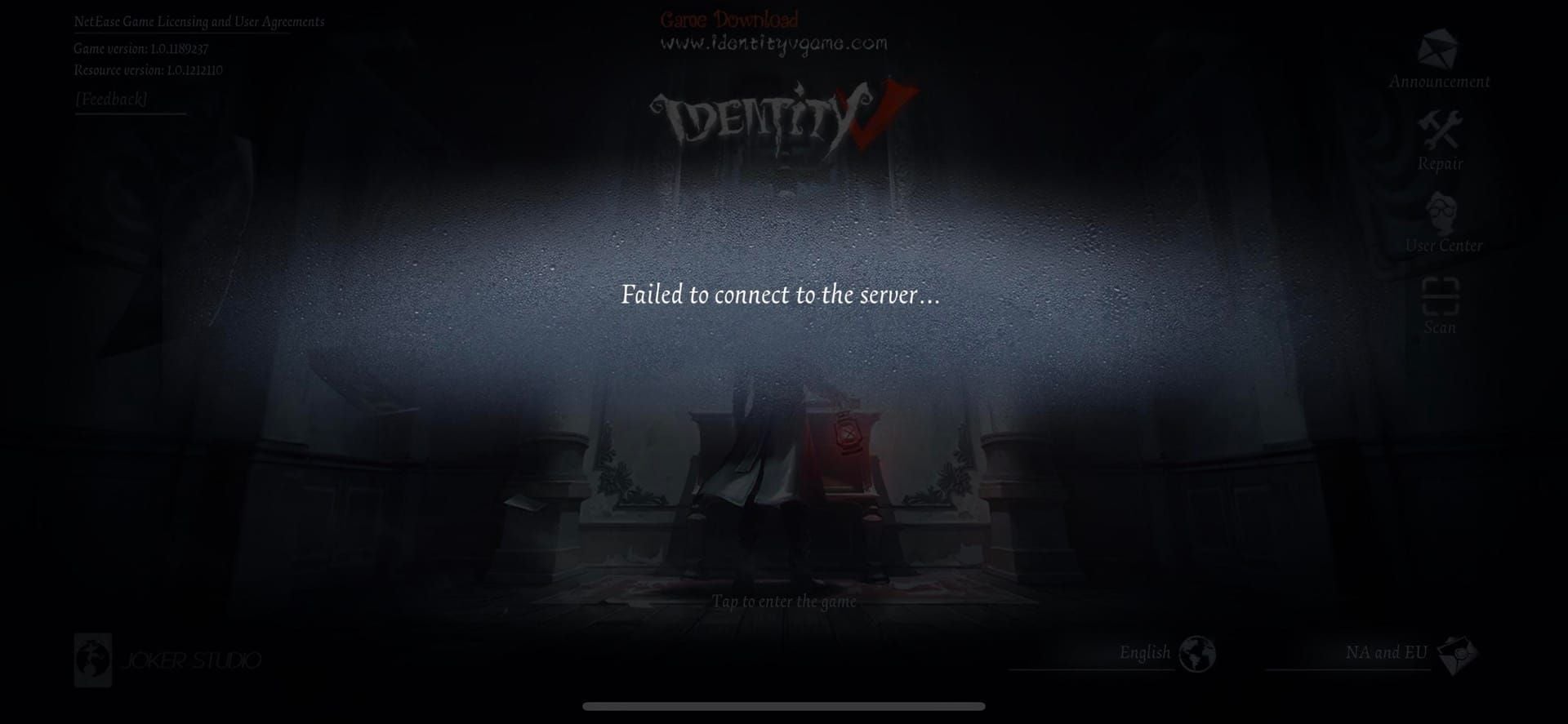
- Server connection failed: Port blocking—configure router port forwarding
Fix #1: Network Switching (WiFi ↔ Mobile Data)
Network switching establishes alternative routing paths when one experiences congestion. Enable both WiFi and mobile data simultaneously for instant switching without initialization delays.
When to Switch
Switch when ping transitions green to yellow (100-200ms). Avoid switching during critical moments (pallet drops, vaults, rescues). Optimal switching: running between ciphers, hiding in lockers, during hunter stun recovery.
Step-by-Step Transition
- Access quick settings (swipe down from top)
- Disable WiFi first
- Wait 2-3 seconds for mobile data establishment
- Verify connection indicator returns to green/yellow
- Resume gameplay
Airplane Mode reset: Toggle on, wait 10-30 seconds, toggle off. Forces complete network stack reset.
iOS vs Android Methods
iOS: Enable Mobile Data for Identity V in Settings > Mobile Data > Identity V. Disable WiFi Assist in Settings > Mobile Data.
Android: Enable Developer Options (tap Build Number 7x) > Settings > Developer Options > Mobile data always active. Disable manufacturer-specific auto-switching (Samsung's Intelligent WiFi, Xiaomi's MIUI equivalents).
Results
65% reduction in mid-match disconnects for network path congestion issues. Most effective during peak hours. Combine with DNS changes and battery optimization for near-complete disconnection elimination.
Fix #2: Optimize DNS Settings
DNS configuration impacts server address resolution speed. Default ISP DNS: 50-100ms response time. Optimized DNS: 10-20ms.
Best DNS Servers (2026)
- Primary: Cloudflare 1.1.1.1
- Secondary: Google 8.8.8.8
Cloudflare's global network includes edge servers near NetEase's Asia-Pacific data centers (Singapore, Hong Kong, Japan), minimizing routing hops.
iOS Configuration
- Settings > WiFi > tap (i) next to network
- Configure DNS > Manual
- Add Server: 1.1.1.1
- Add Server: 8.8.8.8
- Remove existing DNS entries
- Save
For mobile data: Install Cloudflare 1.1.1.1 app or set Private DNS to 1dot1dot1dot1.cloudflare-dns.com.
Android Configuration
Per-network:
- Settings > Network & Internet > WiFi > long-press network
- Modify Network > Advanced Options
- IP Settings: Static
- DNS 1: 1.1.1.1
- DNS 2: 8.8.8.8
- Save
System-wide: Settings > Network & Internet > Advanced > Private DNS > Private DNS provider hostname: 1dot1dot1dot1.cloudflare-dns.com
Expected Results
- 30-50ms reduced initial connection time
- 20-40ms faster reconnection after disconnections
- 10-30ms average ping reduction
- Jitter below 30ms threshold
Fix #3: Configure Critical App Permissions
Identity V requires specific permissions to maintain connections during background interruptions.
iOS Background App Refresh
- Settings > General > Background App Refresh > enable master toggle
- Scroll to Identity V > set to WiFi & Mobile Data
- Disable Low Power Mode during matches: Settings > Battery
- Disable Focus modes during gameplay
Android Battery & Background Data
- Settings > Apps > Identity V > Battery > Unrestricted
- Settings > Apps > Identity V > Mobile Data > enable Background data and Unrestricted data usage
- Android 13/14: Settings > Apps > Identity V > Battery > Battery usage > Unrestricted
Network Permissions
Identity V requires UDP access on ports 10000-20000. Verify Settings > Apps > Identity V > Permissions shows all network permissions Allowed. Add Identity V to firewall/security app whitelists.
Common Mistakes
- Enabling battery optimization (supersedes other settings)
- Data Saver enabled without Identity V exemption: Settings > Network & Internet > Data Saver > disable or add Identity V
- VPN conflicts—uninstall VPNs unless required for regional access
Fix #4: Clear Identity V Cache
Cache accumulation creates file corruption and storage inefficiencies. Clear cache every 2-4 weeks.
iOS Method
Settings > General > iPhone Storage > Identity V > Offload App (preserves data) > reinstall from App Store. First launch requires 1-2GB asset download on WiFi.
Android Method
Settings > Apps > Identity V > Storage > Clear Cache (200-800MB typical). Never tap Clear Data (resets account/settings). After clearing, force stop app, clear from recent apps, restart device, relaunch.
When Cache Causes Issues
Symptoms: progressively worsening performance, longer loading times, delayed rendering, stuttering animations, inconsistent ping. Clear cache immediately after major updates to prevent asset integration conflicts.
Post-Clearing Optimization
- Restart device completely
- Connect to stable WiFi for first launch
- Allow 10-15 minutes for asset downloads
- Configure graphics settings before matches
- Lock to 60 FPS for consistent cache optimization
Fix #5: Router Configuration for Mobile Gaming
Router settings impact mobile gaming despite wireless connections. Default settings optimize for browsing/streaming, not real-time gaming.
QoS Settings
- Access router admin (192.168.1.1 or 192.168.0.1)
- Navigate to QoS/Quality of Service/Traffic Management
- Enable QoS, create rule prioritizing your device's MAC/IP address
- Set priority to Highest or Gaming
- Reserve minimum 5Mbps download, 1Mbps upload
Port Forwarding (Ports 10000-20000)
- Find your device's local IP: iOS (Settings > WiFi > tap (i) > IP Address), Android (Settings > Network & Internet > WiFi > tap network > Advanced)
- Router admin > Port Forwarding/Virtual Server/NAT Forwarding
- External ports: 10000-20000
- Internal ports: 10000-20000
- Protocol: UDP
- Internal IP: your device's local IP
If router doesn't accept full range, create multiple rules: 10000-12000, 12001-14000, 14001-16000, 16001-18000, 18001-20000.
2.4GHz vs 5GHz WiFi
5GHz: Higher bandwidth, less interference, shorter range. Best for gaming near router.
2.4GHz: Longer range, better wall penetration, more congestion. Use if far from router.
WiFi 6 (802.11ax) reduces latency vs WiFi 5/4. Test both bands by monitoring ping stability during matches.
Router Restarts
Restart weekly: unplug 30 seconds, reconnect, wait 2-3 minutes. Clears memory leaks and resets connection tables. Schedule during off-peak hours or use automatic scheduled restarts in router settings.
Fix #6: Device-Specific Troubleshooting
OS updates introduce network stack changes affecting Identity V compatibility.
iOS 17/18 Issues
- Settings > Privacy & Security > Tracking > enable Allow Apps to Request to Track
- iOS 18 beta shows UDP issues on iPhone 12/13—revert to iOS 17.x stable
- Disable Focus modes during gameplay (Control Center)
Android 13/14 Changes
- Grant all permissions on first launch post-update
- Disable battery saver when battery <20%: Settings > Battery > Battery Saver
- Private DNS conflicts: choose one method (Private DNS system-wide OR per-network manual DNS), disable the other
Manufacturer-Specific Fixes
Samsung (One UI 5.x/6.x):
- Settings > Battery > Background usage limits > Deep sleeping apps > remove Identity V
- Add to Never sleeping apps
Xiaomi (MIUI 14/15):
- Settings > Battery & Performance > Battery Saver > disable
- Settings > Additional Settings > Developer Options > MIUI Optimization > disable
- Settings > Apps > Manage Apps > Identity V > Restrict data usage > disable all
OPPO (ColorOS 13/14):
- Settings > Battery > App Quick Freeze > disable or exempt Identity V
- Settings > Battery > More Settings > High Performance Mode > enable
iPhone (A15+ chips, iPhone 13+): Reduce graphics to Medium/Low, enable 60 FPS lock to prevent thermal throttling.
Update vs Downgrade
Delay major OS updates 2-3 weeks for NetEase compatibility patches. Check forums for reports before updating. iOS downgrades require technical knowledge; Android varies by manufacturer. Wait for next minor update (e.g., 17.1 to 17.2) for bug fixes.
Fix #7: Server Selection & Connection Timing
Server selection impacts connection quality based on geographic distance and server load.
Manual Server Selection
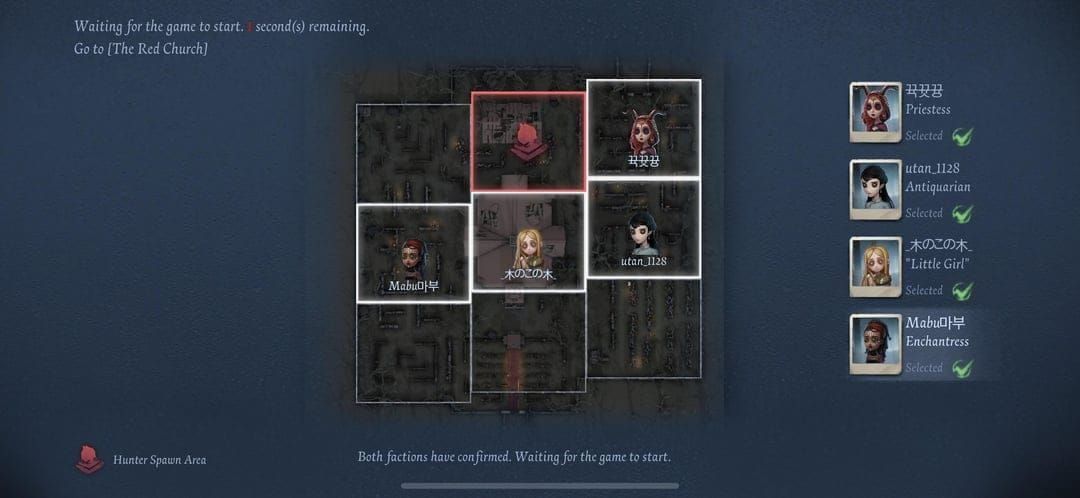
Tap server indicator (top-right corner) to view available servers with real-time ping. Test each during identical time periods across multiple days:
- Singapore: Optimal for Southeast Asia
- Hong Kong: Best for East Asia
- Japan: Japan, Korea, eastern Russia
Record ping during peak (18:00-23:00 local) and off-peak (02:00-08:00 UTC+8) hours.
Peak vs Off-Peak Patterns
- Peak hours (18:00-23:00): Maximum load, increased ping, higher disconnection rates
- Off-peak (02:00-08:00 UTC+8): 350-400ms average ping, server-side throttling
- Optimal windows (16:00-18:00, 23:00-01:00): Best balance of queue speed and stability
Ping Testing Before Ranked
- Green (<100ms): Ideal for both roles
- Yellow (100-200ms): Playable but noticeable input lag
- Red (200ms+): Avoid ranked—high disconnection risk
Monitor indicator 30-60 seconds before queuing. Fluctuating values = network instability requiring troubleshooting.
Server Migration
Consider permanent migration if current server consistently shows suboptimal ping. Test target server with 10-15 non-ranked matches across different times. Note: friend lists, guilds, leaderboard rankings don't transfer. Monitor official announcements for server transfer events preserving account progress.
Prevention Strategies
Pre-Match Checklist (30 Seconds)
- Verify green ping, stable 30+ seconds
- Close background apps/downloads/streaming
- Battery >30%, saver mode disabled
- Device temperature normal
In-Game Warning Signs
- Ping transitions green to yellow: seek safe positions
- Stuttering animations/rubber-banding: packet loss >1%
- Sudden ping spikes 100ms+: prepare for potential disconnection
Monthly Maintenance Schedule
- Monthly (1st of month): Clear cache, restart device
- Quarterly: Review/update DNS settings
- After OS updates: Audit permissions and battery optimization within 24 hours
Emergency Reconnection Protocol
- Don't force-close immediately—90-second timer allows automatic reconnection
- After 30 seconds: toggle Airplane Mode on 10 seconds, then off
- After 60 seconds: force close, clear from recent apps, relaunch quickly
Common Misconceptions
VPNs: Help or Hurt?
VPNs add 20-100ms latency through additional routing hops and encryption overhead. Beneficial only for regional restrictions, ISP throttling, or infrastructure failures. For standard gameplay, VPNs degrade performance—uninstall unless specifically required.
Game Booster Apps
Game boosters terminate system processes that games rely on for network management, creating instability. Modern iOS/Android memory management outperforms third-party optimization. Use manual optimizations (disable battery optimization, configure permissions, clear cache) instead.
Reinstalling Identity V
Reinstallation requires 2-3GB re-download and reconfiguring settings. Cache clearing and permission reconfiguration achieve same benefits without complete removal. Reserve reinstallation for when cache clearing fails or after interrupted updates.
NetEase Server Quality
Most disconnections stem from client-side factors, not server quality. Singapore, Hong Kong, Japan servers operate on comparable infrastructure—performance differences reflect routing efficiency, not server quality. Implementing fixes in this guide resolves most issues regardless of server selection.
Advanced Troubleshooting
Contact NetEase Support
Email support@identityv.com when all fixes fail. Provide:
- Device model, OS version, ISP name
- Server selection, average ping values
- Disconnection frequency and patterns
- Screenshots of errors, connection indicators, network settings
- Detailed list of attempted fixes
Community Solutions
Search Identity V subreddits, Discord, official forums for recent discussions matching your symptoms. Verify community solutions with multiple independent reports before implementing risky changes (router firmware updates, advanced network configs).
Hardware Limitations
4GB RAM minimum, but 6GB+ increasingly required. Symptoms: disconnections during visually complex moments (multiple survivors, ability effects, intensive maps). Solutions:
- Reduce graphics to minimum
- Limit frame rate to 30 FPS
- Avoid peak hours
- Consider hardware upgrade
Temporary Workarounds
During widespread issues post-update (NetEase patches within 1-2 weeks):
- Avoid ranked, play Quick/Custom Matches
- Play survivor (less impact on others than hunter disconnections)
- Focus on daily missions without competitive pressure
FAQ
Why does Identity V disconnect after 1-3 retry attempts?
Retry loops occur when ping exceeds 200ms, packet loss >1%, or jitter >30ms. Common causes: battery optimization killing processes, DNS delays, insufficient bandwidth (<5Mbps download/1Mbps upload). Fix: DNS to 1.1.1.1/8.8.8.8, disable battery optimization (Settings > Apps > Identity V > Battery > Unrestricted), ensure UDP ports 10000-20000 accessible.
How do I fix connection lost error mid-match?
Toggle Airplane Mode on 10-30 seconds, then off. If fails, force close Identity V, clear from recent apps, relaunch within 90 seconds. Configure DNS to 1.1.1.1/8.8.8.8, disable battery optimization, clear cache (Settings > Apps > Identity V > Storage > Clear Cache). Verify green ping (<100ms) before ranked matches.
Does clearing cache fix disconnections?
Yes, for corrupted files or cache >500MB. Android: Settings > Apps > Identity V > Storage > Clear Cache. iOS: offload/reinstall app. After clearing, restart device, relaunch on WiFi for asset downloads. Expect 30-40% improvement for cache-related issues. Won't fix network infrastructure or hardware limitations.
Will I lose rank points if disconnected?
Yes—double penalties: match defeat points plus abandonment penalties. Failing to reconnect within 90 seconds triggers full abandonment (credibility reduction, matchmaking bans). Three disconnections in 24 hours = 30-minute to 24-hour bans. Successful reconnection within 90 seconds avoids abandonment penalties but often results in match loss due to time lost.
What DNS settings work best?
Cloudflare 1.1.1.1 primary, Google 8.8.8.8 secondary. iOS: Settings > WiFi > tap (i) > Configure DNS > Manual > add servers. Android: Settings > Network & Internet > WiFi > long-press network > Modify > Advanced > Static > DNS 1: 1.1.1.1, DNS 2: 8.8.8.8. System-wide: Private DNS to 1dot1dot1dot1.cloudflare-dns.com. Expect 10-30ms ping reduction, jitter <30ms.
How to prevent Android disconnections?
Disable battery optimization: Settings > Apps > Identity V > Battery > Unrestricted. Enable background data: Settings > Apps > Identity V > Mobile Data > Background Data + Unrestricted Data Usage. Configure Private DNS: 1dot1dot1dot1.cloudflare-dns.com. Clear cache monthly, maintain 30%+ battery, verify UDP ports 10000-20000 accessible. Android 13/14: verify all network permissions Allowed, disable manufacturer battery savers (Samsung Deep Sleeping Apps, Xiaomi Battery Saver).
Don't let disconnections ruin your Identity V experience! Once you've optimized your connection, unlock exclusive Echoes, limited skins, and season pass content through BitTopup—the trusted platform for secure Identity V top-ups. Fast delivery, multiple payment methods, and 24/7 support. Visit BitTopup now and dominate ranked matches!