Understanding PrimeWood Genesis Performance Challenges
The 4.2 update (beta December 4, global release January 2026) adds PrimeWood Genesis exclusively on Erangel. This mode transforms Pochinki and Yasnaya into dynamic ecosystems with the massive World Tree and interactive Guardian Flowers, fundamentally changing device requirements.
Moving forest mechanics create 25-35% higher GPU demands vs classic Erangel. Approaching the World Tree from 500+ meters triggers immediate 10-15 FPS drops as the game renders vertical structures and particle effects. Guardian Flowers reduce FPS by 5-10 when multiple plants appear simultaneously. For competitive ranked play, PUBG Mobile UC recharge for 4.2 PrimeWood Genesis mode through BitTopup enables premium optimization features.
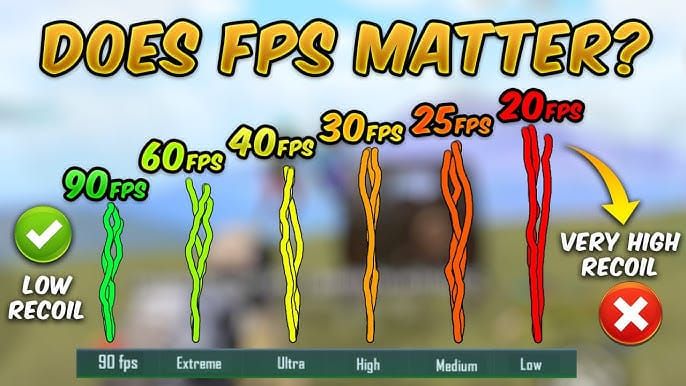
Frame stability impacts competitive performance measurably. 120 FPS provides 20-30% reduced reaction time vs 60 FPS, enabling faster target acquisition. Higher refresh allows 33% more recoil adjustments per second. Achieving this in PrimeWood Genesis requires specific devices and precise graphics config.
What Makes PrimeWood Genesis Different
Interactive elements demand continuous GPU processing. Scorpion Horn summons plant scorpion mounts (40 km/h movement) requiring real-time skeletal animation. Lumina Fruit Bud plants cultivate level 3 gear, adding persistent object tracking. These operate simultaneously with combat systems.
The World Tree features dynamic growth animations visible across multiple grid squares. When 30-40 players converge on PrimeWood mid-game, even high-end iOS devices on Smooth settings sustain only 95-110 FPS vs 110-120 FPS in standard areas. This 10-15 FPS drop becomes critical in close-quarters combat.
How Dynamic Forests Impact Performance
Dynamic rendering differs from static elements. Traditional buildings load once; PrimeWood continuously updates based on player interactions. World Tree approach triggers progressive level-of-detail rendering, with full particle effects at 500 meters. On Smooth + Extreme settings, this causes 20-30 FPS drops even on flagships.
Guardian Flowers respond to proximity with opening animations, pollen particles, and audio. Dense zones with 8-12 flowers create sustained 5-10 FPS reductions. Limited GPU headroom devices occasionally fall below 60 FPS during intense forest activity.
Why FPS Stability Matters
Competitive play relies on consistent frame pacing for muscle memory. ProMotion 120Hz reduces reaction time 20-30% vs 60Hz, but only when the engine maintains matching frame rates. Fluctuations between 120-95 FPS create variable input latency, disrupting recoil patterns.
Pros prioritize stability over graphics. Training room 7307-1085-6780-4282-435 provides controlled environments achieving consistent 110-120 FPS. When PrimeWood zones produce 95-105 FPS drops, choose between visuals and competitive consistency.
Best Devices for PrimeWood Genesis 2025
Flagship: 90-120 FPS
- iPhone 16 Pro Max: 116 FPS on low settings (beta testing)
- iPhone 16 Pro: 120 FPS at lowest details
- iPhone 15/17 Pro: 95-120 FPS with iOS 18.3.2+
- Android Snapdragon 8 Gen 2+: 90 FPS max (120 FPS iOS-exclusive)
All require iOS 18.3.2+ for graphics driver optimizations. ProMotion 120Hz displays provide hardware foundation, sustained performance needs aggressive settings and thermal control.
Mid-Range: 60 FPS
Snapdragon 7-series or MediaTek Dimensity 8000+ target stable 60 FPS. The 25-35% GPU increase pushes these to limits. Use Smooth + High (60 FPS max), accept 50-55 FPS drops during intense PrimeWood activity. Sacrifice shadows and anti-aliasing for consistency.
Budget: 30-40 FPS
Entry-level processors struggle with increased demands, often dropping below 30 FPS during forest events. Smooth + Medium (30 FPS cap), disable all advanced options. Expect 25-30 FPS during World Tree/Guardian Flower interactions.
Specs Breakdown
Minimum: 6GB RAM, mid-range 2022+ processors. Dynamic elements need 2GB+ free RAM for asset streaming. 4GB RAM devices experience frequent stuttering. GPU performance determines max FPS more than CPU. Maintain 15-20% free storage; PUBG accumulates ~2GB cache every 3-5 days requiring regular clearing.
Optimal Graphics Settings for Stable FPS
Frame Rate Options: 30/60/90/120 FPS
- 120 FPS: 20-30% reduced reaction time, 33% more recoil adjustments, but 40-50% higher power consumption. Battery lasts 2.5-3 hours vs 4-4.5 at 90 FPS
- 90 FPS: Runs 6-8°C cooler than 120, reduces throttling. Balanced thermal profile
- 60 FPS: Optimal for mid-range and battery life. Consistent 60 beats fluctuating 90 for muscle memory
Devices hitting 45°C trigger thermal protection, dropping from 120 to 57 FPS in 10-15 minutes.
Graphics Quality Levels
Smooth provides max headroom. On high-end iOS, Smooth + Extreme (120 FPS) sustains 110-120 FPS standard areas, 95-105 FPS forest events. In Pochinki/Yasnaya PrimeWood zones: 95-110 FPS even on flagships.
Balanced/HD add visual enhancements consuming GPU without competitive advantages. Ultra HD/HDR impractical for competitive play—even flagships struggle maintaining 60 FPS during forest events.
Recommended by Device Tier
Flagship iOS (iPhone 15/16/17 Pro):
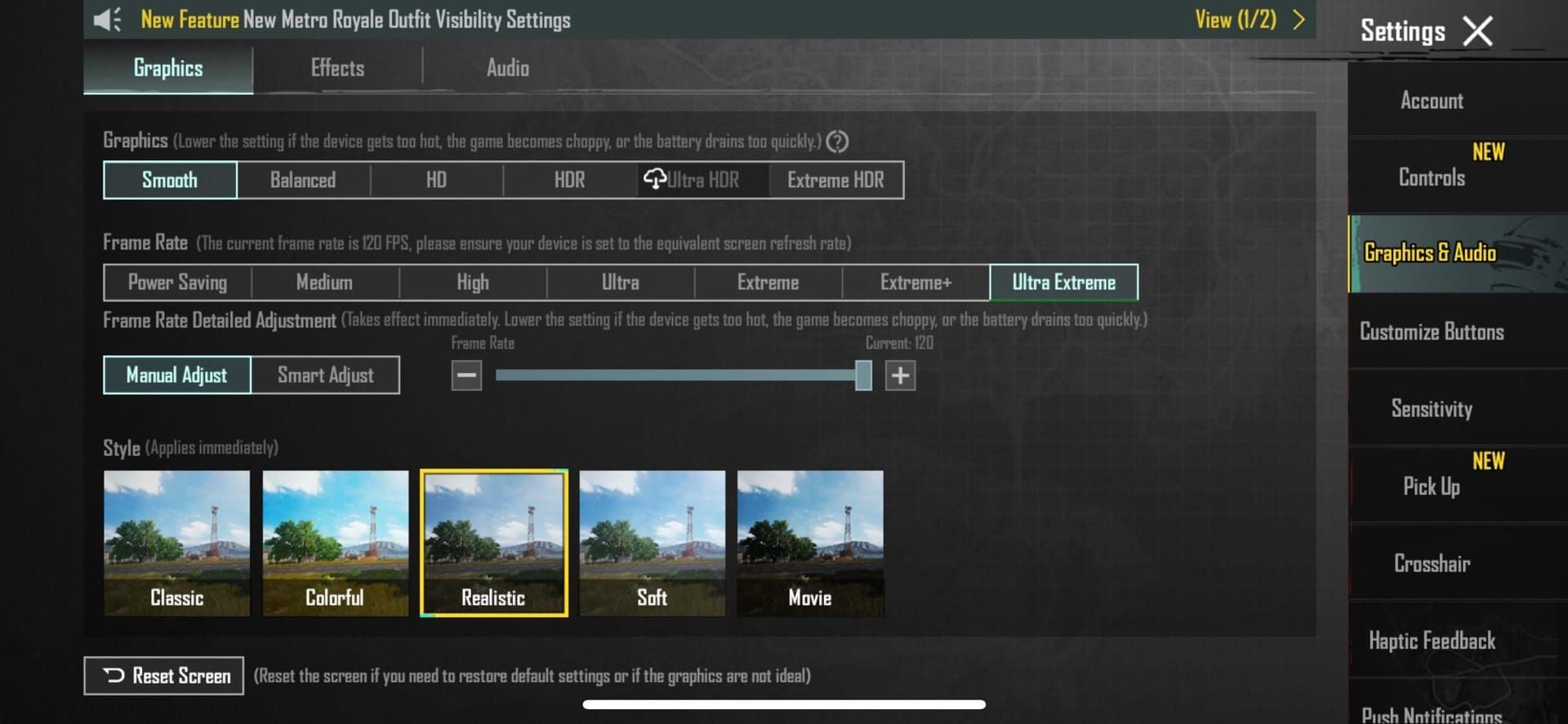
- Smooth + Extreme frame rate
- Shadows: Off (15-30 FPS gain)
- Anti-aliasing: Off (8-12 FPS gain)
- Particle quality: Low (5-8 FPS gain)
- Result: 95-120 FPS most scenarios
For buy cheap PUBG UC online for high FPS ranked matches, BitTopup offers secure transactions and fast delivery.
Mid-range Android:
- Smooth + High (60 FPS cap)
- All advanced options: Off
- Particle: Low, rendering distance: Minimum
- Result: 55-60 FPS standard, 45-55 FPS forest
Budget:
- Smooth + Medium (30 FPS cap)
- All enhancements: Off
- Minimize rendering distance, disable character details
- Result: 25-30 FPS PrimeWood zones
Advanced Settings
- Shadows: Disable for 15-30 FPS, no competitive advantage
- Anti-aliasing: Off for 8-12 FPS, minimal visual impact in combat
- Auto-adjust graphics: Disable—creates inconsistent feedback disrupting muscle memory
- Rendering distance: Medium for balanced visibility/performance
Performance Impact of Moving Forests
Dynamic Environment Rendering
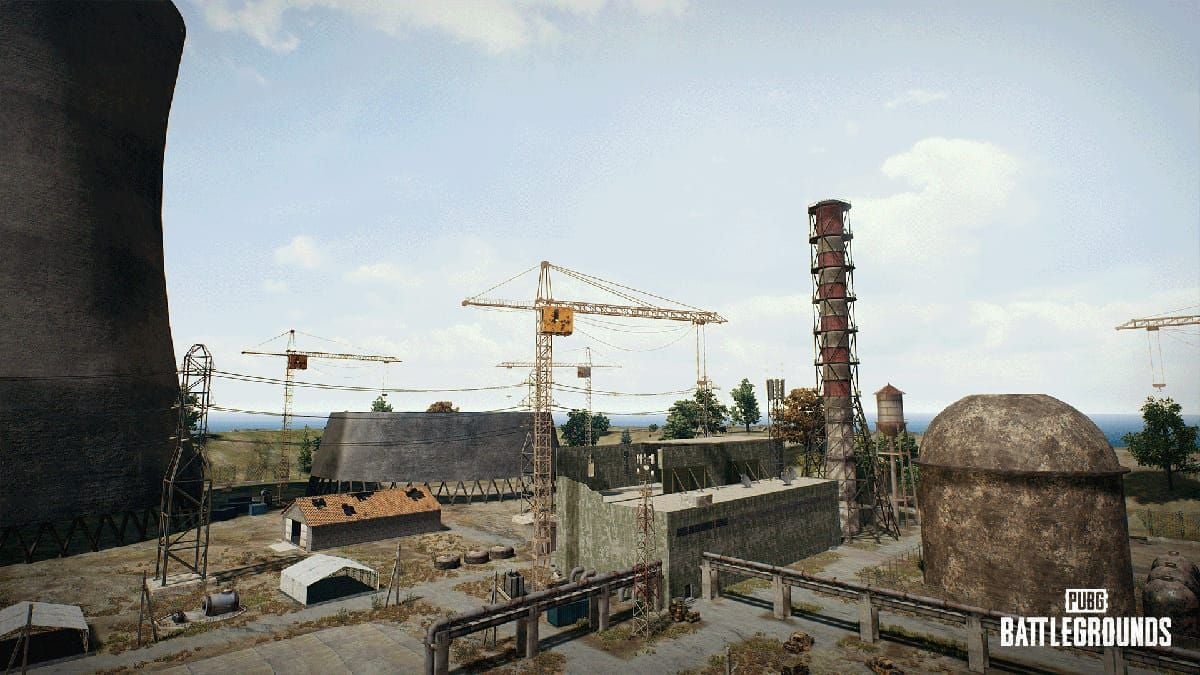
World Tree triggers progressive rendering within 500 meters. Gradual FPS reduction from 110-120 to 95-105 over seconds (10-15 FPS drop). Guardian Flowers use proximity activation—each flower consumes GPU for skeletal animation and particles. 8-12 simultaneous flowers create cumulative 5-10 FPS reductions.
Static vs Active Phases
Static phases maintain baseline similar to standard Erangel. Smooth + Extreme achieves 110-120 FPS on flagships. Active phases (World Tree growth, Guardian Flower blooming) increase GPU load by full 25-35%. FPS drops to 95-105 even optimized, worse on mid-range.
Particle Effects
Pollen, spores, environmental effects dominate GPU during forest movement. World Tree generates continuous particles across grid squares. Low particle quality reduces visual density while maintaining gameplay info. Peak complexity: overlapping World Tree + Guardian Flowers + combat creates max GPU stress—20-30 FPS drops from baseline even on flagships with Smooth graphics.
Device-Specific Optimization
Apple A-Series Chips
iPhone 15/16/17 Pro (A17/A18) optimal on iOS 18.3.2+. Earlier versions lack driver optimizations for 95-120 FPS. Enable FPS counter to monitor World Tree approaches. Force-close every 3-4 matches to clear memory leaks, reduce temp 5-7°C.
Display brightness 50-70% extends 120 FPS from 2.5 to ~3 hours. Audio: Medium quality, 60-70% volume minimizes processing overhead.
Snapdragon 8-Series
Gen 2+ handles 90 FPS max with Smooth. Clear cache every 3-5 days (removes 2GB). Maintain 15-20% free storage for cache allocation. Use 5GHz Wi-Fi: <50ms ping, <2% packet loss, <20ms variance. Disable Wi-Fi Assist—network switches cause rubber-banding.
MediaTek Dimensity
8000+ targets 60 FPS. Smooth + High, all advanced options off. Take 2-3 min breaks between matches to lower temp 8-12°C, preventing throttling. Extends playable sessions significantly.
Older Devices (Pre-2022)
Accept 30-40 FPS with Smooth + Medium. Avoid PrimeWood zones during critical phases—drops below 30 FPS. Cache clearing and storage management most beneficial. 2GB cache every 3-5 days disproportionately affects limited RAM.
Step-by-Step Configuration
Accessing Settings
- Tap Settings gear icon (main lobby)
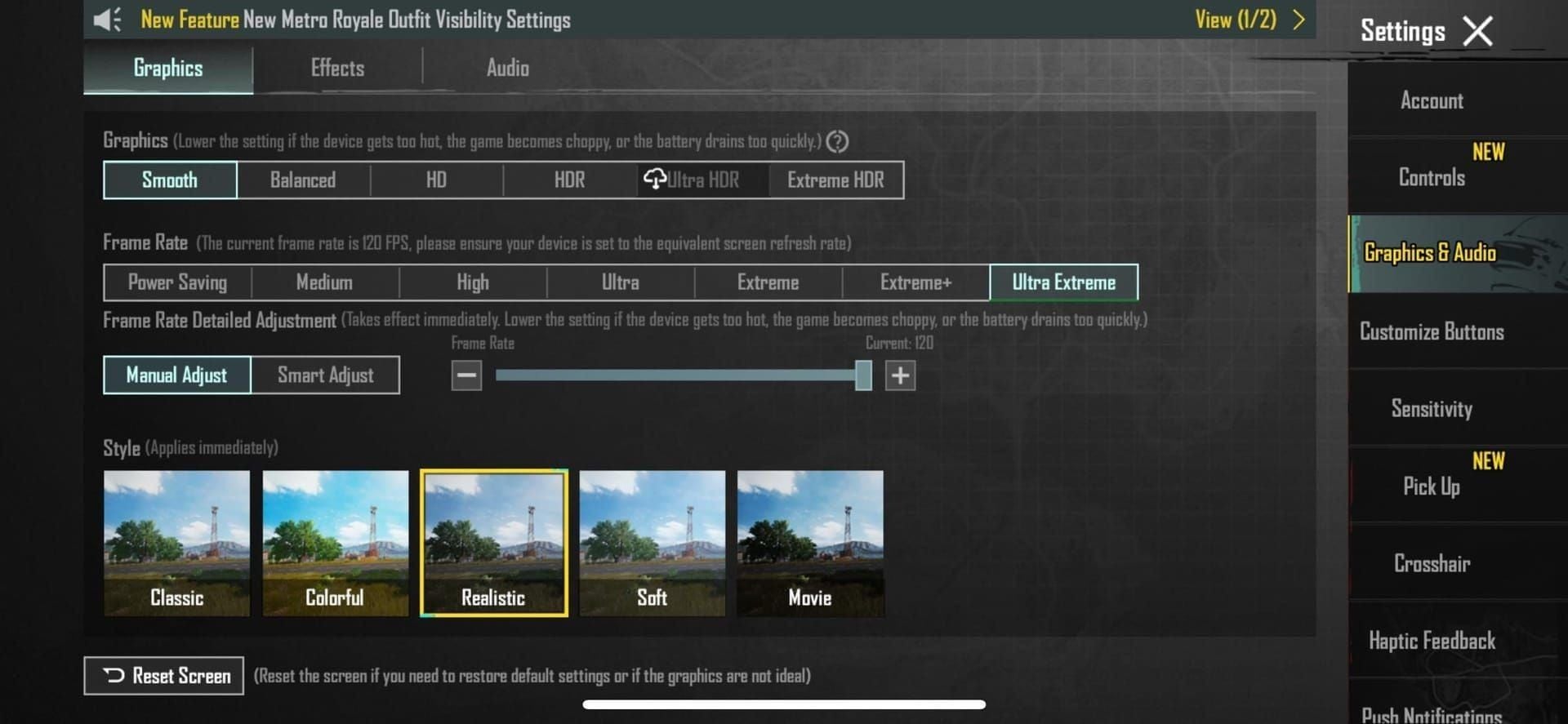
- Select Graphics tab
- Note current settings for comparison
- Identify max available frame rate
Configure Frame Rate & Quality
- Graphics: Smooth
- Frame Rate: Extreme (flagship iOS), Ultra (high-end Android), High (mid-range), Medium (budget)
- Auto-adjust Graphics: Off
- Restart game
Advanced Options
- Navigate Advanced Settings
- Shadows: Disabled (15-30 FPS)
- Anti-aliasing: Off (8-12 FPS)
- Particle Quality: Low (5-8 FPS)
- HDR/colorblind filters: Off (unless needed)
- Rendering distance: Medium
Testing
- Enable FPS counter
- Enter training room 7307-1085-6780-4282-435
- Verify 110-120 FPS achievement
- Test actual PrimeWood matches (Pochinki/Yasnaya)
- Monitor World Tree approach drops (expect 10-15 FPS)
- Adjust if below acceptable thresholds
Troubleshooting FPS Drops
Identifying Root Cause
Enable ping display + FPS counter. If ping spikes coincide with apparent FPS drops while frame counter stays stable: network issue. True FPS drops show declining frame values during World Tree/Guardian Flower interactions. Temp >45°C triggers throttling: 120 to 57 FPS in 10-15 min.
Quick Fixes
Force-close and restart for 10-15 FPS improvement on thermal stress. Clear cache if degradation persists across sessions—2GB every 3-5 days fragments storage. Restores baseline performance.
Thermal Management
Take 2-3 min breaks between matches: reduces temp 8-12°C. Remove cases during play. Force-close every 3-4 matches for 5-7°C drop. 120 FPS players implement routinely.
Background Apps
Close all before launching for max RAM. Social media, browsers, streaming consume memory for asset caching. 6GB RAM devices benefit most. Disable auto-updates and cloud sync during sessions—compete for bandwidth/storage I/O.
When to Upgrade
Can't maintain 60 FPS on Smooth with all options off: performance obsolescence. Thermal throttling within 15 min after all optimizations: insufficient thermal design, software can't fix.
Maintaining Peak Performance
Regular Maintenance
- Clear cache every 3-5 days (removes 2GB)
- Full device restart weekly (clears system leaks, resets thermal baselines)
- Set calendar reminders for consistency
Storage Management
Maintain 15-20% free minimum. PUBG needs 2GB+ for temp files. Below threshold: stuttering during zone transitions. Monthly audits prevent gradual degradation.
Battery Optimization
120 FPS: 40-50% more power, 2.5-3 hour sessions. 90 FPS: 4-4.5 hours, balanced. Brightness 50-70%: 15-20% power savings. Audio Medium, 60-70% volume: additional savings.
Software Updates
iOS 18.3.2+ on iPhone 15/16/17 Pro for driver optimizations. Check monthly. Update PUBG immediately for performance patches. Enable auto-updates.
Premium Content Enhancement
Battle Pass & Features
Rewards include skins, outfits, emotes (no performance impact). Premium tiers: UC bonuses, exclusive items. Seasonal events need UC for full participation. Early access and priority matchmaking provide competitive advantages.
BitTopup UC Solutions
Secure, fast UC top-up with competitive pricing and excellent service. High user ratings, reliable transactions, responsive support. Wide game coverage, all regions. Fast delivery enables immediate access. Better value vs direct in-game purchases.
Maximizing Value
Focus on Battle Pass for max ROI—multiple rewards per tier. Premium typically returns more UC than cost. Time-limited offers: 20-30% discounts. Combine BitTopup pricing with in-game promotions for optimal value.
FAQ
Best graphics settings for PrimeWood Genesis?
Smooth + Extreme (120 FPS) on flagship iOS, or High (60 FPS) mid-range. Disable shadows (15-30 FPS), anti-aliasing (8-12 FPS), particle Low (5-8 FPS). Sustains 95-120 FPS on high-end, drops to 95-105 during World Tree.
Which devices run 90-120 FPS?
iPhone 15/16/17 Pro (iOS 18.3.2+): 95-120 FPS. iPhone 16 Pro Max: 116 FPS low settings. iPhone 16 Pro: 120 FPS lowest. Android Snapdragon 8 Gen 2+: 90 FPS max (120 iOS-exclusive).
How does moving forest affect FPS?
25-35% GPU increase vs standard Erangel. World Tree: 10-15 FPS drop from 500m, 20-30 FPS close proximity. Guardian Flowers: 5-10 FPS when multiple appear. Cumulative impacts in dense zones.
Fix frame drops?
Clear cache every 3-5 days (2GB), force-close every 3-4 matches (5-7°C drop), maintain 15-20% free storage. Disable shadows/anti-aliasing. Take 2-3 min breaks (8-12°C reduction) to prevent throttling.
Does turning off shadows improve FPS?
Yes, 15-30 FPS improvement all devices. No competitive disadvantage—tactical info visible through other cues. Competitive players universally disable.
Can mid-range run smoothly?
Snapdragon 7/Dimensity 8000+: stable 60 FPS with Smooth + High. Expect 50-55 FPS drops during intense PrimeWood. Disable all advanced options for optimal mid-range performance.
Ready to unlock exclusive PrimeWood Genesis content? Top up PUBG Mobile UC through BitTopup—trusted platform for instant credits at competitive prices. Get your UC now and dominate the moving forest!