Understanding 4.2 Beta iOS Lag Issues
The 4.2 Beta (late December 2025) brings performance challenges with PrimeWood Genesis Mode, transforming Erangel terrain around Pochinki and Yasnaya with complex environmental elements demanding 25-35% more GPU load than classic Erangel.
Lag manifests three ways: frame drops (stuttering visuals from inconsistent rendering), network latency (rubber-banding despite smooth visuals), and input delay (touch-to-screen response gap).
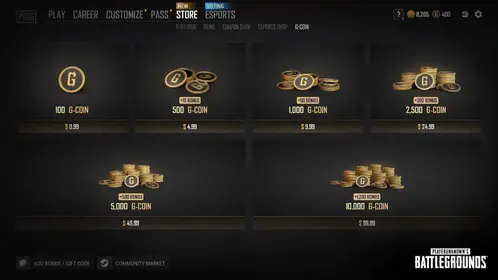
For optimal performance while managing resources, cheap buy UC PUBG Mobile 4.2 Primewood smooth play through BitTopup ensures premium features without compromising device performance.
Why Primewood Demands Higher Performance
PrimeWood introduces unprecedented rendering complexity:
- World Tree: Massive hot drop zone with intricate geometry straining GPU when 30-40 players land simultaneously
- Guardian Flowers: 30m firing range requiring real-time physics calculations
- Scorpion Horn: 40 km/h mount system adding continuous animation overhead
- Lumina Fruit Bud: Persistent level 3 gear storage consuming additional memory
- Flower Wing: Low-altitude glide demanding constant altitude/collision detection
- Lashing Vine: Real-time rope physics for protective ring and steerable vine
These systems collectively increase baseline GPU load 25-35% vs classic Erangel. Sub-60 FPS gameplay significantly degrades recoil control and target tracking.
iPhone 16 Hardware Capabilities
- iPhone 16 Pro Max: 116 FPS on low settings
- iPhone 16 Pro: Full 120 FPS at lowest details
- iPhone 15/16/17 Pro (iOS 18.3.2+): 95-120 FPS average under optimal conditions
ProMotion 120Hz reduces reaction time 20-30% vs 90 FPS displays. However, battery temps above 45°C trigger thermal throttling after 10-15 minutes, dropping frames from 120 to 57 FPS—the primary hardware limitation for extended sessions.
Common Beta Lag Triggers
- Unoptimized code: Cache accumulation exceeding 2GB within 48 hours correlates with progressive frame degradation
- Background app refresh: Resource contention during critical combat
- Low Power Mode: Auto-caps at 60 FPS regardless of settings
- Outdated iOS: Versions before 18.3.2 lack Metal API optimizations, causing 15-25% lower FPS
Pre-Game iOS System Optimization
Essential iOS 18 Settings
- Verify iOS 18.3.2+ via Settings > General > About
- Disable Low Power Mode (Battery settings)—prevents frame rate capping
- Enable Game Mode (Game Center) for resource prioritization
- Set Display brightness 50-70%, disable True Tone (prevents frame pacing inconsistencies)
- Critical workaround: Accessibility > Motion > enable Limit Frame Rate, launch PUBG, immediately disable—triggers graphics driver reset unlocking 120 FPS options
Background Management
- Close all apps via app switcher (each consumes 50-150MB)
- Disable Settings > General > Background App Refresh entirely
- Disable automatic downloads (Settings > App Store) to prevent mid-match updates causing 100-300ms latency spikes
Storage & Cache
- Free minimum 2GB storage via iPhone Storage
- Clear PUBG cache (Settings > Basic) every 3-5 days—removes 2GB temporary files
- Maintain 15-20% free space; iOS degrades above 85% capacity
Network Configuration
- Use 5GHz Wi-Fi with ping <50ms (2.4GHz suffers congestion)
- Test network via in-game diagnostic: packet loss <2%, ping variance <20ms
- Position within router line-of-sight when possible
Unlocking 90-120 FPS (No Jailbreak)
Step-by-Step Graphics Configuration
- Update to latest 4.2 Beta build
- Enable screen recording before launch—activates graphics driver permissions unlocking hidden frame options
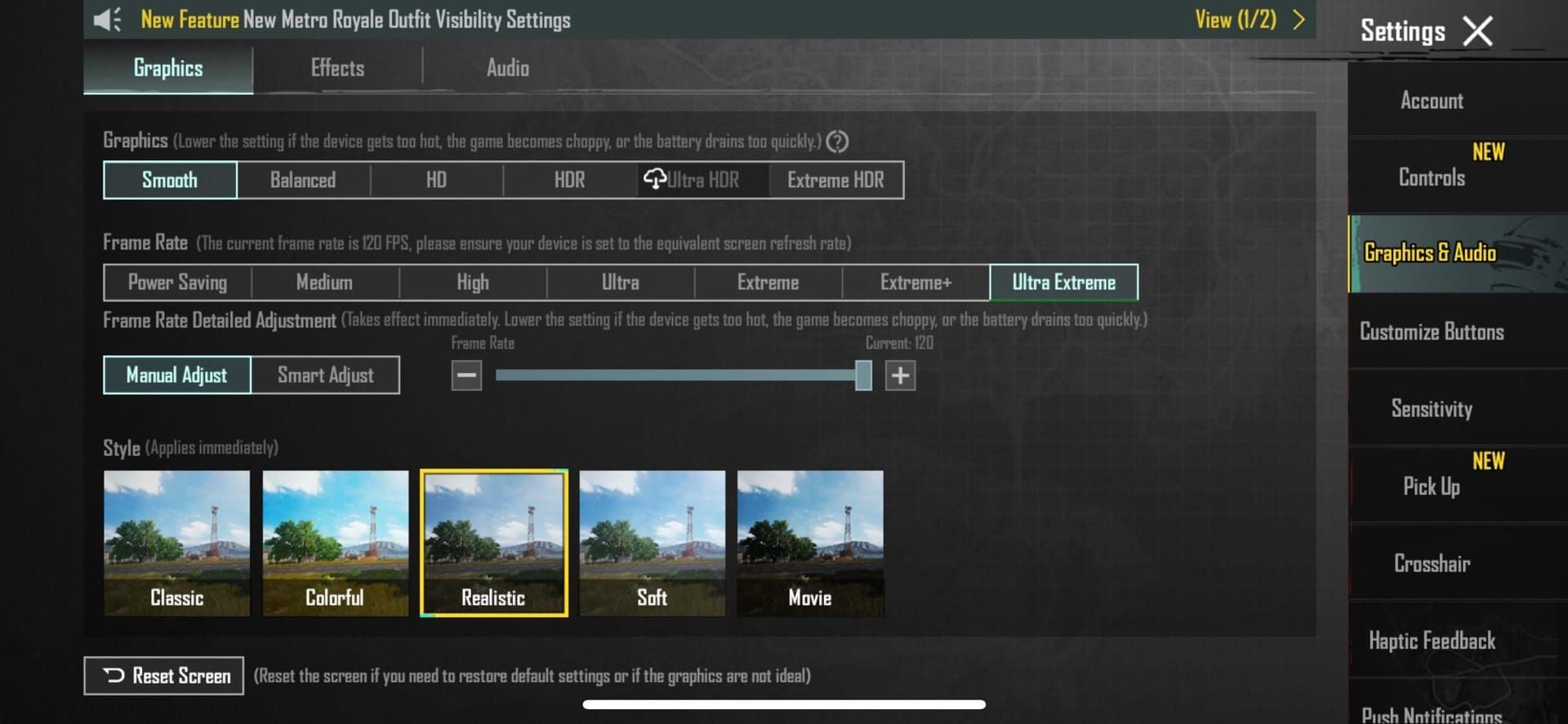
- Navigate Settings > Graphics
- Select Smooth quality
- Set Frame Rate to Extreme or Ultra Extreme (120 max)
- Disable Shadows (15-30 FPS gain)
- Turn off Auto-Adjust Graphics
Stop recording once in lobby. This grants elevated permissions persisting until force-close.
Alternative Unlock Method
Enable Accessibility > Motion > Limit Frame Rate, launch PUBG to trigger driver initialization, disable setting, restart game. Frame rate menu now shows Extreme/Ultra Extreme options.
Verify in training: stable 100+ FPS confirms success. Fluctuating 60-90 FPS requires reapplication.
Graphics Preset Comparison
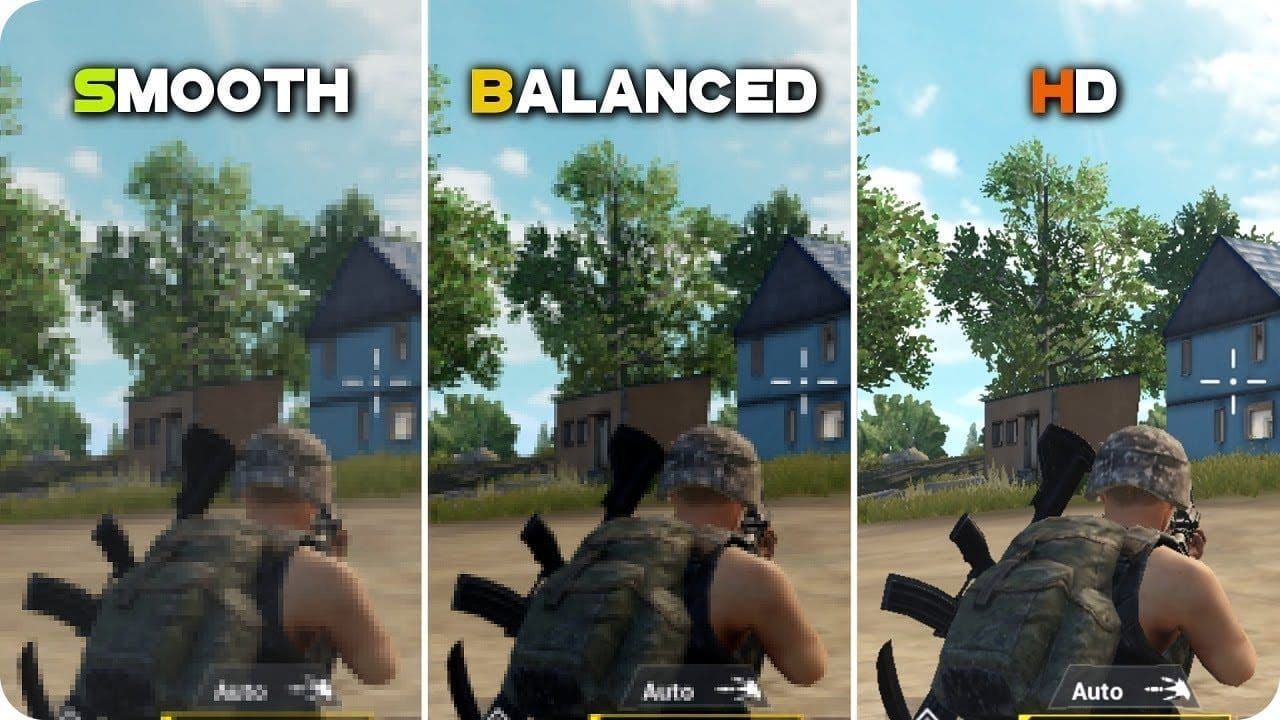
- Smooth: 110-120 FPS sustained, drops to 95-105 during hot drops (iPhone 16 Pro)
- Balanced: 80-95 FPS, minimal visual improvement, 20-25 FPS penalty
- HD/HDR: 60 FPS cap, unsuitable for competitive play
Anti-Aliasing & Shadow Impact
- Anti-aliasing: 8-12 FPS overhead, negligible visual benefit—disable
- Shadows: 15-30 FPS drain, largest performance hit—disable entirely (also enhances enemy visibility)
- Particle quality: Low setting provides 5-8 FPS gains during explosions
Primewood-Specific Optimization
For competitive advantage with premium loadouts, PUBG Mobile instant UC top up pro 6-finger packs through BitTopup delivers immediate resources with secure transactions.
Terrain Challenges

- World Tree: 500m+ approach preloads high-detail geometry causing 10-15 FPS drops
- Guardian Flowers: Dense placement reduces FPS 5-10 due to collision detection
- Lumina Fruit Buds: Persistent state data increases memory footprint, causing late-game degradation
Optimal Primewood Settings
- Maintain Smooth + Extreme frame rate
- Reduce render distance to medium if sub-90 FPS persists
- Disable motion blur and depth of field
Hot Drop Performance
World Tree: Expect 20-30 FPS drop during first 60 seconds (25-35 players). Pre-load by spectating during spawn island for 5-10 FPS improvement.
Alternative drops (Pochinki/Yasnaya PrimeWood): 95-110 FPS vs World Tree's 85-100 FPS.
Late-Game Management
- Monitor FPS; drops <85 indicate thermal throttling
- Avoid extended Flower Wing gliding (compounds altitude calculations with player density)
- Limit Lashing Vine usage when FPS approaches 90
Advanced Lag Reduction
Thermal Management
- Remove phone case before sessions
- Use desk fan for active airflow (maintains temps 8-12°C lower)
- Take 2-3 min breaks between matches (5-7°C drop per minute idle)
- Monitor warmth near camera module; exit if uncomfortably warm
Memory Management
- Force-close PUBG every 3-4 matches to clear memory leaks
- Restart iPhone daily during intensive testing
- Check Settings > Privacy & Security > Analytics for LowMemory indicators
Network Optimization
- Enable Wi-Fi Assist (Settings > Cellular) for auto-switching
- Configure router QoS to prioritize iPhone MAC address
- Test multiple server regions; sometimes distant servers provide better routing
- Use cellular 5G as backup (40-60MB per match)
Audio Settings
- Reduce audio quality to Medium (decreases CPU overhead)
- Disable voice chat when not communicating (3-5 FPS gain)
- Lower master volume to 60-70%
- Use wired headphones (Bluetooth adds 100-200ms latency)
Troubleshooting Persistent Issues
Hardware vs Software Diagnosis
Test training room code 7307-1085-6780-4282-435. Consistent 110-120 FPS in training but 70-90 in matches indicates software/network issues, not hardware limits.
Monitor frame time consistency over average FPS. Stable 90 FPS with consistent 11ms frame times beats variable 100 FPS (8-15ms).
When to Reinstall
Reinstall if cache clearing fails after 7-10 days intensive testing. Backup HUD via Settings > Sensitivity/Layout > Share code first.
Test 15-20 min in training post-reinstall. Achieve 70%+ M416 accuracy at 50m to confirm stability.
Update Verification
- Enable App Store auto-updates for immediate hotfixes
- Check Settings > General > Software Update weekly
- Prioritize updates mentioning graphics performance or Metal API optimizations
90 vs 120 FPS Impact Analysis
Competitive Advantage
- 120 FPS: 20-30% reduced reaction time, 33% more frequent recoil micro-adjustments
- Recoil control: Tighter spray patterns beyond 50m
- Vehicle driving: Smoother high-speed maneuvers
Battery Trade-offs
- 120 FPS: 2.5-3 hrs gameplay, 40-50% more power consumption
- 90 FPS: 4-4.5 hrs, optimal balance for extended sessions
- Recommendation: 120 FPS for short ranked (1-2 hrs), 90 FPS for grinding
Temperature Comparison
- 120 FPS: 6-8°C hotter, throttles after 15-25 min without cooling
- 90 FPS: Stabilizes 5-7°C below throttling threshold, 60-90 min sessions possible
Practical Considerations
Maintain consistent frame rate across practice and competition. Switching creates muscle memory conflicts. Transitioning 90→120 FPS warrants 5-8% sensitivity reduction.
Maximizing Premium Features
UC Currency Benefits
- Premium crates: Weapon skins with improved iron sights/visibility
- Royale Pass: Exclusive rewards sustaining motivation
- Tactical outfits: Reduced visual clutter, better silhouette recognition
Why BitTopup
- Instant delivery within minutes
- Competitive pricing maximizing value
- Secure transactions protecting payment info
- Excellent customer service with high user ratings
- Wide game coverage for unified platform management
Cosmetic Impact
- Weapon skins: Fresh experiences preventing repetitive feel
- Vehicle skins: Team coordination via instant recognition
- Parachute effects: Enhanced hot drop excitement
Long-Term Maintenance
Weekly Checklist
- Clear PUBG cache every 3-5 days
- Restart iPhone weekly
- Verify 2GB+ free storage
- Test network ping before ranked
- Update PUBG + iOS
- Clean charging port for thermal dissipation
- Verify graphics settings post-update
Performance Monitoring
Enable FPS counter (Settings > Basic). Track baselines; sudden 10-15 FPS drops indicate issues. Document metrics across scenarios: hot drops, rotations, final circles, driving.
Future-Proofing
- Maintain iOS updates for compatibility
- Preserve 20-25% free storage (game grows 2-3GB annually)
- Document sensitivity/HUD codes for instant restoration after resets
Common Misconceptions
Jailbreak Myths
Jailbreaking provides zero FPS advantages on iOS 18.3.2+. Screen recording/Limit Frame Rate workarounds deliver identical 120 FPS access without voiding warranties. Jailbreaking actually degrades performance via system instability.
Third-Party App Risks
Game boosters/FPS unlockers introduce malware risks and potential bans. PUBG's anti-cheat detects unauthorized modifications. Battery apps offer nothing beyond native iOS settings. Gaming VPNs increase latency through routing overhead.
Graphics Misconceptions
Maximum quality provides minimal competitive advantage. Pros universally prioritize frame rate. Balanced preset's 20-25 FPS penalty outweighs moderate visual improvements. HDR caps at 60 FPS with distracting bloom effects.
Network Confusion
Download speed >10 Mbps provides zero benefit (game uses 40-60MB/match). Ping consistency beats absolute values—stable 45ms outperforms variable 25-60ms. Quality 5GHz Wi-Fi matches wired performance with essential mobility.
FAQ
How do I enable 120 FPS on iPhone 16?
Enable screen recording, launch PUBG, go to Settings > Graphics, select Smooth + Extreme/Ultra Extreme frame rate. Or toggle Limit Frame Rate on, launch game, disable, restart. Verify via FPS counter in training.
Why is 4.2 lagging on iOS?
Insufficient storage (<2GB free), cache >2GB, thermal throttling >45°C, iOS <18.3.2, or Low Power Mode capping at 60 FPS. Primewood demands 25-35% more GPU than classic Erangel.
Can iPhone 16 run 120 FPS without jailbreak?
Yes. Screen recording or Limit Frame Rate methods unlock hidden options without jailbreaking. Jailbreaking offers no benefits while risking security and anti-cheat detection.
Best Primewood graphics settings?
Smooth quality, Extreme frame rate (120 max), shadows off, anti-aliasing off, Auto-Adjust disabled. Prioritizes stability over visuals for demanding environmental systems.
Does 120 FPS drain battery faster?
Yes, 40-50% more consumption. Reduces gameplay from 4-4.5 hrs (90 FPS) to 2.5-3 hrs. Also elevates temps 6-8°C higher, accelerating throttling from 45-60 min to 15-25 min.
How to fix network lag on iOS?
Use 5GHz Wi-Fi <50ms ping, enable Wi-Fi Assist, configure router QoS, test off-peak. Disable background refresh, close bandwidth apps, use wired headphones. Verify packet loss <2% via in-game diagnostics.