To customize controls and key mapping on the official LifeAfter PC client, launch the game, open the Setting menu, and access the interface options. The game allows survivors to customize their layout through the Interface Customization menu—where you can drag, drop, and rescale functional modules—and lets you individually toggle core elements like the weapon-switching bar and chat window back to classic layouts, as detailed in NetEase's official client patch notes.
Customizing Control Layouts in the Official PC Client
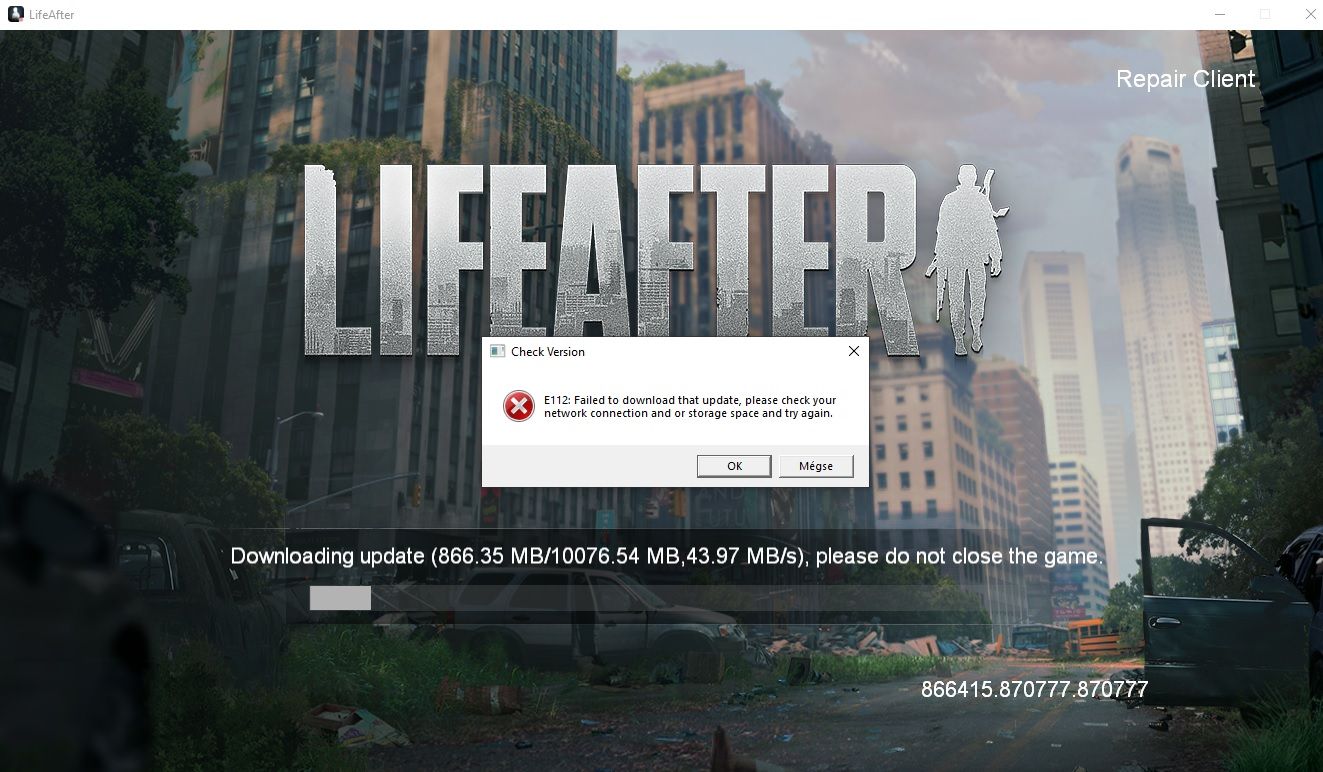
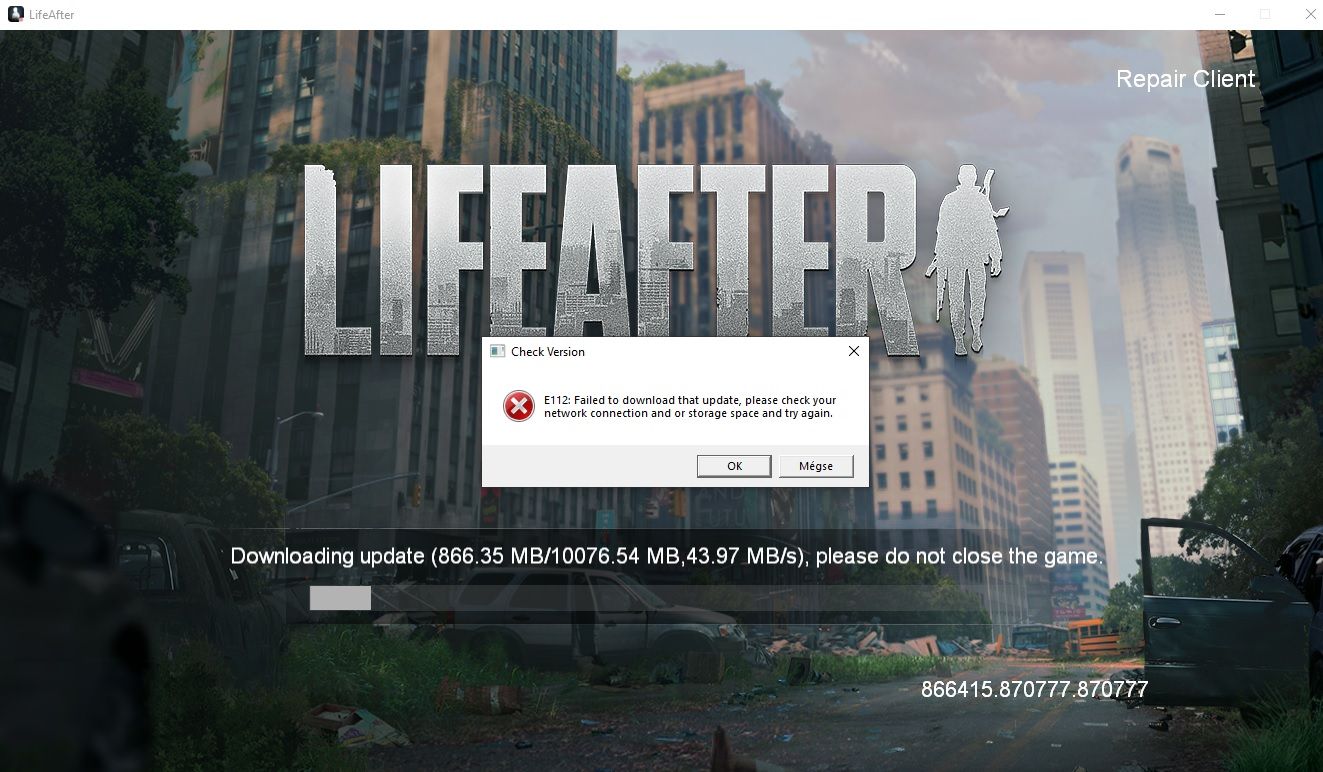
NetEase's dedicated PC client requires 60G of pre-download storage space (compared to 18G on mobile) to support high-resolution assets. Inputs rely on both desktop key overlays and mobile-style UI anchors, meaning setup requires adjusting on-screen target positions alongside client key mapping.
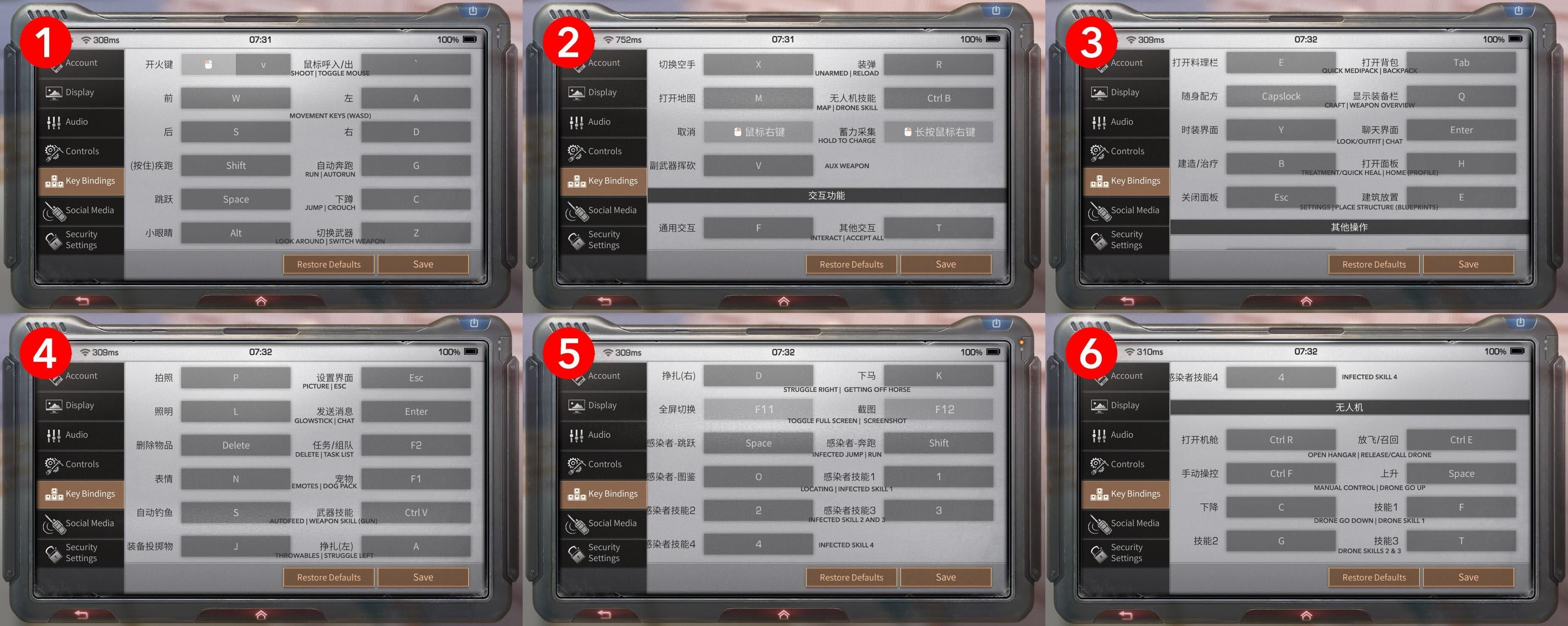
Step-by-Step UI and Control Configuration
- Launch the official LifeAfter PC client and enter your server.
- Click the gear icon on the top-right screen edge to open Setting.
- Navigate to the interface and control tabs.
- Select Interface Customization.
- Select, drag, and resize specific interactive modules across your screen grid to align with your hand positioning.
- Save your customized profile before exiting to the gameplay view.
The client has no single master toggle to restore the legacy interface at once. Instead, the Setting menu lets you revert individual high-frequency modules—specifically the weapon-switching bar and the chat box—back to classic styling without altering the rest of your HUD.
Official PC Client vs. Emulator Key Mapping
Third-party Android emulators like BlueStacks historically offered independent Controls Editor tools, letting users assign keyboard hotkeys (like WASD for movement via D-Pad, Space to shoot, and Shift to jump) onto touch controls. However, according to an advisory on BlueStacks' official game setup guide, LifeAfter does not work on BlueStacks at this time despite appearing in the Google Play Store.
With emulator support unavailable, configuration must occur directly inside the official 60G standalone client. Native PC integration handles mouse and keyboard inputs at the engine level, avoiding the mapping delays and conflicts common to third-party emulator wrappers.
| Platform / Client | Storage Requirement | Keybind Customization Method | Current Status |
|---|
| Official NetEase PC Client | 60G pre-download | In-game Settings & Interface Customization (LifeAfter Official) | Fully operational |
| BlueStacks Android Emulator | Varies | Controls Editor overlay (WASD, Shift, Space) | Non-functional advisory (BlueStacks Guide) |
Managing Screen Anchors and High-Frequency Modules
When optimizing your PC control layout for combat and construction, focus on high-frequency UI zones:
- Weapon-Switching Bar: If the revised UI makes quick-swapping firearms clumsy during infected encounters, enter Setting and revert this specific element to the old-style bar. This provides a horizontal row format that aligns naturally with number keys.
- Chat and Social Window: Reverting the chat window to the classic style clears up central visibility, keeping screen real estate open for crosshair tracking and Manor building.
- Functional Module Scaling: In the Interface Customization screen, scale down non-essential interaction buttons so they do not block mouse-look zones. Increase the scale of critical survival and healing triggers if you regularly free your cursor to click items under pressure.
Players upgrading their survival gear or Manor formulas can acquire LifeAfter Fed Credits to purchase blueprints and tactical supplies directly inside their account.
Frequently Asked Questions
Can you revert LifeAfter's PC and mobile UI to the old control layout?
No global switch exists to revert the entire interface. However, players can use Setting to restore individual controls like the weapon bar and chat box to their classic formats, or open Interface Customization to reposition and resize screen modules manually, as confirmed in LifeAfter's update notes.
Can you play LifeAfter on the BlueStacks emulator instead of the official PC client?
No. While LifeAfter is listed on the Google Play Store, BlueStacks notes that the game does not currently function on their emulator platform. Players should use the official standalone PC client instead.