Learn how to link LifeAfter mobile account to PC without losing survivor progress. Sync your gear, camp status, and levels across devices instantly.
Direct Step-by-Step: Linking Your Mobile Survivor to PC
Moving your survivor from a phone screen to a desktop monitor takes under two minutes. The official PC client directly reads your mobile profile, carrying over 100% of your character levels, Backpack inventory, friend lists, and camp membership without reset penalties.
Follow this sequence to sync your account:
- Download and install the official LifeAfter PC desktop client on your computer.
- Open the PC launcher and wait for the main title screen to load.
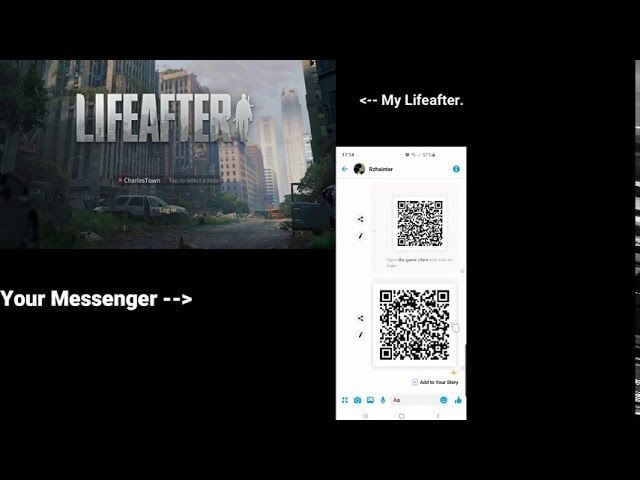
- Locate the dynamic QR code displayed on the right-hand authentication box.
- Launch the LifeAfter app on your phone and stay on the login screen (or open in-game account settings if already logged in).
- Tap the Scan icon on the mobile login interface.
- Hold your phone upright roughly 1 foot away from your PC monitor to scan the desktop QR code.
- Tap Confirm Login on your mobile screen when the authorization prompt pops up.
- The PC client will automatically refresh and load your survivor profile.
[Mobile Phone with LifeAfter] ---> (Scans PC Display QR Code) ---> [PC Client Authenticates Character]
If you prefer credentials over optical scanning, log in manually using your bound third-party social account, phone number, or registered email. Always confirm you select the exact regional server you use on mobile. Selecting the wrong server prompts the game to start a new avatar, leading many to think their data disappeared.
Check the client storage requirements before starting the transfer:
| Platform / Component | Storage Requirement | Key System Condition | Data Preserved |
|---|
| Mobile Client Base | ~18 GB | Android 9.0+ / iOS | 100% Character Data |
| Official PC Client | ~60 GB | Windows 10 / Windows 11 | 100% Character Data |
| QR Scanner Tool | Integrated Camera App | Device Camera Permissions Active | Immediate Session Auth |
The desktop client requires significantly more drive space to house high-definition textures, but your cloud character progress remains identical across both installations.
Using QR Code Verification and Avoiding Common Scan Errors
The QR scanner is the fastest way to bridge your mobile profile to desktop. When a lifeafter pc login failed scan qr error occurs, the culprit is almost always monitor glare, an expired code, or incorrect camera distance.
Dynamic desktop QR codes are time-sensitive security tokens designed to prevent unauthorized session hijacking. If the code stays on your PC monitor for over a minute while you reach for your phone, the authentication handshake expires. Click the refresh arrow in the center of the QR box on your desktop screen to generate a new token before scanning.
Physical alignment matters just as much. Keep your phone upright and steady, roughly 1 foot from the screen. Tilting the device distorts the square alignment markers, preventing the camera sensor from reading the modules.
If the scanner fails to register the graphic, check these physical factors:
- Monitor Glare: Overhead lighting or window reflections wash out the dark modules of the QR graphic. Tilt your monitor downward or dim nearby lights.
- Screen Brightness: If display brightness is too low, the mobile camera cannot detect sufficient contrast. Set PC screen brightness to at least 70% during login.
- Lens Smudges: Wiping the mobile camera lens removes blur that blocks instant autofocus.
- System Permissions: Check phone settings to confirm the game has permission to access camera hardware.
If the in-game scanner hangs, you can also use native mobile screen-capture tools to decode the graphic directly.
How to Bind Android and iOS Accounts to the Official PC Launcher
While QR scanning is convenient for quick sessions, permanent account binding guarantees multi-platform stability. To play regularly on desktop, bind lifeafter android account to pc through an official authentication channel rather than relying on guest profiles.
Guest accounts exist strictly on the local handset where they were created. If you log into the PC client with an active guest profile, the client finds no server data to retrieve.
To link your mobile survivor permanently:
- Open LifeAfter on mobile and enter your home manor.
- Tap the Settings gear icon in the top right corner.
- Open the Account tab.
- Select User Center or Bind Account.
- Attach your profile to a permanent credential: email, phone number, or supported social platform.
When using social media logins, ensure third-party app authorization is enabled in that platform's privacy settings. If external access is blocked, the PC launcher will return an authentication error.
For players looking to link lifeafter ios account to official pc, the process uses the same linked external credentials. Once your iOS survivor is bound to a universal login method, entering those credentials into the Windows launcher loads all items, weapons, and progress directly.
Before tackling major camp events on desktop, you can process a LifeAfter Credits top-up to keep your gear and cosmetic loadouts current.
Account Switching and Managing Multiple Characters on PC
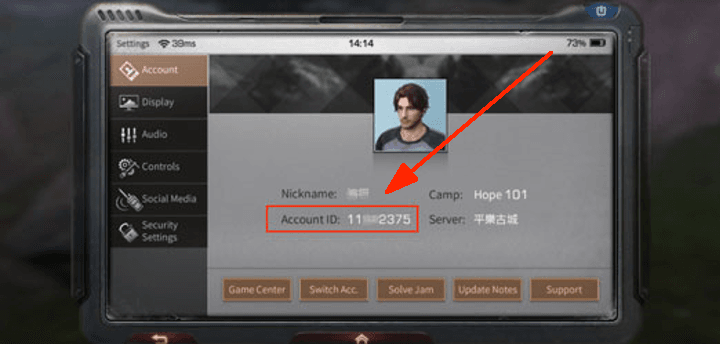
Many survivors maintain secondary alt accounts for resource gathering, manor building, or camp defense. Handling a lifeafter pc client account switch requires managing how the launcher caches local session tokens.
Logging out leaves the launcher set to your last active authorization method. If you share your PC or run multiple characters, clear the cached session manually to avoid loading into the wrong survivor.
To switch accounts on the PC launcher:
- Press
Esc in-game to open the Settings menu. - Click the Account tab and select Switch Account or Log Out.
- On the launcher title screen, click the User Center icon on the right-hand utility bar.
- Select Switch Account to clear cached login data.
- Scan a new QR code from your secondary phone or enter alternate credentials manually.
| Authentication Method | Setup Speed | Multi-Account Friendliness | Security Level |
|---|
| In-App QR Scan | Instant (< 15 seconds) | Excellent (No password entry needed) | High (Token expires rapidly) |
| Email & Password | Moderate (~ 1 minute) | Good (Requires manual typing) | High (Requires secure password) |
| Phone Verification Code | Moderate (~ 1 minute) | Fair (Requires SMS receipt) | High (Direct device auth) |
| Bound Social Media | Fast (~ 30 seconds) | Fair (Tied to browser sessions) | Moderate (Subject to platform permissions) |
Using the QR scanner remains the most efficient workflow for multi-account management because it avoids repeatedly typing passwords into desktop fields.
Always double-check regional server names when switching accounts. If your primary survivor is on one regional server and your alt is on another, the PC client will not switch automatically. Check the server name at the bottom of the start screen before pressing play.
Recovering Lost or Unlinked Mobile Accounts Before PC Migration
If you install the PC client, sign in, and see a character creation screen, your original character is not gone. You almost certainly selected the wrong server or logged in through a different channel than your mobile account.
If you forgot which login channel or email you originally used, use the recovery tools on the login screen:
- Character Recovery: Locate your profile using your exact survivor name or numerical Account ID.
- Phone Recovery: Enter your mobile number to receive a verification code listing all associated server accounts.
- Order Recovery: Submit a transaction receipt or purchase order number to trace the linked account.
- Email Recovery: Enter your recovery email to trigger a verification and password reset link.
Click the Recover button on the right side of the main login screen and follow the prompts. Once your account is identified, bind it immediately to a reliable email address before attempting your next PC login.
If you need to verify account ownership through purchase records, you can buy LifeAfter Credits through authorized channels to maintain verifiable transaction documentation.
Optimizing PC Controls and Restoring Classic Mobile Layouts
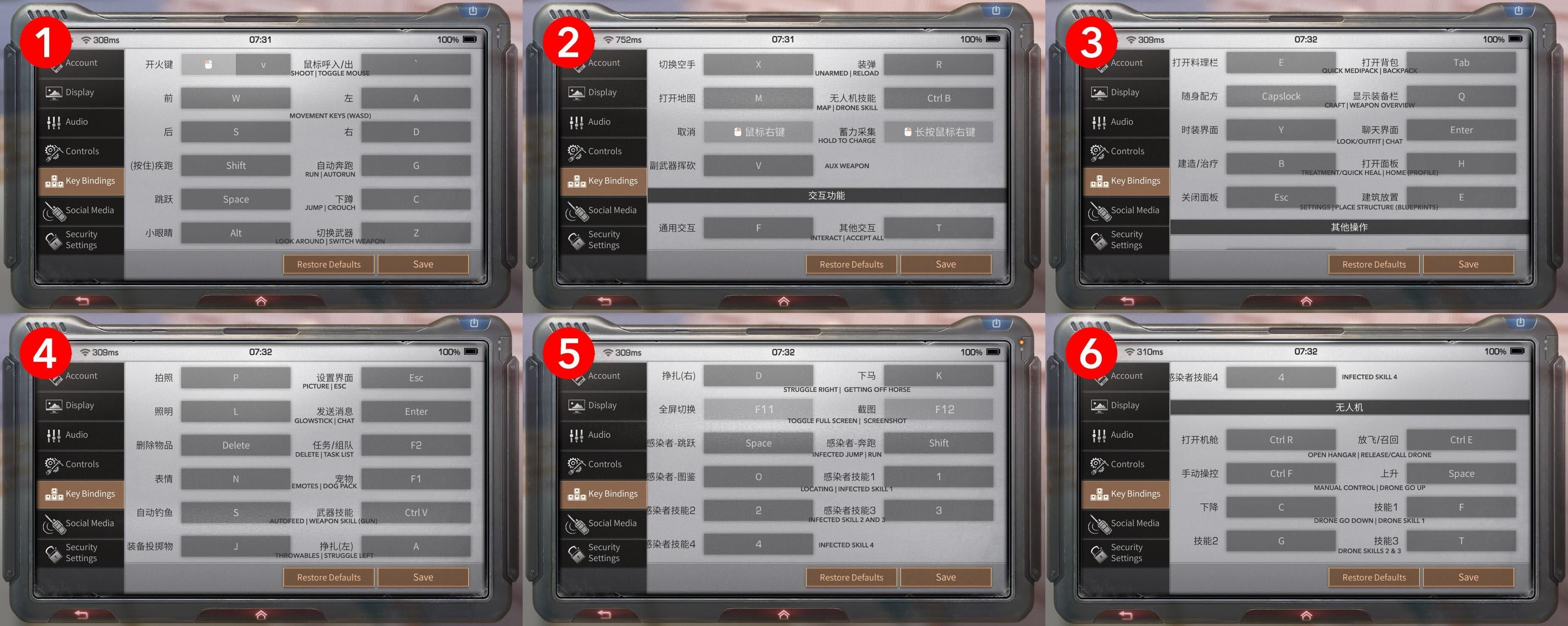
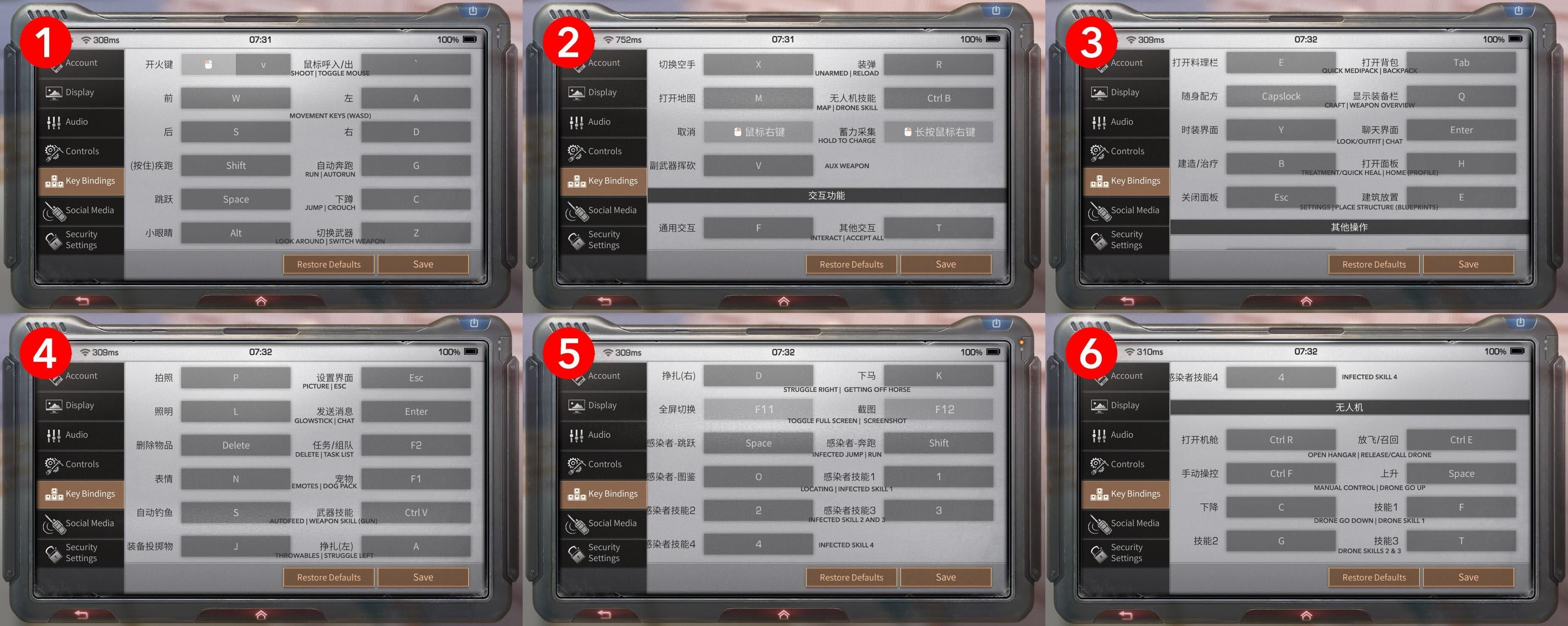
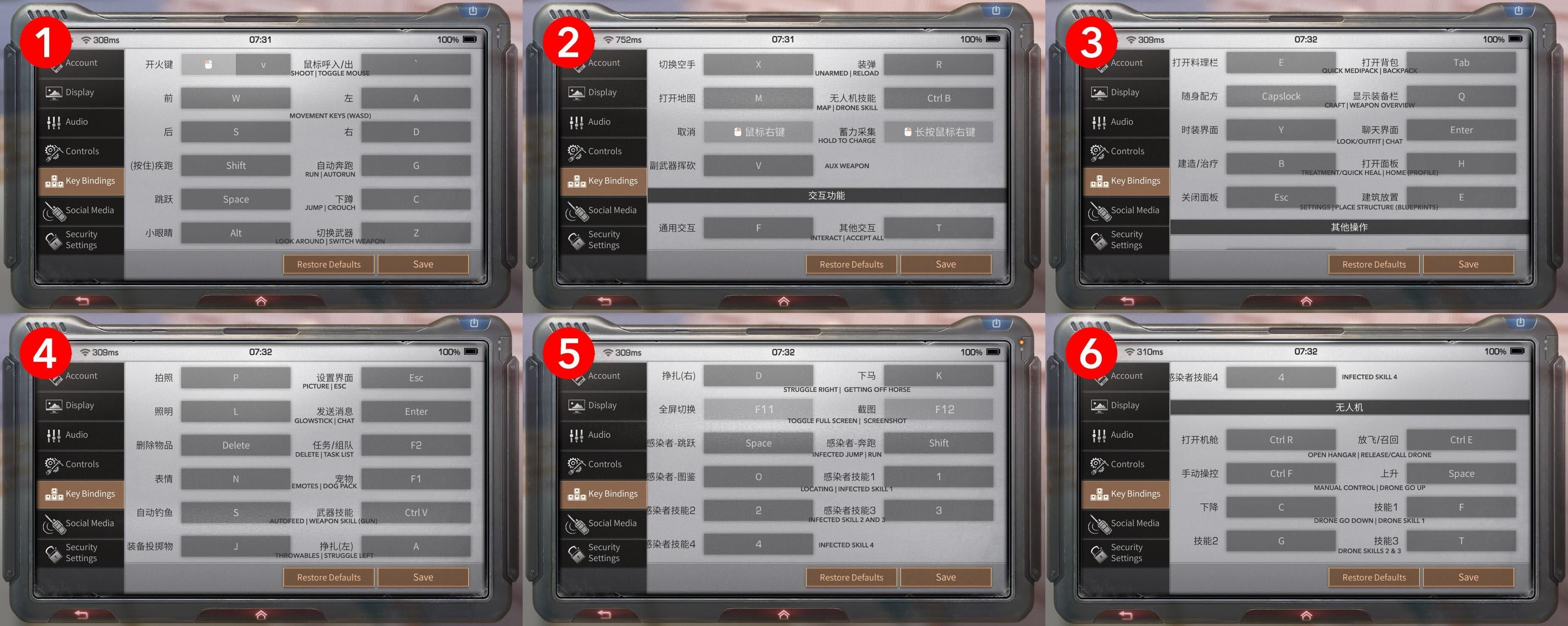
The Windows client provides direct native keyboard and mouse controls for character movement, shooting, building, and interaction, replacing touch overlays entirely.
If the desktop interface feels unfamiliar after playing on mobile, the PC client allows you to revert specific UI elements back to the classic mobile layout.
To adjust controls and UI layout on PC:
- Press
Esc and open the Settings menu. - Navigate to the Controls or Keybindings tab.
- Fine-tune mouse sensitivity for hip-fire, scope aiming, and camera rotation independently.
- Open the Display or UI Settings tab.
- Locate control toggles for the weapon bar and chat window.
- Select Classic Style to restore the compact mobile layout on your desktop.
[PC Settings Menu] ---> [UI Layout Settings] ---> [Toggle Weapon Bar to Classic Style]
Following major updates, the Rebirth version customization system waives the standard 1 Credit or Facelift Card fee for your first appearance edit in saved slots, providing a free card reward to update character visuals for desktop resolutions.
Troubleshooting Connection Drops and Device Sync Glitches
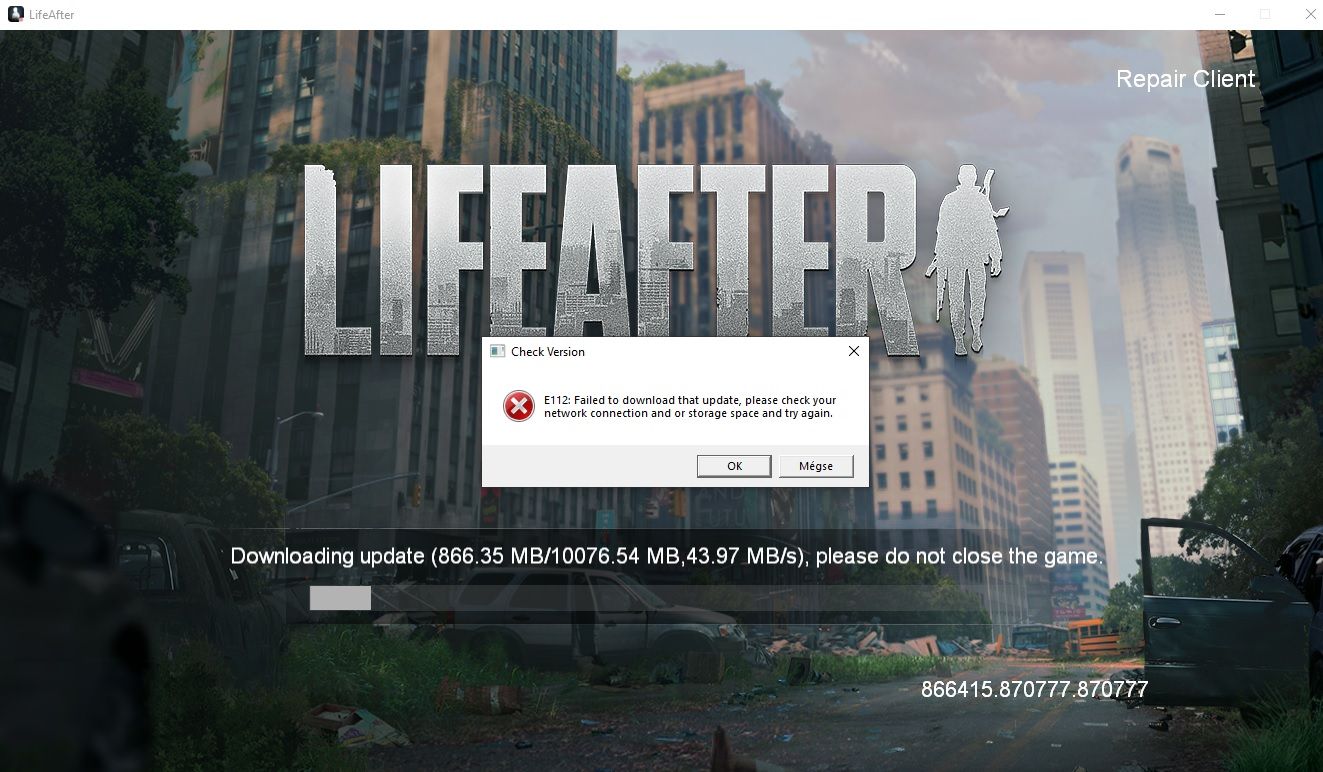
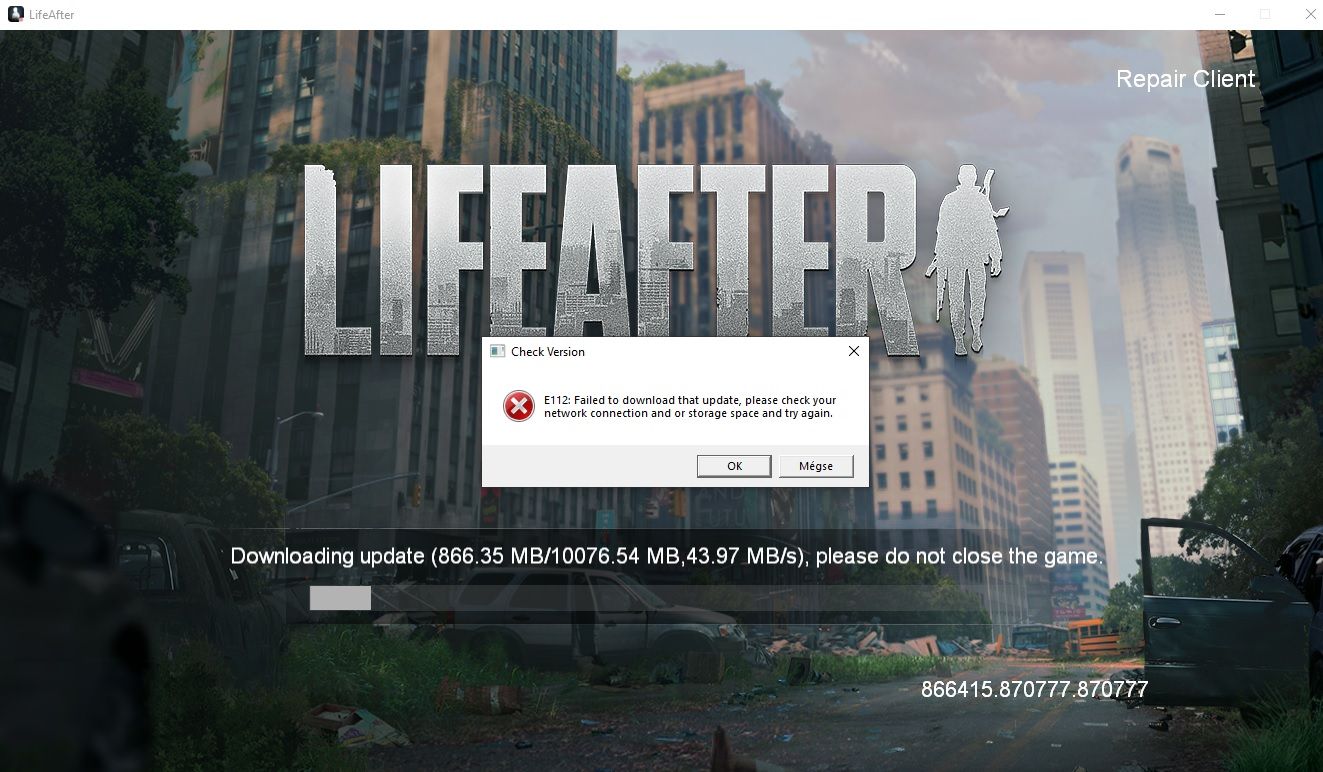
Running LifeAfter across mobile and desktop requires an active, stable network. While PC hardware handles asset rendering locally, character states, inventory changes, and multiplayer interactions sync continuously with live servers.
If you encounter disconnects or sync failures while linking devices, review these points:
- Shared Network Stability: When using device-pairing tools alongside the client, ensure your PC and mobile device share a stable Wi-Fi network supporting Windows 10/11 and modern mobile operating systems.
- Firewall Exceptions: Confirm
LifeAfter.exe is permitted through Windows Defender Firewall. If blocked, the launcher can download updates but cannot authenticate with servers. - Dual Logins: Simultaneous active logins on one profile are not supported. Logging in on PC will instantly terminate your active mobile session.
- Client Version Mismatch: After a game update, verify both mobile and PC clients have downloaded the latest patches. Mismatched versions will reject cross-platform sync requests.
| Issue Encountered | Likely Cause | Verified Solution |
|---|
| QR code does not respond | Expired dynamic code / monitor glare | Refresh desktop QR code; increase monitor brightness. |
| PC loads brand-new character | Wrong server or unlinked guest account | Switch server to match mobile; bind mobile account first. |
| Authentication timeout | Firewall blocking client traffic | Add game executable to Windows Firewall allowlist. |
| Session abruptly closes | Account accessed on another device | Close mobile app completely before launching PC client. |
Resolving connection blocks at the local network level ensures your high-definition PC sessions run smoothly without disconnect warnings.
When preparing for camp battles or major updates on PC, getting a secure LifeAfter recharge ensures your survivor has required building materials and supplies ready.
FAQ
Will I lose my mobile progress when switching to the LifeAfter PC client?
No, your progress will not be lost. Simply log into the PC client using your original linked account credentials to sync 100% of your character levels, items, and camp data.
How do I scan the login QR code on the LifeAfter PC client?
Open the LifeAfter mobile app on your phone, navigate to the in-game account scanner tool, and point your camera at the QR code displayed on the PC screen. Ensure your screen brightness is turned up and free from monitor glare.
What should I do if my LifeAfter login QR code fails to scan?
Refresh the QR code on your PC screen since dynamic codes expire quickly. Verify that camera permissions are active on your mobile phone, adjust your distance to roughly 1 foot, and wipe your camera lens clean.
How can I recover my LifeAfter account if I forgot my login credentials?
Use the Recover button located on the right-side menu bar of the login screen. You can trace and retrieve your account data via Character Recovery, Phone Recovery, Order Recovery, or Email Recovery.
Can I switch the PC client controls back to the classic mobile layout style?
Yes, you can customize core control layouts within the in-game Settings menu. You can individually revert key elements like the weapon-switching bar and chat window to the classic interface.
Why is a duplicate new character created when I open the PC client?
A duplicate character appears when you sign in under an incorrect regional server or a different authentication method than your mobile account. Select the exact same server and login provider used on your phone to load your original survivor.
Can I play on mobile and PC at the exact same time with one account?
No, the game does not support simultaneous active sessions on one profile. Logging into the desktop launcher will instantly disconnect any active session running on your mobile device.
Final Verdict on Mobile to PC Migration
Migrating your survivor to the official PC client improves combat precision, camp management, and base building. The desktop client eliminates battery drain, removes touchscreen input delay, and provides native mouse and keyboard mapping for tighter gunplay.
Binding your mobile guest account to a permanent email or social login before switching ensures a smooth transition. Use the dynamic QR scanner for fast logins, keep monitor glare down, and confirm your regional server matches before entering the wasteland.