To configure manual skill casting and battle toggles for Mobile Legends: Adventure on PC, you must map keystrokes to on-screen tap coordinates using your emulator or client controls editor. The mobile APK lacks native PC keyboard settings, meaning all five hero ultimate cards, combat speed, and auto-battle toggles rely on virtual overlay keys assigned through tools like BlueStacks, Google Play Games for PC, or MuMuPlayer.
Why Manual Ultimate Timing Beats Auto on PC
Mobile Legends: Adventure deploys combat squads of up to 5 heroes, with each hero building an energy meter to unleash an ultimate ability. When Auto combat is active, units trigger their skills instantly the moment their gauges fill.
Automating every skill frequently leads to wasted casts. For instance, support units like Rafaela will expend Blessing Light while team health bars are already completely full. On demanding stages signaled by a prominent in-game WARNING notice, letting abilities fire off cooldown can wipe a squad. Placing direct tap keybinds across all 5 hero portraits enables you to hold healing, crowd control, or burst skills until the precise tactical window arrives, without fumbling with mouse cursor aim (BlueStacks Setup Guide).

Platform Control Editors Compared
Different desktop environments offer distinct keymapping tools, shortcuts, and conflict detection rules for mapping touchpoints.
| Platform / Client | Control Interface Access | Key Tools & Mapping Options | Image Reference | Conflict Handling & Overlays |
|---|
| Google Play Games for PC Beta | Press Shift + Tab (Full-screen) or click Game Controls icon on the left sidebar | Tap and Joystick; drag/resize touch zones; assign keyboard keys |  | Toggle on-screen shortcut labels using F1; green checkmark saves configuration (Google Support). |
| BlueStacks 5 Keymapping Tool | Click Keyboard icon on the right sidebar | Tap spots, D-pad, and Combo Key sequence macro recorder | 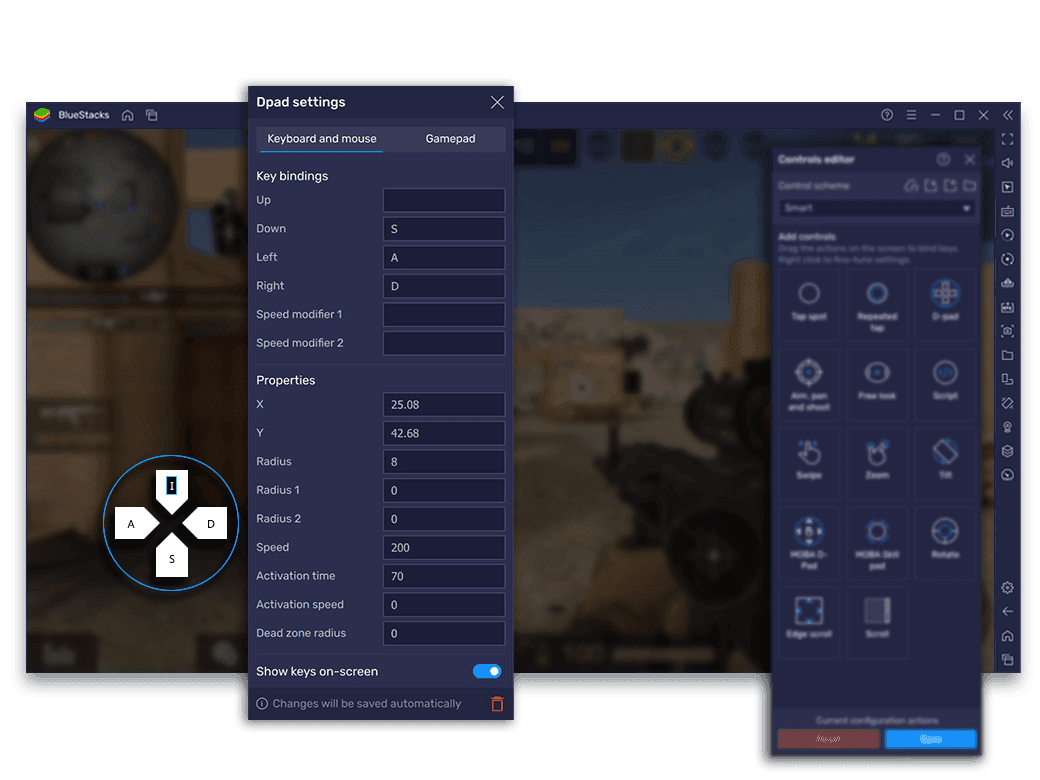 | Includes overlay opacity slider; allows sequential macro loops for stage clearing (BlueStacks Setup Guide). |
| MuMuPlayer Key Editor | Right-click interface menu or double left-click canvas | Single Click, Repeated Click, Skill Casting tools | 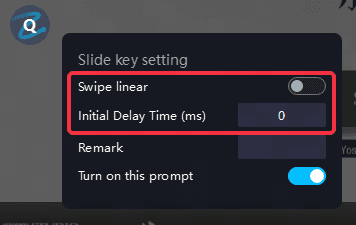 | Displays a red stroke around duplicate bindings; blocks saving until resolved (MuMuPlayer Key Guide). |
Recommended Keymap Layout for Combat
A streamlined layout groups active combat actions close to your left hand while keeping system toggles isolated to prevent accidental presses.
| Virtual In-Game Element | Suggested Hotkey | Action Type | Purpose |
|---|
| Hero Slot 1 Ultimate (Frontline/Top) | 1 or Q | Tap Spot | Manually triggers Slot 1 burst or taunt. |
| Hero Slot 5 Ultimate (Backline/Bottom) | 5 or T | Tap Spot | Triggers targeted healer or backline carry. |
| Battle Speed Toggle (1x / 2x / 3x) | Space or C | Tap Spot | Cycles combat animation speed without clicking. |
| Auto-Battle Toggle | Tab or A | Tap Spot | Toggles full AI autonomy on or off instantly. |
| Pause / Retreat Menu | Esc | Tap Spot | Freezes combat to inspect status or restart. |
Step-by-Step Keymapping Configuration
If you want to set your keybinds cleanly, enter a repeatable battle such as a Campaign stage or Arena practice match so the combat HUD remains visible on screen.
Google Play Games for PC (Beta)
- Open Mobile Legends: Adventure. If running in full-screen mode, press Shift + Tab to bring up the game options menu. If in windowed mode, click the game controls icon situated on the left sidebar.
- Select Remap controls, then click Edit.
- Choose Tap from the control types list.
- Drag the virtual tap circle over the first hero's ultimate card icon at the bottom of the combat screen.
- Press your desired key (such as 1) to assign the input, and enter a label.
- Click the green checkmark to save your layout (Google Support).
BlueStacks 5 and MuMuPlayer
- Launch the game and access the keymapping editor by clicking the keyboard icon on the sidebar.
- Drag a Tap spot or Single Click node directly onto each hero ultimate portrait.
- Type your preferred key into each placed node.
- Place a node over the Auto-battle button and another over the Speed multiplier icon.
- Check the canvas for duplicate keys. In MuMuPlayer, any key conflict highlights with an unmistakable red stroke around the icon, which blocks the Save button until corrected (MuMuPlayer Key Guide).
- Click Save to apply the configuration.
Automating Stage Clearing with BlueStacks Combo Key
While Mobile Legends: Adventure automates background AFK resource collection, it does not cycle forward through Campaign chapters automatically. You have to click through end-of-battle victory screens and select the next battle manually.
BlueStacks includes a Combo Key recorder that lets you macro this transition (BlueStacks Setup Guide):
- Advance to stage 1 of a newly unlocked chapter.
- Open the keyboard controls UI and start recording a new key sequence.
- Enter the stage battle. Wait between 15 to 30 seconds—depending on the average combat duration of your squad—to ensure all animations and victory banners finish cleanly.
- Click Continue to transition to the subsequent stage.
- Let the loop repeat across 10 to 15 stages without interruptions.
- Stop the recording, name the sequence, and bind it to an accessible keyboard shortcut.
Executing this macro allows your team to push through multiple easy campaign stages hands-free without getting stuck at victory menus.
Troubleshooting Keymapping and Input Latency
When keyboard hotkeys fail to register or skills trigger with significant delay, use these numbered diagnostic checks.
- Resolve keybinding conflicts: If an editor will not allow you to click Save, inspect every mapped node. In software like MuMuPlayer, duplicate assignments turn red. Delete conflicting keys or assign separate keystrokes until the red outline clears (MuMuPlayer Key Guide).
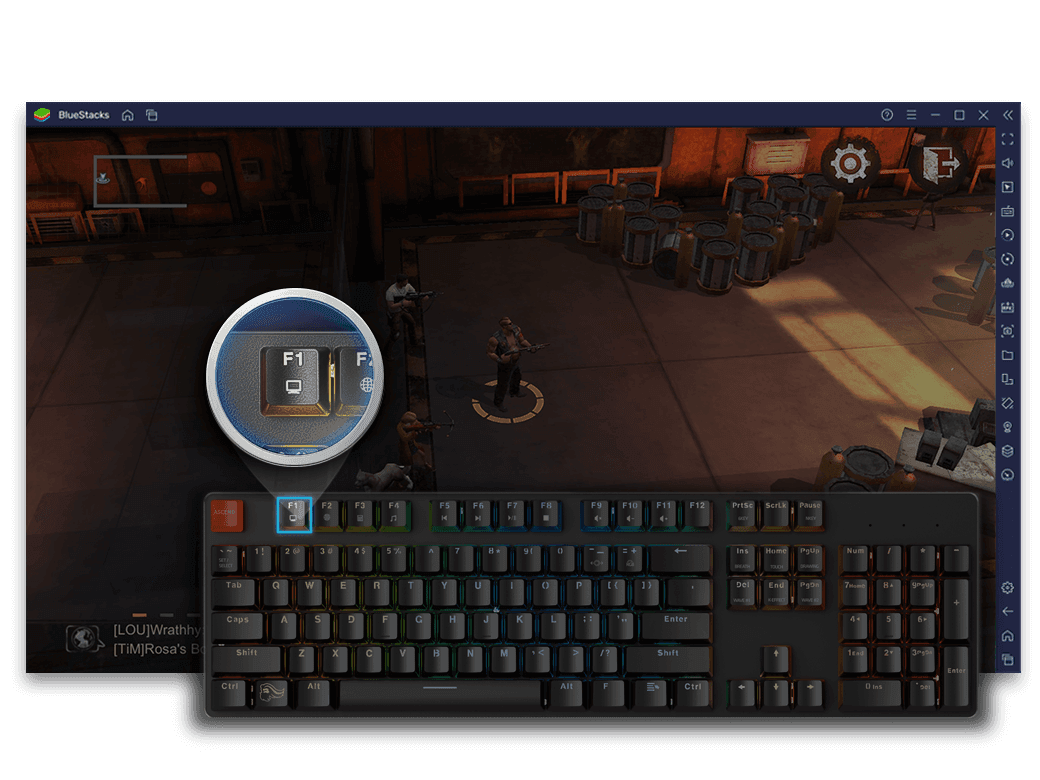
- Verify on-screen overlay visibility: If you cannot tell whether your keys match current UI locations, toggle the visual guide. In Google Play Games for PC, press F1 or click Control labels in the sidebar to reveal all bound zones (Google Support). Ensure the tap circle aligns precisely over the circular activation trigger of the ultimate card.
- Turn on hardware virtualization in system BIOS: Emulators require hardware virtualization (Intel VT-x or AMD-V/SVM) enabled in your computer's BIOS. If virtualization remains disabled, emulators drop into software rendering mode. This induces severe input lag, dropped keystrokes, and erratic frame drops during heavy 5-hero ultimate animations (MLBB Hub PC Guide). Restart your PC, tap F2 or Delete during boot, and toggle VT-x or AMD-V under CPU settings.
- Realign nodes after window scaling: If you resize the emulator window between windowed mode and full-screen resolution, fixed touch targets can occasionally drift away from mobile UI buttons. Open the editor again and nudge the tap coordinates back over the ultimate cards.
System Requirements and Emulation Constraints
There is a notable divide between running the native mobile build and maintaining a functional desktop emulation setup.
| Platform Environment | Minimum Documented Operating System | Key Hardware Prerequisite | Control Mechanism |
|---|
| Google Play Games for PC Beta | Windows 10 (v2) or later | Hardware Virtualization enabled | Built-in 'Remap Controls' Tap Zones (Google Support) |
If you also manage account upgrades while playing on PC, premium currency such as Mobile Legends: Adventure M-Cash functions as the direct-purchasing currency used across passes, packages, skins, and summons as an equivalent to real-money transactions.
Frequently Asked Questions
How do you open the keymapping editor in Google Play Games on PC?
Press Shift + Tab in full-screen mode and select Remap controls, or click the game controls button on the left sidebar in windowed mode, then choose Edit (Google Support).
How do you hide keyboard shortcut hints on screen in Google Play Games for PC?
Toggle control overlay labels on or off at any moment by pressing F1 or selecting Control labels from the client sidebar (Google Support).
How can you automate sequential stage clearing in Mobile Legends: Adventure on BlueStacks?
Open the BlueStacks Combo Key recorder on stage 1 of a chapter, wait 15–30 seconds per fight for combat animations to conclude, click Continue, complete 10–15 stages in sequence, stop recording, and map the macro to a shortcut key (BlueStacks Setup Guide).
Why does an emulator keymapping editor show a red stroke and refuse to save?
A red stroke indicates a keybinding conflict where one keyboard key has been tied to multiple distinct controls, or unconfigured empty nodes remain on your layout (MuMuPlayer Key Guide). Remove the duplicate or finish configuring the node to restore the Save function.