StarCraft: Remastered triggers the "Unable to join game. (Error 6112)" alert when the game client fails to establish a direct connection on UDP port 6112. Resolving this error requires clearing local port conflicts in Windows Resource Monitor, checking the "Prefer 6112 port" setting in the in-game Network options, and forwarding port 6112 across TCP and UDP on your router to a single static IP address.
Why Battle.net Throws Error 6112
Classic Battle.net protocol architecture dictates that StarCraft game clients bind directly to UDP port 6112 to facilitate game hosting and peer-to-peer connectivity, while communicating with Battle.net chat servers on that same port during logon (Battle.net Protocol Documentation). If port 6112 is already claimed by a background operating system task, blocked by a firewall, or rewritten by router translation tables, the client cannot negotiate match data with other players.
Unlike modern games that route all multiplayer traffic through centralized relay servers, StarCraft: Remastered relies on direct peer exchange once players enter a lobby. If incoming packets cannot reach your computer on the designated port, the lobby handshake times out immediately.
Step 1: Detect Conflicting Background Applications
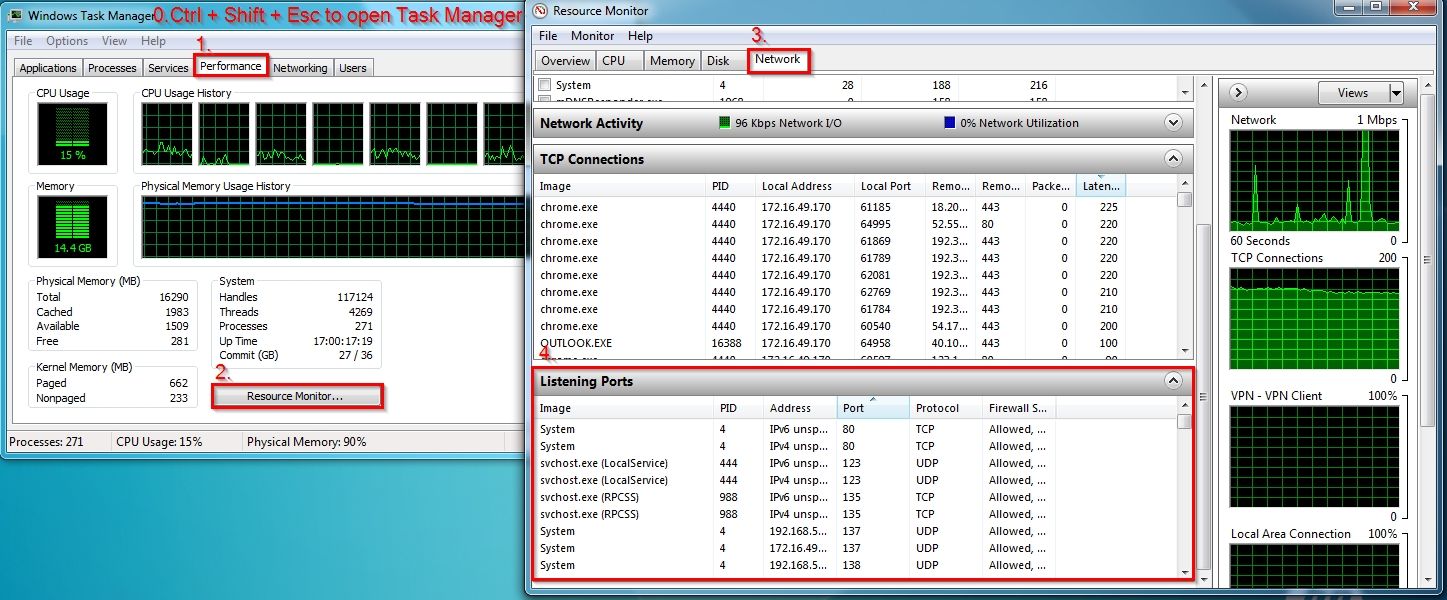
Before adjusting router hardware, check whether another software process on your computer is occupying port 6112. Third-party backup utilities, schedule managers, and network monitors frequently reserve this port on startup.
- Press
Ctrl + Shift + Esc to open the Windows Task Manager, switch to the Performance tab, and click Open Resource Monitor at the bottom. - In the Resource Monitor window, select the Network tab.
- Expand the Listening Ports section.
- Click the Port column header to sort the active ports numerically.
- Scroll down to inspect port 6112.
If any executable other than StarCraft appears in this list—such as ABService.exe (a known backup scheduler service)—Battle.net cannot bind to port 6112 (Blizzard Community Forums). End the conflicting task or reconfigure the offending program's network settings to release the port.
Step 2: Configure In-Game Network Options
StarCraft: Remastered includes an internal setting to lock the client to its default legacy port instead of cycling through dynamic ranges.
Launch the game client, open the main menu, and select Options. Navigate to the Network category. Locate the checkbox labeled Prefer 6112 port and ensure it is checked (Blizzard Community Forums). Save your changes and restart the client.
This prevents the client from falling back to dynamic ephemeral ports that home firewalls frequently block.
Step 3: Forward Ports on Your Router
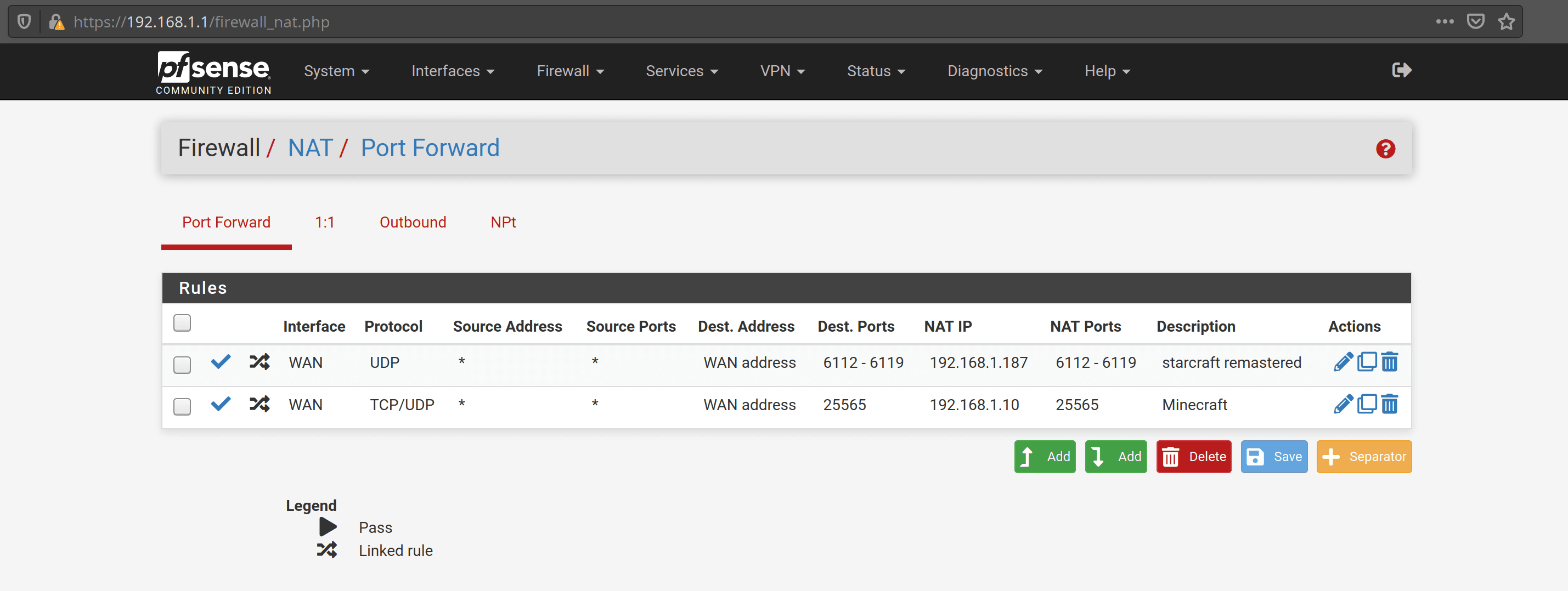
Because StarCraft relies on inbound UDP packets for lobby coordination, home routers will drop this incoming traffic unless an explicit NAT forwarding rule exists.
Port Configuration Matrix
Note: Technical guides show a minor contradiction regarding scope. Some official Blizzard troubleshooting threads state that port 6112 alone across TCP and UDP is sufficient, while broader community routing documentation recommends opening the full UDP range from 6112 through 6119 to account for lobby rotation.
Setting Up a Single Target IP
Forwarded ports can only be sent to one IP address on your local subnet (Blizzard Technical Support). If you forward port 6112 to 192.168.1.50, only the machine assigned that specific local address receives the traffic.
- Assign your gaming PC a static IP address in Windows or create a permanent DHCP reservation in your router dashboard.
- Create a forwarding rule targeting that static IP for port 6112 (or range 6112–6119) under UDP (and TCP for 6112).
- Save settings and restart the router.
When testing whether port 6112 is open using an external diagnostic tool or port-checking website, you must close StarCraft completely (Blizzard Community Forums). If the game is running, the active client lock interferes with diagnostic probes.
Step 4: Router NAT Traversal and Advanced Network Obstacles
Packets can still fail to reach Battle.net even after you forward port 6112 and eliminate local software conflicts, typically because of intermediate translation layers.
Outbound NAT Source Port Preservation
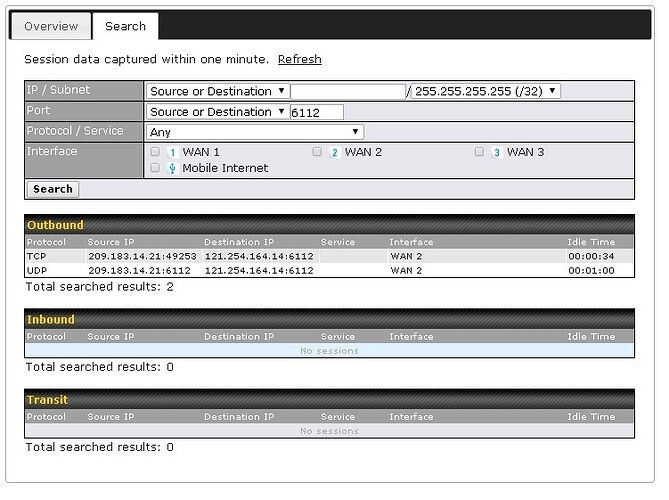
Certain advanced routers and firewall distributions—notably pfSense—rewrite the source port of outgoing UDP packets during standard network address translation. StarCraft fails to maintain multiplayer sessions when outbound UDP packets have their source port changed (Elias Carter Network Guide).
To correct this on pfSense or enterprise-grade routing firmware, navigate to your Outbound NAT rules. Switch the mode from automatic to hybrid or manual, and create a rule covering your PC's IP address that enables Static Port mapping. This ensures outbound packets originating on port 6112 retain port 6112 when exiting to the wider internet.
Carrier-Grade NAT (CGNAT)
Many internet service providers utilize Carrier-Grade NAT (CGNAT) to share public IPv4 addresses across dozens of households. Under CGNAT, your home router does not possess an individual public IPv4 address. Consequently, inbound traffic aimed at port 6112 cannot reach your hardware, rendering local port forwarding rules ineffective.
To resolve this, contact your internet service provider's support desk directly. Request that your connection be removed from Carrier-Grade NAT / IPv4 NAT and assigned a dedicated or dynamic public IPv4 address (Blizzard Technical Support). Once the ISP updates your account profile, reboot your modem.
Resolving Error 6112 for Two PCs on the Same Network
A single router can forward port 6112 to only one local IP address at a time. Attempting to run two StarCraft: Remastered clients simultaneously on the same local network drops the connection on the second machine.
You can override the default communication port on the secondary computer via the Windows Registry:
- Press
Win + R, type regedit, and press Enter. - Create a DWORD value named
Game Data Port. - Set the base to Decimal and enter a value such as
6113 (Icyhell Technical Archive). - On your router, forward UDP port 6113 to the local IP address of the second PC.
Registry Path Discrepancy: Historic setup guides cite HKEY_LOCAL_MACHINE\BLIZZARD ENTERTAINMENT\Starcraft as the location for this DWORD, while newer client installations often place network keys under HKEY_CURRENT_USER\Software\Battle.net\Configuration. Check both locations if the override fails to take effect.