


PlayStation Network Card CH Top Up: What It Is and How It Works
A PlayStation Network Card (CH) is a prepaid digital voucher used to add Swiss Franc (CHF) funds directly to your PlayStation Store wallet. Each card contains a unique 12-digit alphanumeric code that redeems for a specific balance on the Sony PlayStation Network platform.
Once redeemed, your wallet balance can be used across PS5, PS4, and official PlayStation digital storefronts. Using prepaid PSN cards allows Swiss players to purchase digital games, downloadable content (DLC), season passes, in-game virtual currencies, and PlayStation Plus memberships without linking a credit card or direct banking method to their console.
BitTopup delivers authentic, official 12-digit Swiss voucher codes digitally. You receive your code directly upon order completion, allowing you to reload your balance instantly without sharing sensitive login credentials.
Switzerland PSN Account Region Compatibility and CHF Currency Rules
Sony operates strict geographic and currency locks across all regional PlayStation Stores. A PlayStation Network Card (CH) is strictly compatible with PlayStation Network accounts registered to Switzerland.
Critical Regional Rules:
- Currency Lock: Swiss PSN cards are denominated exclusively in Swiss Francs (CHF). They cannot be converted to Euros (EUR), US Dollars (USD), British Pounds (GBP), or any other local currency upon redemption.
- Account Country Lock: You must hold a Swiss PSN account. If your account country is set to Germany, France, Italy, the United Kingdom, or the United States, a CH voucher code will produce a region mismatch error during redemption.
- Wallet Limitations: Sony enforces a maximum PlayStation Store wallet holding limit (typically CHF 150 to CHF 250 depending on local account security parameters). Ensure your current wallet balance plus the voucher amount does not exceed this platform threshold before activating your code.
How to Check Your PlayStation Network Account Region
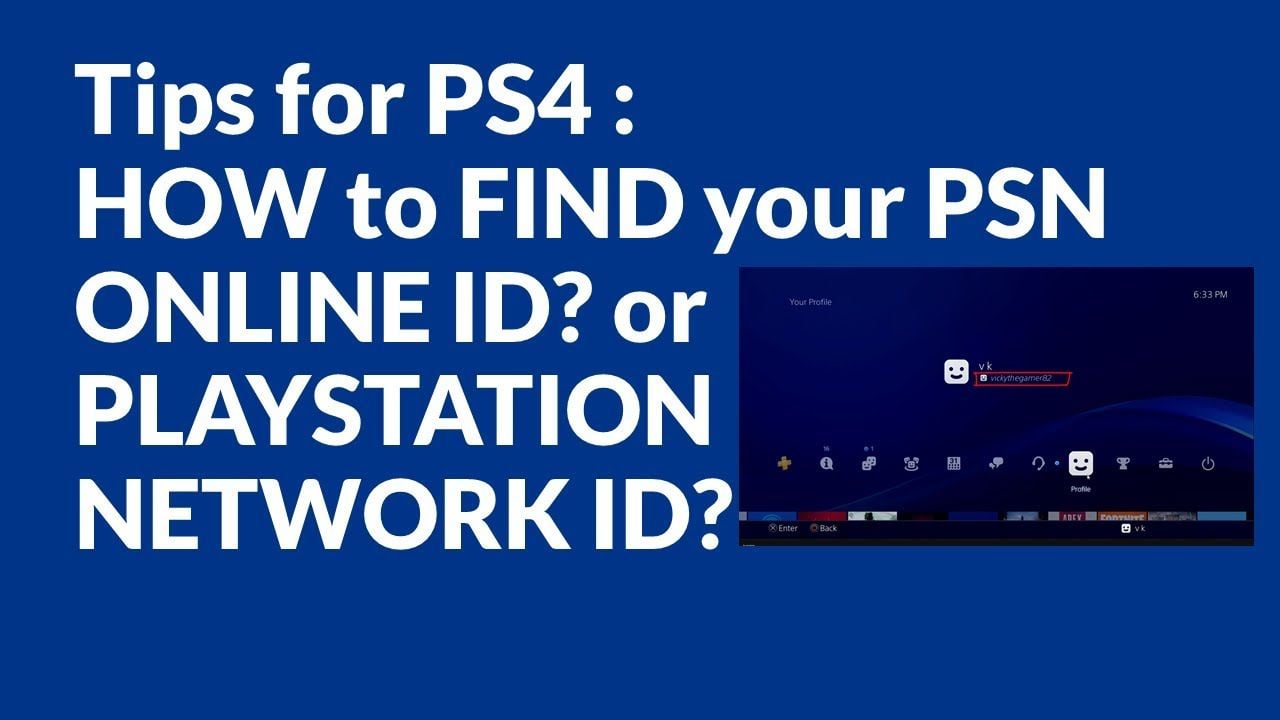
Before you recharge your wallet, verify that your account's registered country is Switzerland. Follow these steps to check your region settings:
- Sign in to your account at the official PlayStation website or open your console profile.
- Navigate to Account Management or select your profile avatar.
- Open Account Details > Location.
- Verify that the Country/Region field displays Switzerland.
If your account displays any other country, you must either switch to an account registered in Switzerland or purchase a card designated for your account's specific country.
How to Recharge PSN Wallet with a Switzerland (CH) Gift Card (PS5, PS4, Web, App)
You can redeem your 12-digit digital code across multiple Sony PlayStation interfaces. Choose your preferred method below:
Method 1: Redeeming on PlayStation 5
- Turn on your PS5 and log in to your Swiss PSN user profile.
- Go to Settings (gear icon) > Users and Accounts.
- Select Account > Payment and Subscriptions > Redeem Codes.
- Carefully enter your 12-digit code provided by BitTopup.
- Select Redeem. The CHF funds reflect in your wallet balance immediately.
Method 2: Redeeming on PlayStation 4
- Boot up your PS4 and sign in to your Swiss account.
- Open the PlayStation Store from the home menu.
- Scroll down the left sidebar menu and select Redeem Codes.
- Input the 12-digit code using the on-screen keyboard.
- Press Continue to finalize the deposit.
Method 3: Redeeming via Web Browser (PC / Mobile)
- Open your web browser and visit the official PlayStation Store website.
- Click Sign In in the top right corner and log in to your Swiss PSN account.
- Click on your profile avatar at the top right of the page.
- Select Redeem Code from the dropdown menu.
- Type in the 12-digit code and click Next > Confirm.
Method 4: Redeeming via the PlayStation App (iOS & Android)
- Open the PlayStation App on your smartphone.
- Tap the PlayStation Store icon at the bottom center of the screen.
- Tap the menu bar (three horizontal lines) in the upper right corner.
- Select Redeem Code.
- Enter the 12-digit alphanumeric code or scan the code text, then confirm.
Eligible Purchases: Games, DLCs, and PS Plus Subscription Tiers
Funds deposited from a Swiss PSN card provide full spending flexibility on the Swiss PlayStation Store. You can spend your CHF wallet balance on the following product categories:
| Purchase Category | Items Covered | Supported Platforms |
|---|---|---|
| Full Games & Pre-orders | Standard & Deluxe Editions, 2026 AAA releases, indie titles | PS5, PS4 |
| Game Add-ons & Currency | DLC expansions, Season Passes, Ultimate Team points, V-Bucks | PS5, PS4, PS VR2 |
| PS Plus Essential | Monthly games, online multiplayer access, cloud saves | PS5, PS4 |
| PS Plus Extra | Curated catalog of downloadable PS4 & PS5 titles | PS5, PS4 |
| PS Plus Premium | Classics catalog (PS1, PS2, PSP, PS3 streaming), game trials | PS5, PS4, PC |
| Media & Rentals | Movie rentals, episodic content, select digital applications | PS5, PS4 |
Note on recurring subscriptions: When purchasing a PlayStation Plus membership using wallet funds, Sony may require an active backup payment method (or sufficient future wallet funds) to handle automatic recurring renewals. You can disable auto-renewal in your account settings at any time.
Troubleshooting Common PSN Voucher Code Errors and Redemption Issues
If you experience an issue while redeeming your 12-digit code, consult this troubleshooting guide for the standard PlayStation error codes:
- Error WC-40371-5 / WS-116138-5 (Region Mismatch): This indicates that your account country does not match the voucher's country. The code is locked to Switzerland (CHF) and cannot be redeemed on an account set to Germany, France, the US, or elsewhere.
- Error WS-45485-6 / WC-40376-0 (Invalid Code or Already Redeemed): Double-check the 12 characters. Common input errors include mixing up the letter 'O' with the number '0', the letter 'I' with the number '1', or the letter 'B' with the number '8'. If you received this error on first input, log out, sign back in, and check if your wallet balance already updated.
- Error WS-43709-3 (Credit Card / Billing Error during checkout): If you are attempting to buy a subscription with wallet funds and receive a billing prompt, ensure your account address matches a valid Swiss postal format, or toggle off auto-renew immediately after purchase.
- Wallet Cap Restrictions: If your wallet balance is close to the Swiss wallet limit, the system will decline the voucher to prevent exceeding the allowed balance. Spend your existing balance down and re-enter the code.
Fast and Secure Digital Voucher Code Delivery on BitTopup
BitTopup provides a streamlined, secure solution for acquiring Swiss PlayStation Network digital cards with immediate delivery.
Why Order from BitTopup?
- Zero Account Sharing: You never need to supply your PlayStation account password, email login, or security credentials. BitTopup delivers an unactivated 12-digit digital voucher directly to you for manual entry.
- Live Checkout Rates: BitTopup displays live, competitive pricing and clear Swiss Franc face values directly on the checkout screen with complete transparency.
- Secure Payment Processing: Complete your purchase using a wide selection of globally verified payment options with full buyer protection.
- Dedicated Customer Support: If you ever need guidance with order status or code redemption, BitTopup customer support is available around the clock to assist you.
Frequently Asked Questions
How do I add money to my PlayStation Network account with a CH card?
Purchase a Swiss PSN digital card on BitTopup, copy your 12-digit alphanumeric code, and open the PlayStation Store on your PS5, PS4, mobile app, or browser. Go to Redeem Code, enter the 12 digits, and confirm. The CHF balance instantly deposits into your wallet.
Can I use a Switzerland (CH) PlayStation Network Card on a US or German account?
No. PlayStation voucher codes are strictly region-locked. A Switzerland (CH) card can only be redeemed on a PlayStation Network account whose country/region setting is configured to Switzerland.
How do I redeem a PlayStation Network card code on PS5 or PS4?
On PS5, open Settings > Users and Accounts > Account > Payment and Subscriptions > Redeem Codes, enter your 12-digit code, and confirm. On PS4, open the PlayStation Store, select Redeem Codes from the left-hand menu, input the code, and confirm.
Are PlayStation Network gift cards reloadable?
No, PlayStation Network cards are single-use digital vouchers. Once the full face value is deposited into your PSN wallet, the 12-digit code is permanently deactivated. To add more funds later, simply purchase another card on BitTopup.
Do PlayStation Store Switzerland voucher codes have an expiration date?
Codes purchased from BitTopup are issued fresh upon order fulfillment. While Sony voucher codes typically hold long validity windows, we recommend redeeming the 12-digit code to your Swiss PSN wallet promptly upon delivery to secure your balance.
What should I do if my PSN voucher code displays an error during redemption?
First, confirm your account country is set to Switzerland. Second, re-verify every character of your 12-digit code to rule out typos (such as mistaking '0' for 'O' or '1' for 'I'). If the issue persists, take a screenshot of the exact error code and contact BitTopup customer support with your order number for fast resolution.