Tip: Need Gold for the Urban Pulse Strike Pass (15 Aug–14 Sep 2026)? Top up Blood Strike Gold on BitTopup with UID only.
Blood Strike FPS Cap Quick Fixes (August 2026)
Updated on 2026-08-24: The 11 August 2026 client added BR-TPS, Deathmatch, and the Locker Room map. Official notes cover modes and weapons, not a new frame limiter. FPS still sits on 60, 120, 144, or 240 for the same client and driver reasons players have reported on Steam since 2025.
Ceiling you see | Usual cause | First fix |
|---|
Flat 60 | Windows or phone refresh at 60Hz, Low Power Mode, VSync on | Set the display to its max Hz; turn battery saver off |
Flat 75 / 120 / 144 | VSync matching the monitor, even if the in-game toggle is Off | Force VSync Off in NVIDIA / AMD forbloodstrike.exe |
High preset, stuck near 144 | PC FPS set to High | Switch the FPS / quality preset to Ultra |
Ultra preset, stuck near 240 | Client ceiling | Steam players report the game tops out near 240 |
Extreme greyed out (mobile) | Device or display gate | 90Hz / 120Hz panel plus a flagship SoC; drop Graphics Quality before you drop FPS |
FPS jumps, then slides down | Heat, not a software lock | Cool the phone; cut Resolution and shadows |
A true cap is a flat line at 60, 120, 144, or 240 in an empty lobby. If the counter moves with explosions and close fights, you are GPU or thermally limited.
Real Cap vs Weak Hardware
Turn on the in-game FPS counter in Settings → Graphics (Performance Metrics / Display FPS). Walk an empty spawn, then a fight with smokes and strikers.
Cap: same integer for minutes, GPU load often 40–70%.
Hardware limit: FPS falls when the frame fills with particles, then climbs again in open ground.
Steam’s recommended PC spec is Windows 10, Core i5-4460, 8 GB RAM, GTX 960, 30 GB. Minimum is i3-540, 4 GB RAM, Intel HD 4000. A GTX 1060 6 GB sits above that recommended GPU, so a hard 120 lock on that card is a setting or driver issue, not the floor of the hardware.
Frame time math if you use an overlay: 60 FPS = 16.7 ms, 120 FPS = 8.3 ms, 144 FPS = 6.9 ms, 240 FPS = 4.2 ms. A graph that sits on one of those lines is a limiter. A graph that spikes with fights is load.
The old “December 4, 2026 patch locked PCs at 120–144” line uses a date that has not arrived. The 4 December 2025 notes covered UI animation and room tools. Treat a post-patch drop as a reset of your Graphics tab and GPU profile, then work the table above.
PC Fix: In-Game Preset, Then Force VSync Off
Do these in order. Test in a training range or empty lobby after each step.
Open Settings → Graphics. Set the FPS control to Ultra (Steam players report High locks around 144 and Ultra unlocks 240). If your build shows Max / Unlimited, use that.
Set VSync to Off. Quit the client completely and relaunch. One toggle often sits in memory until a full exit.
Windows: Settings → System → Display → Advanced display. Set Refresh rate to the panel’s top value (144, 165, 240). Driver installs drop this back to 60.
NVIDIA Control Panel → Manage 3D Settings → Program Settings → add the Blood Strike exe:
Vertical sync: Off
Max Frame Rate: Off, or 3–5 below your Hz if you want a soft cap (137 on 144 Hz)
Power management: Prefer maximum performance
AMD Software → Gaming → Blood Strike:
Wait for Vertical Refresh: Always Off
Radeon Enhanced Sync: Off while you test
Frame Rate Target Control: Disabled
Steam threads match this path: in-game VSync Off is not enough if the driver is set to “Use application settings” and the client still asks for sync. Force Off in the panel.
If the counter stays on 120 or 144
Right-clickbloodstrike.exe → Properties → Compatibility → Disable fullscreen optimizations. Some clients pick up extra frames in windowed or borderless after this.
Steam: right-click Blood Strike → Properties → Installed Files → Verify integrity of game files.
Search the install folder and%LOCALAPPDATA% for.ini /.cfg files. If you findMaxFPS,FrameRateLimit, or a VSync key, change the cap to240 or0 and save. Skip this if those keys are missing. Blood Strike is a NetEase client, not a documented UnrealGameUserSettings.ini game, so a copied Documents path often points at nothing.
Update the GPU driver from NVIDIA or AMD. Skip random “546.xx only” lists from 2024; use the current Game Ready / Adrenalin package for your card.
Reinstall last, after a Steam verify. Most flat caps move with the preset and the driver VSync line.
Mobile Fix: Extreme FPS and a High-Hz Panel
The current Graphics tab uses Quality Mode, FPS, Resolution, and Graphics Quality as separate controls. Competitive default from the live client: Quality Mode Customize, FPS Extreme, FOV 120 Associated. Full combat and audio tables live in the Blood Strike best settings guide.
Android
Settings → Display → set Screen refresh rate to 90, 120, or 144. The game cannot outrun the panel.
Turn off Battery Saver / Adaptive battery. Open Game Turbo, Game Launcher, or Performance mode and pin Blood Strike.
In-game: FPS Extreme (or High if Extreme is missing). Keep FPS high and cut Graphics Quality / Resolution if the phone heats.
Competitive cut list if Extreme stutters: shadows off, anti-aliasing off, post-process off, Resolution High or 720p-class, Display Weapon Customization Off.
Extreme appears only on some devices. A 120Hz panel plus a Snapdragon 8-series or Dimensity 9000-class chip is the usual combination that unlocks it. Mid-range 90Hz phones should target a stable 90, not a broken 120.
iPhone / iPad
Settings → Accessibility → Motion → Limit Frame Rate Off.
Settings → Display & Brightness → confirm ProMotion / the high refresh option on supported models.
Leave Low Power Mode Off in Ranked. iOS drops the display to 60Hz under that toggle.
In-game: Customize, FPS Extreme or the highest unlocked step, Graphics Quality Medium if the body gets hot, effects and motion blur Off.
ProMotion phones reach Extreme when Low Power Mode and Limit Frame Rate are off and the body stays cool. Plug in for long sessions and pull the case if the counter falls as the match runs.
Competitive Graphics That Keep FPS Stable
Use Customize. Presets raise shadows and post-process with the FPS step and undo the work above.
Setting | Ranked pick | Drop if the counter dips in fights |
|---|
Quality Mode | Customize | Keep Customize |
FPS (mobile) | Extreme | High, then Medium |
FPS (PC) | Ultra / 240 | Cap 3–5 below monitor Hz |
Resolution | Ultra or native | High or 720p |
Graphics Quality | Medium | Low |
Shadows / reflections / AA | Off | Stay Off |
FOV | 120 Associated | 90–100 on a small phone |
Weapon skins on screen | Off if frames hitch | Off |
1920×1080 to 1280×720 cuts pixel count by about 56%. On a GTX 960-class PC or a warm phone, that cut holds 60+ with less stutter than Ultra resolution under load. Full low-end numbers sit in the 60+ FPS GTX 960 / i3 guide.
Consistency beats a 240 peak that drops to 140 in a smoke. If you play 144 Hz, a 137–141 cap in the GPU panel often feels cleaner than an uncapped 220 that tears.
120 FPS in Fights
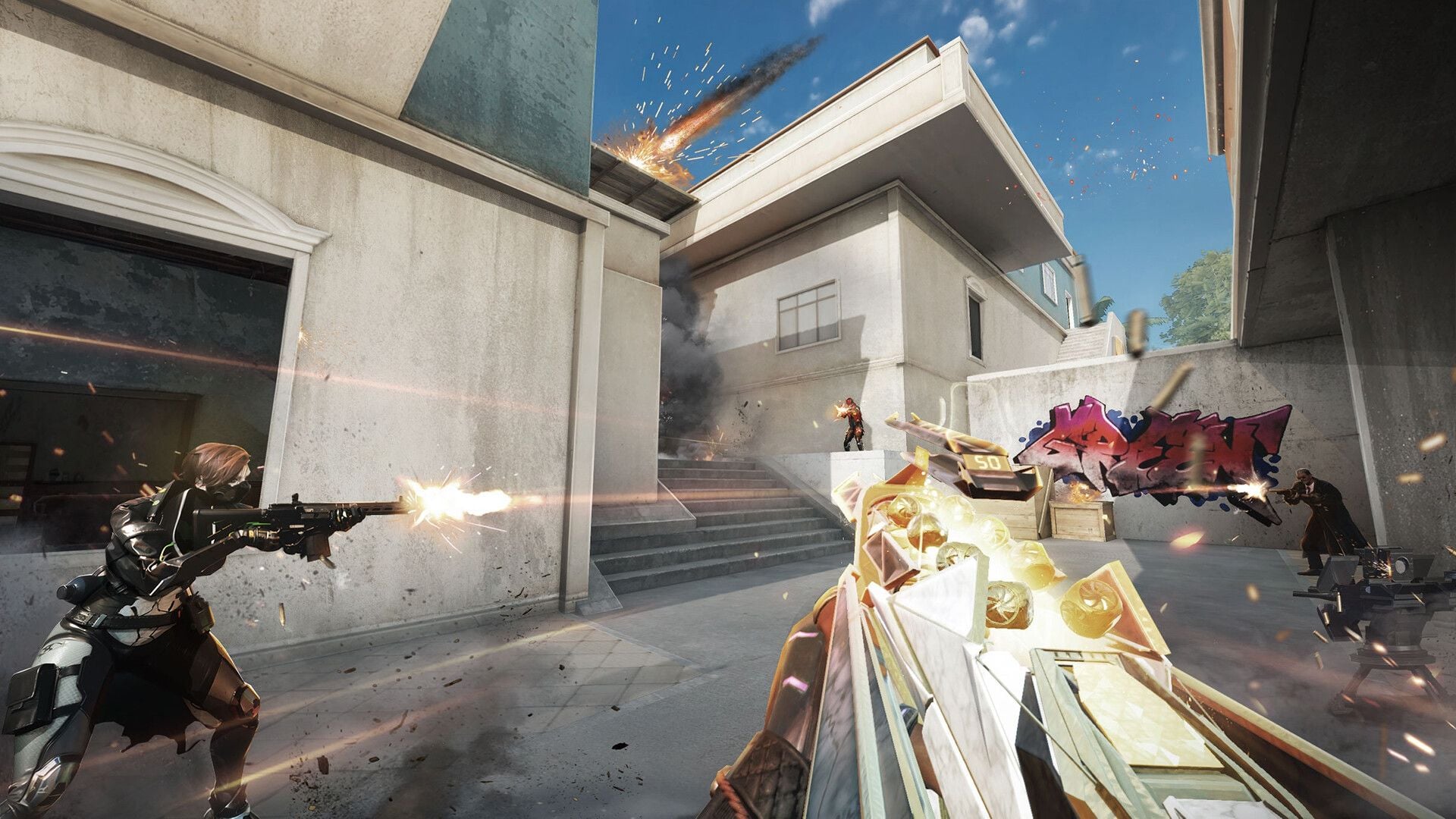
120 FPS updates the picture every 8.3 ms. 60 FPS updates every 16.7 ms. Tracking a strafe and seeing a peek both get a fresher frame. On a 144 Hz or 240 Hz monitor, frames above the panel still cut input delay because the GPU finishes work sooner, even if the screen only lights a new image at its Hz.
PC players who already sit on Ultra and a 240 Hz panel can aim for a stable 200–240. Mobile Ranked is a stable 90 or 120 on Extreme, not a 60 lock from battery saver.
August 2026 modes add load: BR-TPS, Deathmatch, and the small Locker Room FFA map. Same cap fixes apply. If only the new modes hitch, drop Resolution and shadows first.
Common Mistakes
Refresh rate and frame rate. Hz is the panel. FPS is the GPU. Windows at 60 Hz on a 144 Hz monitor looks like a 60 FPS cap with VSync on.
Ultra visuals vs Ultra FPS. On PC, Ultra on the FPS control is the 240 step. Ultra Graphics Quality is shadows, AA, and post-process. Raise the FPS control. Cut the quality sliders.
Battery saver. Android and iOS both pull clocks and, on iPhone, refresh. The counter falls 40% or more and looks like a 60 cap.
Editing a file that is not there. A copiedDocuments/BloodStrike/Saved/Config/GameUserSettings.ini path is an Unreal template. Confirm the file exists before you set it Read-only.
QoS and Ethernet for a flat 120. Wired helps ping. It does not lift a VSync or preset lock.
FAQ
Why is Blood Strike FPS capped at 60 after an update?
The Graphics tab or the OS refresh rate reset to 60. Set FPS to Ultra (PC) or Extreme (mobile), VSync Off, and the display to max Hz. Turn Low Power Mode and battery saver off.
How do I unlock 120 FPS on Android?
Set the panel to 120Hz, enable Game Turbo / Performance, then Graphics → FPS Extreme with Customize. Cut Resolution and shadows if Extreme is unlocked but the counter cannot hold 120.
Which devices run 120 FPS?
Phones and tablets with a 90Hz or 120Hz display and a recent flagship chip (Snapdragon 8-series, Dimensity 9000-class, A15 and newer). Confirm Extreme in the menu. No public NetEase whitelist matches BGMI’s 120 FPS lists.
How do I check FPS?
Settings → Graphics → Performance Metrics or Display FPS. On PC, MSI Afterburner plus a frame-time graph shows a flat cap vs a load dip.
Does higher FPS help in Blood Strike?
Yes. 60 to 120 halves frame time (16.7 ms to 8.3 ms), which tightens tracking and peek timing. Past your panel’s Hz the extra frames mainly cut input delay.
How do I fix an FPS cap after a patch?
Re-apply Ultra / Extreme, force VSync Off in the GPU panel, confirm Windows or phone Hz, then verify Steam files. Search local config only if those keys exist. Reinstall after that.
Conclusion
Start with the FPS preset and a forced VSync Off. Match the display Hz, then cut shadows and resolution if fights still hitch. The August 2026 client still resets menus and still tops out near 240 on PC.
Keep this page for the next build. For the Urban Pulse Elite pass or a stash pull, buy Blood Strike Gold on BitTopup with UID only.