Engine Architecture Changes
December 26, 2025 patch altered texture streaming pools and shader pre-compilation, conflicting with AMD Adrenalin drivers newer than 24.8.1. Texture Streaming Ultimate uses 1GB more VRAM than Low but reduces texture pop-in by 95% on RX 6000/7000 series.
DirectX 12 Ultimate creates frame pacing issues with Hardware-Accelerated GPU Scheduling enabled. The engine's Smart Access Memory and Resizable BAR interaction also triggers stutter on certain AMD configs.
Identifying Your Issue
Stutter: Momentary freezes, frame time spikes exceeding 100ms, GPU utilization plummets
FPS drops: Consistent lower frames without freezing
Input lag: Delay between input and response without visual interruption
Monitor tools reveal stutter through erratic frame time graphs with irregular spikes versus smooth wave patterns. Correlates with shader compilation and texture streaming, visible as sudden VRAM allocation changes.
Pre-Fix Diagnostics
Before applying fixes:
- Close background apps, monitor temps to rule out throttling
- Verify 16GB RAM (8GB minimum causes distinct stutter)
- Check storage: 88GB install + 20GB free for shader cache
- Use SSD—HDD causes texture streaming stutter
Built-In Benchmark
Run benchmarks across quality presets via graphics settings menu. Record average FPS, 1% low FPS, frame time consistency. Note specific stutter scenes: explosions = particle settings, camera movement = texture streaming.
Frame Time Monitoring

Consistent 16.6ms (60 FPS) = smooth. Spikes above 50ms = perceptible stutter. Regular spikes every 15-20 seconds = shader compilation issues. Random spikes = texture streaming problems.
GPU utilization should maintain 95-99%. Drops below 10% during freezes indicate driver/API conflicts, not hardware limits.
Hardware vs Software Bottlenecks
Hardware: Consistent limitations—weak GPU maintains low FPS across settings
Software: Inconsistent performance—smooth gameplay interrupted by freezes despite capable hardware
VRAM requirements:
- 1080p Medium: 6GB minimum
- 1080p High/Ultra: 8GB
- 1440p Ultra: 10GB
- 4K: 12GB+
Essential In-Game Settings
Start here before config file mods:
- V-Sync: Off
- Frame Rate Cap: Monitor refresh rate (not unlimited)
- Nvidia Reflex: On (not On + Boost)
Graphics Presets
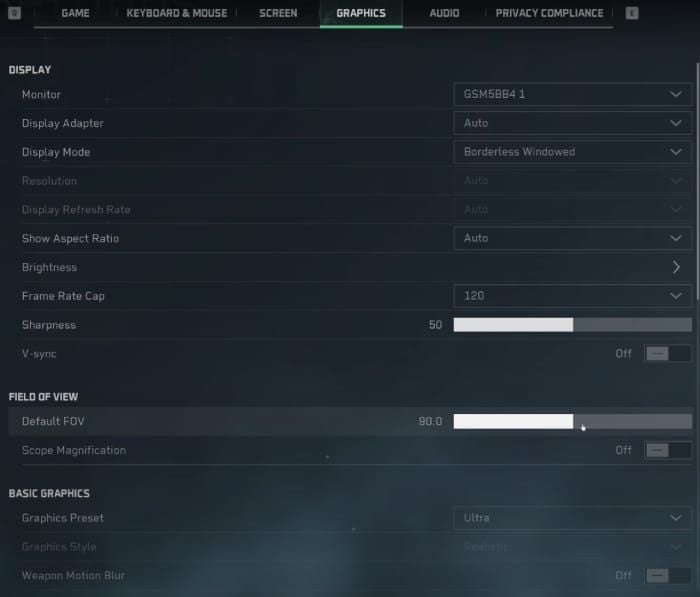
Ultra preset triggers stutter on most systems via Volumetric Fog and contact shadows. Use custom configs:
RX 6600: Medium preset, Texture Quality High, Texture Streaming Ultimate, Shadows Low
RX 6750XT: High preset, Texture Streaming Ultimate, Shadows Medium, FSR Balanced
RX 7700 XT: Ultra preset, FSR Quality at 1440p, Volumetric Lighting Medium, contact shadows disabled
Texture Settings
Texture Streaming: Ultimate (uses 1GB more VRAM but reduces pop-in 95%)
Texture Quality: High (fewer, larger VRAM allocations = smoother than frequent small loads)
Shadows and Distance
Shadows: Low or Medium max (High/Ultra trigger real-time recalculation spikes)
Shadow Map: Match Shadow quality
Render Distance: Medium (prevents CPU overhead during intense combat)
Anti-Aliasing
TAA: Best balance
FXAA: Introduces blur
DLAA: Nvidia RTX only, adds overhead
Engine.ini tweak: r.PostProcessAAQuality=0 disables post-process AA entirely. When using FSR/DLSS, disable in-game AA—upscaling includes own AA solution.
V-Sync and Reflex
V-Sync: Off (use Frame Rate Cap instead)
Nvidia Reflex: On reduces input latency. On + Boost can trigger stutter
AMD: Use -dx11 launch option + Anti-Lag disabled in Adrenalin
Global Illumination
GI Quality: Medium (High/Ultra cause shader compilation spikes)
Ray Tracing: Disable entirely if stuttering—unoptimized for mid-range hardware
DirectX Configuration
-dx11 launch parameter forces DirectX 11, eliminating Hardware-Accelerated GPU Scheduling conflicts. Resolves stutter for ~60% of affected players, especially AMD GPUs.
DX11 vs DX12
DX11: More consistent frame times despite 5-10% lower peak FPS. Avoids DX12 shader compilation and texture streaming sync issues.
AMD users: DX11 + driver 24.8.1 bypasses conflicts
Nvidia users: Less dramatic but improved frame time consistency
Launch Parameters
Steam: Right-click Delta Force > Properties > Launch Options: -dx11 -useallavailablecores
-dx11 = forces DirectX 11
-useallavailablecores = optimizes CPU thread distribution
Test with benchmark to confirm improvement.
Config File Tweaks
Location: Steamapps\common\Delta Force\Game\DeltaForce\Saved\Config\WindowsClient\Engine.ini
Backup first: Duplicate file, rename Engine.ini.backup
Critical Variables
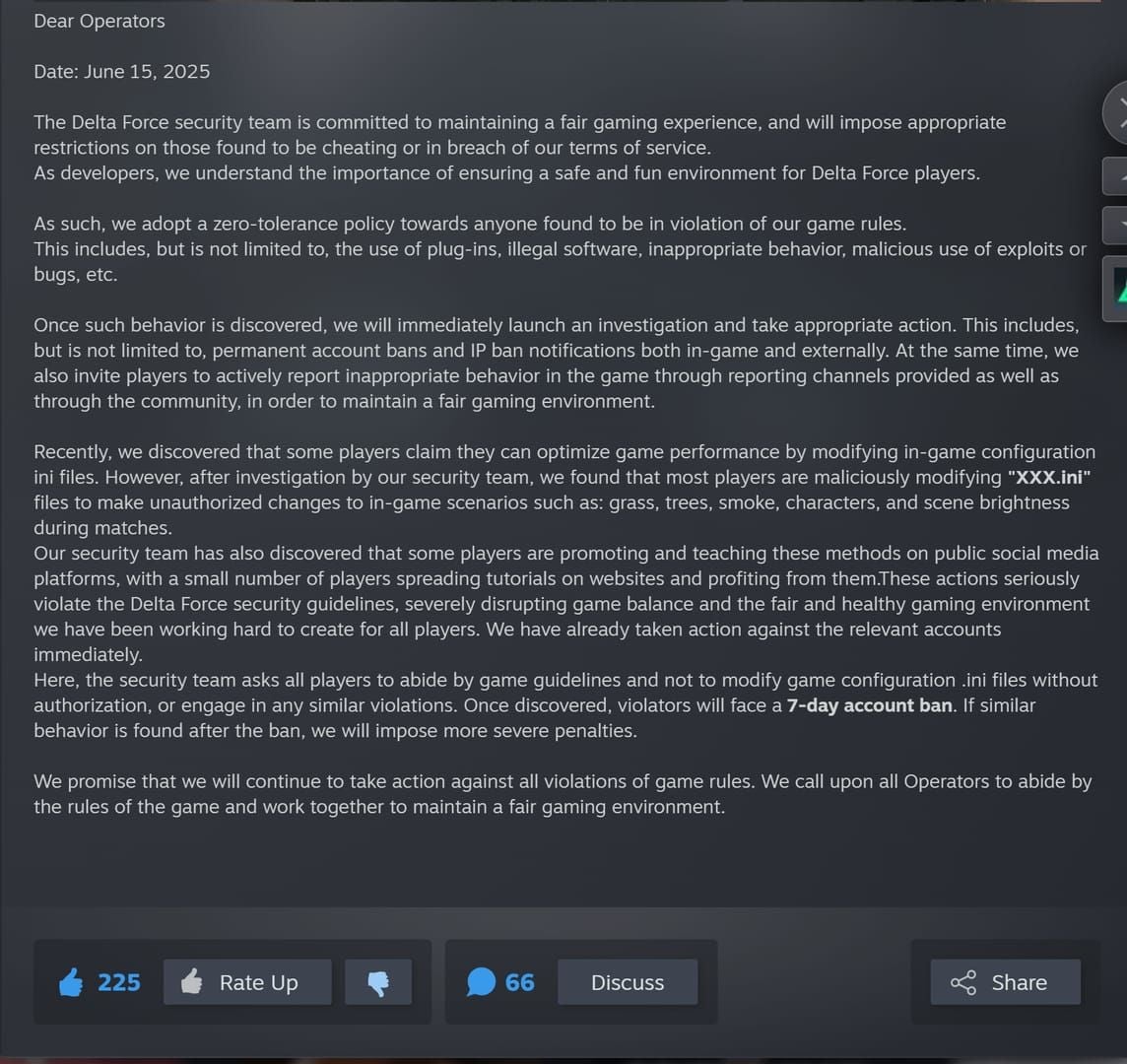
Add under [SystemSettings]:
r.Streaming.PoolSize=3000
r.Streaming.MaxEffectiveScreenSize=0
r.Streaming.UseAllMips=1
r.ViewDistanceScale=1.0
r.PostProcessAAQuality=0
r.SkeletalMeshLODBias=-1
r.StaticMeshLODBias=-1
PoolSize allocates 3GB for texture streaming (don't exceed VRAM minus 2GB). Negative LOD bias increases detail, reducing pop-in frame spikes.
Backup Procedure
Copy entire WindowsClient folder outside game directory. If issues occur, delete modified files and restore backups.
Set modified files to Read-Only (right-click > Properties > Read-Only) to prevent game from overwriting custom settings.
GPU Driver Optimization
AMD Settings
Driver: Roll back to 24.8.1 (last stable before conflicts)
Installation:
- Download AMD Cleanup Utility
- Restart to Safe Mode (Shift + Restart > Troubleshoot > Advanced > Startup Settings > F4)
- Run Cleanup Utility
- Restart, install 24.8.1 with Factory Reset
Adrenalin Settings:
- Texture Filtering: Performance
- Anisotropic Filtering: Application Controlled
- Tessellation: AMD Optimized
- Anti-Lag: Disabled
- Anti-Lag+: Disabled
- Radeon Boost: Disabled
Disable Smart Access Memory in BIOS if stutter persists.
Nvidia Settings
Driver: 560.70 (Custom Installation > Perform clean installation)
Control Panel (Program Settings for Delta Force):
- Power Management: Prefer Maximum Performance
- Texture Filtering Quality: Performance
- Shader Cache Size: 10GB minimum
- Threaded Optimization: On
- Vertical Sync: Off
Shader Cache Management
AMD: Delete %LOCALAPPDATA%\AMD\DxCache\ contents
Delta Force: Delete %LOCALAPPDATA%\DeltaForce\Saved\ShaderCache\ contents
After deletion, play 2-3 matches for shader recompilation. Initial stutters during compilation, then smooth.
Windows System Fixes
Hardware-Accelerated GPU Scheduling
Disable: Settings > System > Display > Graphics Settings > Change default graphics settings > Toggle Off
Restart required. Creates frame pacing issues in DX12 mode.
Fullscreen Optimizations
Navigate to DeltaForce.exe > Right-click > Properties > Compatibility:
- Check Disable fullscreen optimizations
- Check Run this program as administrator
Game Mode and Xbox
Game Mode: Settings > Gaming > Game Mode > Off
Xbox Game Bar: Settings > Gaming > Xbox Game Bar > Toggle Off
Background Processes
Close before launching:
- Browser tabs
- Discord (disable hardware acceleration in settings)
- RGB software (set profiles, close)
- Cloud storage sync
- Windows Update (defer)
Task Manager: Close processes above 5% CPU that aren't essential.
Virtual Memory
System Properties > Advanced > Performance Settings > Advanced > Virtual Memory > Change
Uncheck Automatically manage, set custom on fastest drive:
- Initial: 1.5x RAM (12GB for 8GB RAM, 24GB for 16GB)
- Maximum: 3x RAM (24GB for 8GB RAM, 48GB for 16GB)
Prevents dynamic resizing during gameplay.
Upscaling Configuration
FSR Settings
Quality mode: Best balance (67% native resolution)
Balanced/Performance: More FPS but potential artifacts
Disable in-game AA when using FSR—upscaling includes temporal AA.
RX 6600: FSR Quality at 1080p
RX 6750XT: FSR Balanced at 1440p
DLSS Settings
Frame Generation: Disable all frame limiting, set Reflex to On
Quality mode: Optimal (Performance/Ultra Performance cause temporal instability)
If stutter persists, disable Frame Generation, keep DLSS Super Resolution.
Native vs Upscaling
Upscaling at Quality mode provides better frame time consistency by maintaining 80-90% GPU utilization versus 100% at native. Creates buffer for demanding scenes without frame time degradation.
Post-Fix Verification
Run benchmark three times, record frame times. Variance below 5ms between runs = stable settings.
Test Scenarios
Warfare Mode (El Alamein): 32+ players, vehicles, long sight lines—most demanding
Operations Mode: Varied environments test texture streaming
Hazard Operations: AI processing and dynamic events
Healthy performance: 85-95% GPU usage, frame times within 3ms of average.
Monitoring Tools
Use AMD Adrenalin Overlay or Nvidia GeForce Experience for real-time frame time graphs. Stable 60 FPS (16.6ms) beats variable 80-120 FPS with inconsistent times.
Update Routine
Before updates:
- Backup config files
- Record graphics settings
- Document which fixes worked
After updates:
- Delete shader cache
- Allow 2-3 matches for regeneration
- Check community forums for widespread issues
Advanced Troubleshooting
Verify vs Reinstall
Verify first: Steam > Right-click Delta Force > Properties > Verify integrity
Clean reinstall if:
- Verification finds no issues but stutter persists
- Repeatedly replaces same files
Uninstall, manually delete installation directory and %LOCALAPPDATA%\DeltaForce, reinstall to SSD with 20GB+ free space.
Hardware Upgrades
Priority: RAM 8GB → 16GB (most significant stutter improvement)
GPU: Target GTX 1060 5GB / RX 5500 XT minimum for 1080p Medium
Bug vs Config Issue
Check official forums for matching reports. Widespread identical issues = engine bugs needing patches (typically 1-2 weeks).
Isolated reports = local config problems solvable through this guide's fixes.
For premium Delta Force content, buy Delta Force currency online at BitTopup—secure platform, fast delivery, competitive rates.
FAQ
Why does Delta Force stutter after the 2026 update?
December 26, 2025 update modified texture streaming and shader compilation, conflicting with AMD drivers newer than 24.8.1 and DX12 with Hardware-Accelerated GPU Scheduling. GPU utilization drops below 10% for 3-5 seconds.
How do I fix stuttering after patches?
Roll back AMD to 24.8.1 or Nvidia to 560.70, add -dx11 launch parameter, disable Hardware-Accelerated GPU Scheduling, delete shader cache (%LOCALAPPDATA%\AMD\DxCache\ and %LOCALAPPDATA%\DeltaForce\Saved\ShaderCache), set Texture Streaming Ultimate, Shadows Low/Medium.
What settings cause stutter?
Volumetric Fog High/Ultra, contact shadows, Shadow quality above Medium, Ultra preset, V-Sync enabled, insufficient texture streaming pool. Add r.PostProcessAAQuality=0 to Engine.ini.
DirectX 11 or 12?
Use DX11 via -dx11 parameter. DX12 has frame pacing issues and Hardware-Accelerated GPU Scheduling conflicts. DX11 gives 5-10% lower peak FPS but eliminates 2-3 second freezes.
Does DLSS cause stutter?
Frame Generation can when combined with frame caps or V-Sync. Disable limiting, set Reflex to On. DLSS Super Resolution without Frame Generation improves consistency—use Quality mode.
How to clear shader cache?
Delete %LOCALAPPDATA%\AMD\DxCache\ and %LOCALAPPDATA%\DeltaForce\Saved\ShaderCache. Play 2-3 matches for recompilation. Initial stutters during compilation, then smooth.