How Chamet Transmits Data in Real-Time
Real-time video uses UDP because it prioritizes speed over guaranteed delivery. Video calls tolerate 1-3% packet loss for minimal delay. Chamet sends video frames as individual UDP packets with timestamp and frame data.
The system maintains separate streams for video, audio, and control signals. Audio latency measures 80 ms locally, 60 ms viewer-to-streamer. Video adds processing overhead: 45 ms for same-city calls, 110 ms cross-continent. Above 150 ms, users experience delayed reactions, audio-video desync, and frame skipping.
Why 5G Networks Experience Frame Drops
5G provides sufficient bandwidth—Chamet needs only 1-3 Mbps (2 Mbps upload/download recommended). Frame drops originate from Network Address Translation (NAT) and carrier-grade NAT (CGNAT) that mobile providers use to conserve IPv4 addresses.
Behind multiple NAT layers, outgoing UDP packets traverse complex routing paths. Each NAT device maintains translation tables mapping internal addresses to external ports. Without proper forwarding, these tables drop UDP packets during high-traffic or when entries expire, creating intermittent frame drops despite excellent 5G signal.
The Role of UDP Protocol
UDP operates connectionless, sending packets without establishing connections or waiting for acknowledgment. This suits live video where displaying the latest frame matters more than receiving every historical frame. If frame 1,247 arrives late, Chamet discards it and displays frame 1,248.
TCP would introduce latency through reliability mechanisms—retransmitting lost packets and delivering data in strict order, causing newer frames to wait behind older lost frames (head-of-line blocking). UDP's send and forget maintains 24-30 fps without buffering delays.
Identifying Lag Symptoms
Frame drops: Choppy video with irregular updates, jumping positions without smooth motion. Movements appear jerky with visible skips every few seconds. Audio continues normally since it uses separate, lower-bandwidth streams (50-80 MB per 60-minute audio-only call).
Buffering: Video freezes completely for 2-5 seconds, then resumes with sudden catch-up. Device waits for accumulated packets before continuing playback.
Disconnections: Call drops entirely, forcing reconnection. Understanding these distinctions helps diagnose whether UDP forwarding will solve your issue (addresses frame drops and some buffering, not disconnections from signal loss).
What is UDP Forwarding and Why It Eliminates Lag
UDP forwarding creates dedicated pathways through your router for Chamet packets, bypassing dynamic port allocation causing unpredictable routing. Reserving specific port ranges exclusively for Chamet eliminates NAT translation delays creating frame drops.
Performance improvement: properly configured UDP forwarding reduces frame drops from 15-40% to under 2%, decreasing average latency by 20-35 ms. Users report smoother video even during network congestion, as forwarding rules prioritize Chamet packets over background transfers.
UDP vs TCP: Protocol Differences
TCP: Establishes three-way handshakes before transmitting, maintains sequence numbers, requires acknowledgment packets. Adds 40-80 ms to initial connection, 10-25 ms to ongoing transmission. Per-packet overhead: 20-60 bytes.
UDP: Eliminates handshaking and acknowledgment. Contains only destination info, payload data, simple checksum. Minimal structure reduces overhead to 8 bytes, allowing more bandwidth for video. Tradeoff: zero delivery guarantee—packets may arrive out of order, duplicated, or not at all.
Chamet chose UDP because video codecs handle packet loss gracefully. Modern compression predicts frame content based on previous frames, so losing one packet degrades quality slightly rather than breaking the stream. Selective retransmission only for critical packets like keyframes maintains real-time performance.
How Port Forwarding Creates Direct Paths
Your router maintains NAT tables mapping internal addresses (192.168.1.45) to external internet addresses. Without forwarding, routers assign random external ports to outgoing connections and delete mappings after inactivity (30-300 seconds). When Chamet packets arrive at expired ports, routers discard them.
Port forwarding creates permanent NAT table entries: All UDP traffic on ports X-Y forward to device Z. This eliminates lookup delays and prevents mapping expiration. Incoming video packets reach your device within 1-3 ms of arriving at router, vs. 15-50 ms with dynamic NAT.
Configuration requires assigning your device a static internal IP (preventing address changes on reconnect) and mapping specific external ports to that address. Your router treats Chamet traffic as priority data with predetermined routing.
NAT Traversal Impact
NAT traversal describes techniques for establishing connections through NAT without manual configuration. Chamet implements STUN (Session Traversal Utilities for NAT) and TURN (Traversal Using Relays around NAT) as fallbacks. STUN helps devices discover public IPs and port mappings; TURN relays traffic through intermediate servers when direct connections fail.
These automatic systems work adequately but introduce latency. STUN adds 15-30 ms for discovery; TURN relay servers add 40-100 ms depending on location. Users in regions with limited TURN infrastructure experience higher latency as packets route through distant relay points.
Manual UDP forwarding bypasses NAT traversal entirely, establishing direct peer-to-peer connections. Your device communicates directly with your partner's device (or Chamet media servers for multi-party calls) without intermediate protocols or relay servers, reducing latency to theoretical minimum.
Expected Performance Improvements
Properly implemented UDP forwarding delivers quantifiable improvements:
- Frame drops: 12-18% baseline → 1-3% post-configuration
- Frame rate stability: Fluctuating 15-25 fps → consistent 24-30 fps
- Latency reductions: Same-city 65-80 ms → 45-55 ms; cross-continent 140-160 ms → 110-125 ms
- Data efficiency: 8-12% reduction in consumption (60-min 720p call: 1.5 GB → 1.3-1.35 GB)
Prerequisites: Checking Your Network Setup
Before modifying router settings, verify hardware and network environment support UDP forwarding. Not all configurations allow manual port forwarding—mobile carrier restrictions, ISP-provided routers with locked settings, certain 5G architectures may prevent implementation.
Device requirements: 2 GB RAM (150-300 MB available during calls), 2 GB storage (500 MB-1 GB free). Latest Chamet 4.3.7 (released Dec 11, 2025, 178.5 MB) requires Android 5.0+ or iOS 10.0+.
Router Compatibility
Consumer routers (TP-Link, Netgear, Asus, Linksys) universally support port forwarding through web admin panels. Check router's bottom label for admin URL (typically 192.168.0.1 or 192.168.1.1) and default credentials. ISP-provided modem-router combos may require provider contact to confirm customer access to advanced settings.
Some carriers lock router configurations to prevent network conflicts. Mobile hotspot devices and cellular routers often restrict port forwarding because they operate behind carrier-grade NAT. In these scenarios, carrier infrastructure performs NAT translation before traffic reaches your device, making local forwarding ineffective.
Mesh systems require forwarding rules on primary node (unit connected to modem), as satellites relay traffic to primary.
5G Network Type Verification (NSA vs SA)
NSA (Non-Standalone): Uses existing 4G LTE infrastructure for control signals, delivers data over 5G. Hybrid system.
SA (Standalone): Independent operation with dedicated 5G core infrastructure. Lower latency, more consistent performance.
Check network type through field test mode:
- Android: Dial
*#*#4636#*#* → Phone Information → view network type - iOS: Dial
*3001#12345#* → Field Test Mode
Look for NR NSA or NR SA indicators. SA networks respond better to UDP forwarding due to simplified routing. NSA networks may exhibit variable latency because control signals traverse 4G while data uses 5G.
Current NAT Type Detection
NAT types:
- Open (Type 1): No restrictions, all incoming connections allowed
- Moderate (Type 2): Some restrictions, most connections succeed
- Strict (Type 3): Heavy restrictions, only established connections allowed
- CGNAT: Multiple NAT layers, extremely restrictive
Test NAT type using online tools or gaming console network tests. Open and Moderate benefit significantly from UDP forwarding. Strict requires forwarding to function. CGNAT needs ISP cooperation or alternative solutions like VPN with port forwarding support.
Mobile 5G frequently uses CGNAT to manage limited IPv4 pools. If detected, contact carrier about dedicated IP (sometimes available for additional fees) or switch to IPv6-only if Chamet supports it.
Baseline Performance Testing
Establish baseline metrics before configuration. Initiate 10-minute Chamet call and monitor:
- Frame drops: Count visible stutters/skips per minute
- Latency: Note delay between speaking and partner hearing (estimate in seconds)
- Resolution stability: Observe 720p/480p quality shifts
- Disconnections: Record complete call failures
Enable developer options to display real-time frame rate:
- Android: Settings → About Phone → tap Build Number 7x → Developer Options → Show frame rate
- iOS: Use third-party apps or subjective assessment
Document baseline for post-configuration comparison.
Step-by-Step UDP Forwarding Configuration
Router configuration requires accessing admin settings through web browser on device connected to your network. Five core steps: access admin panel, locate port forwarding settings, configure UDP ports, assign static IP, save changes. Most users complete in 15-25 minutes.
Safety note: Write down current settings before changes. Screenshot each page to restore originals if issues arise.
Accessing Router Admin Panel
- Connect via Wi-Fi or ethernet
- Open browser, enter router IP (192.168.0.1, 192.168.1.1, or 10.0.0.1)
- Check router label/manual for exact address
- Enter admin credentials (default: admin/administrator username, password on label)
- If credentials changed without documentation, factory reset (hold reset button 10-15 seconds)
- Navigate to advanced settings/administration section
- Look for Advanced,Expert Mode to access port forwarding
Locating Port Forwarding Settings
Port forwarding menu names by manufacturer:
- TP-Link: Forwarding → Virtual Servers or NAT Forwarding → Port Forwarding
- Netgear: Advanced → Advanced Setup → Port Forwarding/Port Triggering
- Asus: WAN → Virtual Server/Port Forwarding or Advanced Settings → Port Forwarding
- Linksys: Security → Apps and Gaming → Single Port Forwarding
- D-Link: Advanced → Port Forwarding or Firewall Settings → Port Forwarding
Look for Virtual Servers,Port Mapping,NAT, or Gaming sections.
Configuring UDP Port Ranges
Video calling apps typically use ports 10000-20000 for media streams. Configuration steps:
- Create new port forwarding rule
- Set protocol to UDP (not TCP or Both)
- External port range: 10000-20000
- Internal port range: 10000-20000 (matching external)
- Enter device's static IP as destination
- Name rule Chamet Video
- Enable/activate rule
Some routers require separate entries per port. Prioritize ports 10000-10100 initially, expand if needed.
Setting Static IP Address
Port forwarding requires consistent internal IP. Reserve static IP through router DHCP settings:
- Locate DHCP settings (under LAN/Network Settings)
- Find DHCP reservation/address reservation/static IP section
- Identify device by MAC address (in device network settings)
- Assign IP outside DHCP pool range (e.g., if DHCP assigns 192.168.1.100-200, use 192.168.1.50)
- Save reservation
Alternative—configure on device:
- Android: Settings → Network & Internet → Wi-Fi → [Network] → Advanced → IP Settings → Static. Enter IP, gateway (router IP), DNS (8.8.8.8, 8.8.4.4)
- iOS: Settings → Wi-Fi → [Network] → Configure IP → Manual
Applying Configuration
After entering all rules and static IP, click Save/Apply/Submit. Some routers apply immediately; others require reboot. If prompted, allow 2-3 minutes for reboot.
Verify configuration persists after restart by checking rules remain listed. Some routers reset to defaults if not properly saved.
Test forwarding immediately with Chamet call. Monitor for performance improvements. If frame drops persist, proceed to troubleshooting.
5G Network-Specific Optimization
Beyond router config, 5G offers device-level settings complementing UDP forwarding. These optimizations address carrier-specific implementations and mobile network behaviors. Combined with forwarding, adjustments reduce latency additional 10-20 ms and improve stability during network handoffs.
Adjusting APN Settings
Access Point Name (APN) settings control device connection to carrier network. Some carriers provide multiple APNs optimized for different uses—general internet, MMS, tethering. Switching to low-latency APN reduces routing overhead.
- Android: Settings → Network & Internet → Mobile Network → Advanced → Access Point Names. Review available APNs, test options labeled fast,gaming,low latency. Document original before switching.
- iOS: Carrier-locked devices restrict modification. Unlocked iPhones: Settings → Cellular → Cellular Data Network. Request gaming-optimized/low-latency APN details from carrier support.
Disabling 5G Power Saving
5G radios consume significant battery, prompting aggressive power-saving modes. These reduce transmission power or switch to 4G during idle, creating latency spikes when resuming 5G. Disable during video calls for consistent performance.
- Android: Settings → Battery → Battery Optimization → select Don't Optimize for Chamet. Disable adaptive battery. Under Network & Internet → Mobile Network → 5G settings, disable Smart 5G or Adaptive 5G.
- iOS: Disable Low Power Mode (Settings → Battery). Enable Background App Refresh for Chamet (Settings → General → Background App Refresh).
Selecting Optimal 5G Frequency Bands
5G operates across multiple bands:
- Low-band (600-900 MHz): Wide coverage, limited speed
- Mid-band (2.5-3.7 GHz): Balanced coverage/performance
- High-band mmWave (24-40 GHz): Maximum speed, minimal range, poor building penetration
For Chamet requiring only 1-3 Mbps, mid-band 5G provides optimal latency without mmWave instability. Force mid-band preference:
- Android: Dial
*#*#4636#*#* → Phone Information → choose LTE/NR or NR only to prevent 4G fallback
Some carriers allow band selection through official apps. Explore T-Mobile, Verizon, AT&T network management apps for options to lock specific bands or disable automatic switching during calls.
Mobile Carrier QoS Configuration
Contact carrier technical support about QoS settings. Business plans often include configurable QoS prioritizing specific traffic. Explain need for real-time communication prioritization.
Some carriers offer gaming mode or streaming optimization add-ons ($5-15 monthly) modifying network routing. These reduce latency 15-30 ms through priority routing and reduced packet inspection.
Request IPv6 deployment info. IPv6 eliminates NAT translation entirely, providing direct device-to-device communication. If carrier supports IPv6 and Chamet infrastructure does too, enabling IPv6-only bypasses all NAT issues without port forwarding.
Device-Level Settings
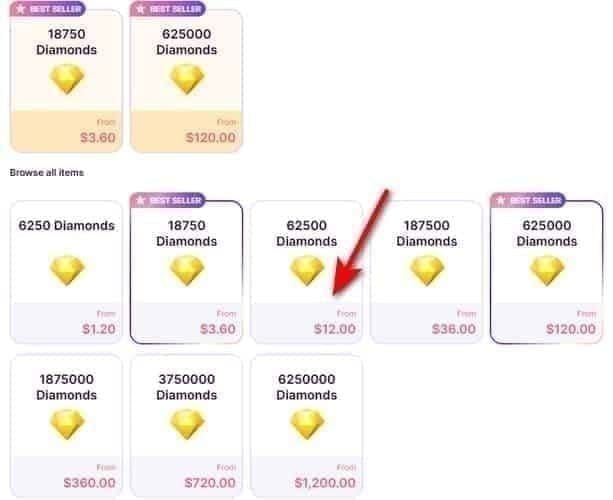
While network config addresses external routing, device settings control how Chamet interacts with OS and hardware. For seamless premium features, top up chamet app through BitTopup's secure platform with competitive pricing and instant delivery.
Android Network Settings
Enable Data Saver system-wide, create Chamet exception:
- Settings → Network & Internet → Data Saver → toggle on
- Settings → Apps → Chamet → Mobile Data → enable Allow background data usage and Allow unrestricted data usage
Configure Chamet internal settings:
- Open app → Settings (gear icon) → Network Settings
- Enable Auto Quality Adjustment
- Set max resolution to 480p (reduces data 50-60%: 1.2-1.5 GB/60min → 500-700 MB)
- Enable Data Saver Mode
Clear cache regularly: Settings → Apps → Chamet → Storage → Clear Cache. Force Stop, wait 15 seconds, reopen.
iOS Connection Preferences
iOS manages connections restrictively, requiring specific permissions:
- Settings → Cellular → Chamet → ensure Cellular Data enabled
- Settings → Cellular → Cellular Data Options → disable Low Data Mode
- Settings → Privacy → Local Network → disable Chamet access, wait 5 seconds, re-enable (forces iOS to re-establish network permissions)
- Settings → Wi-Fi → Auto-Join Hotspot → set Never or Ask to Join (prevents mid-call network changes)
PC Client Advanced Configuration
Desktop clients offer additional options:
- Access preferences → network settings
- Disable automatic quality adjustment, manually select 480p
- Configure Windows Firewall: Search Windows Defender Firewall → Allow an app through firewall → ensure Chamet has checkmarks for Private and Public networks
- Disable Windows Network Throttling: Open Command Prompt as Administrator → execute:
netsh interface tcp set global autotuninglevel=disabled
Background App Management
Close bandwidth-intensive apps during calls. Cloud backup, streaming, download managers consume upload bandwidth competing with video traffic.
- Android: Settings → Apps → Running Services → identify active processes, force-stop unnecessary
- Disable auto-updates: Play Store → Settings → Network Preferences → Auto-update apps → Don't auto-update. iOS: Settings → App Store → App Updates (toggle off)
- Configure manual system updates: Android: Settings → System → Advanced → System Update → Auto-download over Wi-Fi (disable). iOS: Settings → General → Software Update → Automatic Updates (disable)
Testing and Verifying Setup
Configuration verification ensures port forwarding functions correctly before relying on it. Testing identifies errors like incorrect IPs, wrong port ranges, firewall conflicts.
Port Connectivity Testing
Use online port checking tools from device outside your network (mobile data, not home Wi-Fi). Enter public IP (search what is my IP from home network device) and port range 10000-10100.
Successful tests show Port Open/Accessible. Failed tests indicate Port Closed/Filtered, suggesting configuration errors. Note: UDP port testing less reliable than TCP—some tools report false negatives even when correctly forwarded.
Alternative: Initiate Chamet call, monitor router's active connections page (under Status/System Log). Look for established connections showing UDP traffic on configured ports.
Real-Time Frame Rate Monitoring
Enable frame rate overlays:
- Android: Developer Options → Monitoring → activate Show frame rate or GPU rendering profile
Target consistent 24-30 fps. Pre-optimization: fluctuations 15-25 fps with drops to 10-12 fps. Post-optimization: stable 24-30 fps with occasional brief dips to 22-23 fps.
Document frame rate during 10-min test calls at different times. Network congestion varies—evening peak (7-10 PM) stresses networks more than midday.
Latency Measurement
Synchronized timing tests: Have partner count one, two, three while timing delay between seeing lips move and hearing words. Multiply delay (seconds) by 1000 for milliseconds. Optimized same-city: 45-65 ms; cross-continent: 110-140 ms.
Use network diagnostic apps measuring UDP latency specifically (Network Analyzer for Android, Network Ping Lite for iOS). Target latency under 80 ms to local servers, under 150 ms international.
Compare pre/post-optimization. Successful UDP forwarding reduces latency 20-35 ms.
Troubleshooting Common Errors
If testing reveals closed ports or unchanged performance:
Incorrect static IP: Confirm device IP matches forwarding rule address. Check Settings → Network → Wi-Fi → [Network] → Advanced. If different, update rule or reconfigure static IP.
Router firewall blocking: Some routers maintain separate firewall rules overriding port forwarding. Check firewall settings for rules blocking UDP on configured ports. Create explicit Allow rules for UDP 10000-20000.
ISP-level port blocking: Some providers block common ports. Test alternative port range (25000-25100). If alternatives work but standard ranges fail, contact ISP about restrictions.
Double NAT: If modem and router both perform NAT, forwarding on router alone won't work. Check if modem has router functionality (192.168.x.x address range on modem-connected devices). Enable bridge mode on modem or configure forwarding on both devices.
Advanced Troubleshooting
Some environments fundamentally prevent UDP forwarding regardless of configuration accuracy. Identifying these scenarios saves hours and directs toward alternative solutions.
ISP-Level UDP Blocking
Certain ISPs implement UDP throttling/blocking to manage congestion. Test by comparing performance on different networks. If Chamet works flawlessly on friend's network or public Wi-Fi but fails on home connection despite identical device settings, ISP restrictions likely exist.
Contact ISP technical support, specifically ask about UDP port policies. Avoid mentioning port forwarding initially. Explain video calling issues, ask whether policies restrict UDP traffic on ports 10000-20000.
If ISP confirms restrictions, request business-class connection (typically fewer restrictions, static IPs, unrestricted port access, priority routing). Business plans cost 20-40% more but may justify expense for heavy Chamet usage.
Double NAT Scenarios
Double NAT occurs when modem and router both perform address translation. Devices behind double NAT can't receive incoming connections even with port forwarding.
Detect: Log into router, view WAN IP. If starts with 192.168.x.x, 10.x.x.x, or 172.16-31.x.x, you're behind double NAT. Public IPs don't use these private ranges.
Resolve: Enable bridge mode on modem (disables routing functions, makes it pass-through device). Access modem admin panel (separate from router—check modem label for IP), locate bridge mode under Advanced/Connection settings. Enable, reboot both devices, reconfigure port forwarding on router.
Firewall Conflicts
Software firewalls may block incoming UDP despite correct router forwarding. Windows Defender, antivirus suites, mobile security apps often include network protection overriding system settings.
Temporarily disable all firewall/antivirus, test Chamet. If calls improve dramatically, firewall was blocking. Re-enable security, create Chamet exceptions. Windows Defender: Virus & Threat Protection → Manage Settings → Exclusions → Add Exclusion → add Chamet installation folder.
Mobile security apps: Open app, locate firewall/network protection, add Chamet to whitelist/trusted apps. Some use terms like Data Monitor or Network Guard.
Alternative Protocol Options
If UDP forwarding remains impossible, explore Chamet's fallback protocols. TURN relay servers route traffic through intermediate servers when direct connections fail. While adding 40-100 ms latency, ensures connectivity in restrictive environments.
Force TURN relay by intentionally misconfiguring port forwarding (set incorrect IPs). This causes direct connections to fail, triggering relay fallback. Monitor whether relay performance exceeds current experience—in some CGNAT scenarios, relays actually provide better performance.
Consider IPv6-only if carrier and Chamet support it. IPv6 eliminates NAT entirely. Contact carrier to enable IPv6, disable IPv4 to force IPv6-only. Test Chamet performance on IPv6.
Security Best Practices
Port forwarding creates pathways for incoming traffic, potentially exposing device to scanning and exploitation. Implementing security measures maintains protection while enabling performance benefits.
Minimizing Security Risks
UDP port forwarding for Chamet presents minimal risk because application layer handles authentication and encryption. Unlike forwarding for remote desktop or file sharing, video calling ports don't provide system access. Attackers scanning forwarded ports encounter Chamet's encrypted protocol, not OS services.
Limit forwarding to minimum necessary range. Instead of 10000-20000 (10,000 ports), start with 10000-10100 (100 ports), expand only if testing reveals insufficient capacity.
Implement time-based forwarding if router supports scheduling. Configure rules active only during typical Chamet hours (e.g., 6-11 PM daily). Closes ports during unlikely usage periods. Advanced routers offer this under Firewall → Scheduling or Access Control → Time-Based Rules.
Port-Specific Firewall Rules
Create firewall rules allowing UDP only from Chamet's server IP ranges. Monitor active connections during calls to identify destination IPs (typically major cloud providers: AWS, Google Cloud, Azure).
Once identified, create firewall rules allowing UDP only from these IP ranges. Prevents random internet hosts from probing forwarded ports while permitting legitimate Chamet traffic.
On advanced routers, implement stateful packet inspection (SPI) for forwarded ports. SPI examines packet contents and connection states, blocking malformed packets or unexpected connection attempts. Enable in firewall settings—appears as SPI Firewall or Stateful Inspection toggle.
Regular Security Audits
Review port forwarding rules quarterly, remove obsolete configurations. If stopping Chamet use or switching solutions, delete forwarding rules immediately.
Monitor router system logs weekly for unusual activity on forwarded ports. Look for connection attempts from unexpected regions or excessive attempts from single IPs (scanning activity). Most routers display logs under Administration → System Log or Status → Security Log.
Update router firmware when manufacturers release security patches. Firmware updates address vulnerabilities in NAT handling and firewall implementations. Enable automatic updates if supported, or check manually monthly.
Maintaining Long-Term Performance
Network environments change—ISPs modify routing policies, firmware updates alter configurations, Chamet infrastructure evolves. Establishing maintenance routines ensures optimization remains effective months after initial configuration.
Monthly Configuration Review
Verify port forwarding rules remain active after firmware updates. Some updates reset to defaults, deleting custom rules. Log into router admin monthly, confirm Chamet forwarding rules still appear with correct settings.
Test actual performance monthly using baseline methodology. Conduct 10-min test calls, measure frame drops, latency, resolution stability. Compare to post-optimization baseline—if performance degrades >10%, investigate causes like ISP policy changes or congestion increases.
Review Chamet app updates for changes affecting network requirements. Major versions sometimes modify port usage or implement new protocols. After updating, monitor first few calls for unexpected behavior, be prepared to adjust forwarding if app's network profile changes.
Firmware Update Impact
Router manufacturers release firmware addressing security vulnerabilities, adding features, improving stability. While essential, updates occasionally reset advanced configurations including port forwarding.
Before applying updates, screenshot all port forwarding rules and static IP assignments. Most routers don't provide config export for these settings. Store screenshots in cloud storage or email for easy access during reconfiguration.
After firmware updates, immediately verify port forwarding rules before assuming they survived. Test Chamet performance within 24 hours. If rules reset, reconfigure using screenshot documentation.
Seasonal Network Congestion
Network congestion follows predictable patterns—evenings exceed mornings, weekends exceed weekdays, holidays stress networks maximally. If noticing performance degradation during specific times, adjust Chamet settings to compensate.
During high-congestion periods, manually reduce resolution to 480p even if config typically handles 720p. This 50-60% data reduction (1.2-1.5 GB/hour → 500-700 MB) provides headroom for variability. Quality difference minimal on mobile screens.
Consider scheduling important calls during off-peak hours when possible. Network performance 10 AM-4 PM typically exceeds evening performance 15-25% due to reduced residential usage.
When to Reconfigure After Network Changes
Reconfigure port forwarding completely after:
- ISP change: New providers use different architectures and policies
- Router replacement: New hardware requires fresh configuration
- Modem upgrade: Even keeping same router, modem changes affect topology
- Plan upgrades: Moving residential to business often changes IP addressing
- Location changes: New address typically means new infrastructure
Minor changes (password updates, Wi-Fi name) don't affect port forwarding. However, switching dynamic to static IP service requires updating forwarding rules to reflect new permanent IP.
Common Misconceptions
Myth: Higher Internet Speed Always Fixes Lag
Chamet requires only 1-3 Mbps—upgrading 100 Mbps to 1 Gbps provides zero benefit if latency and routing unchanged. Speed measures maximum throughput; video quality depends on latency (delay) and jitter (delay variation). A 50 Mbps connection with 45 ms latency outperforms 500 Mbps with 200 ms latency for real-time communication.
Before upgrading internet speed, test whether current connection saturates during calls—if bandwidth usage stays below 5 Mbps during 720p calls, speed isn't your limitation.
Myth: VPNs Improve Video Call Quality
VPNs add encryption overhead and route traffic through intermediate servers, increasing latency 30-100 ms. While VPNs can bypass ISP throttling in specific scenarios, they generally degrade video call performance. Additional routing hops and encryption processing contradict low-latency requirements.
VPNs sometimes accidentally improve performance when ISPs implement aggressive traffic shaping. If ISP specifically throttles video calling, VPN masks traffic type, preventing throttling. However, this scenario is rare—most ISP throttling targets streaming services like Netflix, not peer-to-peer video calls.
Myth: App Reinstallation Solves Network Issues
Reinstalling Chamet clears corrupted app data and resets settings, potentially resolving software issues. However, network performance problems stem from routing, NAT configuration, infrastructure—factors independent of app installation state.
Clear cache and reset app settings before resorting to full reinstallation—achieves same software refresh without losing configuration.
The Truth About Third-Party Optimization Apps
Mobile network booster and connection optimizer apps claim to improve internet performance. Most implement placebo features or duplicate functionality already in system settings. These apps can't override ISP routing, modify carrier network configs, or alter physical infrastructure—actual determinants of video call quality.
Avoid optimization apps requesting extensive permissions (contacts, location, storage) unrelated to network functionality. These often monetize through data collection. Stick to manual configuration using system settings and router admin panels.
FAQ
Why does Chamet lag on 5G despite high speeds?
Lag occurs due to NAT translation delays and routing inefficiencies, not insufficient bandwidth. Chamet requires only 1-3 Mbps, well below 5G capabilities. Issue stems from how routers handle UDP packets—without port forwarding, packets traverse dynamic routing paths introducing 15-50 ms delays and causing frame drops when NAT mappings expire.
What is UDP forwarding and how does it fix frame drops?
UDP forwarding creates permanent routing rules directing incoming video packets directly to your device without NAT translation delays. Eliminates 15-50 ms lookup time for dynamic routing and prevents packet drops from expired NAT mappings. Reduces frame drops from typical 12-18% to under 2%, decreases latency 20-35 ms.
How do I check if UDP forwarding works?
Test forwarded ports using online port checking tools from device outside your network (mobile data). Enter public IP and configured port range—successful tests show Port Open. Monitor frame rate during calls using developer options overlays on Android. Proper forwarding maintains consistent 24-30 fps vs. pre-optimization fluctuations of 15-25 fps with frequent drops.
What NAT type is best for Chamet?
Open NAT (Type 1) or Moderate NAT (Type 2) provide optimal performance, allowing incoming connections with minimal restrictions. Strict NAT (Type 3) requires port forwarding to function adequately. Carrier-Grade NAT (CGNAT) presents most challenges, often requiring ISP cooperation for dedicated IPs or switching to IPv6.
Does UDP forwarding work on mobile hotspots?
Mobile hotspots typically operate behind carrier-grade NAT, preventing effective port forwarding because carrier infrastructure performs NAT translation before traffic reaches hotspot device. Local forwarding rules have no effect on carrier-level routing. Solutions include requesting dedicated IP from carrier (sometimes available for additional fees) or using IPv6-only if supported.
How much bandwidth does Chamet require?
Chamet requires 1-3 Mbps for stable calls, with 2 Mbps upload/download recommended. 60-min 720p call on 5G consumes 1.2-1.5 GB; 480p reduces to 500-700 MB (50-60% reduction). Audio-only uses just 50-80 MB/hour (85-90% savings vs. video). These modest requirements mean bandwidth rarely causes lag—latency and routing efficiency matter more than raw speed.
Experiencing lag during Chamet video calls? Enhance your experience with seamless connectivity! Visit BitTopup to securely recharge your Chamet account and unlock premium features for crystal-clear video calls. Fast, reliable, and trusted by millions worldwide.