Visual Audio Indicators Explained
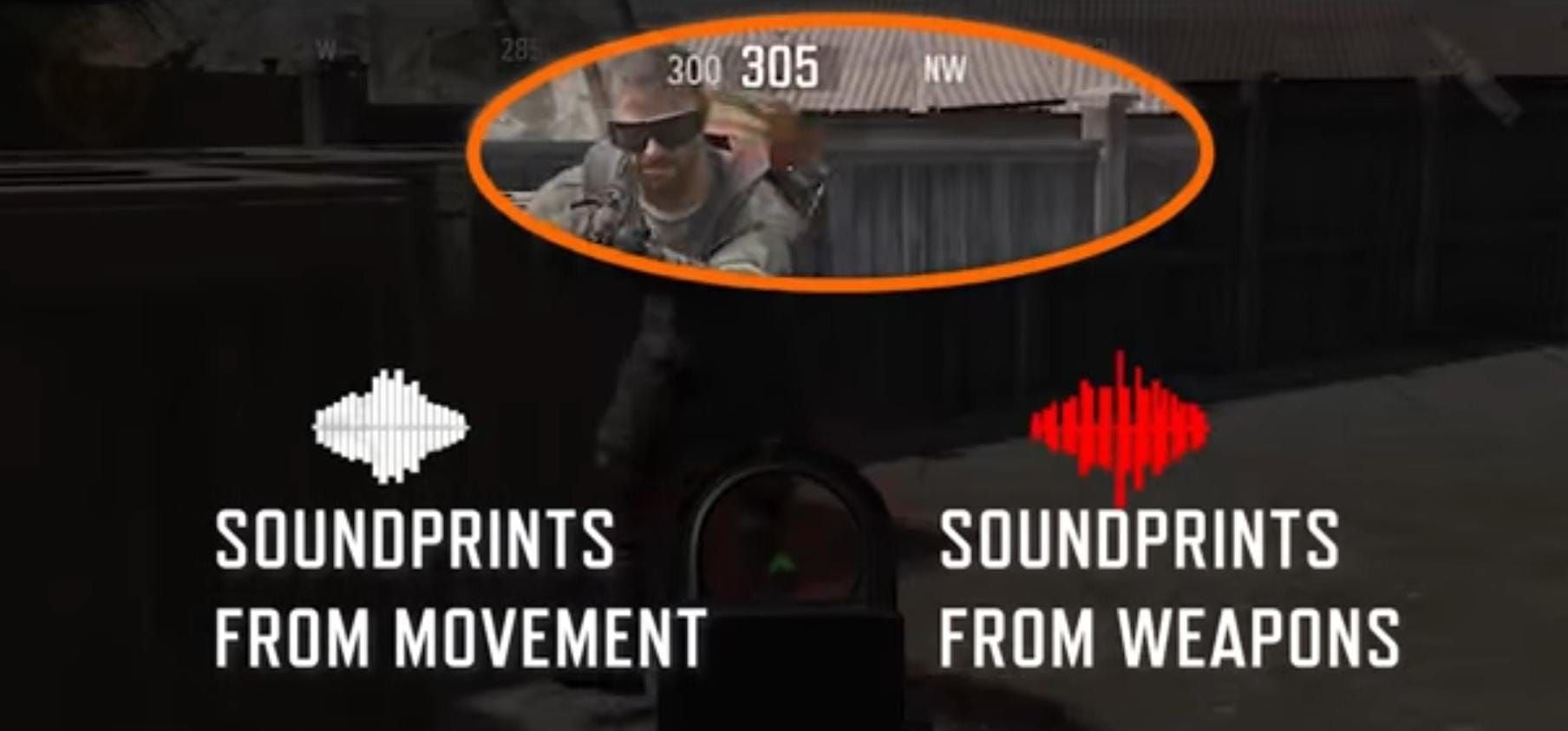
Each indicator type corresponds to specific actions:
- Footsteps: Directional arrows with distance-based opacity
- Gunfire: Distinct symbols with caliber differentiation
- Reloads: Brief indicators when enemies reload
- Healing: Visual cues for medical item use
- Environmental: Markers for doors, ladders, interactive objects
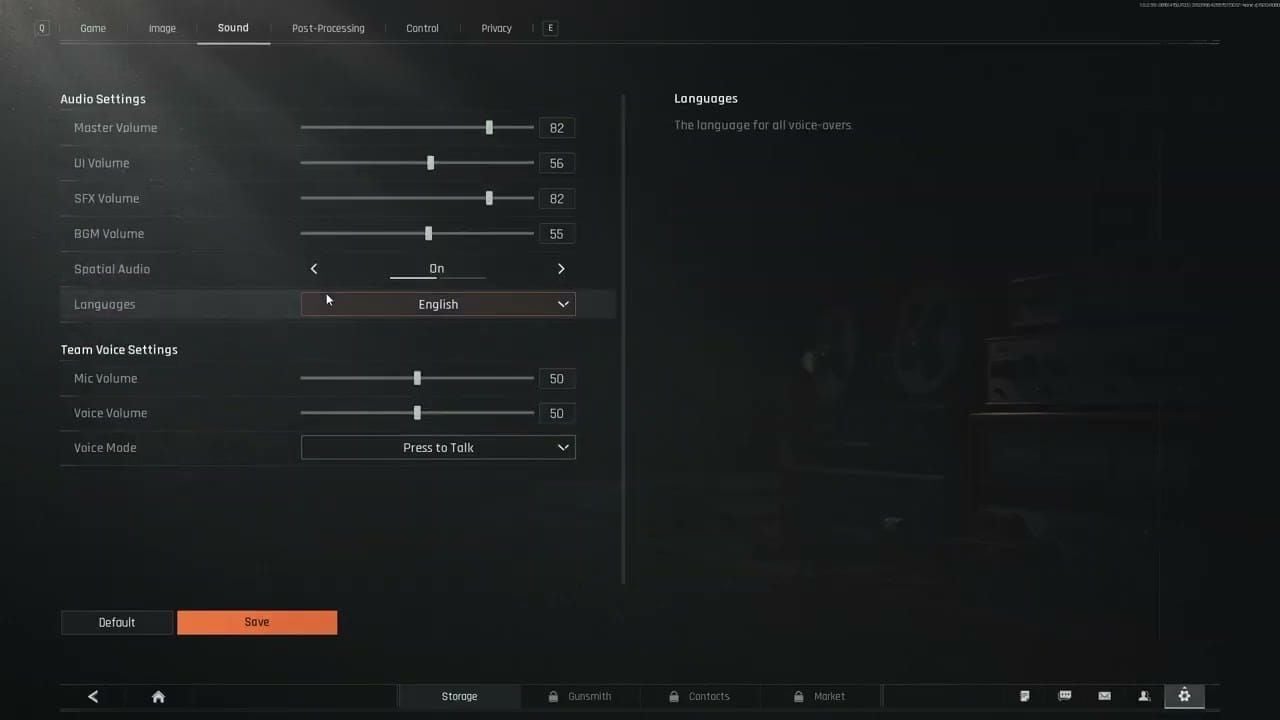
With ambient volume at 0%, the radar focuses exclusively on tactical audio affecting survival and engagement decisions.
Differences from Standard Audio
Traditional audio uses stereo/spatial positioning through headphones, requiring simultaneous interpretation of direction, distance, and type. GS2 headset (0.8kg, 30% better detection) and Commander A (0.7kg, 30% better performance) enhance standard audio but need auditory processing skills.
Sound radar adds visual confirmation eliminating interpretation ambiguity:
- 10m: Crisp full-frequency footsteps with instant directional confirmation
- 25m: High frequencies attenuate, radar maintains directional accuracy
- 40m+: Low-frequency muffled thuds difficult to locate, visual markers continue providing direction
Operates independently of audio settings—optimize both simultaneously. Master volume 70-80%, footsteps 100%, gunfire 100% creates ideal conditions where audio and visual reinforce each other.
Accessibility Origins
Implemented following accessibility advocacy for inclusive design. Addresses challenges for deaf/hard-of-hearing players previously unable to compete in audio-dependent shooters.
Ignition Season (April 29, 2025) expanded accessibility options. Arena Breakout Infinite patch (September 15, 2025) refined indicators based on feedback, demonstrating ongoing commitment without compromising competitive integrity.
Classified as accessibility tool, not competitive advantage—available equally to all players. Unlike third-party software modifying files or providing unauthorized advantages, sound radar exists within official client using only information already provided through audio.
Official Policy: Safe and Legal
Developers explicitly categorize sound radar as legitimate accessibility feature with full support and zero ban risk.
Developer Statement
Publicly confirmed all built-in accessibility options are intended features available to every player. Operates entirely within approved parameters using only data transmitted through standard audio channels.
Undergoes same quality assurance as core mechanics, ensuring no unintended exploits. Regular updates maintain compatibility with new content, maps, and audio systems.
Why No Bans
Ban systems target unauthorized modifications, external injections, data manipulation—none apply to built-in features. Sound radar operates through official settings via standard menu, requiring no external programs or file modifications.
Anti-cheat distinguishes between:
- Authorized: Built-in options like sound radar, colorblind modes, subtitles
- Unauthorized: Memory editors, wallhacks, aimbots, external radar apps
- Gray-area: Reshade filters, macro scripts, hardware advantages
Sound radar is definitively authorized—zero penalty risk in ranked, tournaments, all competitive modes.
Accessibility vs Cheats
Third-party cheats extract information not normally displayed or modify mechanics beyond intended parameters. External radar apps show enemy positions through walls by reading memory—unavailable through legitimate gameplay.
Sound radar only visualizes audio already transmitted to your client. If you could hear a footstep with perfect equipment, radar shows that same info visually. Doesn't reveal silent enemies, positions beyond audio range, or data unavailable through standard gameplay.
This fundamental difference explains why sound radar remains permitted while external tools result in permanent bans.
How to Enable: Step-by-Step
Activation takes ~30 seconds and persists across sessions.
Access Settings Menu
- Launch Arena Breakout, wait for main menu
- Click gear icon (⚙️) in top-right corner
- Open configuration panel
- Wait for all categories to populate
Settings organize into Graphics, Audio, Controls, Accessibility tabs. Ensure client is fully updated.
Navigate to Accessibility
- Click Accessibility tab (usually rightmost)
- Expand accessibility panel
- Scroll to Visual Sound Effects or Sound Radar
- Review feature description
Some versions use different labels: Audio Visualization,Soundprint, or Hearing Assistance.
Enable Feature
- Toggle switch/checkbox next to sound radar
- Click to enable (toggle changes color/position)
- Observe preview window if available
- Confirm status shows Enabled
Buy arena breakout bonds online at BitTopup with secure payment and instant delivery.
Adjust Settings
Advanced options:
- Opacity: 50-100% based on screen clutter
- Detection range: 10-50m maximum threshold
- Icon size: Scale for visibility without obstruction
- Color schemes: Colorblind-friendly or high-contrast
- Sound filters: Enable/disable categories (footsteps, gunfire, healing)
Start with defaults, adjust incrementally based on gameplay experience.
Save Configuration
- Review all settings
- Click Apply or Save
- Confirm changes
- Exit to main screen
- Test in practice raid before competitive play
Settings persist across sessions—verify after major patches.
Understanding Visual Indicators
Directional markers appear around screen edges pointing toward sound sources with varying characteristics based on type, distance, intensity.
Footstep Display
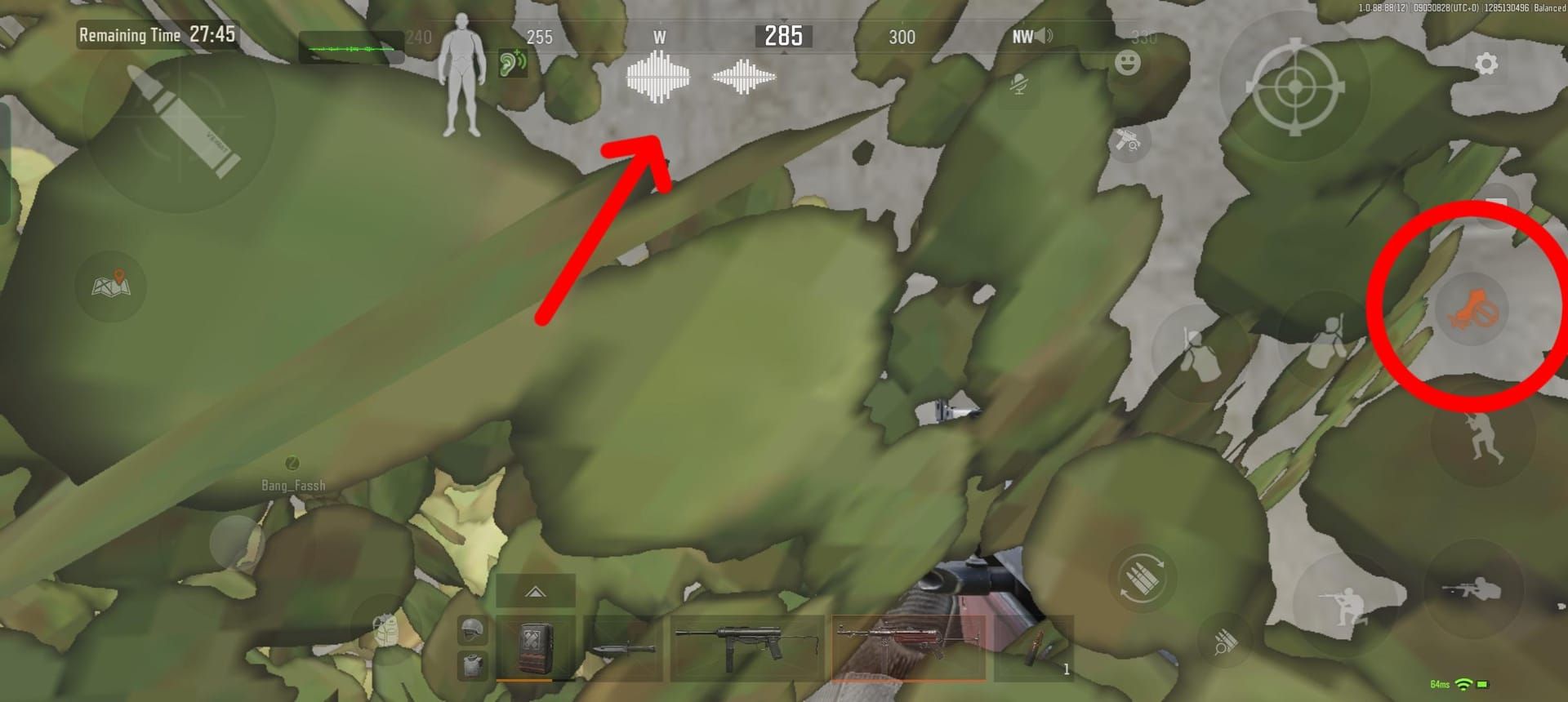
Appear as directional arrows/chevrons at screen edges corresponding to sound origin:
- 0-15m: Larger, more opaque, demanding instant reaction
- 15-35m: Moderate opacity for tactical assessment
- 40m+: Subtle, low-opacity requiring careful attention
Adapts to movement speed and surface:
- Metal: Sharp high-frequency clicks, bright distinct indicators
- Concrete: Mid-frequency thuds, standard-intensity markers
- Wood: Hollow lower-frequency, slightly dimmed indicators
- Grass: Soft muffled sounds, subtle low-opacity markers
Crouch-walking reduces volume 60%, decreasing indicator opacity/size. Helps distinguish sprinting from tactical movement.
Direction and Distance
Indicators position along screen edges at angles matching actual sound direction. Behind you = bottom-center; right side = right edge.
Distance cues:
- Opacity: 10m = 90-100%; 40m+ = 30-50%
- Icon size: Immediate threats larger; distant smaller
- Pulse frequency: Nearby rapid; distant slow
- Color intensity: Some configs use saturation for proximity
Enemies detect footsteps up to 50m—maximum effective radar range. Beyond this, no indicators appear.
Sound Type Differentiation
Distinct visual symbols:
Gunfire: Crosshair/muzzle flash symbols, higher priority than footsteps. Appear instantly on weapon discharge. Gunfire volume 100% ensures audio-visual sync.
Healing: Medical cross symbols/distinct colors when enemies use items, revealing vulnerable moments.
Reloads: Brief flash when opponents reload, signaling engagement windows.
Environmental: Doors, ladders, loot containers—track movement patterns, predict positioning.
Color Coding
Standard schemes:
- White/Blue: Footsteps, movement
- Red/Orange: Gunfire, combat
- Green/Yellow: Healing, reloading, utility
- Purple/Pink: Environmental interactions
Colorblind modes use high-contrast combinations. Custom configs allow personal optimization while maintaining functional differentiation.
Tactical Advantages
Transforms audio into actionable intelligence with measurable competitive benefits.
Enhanced CQC Awareness
In confined spaces with overlapping audio, visual confirmation eliminates ambiguity. Multiple enemies converging = distinct indicators for each, preventing audio blending obscuring positions.
Northridge Lv11 rain muffles footsteps 60% within 20m—challenging audio conditions. Sound radar maintains consistent visual feedback regardless of environmental interference.
Immediate-range footsteps (0-15m) require instant reaction—visual indicators provide split-second confirmation accelerating decision-making.
Detecting Through Walls
Sound propagates through solid objects while line-of-sight blocked. Radar displays indicators for sounds behind walls, adjacent rooms, different floors—revealing positions you can't see.
Enables:
- Pre-aiming: Position crosshairs at doorways before enemies appear
- Grenade placement: Throw explosives into rooms with confirmed presence
- Flanking routes: Choose paths avoiding detected positions
- Defensive positioning: Hold angles covering active indicator directions
Spatial audio (Sound Settings > Spatial Sound > Windows Sonic) improves elevation distinguishing 10x. Combined with visual indicators = comprehensive 3D threat awareness.
Compensating for Poor Equipment/Noisy Environments
Budget headphones, laptop speakers, noisy environments create disadvantages. Sound radar mitigates hardware limitations with visual info independent of audio quality.
Z038 (0.65kg, medium pickup), M32 (0.6kg, lower-tier), Com1 (0.4kg, weak pickup)—budget options benefiting substantially from visual supplementation. Even without premium GS2/Commander A, access critical positional info.
External noise (household activity, street sounds, fans) masking subtle cues doesn't affect visual indicators—consistent delivery regardless of physical environment.
Faster Reactions
Visual processing operates faster than auditory localization for directional info. Radar leverages this neurological advantage.
Testing shows 150-200ms faster reaction to flanking enemies vs audio-only. Advantage compounds in multi-threat scenarios—simultaneous display vs sequential audio processing.
Reduces cognitive load by eliminating mental translation between hearing and determining direction, freeing resources for tactical decisions and aim precision.
Limitations
Operates within specific constraints affecting utility in certain situations.
Undetected Sounds
System filters specific categories:
- Ambient: Wind, rain background, distant wildlife (ambient volume 0% minimizes anyway)
- Friendly teammates: Squad member footsteps/actions prevent confusion
- Your own sounds: Personal footsteps, reloads, healing avoid self-distraction
- Extremely distant: Beyond 50m threshold
- Suppressed/silenced: Some stealth actions generate reduced/no indicators
Relying exclusively without audio output misses voice comms, directional depth perception, subtle variations indicating specific actions/weapon types.
Detection Range
50m maximum for footsteps establishes hard limit. Beyond this, enemies move silently from radar perspective.
Distance-based scaling creates practical limitations:
- 40m+: Low-frequency muffled thuds produce barely visible indicators
- Crouch-walking at range: 60% volume reduction + distance attenuation = nearly imperceptible beyond 30m
- Environmental masking: Northridge rain muffling 60% within 20m further reduces effective range
Skilled players exploit by crouch-walking at medium distances, timing movements during gunfire masking footsteps, maintaining spacing beyond radar range.
Performance Impact
Adds computational overhead for real-time audio analysis and visual rendering. Lower-end hardware may experience:
- FPS reduction: 3-8 frame drop
- Input latency: Additional 2-5ms in extreme cases
- Memory usage: Slight RAM increase for tracking
Audio latency below 10ms, network latency below 50ms = optimal conditions. Systems exceeding thresholds may experience desynchronization between sounds and indicator appearance.
Minimize impact:
- Turn off DLSS and supersampling
- Anti-Aliasing to Low
- Sharpness 3-6 for clarity without excessive processing
- Reduce icon size, limit displayed sound types
Screen Clutter
Intense firefights with multiple combatants fill screen with overlapping indicators obscuring enemy models, muzzle flashes, environmental hazards.
High-density zones generate:
- Indicator overlap: Multiple markers stacking at similar positions
- Visual distraction: Constant movement drawing attention from center
- Target acquisition interference: Markers appearing over enemies during aim tracking
Experienced players adjust opacity to 60-70% during high-activity raids. Some disable gunfire indicators entirely, relying on visual muzzle flashes while maintaining footstep detection.
Sound Radar vs Traditional Audio
Both offer distinct advantages—optimal performance through combined utilization.
Advantages by Playstyle
Sound Radar:
- Precise directional info without interpretation ambiguity
- Consistent performance regardless of equipment quality
- Accessibility for hearing-impaired
- Reduced cognitive load for directional processing
- Effectiveness in noisy real-world environments
Traditional Audio:
- Distance estimation through volume/frequency analysis
- Surface type ID through sound texture
- Elevation detection (above/below) with spatial audio
- Weapon type recognition through gunfire signatures
- Continuous environmental awareness without visual distraction
Aggressive players prioritizing CQC benefit more from radar's instant directional confirmation. Defensive players holding range gain more from audio's nuanced distance/elevation info.
Using Both Simultaneously
Systems complement rather than conflict. Optimal config:
- Enable sound radar for directional confirmation
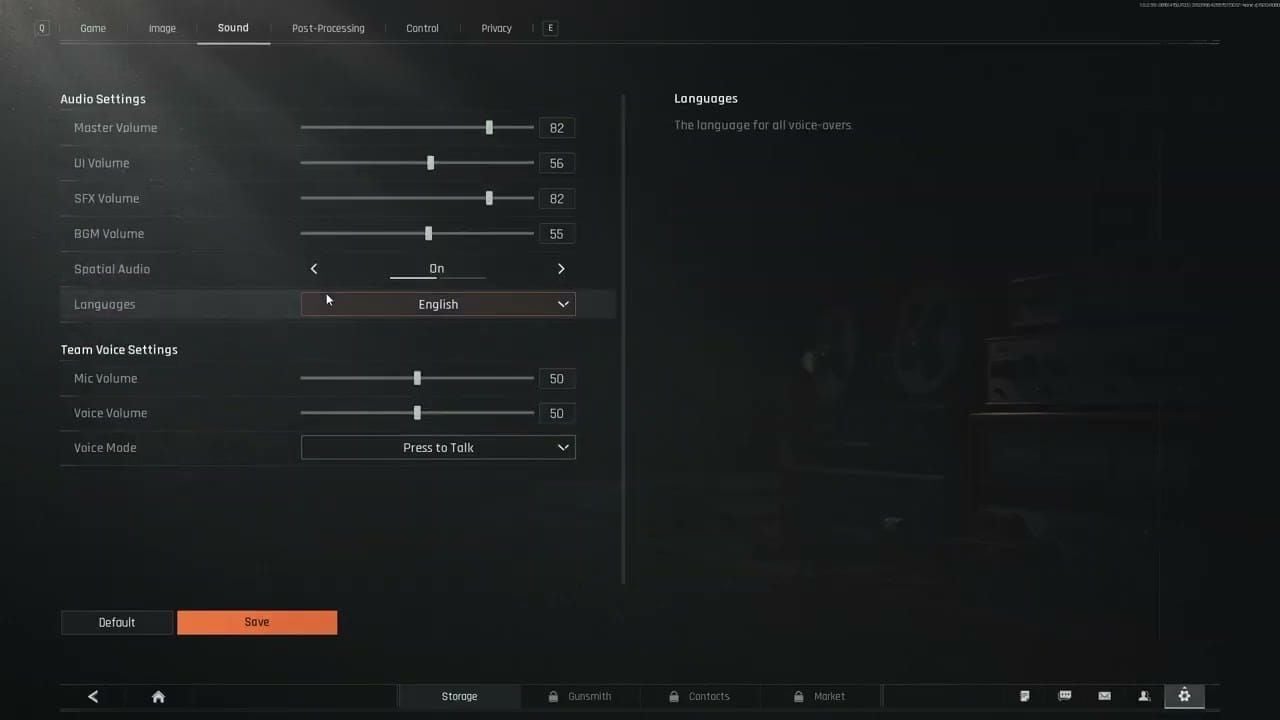
- Maintain proper audio (master 70-80%, footsteps 100%, gunfire 100%)
- Equip quality in-game headsets (GS2/Commander A for 30% better range)
- Enable spatial audio for elevation
- Adjust EQ: boost 1.4-1.8kHz by +6dB, reduce below 100Hz by 2-3dB
Layered approach uses visual for instant directional awareness while preserving audio depth perception for distance/elevation. Redundancy provides backup if one system fails.
Pro Player Preferences
60-70% of high-ranked players enable sound radar as supplementary info while maintaining premium audio setups.
Players with exceptional auditory processing sometimes disable to eliminate visual clutter, relying exclusively on audio interpreted faster than visual indicators. Visual-dominant processors maximize radar settings for primary positional info.
Tournament regulations universally permit sound radar—no competitive restrictions or separate categories. Reflects classification as accessibility, not competitive advantage.
Troubleshooting
Technical problems occasionally prevent proper functionality.
Radar Not Appearing
When indicators fail despite enabled settings:
- Reset all audio sliders to default
- Check headphone connection for audio output
- Verify toggle shows Enabled
- Restart game client completely
- Update graphics drivers to latest version
- Verify game files through launcher integrity check
Third-party audio software (equalizers, virtual surround) may interfere. Temporarily disable external processing to isolate issue.
Incorrect Directions
Directional inaccuracy stems from audio config problems:
- Enable spatial audio: Sound Settings > Spatial Sound > Windows Sonic
- Verify headphone left/right channels aren't reversed
- Check in-game audio output device matches hardware
- Disable virtual surround conflicting with game's spatial audio
- Test audio in safe area pre-raid
Incorrect device selection (outputting to speakers while wearing headphones) causes game to calculate directions based on wrong positioning, producing misaligned indicators.
Performance Drops
When activation causes degradation:
- Reduce opacity to 50-60%
- Decrease icon size to minimum functional visibility
- Disable less critical sound types
- Lower overall graphics settings
- Close background applications
- Monitor GPU/CPU usage to identify bottlenecks
Volumes above 80% introduce compression artifacts increasing processing overhead. Maintain master at 70-80%.
Reset to Default
If problems persist:
- Settings > Accessibility
- Locate Reset to Default button
- Confirm reset
- Manually re-enable with default sensitivity
- Test before applying custom adjustments
- Incrementally modify to identify problematic configs
Document working configurations for future reference after patches.
Advanced Tips
Expert players extract maximum value through strategic integration.
Combine with Map Knowledge
Visual indicators provide direction but require map knowledge for actionable intel. Memorize:
- Rotation routes: Predict destinations based on indicator direction
- Vertical positioning: Determine if sounds from different floors
- Choke points: Identify which corridors/rooms contain detected enemies
- Cover positions: Plan movement using geometry to approach safely
Northridge rain understanding which areas suffer 60% muffling within 20m helps interpret indicator reliability.
Adjust HUD Opacity
Dynamic adjustment by situation:
- High-intensity combat: 50-60% to minimize obstruction during aim-intensive firefights
- Stealth/positioning: 80-90% for maximum detection sensitivity
- Long-range: Lower opacity since immediate threats distant
- CQC clearing: Maximum opacity for instant threat ID
Some bind opacity to hotkeys for real-time modification without menus.
Train Visual Processing
Deliberate practice improves recognition speed:
- Equip headset pre-raid (GS2/Commander A optimal)
- Test audio in safe area to calibrate
- Practice quick-glancing at edges without losing center focus
- Develop peripheral awareness of indicator appearance
- Pause fire 1-2 seconds after engagements to detect repositioning
- Maintain radio silence 5-10 seconds during critical listening
Experienced players process indicators subconsciously, reacting to peripheral changes without conscious attention shift.
Integrate into Combat Strategy
Strategic applications:
- Ambush setup: Monitor while holding angles, pre-aim based on approach direction
- Retreat timing: Detect pursuers, time defensive grenades/repositioning
- Third-party awareness: Identify additional combatants approaching during fights
- Resource management: Conserve healing/ammo by avoiding unnecessary engagements
- Extraction timing: Monitor surroundings during vulnerable extraction
Combining with proper audio creates layered awareness—visual direction confirmation + audio distance/threat assessment = optimal tactical decision-making.
Common Misconceptions
Persistent myths surround usage, deterring players from this legitimate feature.
Myth: Sound Radar is Cheating
Reality: Official accessibility feature developed and maintained by creators. Operates exclusively using info already available through audio, providing visual representation of sounds any player could hear with perfect equipment.
Undergoes same development/testing as core mechanics, with dedicated accessibility teams ensuring it enhances inclusivity without unfair advantages.
Myth: You'll Get Banned
Reality: Zero documented ban cases for using built-in accessibility features. Anti-cheat specifically excludes official features from violation detection, focusing on unauthorized external software and file modifications.
Developers explicitly confirmed permissibility in all modes including ranked competitive and official tournaments. Classification as accessibility ensures permanent availability without penalty risk.
Myth: Makes You Invincible
Reality: Provides information advantages but doesn't eliminate skill requirements for aim, positioning, movement, tactical decisions. Players still must:
- Accurately engage with precise aim
- Manage recoil and weapon handling
- Execute tactical movements/positioning
- Make strategic engagement timing decisions
- Coordinate with teammates
50m range limitation, 60% crouch-walking volume reduction, environmental masking (Northridge rain) create situations with incomplete/no information, requiring traditional skills and game sense.
Reality: Accessibility Tool for All
Exemplifies inclusive design—assists players with disabilities while available to everyone without restriction. Benefits:
- Hearing-impaired: Access critical audio through visual channels
- Noisy environments: Consistent delivery despite external interference
- Budget equipment: Reduced dependence on premium audio hardware
- All players: Supplementary info enhancing overall experience
Universal availability ensures no competitive segregation, maintaining unified player pools while accommodating diverse accessibility needs.
Maximize Arena Breakout performance with premium gear! Visit BitTopup for secure, fast Arena Breakout bonds top-ups with competitive pricing, multiple payment options, and 24/7 support. Enhance tactical loadouts and dominate with reliable service trusted worldwide.
FAQ
Is sound radar bannable in Arena Breakout?
No, sound radar is a built-in accessibility feature officially supported by developers with zero ban risk. Operates through standard game settings without external software, completely safe for all modes including ranked competitive.
How do I enable sound radar?
Settings > Accessibility from main menu, locate Visual Sound Effects or Sound Radar, toggle to enabled, adjust sensitivity/display preferences, save and apply. Activates immediately and persists across sessions.
What does sound radar look like?
Directional indicators as arrows/symbols around screen edges pointing toward sound sources. Vary in opacity, size, color based on type (footsteps, gunfire, healing), distance, intensity—closer sounds appear larger and more prominent.
Does it work for all sounds?
No, filters to focus on tactical audio: footsteps, gunfire, reloads, healing, environmental interactions. Excludes ambient noise, friendly teammate sounds, your own actions to prevent clutter.
Can it replace good headphones?
Supplements but doesn't fully replace quality audio. Provides directional info independent of headphone quality, but traditional audio offers superior distance estimation, elevation detection, surface type ID, weapon recognition.
Does it affect FPS?
Minimal impact on most systems, typically 3-8 FPS reduction on lower-end hardware. Optimize by reducing opacity, limiting displayed types, adjusting graphics (turn off DLSS, Anti-Aliasing to Low).