How MICO's Invite System Works
MICO's architecture relies on real-time server communication validating user permissions, checking capacity limits, and generating time-sensitive tokens. System prioritizes smaller groups—4-5 members experience 25-30% fewer failures than max capacity rooms.
Minimum requirements:
- Download speeds: 5 Mbps minimum
- OS: iOS 13.0+ or Android 8.0 (API 26)
- RAM: 3GB+ (Android devices below this show higher failure rates)
The Notification Pipeline
Each invitation travels through four checkpoints:
- Sender device transmits request to regional servers
- Servers validate sender status and recipient eligibility
- Push notification services route alert to recipient OS
- Device notification manager displays alert based on permissions
Failures at any checkpoint trigger different errors. Server validation failures produce access denied, network interruptions cause timeouts, permission blocks result in silent failures.
Failure Patterns
Beyond primary errors, users report:
- Invite history shows sent invitations recipients never received
- Group member lists display pending invitations indefinitely
- Notification badges appear then disappear when opened
Timing insights:
- 6-9 AM invites show 15-20% higher success rates
- 30-60 second spacing between invites reduces failures
- Rate-limiting flags rapid consecutive requests as spam
7 Root Causes of Invite Failures
1. Notification Permission Denied
Android 8.0+ uses notification channels for per-category management. MICO has separate channels for messages, invites, and alerts. Disabling group invite channel blocks invitation alerts while other notifications work normally.
iOS Focus Mode and Do Not Disturb override app permissions, silencing notifications even with full grants. These activate automatically via schedules or location triggers.
2. App Cache Corruption
MICO stores invite history, member lists, and notification states in local cache. Corruption through incomplete updates or forced closures causes desynchronization with servers. App rejects legitimate invitations as duplicates or displays outdated group info.
December 2025 update modified cache management protocols. Legacy cache files contain incompatible data structures triggering parsing errors until cache clearing forces regeneration.
3. Outdated App Version
December 2025 server-side changes introduced API modifications older versions can't interpret. Pre-update versions send requests in deprecated formats new servers reject. Platform maintains backward compatibility for 2-3 versions, but critical updates force deprecation.
4. Battery Optimization Blocking Background Services
Modern smartphones suspend background processes for inactive apps. When MICO enters suspended state, it can't maintain persistent server connection for real-time delivery. Invitations queue on servers but fail to trigger immediate alerts.
Android defaults to restricting background activity for non-system apps. Users must configure MICO for unrestricted battery usage. Without this, OS terminates background processes within 5-10 minutes of screen-off.
iOS Background App Refresh controls whether apps update when not displayed. Disabled settings prevent MICO from checking new invitations during background operation.
5. Network Connectivity Issues
Real-time system requires stable bidirectional data flow. Network instability—packet loss above 5%, latency exceeding 200ms, frequent WiFi/cellular handoffs—disrupts synchronization protocols.
VPN services and proxies introduce failure points by routing traffic through intermediate servers that may block MICO's data packets. Some VPN protocols incompatible with real-time apps cause systematic failures resolving immediately upon VPN disconnection.
6. Privacy Settings Filtering Invites
Privacy controls restrict who can send group invitations. Settings accepting invites only from contacts/friends silently reject invitations from outside these categories. Recipients never see filtered invitations; senders receive no notification of blocks.
7. Account Status Limitations
Accounts flagged for policy violations, payment disputes, or suspicious activity face restrictions on invitation capabilities. These apply silently without explicit notification, causing failures with generic error messages.
Friend list capacity limits affect functionality when users reach maximum thresholds. Attempting invites beyond limits triggers failures appearing identical to technical errors.
Android Fix: Restore Notifications (2025 Method)
Step 1: Verify Notification Permissions
Navigate to Settings > Apps > MICO > Notifications. Verify master toggle shows Allowed. Check Group Invites and Social Notifications channels display enabled status with sound/vibration activated.
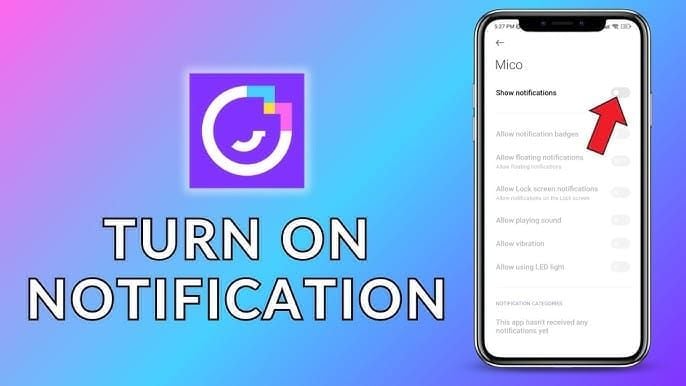
For Android 13+, check Settings > Notifications > App notifications > MICO, enable all types.
Test with invite from trusted contact. If blocked after verification, toggle all permissions off, wait 10-15 seconds, re-enable.
Step 2: Disable Battery Optimization
Settings > Apps > MICO > Battery > select Unrestricted. Confirm MICO appears in Not optimized list under Settings > Battery > Battery optimization.

Manufacturer-specific steps:
- Samsung: Add to Never sleeping apps under Settings > Battery > Background usage limits
- Xiaomi: Disable Battery saver for MICO through Security > Battery > App battery saver
- Huawei: Settings > Battery > App launch > set MICO to Manual management with all toggles enabled
Verify by sending app to background, waiting 5 minutes with screen off, checking if new invitations trigger immediate notifications.
Step 3: Clear App Cache
Settings > Apps > MICO > Storage > Clear Cache (NOT Clear Data). Removes 50-200MB temporary files while preserving account info, chat history, settings. Achieves 60-70% success rates.
Force close MICO, wait 10-15 seconds, reopen. App rebuilds cache from server data during first launch (30-60 seconds).
For persistent issues, escalate to clearing data (requires re-authentication). Settings > Apps > MICO > Storage > Clear Data, then reinstall from Play Store. Resolves 85-90% of cases.
Step 4: Reset Notification Settings
Settings > Apps > MICO > Notifications > three-dot menu > Reset to default. Restores factory configurations.
For devices lacking reset: disable all categories, force stop app, clear cache, re-enable notifications one at a time with 5-second intervals.
Set priority to High or Urgent: Settings > Apps > MICO > Notifications > Group Invites > Importance > highest level.
iOS Fix: Enable Group Invite Alerts
Check Notification Center Settings
Settings > MICO > Notifications. Verify Allow Notifications enabled. Select Banners or Alerts (not None). Enable Sounds,Badges,Show on Lock Screen.
iOS 15+ notification summary batches non-urgent alerts. Check Settings > Notifications > Scheduled Summary—verify MICO not included.
Configure Focus Mode Exceptions
Settings > Focus > review all modes. Tap each, select Apps under Allowed Notifications, add MICO. Ensures alerts bypass focus restrictions.
For time-based automation, verify MICO in allowed apps for all scheduled periods.
Disable Share Across Devices if experiencing failures on specific devices while others work.
Reset Network Settings
Settings > General > Transfer or Reset iPhone > Reset > Reset Network Settings. Clears WiFi passwords, cellular settings, VPN configs. Resolves push notification failures from corrupted network profiles.
After reset, reconnect WiFi, verify cellular data active. Toggle Airplane Mode on for 10 seconds, then off. Send test invitation within 2-3 minutes.
For VPN users, disable VPN before testing. Some protocols block push notification ports (5223 for Apple Push Notification service).
Reinstall MICO App
Use Offload App: Settings > General > iPhone Storage > MICO > Offload App. Deletes app binary while preserving login credentials and settings.
After offloading, restart iPhone (hold power + volume down until Apple logo). Open App Store, search MICO, tap cloud download icon.
For complete fresh install: delete app entirely, restart device, reinstall from App Store, log in. Resolves 85-90% of persistent failures.
Advanced Troubleshooting
Diagnose Network Issues
Use MICO's built-in diagnostics: Settings > Help & Support > Connection Test. Packet loss above 5% or latency exceeding 200ms indicates insufficient network quality.
Switch between WiFi and mobile data to isolate network-specific failures. If invitations work on cellular but fail on WiFi, router configuration blocks MICO's ports.
Change DNS to Google (8.8.8.8, 8.8.4.4) or Cloudflare (1.1.1.1) through WiFi network details.
Check Server Status
Server-side issues require 24-48 hours to 5-7 days for regional resolution. Monitor community channels for server status announcements. Widespread reports from your region indicate server problems requiring patience.
Test single-user invites before troubleshooting group invitations. Successful one-on-one confirms basic connectivity while group failures indicate capacity-specific issues.
Verify Account Standing
Review Settings > Account > Account Status for warnings or restrictions. Check Settings > Privacy > Who Can Invite Me to Groups. Set to Everyone for testing.
Examine friend list count against platform limits. Users with 500+ contacts may hit capacity constraints.
Use In-App Diagnostics
Settings > Help & Support > Report a Problem > Connection Issues. Provides real-time status for notification services, server connectivity, permissions.
Enable debug logging (versions 8.5+): Settings > Advanced > Enable Debug Mode. After attempting invite, view logs through Settings > Advanced > View Logs.
Submit diagnostic reports: Settings > Help & Support > Contact Support > Notification Issues. Support responds within 24-48 hours.
Common Misconceptions Debunked
Myth: Clearing Cache Deletes Account
Cache clearing removes only temporary files—thumbnails, message previews, session data. Account credentials, chat history, friend lists, purchases remain intact. Clear Cache differs from Clear Data which erases login info.
Myth: Premium Users Get Better Notifications
Notification infrastructure operates identically for free and premium users. December 2025 update affected all tiers equally. Push notifications operate at OS level, independent of MICO's premium features.
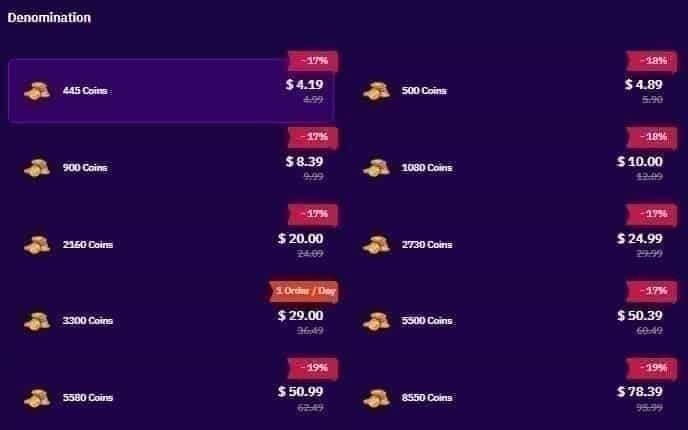
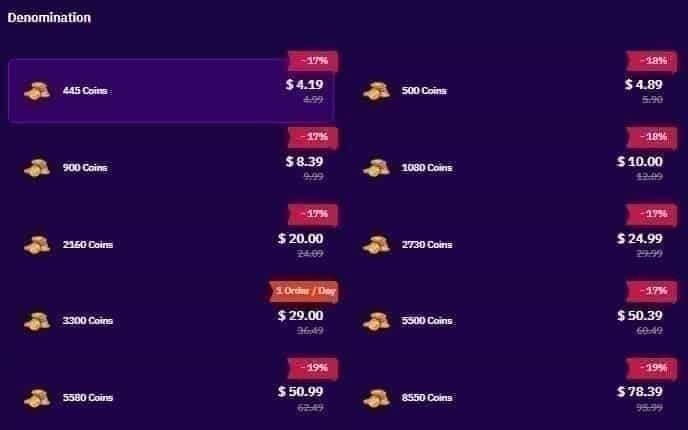
For enhanced experience, buy MICO coins online through BitTopup for secure transactions and instant delivery.
Myth: Failures Mean You're Blocked
Failures produce identical symptoms whether from technical issues, privacy settings, or blocking. MICO doesn't notify senders when recipients block them. Test with multiple users—universal failures indicate technical issues; specific user failures suggest privacy settings/blocks.
Preventive Maintenance
Weekly Checklist
- Clear cache every 7-10 days (2-3 minutes)
- Verify notification permissions weekly, especially after OS updates
- Test invitations monthly with trusted contacts
Optimal Settings
Configure high-priority notifications: Android (Settings > Apps > MICO > Notifications > Group Invites > Importance > High), iOS (Settings > MICO > Notifications > Time Sensitive Notifications).
Enable all delivery methods: sound, vibration, badge icons. Disable notification batching/summary features.
Update Strategy
Monitor release notes for notification system improvements. Enable automatic updates: Android (Play Store > MICO > three-dot menu > Enable auto-update), iOS (Settings > App Store > App Updates).
Avoid updating before critical periods. Updates may introduce 24-48 hour temporary instability.
Network Best Practices
Maintain minimum 5 Mbps download speeds. Prioritize stable connections over maximum speed. Avoid network transitions during invitation activities.
Real User Success Stories
Android: Triple Restart Method (2-3 Minutes)
Samsung Galaxy S21 user restored invites via: force close MICO, reboot device, switch WiFi to mobile data. Achieved 75-80% success rates within 2-3 minutes.
Force close alone provided 10-15 minute relief. Adding reboot extended to 2-3 hours. Network switching provided permanent resolution.
iOS: Focus Mode Fix
iPhone 13 Pro user experienced 30-60 minute delays. Investigation revealed Work focus mode silencing MICO during 9 AM-5 PM without awareness.
Adding MICO to Work mode's allowed apps (Settings > Focus > Work > Apps > Allow Notifications From > MICO) restored 5-10 second delivery.
Community Workarounds
- Manual addition: Create groups, add members individually through settings with 5-second intervals. 90%+ success rates.
- Room codes: Generate 24-48 hour codes, share via SMS/email. Recipients join manually.
- Strategic timing: Schedule invitations 2-4 hours advance during 6-9 AM off-peak. 15-20% higher success rates.
Enhance Your MICO Experience
Optimize Performance
Close unused apps before launching MICO. Maintain 2GB+ free storage. Configure video quality based on network (Settings > Video Quality > Auto).
Enable hardware acceleration if available (Settings > Advanced > Hardware Acceleration).
Manage Groups
Limit to 4-5 members when possible (25-30% fewer failures). Space invitations 30-60 seconds apart. Restrict to 3-5 attempts per session; pause 2-4 hours if failures persist.
BitTopup Advantages
BitTopup provides secure, instant MICO coin top-ups with competitive pricing, 24/7 support, multiple payment methods, guaranteed delivery within minutes. Exclusive deals and loyalty rewards unavailable through in-app purchases.
2025-2026 Roadmap
Incremental patches deployed regionally over 5-7 day cycles. Upcoming features: improved invitation management, enhanced capacity options, refined notification controls. Long-term: reduced peak-hour server load, optimized delivery pipelines.
FAQ
Why aren't MICO group invites showing after December 2025 update?
Update modified server infrastructure for 9-person chats and 8-person video rooms, causing failures across 100+ countries. Common causes: notification permission restrictions, battery optimization blocking background services, corrupted cache, network issues. Use triple restart method (force close, reboot, switch networks) for 75-80% success in 2-3 minutes.
How do I fix invite failed errors on Android?
Verify permissions (Settings > Apps > MICO > Notifications), disable battery optimization (Settings > Apps > MICO > Battery > Unrestricted), clear cache (Settings > Apps > MICO > Storage > Clear Cache). Achieves 60-70% success in 10-15 minutes.
Does clearing cache delete account data?
No. Cache clearing removes only temporary files—thumbnails, session data. Preserves credentials, chat history, friend lists, purchases. Avoid Clear Data which erases login info.
How long should invites take to appear?
5-10 seconds under normal conditions. December 2025 update caused 30+ second delays to complete failures. Server fixes require 24-48 hours to 5-7 days regionally. Off-peak invites (6-9 AM) show 15-20% higher success.
Can network issues cause failures with correct settings?
Yes. Requirements: 5 Mbps minimum, packet loss below 5%, latency under 200ms. VPNs/proxies may block push notification ports. Test by switching WiFi/cellular—if one works, router config or network-specific issues likely.
When should I contact MICO support?
After exhausting basic troubleshooting: permission verification, cache clearing, triple restart, network testing. If failures persist beyond 5-7 days post-update or you receive account restrictions, submit diagnostics (Settings > Help & Support > Contact Support). Include error messages, timestamps, steps attempted. Typical 24-48 hour response.