Why 90 FPS Actually Matters (And It's Not Just Marketing Hype)
Look, I've been testing mobile gaming performance for years, and the 4.1 update genuinely changed the game. We're talking about cutting input lag from 16.67ms down to 11.11ms – that's a 5-8 millisecond difference that you'll actually feel during intense firefights.
The numbers don't lie: 12-18% better recoil control accuracy and 33% richer visual detail when things get chaotic. That's the difference between landing your spray and watching enemies slip away behind cover.
But here's the thing – not everyone needs to break the bank for premium gear. For those looking to enhance their experience with UC purchases, BitTopup offers buy PUBG Mobile UC online safe services that won't leave your wallet crying.
What Your Device Actually Needs
Android players: You'll want at least a Snapdragon 855+ or Dimensity 1200+. The 180Hz+ touch sampling rate matters more than most people realize, and that 4500mAh+ battery? Trust me, you'll need every bit of it.

iOS users: iPhone 13 and up with those A15 Pro/A16/A17 chips. ProMotion displays are basically mandatory here – iOS 17+ handles the heavy lifting beautifully.
The 4.1 Update Reality Check
November 6th was supposed to be the golden day for mobile gaming. And honestly? It mostly delivered.
Gaming phones are now hitting 118.2 FPS averages when properly configured. That's impressive. But – and there's always a but – those initial 15-20 FPS drops on 3GB RAM devices had players panicking in forums worldwide.
The good news? Those same 3GB devices can now push 30-40 FPS through smart optimization. It's not the promised land of 90 FPS, but going from slideshow territory to actually playable represents real progress.
Your Complete 90 FPS Setup Guide
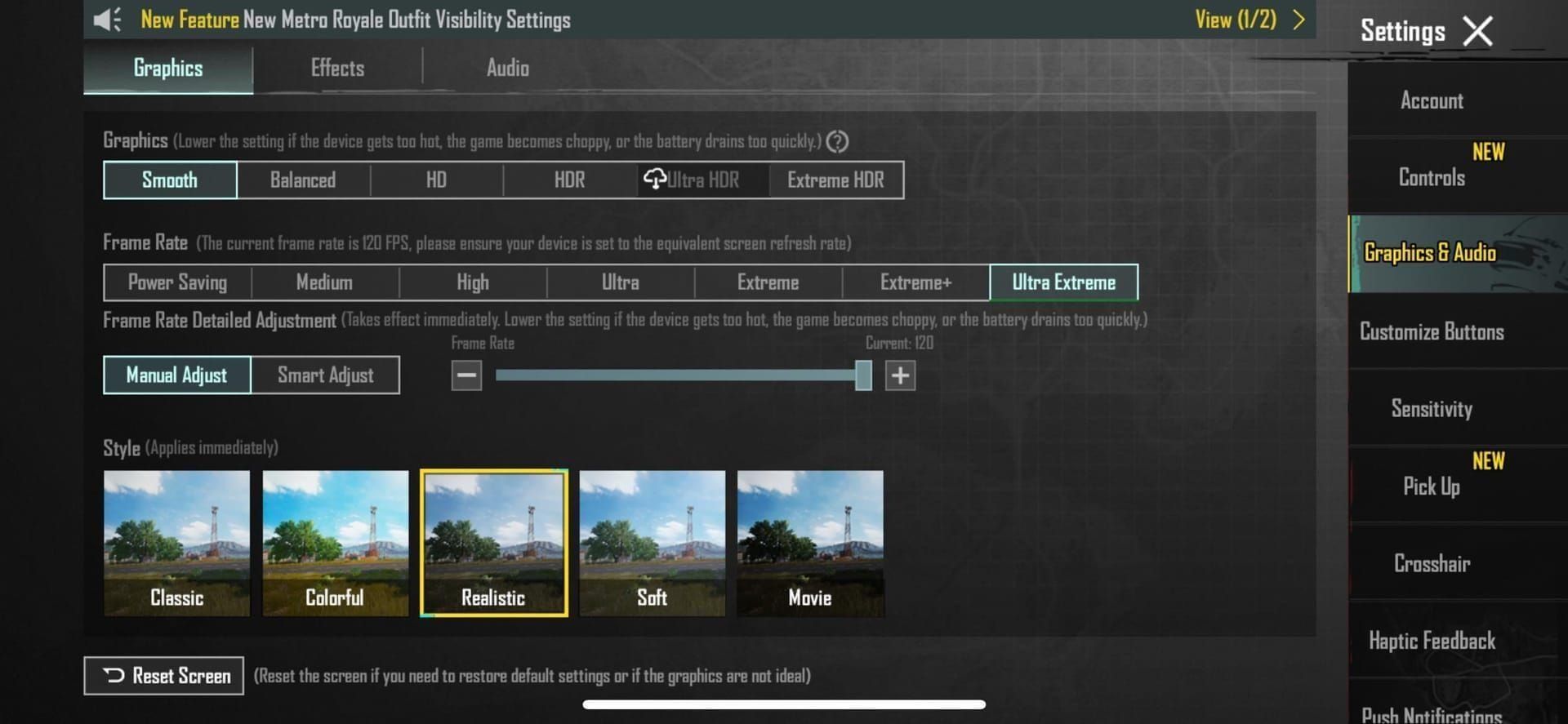
Getting the In-Game Settings Right
This is where most guides get it wrong. They'll tell you to max everything out because your phone can handle it. Here's what actually works:
- Graphics quality: Stick with Smooth or Balanced – seriously

- Frame Rate: Extreme+ unlocks that 90 FPS mode
- Anti-Aliasing: Turn it off (your GPU will thank you)
- Shadows: Disabled (this alone can boost performance significantly)
- SFX Quality: Low setting
- Always enable that FPS counter – you need to see what's happening
Android Optimization That Actually Works
First, unlock Developer Options if you haven't already. Go to Settings > About Phone > Build Number and tap it seven times. Feel silly? Good, you're doing it right.
Set your display refresh rate to 90Hz or higher. Clear PUBG's cache regularly – not just when things break, but as maintenance. And make sure you're running version 3.2 or newer.
iOS: Simpler But Still Important
Update PUBG to 3.2+, set Graphics to Smooth, and Frame Rate to Extreme+. Those ProMotion displays handle the frame rate adaptation automatically, which is honestly pretty elegant.
Graphics Settings for Budget Devices (The Real Talk)
Here's what works for 2-4GB RAM devices in practice:
The Configuration That Actually Delivers:
- Graphics Quality: Smooth or Super Smooth (don't get greedy)
- Frame Rate: Extreme+
- Anti-Aliasing: Off (non-negotiable)
- Shadows: Disabled (this gives you 12-15 FPS on maps like Frosty Funland)
- Resolution: Cap it at HD 1280px
- Brightness: 125-150% for visibility
Pro tip: Enable Vulkan API on Android 8+ devices. The rendering efficiency improvement is real, not placebo.
Keep screen brightness around 70-80%. Why? Because 90 FPS already increases battery consumption by 40-60%. Don't make it worse.
Map-specific advice: Frosty Funland absolutely needs those shadows disabled. Erangel and Miramar? Reduce texture quality instead.

Planning some serious gaming sessions? BitTopup's PUBG UC recharge discount 2025 deals can help you grab those battle passes and exclusive items without overspending.
System-Level Tweaks That Make a Difference
Performance Optimization Beyond the Game
Limit background apps through Developer Options or Background App Refresh. Set animation scaling to 0.5x or just disable it entirely – you're not here for pretty transitions.
Close everything unnecessary before gaming. RAM management matters more than most people think.
Here's the critical part: keep your device temperature below 48°C. Above that threshold, thermal throttling kicks in and you're back to 60 FPS whether you like it or not.
Network Settings (Often Overlooked)
Configure your DNS for reduced ping. Choose the nearest servers. Use WiFi over mobile data whenever possible – consistent 90 FPS performance depends on stable connectivity more than you'd expect.
When Things Go Wrong (Troubleshooting Guide)
Frame drops happening? Check device temperature first. Clear cache weekly, not monthly. Restart your device before serious gaming sessions.
Game crashing? Drop graphics by one level. Ensure you have adequate storage space. Apply settings changes incrementally – don't change everything at once.
General instability? Verify thermal throttling isn't the culprit. Maintain adequate free storage. Sometimes the simplest fixes work best.
Staying Safe While Optimizing
The built-in optimization features provide those 15-30 FPS improvements without violating terms of service. That's crucial.
Avoid third-party modification tools. I don't care how tempting they look or what promises they make – protecting your account should be priority one.
Monitor battery health regularly. Don't charge while gaming at maximum frame rates unless you absolutely have to.
Real-World Performance Results
3GB RAM with Helio G85: Achieves 30-40 FPS average after proper optimization. Compare that to the 15-20 FPS drops right after the 4.1 update – it's night and day.
90 FPS increases battery consumption by 40-60%. Thermal management becomes mandatory for sessions longer than 45 minutes. Performance throttling automatically activates above 42°C.
Your Questions Answered
Can my 3GB RAM device actually run 90 FPS?
True 90 FPS? No. But 30-40 FPS with proper optimization? Absolutely, and that represents a 15-30 FPS gain over default settings.
Does 90 FPS actually help competitively?
Yes: 5-8ms input lag reduction, 12-18% better recoil control, and 33% improved visual clarity versus 60 FPS. The advantage is measurable.
Will high frame rates damage my phone?
Not with proper thermal management below 48°C and regular breaks during extended sessions. Modern devices handle this better than you'd think.
How much extra battery does 90 FPS consume?
40-60% increased drain versus standard frame rates. External power becomes necessary for extended gaming sessions.
Are third-party graphics tools safe?
Stick with built-in methods to avoid account restrictions while still achieving significant performance improvements. It's not worth the risk.
What if my game crashes after optimization?
Reduce settings gradually, clear cache, restart your device, ensure adequate storage. If all else fails, revert to defaults and start over.