Configuring Garena PC client settings requires balancing the desktop launcher interface with underlying Windows sound and display hooks. On Garena 2.0 (version 2.0.3653) running on Windows 10 or Windows 11, stopping disruptive alert sounds while preserving visual friend notifications is handled through targeted operating system audio controls, while voice echo and device cutouts require disabling application exclusive mode and assigning explicit hardware. Resolving overlay freezes or input capture conflicts involves equalizing process privilege levels between the launcher and game client or remapping conflicting global hotkeys.
Silencing Alert Chimes Without Missing Messages
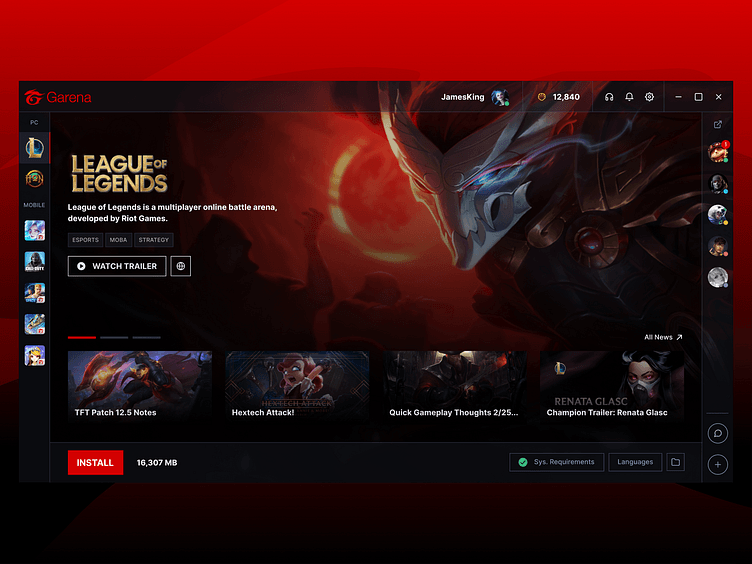
Garena 2.0 operates as an integrated communication client and game launcher, providing instant messaging and community tools alongside game library management across Windows 10, Windows 11, Windows 8, and Windows 7, as documented by LO4D's software review. When friends start matches or send direct messages, the client issues audio-visual notifications. During focused play, repetitive alert chimes disrupt game soundscapes and critical audio cues.
You do not need to shut down the client or enter full offline mode to silence these sounds. Windows allows granular control over banner chime behavior on an application-by-application basis.
| Setting Target | Configuration Method | Functional Impact | Interface Reference |
|---|
| Individual App Chimes | Settings > System > Notifications & actions > Select Garena > Toggle Off 'Play a sound when a notification arrives' | Mutes alert chimes while keeping toast popups active | 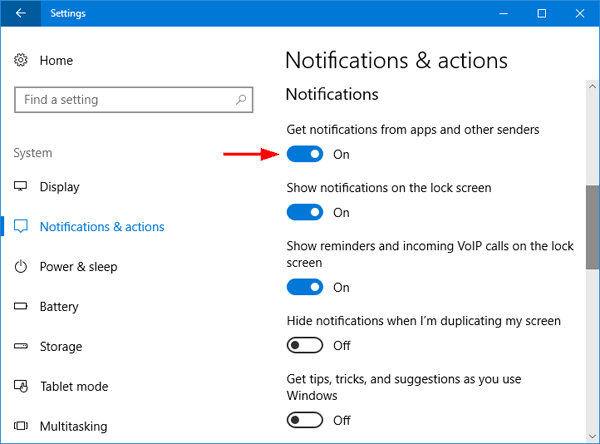 |
| Global Operating System Sounds | Settings > System > Notifications & actions > Uncheck 'Allow notifications to play sounds' | Suppresses all notification audio; preserves visual banners in Action Center | Windows Central Guide |
| Action Center Banners | Settings > System > Notifications & actions > Select App > Uncheck 'Show notification banners' | Removes on-screen popups; stores incoming alerts silently in the notification center | Windows Central Guide |
As verified by Windows Central, adjusting sound toggles inside the Windows Notifications & Actions menu isolates audio output without disabling incoming text pings. To turn off Garena notifications PC alert chimes:
- Press
Windows Key + I to launch Windows Settings. - Click on System, then choose Notifications & actions from the left navigation panel.
- Scroll down to the Get notifications from these senders section.
- Click on the Garena client listing to open its sub-menu.
- Switch off the toggle labeled Play a sound when a notification arrives.
If you prefer total silence across all secondary programs during competitive sessions, unchecking Allow notifications to play sounds at the top of the Notifications & Actions menu stops all background chimes globally while letting banners slip silently into your Action Center tray.
Configuring Garena PC Sound Settings and Voice Quality
Built-in voice channels handle direct team communication during PC matches, but two persistent audio problems often interfere: acoustic echo loops and sudden sound cutouts caused by driver conflicts.
Eliminating Voice Echo
Voice chat echo in competitive titles is almost universally caused by acoustic feedback loops. When game audio or teammate voices play through external desktop speakers, the physical microphone diaphragm captures that sound and retransmits it into the channel. Technical audio testing by MicTest highlights two necessary corrections:
- Isolate output physically: Switch to a dedicated headset or closed-back headphones. This prevents game sound from entering your microphone pickup pattern.
- Designate explicit hardware devices: Avoid leaving client input on "Default Communication Device." When software attempts automatic routing, Windows often defaults to an active web camera or internal laptop microphone with omnidirectional capture instead of your headset's boom mic.
- Adjust input sensitivity: Keep the microphone positioned near your mouth (avoiding direct heavy breathing) and balance input volume levels so normal speech triggers transmission without picking up room noise or keyboard keystrokes.
Disabling Exclusive Hardware Control
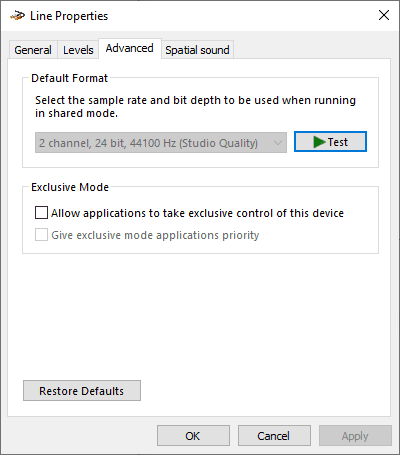
When launching a title from the Garena launcher causes voice chat to go silent, or if opening a game completely cuts off your system audio, an active application has likely seized exclusive driver priority. According to Microsoft Community technical documentation, fixing this hardware lock requires modifying Windows Sound device properties:
- Open the Windows Control Panel (set view to Large Icons) and select Sound.
- On the Playback tab, right-click your active headset or speakers and choose Properties.
- Navigate to the Advanced tab.
- Under the Exclusive Mode section, uncheck Allow applications to take exclusive control of this device.
- Uncheck Give exclusive mode applications priority.
- Click Apply, then OK.
- Switch to the Recording tab in the Sound window, select your headset microphone, open its Properties > Advanced tab, and uncheck exclusive control there as well.
Microphone access permissions must also remain enabled in Windows. Navigate to Privacy > Microphone in Windows Settings and confirm desktop applications have permission to access audio capture hardware.
Recommended Settings Baseline
This baseline profile balances distraction-free play with responsive team communication for titles managed through the Garena launcher.
The Focused Play Profile
- OS Notification Chimes: Off (Mutes popups while preserving notification text).
- Notification Pop-Up Banners: Disabled or Priority Only during gameplay.
- Audio Input Device: Dedicated headset microphone (Never "System Default").
- Audio Output Device: Dedicated stereo headset.
- Hardware Exclusive Mode: Disabled across Playback and Recording endpoints.
- Overlay Shortcut: Custom modifier pair (e.g.,
Ctrl + F1) or switched completely off. - Display Execution Mode: Borderless Windowed (Ensures stable hook compatibility).
When to Deviate
- Solo Single-Player Matches: If you are not in a team lobby and want zero visual distractions, disable Action Center banner notifications entirely rather than only turning off the audio chime.
- High-Latency Bluetooth Audio: If using wireless earbuds that downgrade audio quality when their built-in microphone activates (hands-free telephony profile), set your communication input to an external USB microphone to keep playback in stereo.
Managing In-Game Overlays and Resolving Hotkey Conflicts
In-game overlays provide rapid access to friends lists, party invites, and account chats without requiring an Alt + Tab command. Hooking an overlay onto an active Direct3D or Vulkan engine, however, can introduce input latency, unresponsive hotkeys, or desktop lockups.
Privilege Boundaries and Input Collisions
Diagnostic research from AethoVPN's overlay troubleshooting documentation points out that overlay hook failures frequently stem from security privilege mismatches across Windows processes. If a game runs with elevated administrator rights while the Garena client operates under standard user privileges (or vice versa), the operating system blocks keyboard hooks and graphic injection across the boundary.
To ensure overlay responsiveness and stop key capture drops:
- Align execution permissions: Keep both the Garena launcher and the game executable at default user permissions. Avoid checking "Run this program as an administrator" on just one executable.
- Remap colliding key combinations: Launcher overlays frequently default to keys already bound to in-game actions, such as
Shift + Tab or Alt + hotkeys. Test a temporary, unmapped shortcut (such as Ctrl + F1) that does not interfere with game keybinds, Windows accessibility features, or external recording tools. - Test windowed display modes: Exclusive fullscreen rendering frequently prevents launcher hooks from displaying graphics on top of the frame buffer. Switching game video settings to Borderless Windowed allows the display layer to composite correctly without crashing the graphics driver.
| Overlay Utility | Common Conflict Trigger | Resolution Step | Source Reference |
|---|
| Garena Client Overlay | Mismatched user vs. administrator privileges | Run both launcher and target game at matching standard user levels | AethoVPN Guide |
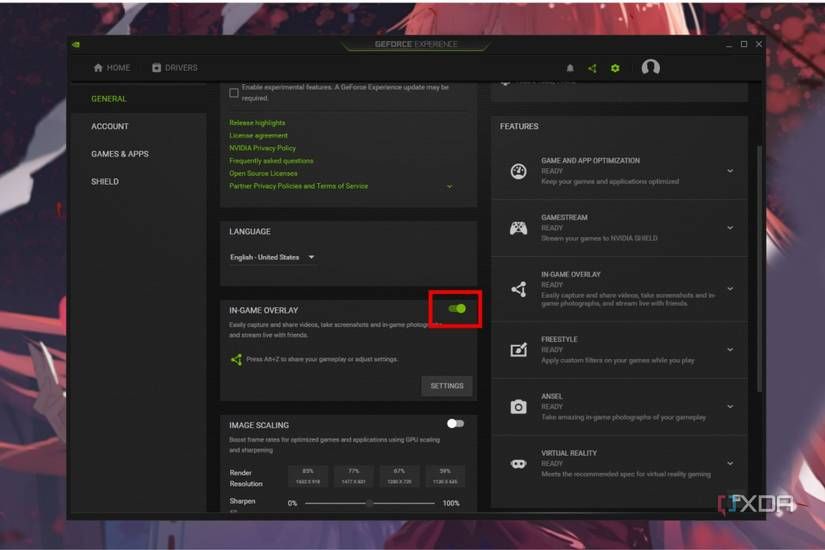
| Nvidia GeForce Experience | Default Alt + Z shortcut collides with game movement/ping keys | Open GeForce Experience > Settings > General > Toggle off In-Game Overlay, or remap shortcut | MakeUseOf Guide |
| Competing Background Tools | Multiple active hooks (Discord, GPU utilities, launcher layers) | Disable third-party overlays individually to isolate hook injection crashes | AethoVPN Guide |
If third-party GPU software like Nvidia GeForce Experience is running simultaneously, its default overlay binding (Alt + Z) can capture keys meant for your game. As detailed by MakeUseOf, open GeForce Experience, click the Settings (gear icon) at the top right, scroll to In-Game Overlay, and flip the green toggle off to stop input capture conflicts completely.
Client Privacy Controls and Vietnam Server Title Management
Profile privacy controls prevent unsolicited party invites or chat messages from triggering disruptive popups during matches.
Set your presence status to Busy or Invisible using the profile dropdown menu next to your avatar in the client window. The Busy state suppresses real-time chat invitation alerts, stopping game interruptions without requiring you to log out.
For accounts tied to Vietnam regional servers, managing your Garena account also encompasses server titles like Liên Quân Mobile, Free Fire VN, and FC Online Vietnam. In these games, Garena Shells (Sò Garena) serve as the centralized virtual currency, converted directly into premium in-game currencies. Players managing multiple regional titles can pick up a Garena Shells voucher to reload balances directly on their verified platform profiles before adjusting in-game client preferences.