Tweak your Knives Out graphics settings 2026 setup to eliminate stutter, stabilize frame pacing, and stop your battery from overheating mid-fight.
Dropping into an intense 100-player battle royale match only to watch your screen turn into a slideshow during an ambush is infuriating. Developed by NetEase Games, Knives Out demands split-second aim tracking across dense island terrain, coastal areas, and ruins. Following major content expansions like the S36 Oceans survival update, the visual strain on hardware has increased significantly. Extra coastal assets, detailed ruined architecture, and dense brush punish phones and PCs alike.
If your phone doubles as a hand warmer or your PC experiences sudden micro-stutter when a squad rushes your compound, your configuration needs work. Many players crank visual fidelity to make cosmetics look pretty, only to end up with unplayable input latency and harsh thermal throttling.
I treat visual presets with cold pragmatism: if a setting does not help me spot an enemy behind a ridge or hit a moving vehicle, it gets switched off. Here is how to calibrate Knives Out on Android, iOS, and PC for tournament-grade responsiveness without torching your hardware.
The Core Dilemma: Smooth Graphics vs HD
The fundamental conflict in competitive shooters sits between aesthetic eye candy and raw frametime consistency. Running high graphical presets adds dynamic environmental reflections, atmospheric fog, and lush grass cover. While that looks cinematic, it actively works against your match survival. Extra foliage hides prone opponents, and ambient occlusion drops your combat framerate precisely when multiple players throw smoke grenades.
Setting your base graphics quality to the lowest preset—often labeled Smooth—maximizes your frame rates, strips out distracting foliage, and sheds thermal burden. When your GPU does not have to render thousands of individual grass blades or calculate dynamic light bounces, your system runs cooler. Lower temperatures prevent hardware downclocking, maintaining a consistent target refresh rate.

If you want to grab weapon skins or custom bundles to test out your visual look across matches, checking Knives Out Vouchers on Bittopup is a simple way to top up your account without hassle.
Frame Rate Sliders and Input Latency
While graphics quality should always sit at the absolute minimum, the frame rate slider must be pushed to the highest setting your hardware permits. Selecting options like 60fps or 90fps delivers smoother animations and reduces your input delay. Your reaction speed hinges entirely on how fast the display reflects your touch or mouse inputs.
When a frame rate fluctuates, your tracking errors increase. If your rendering pipeline spits out frames erratically, leading targets at distance becomes pure guesswork. Always choose the lowest graphics preset paired with the highest frame rate slider.
Refresh Rates, Frametimes, and Adaptive Sync
Most players obsess over average FPS readouts while ignoring frametime consistency. You can display an average of 120 FPS, but if your 1% low frames crash to 25 FPS whenever an explosive goes off, the game feels awful. Micro-stutter happens when individual frame delivery intervals fluctuate unevenly.
A standard 60Hz panel refreshes once every 16.67 ms. Push your panel to 144Hz, and each refresh cycle compresses down to 6.94 ms. When the GPU cannot complete rendering a frame within that 6.94 ms window, you suffer a dropped frame, a stutter, or a screen tear.
The table below outlines the mathematically optimal frame caps required to keep Knives Out running inside variable refresh rate (VRR) envelopes on PC monitors.
| Monitor Refresh Target | Optimal FPS Cap | Target Frametime Interval | Technical Rationale |
|---|
| 60Hz Display | 59 FPS | 16.67 ms | Prevents buffer queuing and reduces touch/click input latency |
| 144Hz Monitor | 141 FPS Cap | 6.94 ms | Keeps rendering inside VRR window to stop tearing without V-Sync input lag |
| 165Hz Monitor | 162 FPS Cap | 6.06 ms | Maintains variable refresh rate ceiling headroom, preventing frametime pacing spikes |
| 240Hz Monitor | 237 FPS Cap | 4.17 ms | Balances maximum high-refresh fluidity with thermal headroom to stop GPU throttling |
Locking your frame rates slightly below your monitor ceiling guarantees consistent frametime pacing and avoids sudden input lag spikes.
Capping frame rates three frames below native display refresh limits keeps rendering within adaptive sync boundaries without engaging traditional sync buffers. If you let the framerate hit the display ceiling naturally, system mechanics trigger display driver buffers that introduce noticeable input delay. That slight buffer delay will cost you close-quarters duels.
The V-Sync and Anti-Aliasing Contradictions
Optimization guides frequently offer contradictory advice regarding Vertical Sync and Anti-Aliasing. Dissecting how both mechanics operate inside the Knives Out engine clarifies the right choice.
The V-Sync Dilemma
Standard competitive wisdom instructs you to disable V-Sync completely to avoid input lag. While V-Sync locks the game render cycle to the monitor refresh to prevent horizontal screen tearing, it introduces severe penalties. If your system cannot sustain the display target, V-Sync penalizes performance by dropping output to integer divisions of the refresh rate, producing massive stutter.
However, on handhelds or low-spec displays without adaptive sync hardware, unconstrained frame rendering can produce terrible tearing across horizon lines. My recommendation: disable V-Sync universally in the game menu. If you experience screen tearing on PC, use an external frame cap tool like RTSS or driver-level sync instead of the in-game toggle.
The Anti-Aliasing Trade-off
Anti-Aliasing creates a similar conflict. Some sources recommend pushing Anti-Aliasing to Ultra for edge clarity, arguing it prevents distant enemy silhouettes from pixelating. Other optimization benchmarks advise disabling Anti-Aliasing entirely to lighten GPU and CPU workloads during intense firefights.
On mobile devices and budget PCs, Anti-Aliasing represents a needless performance tax. High Anti-Aliasing settings blur edge contrast, making it harder to spot a sniper peeking behind a rock. Disable Anti-Aliasing to maximize your 1% low framerate and maintain razor-sharp edge contrast.
Thermal Throttling: Why Your Frame Rate Collapses Mid-Match
Every player has experienced the mystery of a match that runs buttery smooth for five minutes, only to decay into an unplayable mess during the final blue zone collapse. This is almost never a network issue; it is pure thermal throttling.
When mobile processors or PC components work under sustained load, they generate intense heat. When a mobile SoC reaches dangerous temperatures, or when desktop CPUs reach roughly 90°C and GPUs hit 80°C to 90°C, internal safety mechanisms activate. The processor automatically downclocks its frequency to avoid permanent hardware damage.
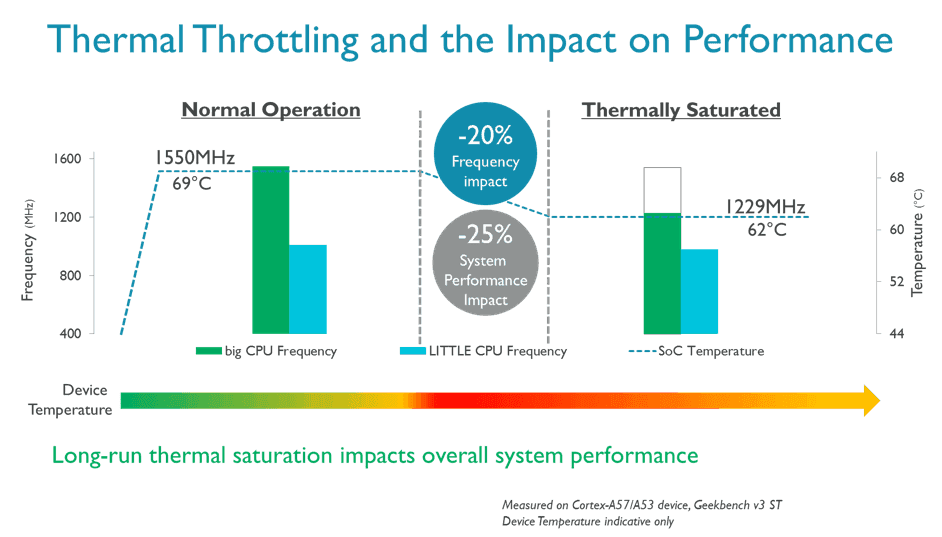
When your chip cuts its clock speed in half mid-fight, your frame rates crash instantly. Lowering your visual options directly reduces thermal output, keeping components well below the 80°C to 90°C throttle ceiling.
The following table illustrates the thermal impact and performance efficiency of key in-game settings.
| Setting Toggle | Frame Pacing Impact | Thermal & Battery Burden | Competitive Recommendation |
|---|
| Graphics Quality (Smooth) | High boost to 1% low frames | Minimal battery drain; prevents 80°C SoC heat build-up | Mandatory: Always set to lowest tier |
| Frame Rate Slider | Lowers click-to-motion latency | Moderate to high power draw; smooths animation | Set to highest option supported (60/90/120) |
| Dynamic Shadows | Severe frametime spikes | High GPU pixel burden; heats up processor | Mandatory: Disable completely |
| In-Game Brightness | Zero rendering impact | Slight display power draw | Set between 125% and 150% for spotting |
| Auto-Adjust Graphics | Unstable frametime fluctuations | Unpredictable rendering profile | Mandatory: Turn OFF immediately |
| Render Resolution | Direct GPU scaling | Heavy VRAM and pixel load at maximum | Lower slightly if GPU hits 90°C limits |
Optimizing these baseline toggles strips out unnecessary rendering overhead while protecting your hardware from thermal clock drops.
Notice that screen brightness carries no GPU calculation cost. By bumping screen brightness to roughly 125% to 150%, you pull opponents out of dark corners and shadowy ruins without sacrificing a single frame of performance.
Step-by-Step Fixes for Stuttering and Frame Drops
If you are currently experiencing persistent frame drops, stuttering during gunfights, or severe battery overheating, follow these troubleshooting steps in exact sequential order.
Disable Auto-Adjust Graphics Immediately
Navigate to your in-game graphics menu and switch off the auto-adjust toggle. Leaving this setting enabled permits the game engine to dynamically alter your resolution and visual detail on the fly whenever action intensifies. That dynamic scaling destabilizes your visual clarity and disrupts your mouse or swipe sensitivity right when you need precision aim.
Lower Graphics to Smooth and Maximize Frame Rate
Switch the overall graphics preset to Smooth. Next, push the frame rate slider to the maximum available tier (60fps, 90fps, or 120fps depending on your device). This combination strips away dynamic clutter while maintaining rapid input responsiveness.
Turn Off Dynamic Shadows and Lower Render Scaling
Shadows are computationally expensive. Reducing shadow quality from Ultra to High—or disabling shadows entirely—substantially improves 1% low framerates. Alleviating this GPU pixel burden prevents frametime spikes when multiple character models gather in one zone.
Eliminate Background Memory Leaks
Extended play sessions often suffer from compounding memory leaks in game clients. UI buffers, loaded cosmetic textures, and map assets accumulate over hours of gameplay, causing performance degradation. When textures exceed dedicated video memory capacity (VRAM), the system offloads assets to slower system RAM, causing immediate hitches. Restart your client every two hours to clear leaked RAM buffers.
Switch System Power Profiles to High Performance
On both mobile operating systems and Windows, default energy-saving profiles aggressively limit CPU and GPU power draw. Switching your power profile to High Performance stops the operating system from artificially downclocking processing cores during 100-player island drops.
Clear Corrupted DirectX Shader Cache (PC Players)
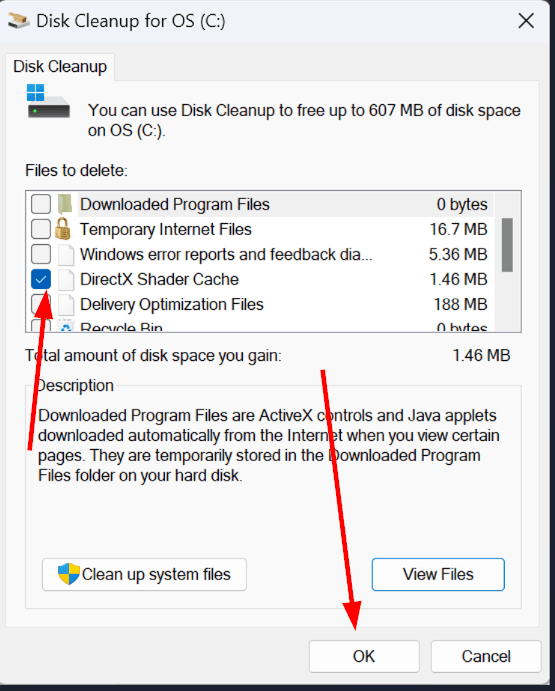
Stuttering that occurs specifically when entering new map zones or when weapons discharge often traces back to a bloated or corrupted shader cache. Open the Windows Disk Cleanup utility, select your system drive, check "DirectX Shader Cache," and run the cleaning routine. The game will cleanly rebuild shaders on its next launch, eliminating asset-loading lag spikes.
Enforce Exclusive Fullscreen Mode
If you play Knives Out on PC, running the game inside a borderless or standard window forces the render stream through the Windows desktop compositor. This introduces background window latency. Switch to exclusive fullscreen to grant the game hardware priority.
If you run into issues managing in-game cosmetics after applying these visual fixes, grabbing a secure top-up through Knives Out Vouchers via Bittopup ensures your account remains stocked without performance interruptions.
Advanced Operating System Tweaks (PC & Mobile)
Dialing in the in-game options is only half the battle; operating system scheduling directly influences frame pacing during 100-player matches.
Windows Priority and Timer Tuning
Windows manages CPU thread execution across hundreds of background processes. By tuning process priority separation in the Windows registry, you instruct the operating system to dedicate longer, uninterrupted scheduling slices to foreground applications.
To configure this, open the Windows Registry Editor (regedit) and navigate to:
HKEY_LOCAL_MACHINE\SYSTEM\CurrentControlSet\Control\PriorityControl
Locate the Win32PrioritySeparation DWORD key. The default value is typically 2. Changing this value to decimal 22 (hexadecimal 16) grants higher foreground execution priority to your active game client over background system tasks.
Another impactful tweak involves the system dynamic tick. By default, Windows alters timer tick cadence to conserve power on laptops and portable devices. For high-intensity shooters, inconsistent timer intervals can introduce micro-stuttering. Open Command Prompt as an administrator and execute:
bcdedit /set disabledynamictick yes
This command locks timer cadence to a high-frequency interval, improving system timer consistency for high-refresh competitive play.
Display Scaling Conflicts
A subtle issue on PC involves the Windows display scaling setting. If your desktop scaling is set above 100% (common on 1440p and 4K monitors to make text readable), it can disrupt native fullscreen rendering. Scaling above 100 percent frequently prevents gaming clients from engaging true exclusive fullscreen, quietly forcing them into a borderless presentation that adds display latency. Check your Windows display settings and ensure your primary monitor runs at native 100% scaling while gaming.
Cross-Platform Configuration Profiles
Optimizing Knives Out requires a different tactical approach depending on whether you play on an Android phone, an iPhone/iPad, or a desktop PC. Hardware thermal constraints and operating system rendering pipelines vary widely.
The comparison table below outlines the recommended configuration baseline for each major platform.
| Platform | Graphics Quality Preset | Target Frame Rate Setting | In-Game Auto-Adjust | Display Mode / Scaling | Critical Optimization Step |
|---|
| Android Devices | Smooth | Maximum (60 / 90 FPS) | OFF | Native Resolution | Clear background apps to prevent RAM offloading |
| iOS Devices | Smooth | 60 FPS / High | OFF | Native Auto | Disable Low Power Mode; prevent SoC thermal throttling |
| PC (Native / Emulated) | Smooth / Balanced | 141 / 162 / 237 FPS Cap | OFF | Exclusive Fullscreen (100% OS Scaling) | Clear DirectX Shader Cache; disable dynamic tick |
Tailoring your visual configuration to your specific platform hardware prevents device-specific thermal throttling and display latency traps.
On mobile platforms, battery preservation and thermal moderation dictate performance. On PC, the main goal is eliminating input lag and maximizing 1% low frame consistency across intense 100-player encounters.
If you are picking up seasonal cosmetics or gearing up for survival matches, you can top up your balance securely with Knives Out Vouchers on Bittopup, which offers instant digital delivery and dependable service across multiple regions.
Battery Drain vs Visual Fidelity
Mobile players frequently complain that Knives Out drains battery life in under two hours. Rendering high-polygon character models, vehicle physics across coastal terrain, and 100-player network updates consumes significant power.
Pushing both graphics quality and frame rates to maximum forces your battery to discharge at its absolute peak rate. That rapid chemical discharge generates internal heat, triggering the CPU and GPU thermal throttling mechanisms discussed earlier.
If you need extended battery endurance during long gaming sessions away from a charger, keep Graphics Quality set to Smooth, but reduce your Frame Rate slider from 90fps or 60fps down one tier. Dropping your refresh target reduces GPU render loops by up to 33%, cutting thermal output and keeping battery drain manageable. Never attempt to solve battery drain by enabling in-game auto-adjust; use a fixed lower frame rate cap instead.
FAQ
What is the best graphics preset in Knives Out for maximum FPS?
Set the overall graphics quality to Smooth and select the highest available frame rate slider. This minimizes GPU load, clears distracting foliage clutter, and significantly reduces input latency.
How can I stop my phone from overheating while playing Knives Out?
Lower your graphics quality to Smooth and turn off dynamic shadows completely. Capping your frame rate slider prevents your mobile processor from reaching 80°C to 90°C thermal throttle limits.
Why does Knives Out experience sudden frame drops during gunfights?
Sudden drops usually occur when rising temperatures trigger hardware thermal throttling or when VRAM runs out during asset-heavy explosive effects. Lowering shadow quality, dropping render resolution, and closing background applications prevents these performance hitches.
Should I leave auto-adjust graphics turned on?
No, you should disable auto-adjust graphics immediately. Leaving it on causes sudden mid-match resolution drops that disrupt visual clarity and ruin aiming consistency during firefights.
Does exclusive fullscreen improve PC performance over borderless window?
Yes, exclusive fullscreen grants the game dedicated display priority by bypassing the desktop window compositor. This removes background desktop rendering overhead and noticeably reduces mouse input latency.
Why should I cap my framerate slightly below my monitor's refresh rate?
Capping FPS slightly below your display refresh rate keeps gameplay strictly within the adaptive sync envelope. For example, a 141 FPS cap on a 144Hz monitor eliminates screen tearing without triggering V-Sync input lag penalties.
Why does the game become choppy after playing for several hours?
Extended play sessions often suffer from compounding memory leaks and sustained internal heat buildup. Restarting the game client periodically clears cached memory buffers and restores smooth frame pacing.
Final Calibration Verdict
Chasing maximum graphics presets in a competitive battle royale like Knives Out is a losing strategy. High visual settings load your screen with visual noise, hide enemies behind decorative foliage, and push processors into severe thermal throttling.
Lock your graphics to Smooth, turn off dynamic shadows, bump in-game brightness to 125%–150%, and set your frame rate to the highest supported ceiling. Keep your system running cool, avoid mid-combat resolution scaling, and you will enjoy the smooth, stutter-free performance needed to survive to the final circle.