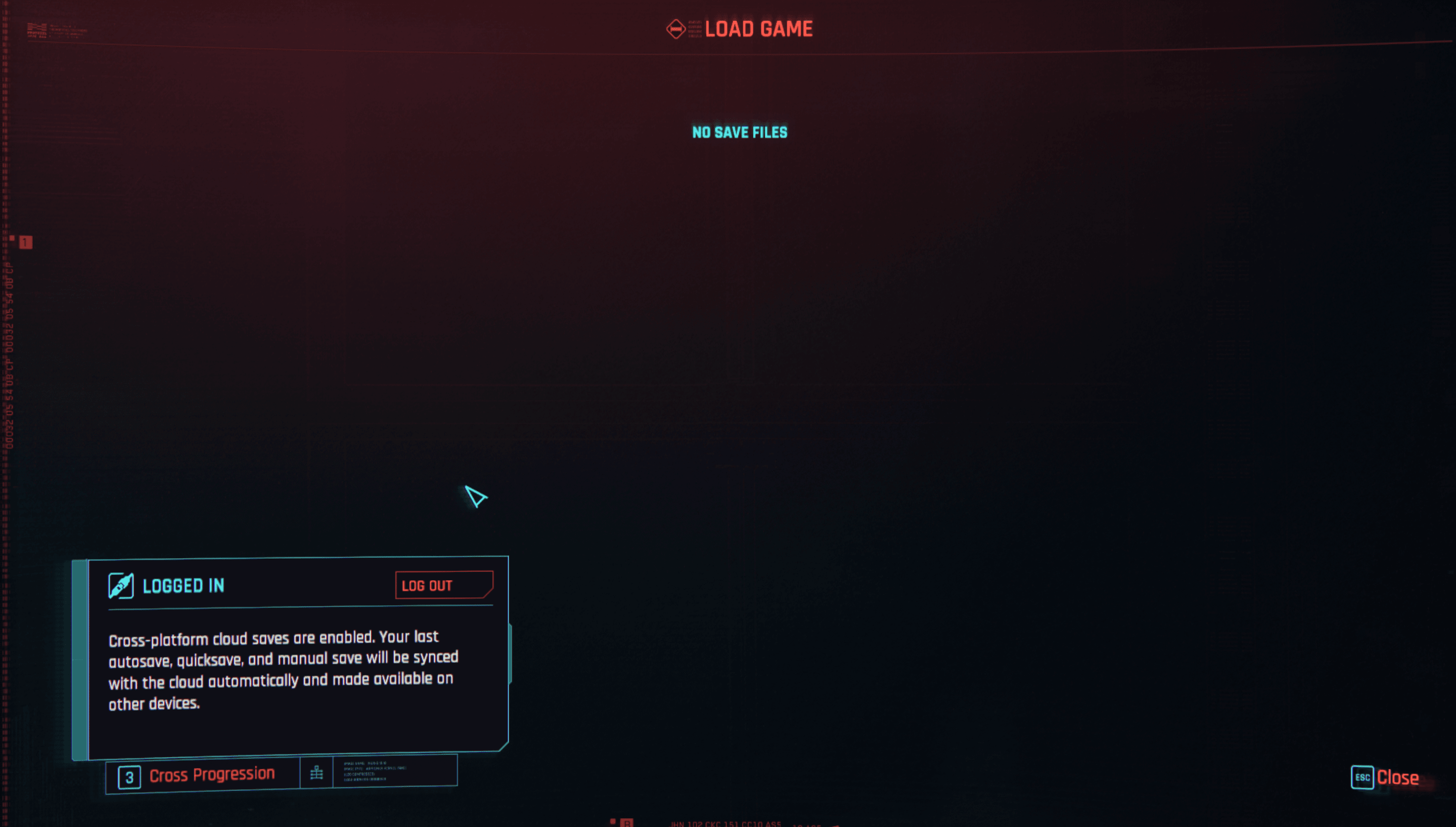
To enable cross-progression in Cyberpunk 2077 on PlayStation 5, open the Load Game menu and press the Cross Progression button shown in the bottom-left corner of the screen. Scan the on-screen QR code with your phone or visit the listed URL, select Continue, and sign in with your CD PROJEKT RED or GOG account. Once authorized, cross-platform saves turn on by default, automatically syncing your latest Auto, Quick, and Manual saves to the cloud and flagging them with a cloud icon.
Step-by-step setup on PlayStation 5
Setting up cross-save on PS5 requires an in-game handshake between your console client and your CD PROJEKT RED profile. You cannot complete this setup solely through an external web account settings dashboard.
To connect your console and CD PROJEKT RED account:
- Ensure your PS5 copy of Cyberpunk 2077 is updated to the latest available patch from the PlayStation home screen.
- Launch the game and enter the Load Game menu from either the title screen or the pause menu.
- Look at the bottom-left corner of the display and press the button assigned to Cross Progression (indicated in the interface prompt, introduced in update 1.6 as noted by IGN's cross-progression guide).
- A personal URL and a scannable QR code will appear on your TV.
- Scan the QR code using your smartphone camera or manually enter the URL into a web browser.
- Select the Continue button in the top-right corner of the authentication page.
- Sign in using your existing CD PROJEKT RED or GOG account credentials, or create an account if you do not have one.
Once the browser displays a success confirmation, return to your PS5. The game links your profile immediately. According to CD PROJEKT RED Technical Support, cross-progression activates by default as soon as the account connects. You can toggle the feature on or off at any time by heading to Settings → Gameplay → Enable cross-platform Saves.
Why linking through a web browser alone fails
A frequent stumbling block occurs when players attempt to connect their PlayStation Network account strictly through an external browser dashboard before opening the game.
CD PROJEKT RED Account Support confirms that linking PlayStation, Microsoft, or Steam accounts through the external CD PROJEKT RED account management panel will not activate in-game integration. To register the active link, you must trigger the authentication directly inside the console interface—either via the Cross Progression prompt in the Load Game menu or through My Rewards on the main menu.
Identifying cloud saves and synced save types
Cross-progression does not back up every historical save file on your console storage. Instead, the sync engine tracks your progress by category.
According to CD PROJEKT RED Technical Support:
- The cloud system automatically uploads the latest save for every distinct save type: Quick Save, Auto Save, and Manual Save.
- When a new save file is written after enabling the setting, it pushes to the cloud.
- You can confirm an upload was successful by checking the Load Game list. A small cloud icon appears next to the save file name once the upload finishes.
If you plan to switch from PS5 to PC or another platform immediately, make a fresh Manual Save or Quick Save before closing the application. Verify that the cloud icon shows beside that specific entry before shutting down your console.
Cross-platform compatibility and regional restrictions
Cross-platform save compatibility depends on the originating platform and whether either copy carries regional content restrictions.
Early coverage from outlets like IGN claimed that PC saves could not be transferred to consoles at all. However, official documentation from CD PROJEKT RED Regional Compatibility Support clarifies that PC saves can transfer to consoles, provided the target console version does not contain regional content restrictions.
Here is how cross-save transfers work across versions:
| Transfer Path | Status | Conditions and Details |
|---|
| Console (PS5) to PC | Supported | Console saves can always be transferred and loaded on PC (Source). |
| PC to Console (Unrestricted SKUs) | Supported | PC saves transfer successfully onto console versions that lack regional restrictions (Source). |
| PC to Console (Restricted SKUs) | Not Supported | Saves from less restrictive PC versions cannot load on restricted console SKUs (Source). |
| Console to Console (Unrestricted to Restricted) | Not Supported | Saves generated on an unrestricted build cannot open on a restricted SKU (Source). |
Saves originating from regionally restricted game versions can only be loaded into versions belonging to that same region. CD PROJEKT RED lists restrictions covering versions released in Saudi Arabia, the United Arab Emirates, Bahrain, Kuwait, Oman, Qatar, Egypt, Lebanon, Jordan, and Japan.
Frequently asked questions
How do I know if my Cyberpunk 2077 save on PS5 has uploaded to the cloud?
A cloud icon appears directly next to the save file name in the Load Game menu once the file finishes uploading (Source).
Can I transfer my Cyberpunk 2077 PS5 save to a PC copy of the game?
Yes. Console saves transfer freely to PC editions on Steam, GOG.com, or the Microsoft Store as long as both games connect to the identical CD PROJEKT RED account (Source).
Which save types are uploaded to the cloud via cross-progression?
The service uploads the single latest save file for each category: Auto, Quick, and Manual saves (Source). Older backups remain local to your console storage.