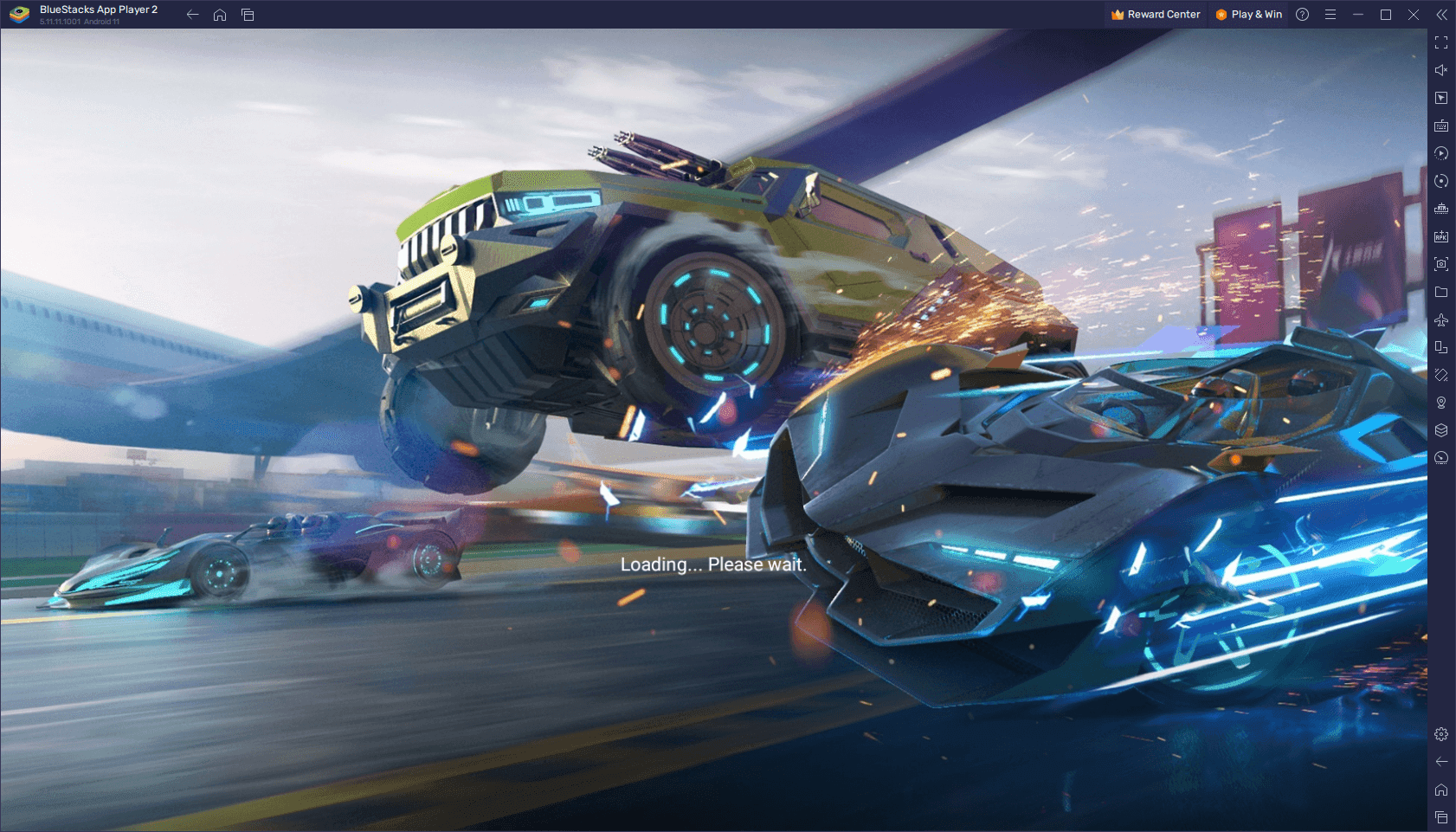
Stuttering streams ruin live broadcasts. Learn how to turn off gift animations in YY Live, clear screen barrage, and eliminate device lag instantly.
Watching a popular broadcaster should feel fluid. Instead, your phone heats up within ten minutes, the video stutters, audio goes out of sync, and the screen vanishes under an avalanche of animated fireworks, sports cars, and floating chat stickers. During peak traffic, gifting wars between viewers can bring even high-end devices to a crawl.
The problem is rarely bandwidth. Rendering multiple overlapping alpha-channel graphics over a live video feed hammers your graphics processor. If you want a smooth broadcast, take control of the rendering pipeline. Disabling screen clutter restores playback stability, saves battery, and lets you watch the streamer without distraction.
Why Full-Screen Visual Overlays Melt Your Hardware
Every time a viewer triggers a visual gift, your device executes dynamic compositing. A standard video player simply decodes an incoming stream and displays the frames. When visual effects enter the equation, the software must fetch animated assets, composite them over the video layer, and calculate transparency and motion paths in real time.
When twenty viewers send tokens at the same moment, your graphics chip chokes. High-tier virtual items unleash animated graphics ranging from minor icons to elaborate full-screen animations that cover the broadcast entirely. These effects spike CPU and GPU load immediately. The processor works harder, generates heat, and hits a thermal ceiling. To prevent damage, your phone or tablet throttles clock speeds. Frame rates plummet, turning a 60-frame stream into a stuttering slide show.

Floating barrage comments (danmu) worsen the issue. Each text string rendered across the canvas creates additional draw calls. In rooms with thousands of active viewers, chat bubbles and animated banners create continuous overhead. Turning off these graphical layers eliminates the excess draw calls, returning your device to decoding just the raw video feed.
Step-by-Step: Disabling Gift Effects and Barrage in the YY App
You do not have to endure thermal throttling to enjoy a broadcast. The YY Live app includes native toggles to stop full screen gift animations yy app performance hits and quiet down erratic chat overlays. Accessing them takes only a couple of taps inside any active room.
Follow these steps to shut down the visual noise:
- Open the Target Live Stream: Tap into the channel you want to watch so the full video and chat interface loads.
- Reveal Room Controls: Tap once anywhere in the center of the video player. This brings up the transparent interface overlay showing player icons, room statistics, and viewer tools.
- Locate the Display / More Menu: Look at the bottom-right corner or the top-right toolbar. Depending on your version, tap the three-dot icon (
...) or the small gear icon representing stream settings. - Toggle Gift Effects Off: In the pop-up settings tray, find the entry for Special Effects or Gift Effects. Toggle the switch off. This stops full-screen animations, sports car models, and banner popups from rendering over the video.
- Mute or Filter the Floating Barrage: Look for the small barrage icon (often styled as a text bubble or the character "弹") located near the bottom chat input bar. Tapping it disables floating text comments across the video player, restricting chat solely to the lower text box.
- Activate Clear Screen Mode Settings: If you want zero distractions, use yy live clear screen mode settings. Swipe horizontally across the video player (usually from left to right, or right to left depending on room orientation) to clear every HUD element, chat box, and gift icon off your screen.
If you send gifts yourself while watching creators, you can secure your YY Live Y Coin balance through verified storefronts to support channels without needing visual overlays cluttering your own viewing experience.
The Computational Cost of Live Gifting: Tiers and Graphics Load
Virtual gifts span a wide price spectrum. Lower-tier tokens represent minor screen pings, while premium options deploy cinematic sequences that hijack the entire broadcast. Across modern streaming ecosystems, gift costs start at 1 coin for basic tokens and climb up to 34,999 coins for premium animations.
To understand why your playback hardware buckles during hype trains, look at how gift tiers map to visual rendering complexity:
| Gift Tier / Example Items | Typical Coin Cost | Display Behavior | Hardware Overhead |
|---|
| Rose / Weights / Football | 1 Coin | Small static icon or minor localized pop | Minimal CPU/GPU draw |
| Finger Heart / Panda / Mic | 5 Coins | Brief low-tier animated reaction sprite | Low memory impact |
| Lollipop / Gamepad / Chicken Leg | 10 Coins | Mid-tier animated graphic with sound prompt | Moderate rendering overhead |
| Hand Hearts / Flowers / Confetti | 100 Coins | Higher-visibility multi-asset screen graphic | Spikes GPU layer compositing |
| TikTok Universe / Platform Titans | 34,999 Coins | Full-screen high-overhead banner effect | Maximum thermal load, dropped frames |
Data reflects standard live-streaming gifting scale structures and their comparative rendering impact on client devices.
Entry-level items like a 1-coin token barely tax system memory. But when high rollers drop 34,999-coin monster effects, the client must display full-screen particle engines, alpha transparency, and sound triggers simultaneously. Disabling special effects suppresses those top two tiers entirely, preserving your frame rate regardless of what spenders do in chat.
Recommended Viewer Settings Profile for Lag-Free Viewing
Leaving the default player configuration active causes problems on mid-tier hardware. Factory defaults prioritize monetization and spectacle over playback stability. Use this custom profile to stabilize playback on midrange phones and laptops.
The Zero-Stutter In-Room Profile
Apply these parameters within the room options to minimize rendering bottlenecks:
- Gift Special Effects: Set to OFF. This stops complex 3D models and animated banners from rendering.
- Barrage (Danmu) Display: Set to OFF or Opacity 20%. If you must read barrage, lower its opacity to the minimum slider setting to reduce alpha compositing pressure.
- Barrage Screen Area: Set slider to Top 25%. Never allow barrage to span the entire screen canvas.
- Playback Quality: Switch from Original / Blue-ray to 720p.
- Hardware Decoding: Toggle ON in app preferences. Forcing GPU hardware acceleration frees CPU cycles for network packet processing.

When to Deviate from This Baseline
You do not always need a stripped-down screen. On a desktop rig with wired ethernet, leave gift effects enabled to track community reactions. Conversely, on mobile data or in a hot room, swipe the entire HUD away. Never let ambient heat and heavy rendering push your device into thermal throttling.
Resolution and Bandwidth: The 720p Benchmark
Many viewers blame animations for stuttering when an overtaxed video decoder is actually choking on bitrate. Running an unoptimized stream burdens your hardware twice: it pulls a high-bitrate data stream while simultaneously drawing graphic layers over the canvas.
Broadcasting or rendering at 720p (1280x720) with a bitrate around 3,500 kbps provides stable performance without overloading resources. The difference in clarity on a standard smartphone screen between 1080p and 720p is negligible, but the computational load drops dramatically. Dropping your resolution cuts down decoding work, giving your device ample headroom to process incoming stream data smoothly.
Network reliability matters just as much as raw speed. Wi-Fi connections introduce packet jitter during high-animation sequences, whereas hardwired ethernet connections require a minimum 4 Mbps upload and download profile to maintain stable live streaming. If your Wi-Fi signal drops packets while the room is flooded with high-tier animations, your player buffer empties instantly, freezing the broadcast.
| Specification Parameter | Baseline / Low Spec | Recommended Performance Target | Impact on Stability |
|---|
| Stream Resolution | 1080p (1920x1080) | 720p (1280x720) | Drops GPU decode load significantly |
| Stream Bitrate | 6,000+ kbps | ~3,500 kbps | Prevents player buffer starvation |
| Minimum RAM Target | 4GB to 8GB | 16GB (Desktop) / 8GB (Mobile) | Eliminates multi-asset memory paging |
| Network Connection | Congested 2.4GHz Wi-Fi | 5GHz Wi-Fi or Hardwired (4+ Mbps) | Eliminates packet jitter during hype waves |
Target metrics based on real-time stream decoding requirements under heavy asset loads.
Dropping the resolution to 720p and securing a stable connection eliminates network-induced micro-stutters. Pairing that bandwidth control with disabled gift effects guarantees steady frame delivery.
OS and Browser Level Tweaks to Eliminate Dropped Frames
When player toggles fail to stop stuttering during busy broadcasts, the bottleneck sits inside your operating system. Background animations, window shadows, and desktop compositing degrade system responsiveness. You can force your operating system to release those resources.

Windows Accessibility Adjustments
Modern desktop environments allocate GPU cycles to window animations, fading menus, and acrylic transparency. Disabling operating system animation effects immediately frees hardware resources:
- Open Windows Settings and go to Accessibility > Visual effects.
- Turn off Animation effects.
- Turn off Transparency effects.
Cutting these two switches eliminates compositor overhead. While 4GB to 8GB of RAM is often cited as a baseline for running desktop systems, modern computers require at least 16GB of RAM to prevent stuttering during livestream multitasking. Freeing up memory from unnecessary OS eye-candy gives your browser the breathing room it needs.
Android Developer Options Scaling
On mobile devices, Android spends rendering cycles scaling transition animations whenever chats refresh or menus open. Adjust these behaviors directly:
- Go to Settings > About Phone and tap Build Number seven times to unlock Developer Options.
- Enter System > Developer Options.
- Scroll down to Window animation scale, Transition animation scale, and Animator duration scale.
- Change these values from 1.0x to 0.5x, or switch them off completely.
Lowering animator duration and window scales to 0.5x cuts UI frame rendering overhead in half, freeing GPU cycles and conserving battery during active chats.
Browser Optimization for Web Viewers
If you watch streams through a desktop browser rather than a dedicated mobile client, animated GIF stickers and emotes can exhaust browser memory. In Firefox, setting image.animation_mode to none prevents recurring looping animations, saving GPU memory during continuous stream viewing. Simply type about:config into your address bar, search for the preference, and toggle it to shut down looping chat images entirely.
When you want to participate in chat celebrations without burning out your device, you can top up your YY Live Y Coin account in advance and keep visual animation sliders dialed down for maximum performance.
Platform Mechanics and Financial Realities Behind Stream Clutter
Why do live streaming platforms fill your screen with intrusive animations by default? Public recognition drives platform revenue. Live broadcasting economies rely on visible spectacle: high-value gifts dominating the screen trigger social proof and encourage viewers to spend.
Understanding token values clarifies why streams push these displays. Standard platform pricing puts basic token purchases at roughly $0.01 to $0.0129 per coin. Those purchases fund creator rewards, platform infrastructure, and corporate margins.
When viewers send gifts, the platform converts spent coins into reward units. On standard streaming networks, gifts convert to Diamonds at a 2-to-1 ratio before payout. For every 2 coins spent by a fan, the creator receives 1 diamond balance unit. Creators can then redeem accumulated diamonds at a rate of $0.005 per diamond ($2.50 for 50 diamonds). The platform retains an approximate 50% cut of the initial currency spend as an operational fee.
Cashout mechanics introduce specific hurdles for broadcasters:
- Eligibility Age: Creators must be at least 18 years old (19 in South Korea, 20 in Japan).
- Account Standing: Broadcasters need a 30-day-old account and at least 1,000 followers to activate live rewards.
- Minimum Cashout Threshold: Platform documentation shows contradictions regarding minimum payouts. Certain regional terms list the minimum threshold at $50, while others mandate a $100 minimum balance (requiring at least 2,000 diamonds) before permitting an external bank transfer.
- Daily Withdrawal Cap: Daily cash withdrawals are restricted to a hard ceiling of $1,000 per user.
Broadcasters rely on these transactions for income, so platforms design gift animations to be unmissable. As a viewer, your priority is visual clarity. The platform wants to show off every coin spent; your hardware simply needs to output 60 frames per second without overheating.
Platform Feature Comparison: Managing Graphic Overlays
Streaming interfaces offer varying levels of user control over visual clutter. Some clients let you selectively filter gifts by coin cost, while others force an all-or-nothing approach.
| Setting / Feature | Standard YY Live Client | Web Browser Viewer | Competing Mobile Stream Apps |
|---|
| Full Gift Effect Toggle | Yes (One-tap in room settings) | Partial (Requires browser script) | Yes (In playback options) |
| Danmu / Barrage Filter | Yes (Opacity and screen position) | Yes (Toggle on/off) | Limited (Full hide only) |
| Gesture Clear Screen | Yes (Horizontal swipe across video) | No (Fullscreen mode only) | Partial (Long-press required) |
| Max Resolution Control | Down to 720p / 480p manual pick | Full selector (Source down to 360p) | Auto-adaptive or manual pick |
| Hardware Decoding Switch | Yes (Found in client app settings) | Browser-dependent (Hardware flag) | Rare (Hardcoded in mobile app) |
Comparison of display management features across primary streaming environments.
The dedicated mobile client gives you the most direct control. A horizontal swipe gesture remains the fastest way to clear screen clutter when a surprise gifting war starts. Web viewers must open manual submenus, making quick lag reduction much more cumbersome.
If you enjoy tipping creators during milestone events, using direct YY Live Y Coin options ensures you can participate without leaving clutter toggles enabled during regular viewing.
Frequently Asked Questions
Why do gift animations cause live streams to stutter or lag?
Full-screen gift overlays force your device GPU and CPU to render complex real-time graphic layers directly on top of the live video feed. On mobile devices or low-spec PCs, this extra load causes thermal throttling, frame drops, and severe playback lag. Shutting off the overlays eliminates those extra draw calls instantly.
Can disabling animations improve device battery life during streams?
Yes, reducing or turning off visual animations cuts down continuous hardware rendering. This reduces overall power consumption and keeps device temperatures lower during long viewing sessions. Your battery lasts noticeably longer when the processor only decodes the video layer.
Does reducing stream resolution help with gift animation lag?
Lowering your playback resolution to 720p drastically reduces hardware decoding overhead. This gives your processor more headroom to handle busy chat streams and background tasks without dropping frames. It also prevents buffer starvation on unstable networks.
How much RAM is recommended to handle graphic-heavy live streams smoothly?
A minimum of 16GB of system RAM is recommended on desktop computers for smooth playback and multitasking during intensive broadcasts. Systems with 8GB or less frequently experience stuttering when chat rooms and visual assets flood the browser cache. On mobile, aim for devices with at least 6GB to 8GB of memory.
Can OS-level animation settings improve streaming performance?
Yes, toggling off animation effects in your operating system accessibility settings frees up memory and rendering pipelines. On Android mobile devices, lowering animator duration scales to 0.5x in developer options achieves an immediate performance boost. These tweaks eliminate system-level compositor lag.
Do streaming platforms take a cut of the gifts sent on screen?
Most major live platforms take approximately a 50% commission on gifted currency before converting the remainder to creator diamonds or cash. The rest converts according to set redemption ratios, typically converting 2 coins into 1 diamond. Broadcasters redeem those units once they meet the platform cashout threshold.
Clear Your Screen and Enjoy the Show
Livestreams are meant to connect you with broadcasters, not stress-test your hardware until it crashes. Default room settings are designed to showcase monetization, pushing every car, rocket, and particle effect straight onto your display. On anything less than flagship hardware, that visual clutter causes stutters and overheating.
Take two seconds to open the room settings tray, toggle gift effects off, and swipe chat barrage off your screen. Drop your stream resolution to 720p if your network fluctuates. Your device will run cool, battery life will improve, and you will actually see the broadcast you came to watch.