


Arena Breakout HUD Transfer: Android to iPhone Guide 2025
Arena Breakout doesn't support automatic HUD transfer from Android to iPhone. You'll manually recreate control layouts using screenshots and documented sensitivity settings. However, linking your Level Infinite Pass account via email or social login ensures game progress, friends lists, and squad invites transfer seamlessly. This guide shows exact steps to preserve custom HUD configurations during device migration.
What is HUD Transfer in Arena Breakout?
HUD transfer means migrating your customized heads-up display—button positions, sensitivity settings, interface placements—between devices. Your HUD includes fire button, movement controls, aim sensitivity, gyroscope settings, quick access slots, minimap, health indicators, and ammo counters.
Arena Breakout stores HUD data locally, not in cloud profiles. Switching from Android to iPhone resets you to default controls unless you take preservation steps. This hits competitive players hardest—muscle memory from hundreds of matches gets disrupted when buttons shift even slightly.
For maintaining in-game resources during transition, arena breakout bonds top up at BitTopup keeps your account stocked with premium currency regardless of platform changes.
Why Control Layout Consistency Matters
Pro players spend weeks perfecting HUD configurations for millisecond-level reactions. Fire button in top left enables left index finger activation while left thumb handles movement—allowing simultaneous shooting and strafing. Right thumb controls aiming and recoil; right index finger manages jumping, crouching, peaking, reloading.
Disrupting this forces relearning fundamentals. In high-stakes extractions where encounters happen within 200-300ms, misplaced buttons directly impact survival. Players report 30-40% performance drops immediately after device switches without exact HUD recreation.
Sensitivity settings compound this. Gyroscope responsiveness, aim sensitivity, scope sensitivity values perfect on Android may need adjustment on iPhone due to different touch screen tech and dimensions. Sensitivity 85 on Android might translate to 78 on iPhone for equivalent camera rotation.
Cross-Platform Compatibility: Android to iPhone
Arena Breakout maintains separate builds for Google Play and App Store, each optimized for their OS. Game mechanics stay identical, but touch input processing differs. iPhones feature higher touch sampling rates (120Hz on Pro models vs 60-90Hz on most Android), affecting swipe gesture registration speed.
Screen aspect ratios vary. Android ranges 16:9 to 21:9; iPhones use 19.5:9 (standard) or 20:9 (Pro Max). A HUD layout perfect on Samsung Galaxy S23's 6.1-inch display appears compressed or stretched on iPhone 15 Pro's 6.1-inch screen despite identical size, requiring button repositioning.
Level Infinite Pass provides the only cross-platform continuity. Link your account to the same email for both Google Play and Apple ID, or use Facebook, X, or LINE. This preserves game progress, weapons, character levels, friends lists, squad invites, and cosmetics. Only HUD requires manual recreation.
Prerequisites for Successful HUD Transfer
Account Binding: Link Your Profile
Before switching devices, bind your account through Level Infinite Pass. Navigate to Settings > Account > Link Account. Select email registration, Facebook, X, or LINE. Email offers most reliable cross-platform compatibility.
Using the same email for both Google Play and Apple ID creates seamless authentication. Install Arena Breakout on iPhone, select Login with Email, enter bound credentials—immediately restores player profile, rank, weapon inventory, social connections. Takes 2-3 minutes but prevents catastrophic data loss.
Same email binding unlocks friends lists and offline squad invites across platforms. Android squadmates remain accessible from iPhone; pending invitations persist through transition.
Verify Current HUD on Android
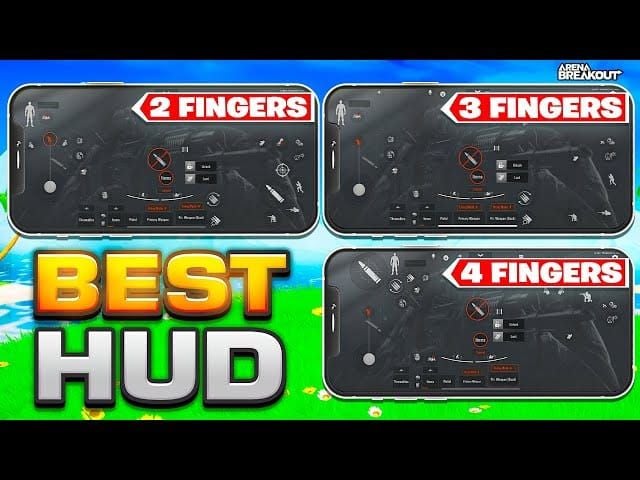
Open Arena Breakout on Android, enter Training Mode. Access Settings > Controls. Take high-resolution screenshots capturing:
- Main combat screen: Fire button (top left), movement joystick (bottom left), aim area (right), action buttons (jump, crouch, peak, reload)
- Inventory quick access: Weapon switch buttons, consumable shortcuts
- Interface elements: Minimap position, health bar, ammo counter, grenade indicators
- Settings menu: Exact numerical values for aim sensitivity, scope sensitivity, gyroscope sensitivity, fire mode
Enable coordinate grid (Settings > Display > Show Grid) if available—overlays percentage markers for precise button positions. Fire button typically sits 8% from left edge, 12% from top.
Document sensitivity settings numerically. Write Aim Sensitivity: 82, Scope Sensitivity: 65, Gyroscope: Enabled at 45 rather than relying on visual sliders. These numbers provide exact recreation targets.
Check iOS Device Compatibility
Different iPhone models require HUD adjustments due to screen size. iPhone 15 Pro: 6.1-inch at 2556×1179. iPhone 15 Pro Max: 6.7-inch at 2796×1290. Buttons perfect on smaller screens may feel cramped on larger displays.
Test Arena Breakout performance on your specific iPhone before committing to HUD recreation. Older iPhones (11 and earlier) may experience frame rate limitations affecting touch responsiveness—increase button sizes 10-15% to compensate.
iPhone's notch or Dynamic Island impacts HUD design. Avoid placing critical buttons in top-center 20% where these obstruct visibility. Position minimap in top-right corner rather than top-center.
Manual HUD Recreation Using Visual Documentation
Create Detailed Screenshots
Capture screenshots in multiple game states:
- Idle state in Training Mode, no weapons drawn
- Weapon equipped showing all combat controls
- Inventory open revealing quick access configurations
- Settings menu displaying complete control customization
Use native screenshot function (Power + Volume Down) rather than in-game tools for higher resolution. Transfer images to cloud storage accessible from iPhone—Google Photos, iCloud, Dropbox.
Take screenshots at maximum resolution. 1080p provides sufficient detail for 2-3% accuracy when recreating layouts. Some players screen record while slowly panning across HUD for comprehensive references.
Record Button Coordinates and Sensitivity
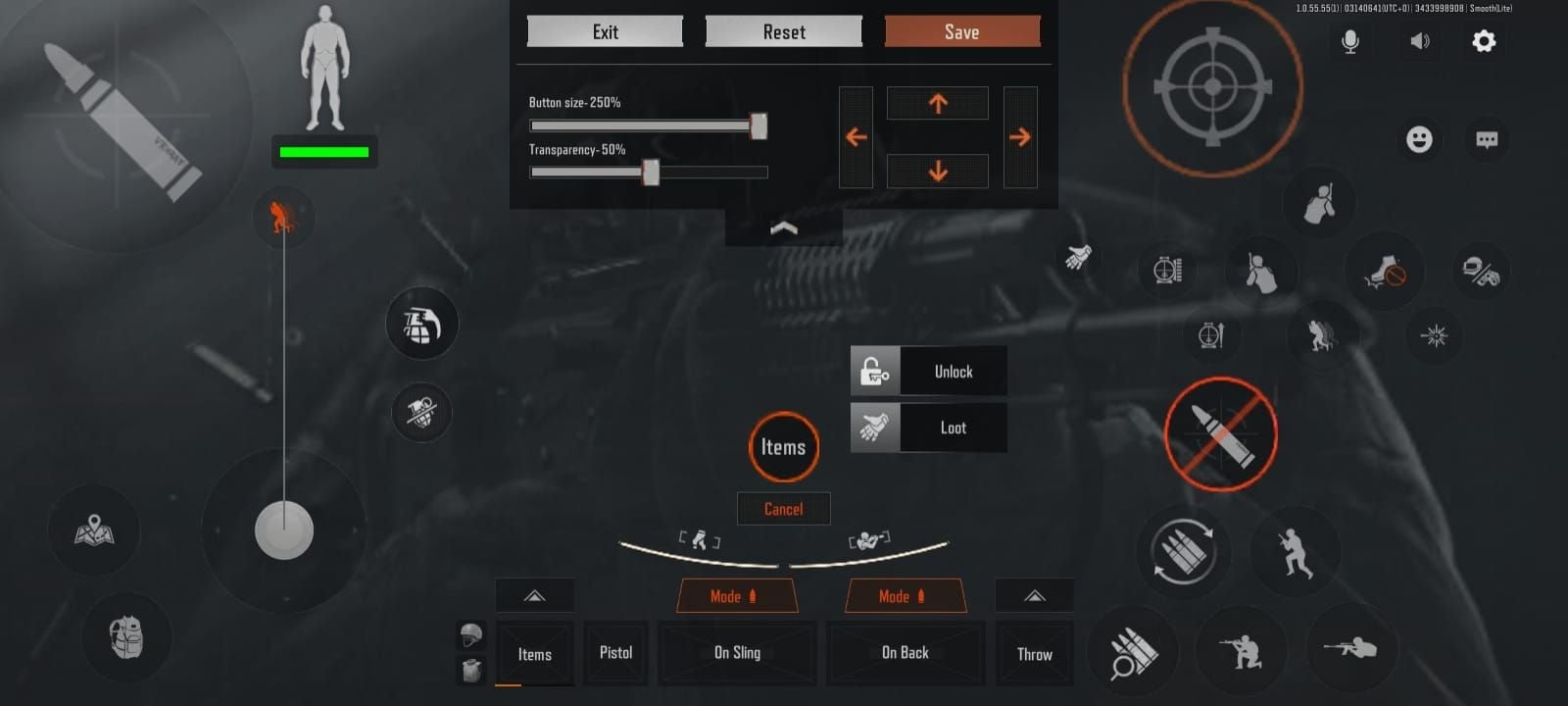
Open control customization on Android, systematically document each button's position. Game displays percentage-based coordinates when dragging buttons:
- Fire button: X: 8%, Y: 12%
- Movement joystick: X: 15%, Y: 72%
- Aim zone: X: 70%, Y: 50%
- Jump: X: 88%, Y: 65%
- Crouch: X: 88%, Y: 75%
- Reload: X: 82%, Y: 58%
- Weapon switch: X: 50%, Y: 88%
Record button sizes (80%, 100%, 120% scaling). Larger buttons improve accuracy but consume screen space. Most competitive players use 90-100% for primary actions, 80-90% for secondary.
Document all sensitivity settings:
- Camera sensitivity: [value]
- ADS sensitivity: [value]
- Scope sensitivity: [value]
- Gyroscope: Enabled/Disabled, sensitivity if enabled
- Fire mode: Auto/Semi-auto default
- Auto ADS: Enabled/Disabled
Rebuild Control Scheme on iPhone
Install Arena Breakout from App Store, log in with bound Level Infinite Pass. Complete tutorial, then access Settings > Controls > Customize Layout.
Position fire button top left using documented coordinates. iOS uses same percentage-based system—X: 8%, Y: 12% translates directly. Assign to left index finger.
Configure movement joystick bottom left quadrant. Set for left thumb, ensure no overlap with fire button activation zone. Most use X: 15%, Y: 72% at 100% size.
Establish aim zone occupying right 40% of screen. Right thumb swipes for camera control and recoil. Enable Auto ADS for automatic aim-down-sights, or disable for manual scope control.
Place action buttons (jump, crouch, peak, reload) right edge cluster for right index finger. Scope button upper right for right thumb. Typical: Jump X: 88%, Y: 65%, Crouch X: 88%, Y: 75%, Reload X: 82%, Y: 58%.
Enable gyroscope if used on Android. Settings > Controls > Gyroscope, set documented sensitivity. iPhone gyroscopes typically need 5-8 points lower sensitivity than Android.
Test in Training Mode with movement drills, target practice, simulated combat. Adjust buttons in 2-3% increments until muscle memory feels natural.
For maintaining gameplay during transition, buy arena breakout bonds cheap through BitTopup ensures sufficient resources for weapons and gear while adapting to new controls.
Fine-Tune for iOS Screen and Touch Response
iPhone touch screens process input differently than Android, requiring sensitivity calibration beyond direct value transfers.
Aim Sensitivity Test: In Training Mode, place crosshair on stationary target. Swipe right thumb across aim zone at consistent speed. If camera rotates past target, reduce sensitivity 3-5 points. If falls short, increase 3-5 points. Repeat until 180-degree turns feel identical to Android.
Gyroscope Calibration: Enable gyroscope, hold iPhone in standard position. Tilt device 45 degrees left/right while observing camera. View should track smoothly without overshooting or lag. iPhone Pro models often need 10-15% lower sensitivity than mid-range Android.
Button Size Optimization: iPhone's higher pixel density allows slightly smaller buttons. If you used 100% scaling on Android, try 90-95% on iPhone for increased visible area. Switching from large Android (6.7+ inches) to standard iPhone (6.1 inches)—maintain or increase button sizes 5-10%.
Touch Pressure Adjustment: Some iPhones support 3D Touch or Haptic Touch, which can interfere with rapid presses. Disable in iOS Settings > Accessibility > Touch for consistent button response.
Control Elements That Transfer Successfully
Account-Linked Progress and Social Features
Level Infinite Pass account preserves:
- Player rank and experience points
- Weapon unlocks and modifications (attachments, skins, upgrades)
- Friends list and squad memberships
- Offline squad invites sent before switch
- Premium currency balances (Bonds)
- Purchased cosmetics (character skins, weapon skins, emotes)
- Achievement progress and milestone rewards
Only control interface requires recreation—competitive capabilities, weapon arsenal, social connections remain intact.
Settings Requiring Manual Reconfiguration
These reset to defaults on fresh iOS installations:
- Graphics: Frame rate caps, resolution scaling, shadow quality, anti-aliasing
- Audio: Master volume, effects, voice chat, spatial audio
- HUD transparency: Interface element opacity
- Colorblind modes
- Network: Server region, connection quality indicators
- Control sensitivity: All aim, scope, gyroscope values
- Button layout: Complete HUD positioning and sizing
Create comprehensive settings checklist before leaving Android device.
Common HUD Transfer Issues and Solutions
Controls Feel Unresponsive After Transfer
Cause: iPhone touch sampling rates differ from Android, creating input lag perception.
Solution: Reduce graphics to maximize frame rate. Settings > Graphics: Frame Rate Ultra (120fps on compatible iPhones), Resolution Medium, disable dynamic shadows. Higher frame rates reduce gap between touch input and visual response by 15-20%.
Enable Reduce Motion in iOS Settings > Accessibility. Close background apps before launching Arena Breakout. Dedicate maximum processing to touch input.
Buttons Positioned Correctly But Feel Wrong
Cause: Screen size differences alter thumb reach distances and finger positioning angles.
Solution: Prioritize comfort zones over exact percentages. Hold iPhone in standard position, note where thumbs and index fingers naturally rest. Position buttons within natural reach areas, even if coordinates differ 5-10% from Android.
If Android fire button sat X: 8%, Y: 12% but left index finger naturally rests X: 10%, Y: 15% on iPhone, use latter. Muscle memory adapts to new coordinates within 10-15 matches when buttons align ergonomically.
Sensitivity Settings Don't Match Android
Cause: iOS touch processing interprets swipe velocity and distance differently than Android.
Solution: Use comparative testing. Set identical scenarios on both devices—target at 90 degrees in Training Mode. Perform same swipe gesture, compare rotation results. Adjust iPhone sensitivity in 2-point increments until rotation matches.
Most players find iPhone requires 8-12% lower sensitivity than Android. If Android aim sensitivity was 85, start iPhone at 75 and adjust upward.
Gyroscope Controls Behave Erratically
Cause: iPhone gyroscopes have different calibration baselines and sensitivity curves.
Solution: Recalibrate from scratch. Disable gyroscope initially, play 3-5 matches using only touch controls. Then enable gyroscope at 30% sensitivity, gradually increase by 5-point increments until subtle tilts provide useful aim correction without disorienting camera movement.
iPhone Pro models perform optimally at 35-45% sensitivity; standard iPhones at 45-55%—both typically lower than Android.
Optimizing Transferred HUD for iPhone
Leverage iPhone-Specific Hardware
iPhone Pro models offer 120Hz ProMotion displays doubling 60Hz Android refresh rates. Enable by setting Frame Rate to Ultra in graphics. Smoother visual feedback improves tracking accuracy during fast camera movements.
A17 Pro chip provides sustained performance without thermal throttling during extended sessions. Maintain maximum graphics while preserving 120fps. Optimize HUD with slightly smaller buttons (90% scaling) since higher frame rates improve touch accuracy.
iPhones' haptic engines provide tactile feedback. Enable Settings > Controls > Haptic Feedback for confirmation on fire, reload, weapon switch. Reduces accidental double-taps, improves action timing by 50-80ms.
Test Layout in Training Mode
Complete systematic testing before ranked matches:
- Movement drills (5 min): Sprint, slide, jump, crouch combinations while maintaining camera control
- Target practice (10 min): Engage stationary targets at 25m, 50m, 100m. Test single-shot accuracy, burst fire, full-auto recoil
- Quick-action sequences (5 min): Rapid weapon switching, reload canceling, grenade throws, healing item usage
- Combat simulation (10 min): Engage moving AI targets with cover usage, positional adjustments, tactical retreats
Document discomfort, missed inputs, awkward finger stretches. Adjust problematic buttons 3-5% increments and retest. Most players need 2-3 iterations before achieving Android-equivalent comfort.
Pro Player HUD Configurations for iPhone
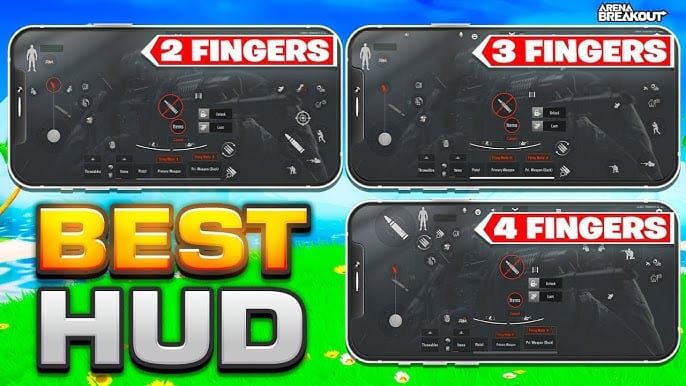
Competitive players typically use:
Fire Button: Top left (X: 8-10%, Y: 10-14%), 100% size, left index finger
Movement Joystick: Bottom left (X: 12-18%, Y: 68-75%), 110% size for improved strafing precision
Aim Zone: Right 45% of screen (X: 55-100%, Y: 20-80%), Auto ADS disabled for manual scope control
Action Cluster: Right edge vertical—Scope (X: 90%, Y: 25%), Jump (X: 90%, Y: 60%), Crouch (X: 90%, Y: 70%), Reload (X: 84%, Y: 55%). Right index finger for rapid sequential activation
Gyroscope: Enabled at 40-45% for fine aim adjustments during scoped engagements
Sensitivity Values: Aim 75-82, Scope 60-68, Gyroscope 40-45
Preventing HUD Data Loss: Backup Best Practices
Regular Screenshot Documentation
Establish monthly screenshot routine capturing current HUD. Store in cloud storage with descriptive filenames: ArenaBreakout_HUD_2025-01_iPhone15Pro.png. Creates historical record for reverting experimental changes.
After major updates that reset controls, immediately check HUD before playing. Arena Breakout occasionally reverts customizations during version updates. Recent screenshots enable 5-minute restoration vs hour-long recreation.
Maintain separate screenshot sets for different playstyles. Document close-quarters combat, long-range engagements, sniper configurations separately.
Maintain Multiple Account Bindings
Link Arena Breakout account to multiple authentication methods—email, Facebook, X simultaneously. Prevents lockouts if one service becomes inaccessible. Settings > Account > Link Account, add all available options.
If primarily using email, add social login as backup. Should you lose email access or forget password during migration, social login provides immediate recovery.
Test all linked methods quarterly by logging out and back in with each option. Verifies bindings remain active before emergency recovery situations.
Cloud Save Verification Through Server Sync
After recreating HUD on iPhone, verify server synchronization:
- Player level and XP match Android account
- Weapon inventory contains all unlocked items
- Friends list displays all contacts
- Premium currency balance reflects last known amount
- Achievement progress shows identical completion
If discrepancies appear, you may have logged into incorrect account or experienced incomplete sync. Log out immediately, re-authenticate using primary binding method (email) rather than social login.
Advanced Tips from Experienced Players
Cross-Platform Control Consistency
Players alternating between Android tablets and iPhones benefit from sister layouts—preserving button relationships while adjusting for screen size differences.
Maintain consistent button clustering. If fire button sits 15% above movement joystick on Android, preserve that 15% vertical spacing on iPhone even if absolute coordinates differ. Relative positioning allows faster adaptation—muscle memory recognizes spatial relationships over absolute positions.
Use same finger assignments across devices: left index for fire, left thumb for movement, right thumb for aim/recoil, right index for actions. Consistent finger roles reduce cognitive load during platform switches.
Seasonal HUD Adjustments for New Features
Arena Breakout regularly introduces mechanics requiring HUD modifications. When adding tactical equipment wheels, drone controls, or vehicle interfaces, immediately integrate into your layout rather than using defaults.
Position new buttons near related existing controls. If adding tactical grenade selector, place adjacent to existing grenade throw button. Spatial grouping reduces finger travel, creates intuitive control clusters.
After major updates, revisit Training Mode 15-20 minutes to test new features with current HUD. If new buttons cause accidental activations or awkward stretches, redesign proactively.
Community-Shared Control Templates
Experienced players share HUD configurations through screenshots and coordinate lists. Treat community templates as starting points, not final solutions. Pro configurations optimize for their specific hand sizes, devices, playstyles—direct copying rarely produces optimal results.
Extract principles rather than exact coordinates. If top player positions reload at X: 82%, Y: 58%, note underlying logic: right edge for index finger access, positioned between jump and crouch for sequential action chains. Apply principle to your ergonomics.
Test community templates in Training Mode 10 minutes before committing. If actions feel awkward or require uncomfortable stretches, modify specific elements while preserving aspects that work.
FAQ About Arena Breakout HUD Transfer
Can you transfer Arena Breakout controls from Android to iPhone automatically?
No. Arena Breakout doesn't support automatic HUD or control layout transfer between platforms. Game stores configurations locally, not in cloud profiles. Manually recreate control scheme on iPhone using screenshots and documented settings from Android. Level Infinite Pass account preserves game progress, weapons, friends lists, premium currency when bound via email or social login.
Does Arena Breakout save HUD settings to the cloud?
No. Arena Breakout doesn't save HUD configurations, button positions, or sensitivity settings to cloud. Only account progression data—player level, weapon unlocks, achievements, friends lists, premium currency—syncs through Level Infinite servers. Control layouts remain device-specific, require manual recreation when switching platforms.
How do I backup my Arena Breakout control layout before switching phones?
Take high-resolution screenshots of complete HUD in Training Mode: main combat screen, inventory interface, settings menu. Document exact button coordinates and sensitivity values in notes app: fire button position (X%, Y%), movement joystick location, aim sensitivity numerical value, scope sensitivity, gyroscope settings. Transfer screenshots and notes to cloud storage accessible from new iPhone. Enables accurate recreation within 15-20 minutes.
What happens to my Arena Breakout HUD when I change devices?
HUD resets to default settings when installing Arena Breakout on new device. Fire button, movement controls, action buttons, interface elements return to standard positions. Sensitivity settings revert to defaults (typically 50-60 for aim and scope). Account progression remains intact through Level Infinite Pass binding, but manually rebuild control configuration using documented settings and screenshots.
Will my sensitivity settings transfer from Android to iPhone in Arena Breakout?
Sensitivity settings don't transfer automatically, require manual reconfiguration. Identical numerical values often produce different results on iPhone due to touch processing differences. Start with documented Android values, adjust 5-10% based on testing. Most players find iPhone requires 8-12% lower sensitivity than Android for equivalent camera rotation. Test in Training Mode, adjust incrementally until performance matches Android.
How long does Arena Breakout HUD recreation take on a new iPhone?
Manual HUD recreation takes 15-25 minutes with proper documentation: positioning buttons using screenshots (8-10 min), configuring sensitivity (5-8 min), initial Training Mode testing (5-7 min). Without documentation, recreation from memory takes 45-60 minutes, rarely achieves optimal results. Players with detailed screenshots and coordinate notes complete process under 20 minutes with near-perfect accuracy.
Ready to optimize your Arena Breakout experience across all platforms? Visit BitTopup for instant Bonds top-ups, competitive pricing, and secure transactions that keep your account fully equipped during device transitions. Fast delivery, excellent customer service, and high user ratings ensure your gaming resources remain accessible whether playing on Android or iPhone!
Recommended Articles




Recommended Products

Table of Contents
- Understanding Arena Breakout HUD Transfer Between Platforms
- What is HUD Transfer in Arena Breakout?
- Why Control Layout Consistency Matters
- Cross-Platform Compatibility: Android to iPhone
- Prerequisites for Successful HUD Transfer
- Account Binding: Link Your Profile
- Verify Current HUD on Android
- Check iOS Device Compatibility
- Manual HUD Recreation Using Visual Documentation
- Create Detailed Screenshots
- Record Button Coordinates and Sensitivity
- Rebuild Control Scheme on iPhone
- Fine-Tune for iOS Screen and Touch Response
- Control Elements That Transfer Successfully
- Account-Linked Progress and Social Features
- Settings Requiring Manual Reconfiguration
- Common HUD Transfer Issues and Solutions
- Controls Feel Unresponsive After Transfer
- Buttons Positioned Correctly But Feel Wrong
- Sensitivity Settings Don't Match Android
- Gyroscope Controls Behave Erratically
- Optimizing Transferred HUD for iPhone
- Leverage iPhone-Specific Hardware
- Test Layout in Training Mode
- Pro Player HUD Configurations for iPhone
- Preventing HUD Data Loss: Backup Best Practices
- Regular Screenshot Documentation
- Maintain Multiple Account Bindings
- Cloud Save Verification Through Server Sync
- Advanced Tips from Experienced Players
- Cross-Platform Control Consistency
- Seasonal HUD Adjustments for New Features
- Community-Shared Control Templates
- FAQ About Arena Breakout HUD Transfer
Recommended Products

Recommended Articles
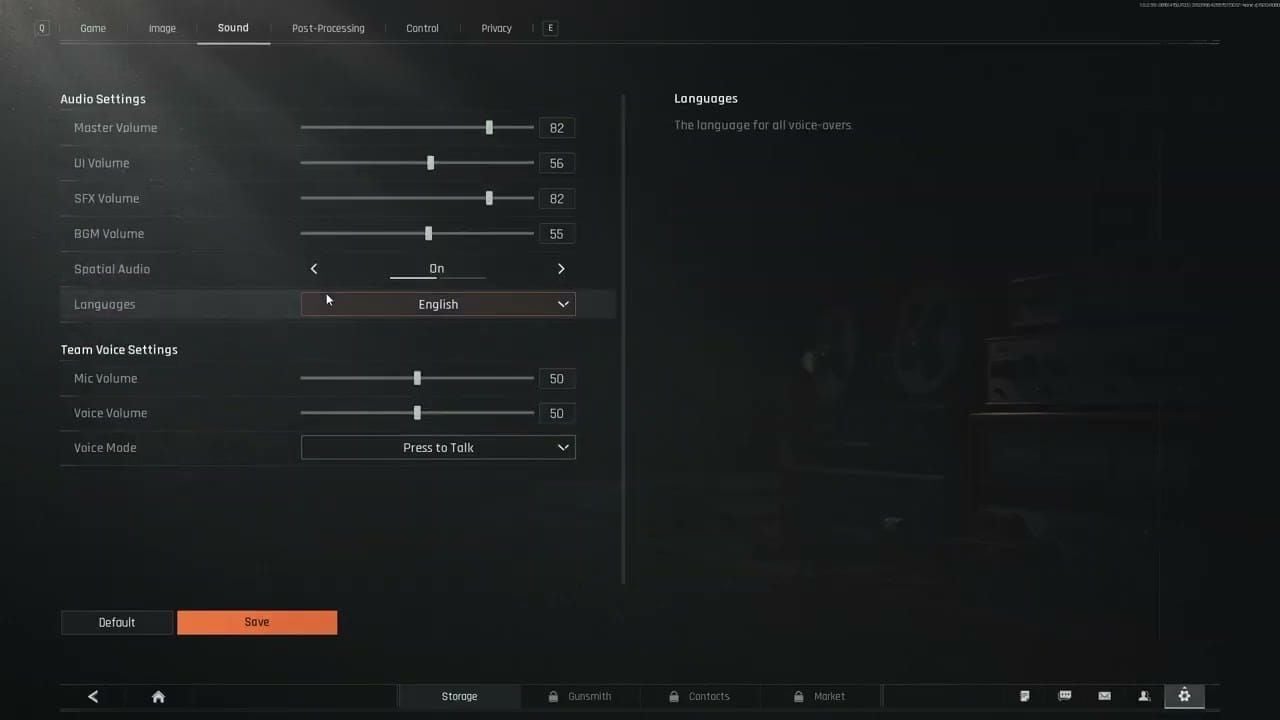
Arena Breakout best audio settings for pinpointing footsteps

Buy on Nintendo eShop Canada Without Credit Card: Safe Guide
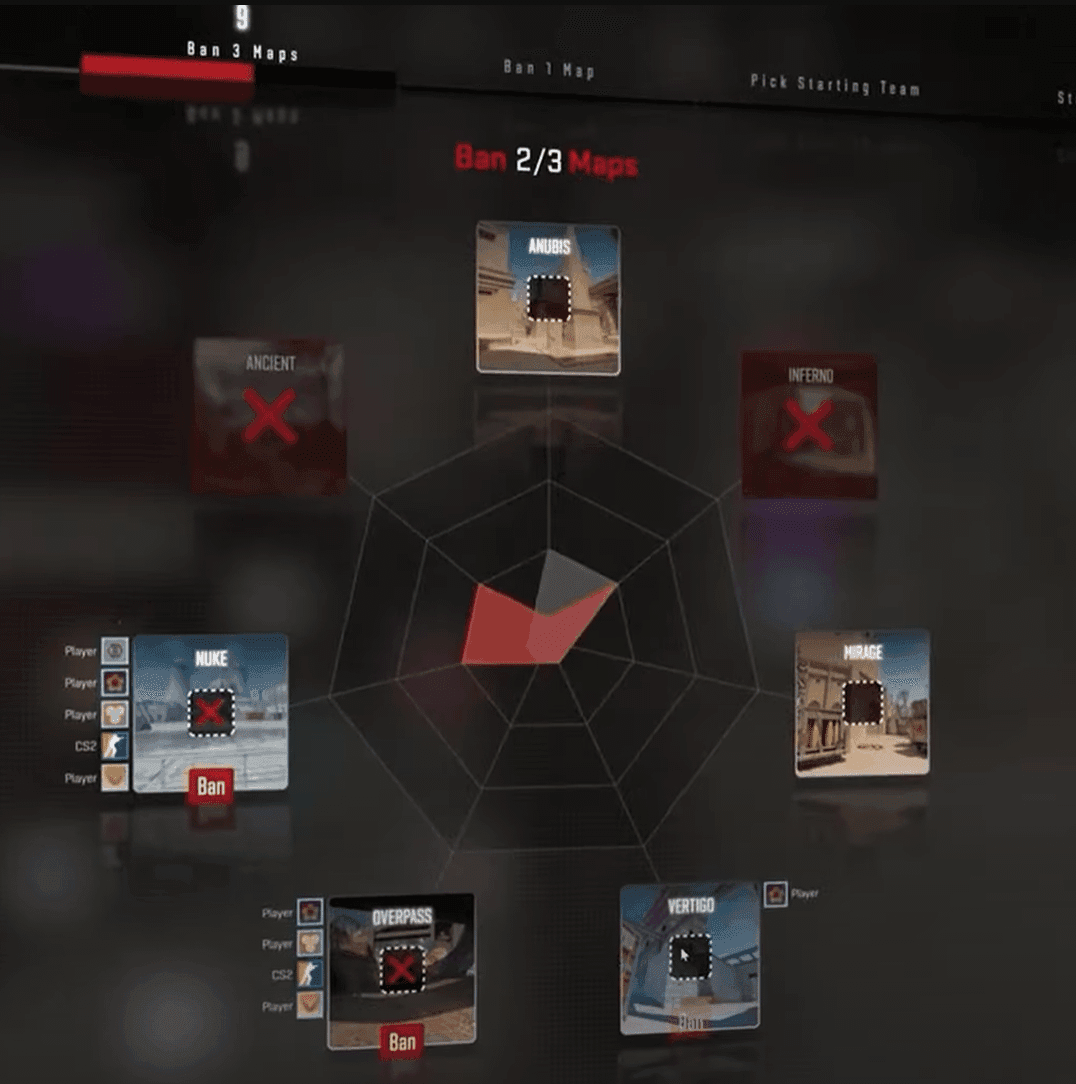
CS2 Premier vs Competitive 2026: Rating Guide & Match Meta

How to Fix Steam Wallet Code Currency Mismatch on Your Account
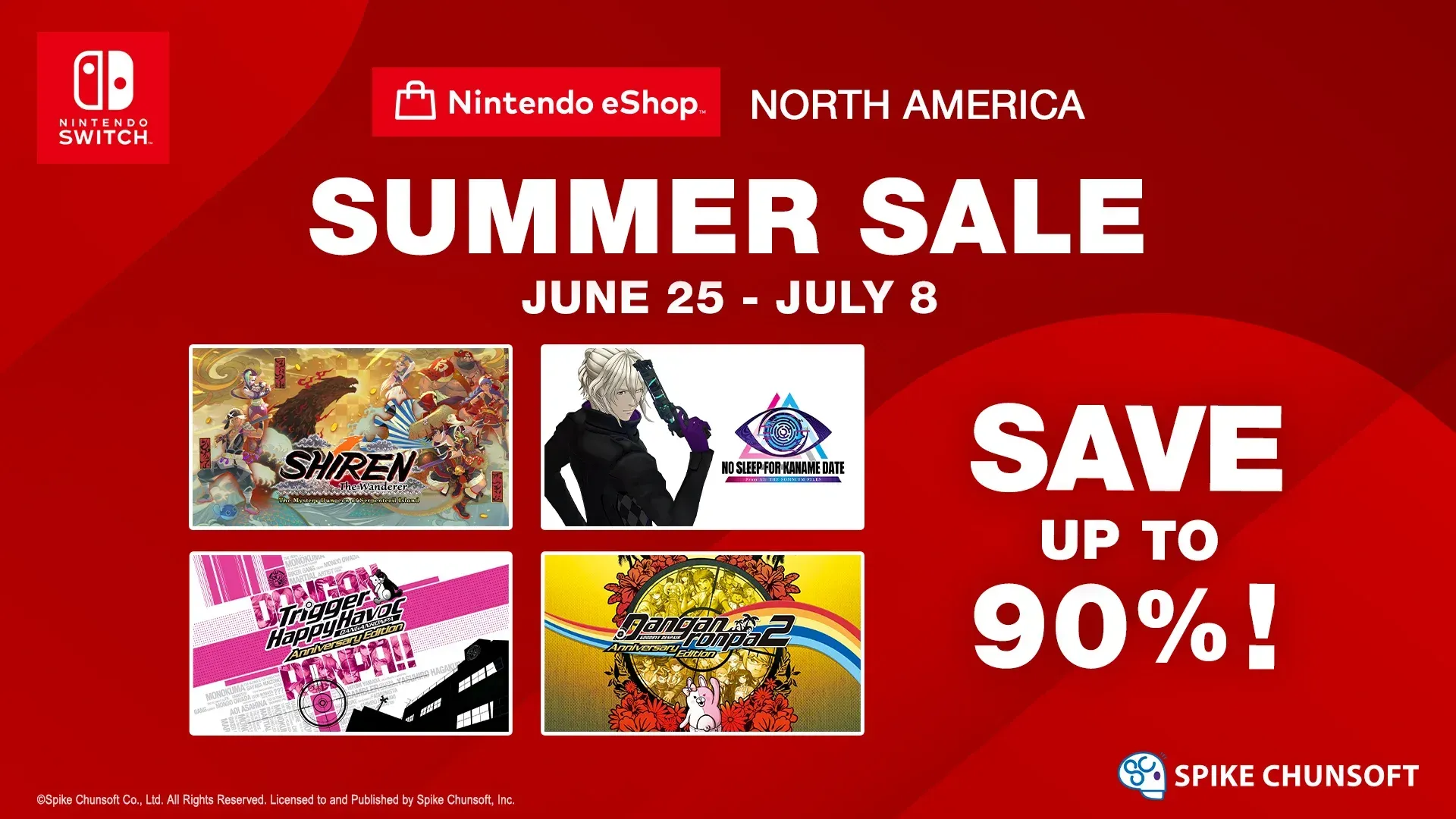
Nintendo eShop Sale 2026 Dates: Brazil Deals and Savings Guide
How to Fix Ace Racer Crashing on Startup Android Devices

Life Makeover Event Rewards Priority and Exchange Guide 2026
Knives Out Summer Event Rewards 2026: Farming & Priority Guide



























































































