



Arena Breakout Lag Fix: Stop CQB Frame Drops (2025)
Arena Breakout Infinite lag spikes during close-quarters combat stem from GPU overload, VRAM saturation, and suboptimal graphics configurations. Lower View Distance, Shadows, and Post-Processing to Low, cap FPS 2-3 frames below your refresh rate, and disable V-Sync. These optimizations eliminate frame drops in firefights, delivering stable performance across all CQB scenarios.
Defining Lag Spikes vs Frame Drops vs Stuttering
Arena Breakout Infinite performance issues manifest three ways. Lag spikes: network latency jumps from 20-60ms to 150-200ms+, causing delayed actions and rubber-banding. Frame drops: GPU rendering failures where FPS plummets from 120 to 40 during intense moments. Stuttering: inconsistent frame times creating micro-freezes even when average FPS looks acceptable.
CQB amplifies these issues because indoor environments demand simultaneous rendering of complex lighting, multiple player models, gunfire particles, and dynamic shadows. Your system processes significantly more visual data than open-field combat.
For premium gear while optimizing performance, Arena Breakout Bonds top up for high graphics raids through BitTopup ensures fast delivery and secure transactions.
Why CQB Triggers Performance Issues
Indoor firefights create perfect conditions for performance degradation. When multiple players converge in confined spaces, the engine simultaneously calculates:
- Dynamic lighting from muzzle flashes
- Real-time shadows from moving characters
- High-resolution wall and equipment textures
- Particle systems for smoke and debris
The dead body rendering bug causes severe FPS drops when looking at eliminated players in close quarters. This forces the GPU to maintain full-detail corpse rendering, creating unnecessary VRAM consumption. Experienced players actively avoid looking at dead bodies during ongoing firefights.

VRAM saturation occurs rapidly in texture-rich indoor environments. When your graphics card's memory fills beyond 90%, the system swaps textures to slower RAM, causing stuttering during critical combat moments.
December 2025 Patch Performance Changes
Following the September 15, 2025 release, Arena Breakout Infinite received multiple optimization updates. The December 2025 patch introduced conflicting reports on DLSS and FSR effectiveness. November 26, 2025 community testing suggests disabling these upscaling technologies improves frame stability, while other sources confirm 40-60% FPS gains using DLSS Quality or FSR Quality modes.
Hardware-Accelerated GPU Scheduling (HAGS) now shows version-specific behavior. Some players report enabling HAGS improves performance while others experience stuttering. Test both states during your specific game version.
Post-Processing Quality on Low or Medium now provides better frame time consistency than previous versions. Light Quality received similar adjustments, making Low configurations viable for competitive play.
Identifying Your Specific Performance Problem
Network issues manifest as delayed hit registration, player teleporting, and actions executing seconds after input. Graphics problems show as visible stuttering, screen tearing, choppy animations, and FPS drops during visually complex scenes.
Monitor ping during problem moments. Stable ping with FPS drops = graphics bottlenecks requiring settings adjustments. Fluctuating ping with stable FPS = network optimization needs including wired Ethernet and DNS changes to 1.1.1.1 or 8.8.8.8/8.8.4.4.
Check GPU usage and VRAM consumption during gameplay. Consistent 95-100% GPU usage with frame drops = settings exceed hardware capabilities. VRAM usage above 90% = reduce texture quality.
Root Causes of Frame Drops During Indoor Firefights
GPU Overload from Complex Lighting Calculations
Shadow Quality creates the most significant GPU load during indoor combat. Real-time shadow rendering from multiple light sources forces continuous recalculation. Setting Shadow Quality to Low eliminates this burden while maintaining competitive visibility by reducing visual clutter.
Light Quality determines how many light sources receive real-time processing versus baked lighting. Indoor environments contain numerous dynamic sources from windows, artificial lighting, and player equipment. Low reduces active calculations without compromising enemy visibility.
Post-Processing Quality adds GPU strain through bloom, lens flares, and color grading that recalculate every frame. These provide minimal competitive advantage while consuming significant resources. Low or Medium delivers immediate frame rate improvements.
VRAM Saturation in High-Texture Environments
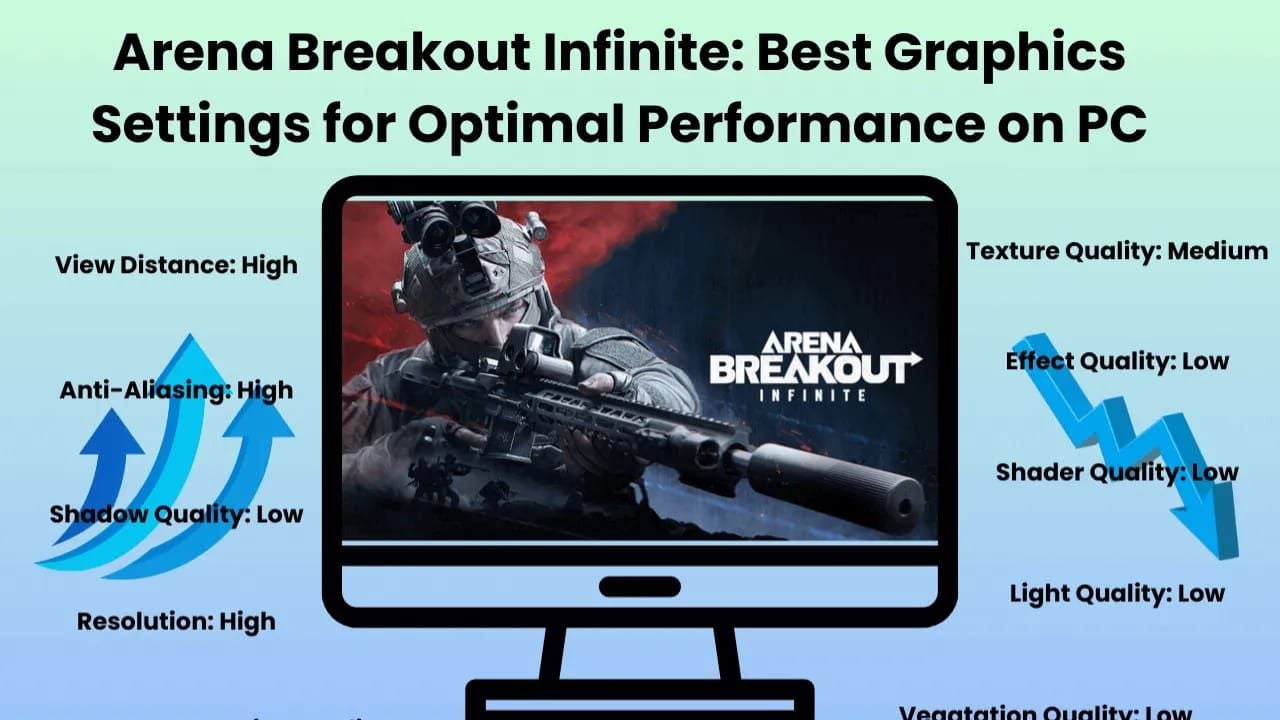
Texture Quality directly correlates to VRAM consumption:
- <8GB VRAM: Low settings required
- 8GB VRAM: Medium settings adequate
- 12GB VRAM: Quality settings supported
- 16GB VRAM: Maximum texture quality viable
Indoor maps load complete building interiors simultaneously. When VRAM fills beyond capacity, the system swaps textures between GPU memory and RAM, creating stuttering during room-to-room movement.
The 70GB storage requirement reflects extensive texture libraries. Installing on SSD versus HDD affects texture streaming speed, but proper VRAM-matched settings prevent streaming issues entirely.
CPU Bottlenecks During Multi-Player Encounters
CQB with multiple players taxes CPU resources through physics calculations, AI processing, and network packet handling. Minimum specs: Intel Core i5-7500 or AMD Ryzen 5 1400. Recommended: Intel Core i7-9700 or AMD Ryzen 5 3600X for stable multi-player performance.
Set UAGame.exe to High Priority in Windows Display Graphics settings. This ensures the game receives preferential CPU resource allocation during firefights.
Disable Fullscreen Optimizations for UAGame.exe to remove Windows' frame buffering layer. Path: C:\Arena Breakout Infinite\ABInfinite\Binaries\Win64\
Background Process Interference
Overlay applications create significant interference. Discord overlay, GeForce Experience, Steam overlay, and NVIDIA Shadowplay each inject rendering hooks, consuming GPU resources. Disable all overlays for measurable frame rate improvements.
Windows Defender real-time scanning causes micro-stutters when accessing new game files. Add UAGame.exe to antivirus allow lists. Bitdefender users: Advanced Threat Defense causes frame drops until the executable receives exception status.
Mouse polling rate above 500Hz introduces unnecessary USB interrupt overhead. Reduce to 500Hz to decrease CPU interrupt handling without affecting aim precision.
Essential Graphics Settings for Lag-Free CQB Performance
Texture Quality: Finding the Sweet Spot for Your VRAM
Match Texture Quality to available VRAM:
- 4GB VRAM: Low (required)
- 6GB VRAM: Low (Medium stretch option)
- 8GB VRAM: Medium (optimal balance)
- 10-12GB VRAM: Quality
- 16GB VRAM: Maximum (competitive players often choose Quality)
Monitor VRAM usage during gameplay. Usage consistently above 90% = reduce Texture Quality one step. Performance impact manifests as stuttering when entering new areas or during firefights.
Shadow Quality Optimization for Indoor Combat
Shadow Quality to Low provides the most significant performance improvement for indoor environments. This eliminates real-time shadow calculations while maintaining sufficient shadow information. Many pros prefer Low shadows because reduced detail improves enemy visibility in dark corners and doorways.
Medium shadows double GPU load versus Low with minimal competitive advantage. High and Ultra cause severe frame drops during multi-player indoor engagements.
Dynamic shadows from player movements create continuous GPU workload. Low settings use simplified shadow projection that updates less frequently, reducing per-frame rendering costs.
Effects Quality and Particle Density Settings
Effects Quality controls particle complexity for muzzle flashes, smoke grenades, dust impacts, and environmental effects. High settings render hundreds of particles per effect. Low reduces particle counts while maintaining sufficient visual feedback.
Muzzle flash particles particularly impact close-quarters performance because indoor environments reflect and multiply these effects. Reducing Effects Quality prevents cascading performance impact of multiple players firing automatic weapons in tight corridors.
Smoke and dust effects benefit from reduced quality by improving visibility through obscuring effects. Lower particle density = less visual clutter blocking enemy silhouettes.
View Distance and Object Detail Configuration
View Distance to Low provides substantial performance improvements with minimal competitive impact in CQB-focused gameplay. Indoor environments naturally limit sight lines to 50-100 meters, making extended view distance irrelevant.
Object Detail determines how many environmental objects render at various distances and their geometric complexity. Low reduces polygon counts for distant objects and eliminates non-essential decorative elements.
Combined View Distance and Object Detail reductions create compounding benefits. Players report 15-25% FPS improvements from these settings alone.
Advanced Graphics Configuration for Frame Stability
Anti-Aliasing Methods: TAA vs FXAA vs Off
TAA (Temporal Anti-Aliasing) provides superior edge smoothing but causes slight motion blur and ghosting. FXAA (Fast Approximate Anti-Aliasing) offers minimal performance impact but produces softer image quality.
Disabling anti-aliasing entirely provides sharpest image and best performance. Jagged edges become less noticeable during fast-paced combat. Many competitive players prefer no anti-aliasing because sharper image improves enemy detection.
If visual quality concerns outweigh performance, FXAA represents best compromise. Performance cost remains under 5%. Avoid TAA for competitive play due to motion blur affecting target tracking.
Post-Processing Effects That Kill Frame Rates
Post-Processing encompasses motion blur, depth of field, bloom, lens flares, and chromatic aberration. Each adds GPU overhead with zero competitive advantage. Motion blur particularly harms competitive play by obscuring enemies during camera movement.
Setting Post-Processing Quality to Low delivers 10-20% FPS gains on mid-range hardware. Visual impact primarily affects cinematic quality rather than gameplay clarity.
Bloom and lens flare become problematic in indoor environments with strong light sources, causing bright areas to bleed into surrounding pixels. Low settings eliminate this interference while improving frame stability.
Ambient Occlusion Impact on Close-Quarters Performance
Ambient Occlusion simulates soft shadows in corners where objects meet. This requires per-pixel calculations that scale with resolution, creating significant GPU load at 1440p and 4K.
Disabling Ambient Occlusion provides 5-15% frame rate improvement depending on scene complexity, with indoor environments showing largest gains. Competitive impact remains negligible because player models maintain sufficient contrast without subtle shadow enhancement.
Render Resolution Scaling Techniques
Render resolution scaling renders the game at lower internal resolution before upscaling to display resolution. DLSS Quality mode for NVIDIA and FSR Quality mode for AMD deliver 40-60% FPS gains according to testing data.
Conflicting information exists regarding DLSS/FSR effectiveness. November 26, 2025 testing suggests disabling improves stability, while other sources confirm substantial benefits. Test both configurations during your specific game version.
For NVIDIA: enable DLSS Quality. For AMD: enable FSR Quality. Both prove most effective at 1440p and 4K where native rendering becomes prohibitive. At 1080p, image quality trade-offs may outweigh performance benefits.
V-Sync, Frame Limiters, and Input Lag Management
Why V-Sync Causes Lag Spikes
V-Sync synchronizes frame delivery to monitor refresh rate, eliminating screen tearing but introducing significant input lag and frame time variance. When your GPU can't maintain consistent frame rates above refresh rate, V-Sync forces frame doubling, instantly halving FPS from 60 to 30 or 144 to 72.
Double buffering adds 1-2 frames of input latency between mouse movement and screen response. In competitive shooters, this additional latency proves unacceptable. Set V-Sync Off.
Players experiencing screen tearing should enable G-SYNC (NVIDIA) or FreeSync (AMD) if their monitor supports these technologies. These eliminate tearing without V-Sync's input lag penalties.
Optimal FPS Cap Settings for Your Monitor
Cap FPS 2-3 frames below monitor refresh rate. A 144Hz monitor should use 141-142 FPS cap, while 60Hz displays benefit from 57-58 FPS limits. This ensures GPU never overshoots refresh rate, reducing power consumption and heat without sacrificing smoothness.
Unlimited frame rates cause unnecessary GPU strain. The GPU renders frames that never display, generating heat and potential thermal throttling.
Use the game's built-in FPS limiter when available. This provides frame pacing benefits while avoiding additional latency some external limiters introduce.
NVIDIA Reflex Low Latency Mode Configuration
NVIDIA Reflex Low Latency reduces system latency by optimizing CPU-GPU communication timing. Enable Reflex Low Latency Enhanced or Low Latency + Boost modes for measurable input lag reduction on supported NVIDIA GPUs.
Reflex prevents the CPU from queuing too many frames ahead of GPU rendering. Enhanced mode provides optimal balance. Boost mode increases GPU clock speeds for additional latency reduction at cost of higher power consumption.
Enable Reflex Low Latency Enhanced as standard configuration. Combined with proper FPS capping and disabled V-Sync, Reflex provides comprehensive latency optimization.
AMD Anti-Lag+ Settings
AMD Anti-Lag reduces input latency through similar CPU-GPU queue management as NVIDIA Reflex. Enable Radeon Anti-Lag in AMD Software for measurable responsiveness improvements.
AMD Image Sharpening at 80-90% enhances visual clarity without significant performance cost, particularly beneficial when using FSR upscaling. This compensates for slight softness FSR introduces.
For premium gear to complement your optimized setup, buy Arena Breakout Bonds online for S11 ranked matches through BitTopup offers competitive pricing and excellent customer service.
System-Level Optimization Beyond Graphics Settings
Background Process Management Checklist
Close unnecessary background applications before launching. Discord, web browsers, streaming software, and RGB control applications consume CPU cycles and RAM.
Schedule Windows Update for specific times to prevent unexpected background activity. Pause cloud storage sync applications like OneDrive and Dropbox during gameplay to prevent disk I/O interference.
Run only essential monitoring during gameplay. Performance cost of monitoring tools can reach 5-10% on systems near minimum specifications.
Windows Game Mode and Hardware Acceleration
Enable Game Mode in Windows to optimize system resource allocation. This prioritizes game processes, reduces background task scheduling, and disables Windows Update installations during gameplay.
Hardware-Accelerated GPU Scheduling (HAGS) shows version-specific behavior. Test both enabled and disabled states, monitoring frame time consistency during typical gameplay.
Use Ultimate Performance or High Performance Power Plans to prevent CPU frequency throttling. These maintain maximum CPU clock speeds rather than dynamically scaling based on load.
GPU Driver Settings Outside the Game
NVIDIA users: Set Low Latency Mode to On and Power Management Mode to Maximum Performance in NVIDIA Control Panel. These ensure GPU maintains optimal clock speeds and minimizes frame queuing.
Reset DirectX Shader Cache to eliminate corrupted shader files causing stuttering. Perform after driver updates or when experiencing unexplained performance degradation.
Perform clean GPU driver installations using DDU (Display Driver Uninstaller) after major updates. This eliminates conflicts from previous driver versions.
RAM and Page File Optimization
Arena Breakout Infinite requires 12GB RAM minimum, 16GB recommended. Systems with exactly 12GB may experience stuttering when Windows allocates memory to background processes.
Verify 70GB free SSD storage space for shader cache, temporary files, and updates. Installing on HDD introduces texture streaming delays. SSD installation proves essential.
Allow Windows to automatically manage page file size for optimal configuration.
Testing and Validating Your Performance Improvements
Benchmarking Your Frame Rate Before and After
Record average FPS, 1% low FPS, and 0.1% low FPS during typical gameplay across different maps. These metrics provide comprehensive performance characterization beyond simple averages.
1% and 0.1% low FPS values indicate worst-case performance during intense moments, revealing stuttering that average FPS masks. Improvements in these metrics demonstrate successful optimization.
Test performance in actual CQB scenarios rather than empty maps. Queue for matches on indoor-heavy maps and engage in typical firefights for realistic performance data.
Monitoring Frame Time Consistency in Combat
Frame time consistency matters more than peak FPS. Consistent 60 FPS with stable frame times feels smoother than variable 80-120 FPS with inconsistent delivery.
Sudden frame time spikes during firefights indicate remaining optimization opportunities. These often correlate with grenade explosions, multiple players entering view, or lighting transitions.
Stable frame times below 16.67ms (60 FPS) or 6.94ms (144 FPS) indicate successful optimization. Variance above 2-3ms suggests remaining issues.
Identifying Remaining Performance Bottlenecks
GPU usage consistently at 95-100% with acceptable frame rates = optimal settings. Lower GPU usage with poor performance = CPU bottlenecks or software interference.
VRAM usage above 90% capacity = reduce texture quality. CPU usage across all cores above 80% = background process interference or insufficient CPU performance.
Temperature monitoring reveals thermal throttling. GPUs exceeding 83°C or CPUs above 90°C may throttle clock speeds. Improved cooling may be necessary before additional optimization provides benefits.
When to Consider Hardware Upgrades
Minimum specs (Intel Core i5-7500 or AMD Ryzen 5 1400, 12GB RAM, NVIDIA GTX 960 or AMD RX 5500): expect 60-80 FPS with optimized Low settings.
Recommended specs (Intel Core i7-9700 or AMD Ryzen 5 3600X, 16GB RAM, NVIDIA RTX 2060 or AMD RX 6600): expect 80-100+ FPS with Medium settings.
High-end systems (RTX 4070 or RX 7800 XT): expect 120+ FPS with High settings.
GPU upgrades provide most significant improvements. CPU upgrades benefit systems below recommended specs experiencing low GPU usage. RAM upgrades from 12GB to 16GB eliminate stuttering on memory-constrained systems.
Common Mistakes That Make Lag Spikes Worse
Misconception: Maxing Out All Settings on High-End GPUs
Even RTX 4090 and RX 7900 XTX cards benefit from optimized settings prioritizing frame stability over visual fidelity. Competitive advantage comes from consistent performance during critical moments, not maximum graphical detail.
Ultra settings introduce diminishing returns where visual improvements become imperceptible while performance costs remain substantial. Difference between High and Ultra shadow quality proves nearly invisible during gameplay but costs 15-20% frame rate.
Maximum texture quality on 24GB VRAM cards provides minimal visual improvement over Quality while consuming additional resources.
The V-Sync Trap and Double Buffering Issues
Enabling V-Sync to eliminate screen tearing creates worse problems. Input lag and frame rate halving during performance dips prove more detrimental than occasional tearing. Invest in G-SYNC or FreeSync monitors rather than accepting V-Sync's compromises.
Triple buffering introduces additional input lag and VRAM consumption. This proves even worse for competitive play. The only acceptable V-Sync configuration is Off.
Proper FPS capping achieves temperature and power benefits without input lag penalties. Cap frame rate appropriately and disable V-Sync.
Over-Aggressive Overclocking Causing Instability
Unstable GPU or CPU overclocks manifest as stuttering, crashes, and frame time variance. Conservative overclocks with thorough stability testing provide benefits, but pushing beyond stable limits creates more problems than gains.
Memory overclocks prove particularly problematic, causing subtle instability as occasional stuttering rather than obvious crashes. When troubleshooting persistent stuttering, return memory to stock speeds.
Return all components to stock speeds during optimization, then reintroduce conservative overclocks after establishing stable baseline performance.
Ignoring VRAM Usage Warnings
VRAM usage warnings in graphics settings indicate configurations that will cause stuttering. Ignoring these and forcing higher texture quality than VRAM supports creates the exact issues you're trying to avoid.
When VRAM fills beyond capacity, the system swaps textures between GPU memory and RAM at dramatically slower speeds. This creates stuttering when entering new areas or during firefights.
Players with 6GB or 8GB VRAM attempting Medium or High texture quality experience persistent stuttering that no other optimization can resolve. Match texture quality to VRAM capacity.
Troubleshooting Persistent Lag After Optimization
Network vs Graphics Performance Diagnosis
Network problems show delayed hit registration, players teleporting, and actions executing after delays. Graphics issues manifest as visible stuttering, choppy animations, and FPS drops.
Enable ping display during matches. Stable ping (20-60ms) with FPS drops = graphics bottlenecks. Fluctuating ping (150-200ms+ spikes) with stable FPS = network issues requiring wired Ethernet and DNS changes to 1.1.1.1 or 8.8.8.8/8.8.4.4.
Enable Low Ping toggle on character/team screen selection. This prioritizes connection to lower-latency servers.
Game File Integrity Verification
Corrupted game files cause crashes, stuttering, and performance issues that settings optimization can't resolve. Verify game file integrity through your launcher to identify and repair corrupted files.
Verification compares installed files against official versions, downloading replacements for corrupted or modified files. Perform after major updates or patches when corruption occurs more frequently.
Driver Rollback Considerations
New GPU drivers occasionally introduce performance regressions. When performance degrades immediately after driver updates, roll back to previous stable version.
NVIDIA and AMD maintain driver archives enabling downloads of previous versions. Clean driver installation using DDU ensures complete removal before installing previous versions.
Monitor community reports about driver performance before updating. Wait 1-2 weeks after driver release for community testing to identify problems.
When to Seek Community Support
Persistent issues after comprehensive optimization suggest unique configuration problems requiring community expertise. Active Arena Breakout communities provide troubleshooting assistance from players who've encountered similar issues.
Document complete system specs, current graphics settings, performance metrics, and optimization steps already attempted. Screenshots of settings and performance monitoring data prove particularly valuable.
Community-identified solutions often address edge cases and specific hardware combinations that general guides don't cover.
FAQ
Why does Arena Breakout Infinite lag during close-quarters fights? CQB lag stems from GPU overload processing complex lighting, shadows, and particle effects from multiple players in confined spaces. Set Shadow Quality, Post-Processing, and View Distance to Low while matching Texture Quality to your VRAM capacity to eliminate most CQB performance issues.
What graphics settings cause frame drops in Arena Breakout CQB? Shadow Quality, Post-Processing Quality, and excessive Texture Quality for your VRAM create the most significant frame drops. Shadow Quality on Medium+ forces real-time shadow calculations. Post-Processing adds effects consuming GPU resources without competitive benefit. Texture Quality exceeding VRAM capacity causes stuttering from texture swapping.
Should I use DLSS or FSR in Arena Breakout Infinite? DLSS Quality (NVIDIA) or FSR Quality (AMD) typically provides 40-60% FPS gains with acceptable image quality. However, November 26, 2025 testing suggests some game versions perform better with these disabled. Test both configurations during your specific game version.
What FPS should I target for competitive Arena Breakout gameplay? Target 2-3 frames below your monitor's refresh rate. 144Hz monitor = 141-142 FPS cap. 60Hz display = 57-58 FPS limit. Minimum viable competitive performance is stable 60 FPS, while 120+ FPS provides advantages for high-refresh-rate monitors.
How do I fix stuttering in Arena Breakout close-quarters combat? Match Texture Quality to VRAM capacity (Low for <8GB, Medium for 8GB, Quality for 12GB+), set Shadow Quality and Post-Processing to Low, disable all overlays, avoid looking at dead bodies during firefights, add UAGame.exe to antivirus exceptions, set process to High Priority, cap FPS 2-3 below refresh rate, and disable V-Sync.
Does shadow quality affect Arena Breakout frame rate in indoor areas? Shadow Quality dramatically impacts indoor performance because confined spaces contain multiple dynamic light sources requiring real-time shadow calculations. Setting to Low eliminates this computational burden while improving competitive visibility by reducing visual clutter. Performance gain ranges from 20-35% in complex indoor environments.
Recommended News





Recommend products

Table of Contents
- Understanding Arena Breakout Infinite Lag Spikes in CQB
- Defining Lag Spikes vs Frame Drops vs Stuttering
- Why CQB Triggers Performance Issues
- December 2025 Patch Performance Changes
- Identifying Your Specific Performance Problem
- Root Causes of Frame Drops During Indoor Firefights
- GPU Overload from Complex Lighting Calculations
- VRAM Saturation in High-Texture Environments
- CPU Bottlenecks During Multi-Player Encounters
- Background Process Interference
- Essential Graphics Settings for Lag-Free CQB Performance
- Texture Quality: Finding the Sweet Spot for Your VRAM
- Shadow Quality Optimization for Indoor Combat
- Effects Quality and Particle Density Settings
- View Distance and Object Detail Configuration
- Advanced Graphics Configuration for Frame Stability
- Anti-Aliasing Methods: TAA vs FXAA vs Off
- Post-Processing Effects That Kill Frame Rates
- Ambient Occlusion Impact on Close-Quarters Performance
- Render Resolution Scaling Techniques
- V-Sync, Frame Limiters, and Input Lag Management
- Why V-Sync Causes Lag Spikes
- Optimal FPS Cap Settings for Your Monitor
- NVIDIA Reflex Low Latency Mode Configuration
- AMD Anti-Lag+ Settings
- System-Level Optimization Beyond Graphics Settings
- Background Process Management Checklist
- Windows Game Mode and Hardware Acceleration
- GPU Driver Settings Outside the Game
- RAM and Page File Optimization
- Testing and Validating Your Performance Improvements
- Benchmarking Your Frame Rate Before and After
- Monitoring Frame Time Consistency in Combat
- Identifying Remaining Performance Bottlenecks
- When to Consider Hardware Upgrades
- Common Mistakes That Make Lag Spikes Worse
- Misconception: Maxing Out All Settings on High-End GPUs
- The V-Sync Trap and Double Buffering Issues
- Over-Aggressive Overclocking Causing Instability
- Ignoring VRAM Usage Warnings
- Troubleshooting Persistent Lag After Optimization
- Network vs Graphics Performance Diagnosis
- Game File Integrity Verification
- Driver Rollback Considerations
- When to Seek Community Support
- FAQ

Recommended News
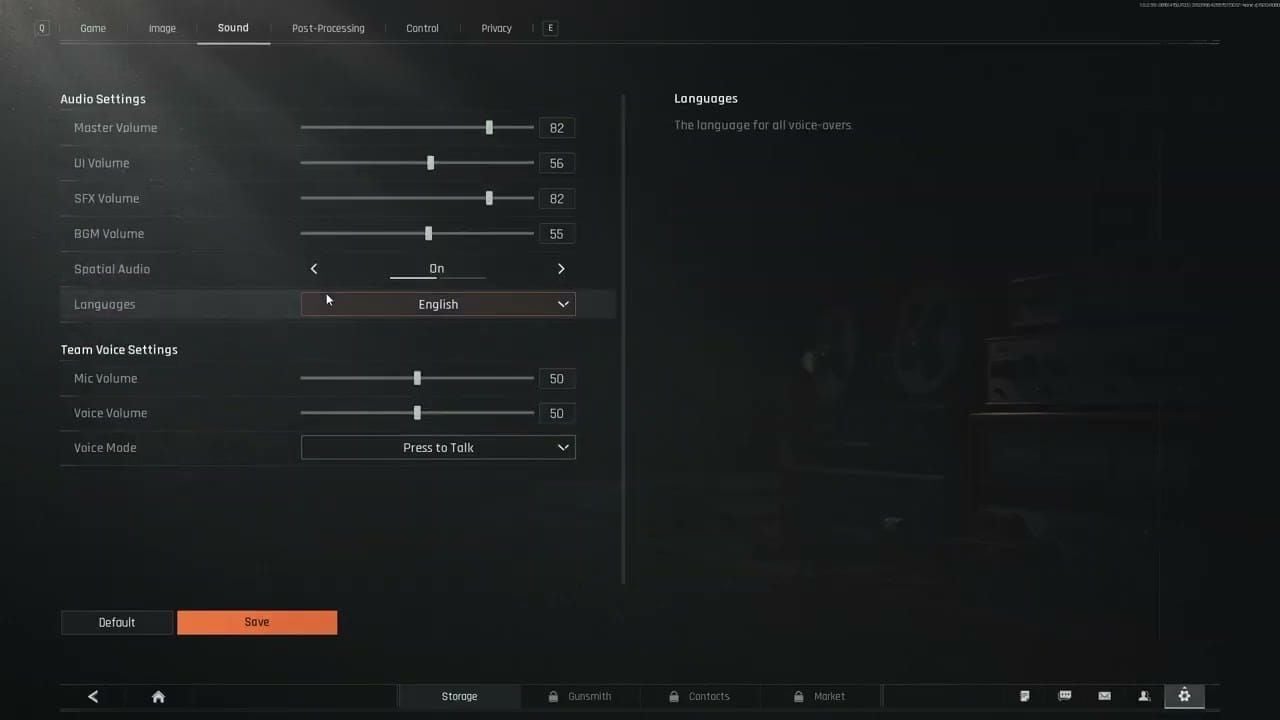
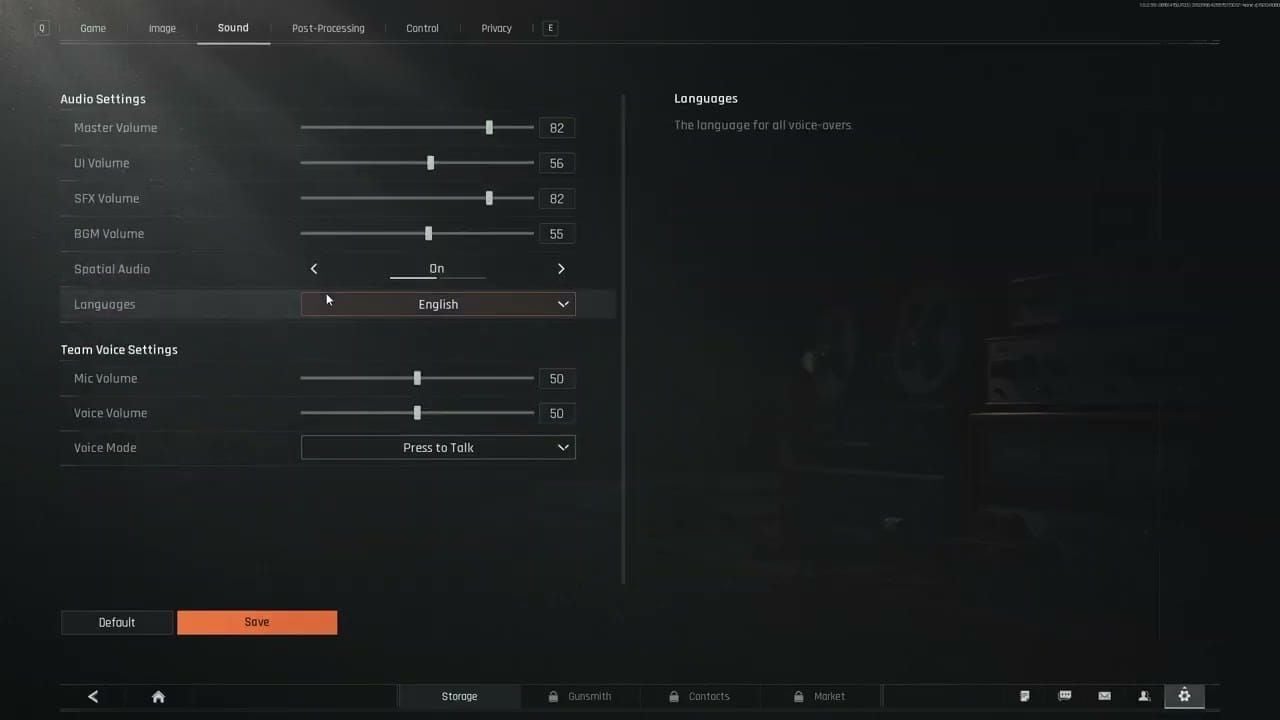
Arena Breakout best audio settings for pinpointing footsteps

Buy on Nintendo eShop Canada Without Credit Card: Safe Guide
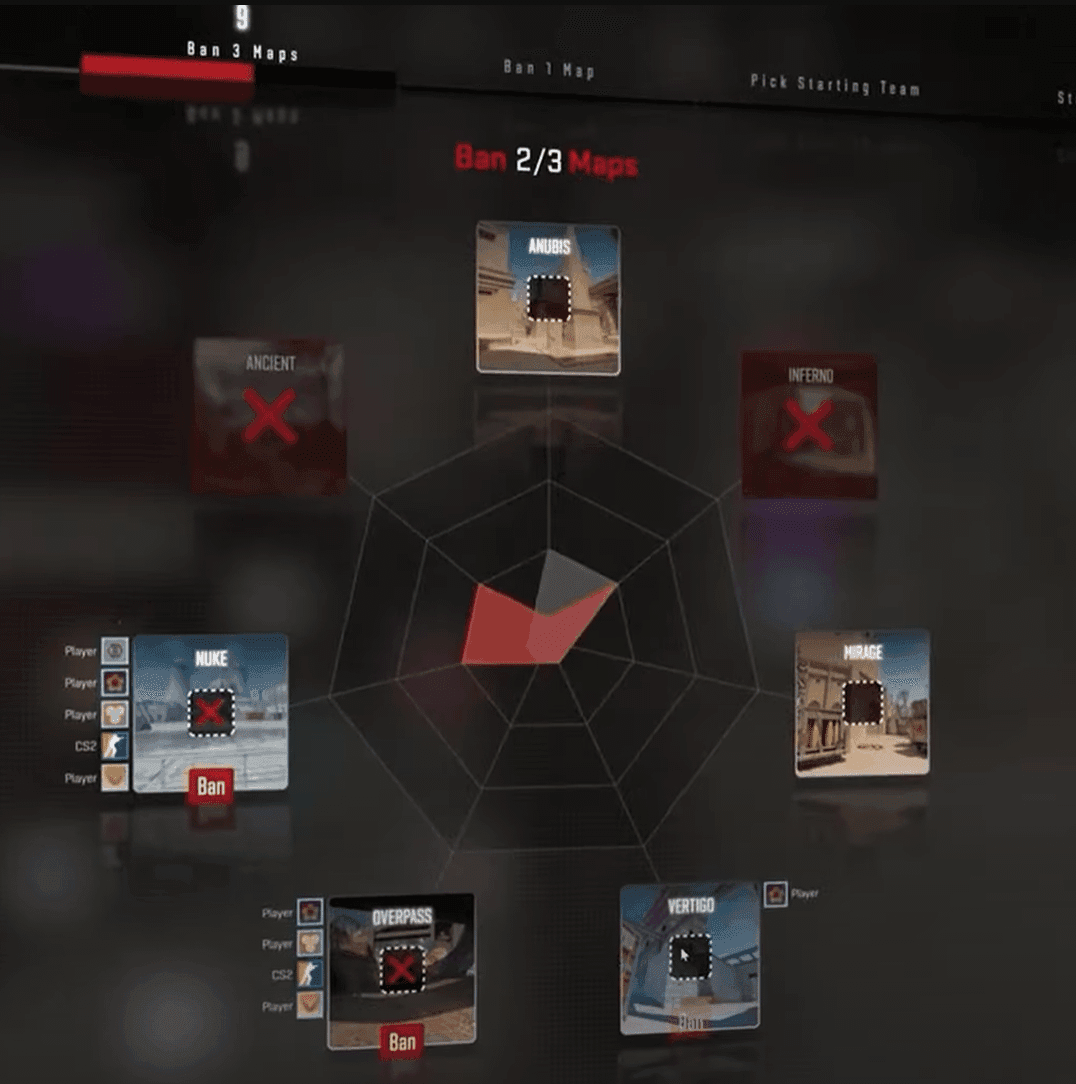
CS2 Premier vs Competitive 2026: Rating Guide & Match Meta

How to Fix Steam Wallet Code Currency Mismatch on Your Account

Nintendo eShop Sale 2026 Dates: Brazil Deals and Savings Guide
How to Fix Ace Racer Crashing on Startup Android Devices

Life Makeover Event Rewards Priority and Exchange Guide 2026
Knives Out Summer Event Rewards 2026: Farming & Priority Guide



































































































