The Bullet Sponge Effect
Bullet sponge occurs when client-side prediction shows hit markers and blood effects, but server authority rejects those hits. PUBG Mobile uses client-side prediction for responsive gameplay—shots appear to land instantly on your screen. However, the server maintains final authority over damage calculations. When network conditions deteriorate, the gap between predicted and server-validated hits widens dramatically.
Ping spikes above 100ms trigger rubberbanding and delayed hit effects, creating situations where you land five headshots visually but the server only registers two. Players with unstable connections experience this more frequently than those with higher but consistent latency.
Ping vs Jitter vs Packet Loss
Understanding these three metrics is crucial for diagnosing hit registration problems:
- Ping: Average latency
- Jitter: Latency variation
- Packet Loss: Percentage of data that never reaches destination
A steady 70ms ping connection provides superior gameplay compared to fluctuating 40-140ms because consistency matters more than raw speed.
Jitter represents the enemy of smooth hit registration. When ping varies wildly between 40ms and 100ms within seconds, the game struggles to accurately predict where enemies will be when shots arrive. This prediction error causes shots that looked perfect to miss entirely according to server calculations.
Packet loss directly translates to missing hit data. If 5% of packets fail to reach the server, roughly one in twenty shots vanishes from the server's perspective. You see muzzle flash, hear gunshot, observe recoil animation, but the server never receives shot data.
Root Causes of Hit Registration Failures
Client-Side Prediction and Server Authority Conflicts
PUBG Mobile employs client-side prediction to minimize perceived lag—your device calculates shot trajectories and hit detection locally before server confirmation. This allows instant visual feedback but creates opportunities for desync when predictions diverge from server reality. The server always wins these conflicts, overriding your client's calculations.
Network instability amplifies prediction errors. When your connection experiences variable latency, your client bases predictions on outdated position data. You aim at where the enemy appears, but the server knows they've already moved. Greater jitter equals larger gaps between predicted and actual positions.
Packet Loss: The Silent Killer
Even 1-2% packet loss significantly impacts competitive gameplay. During a sustained firefight where you fire 30 rounds, losing packets for just one or two shots can mean the difference between securing a knock and getting eliminated. Packet loss often stems from network congestion, poor WiFi signal quality, or ISP routing issues rather than raw internet speed.
Jitter and Inconsistent Performance
Jitter measures variation in packet arrival times and represents one of the most damaging network conditions. A steady 80ms ping consistently outperforms fluctuating 40-100ms ping because the game can accurately predict network behavior. When latency varies unpredictably, lag compensation struggles to reconcile client and server game states.
High jitter creates situations where some shots arrive at the server almost instantly while others take significantly longer. This inconsistency prevents the server from maintaining an accurate timeline of combat events.
ISP Routing Issues vs Geographic Distance
Geographic proximity to servers doesn't guarantee optimal routing. Your data packets might travel through multiple ISP networks before reaching PUBG Mobile servers, and inefficient routing paths add latency and instability.
Test different server regions to reveal routing quality. Ping test servers:
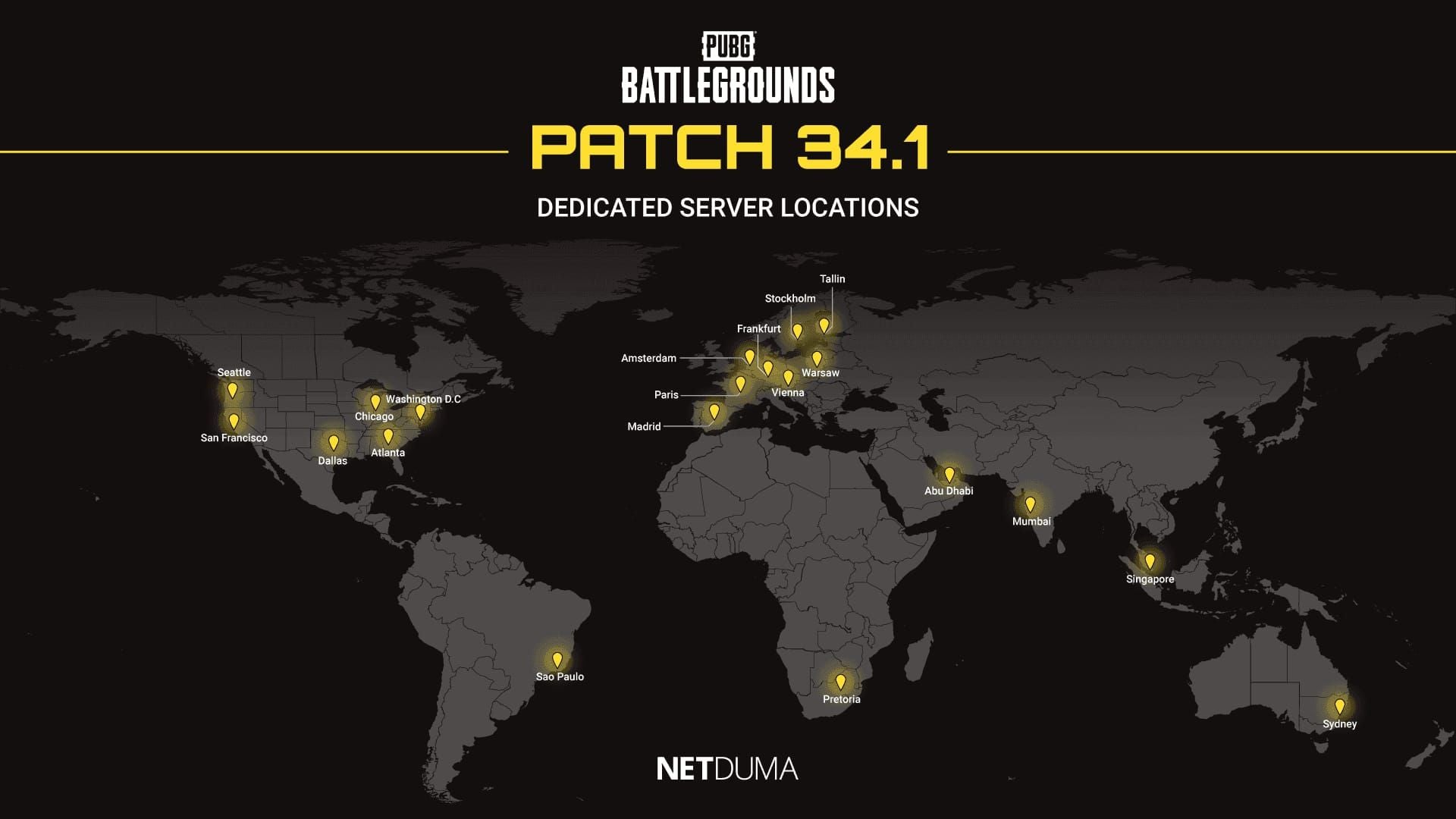
- North America: pubg-na.amazonaws.com (San Francisco, Seattle, Chicago, Dallas, Atlanta, Washington D.C.)
- Asia: pubg-as.amazonaws.com (Abu Dhabi, Mumbai, Singapore)
- Europe: pubg-eu.amazonaws.com (Madrid, Paris, Vienna, Amsterdam, Warsaw, Frankfurt, Stockholm, Tallinn)
DNS Configuration: First Line Defense
Why DNS Matters for Gaming
DNS servers translate domain names into IP addresses. Gaming-optimized DNS servers prioritize low-latency routing and maintain more direct paths to game servers. Poor DNS configuration can add unnecessary routing hops that increase jitter and packet loss.
Quality DNS servers provide more consistent performance under load. When your ISP's default DNS servers become congested during peak hours, resolution times increase and can cause micro-stutters.
Changing DNS on Android
- Navigate to Network & internet settings
- Select your active Wi-Fi connection
- Tap Modify network
- Expand Advanced options
- Change IP settings from DHCP to Static
- In DNS 1, enter 1.1.1.1
- In DNS 2, enter 1.0.0.1
- Save and toggle Wi-Fi off then on
Alternative options:
- Google DNS: 8.8.8.8 and 8.8.4.4
- Quad9: 9.9.9.9 and 149.112.112.112
Changing DNS on iOS
- Open Settings > Wi-Fi
- Tap information icon next to your network
- Scroll to Configure DNS
- Change from Automatic to Manual
- Remove existing DNS servers
- Add 1.1.1.1 as primary
- Add 1.0.0.1 as secondary
iOS applies DNS changes immediately without requiring network restart.
Router-Level DNS Configuration
- Access router admin panel at 192.168.1.1 (or 192.168.0.1)
- Locate DNS settings under WAN or Internet configuration
- Enter gaming-optimized DNS servers in primary and secondary fields
Router-level changes affect all connected devices, providing consistent performance across your household.
Recommended DNS Servers
- Cloudflare: 1.1.1.1 and 1.0.0.1 (consistently low-latency)
- Google: 8.8.8.8 and 8.8.4.4 (excellent reliability)
- Quad9: 9.9.9.9 and 149.112.112.112 (strong security features)
Test multiple DNS configurations during different times of day to identify which performs best with your ISP and location.
Router QoS Settings: Prioritizing PUBG Mobile Traffic
What is QoS
Quality of Service (QoS) allows routers to prioritize specific network traffic, ensuring gaming packets receive preferential treatment over less time-sensitive data. When multiple devices share your network, QoS prevents bandwidth competition that causes jitter and packet loss.
Identifying PUBG Mobile Traffic
Find your device's MAC address:
- Android: About phone > Status
- iOS: Settings > General > About > Wi-Fi Address
Enter this MAC address in router QoS configuration and assign highest priority level. Allocate 80-85% of total bandwidth to your gaming device.
QoS Configuration Steps
- Access router at 192.168.1.1
- Locate QoS or Traffic Prioritization settings
- Enable QoS functionality
- Create new priority rule for your gaming device
- Select device by MAC address
- Set bandwidth caps slightly below maximum speeds (prevents buffer bloat)
- Assign highest priority and save
Port Forwarding for PUBG Mobile
PUBG Mobile primarily uses UDP ports 80, 443, and 7889. Create port forwarding rules for these specific ports directing to your gaming device's local IP address.
Prioritizing UDP traffic provides significant advantages over TCP for real-time gaming. UDP sacrifices guaranteed delivery for speed, aligning perfectly with PUBG Mobile's netcode design.
Mobile Data vs WiFi
Why Mobile Data Often Has Better Stability
Mobile data connections frequently deliver more consistent performance than WiFi despite potentially higher average ping. Cellular networks provide dedicated bandwidth without interference and congestion issues that plague WiFi. You're not competing with other household devices or dealing with signal degradation from physical obstacles.
WiFi Interference and Channel Congestion
WiFi networks operate on shared frequency bands where dozens of nearby networks compete for the same channels. In apartment buildings or dense neighborhoods, channel congestion creates significant interference that manifests as jitter and packet loss.
Switch Wi-Fi channels to reduce jitter. Access router settings and scan for the least congested channel. Channels 1, 6, and 11 on 2.4GHz bands avoid overlap, while 5GHz offers many more non-overlapping options.
5GHz vs 2.4GHz WiFi
Use 5GHz or 6GHz Wi-Fi close to your router with clear line-of-sight for optimal performance. 5GHz provides significantly more bandwidth and experiences less interference than crowded 2.4GHz spectrum. However, 5GHz signals penetrate obstacles poorly, requiring proximity to your router.
2.4GHz offers better range and obstacle penetration but suffers from severe congestion. If you must game from a room separated from your router by multiple walls, 2.4GHz may provide more stable connectivity.
When to Switch Networks Mid-Session
Switch between cellular and Wi-Fi to fix desync when you notice sudden performance degradation. If WiFi becomes unstable mid-match, quickly toggling to mobile data can salvage the game. Monitor your ping indicator—if you observe rapid fluctuations or sudden spikes, switching networks often provides immediate improvement.
Apply dual-channel Wi-Fi plus mobile data allocation for maximum stability on devices supporting simultaneous connections.
In-Game Network Settings
Server Selection Strategy
Choose the nearest server region for lower ping and fewer spikes, but understand that geographic proximity doesn't guarantee optimal performance. PUBG Mobile allows server changes once every 60 days. Test multiple servers during off-peak hours to identify which provides most consistent performance with your specific ISP.
Pro tip: Start matches with the lowest latency player as squad leader to optimize server selection for your team. Squad leader's connection determines which regional server hosts your match.
Frame Rate Cap and Desync
Lock stable FPS at 60 before implementing network tweaks. Frame rate stability directly impacts how smoothly your client processes network updates. Variable frame rates cause inconsistent input timing, which compounds network-related desync issues.
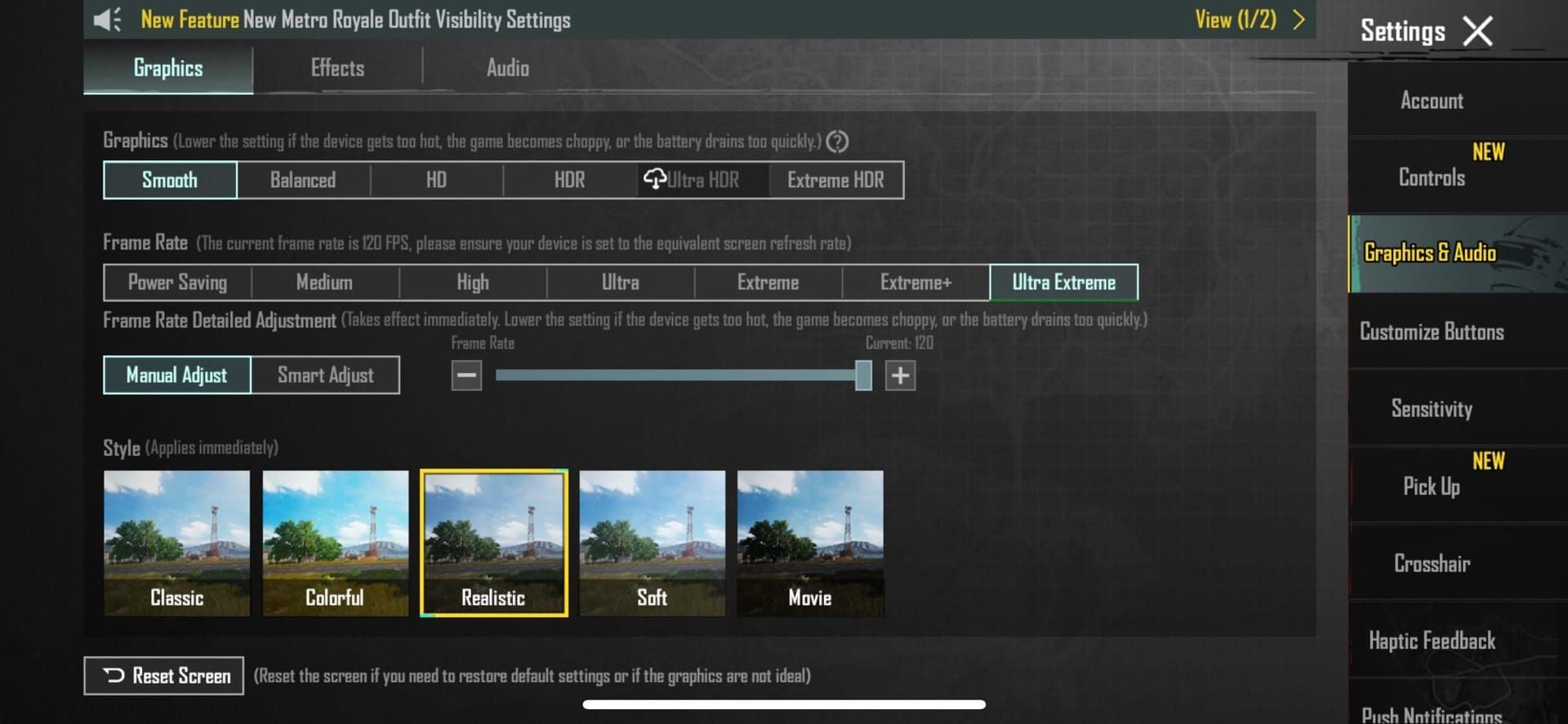
Graphics settings that cause frame drops indirectly worsen perceived desync. Reduce graphics quality until you achieve locked 60 FPS before blaming network issues.
Network Smoothing Options
Network smoothing settings attempt to interpolate player movement during packet loss or jitter. While this creates visually smoother enemy movement, it can introduce additional prediction errors that worsen hit registration. Competitive players typically disable network smoothing to see raw server data.
Advanced Network Optimization
Device-Level Tweaks
Before launching PUBG Mobile:
- Close background apps to eliminate network interference
- Disable Bluetooth to reduce wireless interference (operates on 2.4GHz)
- Enable Airplane mode for 5-10 seconds then re-enable Wi-Fi (clears stale network connections)
Android Developer Options
- Access Developer Options by tapping Build Number seven times in About Phone
- Set animation scales to 0.5x or off to reduce system overhead
- Limit background processes to 2-3 to prevent apps from consuming bandwidth
iOS-Specific Optimizations
- Disable Low Power Mode (throttles network performance)
- Disable non-essential Background App Refresh (Settings > General > Background App Refresh)
Pre-Match Network Preparation
- Clear PUBG Mobile game cache (not data—preserves settings)
- Perform routine repair from login menu when experiencing persistent desync
- Avoid charging during sessions to prevent thermal throttling
Testing and Verifying Improvements
Training Ground Test Protocol
Conduct systematic testing in training ground to isolate network performance from combat variables. Engage stationary targets at various ranges while monitoring ping, packet loss, and hit registration consistency. Record how many shots register out of controlled burst patterns.
Test moving target scenarios to evaluate prediction accuracy. Strafe while shooting at moving targets to simulate real combat conditions. Count hit markers versus actual damage numbers.
Metrics That Matter
Monitor ping stability rather than absolute values. Track ping range over several matches—successful optimization reduces the gap between minimum and maximum values.
Ping ranges:
- 60-80ms steady: Smooth gameplay
- 100-200ms: Playable with adjusted tactics
- 200ms+: Avoid direct firefights
Focus on minimizing variation within these ranges rather than chasing the lowest possible number.
Recording and Analyzing Desync
Use screen recording to capture suspected desync incidents. Review footage frame-by-frame to distinguish between desync (hits visually land but don't register) and aim errors (shots actually missed).
Compare recorded incidents before and after network optimization to verify improvement. Count frequency of clear desync events per match.
Common Mistakes and Misconceptions
The Ping Number Obsession
Players fixate on achieving lowest possible ping while ignoring jitter and packet loss. A connection showing 25ms average ping with 20ms jitter performs worse than 60ms ping with 5ms jitter. Always prioritize connection stability over raw ping numbers.
Game Booster Apps
Legitimate booster apps work by closing background processes, allocating maximum CPU resources, and clearing RAM—functions you can perform manually. Their network acceleration features rarely impact actual network performance beyond what manual DNS and QoS configuration achieves.
Use boosters for device optimization, not network miracles.
VPN Misconceptions
VPNs typically worsen desync by adding encryption overhead and routing traffic through additional servers. Only use VPNs when your ISP implements aggressive throttling of gaming traffic or routes inefficiently to game servers.
The added latency and encryption overhead outweigh routing benefits in most scenarios.
Reset Network Settings as Last Resort
Reset network settings only after exhausting other optimization options. This clears all saved WiFi networks, Bluetooth pairings, and cellular settings, requiring complete reconfiguration. Perform network reset when experiencing persistent desync that survives all other optimization attempts.
Maintaining Long-Term Stability
Regular Maintenance Schedule
Weekly routine:
- Clear PUBG Mobile cache
- Restart router
- Verify QoS settings remain active
Monthly:
- DNS performance testing
- Test alternative DNS configurations quarterly
Monitoring for ISP Changes
ISPs periodically modify routing paths and network infrastructure. When you notice gradual performance degradation despite unchanged settings, test different server regions and DNS configurations.
Document network performance metrics to identify trends over time. Track average ping, jitter range, and desync incident frequency across weeks and months.
Seasonal and Peak Hour Adjustments
Network performance varies based on overall internet usage patterns. Evening hours typically experience higher congestion. Test your configuration during different times of day to identify peak congestion periods.
Consider switching from WiFi to mobile data during these windows if cellular networks experience less congestion.
Enhance Your Experience with BitTopup
Optimizing your network configuration unlocks your true competitive potential, but premium items and battle passes provide the additional edge that separates good players from great ones. Once you've eliminated desync and maximized hit registration consistency, investing in your in-game arsenal becomes worthwhile.
BitTopup offers the most reliable platform for buy pubg mobile uc online, combining competitive pricing with secure transactions and fast delivery. The platform's wide game coverage and proven track record make it the trusted choice for competitive players.
Premium items perform best when your network delivers consistent hit registration. Optimize your network first using these techniques, then enhance your arsenal through BitTopup's secure platform.
FAQ
What is the difference between desync and ping in PUBG Mobile?
Ping measures round-trip latency between your device and server, while desync represents the mismatch between client and server game states. You can have low ping but still experience desync if your connection suffers from jitter or packet loss. Steady 70ms ping outperforms fluctuating 40-140ms connections.
Why do my bullets not register even with low ping?
Bullet registration failures occur when packet loss eliminates shot data, jitter causes prediction errors, or server authority overrides client-side hit detection. Focus on reducing jitter and packet loss rather than minimizing ping numbers.
How do I fix bullet sponge effect?
Configure gaming-optimized DNS servers (1.1.1.1, 8.8.8.8), implement router QoS to allocate 80-85% bandwidth to your gaming device, prioritize UDP ports 80, 443, and 7889, and choose servers based on routing quality. Switch between WiFi and mobile data to identify the most stable connection.
Should I use mobile data or WiFi for competitive play?
Mobile data often provides better stability than WiFi despite potentially higher average ping. Use 5GHz WiFi with clear line-of-sight to your router for optimal performance, but switch to mobile data if WiFi experiences jitter or packet loss.
Does DNS affect hit registration?
DNS configuration impacts routing efficiency and connection stability beyond initial server connection. Gaming-optimized DNS servers like 1.1.1.1 or 8.8.8.8 provide more direct routing paths and consistent performance under load.
How does QoS help with desync?
QoS prioritizes gaming traffic over other network activity, preventing bandwidth competition that causes jitter and packet loss. Allocating 80-85% of bandwidth to your gaming device through router QoS ensures consistent performance even when other household devices consume network resources.