Understanding Gameloop 7.1 and PUBG Mobile 4.1 Compatibility
Gameloop 7.1 is the official PUBG Mobile emulator for PC, requiring Windows 7 64-bit minimum with DirectX 9.0c support.
Minimum specs:
- CPU: Core i3 560 @ 3.3 GHz or AMD Phenom II X4 945 @ 3.0 GHz
- RAM: 3 GB
- GPU: NVIDIA GeForce GTX 460 or AMD Radeon HD 5870
- Storage: 1 GB HDD
Recommended specs:
- CPU: Core i3 or AMD @ 2.6 GHz
- RAM: 8 GB
- GPU: NVIDIA GeForce GTX 660
- Storage: SSD (significantly reduces loading times and stuttering)
For cheap uc for mythic emblems, BitTopup offers secure UC purchases with instant delivery.
System Requirements Check Before Configuration
Verify DirectX 9.0c compatibility and update GPU drivers before configuration. Outdated drivers cause rendering errors and key mapping detection failures. Install Gameloop on SSD for best performance—the difference is noticeable when loading matches or rendering new map areas.
Complete Key Mapping Setup for PUBG Mobile 4.1
Access key mapping: Launch PUBG Mobile in Gameloop 7.1 > Customize controls > key mapping
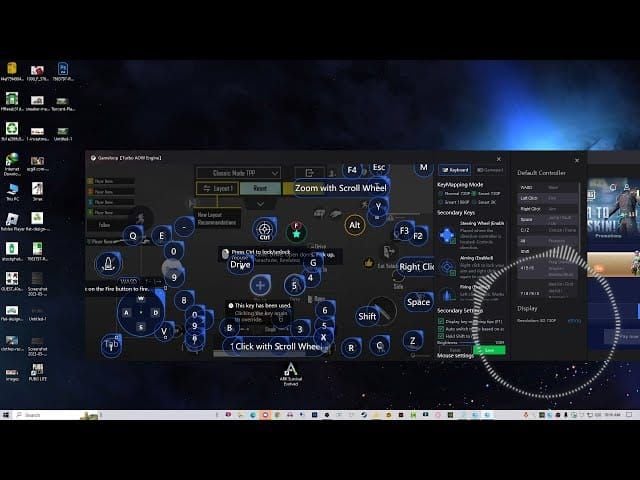
Standard movement:
- W/A/S/D: Directional control
- Space: Jump
- Shift: Crouch
- Caps Lock: Prone
Combat controls:
- Left Click: Fire
- Right Click: ADS
- R: Reload
- 1/2/3: Weapon switching
Advanced Controls for Vehicles and Throwables
Additional bindings:
- Q/E: Leaning
- Tab: Inventory
- M: Map
Practice these bindings in training mode before ranked matches. Gameloop 7.1 supports full customization, but standard FPS conventions help with muscle memory and team coordination.
Fixing Key Mapping Errors After PUBG Mobile 4.1 Update
Key binding failures after 4.1 update stem from cached configuration conflicts.
Solution: Delete ShaderCache folder in Gameloop TxGameAssistant/UI path, forcing regeneration with updated game parameters.
Common symptoms:
- Keys unresponsive mid-match
- Controls reverting to touch-screen overlays
- Specific actions failing despite correct bindings
Reset method:
- Navigate to key mapping interface
- Select Reset to Default
- Re-apply custom bindings one category at a time
Testing Your Key Configuration in Training Mode
Spend 15 minutes testing all controls before competitive matches:
- Movement combinations
- Weapon switching sequences
- Vehicle controls
- Scope switching
- Throwable item usage
Verify ADS sensitivity across different scope magnifications—4.1 update introduced refined sensitivity curves requiring recalibration. Document final configuration with screenshots for quick restoration after future updates.
Graphics Settings Optimization for Maximum Performance
In-game PUBG Mobile settings:
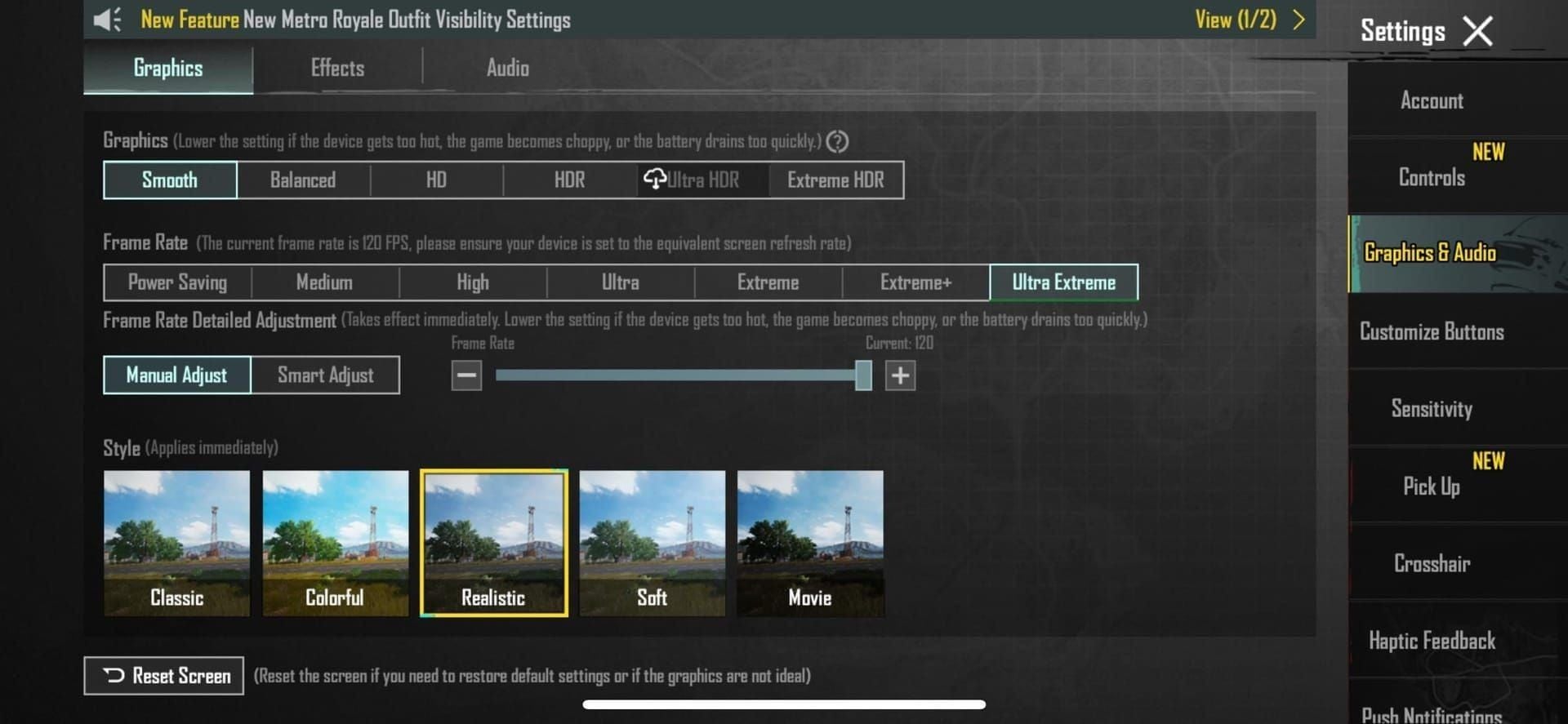
- Frame Rate: Extreme (unlocks highest FPS)
- Game Definition: SD 720P
- DPI: 160
- Style: Colorful (enhances contrast without performance impact)
- Anti-aliasing: Disabled
- Shadows: Low or Off
- Texture Quality: Medium (2GB+ VRAM) or Low (<2GB VRAM)
This configuration prioritizes frame rate stability over visual fidelity for competitive advantage.
Resolution and Rendering Quality Impact on FPS
Set resolution to 1024x576 in Gameloop engine settings—balances clarity with performance while maintaining 16:9 aspect ratio. Disable anti-aliasing entirely; it significantly impacts FPS without substantial visual improvements at lower resolutions.
Shadows consume considerable GPU resources. Competitive players disable them completely as they can obscure enemy positions in certain lighting.
Engine Settings: Smart Mode Configuration
Enable in Gameloop settings:
- Smart Mode: Automatic rendering optimization analyzing your hardware
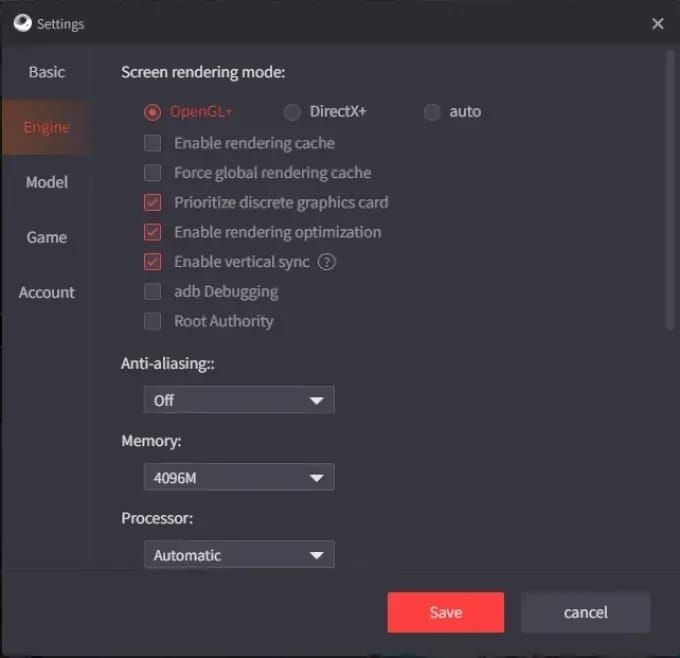
- Render Cache: Stores frequently accessed rendering data
- Enforce Global Render Cache: Reduces redundant GPU calculations
- Prioritize Dedicated GPU: Uses discrete graphics instead of integrated GPU
Manual Engine Tweaking for Competitive Edge
Critical settings:
- Rendering Optimization: Enabled (reduces input latency)
- Memory allocation: 4096 MB for 8 GB RAM systems
- Resolution: 1024x576
- DPI: 160
Under-allocation causes stuttering; over-allocation triggers system-wide degradation. This balance leaves adequate resources for Windows while providing sufficient memory for texture streaming.
Eliminating Lag: Network and Performance Optimization
System-level optimizations:
- Windows Power Options: High Performance mode
- CPU Priority: Set AppMarket.exe to High in Task Manager
- Virtual memory: 1.5-2x physical RAM (12-16 GB for 8 GB systems)
BIOS Virtualization and Administrator Permissions
Enable Virtualization Mode in BIOS:
Access BIOS during startup (Delete, F2, or F10) > CPU configuration > Enable virtualization. This dramatically improves performance through hardware-accelerated emulation.
Run Gameloop as administrator:
Right-click shortcut > Properties > Compatibility > Run this program as an administrator
For recharge pubg mobile online, BitTopup provides fast, secure UC purchases with 24/7 support.
Advanced FPS Boost Techniques for Gameloop 7.1
Frame rate settings:
- Extreme frame rate: Unlocks 60 FPS with Smooth graphics
- Auto-Adjust Graphics: Enable initially for baseline, then fine-tune
- FPS counter: Enable to monitor real-time performance
Consistent frame rates matter more than peak numbers—stable 60 FPS beats fluctuating 90 FPS.
Monitoring Real-Time Performance Metrics
Performance maintenance:
- Update GPU drivers monthly, especially after major patches
- Close unnecessary background applications
- Each background process consumes CPU cycles and RAM
Disable V-Sync in Gameloop and GPU control panel to eliminate 16-33ms frame buffering delays.
Troubleshooting Input Delay and Mouse Acceleration Issues
Eliminate input lag:
- Disable V-Sync (Gameloop + GPU settings)
- Windows Mouse Properties: Uncheck Enhance pointer precision
- Configure separate sensitivity for each scope magnification
Keyboard Polling Rate Optimization
Input device optimization:
- Gaming keyboard: 1000Hz polling rate (1ms vs 8ms)
- USB ports: Use USB 3.0 directly on motherboard, not hubs
- Test responsiveness with rapid 180-degree turns in training mode
Expert Tips from Competitive PC PUBG Mobile Players
Pro player priorities:
- Consistency over maximum graphics
- Smooth graphics + Extreme frame rate universally
- Monthly ShaderCache clearing
- GPU driver updates after major patches
Common mistakes:
- Over-allocating memory beyond capacity
- Enabling unnecessary visual effects
- Neglecting BIOS virtualization settings
- Chasing maximum graphics instead of frame rate stability
Graphics vs Performance Trade-offs in Tournaments
Tournament players choose Smooth graphics with Extreme frame rates—60 FPS vs 30 FPS performance gap outweighs visual differences between Smooth and HDR graphics.
Pro tip: Backup configurations before major updates by documenting all settings. Popular binding modification: Crouch to C instead of Shift for simultaneous crouching and directional movement.
FAQ
Why is my Gameloop 7.1 key mapping not working after PUBG Mobile 4.1 update?
Delete ShaderCache folder in TxGameAssistant/UI path, restart emulator, and reconfigure bindings. Enable administrator permissions for proper input detection.
What are the best graphics settings for Gameloop 7.1 PUBG Mobile?
Smooth graphics, Extreme frame rate, SD 720P, Colorful style. Disable anti-aliasing, set shadows to Low/Off, texture quality Medium/Low based on VRAM.
How do I fix lag in Gameloop emulator for PUBG Mobile?
Enable BIOS Virtualization Mode, Windows High Performance mode, allocate 4096 MB memory (8 GB systems), set AppMarket.exe CPU priority to High, install on SSD, use 1024x576 resolution.
How much RAM does Gameloop 7.1 need for smooth PUBG Mobile gameplay?
Minimum 3 GB, recommended 8 GB. Configure 4096 MB allocation on 8 GB systems for optimal performance without stuttering.
How to increase FPS in Gameloop 7.1 for PUBG Mobile?
Enable Smart Mode, Render Cache, Rendering Optimization. Set Smooth graphics with Extreme frame rate, disable anti-aliasing, reduce shadows/textures, enable BIOS Virtualization, prioritize dedicated GPU, run as administrator.
What is Smart Mode in Gameloop and should I enable it?
Smart Mode automatically selects optimal DirectX/OpenGL rendering based on GPU architecture. Enable it with Render Cache and Enforce Global Render Cache for automatic optimization.
Ready to unlock exclusive PUBG Mobile skins, Royale Pass, and UC at unbeatable prices? Visit BitTopup now for instant delivery, secure payments, and 24/7 support!