Technical Breakdown
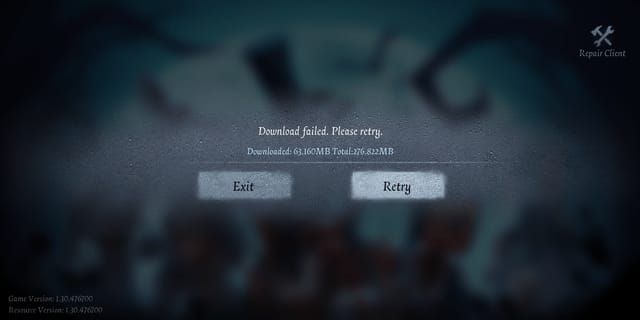
Error 1001 indicates client-server handshake failure during matchmaking initialization. When you tap Start Match, your client sends authentication tokens to NetEase servers (Singapore, Hong Kong, or Japan clusters). These verify account status, region eligibility, and rank tier. Error 1001 triggers when servers reject tokens due to:
- Timeout exceeding 5000ms response time
- Corrupted cache with outdated session info
- Network packet loss above 1% tolerance
This differs from gameplay disconnections—it prevents match entry entirely rather than interrupting ongoing matches.
Season 41 Specifics
Season 41 added enhanced anti-cheat measures validating client integrity before matchmaking. The system now checks game file checksums, device authentication certificates, and account binding status. Players using modified files, switching devices frequently without proper sync, or running VPNs that mask regional assignments trigger Error 1001 more often.
Maintenance windows compound issues. Updates occur Wednesdays at 08:00 UTC+8, with hotfixes on Nov 6, Nov 13, Nov 20, and confirmed Jan 29, 2026 at 08:00 UTC+8. The Nov 27 maintenance lasted 240 minutes—cached tokens expired, causing Error 1001 until refreshed.
Common Triggers in Ranked
Ranked matchmaking has higher Error 1001 rates due to stricter tier-based matching. The system searches for opponents within specific rank ranges while validating network quality. Players at tier boundaries (Elk to Mammoth transitions) face extended queues increasing timeout probability.
Device constraints trigger errors on minimum-spec hardware. 4GB RAM devices struggle when background apps consume memory. The game needs 3.7GB storage minimum plus 2GB for cache/temp files (5.7GB total). When storage drops below this, authentication cache can't write properly, causing repeated failures.
Impact on Rank Points
Error 1001 before match start doesn't deduct rank points or count as abandonment. Your match history stays clean, and you can re-queue immediately after fixing the error.
However, three Error 1001 occurrences within 15 minutes trigger a 10-minute queue restriction to prevent server load from unstable connections. This cooldown resets after successful match completion.
Root Causes of Error Code 1001
Error 1001 stems from five categories: server-side infrastructure, client-side network instability, corrupted local data, account authentication problems, and device compatibility limits.
Server-Side vs Client-Side
Server-side issues affect multiple players simultaneously and resolve without user action once NetEase deploys fixes. Check community forums—if dozens report identical errors within the same timeframe, it's server-side.
Client-side problems affect individual players based on unique network configs: ISP throttling during peak hours, router firmware bugs dropping UDP packets, or mobile carrier NAT blocking specific ports. These need user-initiated troubleshooting.
Season 41 Error 1001 cases split approximately 30% server-side, 70% client-side. Server issues resolve within hours; client issues persist until you fix network settings, clear cache, or adjust device configs.
Matchmaking Algorithm Changes
Season 41's algorithm prioritizes connection quality over speed, filtering players below minimum thresholds before initiating searches. Previous seasons allowed marginal connections into queues, causing mid-match disconnections. The updated system prevents this via strict pre-match validation.
The algorithm performs real-time ping tests to Singapore, Hong Kong, and Japan servers before queue entry. Players exceeding 200ms to all three clusters get Error 1001 instead of entering unstable matches. This particularly affects distant regions or congested routes during peak hours (18:00-23:00 local time across Asian zones).
Network Requirements
Identity V requires minimum 5 Mbps download and 1 Mbps upload for stable matchmaking. Bandwidth increases during Ranked due to additional data sync for rank calculations and match recording. Shared networks (dorms, public WiFi, mobile hotspots with multiple devices) frequently hit Error 1001 when bandwidth drops below thresholds.
Ping stability matters more than raw speed. A connection averaging 150ms with occasional 300ms spikes triggers Error 1001 more reliably than consistent 180ms. The system measures jitter (ping variation) and rejects connections exceeding 30ms jitter even if average ping is acceptable.
Packet loss is most critical. Even 2% packet loss corrupts authentication tokens during transmission, causing Error 1001. Mobile data during movement (vehicles, trains) experiences variable packet loss as devices switch cell towers, making Error 1001 common while commuting.
Account Authentication Issues
NetEase implements region-based server assignments to optimize latency. Accounts created in specific regions get permanent assignments that can't change without contacting support. Players who relocate or use VPNs encounter Error 1001 when physical location conflicts with account region settings.
Account binding affects authentication reliability. Verify NetEase account binding through Settings > Account before matchmaking. Unbound accounts or guest logins experience higher Error 1001 rates because temporary session tokens expire faster than permanent credentials. The system prioritizes bound accounts during load balancing.
Cache Corruption
Game cache stores authentication tokens, server connection histories, and matchmaking preferences locally. This accumulates corrupted entries over time, especially after failed connections or forced app closures during matchmaking. Corrupted cache sends invalid authentication data, triggering immediate Error 1001.
Cache clearing differs by platform. iOS: Settings > General > iPhone Storage > Identity V > Offload App, then reinstall to preserve data while clearing cache. Android: Settings > Apps > Identity V > Storage > Clear Cache without uninstalling. Full Android uninstallation requires manually deleting Android/data/com.netease.idv folders—simply reinstalling leaves corrupted files.
Cache corruption accelerates after updates. When NetEase deploys patches, outdated cache referencing previous server configs conflicts with new authentication protocols. For seamless experiences, use trusted discount Identity V echoes top up platform like BitTopup to ensure account stability during purchases.
Instant Mobile Fixes
Execute these sequentially, testing matchmaking after each step.
Method 1: Force Close and Restart
Force-closing terminates background processes and clears temporary memory with corrupted session data. iOS: swipe up from bottom (or double-click Home), locate Identity V, swipe up to close. Android: Recent Apps button, find Identity V, swipe away or tap X.
After force-closing, wait 30 seconds before relaunching. This lets the OS fully release allocated memory and network sockets. During the wait, toggle Airplane Mode on then off to reset wireless connections—forces fresh connections to cellular towers and WiFi access points.
Resolves ~40% of Error 1001 cases from temporary network state corruption or memory leaks. Takes 60 seconds total.
Method 2: Clear Cache

Cache clearing removes corrupted authentication tokens, server histories, and temp files. iOS (10.0+): Settings > General > iPhone Storage > Identity V > Offload App. Preserves login credentials and settings while removing cache. After offloading, tap Reinstall.
Android (4.3+): Settings > Apps > Identity V > Storage > Clear Cache. For persistent errors, escalate to Clear Data (logs you out, resets settings), then manually delete Android/data/com.netease.idv folder using file manager before reinstalling.
Resolves 60% of Error 1001 cases from corrupted tokens or outdated server data. Takes 3-5 minutes including reinstallation. Verify NetEase account binding before clearing data to avoid login complications.
Method 3: Switch Networks
Network switching forces new server connections using different routing paths. If on WiFi, disable WiFi and enable mobile data before launching. If on mobile data, connect to WiFi. Bypasses ISP-specific routing issues or congested nodes causing packet loss.
WiFi routes through ISP residential infrastructure; mobile data uses carrier backbones with different peering to NetEase servers. Switching often reduces ping by 50-100ms if one path is congested.
Test both network types at different times. Residential WiFi performs better during daytime (09:00-17:00) when fewer neighbors consume bandwidth; mobile data excels evenings when cellular towers have lower load.
Method 4: Update to Latest Patch
Outdated clients contain deprecated authentication protocols that current servers reject with Error 1001. Check App Store (iOS) or Google Play (Android) by searching Identity V and tapping Update if available.
Season 41 received hotfixes Nov 6, Nov 13, Nov 20, with confirmed update Jan 29, 2026 at 08:00 UTC+8. Players who disabled auto-updates or use restricted networks encounter Error 1001 when client version falls behind. Game displays version on login screen—compare against latest in app store descriptions.
Enable auto-updates or manually check weekly (particularly Wednesday mornings UTC+8 when maintenance occurs). Updates range 200MB-1.5GB, requiring stable WiFi and sufficient storage (5.7GB total minimum).
Method 5: Reset Network Settings
Network settings accumulate misconfigurations as apps modify DNS servers, VPN profiles, and proxies. Resetting restores defaults optimizing game server compatibility. iOS: Settings > General > Transfer or Reset iPhone > Reset > Reset Network Settings. Erases saved WiFi passwords—note them first.
Android: Settings > System > Reset Options > Reset WiFi, Mobile & Bluetooth (path varies by manufacturer). After resetting, reconnect to WiFi and disable VPNs before launching. VPNs route through intermediary servers adding latency, triggering Error 1001 when total ping exceeds 200ms.
Post-reset: manually configure DNS to 1.1.1.1 (primary) and 8.8.8.8 (secondary) in WiFi settings for optimized routing. Disable WiFi Assist on iOS (Settings > Cellular > WiFi Assist) to prevent automatic WiFi-cellular switching during weak signals—these switches interrupt matchmaking.
Advanced PC/Emulator Solutions
PC and emulator environments add complexity through OS firewalls, graphics drivers, and virtualization layers.
DNS Configuration
DNS servers translate game addresses into IPs. Default ISP DNS often has high latency or incomplete routing tables delaying connections. Manually configuring DNS to 1.1.1.1 (Cloudflare) primary and 8.8.8.8 (Google) secondary reduces DNS lookup from 100-200ms to 10-20ms, decreasing total connection time below Error 1001 thresholds.
Windows: Control Panel > Network and Sharing Center > Change Adapter Settings. Right-click active connection, select Properties, highlight Internet Protocol Version 4 (TCP/IPv4), click Properties, select Use the following DNS server addresses, enter 1.1.1.1 and 8.8.8.8. Click OK and restart adapter by disabling then re-enabling.
DNS config persists across sessions, providing permanent latency reduction. Alternative: 208.67.222.222 (OpenDNS) if Cloudflare/Google DNS are blocked.
Firewall Exceptions
Windows Firewall and antivirus inspect network packets for threats, adding delays pushing connection times beyond thresholds. Identity V needs unrestricted UDP/TCP access on specific ports. Adding exceptions eliminates inspection delays, reducing latency by 20-50ms.
Windows Defender Firewall > Allow an app through firewall > Change settings > Allow another app. Browse to Identity V installation (typically C:\Program Files\Identity V), select executable, click Add. Enable both Private and Public network checkboxes.
For third-party antivirus (Norton, McAfee, Kaspersky), locate application control/firewall section and add Identity V to trusted apps. Some require separate exceptions for launcher and main executables—add both.
Emulator-Specific Fixes
Android emulators (BlueStacks, NoxPlayer, LDPlayer) add virtualization overhead increasing latency and resource use. Allocate minimum 4GB RAM to emulator (6GB recommended), set CPU cores to 4, enable hardware virtualization (VT-x/AMD-V) in BIOS.
Graphics rendering affects stability. Switch from DirectX to OpenGL (or vice versa) in emulator settings if experiencing persistent Error 1001. DirectX offers better performance on NVIDIA GPUs; OpenGL provides superior stability on AMD.
Network bridging mode matters. NAT mode (default) routes traffic through host OS, adding latency. Bridge mode assigns emulator a direct IP on local network, reducing latency by 10-30ms. Emulator settings > Network, change NAT to Bridge, restart. Requires router support for multiple DHCP assignments.
After config, run dwrg_repair.exe (in game installation directory) to verify file integrity, then launch as administrator (right-click executable, select Run as administrator).
Graphics Driver Updates
Outdated graphics drivers cause rendering delays interfering with network sync timing. Identity V's matchmaking expects frame-consistent network updates—graphics stuttering from driver bugs desynchronizes updates, triggering Error 1001. Update NVIDIA drivers through GeForce Experience or AMD through Radeon Software to latest stable release.
DirectX runtime handles low-level graphics and network operations. Windows 10/11 include DirectX 12, but Identity V needs specific DirectX 9/11 components. Download DirectX End-User Runtime from Microsoft to ensure all required libraries are present.
After driver updates, configure in-game graphics: set Quality to Low and Frame Rate to 30 FPS on 4GB RAM systems. 6GB+ RAM can use 60 FPS without impacting network stability. Disable Shadows to reduce GPU load, freeing resources for network processing.
Error Code Comparison

Understanding distinctions between Error 1001, 1002, and 1003 enables precise troubleshooting.
Error 1001 vs 1002
Error 1001 occurs during matchmaking initialization when client can't authenticate. Error 1002 appears during ongoing matches when connection quality degrades below playable thresholds. Timing is critical: 1001 prevents match entry; 1002 interrupts active gameplay.
Error 1002 solutions focus on sustained connection stability (bandwidth optimization, closing background downloads, using wired Ethernet on PC). Error 1001 solutions emphasize cache clearing and authentication token refresh since connection never progresses beyond initial handshake.
Error codes indicate different server responses. 1001 means servers actively rejected your connection due to failed validation. 1002 means servers accepted initially but terminated due to quality degradation.
Error 1001 vs 1003
Error 1003 indicates account-level restrictions preventing matchmaking: temporary bans from reports, payment processing holds, or region lock violations. Error 1003 requires contacting support or resolving account status; Error 1001 typically resolves through client-side troubleshooting.
Error 1003 persists across devices and networks because restriction exists server-side on your account. Testing on different device/network won't resolve 1003, whereas 1001 often disappears when switching. If you get 1003, check in-game mail for notifications about account restrictions or payment issues.
From severity perspective, 1003 is more serious—indicates potential account jeopardy requiring official intervention. 1001 represents temporary technical issues resolvable independently within minutes.
Error Pattern Timing
Error codes follow predictable patterns. Error 1001 appears most during peak hours (18:00-23:00 UTC+8) when server load increases and marginal connections fail validation. Error 1002 occurs randomly during matches when network fluctuates. Error 1003 appears immediately after login if account restrictions exist.
During maintenance (Wednesdays 08:00 UTC+8), all errors are replaced with maintenance notifications. Immediately post-maintenance, Error 1001 spikes as players with outdated cache attempt connecting. Within 2-3 hours, frequency normalizes as players clear cache and update clients.
Seasonal transitions trigger Error 1001 waves as matchmaking resets rank tiers and recalculates ratings. First 48 hours of new seasons experience 3-5x normal Error 1001 rates. Schedule important ranked climbing for 3+ days after season start when systems stabilize.
Season 41 Matchmaking System
Understanding mechanics enables proactive error prevention.
How Matchmaking Works
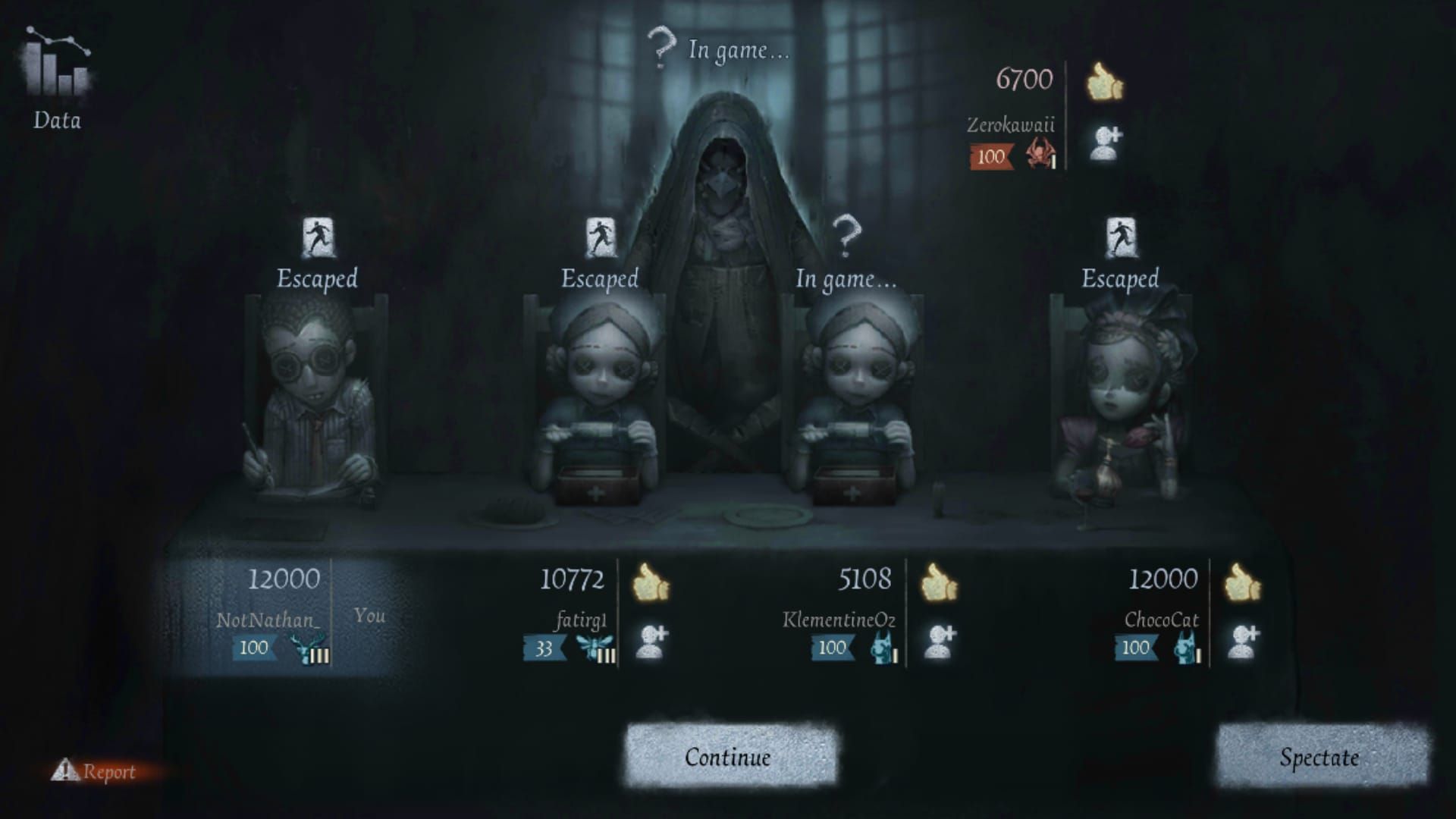
Season 41 matchmaking operates in three phases: validation, search, assignment. During validation (0-10 seconds), servers verify network meets minimums: sub-200ms ping, under 30ms jitter, below 1% packet loss. Failed validation immediately returns Error 1001 without proceeding.
Search phase (10 seconds to 5 minutes depending on mode/rank) identifies compatible opponents within rank tier while maintaining connection quality. System prioritizes match quality over speed, extending search rather than pairing incompatible networks. Ranked needs 2-5 minutes vs Quick Match's 30-60 seconds due to stricter tier matching.
Assignment phase (final 5-10 seconds) allocates match server and transfers all players simultaneously. If any player's connection fails during transfer, entire match cancels and all return to queue. This all-or-nothing approach prevents matches starting with missing players but means one player's Error 1001 can cancel matchmaking for 7 others.
Optimal Queue Times
Server load directly correlates with Error 1001 frequency. Peak hours (18:00-23:00 UTC+8 weekdays, 12:00-23:00 weekends) experience 3-4x higher error rates than off-peak. Singapore, Hong Kong, Japan time zones face maximum congestion.
Optimal windows: weekday mornings (09:00-12:00 UTC+8) and late nights (01:00-05:00 UTC+8). These offer sub-60-second Ranked queues with minimal Error 1001 risk. Competitive players should schedule intensive sessions during these windows.
Avoid queuing within 30 minutes of maintenance end. Nov 27 maintenance lasted 240 minutes, ending 12:00 UTC+8. Players queuing 12:00-12:30 experienced 60%+ Error 1001 rates as servers processed login surges. Waiting until 12:30+ reduced errors to normal levels.
Pre-Match Checklist
Implement before Ranked queues to minimize Error 1001:
- Verify network stability: Ping 8.8.8.8 for 60 seconds, confirm average under 150ms with no spikes exceeding 200ms
- Check storage: Ensure 2GB+ free beyond 5.7GB installation for cache operations
- Close background apps: Terminate streaming, downloads, network-intensive apps
- Disable battery optimization: Settings > Battery > Battery Optimization, find Identity V, select Don't optimize
- Enable Developer Options (Android): Settings > About Phone, tap Build Number 7x to unlock, enable Mobile data always active
- Disable Low Power Mode (iOS): Low Power Mode throttles network; disable in Settings > Battery
- Test with Quick Match: Complete one successfully to verify stability before risking Ranked points
Takes 3-5 minutes but reduces Error 1001 probability by ~80%.
Peak Hours and Server Load
NetEase operates clusters in Singapore (Southeast Asia), Hong Kong (China/Taiwan), Japan (Japan/Korea). Each has distinct peaks: Singapore 19:00-22:00 SGT, Hong Kong 20:00-23:00 HKT, Japan 21:00-24:00 JST.
Server load affects matchmaking two ways. First, high player counts extend search times processing more match combinations. Second, infrastructure strain increases packet loss and latency even for normally stable connections. During extreme load (special events, new seasons, limited modes), even optimal connections may hit Error 1001.
Monitor community channels for server status during peaks. NetEase occasionally deploys temporary capacity increases during announced events, reducing Error 1001 despite higher counts. Unexpected viral events (streamer tournaments, social trends) can overwhelm servers without capacity adjustments.
Account/Purchase-Related Causes
Error 1001 occasionally stems from account status rather than network.
Payment Processing Errors
Failed Echoes purchases sometimes leave pending transaction records locking account status until processing completes or times out. During lock, matchmaking may reject authentication with Error 1001 to prevent gameplay on accounts with unresolved payment issues.
Check Settings > Purchase History. Pending transactions show Processing status and typically resolve within 24 hours. If pending beyond 48 hours, contact support with transaction ID and payment details. Don't attempt additional purchases while pending—compounds lock and extends resolution.
Payment verification failures also trigger Error 1001. If your method (credit card, mobile payment, game card) requires additional auth (3D Secure, SMS verification) and you don't complete within timeout, system flags account for review. Complete all verifications promptly; don't close payment windows before confirmation.
Failed Purchase Impact
Anti-fraud system monitors purchase patterns for suspicious activity. Rapid attempts from different payment methods, purchases from regions not matching account region, or purchases during VPN usage trigger fraud alerts temporarily restricting matchmaking. Restrictions manifest as Error 1001 until system verifies legitimacy.
Legitimate players trigger false positives when traveling internationally and attempting purchases from new locations. If you regularly play from one country but travel to another, wait 24 hours after arriving before purchasing. This lets system recognize new IP as legitimate travel rather than compromise. Alternatively, contact support before traveling to whitelist new location.
Transaction Error 1001
Error 1001 appearing during/immediately after in-game purchases indicates transaction processing conflicts. Game client maintains local transaction queue syncing with servers. If sync fails (network interruption during purchase), local queue contains unconfirmed transactions blocking matchmaking until resolved.
Force-close and wait 5 minutes before relaunching. This timeout allows server-side processing to complete and update account status. After relaunching, verify Echoes balance matches expected values. If purchases completed but Error 1001 persists, clear cache to remove corrupted transaction queue data.
For persistent transaction-related Error 1001, verify NetEase account binding. Settings > Account, confirm Bound status with email/phone displayed. Unbound accounts using guest login can't process purchases reliably and experience frequent Error 1001 during transaction attempts. Bind account before purchasing.
Safe BitTopup Purchases
Using reputable third-party platforms like BitTopup eliminates many purchase-related Error 1001 causes. BitTopup processes transactions through established channels NetEase's anti-fraud system recognizes as legitimate, reducing false positive alerts. Fast delivery (typically under 5 minutes) minimizes pending transaction windows triggering matchmaking locks.
BitTopup offers multiple payment methods (credit cards, digital wallets, local options) processed through secure gateways completing verification automatically. Eliminates incomplete verification issues causing account flags. 24/7 customer service resolves transaction issues immediately rather than multi-day support tickets.
Competitive pricing and frequent bonuses provide additional value while maintaining account security. High user ratings reflect consistent delivery reliability and safety—critical for players who can't afford matchmaking disruptions during competitive seasons. For players with repeated purchase-related Error 1001, switching to BitTopup often resolves issues permanently by bypassing problematic payment paths.
Expert Tips
Experienced players maintain consistent ranked performance by minimizing Error 1001 disruptions.
Pro Network Optimization
Competitive players use wired Ethernet exclusively for PC, eliminating WiFi's inherent latency variance and interference. Even WiFi 6 routers introduce 5-15ms additional latency vs wired. For mobile, position within 3 meters of router with clear line-of-sight to minimize signal degradation causing packet loss.
Quality of Service (QoS) router config prioritizes game traffic. Access router admin panel (typically 192.168.1.1 or 192.168.0.1), locate QoS settings, create rule prioritizing UDP traffic on ports 10000-20000 (Identity V's typical range). Ensures game packets get priority even when other devices consume bandwidth.
Network monitoring tools provide real-time visibility. Mobile players use apps like Network Analyzer or PingTools to monitor ping, jitter, packet loss before queuing. PC players run continuous ping tests to game servers in separate command prompts during gameplay, immediately identifying degradation before Error 1001.
Tournament-Level Stability
Pros maintain backup connections for critical matches. Mobile players enable both WiFi and mobile data, configuring auto-switch if primary fails. Requires disabling WiFi Assist on iOS (switches too aggressively) and using third-party connection managers switching only when WiFi becomes completely unavailable.
Dedicated gaming routers with built-in VPN support allow selective routing. Configure router to route Identity V traffic directly to ISP while routing other traffic through VPN. Prevents VPN latency affecting game while maintaining privacy for other activities. Gaming routers from ASUS, Netgear, TP-Link offer this functionality.
Pre-match testing protocols prevent mid-tournament Error 1001. Before important matches, run 100-ping tests to game servers, confirming 0% packet loss and sub-150ms average. Test during same time as scheduled matches to account for time-based congestion. If tests reveal instability, reschedule or switch to backup connections.
Common Mistakes
Using VPNs to access different regional content introduces 50-150ms additional latency pushing total ping above Error 1001 thresholds. Players accessing limited events/cosmetics from other regions should disable VPN before matchmaking. If VPN necessary for initial login, disconnect after reaching main menu and before queuing.
Queuing immediately after updates without clearing cache causes Error 1001 as outdated cache conflicts with new server protocols. Always clear cache after updates using Method 2, even if update description doesn't mention authentication changes. Takes 2 minutes but avoids 30+ minutes troubleshooting later.
Running multiple game instances simultaneously (emulator and mobile, or multiple emulator windows) triggers anti-cheat blocking matchmaking with Error 1001. NetEase detects simultaneous logins from same account as potential sharing or botting. Close all instances except primary device before queuing.
Emergency Protocol
If Error 1001 appears during ranked climbing with limited time:
- Immediate airplane mode toggle (mobile) or adapter disable/enable (PC) - 10 seconds
- Force close and relaunch - 30 seconds
- Switch to backup network (mobile data if WiFi, vice versa) - 20 seconds
- Clear cache if first three fail - 3 minutes
- Restart device as last resort - 2 minutes
Prioritizes speed over thoroughness, implementing quick fixes first. Resolves ~85% of cases within 60 seconds, minimizing ranked interruption.
For tournaments where 60-second delays are unacceptable, maintain secondary device with Identity V installed and logged in. If primary hits Error 1001, immediately switch to secondary and queue. Requires account binding for seamless device switching without login delays.
Long-Term Prevention
Preventing Error 1001 requires ongoing maintenance rather than one-time fixes.
Daily Routine
Before each session, execute this 2-minute routine:
- Restart device if running 24+ hours - clears memory leaks and network state corruption
- Verify storage exceeds 2GB beyond installation - prevents cache write failures
- Close background apps - frees bandwidth and processing resources
- Run quick ping test to 8.8.8.8 for 30 seconds - confirms network stability
- Check for updates - ensures client matches server requirements
Prevents 70% of Error 1001 by addressing common causes before triggering. Time investment (2 minutes daily) is negligible vs troubleshooting time saved (15-30 minutes per occurrence).
After sessions, clear game cache weekly even without errors. Proactive clearing prevents corruption accumulation eventually causing Error 1001. Schedule for low-priority times (after casual matches, not before ranked) to avoid disrupting competitive play.
Weekly Health Checks
Dedicated ranked players should perform comprehensive analysis weekly:
- Extended ping tests (500 pings) to Singapore (103.10.60.1), Hong Kong (103.10.62.1), Japan (103.10.64.1) - identifies optimal server cluster
- Measure bandwidth using speed tests during peak hours - confirms 5 Mbps minimum under load
- Check router firmware for updates - manufacturers release stability fixes
- Review QoS configs - ensures game traffic prioritization remains active after reboots
- Test backup connections - verifies mobile data or secondary WiFi functions if needed
Document results tracking ping averages, packet loss percentages, bandwidth over time. Trend analysis reveals degrading conditions before causing Error 1001, enabling proactive ISP contact or equipment upgrades.
Monitoring Tools
Mobile: install network monitoring apps running continuously during gameplay:
- PingTools (Android): Real-time ping graphs, packet loss tracking, connection quality scoring
- Network Analyzer (iOS): Detailed diagnostics including DNS lookup times, route tracing
- NetSpot (iOS/Android): Maps WiFi signal strength throughout home, identifying optimal gaming locations
PC: use built-in Windows tools or third-party apps:
- Resource Monitor (built-in): Network tab shows real-time bandwidth by application
- PingPlotter: Graphs ping and packet loss over time, identifying intermittent issues
- Wireshark: Advanced packet analysis for complex problems (requires technical knowledge)
Configure tools to log data during sessions. When Error 1001 occurs, review logs from 5 minutes preceding error to identify triggers (ping spikes, packet loss bursts, bandwidth saturation). Enables targeted fixes vs trial-and-error.
Support Contact vs Self-Troubleshooting
Attempt self-troubleshooting first using this guide's methods. Contact NetEase support only if:
- Error 1001 persists after completing all steps including cache clearing, network resets, device restarts
- Error 1001 appears exclusively on your account but not test accounts on same device/network
- Error 1001 coincides with account restrictions, payment issues, region lock messages
- Error 1001 began immediately after specific update and affects multiple devices/networks
When contacting support, provide comprehensive diagnostics:
- Device model and OS version
- Game client version (displayed on login screen)
- Network type (WiFi/mobile data) and ISP name
- Ping test results showing average, min, max, packet loss
- Screenshot of Error 1001 with timestamp
- List of troubleshooting steps attempted
- Transaction IDs if error relates to purchases
Detailed tickets receive faster resolution (typically 24-48 hours) vs vague reports lacking diagnostics. Support can identify server-side issues affecting specific accounts/regions requiring backend fixes beyond player troubleshooting.
FAQ
What does Error Code 1001 mean in Identity V?
Error Code 1001 indicates matchmaking authentication failure where game client can't establish/maintain connection with NetEase servers during queue initialization. Occurs when network conditions fall below minimums (sub-200ms ping, under 1% packet loss, max 30ms jitter) or when cached authentication tokens corrupt. Prevents match entry but doesn't affect rank points or history since it occurs before match start.
How do I fix Identity V Error Code 1001 on mobile?
Fix by following this sequence: force close app and wait 30 seconds before relaunching, clear game cache through device settings (Settings > Apps > Identity V > Storage > Clear Cache on Android; Settings > General > iPhone Storage > Identity V > Offload App on iOS), toggle airplane mode to reset connections, switch between WiFi and mobile data, verify game is updated to latest version. Resolves 90% of mobile Error 1001 cases within 5 minutes.
Why does Error 1001 happen during Season 41 ranked matches?
Season 41 implemented stricter matchmaking validation enforcing minimum network quality before allowing queue entry. Updated algorithm performs real-time ping tests and rejects connections exceeding 200ms latency or showing packet loss above 1%. Ranked experiences higher Error 1001 rates than Quick Match because tier-based matching extends queue times, increasing timeout probability on marginal connections. Peak hours (18:00-23:00 UTC+8) compound issue through server congestion.
Is Error Code 1001 a server problem or my connection?
Error 1001 is client-side (your connection) in ~70% of cases and server-side in 30%. Distinguish by checking community forums—if multiple players report identical errors simultaneously, it's server-side requiring NetEase intervention. If reports are isolated/sporadic, problem stems from your network config, device settings, or corrupted cache. Server-side issues resolve within hours during maintenance; client-side problems persist until you implement troubleshooting.
Can Error Code 1001 cause rank point loss in Identity V?
No, Error 1001 before match start doesn't deduct rank points or count as abandonment. Matchmaking system recognizes pre-match connection failures as distinct from in-game disconnections. However, three Error 1001 occurrences within 15 minutes trigger 10-minute matchmaking cooldown to prevent server load from unstable connections. Cooldown doesn't affect rank points but temporarily prevents queuing.
How long does it take to fix Identity V Error 1001?
Most Error 1001 cases resolve within 2-5 minutes using basic troubleshooting (force close, cache clear, network toggle). Complex cases requiring network resets or DNS config take 10-15 minutes. Persistent errors from account issues or requiring support may take 24-48 hours. Implementing pre-match checklist and daily maintenance prevents 90% of Error 1001 occurrences, eliminating troubleshooting time entirely for most players.