Why Settings Don't Auto-Transfer Between Android and iOS
Touch response algorithms differ fundamentally between platforms. Android processes touch input through manufacturer-specific implementations, while iOS uses Apple's standardized touch framework with different polling rates and acceleration curves. This creates measurable differences in how quickly finger movements translate to in-game camera rotation, even with identical sensitivity numbers.
iPhone displays typically feature higher touch sampling rates (120Hz on Pro models versus 60-90Hz on most Android devices), resulting in more responsive input detection. Glass coating materials and oleophobic treatments also affect finger friction, changing swipe movement speed during firefights.
The Difference in Touch Response and Screen Technology
iOS implements touch prediction algorithms that anticipate finger movement trajectories, creating a smoother but slightly accelerated feel compared to Android's direct input processing. This explains why many players report their aim feels faster immediately after switching to iPhone.
Display aspect ratios introduce additional complexity. iPhone models use 19.5:9 or similar tall ratios, while Android devices range from 18:9 to 21:9. These dimensional differences affect how much screen real estate your thumb covers during swipes, directly impacting effective sensitivity.
What Actually Transfers vs What Requires Manual Setup
The 19-digit sensitivity code transfers all numerical values: camera sensitivity (Free Look, TPP No Scope, TPP Scope, FPP No Scope, FPP Scope), ADS sensitivity for all scope types (Red Dot through 8x), and gyroscope settings. This takes approximately 30 seconds versus 15-20 minutes for complete manual adjustment.
Custom layouts don't transfer through sensitivity codes. Fire button positions, movement joystick placement, inventory shortcuts, and HUD element locations require manual recreation. The layout system stores coordinates relative to screen dimensions, making direct transfer impossible between devices with different aspect ratios.
Pre-Transfer Preparation: Document Your Current Android Settings
Navigate to Settings > Sensitivity and capture every tab: Camera, ADS, Gyroscope, and custom profiles. Take clear screenshots showing all numerical values with adequate lighting and screen brightness.
Record specific values in a note-taking app as backup. Document your TPP No Scope percentage, each scope's ADS sensitivity, gyroscope values for all scope types, and Free Look camera speed.
Taking Screenshots of All Sensitivity Tabs
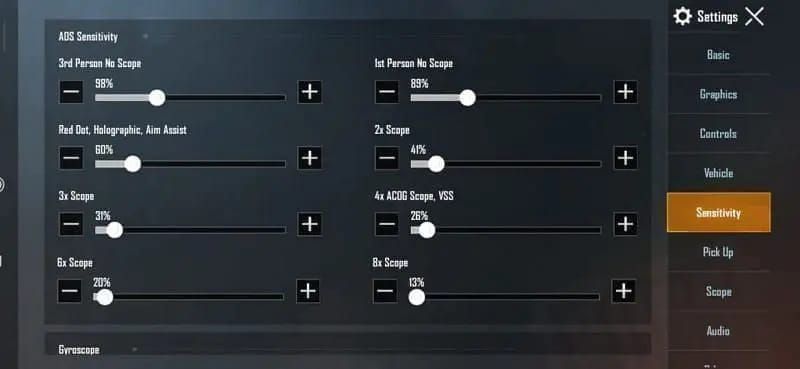
Capture the Camera sensitivity tab first, showing Free Look, Camera, TPP No Scope, TPP Scope, FPP No Scope, and FPP Scope values. Ensure each percentage is clearly visible, avoiding glare or reflections.
Screenshot all scope sensitivities: Red Dot, Holographic, 2x, 3x, 4x, 6x, and 8x. Missing even one scope's setting can disrupt muscle memory during critical engagements.
Recording Your Exact Numerical Values
Create a structured list documenting every value. Example: TPP No Scope: 95%, Red Dot: 88%, 2x: 85%, 3x: 80%, 4x: 75%, 6x: 65%, 8x: 60%, Gyroscope: 300-300-300-300.
Test your current settings one final time in Training Ground before switching devices. Spend 10-15 minutes practicing recoil control with M416, SCAR-L, and AKM at 50-meter distances. This establishes a performance baseline for comparison after transferring to iOS.
Capturing Your Custom Layout Configuration
Screenshot your entire HUD layout from multiple perspectives. Capture the main gameplay screen showing fire buttons, movement controls, crouch/prone buttons, and weapon switching. Take additional screenshots of inventory screen layout, vehicle controls, and spectator mode interface.
Measure critical button positions. Note the distance from screen edges to your primary fire button, the exact placement of your aim-down-sights toggle, and positioning of frequently used items like grenades or medical supplies.
Step-by-Step: Transferring Camera Sensitivity to iPhone/iPad
The sensitivity code export process requires stable internet connection, at least 1GB free storage, and closed background applications. Navigate to Settings > Sensitivity > Layout > Share to generate your 19-digit transfer code. The system creates this code instantly in format ####-####-####-####-###.
On your new iOS device, ensure PUBG Mobile version 3.5 or higher is installed. Clear the app cache before importing to prevent conflicts with default settings. Allocate at least 2GB free storage and perform the import during off-peak hours.
Accessing Sensitivity Settings on Your New iOS Device
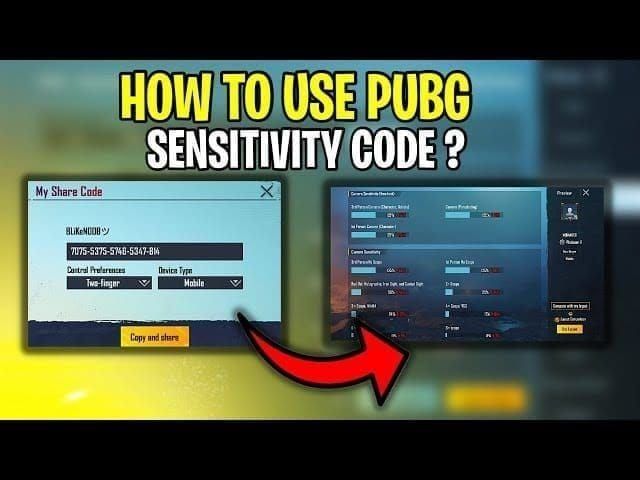
Launch PUBG Mobile and complete the initial tutorial if this is a fresh installation. Navigate to Settings > Sensitivity > Cloud > Enter Code. The interface presents a text field for manual code entry, requiring precise input of all 19 digits including hyphens.
Input your 19-digit code carefully, double-checking each segment before confirming. Common codes from experienced players include 7435-8846-3421-0303-0728 for balanced general play, 7462-2496-3022-3831-210 for aggressive close-quarters combat, and 7478-5115-3389-3888-855 for iOS-optimized settings.
Converting Camera Sensitivity Values for iOS Touch Response
After importing your code, increase baseline camera sensitivity by 5-10% to compensate for iOS touch response differences. If your Android TPP No Scope setting was 95%, adjust to 100-105% on iPhone.
For iPad transfers, apply more aggressive adjustments: increase camera sensitivity by 20-30% due to larger screen requiring greater finger travel distances. A setting of 95% on Android phone should become 115-125% on iPad Pro.
Fine-Tuning for iOS Touch Response Differences
Test your imported settings immediately in Training Ground for 10-15 minutes before entering ranked matches. Focus on M416 and SCAR-L recoil control at 50-meter targets, evaluating whether spray patterns match your Android performance.
Perform both static and dynamic target drills. Practice tracking moving targets while strafing, execute quick 180-degree turns to simulate ambush responses, and test gyroscope functionality if you use motion controls.
Gyroscope Sensitivity Adjustment for iPhone Models
Gyroscope calibration often requires reduction when transferring to iOS. If your Android gyroscope settings were 300 across all scopes, decrease by 50-100 points on iPhone to prevent overshooting. iPhone's gyroscope sensors typically offer higher precision and faster response rates than most Android devices.
Test gyroscope functionality by enabling it for specific scopes (commonly 3x, 4x, 6x) and practicing controlled horizontal tracking. If you experience overcorrection when compensating for recoil, reduce gyroscope values in 5-10% increments until achieving stable control.
Complete ADS Sensitivity Transfer Guide for All Scopes
ADS sensitivity requires scope-specific adjustments when moving from Android to iOS. The general principle involves increasing values by 15-25% for most scope types. Red Dot and Holographic sights typically need 15-20% increases, while higher magnification scopes (6x, 8x) may require 20-25% adjustments.
120Hz devices demand additional sensitivity compensation, requiring 20-25% increases beyond standard iOS adjustments. If you're upgrading to iPhone 15 Pro or Pro Max with ProMotion displays, factor this higher refresh rate into your calculations.
Red Dot and Holographic Sight Sensitivity Migration
If your Android Red Dot sensitivity was 88%, increase to 100-105% on iPhone. This maintains your ability to track strafing enemies during building-to-building combat while accounting for iOS touch response characteristics.
Test these settings in Training Ground's close-quarters areas, engaging targets at 10-30 meter ranges while moving. Your crosshair should track smoothly across targets without overshooting or requiring excessive correction swipes.
Mid-Range Scope Settings (2x, 3x, 4x) Transfer Process
For 2x scopes, increase your Android value by 15-20%; a setting of 85% becomes 98-102% on iOS. The 3x scope follows similar adjustment patterns: 80% Android translates to 92-96% on iPhone.
The 4x scope bridges mid-range and long-range combat. An Android 4x sensitivity of 75% typically adjusts to 86-90% on iOS devices, with iPad users potentially reaching 90-95% due to screen size factors.
Long-Range Scope Sensitivity (6x, 8x) Conversion
For 6x scopes, increase Android values by 18-23%; a 65% setting becomes 77-80% on iPhone. This range allows fine-tuning based on whether you primarily use 6x for stationary sniping or aggressive mid-range pushes.
The 8x scope requires the most conservative approach. Increase Android values by 15-20% maximum; a 60% setting adjusts to 69-72% on iOS. Excessive 8x sensitivity creates instability when tracking distant moving targets.
Why iOS May Require Lower ADS Values in Specific Scenarios
Players transitioning from high-refresh-rate Android devices (144Hz gaming phones) to standard 60Hz iPhones may need to decrease ADS values by 5-10% to compensate for lower screen refresh rate affecting visual feedback.
Device grip and hand size interactions with iPhone form factors also influence optimal sensitivity. The squared edges of iPhone 12 and newer models change how players stabilize the device during intense firefights. If you experience hand fatigue or inconsistent aim after several matches, consider reducing ADS sensitivity by 5% increments.
Recreating Your Custom Layout on iOS Devices
Custom layout recreation requires methodical reference to your Android screenshots while accounting for iOS screen dimensions. Begin with essential combat elements: primary fire button, ADS toggle, crouch/prone controls, and jump button.
iPhone screen aspect ratios (typically 19.5:9) create taller, narrower displays compared to many Android devices. Buttons that felt perfectly positioned on a 6.7-inch Android phone may require vertical repositioning on a 6.1-inch iPhone to maintain ergonomic accessibility.
Using Screenshots as Reference Templates
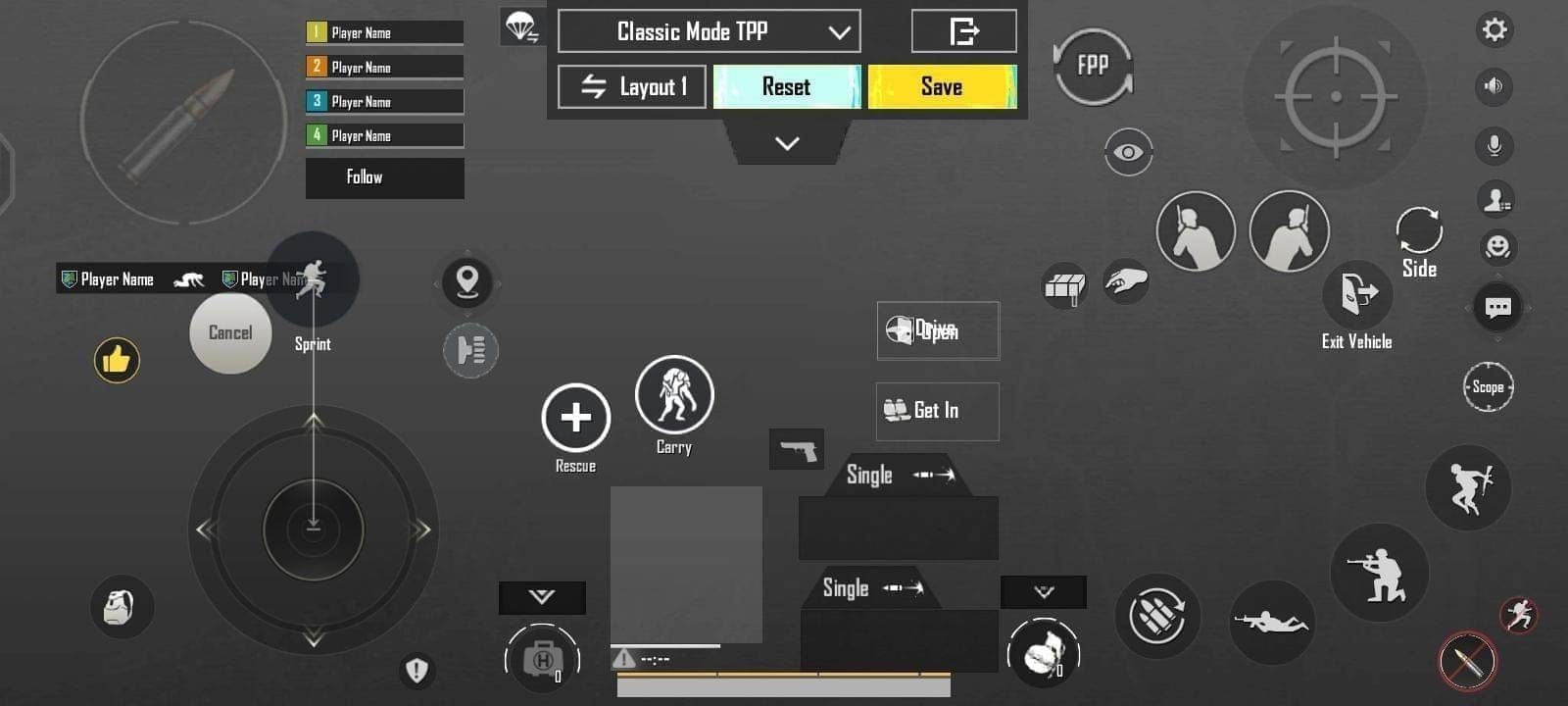
Display your Android layout screenshot on a secondary device or computer monitor while configuring your iOS layout. This side-by-side comparison enables precise replication of button spacing, size ratios, and relative positioning.
Measure button sizes relative to screen elements that remain consistent across platforms. If your fire button was approximately 1.5 times the size of the minimap on Android, maintain that ratio on iOS.
Positioning Fire Buttons for iPhone Screen Sizes
The primary fire button typically occupies the lower-right corner for right-handed players. On iPhone, start by placing the button's center approximately 15-20% from the right edge and 10-15% from the bottom edge.
Test fire button placement by holding your iPhone in your normal gaming grip and tapping rapidly without looking at the screen. Your thumb should contact the button center naturally without stretching or repositioning your hand.
Optimizing Layout for iPad's Larger Display
iPad layouts require fundamentally different approaches due to the device's size demanding two-handed operation. Position fire buttons within comfortable thumb reach zones, typically 25-30% from each side edge.
Consider claw grip configurations for competitive iPad play, positioning fire buttons higher on the screen (30-35% from top edge) to enable index finger operation. This advanced technique frees thumbs exclusively for movement and camera control.
Movement Controls and Joystick Placement Strategy
The movement joystick typically occupies the lower-left corner. On iPhone, position the joystick center approximately 15-20% from the left edge and 10-15% from the bottom edge. Ensure adequate spacing between the joystick and nearby buttons to prevent accidental activation.
Joystick size significantly impacts movement precision. Larger joysticks (120-140% of default size) provide better control but consume more screen space. Smaller joysticks (80-100% of default size) maximize visibility but may reduce movement accuracy.
Device-Specific Optimization for iPhone and iPad Models
iPhone 15 Pro and Pro Max models offer 120Hz ProMotion displays, requiring sensitivity adjustments beyond standard iOS recommendations. Increase camera and ADS sensitivity by an additional 5-10% compared to 60Hz iPhone models. A setting of 105% on standard iPhone becomes 110-115% on Pro models.
For players looking to maximize their new device's potential, maintaining adequate UC balance ensures access to premium weapon skins and season passes. BitTopup offers secure, instant UC delivery, allowing you to buy UC for new PUBG account setups without delays.
iPhone 15 Pro Max: Best Layout Configuration
The 6.7-inch display provides ample space for comprehensive HUD layouts without excessive button overlap. Position your fire button 18% from the right edge and 12% from the bottom. The extended display width allows placing inventory shortcuts and grenade buttons without interfering with primary combat controls.
Enable the highest graphics settings (HDR + Extreme frame rate) that maintain consistent 60+ FPS performance. The A17 Pro chip handles PUBG Mobile's maximum settings while maintaining thermal stability during extended sessions.
iPad Pro Setup for Competitive Advantage
iPad Pro's 11-inch or 12.9-inch displays fundamentally change PUBG Mobile gameplay, offering superior visibility for spotting distant enemies. Increase camera sensitivity by 25-30% compared to your Android phone settings to compensate for dramatically increased swipe distances.
Implement a four-finger claw layout to maximize competitive advantages. Position fire buttons for index finger operation at 30% from the top edge, place ADS toggle and scope switching for middle fingers at 45% from top, and reserve thumbs exclusively for movement and camera control.
Graphics Settings for Optimal Performance on iOS
Balance visual quality with frame rate stability by selecting graphics presets appropriate for your device's capabilities. iPhone 15 Pro models handle HDR graphics with Extreme frame rates, while iPhone 12-14 standard models perform best with Balanced or HD graphics at Ultra frame rates.
Disable unnecessary visual effects that consume processing resources. Turn off shadows, reduce anti-aliasing to medium, and disable motion blur. These adjustments free GPU resources for maintaining stable frame rates during intense final circles.
Frame Rate and Smoothness Adjustments
Prioritize frame rate stability over peak frame rate numbers. A consistent 60 FPS provides better aiming precision than fluctuating between 90-120 FPS with occasional drops to 45 FPS during combat.
Enable Smooth graphics preset if you experience any frame rate inconsistency, even on high-end devices. The visual quality reduction is minimal compared to the competitive advantage of perfectly stable frame delivery.
Testing and Calibrating Your Transferred Settings
Allocate 10-15 minutes for comprehensive evaluation covering all weapon types, engagement ranges, and movement scenarios. Begin with stationary target practice using M416 and SCAR-L at 50 meters, dumping full magazines to assess vertical recoil control consistency.
Progress to dynamic drills simulating real combat situations. Practice tracking moving targets while strafing, execute quick 180-degree turns followed by immediate target acquisition, and test gyroscope responsiveness if you use motion controls.
Training Ground Testing Protocol
Start with assault rifle recoil control evaluation. Equip an M416 with vertical grip and compensator, engage targets at exactly 50 meters, and fire full 40-round magazines in controlled bursts. Your bullet grouping should match your Android performance, with vertical spread staying within ±5-10% of your previous results.
Test each scope type individually with appropriate weapons. Use Red Dot on M416 for close-range tracking (10-30m), 3x on M16A4 for mid-range precision (50-100m), 4x on Mini14 for versatile engagement (75-150m), and 6x/8x on Kar98k for long-range accuracy (150-300m).
Sensitivity Adjustment Workflow for Quick Fixes
Implement adjustments in 5-10% increments over a one-week period to allow muscle memory adaptation. Changing sensitivity by more than 10% at once disrupts established motor patterns, potentially degrading performance temporarily.
Document each adjustment with date and specific changes made. Example: Day 1: Reduced TPP No Scope from 110% to 105%. Day 3: Reduced Red Dot ADS from 100% to 95%. Day 5: Increased 4x ADS from 86% to 90%.
Comparing Feel Between Old Android and New iOS Device
Perform direct A/B testing if you still have access to your Android device. Play one match on Android, immediately switch to iOS for the next match, and note specific differences in aim feel, tracking smoothness, and recoil control effectiveness.
Focus on muscle memory consistency rather than chasing identical numerical feel. Your goal is achieving equivalent competitive performance on iOS, not perfectly replicating every subtle sensation from Android.
When to Make Further Tweaks vs Adapt to New Feel
Allow 1-2 weeks of regular play before making major sensitivity overhauls. Initial discomfort often stems from adapting to new device ergonomics, screen size, and weight distribution rather than incorrect sensitivity values.
Make additional adjustments only if specific, measurable problems persist after the adaptation period. Examples: consistently overshooting targets by 10-15% during tracking, inability to control vertical recoil on weapons you previously mastered, or gyroscope introducing unintended movement during ADS.
Common Transfer Issues and Expert Solutions
Aim feeling excessively fast on iOS typically indicates insufficient sensitivity reduction to compensate for Apple's touch acceleration algorithms. Reduce camera sensitivity by 5-10% from your current values, focusing particularly on TPP No Scope and Free Look settings.
Conversely, sluggish aim suggests over-conservative sensitivity transfer or failure to account for iOS touch response differences. Increase camera sensitivity by 5-10%, ensuring you haven't accidentally imported settings designed for Android tablets rather than phones.
Why Your Aim Feels Too Fast or Too Slow on iOS
Touch sampling rate differences between your old Android device and new iPhone create the most common sensitivity perception issues. If you switched from a 60Hz Android phone to a 120Hz iPhone Pro, the doubled touch polling rate makes identical sensitivity values feel significantly faster. Reduce sensitivity by 10-15% to compensate.
Screen coating and glass treatments affect finger friction, changing how quickly you can execute swipe gestures. New iPhones with pristine oleophobic coatings offer less friction than worn Android devices, potentially making your aim feel slippery.
Fixing Layout Elements That Won't Stay in Position
Layout elements reverting to default positions after saving indicate insufficient free storage space or corrupted app cache. Clear PUBG Mobile's cache through iOS Settings > General > iPhone Storage > PUBG Mobile > Offload App (then reinstall). Ensure at least 2GB free storage remains.
Buttons appearing in slightly different positions than configured suggest aspect ratio calculation errors. This occurs when transferring layouts between devices with significantly different screen dimensions. Manually reposition affected buttons, then test by closing and reopening the app several times.
Resolving Gyroscope Calibration Problems
Gyroscope drift or unintended movement during ADS indicates calibration issues or excessive sensitivity values. Perform device-level gyroscope calibration through iOS Settings > Privacy & Security > Motion & Fitness > Calibrate. Place your iPhone on a flat, stable surface during calibration.
If calibration doesn't resolve drift, reduce in-game gyroscope sensitivity by 50-100 points across all scopes. iOS gyroscope sensors typically offer higher precision than Android equivalents. Test with conservative values (200-250 range) before gradually increasing if needed.
Account Linking Issues During Device Switch
Account linking failures prevent sensitivity code imports and progress synchronization. Verify your account connection through Settings > Account > Linked Accounts, ensuring your Facebook, Twitter, or Apple ID binding shows Connected status.
Multiple account conflicts occur when you've previously played PUBG Mobile on iOS with a different guest account. Log out completely from any existing accounts, clear app data, and perform a fresh login with your primary Android account credentials.
Advanced Tips for Serious Players Switching Platforms
Create multiple sensitivity profiles for different game modes and playstyles. Maintain one profile optimized for aggressive hot-drop combat with higher sensitivity for quick target switching, and a second profile for late-game positioning with reduced sensitivity for precise long-range engagements.
Implement a seasonal backup strategy to preserve successful sensitivity configurations. At the start of each season, export your current code and store it in a secure note-taking app with date and performance context (e.g., Season 7 - Ace Tier - 4.2 K/D).
Creating Multiple Layout Profiles for Different Game Modes
Classic mode layouts prioritize long-term survival and versatile engagement capabilities. Position inventory management buttons prominently for quick healing and utility usage during rotations. Include easily accessible scope switching for adapting to varied engagement ranges.
Arena and TDM modes benefit from streamlined layouts focusing exclusively on combat controls. Enlarge fire buttons by 10-20% for improved accuracy during constant firefights, minimize or hide inventory elements irrelevant to respawn modes, and position grenade shortcuts for instant access.
Seasonal Settings Backup Strategy
Export your sensitivity code at the beginning, middle, and end of each season, documenting your rank and statistics alongside each backup. This temporal tracking reveals how your settings evolve with skill development and meta changes.
Store backup codes in multiple locations: cloud note-taking apps, password managers, and physical notebooks. Include contextual notes with each code: device used, graphics settings, average frame rate, and specific strengths/weaknesses you noticed.
Performance Monitoring Tools for iOS PUBG Mobile
Enable the in-game FPS counter through Settings > Graphics > Show FPS to monitor frame rate stability during matches. Consistent frame delivery matters more than peak FPS numbers for competitive performance.
Monitor device temperature during extended sessions by checking if the back of your iPhone becomes uncomfortably warm. Excessive heat triggers thermal throttling, reducing performance and potentially affecting touch responsiveness. If temperature becomes problematic, reduce graphics settings or enable Low Power Mode between matches.
Frequently Asked Questions
Can you transfer PUBG Mobile settings from Android to iPhone automatically?
No automatic transfer exists, but the 19-digit sensitivity code system enables quick manual transfer in approximately 30 seconds. Export your code from Android via Settings > Sensitivity > Layout > Share, then import on iOS through Settings > Sensitivity > Cloud > Enter Code. Custom layouts require manual recreation using screenshots as reference.
Do PUBG Mobile sensitivity values work the same on iOS and Android?
No. Identical numerical values produce different gameplay experiences due to touch response algorithm differences, screen technology variations, and refresh rate disparities. Generally increase sensitivity by 5-15% when transferring from Android phones to iPhone, and 20-30% for camera sensitivity when moving to iPad.
How do I save my PUBG Mobile layout before switching phones?
Take comprehensive screenshots of all HUD elements from multiple screen views (gameplay, inventory, vehicle controls). Document button positions relative to screen edges and other elements. Sensitivity settings transfer via 19-digit codes, but layout positions require manual recreation using screenshots as templates.
Will my PUBG Mobile account transfer to iPhone from Android?
Yes, your account transfers completely across platforms when properly linked to Facebook, Twitter, Apple ID, or other supported services. All progress, purchases, skins, and statistics synchronize automatically. Verify account linking before switching devices through Settings > Account > Linked Accounts.
What sensitivity settings do pro players use on iPhone?
Professional players use highly personalized settings, but common iOS codes include 7478-5115-3389-3888-855 for balanced play and variations like 7478-5115-3389-3888-854 for specific playstyles. However, importing pro codes without adjustment rarely produces optimal results—use them as starting points, then customize based on your hand size, grip style, and preferred engagement ranges.
How long does it take to transfer PUBG settings to new phone?
Sensitivity code import takes approximately 30 seconds, while complete layout recreation requires 15-20 minutes depending on customization complexity. Allow an additional 10-15 minutes for Training Ground testing and initial calibration. Full muscle memory adaptation to the new device typically requires 1-2 weeks of regular play.