Tip: once your FPS and aim feel settled, top up Delta Coins on BitTopup if you need Battle Pass or operator skins without overpaying.
Delta Force Best Settings Cheatsheet (August 2026)
Updated on 2026-08-07: competitive PC preset refreshed for current Operations / Warfare menus.
Area | Recommended value | Why it matters |
|---|
Display mode | Borderless Windowed or Fullscreen | Fullscreen cuts latency; borderless keeps alt-tab clean |
V-Sync | Off | Stops the game from waiting on the monitor |
In-match FPS cap | Match your refresh rate (144 / 165 / 240) or leave headroom | Caps prevent wild spikes that feel sticky |
Sharpness | 80–100 | Hardens edges after TAA / DLSS softens them |
Default FOV | 110 | Wide enough for flanks without shrinking distant targets too hard |
Texture quality | Ultra (or High on weak GPUs) | Enemy outlines and gear stay readable |
Everything else (blur, fog, particles, reflections) | Low / Off | Clears clutter and frees GPU time |
Super resolution | DLSS or FSR Quality | Extra frames with less blur than dropping native res |
NVIDIA Reflex | Enhanced (On + Boost) | Cuts click-to-pixel delay on supported cards |
ADS sens type | MDV only | Same feel across scopes |
Monitor distance coefficient | 1.33 | Standard vertical match for ADS |
Mouse acceleration (Windows) | Enhance pointer precision Off | 1:1 mouse travel |
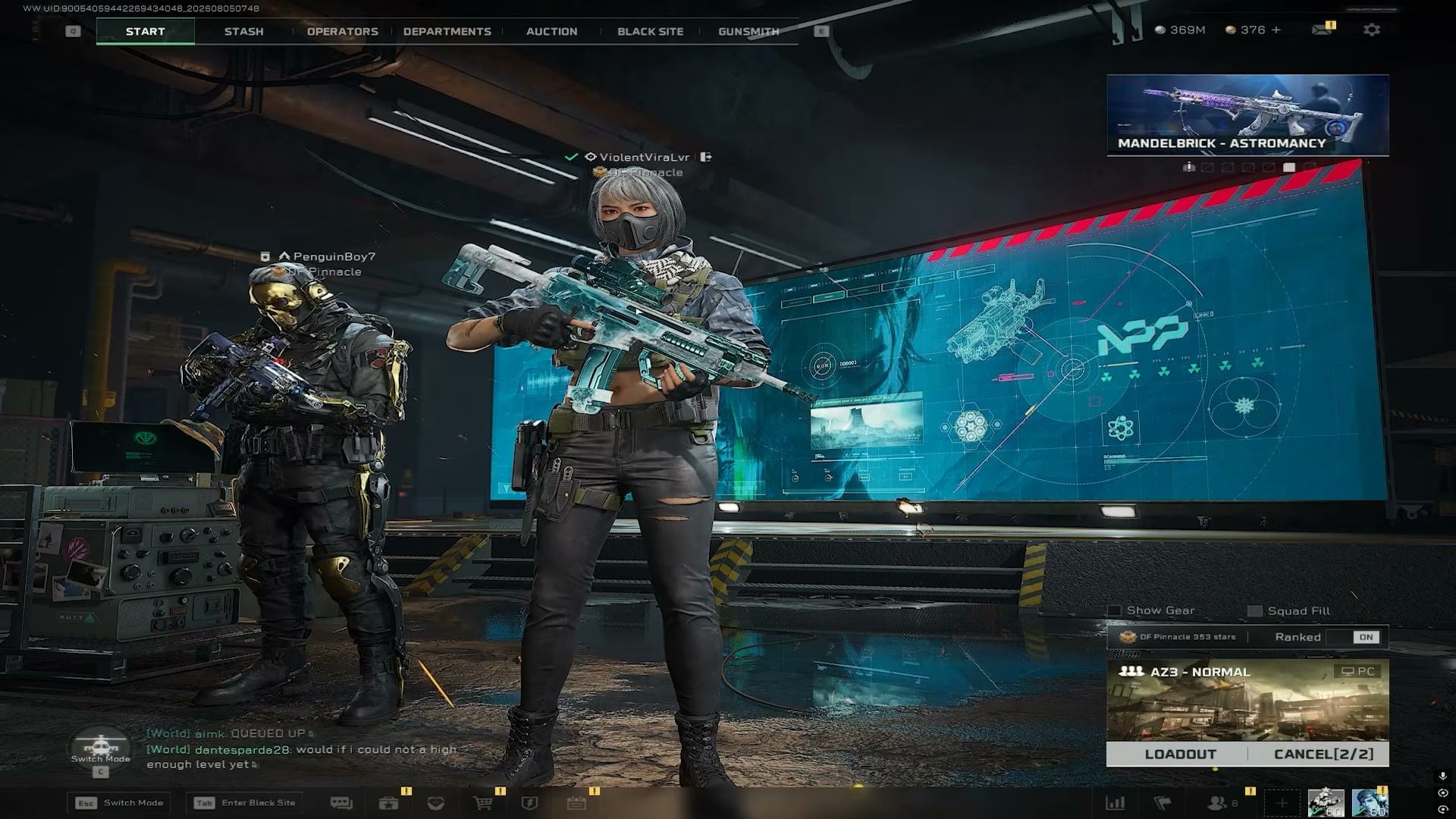
Copy-paste graphics preset
Setting | Value |
|---|
Graphics Preset | Custom |
Weapon Motion Blur | Off |
Reflections | Low |
Texture Filtering | Low |
Ambient Occlusion | Off |
Particles | Low |
Distortion | Low |
Scene Details | Low |
Scene View Distance | Low (raise to Medium/High if you hold 144+ FPS) |
Rendering Scale | 100 |
Depth of Field | Off |
Global Illumination | Low |
Shaders | Low |
Textures | Ultra |
Streaming | Low |
Shadows | Low |
Shadow Map | Low |
Post-Processing | Low |
Volumetric Fog | Low |
Animation | Low |
Super Resolution Mode | NVIDIA DLSS / AMD FSR |
Super Resolution | Quality |
Frame Generation | Off for ranked aim feel |
NVIDIA Reflex | Enhanced |
If Aftershock or other particle-heavy maps still drop hard, keep Particles and Volumetric Fog on Low and see the Delta Force 2026 performance guide for map-specific cuts.
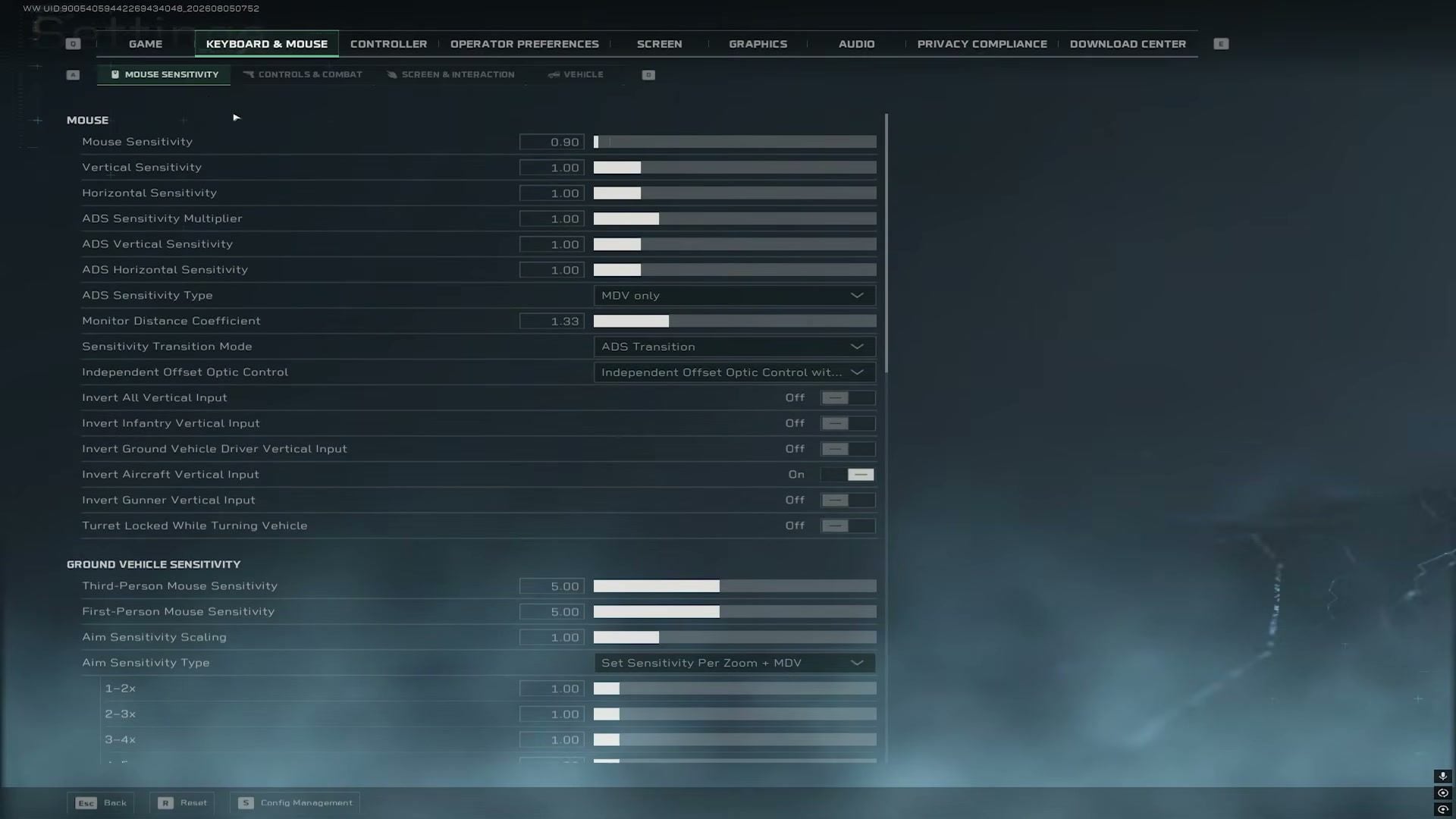
Sensitivity baseline (PC mouse)
Setting | Value |
|---|
Mouse Sensitivity | Start at 0.90 (fine-tune ±0.05) |
Vertical / Horizontal Sensitivity | 1.00 / 1.00 |
ADS Sensitivity Multiplier | 1.00 |
ADS Vertical / Horizontal | 1.00 / 1.00 |
ADS Sensitivity Type | MDV only |
Monitor Distance Coefficient | 1.33 |
Sensitivity Transition Mode | ADS Transition |
Ground vehicle 3rd / 1st person sens | 5.00 / 5.00 |
Pick one DPI (800 or 1600 is common) and leave it alone. Convert from Valorant, CS2, or another FPS with mouse-sensitivity.com so your cm/360 stays familiar. Disable Windows Enhance pointer precision.
Gameplay and HUD toggles
Scope Magnification Adapts Automatically: On
Auto Airborne Mantle / Autopilot / Auto Parachute: Off
Hit Effect Color: bright yellow (or any high-contrast color you track)
Mark Wheel Transparency / Marker Opacity: 100
Premade Squad Loot Sharing: On (Operations)
Show Performance Parameters: On (watch FPS while you tune)
Show Player Names: On
Wheel Style: Transparent
Minimap rotating perspective: Off; icon scale around 75%
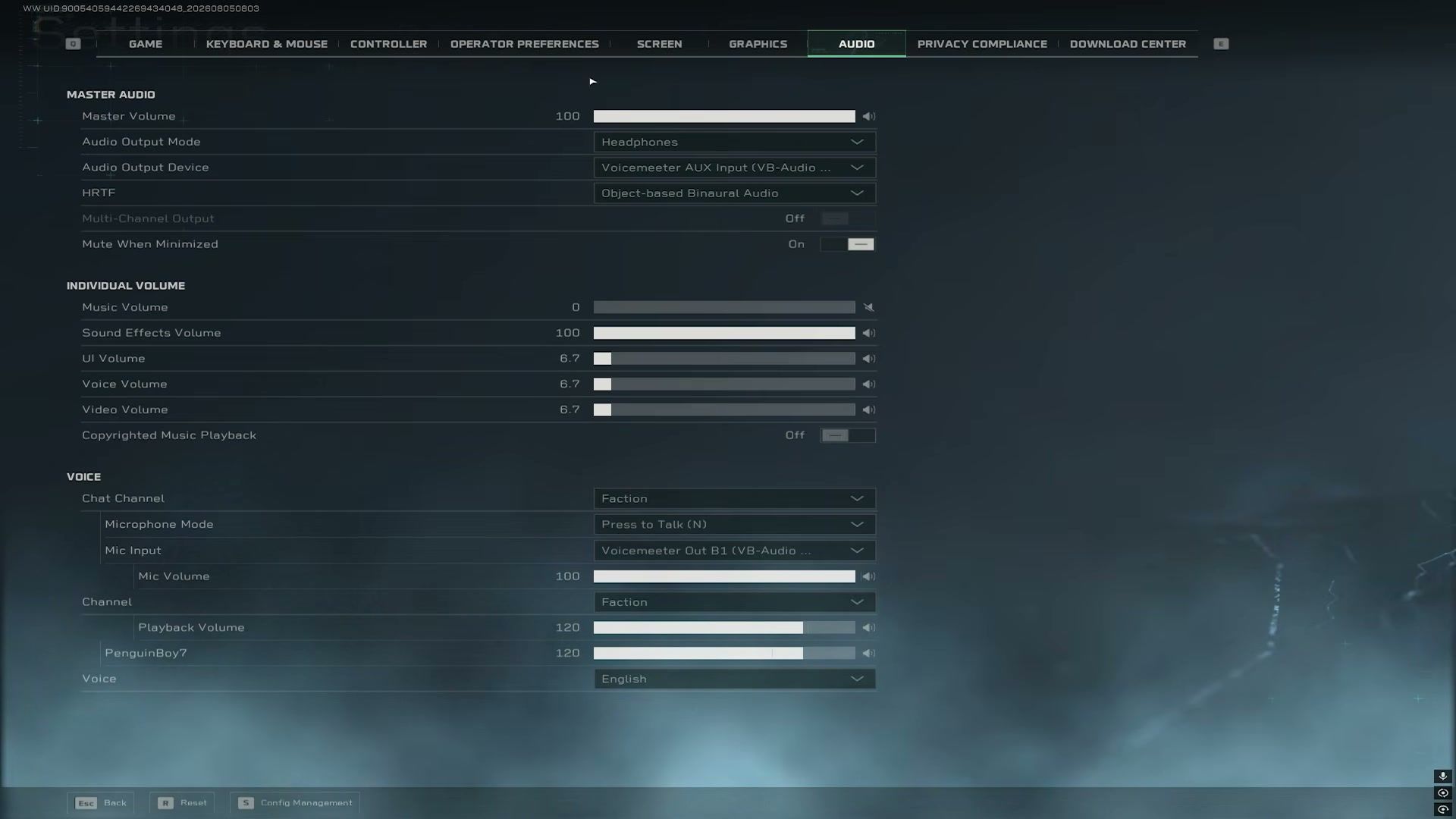
Audio for footsteps
Setting | Value |
|---|
Audio Output Mode | Headphones |
HRTF | Object-based Binaural Audio |
Master Volume | 100 |
Music Volume | 0 |
Sound Effects Volume | 100 |
UI / Voice / Video Volume | Low (~5–10) |
Microphone Mode | Press to Talk |
Copyrighted Music Playback | Off (streamers) |
Windows Spatial Sound | Off while HRTF is on |
How to Apply Delta Force Best Settings
Step 1: Open Settings from the lobby. Set Screen and Graphics first so you get a stable FPS read before you touch aim.
Step 2: Cap in-match FPS near your monitor refresh rate, set FOV to 110, Sharpness high, V-Sync Off. Apply, then recompile shaders if the game prompts you (G in the graphics menu).
Step 3: Drop blur, fog, particles, and reflections. Keep Textures on Ultra/High. Turn on DLSS/FSR Quality and Reflex Enhanced.
Step 4: Under Keyboard & Mouse → Mouse Sensitivity, set MDV only, coefficient 1.33, and a hipfire value near 0.90. Spend ten minutes in the range before you change anything else.
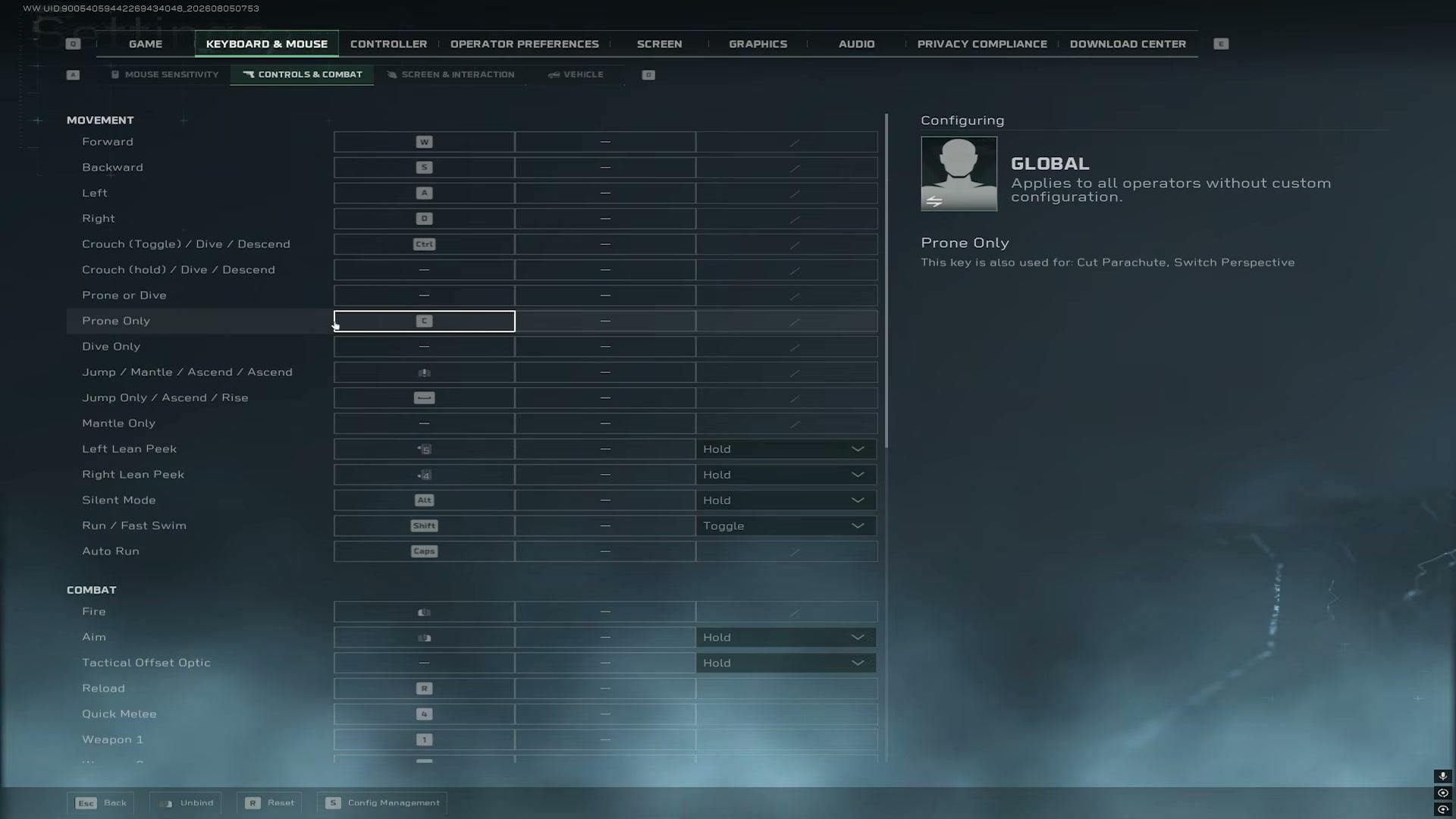
Step 5: Bind leans to mouse side buttons (Hold) if your mouse has them, keep Aim on Hold, and set gadget throw to Quick Throw where the menu allows. Use Global binds first; switch to per-operator configs only after the baseline feels normal. Controller players can start from our Delta Force controller support guide.
Step 6: Set audio to Headphones + Object-based Binaural Audio, music to 0, SFX to 100. Mute Windows Spatial Sound so it does not fight HRTF.
Extra Visibility Tweaks (NVIDIA / Display)
These sit outside the in-game menu and help enemy silhouettes pop on muddy maps.
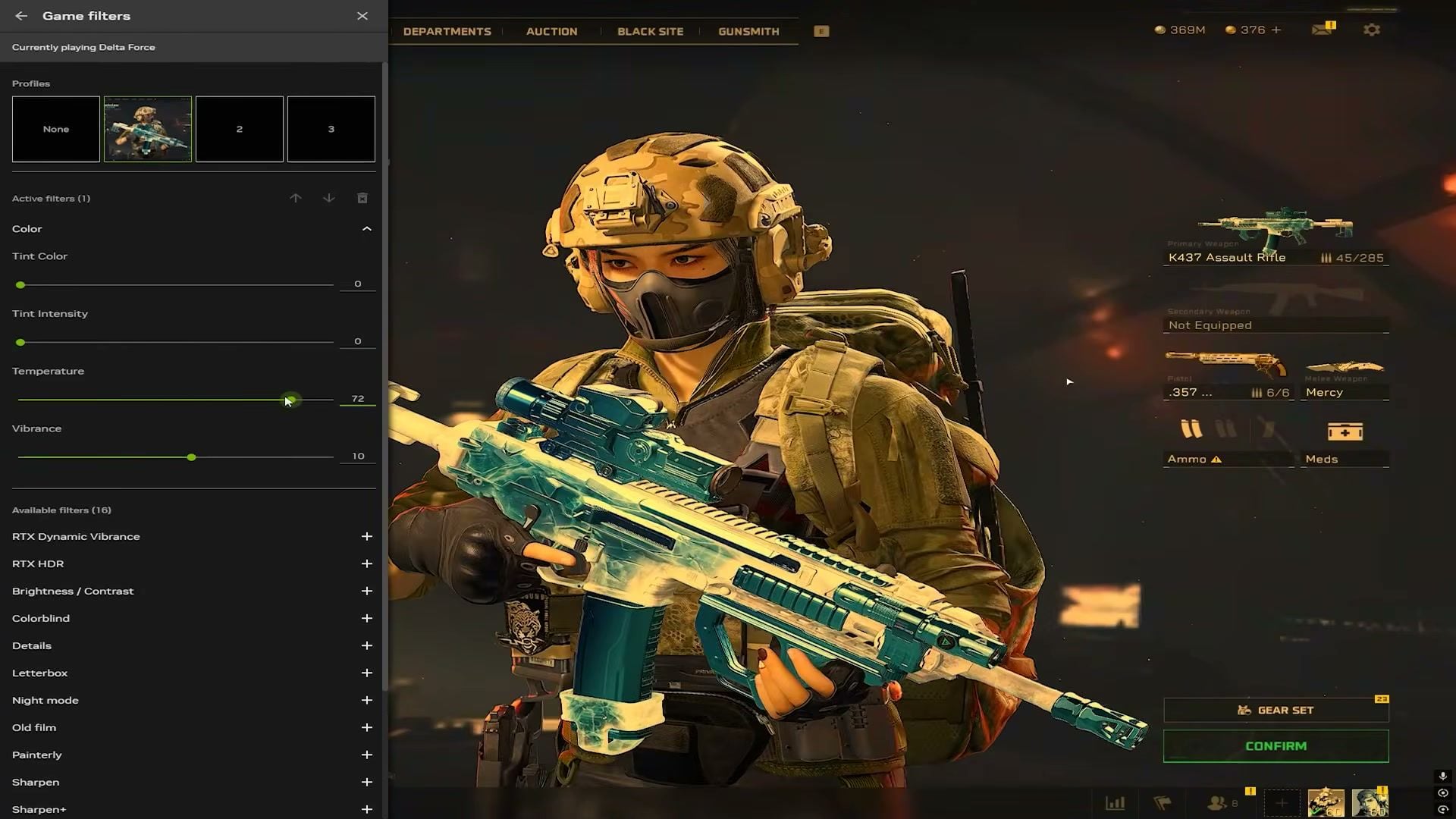
NVIDIA Game Filter (Alt+F3 / GeForce overlay)
Add a Color filter
Temperature: try 70–75 as a warm start
Vibrance: small bump first (+5 to +10); dial back if skin tones look neon
Optional: Sharpen+ at a light strength if DLSS softens too much
NVIDIA Control Panel
Refresh rate: highest your panel supports (144 / 165 / 240 Hz)
Optional competitive stretch: custom 1920×1440 on a 1440p panel (wider models, personal taste)
Desktop color: Digital Vibrance around 70–75%, Brightness ~60%, Contrast ~45%
Output dynamic range: Full
Hardware notes
Rapid Trigger keyboards (Wooting and similar): low actuation + Rapid Trigger on WASD helps counter-strafing
Competition mouse mode / 0 ms debounce if your firmware offers it
Need a machine check first? See Delta Force system requirements
How to Get More Out of Your Setup
Practice the new sens in the shooting range for one session before ranked. Change one value at a time.
On particle-heavy maps, drop Particles / Fog first; keep Textures high so you still read operators.
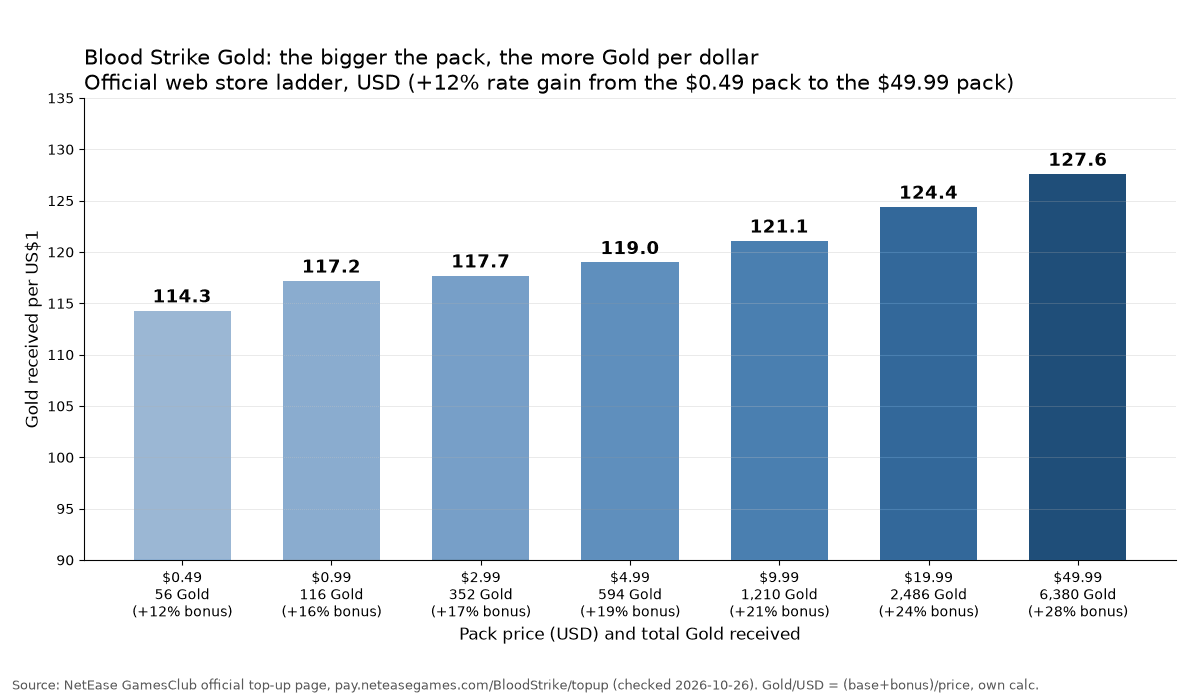
Stock Delta Coins for the Battle Pass and limited skins through BitTopup Delta Force top-up. Bundles often include bonus coins versus the in-game store. For pack math and timing, read the Delta Force top-up guide.
FAQ
What are the best Delta Force settings for FPS?
Custom preset, V-Sync Off, motion blur Off, most effects Low, Textures High/Ultra, DLSS or FSR on Quality, Reflex Enhanced. Cap FPS near your refresh rate so the frame time stays even. Mid-range cards often land in the 100–150 range after this; high-end builds can hold 200+ on many maps.
What FOV should I use in Delta Force?
110 is the sweet spot for most PC players. Go toward 120 if you want more peripheral vision. Drop closer to 105 if long-range targets feel too small.
What sensitivity should I use in Delta Force?
Use MDV only with coefficient 1.33, vertical and horizontal at 1.00, and start mouse sensitivity near 0.90 at a fixed DPI. Convert from a game you already play if you want the same cm/360. Skip random pro configs until your own baseline feels stable.
Should I turn on DLSS Frame Generation?
Leave Frame Generation Off for ranked if you care about the purest aim feel. Use DLSS/FSR Quality for resolution scaling, and Reflex Enhanced for latency. Turn Frame Generation on only when you need cinematic FPS and accept the tradeoff.
Is BitTopup safe for Delta Force top-up?
BitTopup delivers Delta Coins with your Player ID only. No password share. Orders usually land within a few minutes. Start with a small pack if you want to verify delivery before a larger purchase.
Conclusion
Stable frames and clear enemies beat maxed graphics in Delta Force. Copy the cheatsheet, test FOV and sens in the range, then change one slider at a time after each patch. Bookmark this page for August 2026 updates. Need Delta Coins for the pass or a new operator? Recharge on BitTopup.