Learn how to change auto pause sensitivity in Keep app running mode, stop false stops on slow hills, and tune sensor triggers for uninterrupted workout data.
Few things ruin a tempo run faster than your fitness tracker chiming to announce a halt while you are grinding up an 8% grade. You are breathing hard, your legs are turning over, but the screen insists you took a breather. Moments later, you pause at a busy four-way intersection, wait for traffic to clear, sprint across, and realize half a kilometer down the road that tracking never woke back up.
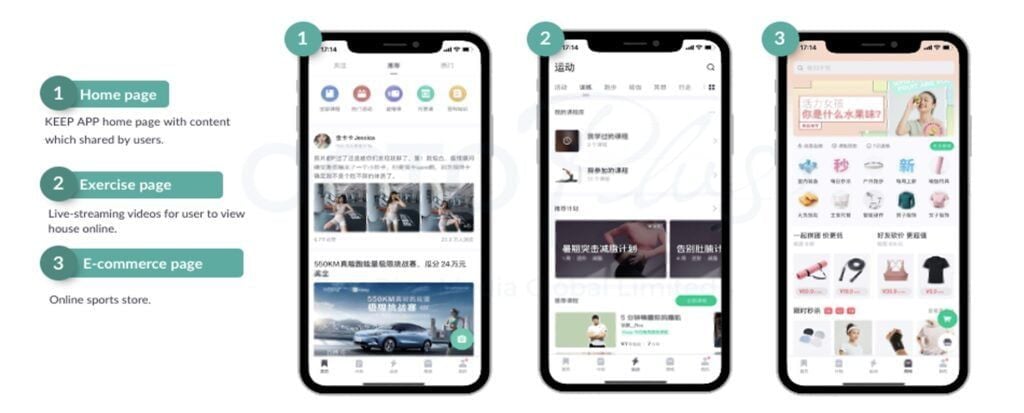
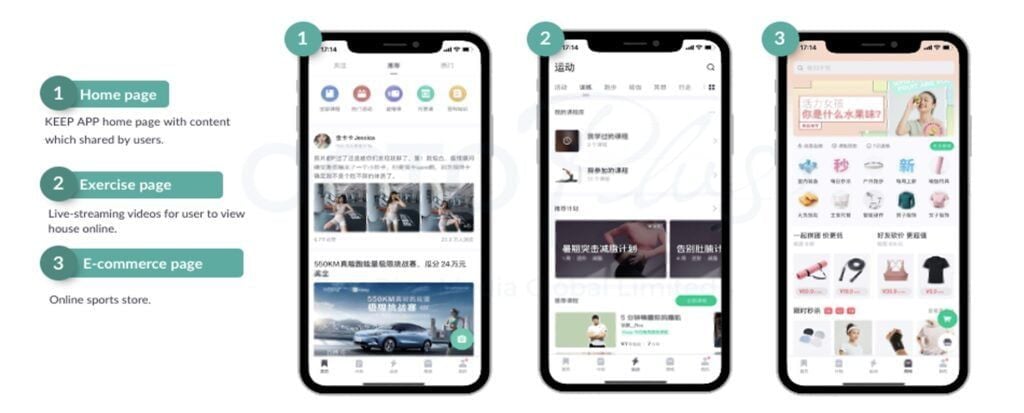
Keep CN remains an indispensable fitness platform for tracking runs, tracking cadence, and syncing outdoor routes. Yet, its out-of-the-box motion threshold configuration can be notoriously aggressive. Running modes depend on a sensitive blend of GPS position changes and phone accelerometer data. When those two streams disagree, the app makes an executive decision to cut tracking.
When Keep auto-pauses mid-stride or refuses to wake back up, you can recalibrate how the engine interprets movement. Fixing it requires adjusting the in-workout threshold, resetting system battery limits, and calibrating your device's stride sensors.
Why Keep Triggers False Pauses During Running Sessions
Auto-pause behaves differently depending on the sport profile selected. In cycling modes, tracking algorithms rely almost exclusively on continuous satellite movement. If your ground speed calculated via GPS coordinates drops to zero, tracking halts. Running, however, introduces arm swing, cadence variations, and vertical oscillation. Because GPS reception often drifts when passing through high-rise urban corridors or dense tree canopies, fitness platforms rely heavily on device accelerometers rather than satellite speed alone to determine if you are actually moving.
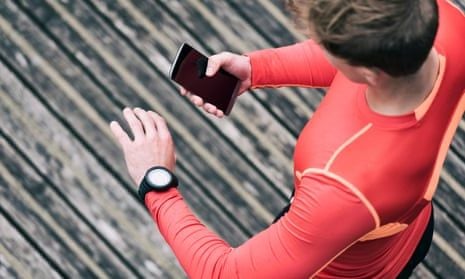
When you slow down for a walk break or tackle a steep incline, your arm swing slows down and cadence drops. If the accelerometer registers diminished movement while satellite signals fluctuate, the app assumes you have stopped.
Another frequent culprit is sensor acquisition lag. GPS hardware requires roughly 10 to 60 seconds of stationary satellite acquisition before starting an activity. If you hit "Start" the second you step outside your front door, the initial positioning fix will be erratic. The software perceives these wild coordinate jumps followed by stabilization as sudden stops, triggering immediate pause loops.
| Sport Tracking Mode | Primary Detection Sensor | Secondary Validation Source | Typical Auto-Pause Cause |
| :--- | :--- | :--- | :--- | :--- | :--- |
| Outdoor Running | Internal Accelerometer | GPS Speed Calculations | Reduced arm swing or cadence dip below threshold |
| Outdoor Cycling | GPS Satellite Movement | Network Cell Triangulation | Physical stop or signal blockage in urban canyons |
| Smartwatch Running | Calibrated Wrist Sensor | Device GPS & Heart Rate | Wrist detection disconnect or loose band fitting |
Sensor fusion dictates how platforms interpret your pace, making motion sensors far more critical than satellites for running modes.
Keep App Running Auto Pause Threshold Configuration
Finding Keep CN's sensitivity controls requires checking workout-specific menus rather than global account settings. Auto-pause sensitivity cannot be adjusted from your main profile menu; it resides directly inside the workout execution module.
Step-by-Step Settings Navigation
- Launch the Keep app and select the Outdoor Run (户外跑) tab on the home workout dashboard.
- Tap the Settings Gear icon located in the upper-right or lower-right corner of the pre-run map preview screen.
- Locate the Auto Pause (自动暂停) toggle.
- Tap directly on the label or sensitivity submenu adjacent to the toggle to reveal threshold options.
- Select your desired trigger threshold: High Sensitivity (tight cadence/speed lock), Standard (default), or Low Sensitivity (lenient trigger for walk-run training).
- Ensure Audio Cues (语音提示) for pause and resume events are switched on so you receive real-time audio warnings through your headphones.
If you want custom training metrics, heart rate analysis, and structured running plans, you can pick up a Keep Premium Member Top up (CN) to unlock the full suite of telemetry tools directly inside the app.
Switch to Low Sensitivity if you mix walking intervals with jogging. High Sensitivity suits track runners and road racers who hold cadences above 165 SPM (strides per minute) and want zero idle time recorded at intersections.
Calibrating Motion Sensors and GPS for Zero False Stops
Software toggles inside Keep are only half the battle. If your phone or connected smartwatch feeds noisy raw data into the app, changing auto pause sensitivity in Keep app menus will not solve the issue. You must calibrate your hardware sensors so the background services interpret your physical gait correctly.
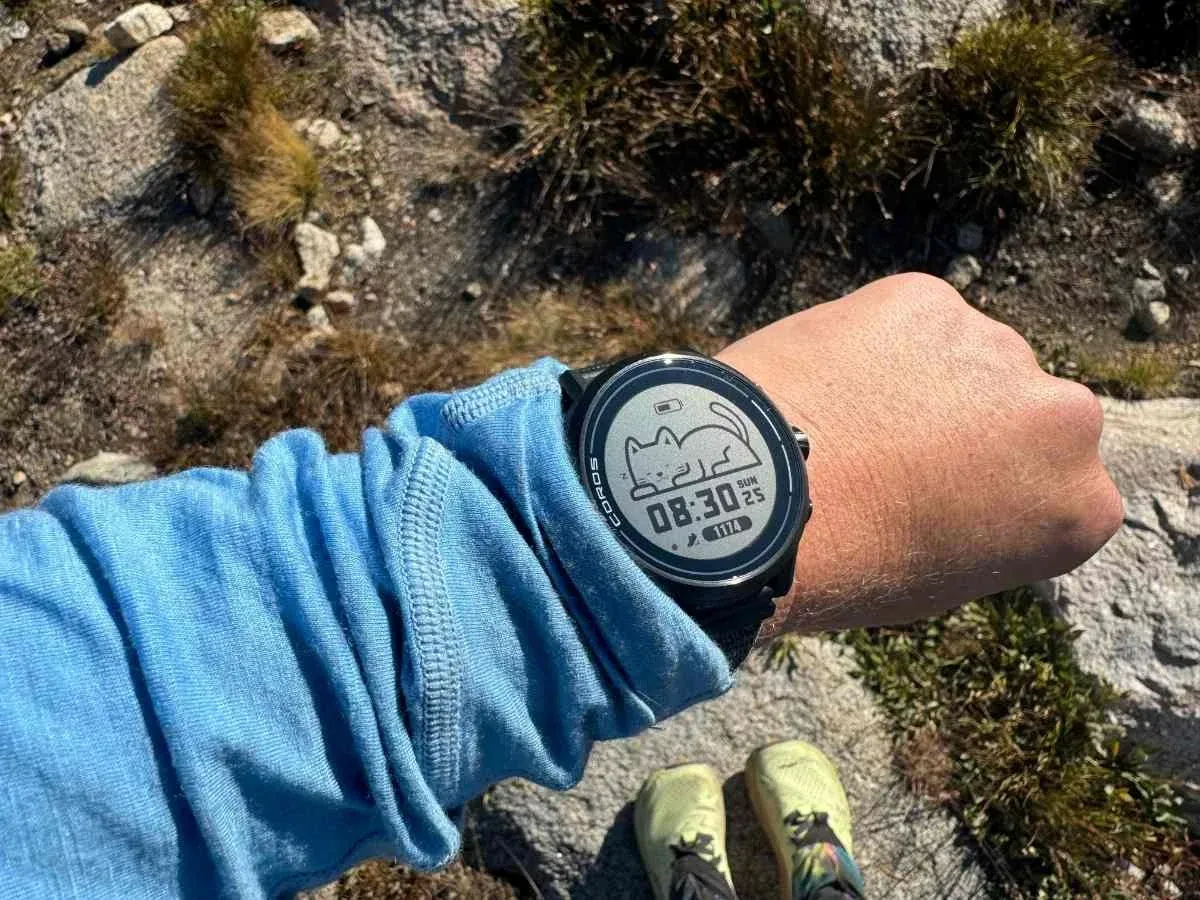
Smart wearables require a 20-minute flat outdoor calibration run to calibrate motion and stride sensors properly. When you jog on a level outdoor path with clear, unobstructed satellite visibility for at least twenty continuous minutes, the tracking engine correlates accelerometer swing cycles against genuine GPS displacement. This calibration teaches the system how your arms swing at different paces, preventing the software from mistaking slow-cadence recovery intervals for total rest.
Critical System Services to Check
- Motion Calibration & Distance: On iOS devices, open
Settings > Privacy & Security > Location Services > System Services. Verify that Motion Calibration & Distance is toggled ON. Without this, your device cannot calibrate internal stride metrics. - Stationary Satellite Lock: Stand still for 10 to 60 seconds after opening the pre-run GPS screen before tapping "Go". Allow the GPS accuracy indicator to switch from yellow to green.
- Snug Wristwear Fit: If tracking runs via an Apple Watch or Wear OS device synced to Keep, ensure the watchband is tightened securely. Wrist detection failure causes smartwatches to pause workouts unexpectedly because the device assumes you have taken the watch off when sensor contact drops.
Operating System Power Management and Background Killing
Modern smartphone operating systems are ruthless when managing battery consumption. If you lock your phone screen and slide it into your running belt, the operating system aggressively curtails background polling to save energy. When background location and accelerometer checks are throttled, Keep freezes its active distance calculations, misinterprets the sensor gap as a full stop, and engages auto-pause.
Smartphone battery saver modes degrade GPS update frequency and background sensor tracking across the board. If your phone enters Low Power Mode, location polling cycles may drop from once per second to once every fifteen or thirty seconds. This massive sampling interval creates artificial jagged lines on your running map and causes continuous false pause loops.
| Operating System | Background Setting Path | Required State | Impact on Tracking |
|---|
| Android (Stock / Pixel) | Apps > Keep > Battery > App Battery Usage | Unrestricted | Prevents background thread termination during screen-off runs |
| Samsung One UI | Settings > Device Care > Battery > Background Usage Limits | Never Sleeping Apps | Keeps Keep in memory; enables 'Keep Open' pinning |
| Xiaomi / HyperOS | Settings > Apps > Permissions > Autostart | Enabled (Allow Background) | Stops aggressive OEM RAM cleaners from killing GPS daemons |
| iOS (Apple) | Settings > General > Background App Refresh | Enabled (Wi-Fi & Cellular) | Allows sensor ingestion when the display locks |
Configuring OS-level app permissions properly ensures the running engine receives uninterrupted sensor streams while your phone is stowed away.
On Samsung Galaxy devices, you can take background stability a step further. Open your Recent Apps view, tap the Keep application icon at the top of its preview card, and select Keep open. This locks the app into system RAM, preventing One UI from closing the activity mid-stride.
Step-by-Step Fix Sequence for Stuck or Broken Auto-Pause
When tracking behaves erratically, diagnose and resolve sensor conflicts in order:
- Pre-Run Satellite Acquisition: Step outside into an open space away from high-rise concrete structures. Open Keep's running tab and wait 10 to 60 seconds until the GPS status bar indicates a solid signal before pressing Start.
- Verify Battery Mode Status: Check your quick toggles menu on your phone. Disable system-wide Low Power Mode, Battery Saver, or Ultra Power Saving settings before tracking.
- Set App Battery Restrictions to Unrestricted: Navigate to your smartphone's Application Manager, find Keep, tap Battery settings, and select Unrestricted or Don't Optimize.
- Audit Background Location Permissions: Open app permissions for Keep and ensure Location access is set to Allow all the time (Android) or Always with Precise Location enabled (iOS).
- Check Watch Snugness and Wrist Detection: If you are pairing a smartwatch, tighten the band one notch closer than casual daily wear. Clean the optical sensor array on the underside of the casing to avoid sensor dropouts.
- Adjust Keep App Motion Threshold: Open Keep running settings, toggle auto-pause to Low Sensitivity, and turn on audio cue alerts so the platform tells you whenever status changes.
- Avoid Manual Pausing at Crosswalks: If you tap pause manually on the screen, remember that manual pause overrides auto-resume across running platforms. If you pause the session by hand, the app will never resume automatically; you must manually tap resume before moving again.
For runners tracking regional routes or using advanced coached regimens, a Keep CN subscription recharge unlocks audio-coached pacing programs and training telemetry directly within the app.
Audio Warnings and Real-Time Sensor Diagnostics
Nothing is more frustrating than finishing a grueling 10K run only to look at your wrist and discover the app paused at kilometer two. Silent pauses happen frequently if your phone is tucked into a waist pack or hydration vest.

Enabling dedicated audio cues solves this blind spot. In Keep's running settings menu, activate Voice Prompts (语音播报) for pace, distance, and specifically Pause/Resume Events. Audio cue systems deliver dedicated pause and resume warnings directly into your connected earphones. The moment your cadence dips below the cutoff threshold, a voice prompt notifies you that tracking has stopped. If you hear that chime while still running, you can immediately wake your phone screen and manually resume tracking before losing valuable training mileage.
These voice alerts also tell you if the GPS signal degrades. If the audio cue reports a lost GPS fix, you know immediately that tracking will likely freeze if you rely solely on automatic triggers.
The Auto-Pause Debate: Should You Keep It Enabled?
While auto-pause is advertised as a convenient feature to keep your average running pace looking sharp, running coaches and exercise physiologists frequently argue the opposite. Pausing mid-run disrupts physiological training analysis and heart rate recovery data.
When you stop at a red light, your heart rate does not drop instantly to baseline; it decays along a specific curve. Analytics platforms and coaches study this heart rate recovery rate to evaluate cardiovascular fitness and autonomic recovery. When auto-pause cuts tracking, it creates fragmented activity files that hide recovery dynamics during your stops. You get an inflated sense of your sustained pacing at the cost of genuine training stress data.
Structured interval runs complicate auto-pause even further. During programmed interval workouts—such as 400-meter repeats with 60-second recovery walks—native auto-pause thresholds can desync your rest intervals. If the app pauses during a recovery walk, your rest clock freezes, corrupting your pacing targets.
| Tracking Parameter | Auto-Pause Enabled | Auto-Pause Disabled (Continuous) |
| :--- | :--- | :--- | :--- |
| Pace Display | Shows pure moving pace; ignores streetlights | Shows elapsed pace; reflects true door-to-door time |
| Heart Rate Recovery | Gaps in continuous cardiac trace | Full heart rate decay curves recorded accurately |
| Interval Timing | May freeze during slow recovery walk phases | Maintains exact rest interval durations |
| Data Integrity | Prone to false pauses on steep hill climbs | Zero risk of lost mileage or sensor freeze |
| Analysis Filtering | Decided on-device in real time | Handled server-side post-upload via moving time algorithms |
Deciding whether to use auto-pause depends on whether your priority is social leaderboard bragging rights or raw training data integrity.
Turning off auto-pause shifts resting time computation to server-side processing. When auto-pause is switched off, modern fitness cloud platforms simply analyze your timestamps post-upload, separating total elapsed time from moving time without risking a mid-run software stall. Analytics platforms even allow custom pause display filters starting at 10-second thresholds to filter out momentary traffic stops while keeping raw heart rate files completely intact.
To evaluate continuous workout files alongside recovery scores, a Keep CN membership upgrade provides cardiac load analytics and historical pace trends.
Recommended Settings for Different Running Scenarios
A track session demands a completely different sensor setup than an off-road trail run or a stop-and-go urban route.
Urban Street Running (High Traffic)
- Auto-Pause: Enabled (Low Sensitivity).
- GPS Mode: High Accuracy / Dual-Frequency (if supported by device).
- Audio Prompts: Enabled for Pause/Resume chimes.
- Rationale: Low sensitivity prevents false triggers when slowing down for pedestrians while catching actual multi-minute stops at major street intersections.
Track Workouts and Interval Training
- Auto-Pause: Disabled.
- GPS Mode: Standard or Lap Mode.
- Audio Prompts: Interval lap splits only.
- Rationale: Rest intervals must be recorded in full to measure your cardiac recovery curve between hard efforts. Auto-pause during a walk recovery will ruin your interval clock.
Trail Running and Steep Incline Hiking
- Auto-Pause: Disabled.
- GPS Mode: High Accuracy.
- Audio Prompts: Distance and Elevation gains.
- Rationale: Steep gradients force slow running cadences that drop below standard accelerometer thresholds. Tree cover degrades GPS reception, making false pause loops almost guaranteed if auto-pause remains active.
FAQ
Why does a running app trigger auto pause while running at slow paces?
Auto pause frequently triggers if your cadence or arm motion drops below calibrated accelerometer thresholds, or if poor GPS reception creates false stationary readings. Calibrating your stride sensors and disabling aggressive battery saver modes usually resolves these premature pauses.
Why does tracking fail to auto-resume after stopping at a traffic light?
Tracking fails to auto-resume if the session was paused manually or if background location tracking was suspended by operating system power management. If you tap pause manually on your screen, you must tap resume manually to continue your workout.
How does battery optimization affect auto pause and tracking accuracy?
Aggressive OS battery optimization restricts background GPS polling and motion sensor access when your phone screen turns off. Setting your fitness app's battery permission to "Unrestricted" prevents tracking freezes and erratic pause behavior.
Can accelerometer calibration fix false auto pause triggers?
Yes, performing dedicated outdoor calibration walks or runs teaches wearable sensors your actual stride mechanics at different speeds. This prevents the system from mistaking slow-cadence jogging for complete rest.
Is auto-pause recommended during structured workouts or interval training?
No, most coaches and analytics platforms recommend disabling auto-pause entirely during structured training. Pausing discards rest-interval heart rate recovery data and can desync your programmed interval rest targets.
How do you ensure background tracking apps stay active on Android devices?
Disable battery optimization under App Info, enable background data and autostart permissions, and use the "Keep open" pinning tool in the Recent Apps menu. This stops OEM memory cleaners from halting sensors during runs.
The Final Call on Auto-Pause Configuration
Auto-pause is a convenience feature that often creates more headaches than it solves. If your primary goal is keeping your social media pace summary pristine during city jogs with unavoidable red lights, configure Keep's auto-pause toggle to Low Sensitivity, lock the app into system memory, and wait 60 seconds for a full satellite fix before taking your first step.
If you take your training metrics seriously, turning auto-pause off completely yields cleaner data. Letting the clock run captures your true cardiovascular recovery between intervals, prevents lost data on steep hill climbs, and guarantees you never drop a kilometer to an overzealous motion sensor.