Learn how to change keybinds in Lineage W PC client settings, fix hotkey reset bugs, and build an optimal quick slot layout for your Aden combat rotation.
Migrating from mobile controls to the desktop version of NCSOFT's dark fantasy MMORPG can feel disorienting. Lineage W was designed around touch controls and cross-platform architecture, so the standard PC key mapping defaults rarely match what traditional PC MMO veterans expect. When you are fighting through the monster density of Aden or participating in large-scale Taiwan server territory wars, fumbling for an emergency potion or mistargeting a crowd-control spell will cost you your character's life and gear progression.
Configuring an efficient, responsive layout requires learning the PC client's interface menus, understanding which key codes cause input conflicts, and applying an action bar structure that fits your specific class archetype.
Accessing Key Mapping in the Lineage W PC Client
Lineage W runs natively on PC through NCSOFT's PURPLE platform. The game client handles key remapping inside the active game window rather than through an external launcher dashboard. You can alter these settings in any safe zone or out in the field, though standing inside a town like Gludio or Talking Island prevents aggressive mobs from interrupting your setup.
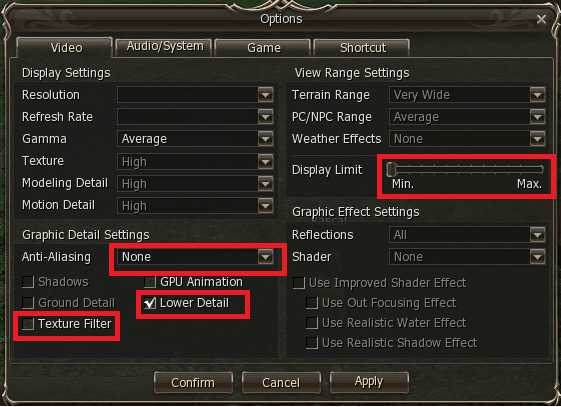
To rebind your keys on the Taiwan PC client, follow this exact menu path:
- Press ESC on your keyboard or click the Menu icon (three horizontal lines) in the upper-right corner.
- Click the Settings (設定) gear icon to open the configuration panel.
- In the left navigation pane, select the Environment / Controls (環境 / 操作) category.
- Click the Key Mapping / Shortcuts (按鍵設定 / 快捷鍵) sub-tab to view the active binding layout.
- Click on the action slot, skill bar position, or interface command you wish to change. The slot will enter an input-detection state.
- Press the new keyboard key or mouse button you want to assign.
- Click Apply / Save (套用 / 儲存) at the bottom of the window before closing the menu.
If you close the window using the top-right X button without clicking Apply, the client discards your modifications instantly.
Default Keyboard Shortcuts in the PC Client
The stock configuration assigns primary interaction, movement, and menus to standard alphanumeric positions. Knowing these baseline assignments helps you determine which utility commands need remapping to free up prime keyboard space for your active combat skills.
The following table outlines the factory default control layout built into the PC client:
| Function / Action | Default PC Keybind | Category | Operational Impact |
|---|
| Quick Slots 1–4 | 1, 2, 3, 4 | Action Bar | Direct skill triggers & consumables |
| Quick Slots 5–8 | 5, 6, 7, 8 | Action Bar | Extended skill triggers & utility items |
| Auto-Combat Toggle | Auto Button / Tab | Combat | Toggles automatic targeting and farming |
| Target Nearest Enemy | F | Combat Targeting | Cycles hostile players or nearby monsters |
| Inventory / Bag | I / Tab | Interface | Opens character equipment and inventory |
| World Map | M | Interface | Toggles full territory and zone maps |
| Character Status | C | Interface | Opens character stats and lineage attributes |
| Menu Panel | ESC | System | Opens settings, server list, and system menu |
These factory settings place secondary actions on valuable real estate while forcing critical skills out to awkward stretches like the 7 and 8 keys.
Recommended Keybind Tier List for PC Combat
Lineage W splits your focus between directional movement, camera adjustment, and instant ability execution. High-stress combat situations require a distinct hotkey hierarchy based on physical finger reach from the standard WASD position.
The table below organizes keyboard inputs by their execution speed and mechanical reliability:
| Priority Tier | Assigned Key Inputs | Recommended Action Assignments | Design Rationale |
|---|
| S-Tier (Zero Reach) | 1, 2, 3, 4, Q, E, R, F, C, Mouse 4, Mouse 5 | Primary rotation skills, auto-attack toggle, crowd control, main burst spell | Immediate home-row access; executed without lifting fingers from directional movement. |
| A-Tier (Short Reach) | ~, 5, T, G, V, Z, X | Emergency red potions, defensive barriers, teleport scrolls, return scrolls | Short finger travel; accessible in under half a second without misclicking adjacent keys. |
| B-Tier (Modifiers / Top Row) | Shift + 1–4, Alt + 1–4, Ctrl + 1–4, F1–F8 | 30-minute buffs, food consumables, clan summons, UI interface windows | Multi-key combinations or long stretches; best for actions that do not decide survival in a split second. |
Structuring your action bars around this tier list ensures that your vital combat triggers never fight with character movement during hostile player encounters.
Class-Specific Action Bar and Quick Slot Layouts
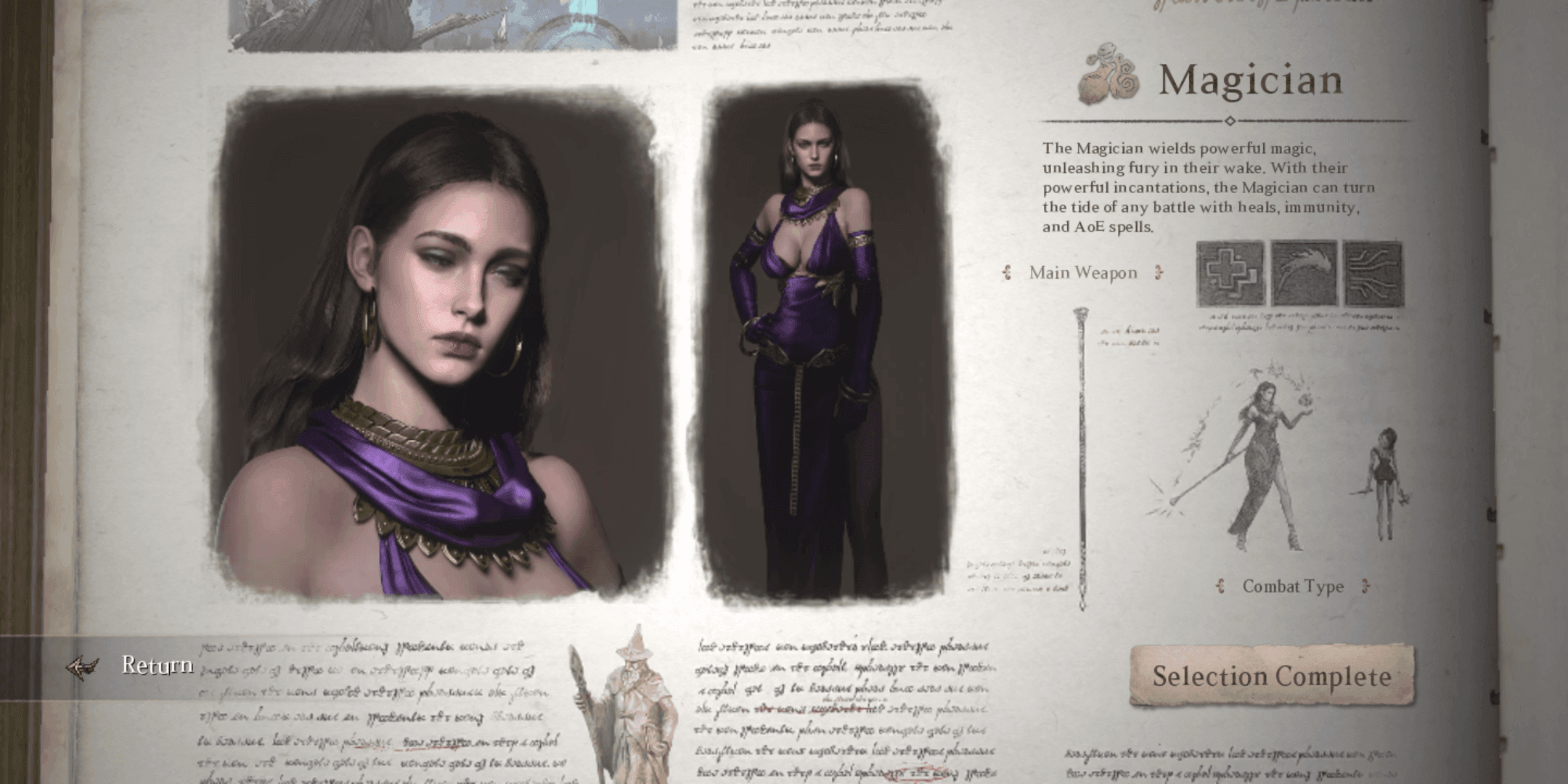
Lineage W centers around four primary character lineages: Lord, Knight, Mage, and Fairy. Each class features distinct stat dependencies, skill rotations, and engagement ranges that demand specific key mappings.
+-----------------------------------------------------------------------+
|                   OPTIMIZED HOME-ROW COMBAT CLUSTER                   |
|                                                                       |
|   [ ~ ] Emergency Teleport      [ 1 ] Primary Attack/Stun             |
|   [ Q ] Core Offensive Skill    [ 2 ] Secondary Rotation Spell        |
|   [ E ] Gap Closer / Range Shot [ 3 ] Main Class Buff / Shield        |
|   [ R ] Area of Effect / CC     [ 4 ] High-Damage Finisher            |
|   [ F ] Target Nearest Hostile  [ C ] Instant Heal / Panic Item       |
|   [ Mouse 4 ] Main Potion       [ Mouse 5 ] Secondary Consumable      |
+-----------------------------------------------------------------------+
Knight and Lord (Melee Lineages)
Knights and Lords lead frontline skirmishes and rely heavily on gap-closers, single-target stuns, and high-frequency potion cycling.
- Key 1 & 2: Core melee strikes and stun skills (e.g., Shock Stun).
- Key Q & E: Closing strikes and temporary defense buffs.
- Key C & X: Standalone un-modified slots for instant healing scrolls and heavy defensive skills. Never put panic survival skills behind a Shift or Ctrl modifier; complex inputs cause execution failure under sudden burst damage.
- Mouse Side Buttons (Mouse 4/5): HP potion management and emergency auto-attack resets.
Mage and Fairy (Ranged & Caster Lineages)
Spellcasters require constant mobility while managing mana conservation, spell targeting, and elemental enhancements.
- Key 1 to 4: Targeted elemental spells, arrows, and direct debuffs.
- Key Q & E: Fast-cast offensive spells and single-target roots.
- Key R & F: Group heals, area-of-effect spells, or target acquisition.
- Shift + 1 to 4: Long-duration self-buffs (elemental shields, weapon enchants, mana regeneration buffs).
Keeping your equipment stocked with scrolls and potions is essential for sustained farming; players maintaining active buff rotations can fund their character needs using a MyCard TW top up directly on Taiwan server accounts.
Native PURPLE Client vs Android Emulators
Players run Lineage W on PC through two methods: NCSOFT's native PURPLE launcher or Android emulators. The control responsiveness and hardware stability differ drastically between these platforms.
| Feature / Metric | Native NCSOFT PURPLE Client | Android Emulator (e.g., Pie 64-bit Instance) |
|---|
| Input Latency | Ultra-low (Direct hardware polling) | Moderate (Layered touch-to-key virtualization) |
| Resource Overhead | Low CPU usage, native GPU acceleration | Heavy; requires 4 CPU cores & 4GB RAM minimum |
| Key Mapping Depth | Integrated directly into game engine code | Overlay-based virtual touch coordinates |
| Cross-Play Stability | Native Aden client build with AI translation | Virtualized mobile instance; prone to frame drops |
| Thermal Behavior | Uncapped menus can reach 90°C without V-Sync | Steady emulator cap, but higher continuous CPU heat |
PURPLE is the superior choice for competitive play. Emulators introduce virtual touch layer latency that can delay your potion triggers during live PvP skirmishes.
Step-by-Step Fix for Keybinds Resetting After Updates
A persistent frustration in Lineage W occurs when custom keybindings revert to factory defaults after a game patch or client restart. This issue stems from cloud synchronization conflicts, file permissions, or case-sensitivity profile mismatches between the client and game servers.
Follow these troubleshooting steps in order to permanently lock in your custom settings:
- Disable Cloud Sync Overwrites: Open the PURPLE launcher settings before launching Lineage W. If cloud configuration sync is enabled, disable it temporarily so the launcher does not overwrite your local input files with outdated server profiles upon login.
- Verify Character Profile Casing: If your character name contains mixed-case letters, server-side profile saves can fail to match local configuration files. Ensure your launcher login profile exactly matches the character capitalization registered in-game.
- Execute a Clean In-Game Save: Log into a safe zone, open Settings > Key Mapping, change one minor shortcut, click Apply, and then use the Exit Game button inside the system menu. Do not terminate the process using Alt+F4 or Task Manager, as the client writes modified keybind tables to disk only during a clean shutdown.
- Lock the Configuration File (Read-Only Fix): Locate your local Lineage W user configuration directory in
%LOCALAPPDATA%\NCSoft\LineageW\Saved\Config\WindowsNoEditor. Locate Input.ini or GameUserSettings.ini, right-click the file, select Properties, check Read-only, and click Apply. This stops automated launcher updates from resetting your custom bindings. - Check Menu Frame Caps to Prevent Thermal Lag: Cross-platform clients with uncapped menu frame rates can push GPU temperatures over 90 degrees Celsius, leading to thermal throttling and failed input writes during game startup. Ensure your frame rate is capped to match your monitor refresh rate.
Securing your account and maintaining your character progression is easier when you manage your balance through Lineage W MyCard points code redemptions on official payment portals.
Resolving Windows IME and Keyboard Layout Conflicts
Playing on Taiwan game servers frequently causes typing conflicts for players whose operating systems utilize Asian Input Method Editors (IME). The most common bug occurs when pressing combat keys triggers a Chinese character selection box instead of executing your skill.
The Ctrl + Spacebar and Shift IME Trap
By default, Windows uses Ctrl + Spacebar or standalone Shift taps to toggle Chinese IME modes. If you map a combat skill to Spacebar or use Shift as a skill modifier, Windows intercepts the keystroke to open a text composition window. When this occurs, the Lineage W client loses focus, character movement halts, and subsequent key presses register as text input rather than attacks.
To resolve this:
* Open Windows Settings > Time & Language > Language & Region.
* Add English (United States) as a secondary input language.
* Press Windows Key + Spacebar to switch your active input language to English before launching the game client.
* Alternatively, open advanced keyboard settings and unbind the default IME mode toggle shortcuts.
Non-Alphanumeric Keycode Inconsistencies
Avoid binding critical skills to punctuation keys like brackets ([ and ]), semicolons (;), backslashes (\), or regional tildes (~). Non-alphanumeric keys carry varying virtual keycodes depending on your operating system's regional keyboard layout. A binding assigned to a bracket key can fail to fire entirely if the client's internal keycode translation table does not align with your physical keyboard layout.
Mouse Wheel and Side Button Setup Pitfalls
Modern gaming mice offer extensive button mapping options, but certain inputs interact poorly with the Lineage W PC engine.
+-----------------------------------------------------------------------+
|                   MOUSE BINDING COMPATIBILITY MATRIX                  |
|                                                                       |
|  [ Left Click ]      - Movement / Target Selection      (STABLE)     |
|  [ Right Click ]     - Camera Manipulation / Rotation   (STABLE)     |
|  [ Mouse 4 (Thumb) ] - Direct Quick Slot / Potion       (STABLE)     |
|  [ Mouse 5 (Thumb) ] - Direct Quick Slot / Spell        (STABLE)     |
|  [ Middle Click ]    - Standalone Action Trigger        (STABLE)     |
|  [ Scroll Up/Down ]  - Continuous Axis Pings / Tagging  (UNRELIABLE) |
+-----------------------------------------------------------------------+
While mouse scroll wheel up, scroll wheel down, and middle click offer three fast actions (expandable to nine with Shift, Ctrl, and Alt modifiers), the game engine treats the scroll wheel as a continuous analog axis rather than a discrete single-press switch.
Binding single-action combat functions—such as target marking, pinging, or skill triggers—to scroll wheel directions frequently results in a 100% failure rate where the game fails to register the discrete tick.
Reserve scroll wheels for camera zoom functions. For combat triggers, stick to physical switches like Mouse 4 and Mouse 5. If the game client fails to recognize your thumb buttons directly, open your mouse configuration software and remap those thumb buttons to standard alphanumeric keys (such as K or L), then bind those keys inside the game's menu.
FAQ
How do I change hotkeys on the official Lineage W PC client?
Open the in-game Settings menu via the gear icon or ESC, navigate to the Environment/Controls tab, and select Key Mapping to customize your action bars. Click the target skill or item slot, then press your desired keyboard or mouse button to bind it.
Why do my custom keybinds reset when I restart the game?
Keybinds typically reset if the launcher's cloud sync overwrites local configuration files or if the game is closed forcefully without applying changes. Always click Apply/Save in the settings menu and exit normally to ensure the client writes your settings to disk.
How can I prevent the Windows Chinese IME from popping up while casting skills?
Switch your active Windows input language to English (US) before launching Lineage W, or change the default Windows IME toggle shortcut in Windows Settings. This stops Ctrl+Spacebar or Shift presses from accidentally opening character input windows during combat.
What is the best keybind setup for the Fairy or Mage classes in Lineage W?
Bind your primary targeted spells and ranged attacks to 1–4, Q, and E, while mapping crowd-control and healing spells to R, F, and your mouse side buttons. Place long-cooldown elemental buffs and teleports on Shift modifiers or function keys to keep core combat fingers free.
Can I bind Lineage W quick slots to mouse side buttons?
Yes, standard gaming mice with Mouse 4 and Mouse 5 thumb buttons are recognized directly by the PC client settings. If a specific secondary button fails to register in-game, assign that mouse button to a standard alphanumeric key via your mouse manufacturer software.
Should I play Lineage W using the official PURPLE launcher or an Android emulator?
The official NCSOFT PURPLE client provides superior stability, native PC key mapping, and direct hardware acceleration without virtualization overhead. Emulators require manual multi-instance resource allocation and introduce input lag through virtual touch overlays.
Optimizing Your Aden Action Bars
Taking fifteen minutes to establish a clean keybind setup fundamentally changes your Lineage W experience. Relying on default settings or mobile touch emulation puts you at a severe disadvantage during world boss encounters and cross-server siege warfare.
Keep your essential attack rotations clustered tightly around WASD, assign survival items to un-modified standalone keys, and ensure your Windows input language is set to English before loading into Aden. If you are gearing up for the next territory battle on Taiwan servers, you can top up your account balance using MyCard Taiwan digital vouchers to keep your character fully supplied with combat scrolls, teleport contracts, and essential growth packages.