Torn between smooth action and crisp visuals? We break down Xbox Series S performance vs quality modes, frame pacing, and the sliders that fix stutter.
Every time you boot a major release on Xbox Series S, that initial prompt forces a choice: Performance or Quality. One targets fluid motion; the other promises sharp edges and rich environmental lighting. On Microsoft's compact box, that choice carries heavier compromises than it does on flagship hardware.
The Series S works with clear architectural bounds: 1440p targeting with 4K upscaling, backed by 512GB or 1TB of NVMe storage. Because GPU compute units and memory bandwidth are lean, games rarely hit 60 FPS just by dialing down shadow resolution. Studios slash internal render targets, lower dynamic resolution floors, and strip post-processing passes.
Pick the wrong mode and you get either smeared textures or sluggish controller response. Getting the best picture requires aligning game toggles with system-level video settings.
Frame Times, Refresh Rates, and the Input Lag Gap
Input lag scales directly with frame delivery intervals, not just visual smoothness.
At 30 FPS, the console pushes a new image every 33.3 ms. Flip to a 60 FPS Performance mode and that interval drops to 16.7 ms. That 16.6 ms reduction strips away input latency before your display even processes the incoming signal. In titles running at 120 FPS, the frame interval shrinks to 8.3 ms, giving competitive shooters immediate stick response.
[30 FPS Quality]    |------- 33.3 ms -------| -> Heavy latency, slow camera panning
[60 FPS Performance]|--- 16.7 ms ---|         -> Responsive input, fluid motion
[120 FPS High Frame]|- 8.3 ms -|             -> Ultra-low input lag, stripped visuals
The table below details how these frame time targets translate into rendering resolution profiles on Xbox Series S hardware.
| Mode Preset | Frame Time Window | Series S Target Resolution | Visual and Mechanical Trade-offs |
|---|
| 30 FPS Quality Mode | 33.3 ms | 1440p (Dynamic) | Highest shadow quality and draw distance; noticeable judder during quick sweeps. |
| 40 FPS Balanced Mode | 25.0 ms | 1080p - 1440p (Dynamic) | Available on 120 Hz displays; cleanly bridges fidelity retention with reduced input lag. |
| 60 FPS Performance Mode | 16.7 ms | 1080p (Dynamic) | Cuts input lag in half; lowers internal reconstruction and drops sub-surface details. |
| 120 FPS Competitive Mode | 8.3 ms | 756p - 1080p (Dynamic) | Lowest possible latency; severe resolution compromises and reduced texture filtering. |
Frame timing values dictate baseline engine latency; dynamic resolution ranges fluctuate during intense GPU workloads.
If you want to pick up newly released titles to test these modes yourself, grabbing an Xbox Live Gift Card (BR) lets you fund your digital library directly.
The Reality of Series S Presets Across Modern Titles
Studios take wildly different approaches to Series S optimization. Some build dedicated reconstruction pipelines; others skip performance toggles entirely.
Forza Horizon 6 targets 1440p at 30 FPS in Quality mode, preserving car body geometry and long-range reflections. In Performance mode, it drops the baseline output to 1080p at 60 FPS. Dynamic resolution scaling holds the frame pacing flat in both modes. For a racing title where vehicle control relies on quick micro-corrections, the 16.7 ms window easily trumps the extra dashboard texture detail of Quality mode.

Other titles leave no choice. In Alan Wake 2, the Series S has no 60 FPS toggle. While PlayStation 5 and Xbox Series X offer performance targets, the Series S output locks to 30 FPS at 1440p dynamic resolution. Remedy preserved heavy volumetric fog and geometry density instead of chasing frames. When an engine enforces a hard 30 FPS ceiling, your display setup determines whether the motion looks clean or disjointed.
Then come the high-refresh outliers. Fortnite, Gears 5, Halo Infinite, and Overwatch 2 include dedicated 120 FPS modes on Series S. They target 1080p, regularly scaling internal pixel counts down during firefights to hit the 8.3 ms delivery window. For competitive multiplayer, sacrificing edge clarity for temporal speed is an easy choice.
The 30 FPS and 40 FPS Cadence Trap on High-Refresh Screens
Pairing a 30 FPS Quality mode with an adaptive sync screen frequently creates persistent micro-stutter, even with Variable Refresh Rate (VRR) engaged.
The culprit is the display's VRR operational range. Most gaming monitors and entry-level HDMI 2.1 TVs maintain an adaptive sync floor of 48 Hz, running up to 144 Hz. A locked 30 FPS signal outputs a frame every 33.33 ms, falling clean below that 48 Hz floor.
Display VRR Window:       [48 Hz --------------------------- 144 Hz]
Native 30 FPS Signal: (30 Hz) X -> Falls below threshold; triggers LFC hitching
120 Hz Fixed Output:      [8.33 ms][8.33 ms][8.33 ms][8.33 ms] = 33.33 ms (Clean 4x Cadence)
When frame delivery dips below 48 Hz, the panel relies on Low Framerate Compensation (LFC) to duplicate frames. If the console's frame delivery wobbles by a fraction of a millisecond, LFC rapidly engages and cuts out, producing stutter.
Setting the Xbox dashboard display output to 120 Hz resolves this mismatch. At 120 Hz, each refresh cycle takes 8.33 ms. A 30 FPS title fits evenly across four display refreshes (4 x 8.33 ms = 33.32 ms). That fixed 4:1 cadence maintains uniform motion without erratic sync behavior.
The 40 FPS Balanced mode works on the same math. On a 120 Hz output, a 40 FPS feed maps to every third refresh (3 x 8.33 ms = 25 ms flat). This setup cuts 8.3 ms of latency off standard 30 FPS output while preserving Quality mode asset pipelines and shadow maps.
Xbox System Display Settings That Fix Latency and Color
Console system settings directly dictate signal handling before a game's graphics menu even loads. Head to Settings > General > TV & display options to configure these baseline outputs.
Variable Refresh Rate and Port Compatibility
Under Video modes, Xbox lets you configure VRR to Off, Always On, or Gaming Only. Select Gaming Only if you use media streaming apps, keeping the panel from switching refresh rates during 24 FPS video.
The Series S holds a distinct advantage on desk setups: it drives AMD FreeSync over HDMI 2.0 at 1440p and 120Hz. While the PS5 demands HDMI 2.1 Forum VRR, the Series S syncs with standard PC monitors over older HDMI connections. You do not need expensive HDMI 2.1 inputs to run 120Hz adaptive sync on this console.
Watch your audio routing. Feeding your HDMI signal through an older soundbar or AV receiver often strips 120Hz and VRR passthrough. Connect the console straight to the display, then pass audio out through eARC or optical cables.
Color Depth and Color Space Pitfalls
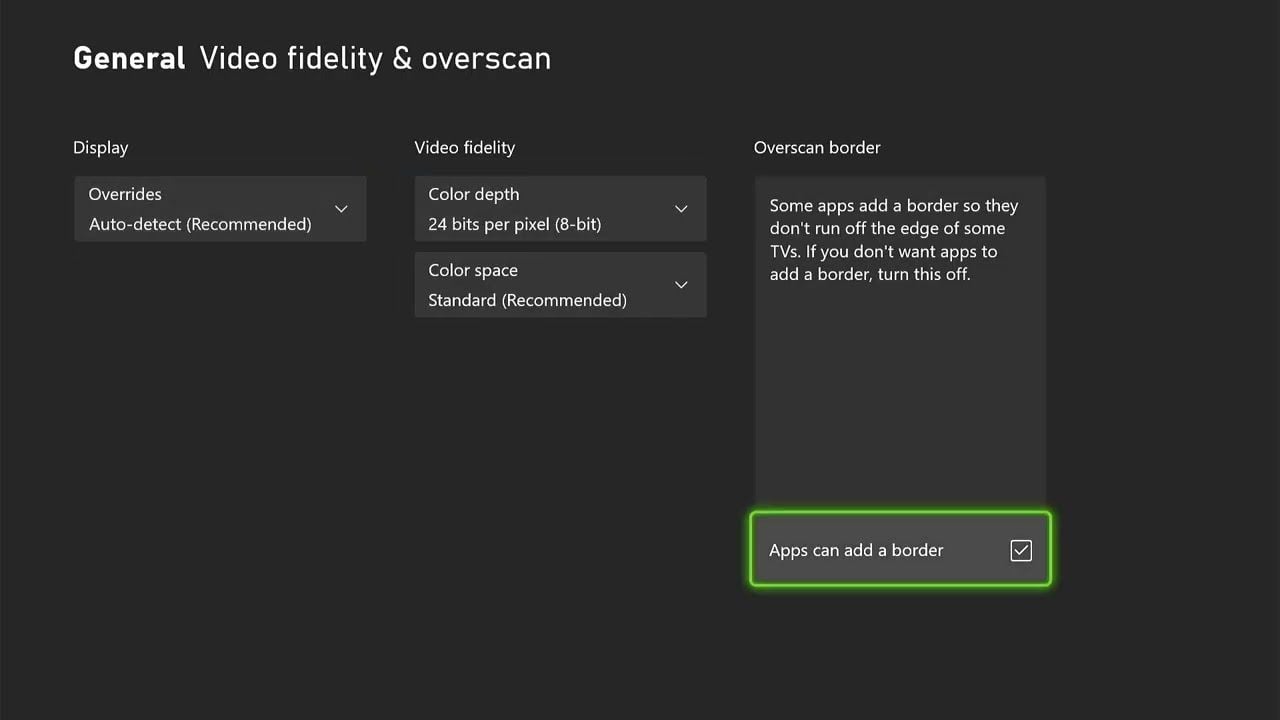
The Video fidelity & overscan menu contains two settings that trigger frequent image flaws:
- Color Depth: Choose 24 bits per pixel (8-bit). When receiving an HDR10 signal, the Xbox automatically switches to 30 bits per pixel (10-bit). Manually forcing 36-bit on panels that do not support it burns bandwidth and creates HDMI handshake drops.
- Color Space: Keep this set to Standard (Recommended). Standard maps to limited range RGB (16-235), matching consumer TVs. Setting this to PC RGB forces full range (0-255). On a display calibrated for standard TV levels, PC RGB crushes blacks, erasing shadow detail in dark game environments.
Platform Display Capabilities: Series S vs Series X vs PS5
Hardware boundaries determine what the console can realistically output compared to higher-tier hardware.
| Feature / Capability | Xbox Series S | Xbox Series X | PlayStation 5 |
|---|
| Baseline Target Output | 1440p (Upscales to 4K) | Native 4K | Native 4K / Dynamic 1440p |
| HDMI 2.0 FreeSync Support | Yes (Up to 1440p / 120Hz) | Yes (Up to 1440p / 120Hz) | No (Requires HDMI 2.1 VRR) |
| Dedicated 40 FPS Modes | Limited titles (requires 120Hz) | Broad support | Broad support |
| Average Storage Size | 512GB or 1TB SSD | 1TB or 2TB SSD | 825GB or 1TB SSD |
| 120 FPS Resolution Ceiling | Dynamic 756p - 1080p | Dynamic 1080p - 1440p | Dynamic 1080p - 1440p |
Series S delivers exceptional flexibility on budget PC monitors thanks to legacy HDMI 2.0 adaptive sync protocols.
Players buying cross-platform titles often balance multi-console libraries; an Xbox digital gift card keeps your account ready for digital sales.
In-Game Sliders: Tuning What Actually Impacts Performance
Once display handshakes are verified, internal sliders clean up frame delivery and visual clarity.
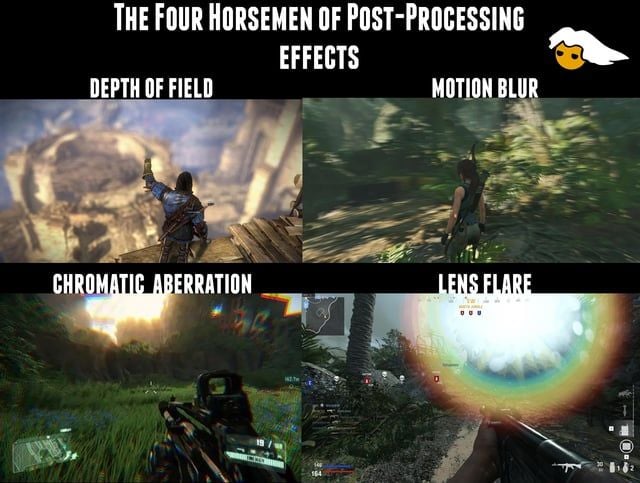
Motion Blur and Film Grain
In 30 FPS modes, developer-tuned Motion Blur masks frame judder during lateral camera tracking. Turning it off at 30 FPS makes camera rotation look choppy. In 60 FPS or 120 FPS modes, turn Motion Blur completely off. Higher refresh rates already resolve motion, meaning software blur only degrades target clarity.
Film Grain should be turned off across the board on Series S. Because the console relies heavily on FSR and dynamic scaling, post-process grain adds high-frequency pixel noise that confuses temporal upscalers and produces visible artifacts.
Field of View (FOV)
Raising FOV broadens side visibility, but forces the engine to draw more geometry, volumetric light cones, and shadow cascades simultaneously. Pushing FOV past 95 on the Series S forces dynamic resolution scaling to drop aggressively, pulling native 1080p scenes down into sub-900p territory. Restricting FOV to 85–90 stabilizes internal pixel counts.
Chromatic Aberration and Depth of Field
Both effects mimic camera hardware quirks. Chromatic aberration splits color channels along contrast edges, while depth of field introduces deliberate background blur. On a console already reconstructing sub-1080p internal buffers, turning both off restores visual contrast and sharpens silhouette edges.
Diagnosing Thermal Throttling, Panel Sizing, and Stutter
When frame pacing hitches or resolution drops persist despite matching settings, run through these physical checks.
Step 1: Fix Console Clearance and Airflow
The Series S relies on a single axial fan pulling air over compact heatsinks. Dust accumulation or restricted airflow forces the APU to throttle core frequencies, creating immediate frame drops.
1. Inspect your shelf or desk.
2. Maintain 4 to 6 inches of open clearance around every vent, especially the main circular exhaust.
3. Never operate the console inside an enclosed entertainment cabinet.
Step 2: Engage Auto Low Latency Mode and TV Game Mode
Display picture processors introduce significant latency when post-processing filters remain active.
1. Open your TV picture menu.
2. Switch picture processing directly to Game Mode.
3. On your console, navigate to Settings > General > TV & display options > Video modes.
4. Check Auto Low Latency Mode (ALLM) to force the screen into its lowest processing state whenever a game launches.
Step 3: Calibrate Monitor Overdrive
Gaming monitors use voltage overdrive to accelerate pixel transitions. Over-tuning this setting introduces severe visual artifacts.
1. Open the monitor's built-in OSD menu.
2. Locate Overdrive or Response Time.
3. Lower values from Extreme down to Fast or Normal.
4. Overly aggressive overdrive creates bright inverse ghosting halos behind moving objects at 30 FPS and 60 FPS.
Step 4: Evaluate Your Panel Size and Viewing Distance
Screen dimensions dictate perceived sharpness on Series S. A 27-inch 1440p monitor produces roughly 108 PPI. At a standard 2-to-3-foot desk distance, that pixel density keeps 1080p reconstruction looking crisp.
Scale that up to a 32-inch 1440p display and pixel density drops to 91 PPI. Dynamic resolution drops in Performance mode show obvious edge aliasing and blurred texture maps at that size. For Series S gaming at a desk, 24-inch to 27-inch panels provide the sharpest presentation.
The Impact of Disputed Display Claims
Display configuration threads often spread conflicting setup advice.
Take VRR input latency. Some forum posts claim that adaptive sync degrades frame rates or adds input lag. Oscilloscope and display lag tests demonstrate that VRR introduces no frame rate loss. Instead, it matches panel refresh directly to the GPU's render buffer, avoiding the lag spikes inherent to traditional V-Sync buffer waits.
Another common assumption is that all current-gen releases provide mode toggles. As seen in Alan Wake 2, compute-heavy engines on Series S sometimes lock exclusively to 30 FPS to safeguard memory buffers and frame stability. Verify individual title menus before assuming system video profiles are failing.
For digital library additions and seasonal DLC, picking up an Xbox gift card online ensures your balance is set.
FAQ
Should I pick Performance or Quality mode on Xbox Series S?
Choose Performance mode for racing games, competitive shooters, and fast action titles where cut frame latency directly improves control precision. Quality mode is best reserved for slower narrative adventures where sharper 1440p rendering and richer shadow maps matter more than 60 FPS motion.
Why does 30 FPS Quality mode stutter even with VRR enabled?
Most adaptive sync monitors feature a VRR window that starts at 48 Hz. Locked 30 FPS games output frames at 33.3 ms intervals, falling beneath that threshold and forcing erratic frame doubling. Setting your console output to 120 Hz provides a clean four-refresh cadence that eliminates this judder.
Does Xbox Series S support 120 FPS gaming?
Yes, the console supports 120 FPS in select optimized titles including Fortnite, Gears 5, Halo Infinite, and Overwatch 2. These high frame modes generally lower target rendering resolutions down to dynamic 1080p or lower to sustain performance.
Which color space setting should I use in the Xbox display menu?
Leave Color Space set to Standard (Recommended) for almost all television sets to avoid black crush. PC RGB should only be selected if you are connected to a dedicated computer monitor calibrated explicitly for full 0-255 RGB signals.
Can Xbox Series S use FreeSync over HDMI 2.0?
Yes, Xbox Series S supports AMD FreeSync protocols across standard HDMI 2.0 ports at up to 1440p and 120Hz. Unlike the PlayStation 5, you do not need an HDMI 2.1 display to take advantage of variable refresh rates on Xbox hardware.
How do I reduce input lag on my TV or monitor?
Enable Game Mode on your screen and turn on Auto Low Latency Mode (ALLM) within the console's Video Modes settings menu. Turn off display post-processing features like frame interpolation, dynamic contrast, and aggressive monitor overdrive.
Does the Xbox Series S output native 4K?
The console is engineered primarily for native and dynamic 1440p rendering, but it features an internal hardware scaler capable of outputting a 4K signal to compatible UHD televisions. In-game rendering targets remain lower to maintain performance.
The Final Verdict on Series S Display Optimization
Performance mode is the sensible default for almost every title on Series S. Cutting frame intervals from 33.3 ms to 16.7 ms eliminates sluggish gamepad latency and stabilizes camera motion. On standard desk screens, the modest reduction in dynamic pixel count is an easy trade for twice the temporal fluidity.
Quality mode should be reserved for slow-paced narrative titles or games where developers lock the profile. When playing at 30 FPS, force display output to 120 Hz, leave color depth at standard values, and disable panel post-processing. That setup eliminates cadencing judder and extracts the cleanest possible image from Microsoft's budget console.