

Apple Gift Card AU Top Up: What Is It and What Can You Buy?
An Apple Gift Card (AU) provides digital credit denominated in Australian Dollars (AUD) directly linked to your Apple Account. In Australia, the unified Apple Gift Card serves as an all-in-one balance for the entire Apple ecosystem. Once redeemed, the funds apply directly to your Apple Account balance, allowing you to pay for hardware, digital goods, and recurring online subscriptions without needing a credit card on file.
Eligible Purchases with Australian Apple Account Balance
- App Store: Paid apps, games, in-app purchases, and expansion packs across iOS, iPadOS, and macOS.
- Digital Media: Movies and TV shows on the Apple TV app, audiobooks and ebooks on Apple Books.
- Apple Subscriptions: Apple Music, Apple TV+, Apple Arcade, Apple Fitness+, and Apple News+.
- Cloud Storage: Monthly or annual iCloud+ storage upgrades.
- In-Game Currency: Top up tokens, passes, gems, and bundles in popular mobile titles.
How to Identify Your Australian Apple Account ID
Before you redeem a digital voucher, verify that your active device is signed into an Apple Account configured for the Australia region. Apple Gift Cards are strictly currency- and region-locked.
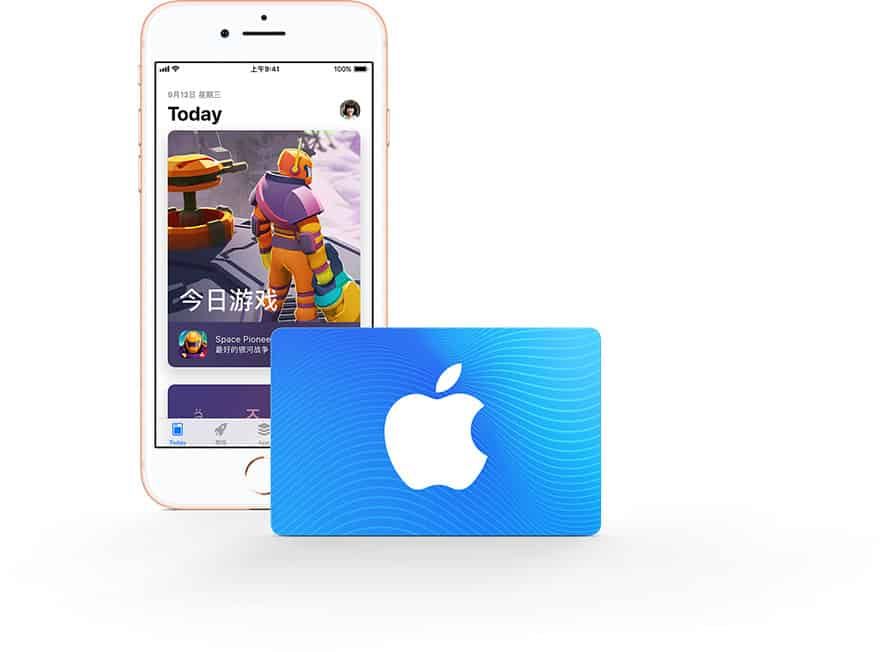
Verifying Your Apple Account Region
- Open the Settings app on your iPhone or iPad.
- Tap your Name / Profile Banner at the top of the screen.
- Select Media & Purchases, then tap View Account.
- Tap Country/Region to confirm that Australia is your active storefront.
- Note your Apple Account email address shown at the top of the Apple ID menu.
Step-by-Step Guide: How to Redeem Apple Gift Card AU on iPhone and iPad
Redeeming your 16-digit digital code on iOS or iPadOS instantly updates your AUD Apple Account balance.
- Open the App Store app on your iPhone or iPad.
- Tap your profile icon or photo in the top right corner of the screen.
- Tap Redeem Gift Card or Code.
- If prompted, sign in using Face ID, Touch ID, or your Apple Account password.
- Tap Enter Code Manually and type the 16-digit code received from BitTopup.
- Tap Redeem in the top right corner to complete the transaction.
- Your updated AUD balance will display immediately on the confirmation screen.
How to Redeem Your Australian Apple Gift Card on Mac and Windows PC
You can also redeem your digital code through desktop environments using macOS or Windows.
Redeeming on a Mac (macOS)
- Open the App Store app on your Mac.
- Click your name or the sign-in button located at the bottom of the left sidebar.
- Click Redeem Gift Card in the top right corner.
- Enter your 16-digit code and click Redeem.
Redeeming on Windows PC
- Open the Apple Music app, Apple TV app, or iTunes for Windows.
- Click your account name at the bottom of the sidebar (or choose Account from the menu bar at the top).
- Select Redeem.
- Sign in with your Apple ID credentials if prompted.
- Enter the 16-digit digital code and confirm redemption.
Important Region Restrictions: Australian Apple Account Compatibility and Terms
Apple enforces strict regional boundaries on all gift cards and account balances. Review the compatibility rules below before purchasing:
| Feature | Australian Apple Gift Card (AUD) | Foreign Apple Gift Cards |
|---|---|---|
| Account Region Required | Australia (AUD Storefront) | Native Country Storefront Only |
| Cross-Border Redemption | Not Supported | Not Supported |
| Currency Conversion | Fixed AUD (No Auto-Conversion) | Fixed Local Currency |
| App Store Australia Access | Full Access | No Access |
| Refundability | Non-Refundable Once Code Is Issued | Non-Refundable |
- Regional Lock: An Australian Apple Gift Card can only be redeemed on an Apple Account set to the Australia region. It will not work on accounts registered in the United States, United Kingdom, New Zealand, or any other country.
- No Cross-Currency Support: Apple does not convert gift card balances between currencies. You cannot apply AUD vouchers to non-AUD accounts.
- Final Sale: Digital gift card codes are single-use, non-refundable, and cannot be exchanged for cash once delivered.
How to Check Your Apple Account AUD Balance After Redemption
Once redeemed, your gift card credit merges into your Apple Account balance. You can verify your balance at any time on your devices.
On iPhone or iPad
- Open the App Store.
- Tap your profile icon in the top right corner.
- Your current balance appears beneath your name in AUD (e.g., Credit: $50.00 AUD). If you have no remaining credit, no balance line will be displayed.
On Mac
- Open the App Store app.
- Check the bottom of the left sidebar under your profile name. Your AUD credit will be listed directly below your account identifier.
Troubleshooting Common Apple Gift Card Redemption Errors
If you experience an issue when redeeming your code, refer to these resolutions for standard Apple error prompts:
- "Code is not valid": Ensure you are entering the exact 16-digit alphanumeric code. Check for easily confused characters (e.g., the number
0vs letterO, or number8vs letterB). - "Code has already been redeemed": Refresh your App Store profile page. Sign out and back into your Apple Account to update cached balance data. Check your purchase history to verify if the credit was applied automatically.
- "Card must be redeemed in another storefront": Your Apple Account country does not match Australia. Go to your Apple ID settings and verify that your region is configured to Australia.
- "Card is inactive": Contact BitTopup 24/7 customer support with your order number for code verification.
Why Buy Apple Gift Card (AU) Digital Codes on BitTopup
- Instant Digital Delivery: Receive your official 16-digit redemption code on your screen and order history immediately after payment verification.
- Account Safety Guaranteed: We never ask for your Apple ID password, recovery questions, or login access. You receive a clean digital code to redeem yourself.
- Transparent AUD Pricing: What you see at checkout is what you pay, with real-time exchange rates and transparent fees.
- 24/7 Customer Support: Get live assistance at any hour if you have questions regarding your order delivery or code redemption.
Frequently Asked Questions
Can an Apple gift card be topped up or recharged directly?
No. Apple Gift Cards are single-use digital codes. You cannot add additional funds to an existing physical or digital gift card. To add more credit to your Apple Account, buy a new Apple Gift Card AU code and redeem it to increase your total AUD balance.
How to top up an Apple Account with an Australian gift card?
Open the App Store on your Apple device, tap your profile icon at the top right, select Redeem Gift Card or Code, enter your 16-digit code, and tap Redeem. The AUD value adds instantly to your Apple Account balance.
Can I use an Australian Apple Gift Card outside Australia or on a foreign account?
No. Apple Gift Cards are strictly region-locked. An Australian (AU) card code can only be redeemed on an Apple Account configured for the Australian App Store. It cannot be used on US, UK, European, or other regional accounts.
How can I check my Apple Gift Card balance in Australia?
Once you redeem the code, open the App Store on your iPhone, iPad, or Mac and tap your profile icon. Your remaining AUD credit displays directly below your name and email.
What subscriptions and digital items can I buy with my Apple Account AUD balance?
You can use your balance to pay for App Store apps, in-app purchases, Apple Music, Apple TV+, Apple Arcade, iCloud+ storage plans, Apple Books, and movie rentals.
Are Apple Gift Card AU digital codes refundable or exchangeable?
No. Because digital codes are delivered instantly and can be redeemed immediately upon receipt, all sales are final and non-refundable once the digital code has been generated.