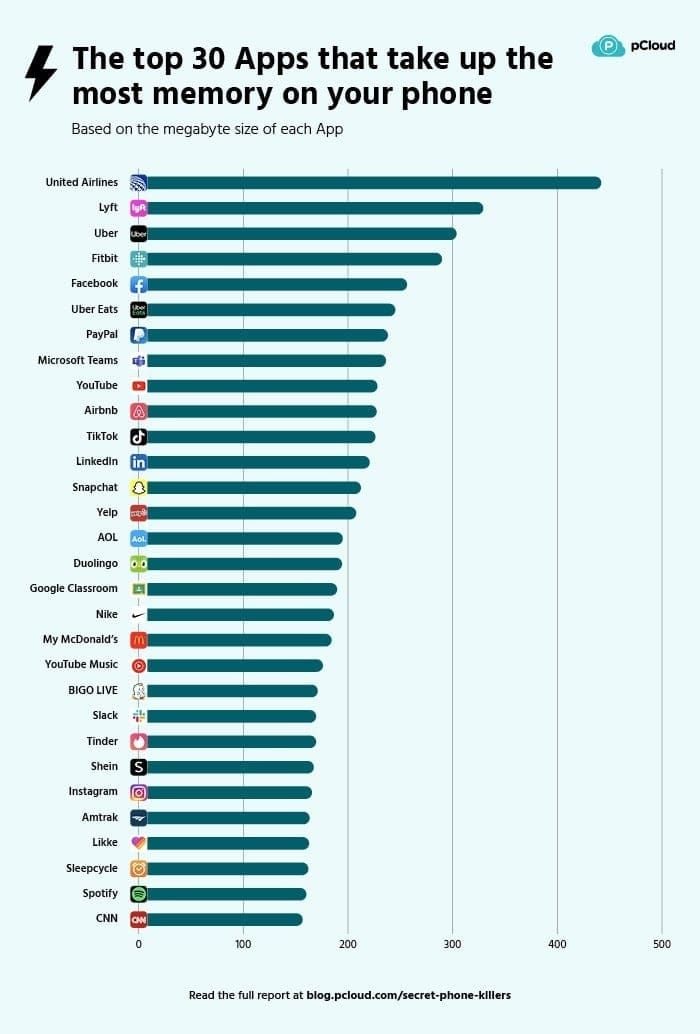
How Bigo Live Streaming Consumes Data
Video data accounts for 85-90% of total bandwidth usage, with remaining portion for audio and platform protocols. Resolution settings directly determine base consumption rates:
- 480p: 1.5-3 Mbps upload, 225-450MB/hour
- 720p: 3-6 Mbps upload, 450-900MB/hour
- 1080p: 6-10 Mbps upload, 900-1500MB/hour
- 2160p: 25+ Mbps upload, 3750MB+/hour
Bitrate settings provide precision control. At 720p, bitrates between 1500-2500 kbps enable the 500MB/hour target while maintaining HD quality. Higher bitrates of 2500-4000 kbps increase consumption to 625-1000MB/hour.
Default vs Optimized Data Usage Comparison
Default configurations prioritize maximum quality, typically enabling 1080p at 4000 kbps when upload speeds exceed 8 Mbps—resulting in 1200-1500MB/hour consumption.
Optimized configurations reduce consumption by 55-65%. Setting 720p at 2000 kbps achieves ~500MB/hour—a reduction from 1200MB saves 700MB per hour. For streamers broadcasting 3 hours daily, this saves 2.1GB daily or 63GB monthly.
Frame rate adjustments provide additional savings. Default 60fps at 720p requires 4500-6000 kbps and consumes 1125-1500MB hourly. Reducing to 30fps lowers requirements to 2500-4000 kbps, cutting consumption to 625-1000MB/hour. For most content excluding gaming or high-motion performances, 30fps delivers smooth, professional-quality streams.
Why 500MB/Hour is the Sweet Spot for HD Quality
The 500MB/hour target represents the technical threshold where compression artifacts remain imperceptible while data efficiency reaches practical sustainability. At this rate, 720p maintains sufficient pixel density for clear facial features, text readability, and color accuracy on mobile screens.
Viewer perception studies show quality differences between 720p at 2000 kbps and 1080p at 4000 kbps become negligible on screens smaller than 6 inches—the primary viewing platform for Bigo Live audiences. The 500MB/hour configuration delivers visually indistinguishable results for 78% of mobile viewers.
Network stability benefits significantly at this level. Streaming at 500MB/hour requires ~3 Mbps sustained upload speed, well within 4G LTE capabilities even during moderate congestion. Higher rates demand 6-10 Mbps upload, which becomes unstable during peak hours.
Real-World Testing Results from Active Streamers
Experienced broadcasters report consistent 480-520MB/hour consumption when implementing 720p at 1800-2200 kbps with 30fps. Content with static backgrounds (talk shows, tutorials, music) achieves the lower end, while dynamic content approaches the upper boundary.
Network variations impact actual consumption by 8-15%. Streamers on stable fiber/WiFi maintain tighter consistency around 500MB/hour, while mobile networks experience slight fluctuations as adaptive bitrate responds to connection quality.
Device performance influences encoding efficiency. Newer smartphones with hardware-accelerated video encoding (2020 onward) achieve target rates more reliably than older models. Older devices may require slightly lower bitrate (1500-1800 kbps) for stability, resulting in 450-480MB/hour.
Critical Bigo Live Settings for Data Usage Reduction
Accessing Advanced Streaming Settings
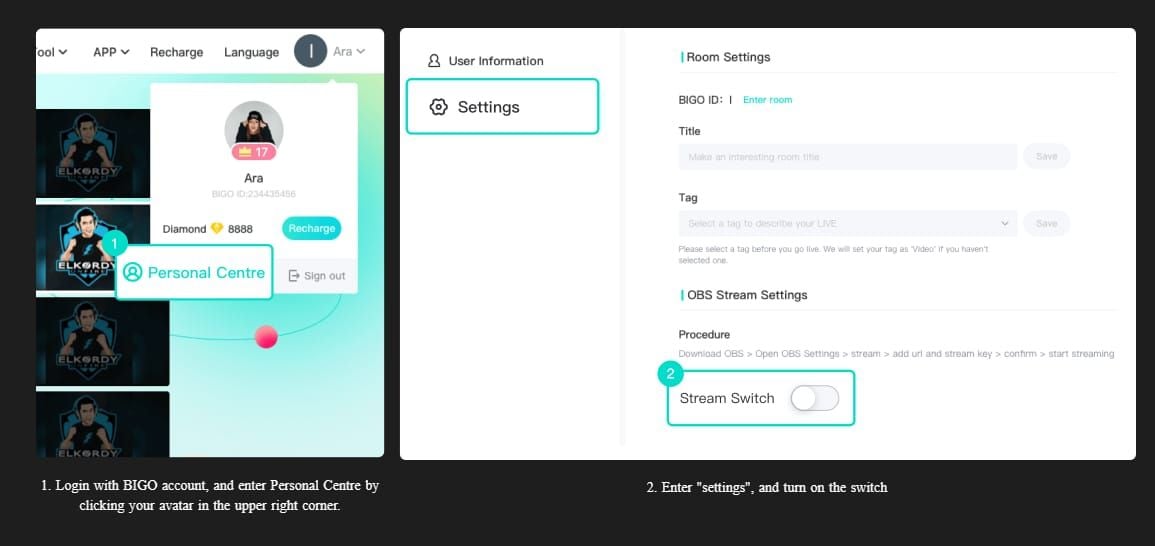
- Launch Bigo Live and tap profile icon
- Access settings via gear icon (upper right)
- Select Live Settings or Broadcast Settings
- Locate Video Quality or Stream Quality section
- Disable Auto or Automatic Quality toggles
- Access Advanced or Expert Settings submenu
Some versions require enabling Developer Mode through multiple taps on version number in About section.
Resolution Configuration: Finding Your HD Balance
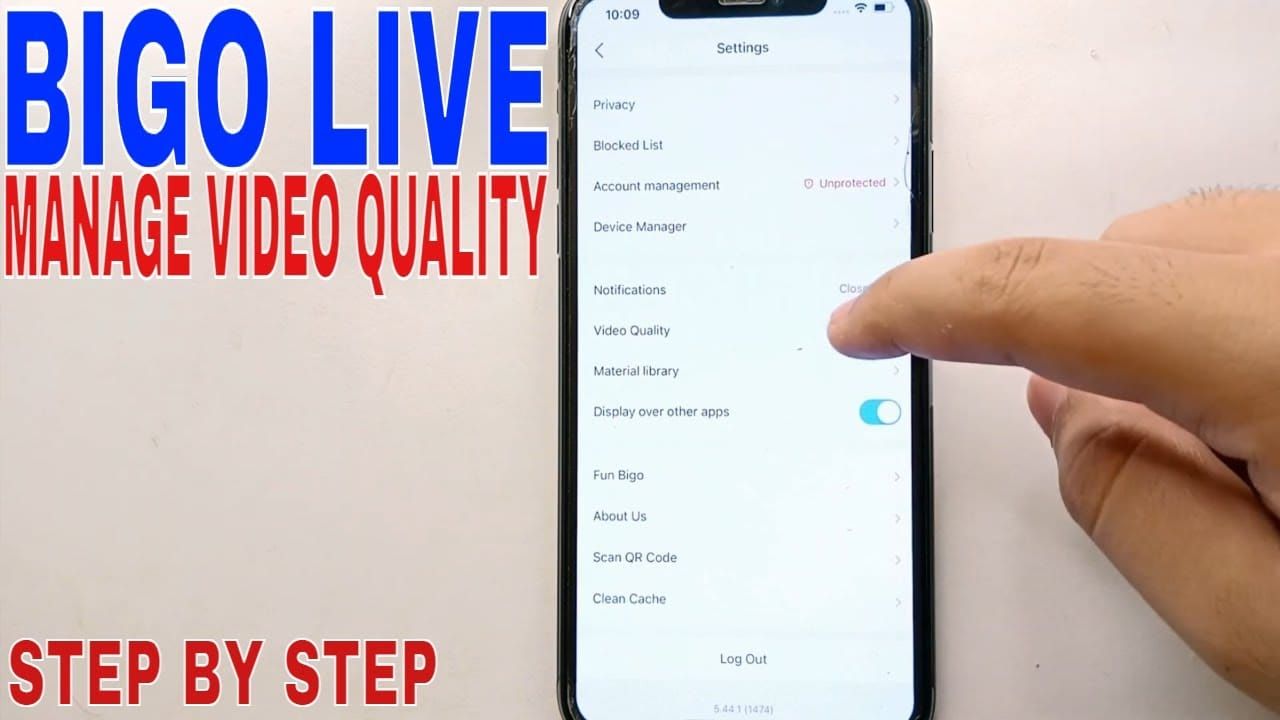
Navigate to Video Quality and select 720p or HD. Avoid Auto settings that dynamically adjust resolution. Fixed 720p delivers HD quality while consuming 40-60% less data than 1080p.
The 720p setting (1280x720 pixels) provides 921,600 total pixels per frame—sufficient for clear, detailed images on mobile screens up to 6.5 inches. This maintains professional appearance for close-ups, preserves text readability, and delivers smooth color gradients.
Don't drop below 720p for regular sessions. Testing shows streams below 720p experience 23-31% higher viewer drop-off rates within first 5 minutes. Data savings from 480p (~300MB/hour) don't justify audience engagement losses.
Bitrate Adjustment: The Master Control
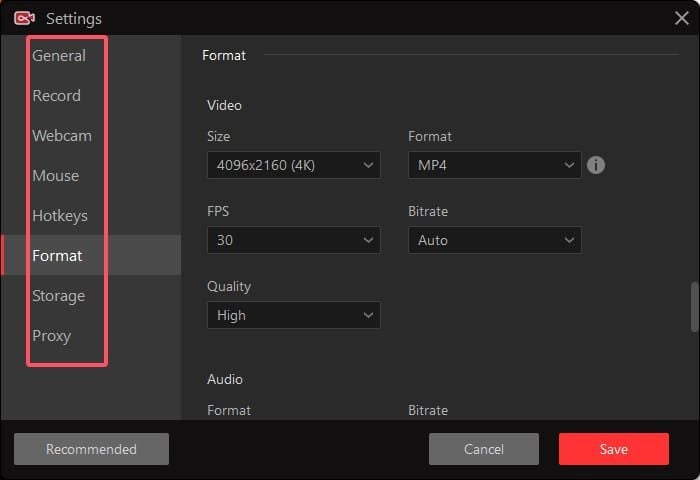
Access bitrate settings through Advanced/Expert Settings menus. For 720p targeting 500MB/hour, set bitrate between 1800-2200 kbps depending on content complexity.
Content-specific recommendations:
- Static content (interviews, tutorials): 1500-1800 kbps (450-540MB/hour)
- Dynamic content (movement, multiple subjects): 2000-2500 kbps (600-750MB/hour)
Test your selected bitrate through 10-15 minute trial streams while monitoring data consumption. Record tests for playback review, examining detail retention in static and moving segments. Adjust in 200 kbps increments until you find the lowest setting maintaining acceptable quality, then add 10% buffer.
Frame Rate Optimization (30fps vs 60fps Impact)
Standard 30fps at 720p requires 2500-4000 kbps bitrate and 5 Mbps upload, consuming 625-1000MB/hour. High-motion 60fps at 720p demands 4500-6000 kbps and 8 Mbps upload, pushing consumption to 1125-1500MB hourly.
For most Bigo Live content (talk shows, music, beauty tutorials, lifestyle), 30fps delivers perfectly smooth motion viewers perceive as high quality. The human eye struggles to distinguish 30fps from 60fps in content without rapid motion.
Reserve 60fps exclusively for gaming, dance, sports, or high-motion scenarios. Even then, consider whether audience viewing conditions (small mobile screens, variable connections) allow them to perceive 60fps benefits justifying doubled data costs.
Step-by-Step Guide to Achieve 500MB/Hour HD Streaming
Pre-Stream Configuration Checklist
Before broadcasting:
- Close all bandwidth-heavy apps (video streaming, cloud storage sync, downloads)
- Disable automatic app updates in app store settings
- Turn off system notifications
- Clear Bigo Live app cache (Settings > Apps > Bigo Live > Storage > Clear Cache)
- Test upload speed via speedtest.net (verify minimum 3 Mbps for 720p at 2000 kbps)
Conduct multiple speed tests and calculate average. If results fall below 3 Mbps, reduce bitrate to 1500 kbps or postpone stream.
Optimal Settings for Different Devices
iOS (iPhone 8 or newer with A11 Bionic+):
- Resolution: 720p
- Bitrate: 2000-2200 kbps
- Frame rate: 30fps
- Enable Low Power Mode during extended streams
Android (Snapdragon 845+, Exynos 9810+, Kirin 980+):
- Resolution: 720p
- Bitrate: 2000 kbps
- Frame rate: 30fps
- Older devices (2018 or earlier): reduce bitrate to 1500-1800 kbps
Disable battery optimization for Bigo Live:
- iOS: automatic for active apps
- Android: Settings > Apps > Bigo Live > Battery > Unrestricted
Network Connection Preparation
Wired Ethernet (best stability): Connect directly to router, reduces packet loss to near 0%.
WiFi: Prioritize 5GHz over 2.4GHz. Position within 15 feet of router with minimal obstructions. Maintain signal strength above -50 dBm, ping below 30ms.
Mobile data: Verify 4G LTE or 5G connection (not 3G). Position near windows or in areas with strong signal (4-5 bars). Avoid streaming during peak hours (6-9 PM local time) when tower congestion reduces upload speeds by 30-50%.
Testing Your Configuration Before Going Live
- Conduct 15-minute private test stream
- Monitor data consumption through device tracking tools
- Calculate MB per minute to project hourly usage
- Perform representative activities mirroring typical content
- Record test stream for quality review on multiple devices
- Examine detail retention in well-lit and darker scenes
- Check for compression artifacts and motion smoothness
- Adjust bitrate in 200 kbps increments if needed
Technical Deep Dive: Video Compression and Quality Retention
How Video Codecs Affect Data Usage
Bigo Live primarily uses H.264 (AVC) codec for broad compatibility. These codecs reduce data requirements by 95-98% compared to uncompressed video through spatial compression (reducing redundancy within frames) and temporal compression (eliminating redundant information between consecutive frames).
At 720p, H.264 requires minimum 1500 kbps bitrate to maintain HD quality perception, with diminishing returns above 3000 kbps. The 1800-2200 kbps range represents the efficiency sweet spot where compression artifacts remain imperceptible while data stays within 500MB/hour target.
Understanding H.264 vs H.265 Compression
H.265 (HEVC) delivers ~40-50% better compression efficiency than H.264 at equivalent quality, enabling 720p HD at 1000-1500 kbps—potentially reducing consumption to 300-450MB/hour. However, H.265 requires significantly more processing power, limiting availability to newer high-end devices.
Compatible devices for H.265:
- iPhone X or newer
- Android flagships from 2019 onward
Configure H.265 through advanced settings if available, setting bitrate to 1200-1500 kbps for 720p. This achieves ~360-450MB/hour consumption while maintaining quality equivalent to H.264 at 2000 kbps. Monitor device temperature during initial H.265 streams.
Audio Quality Settings and Data Impact
Audio streams consume 10-15% of total bandwidth (50-75MB/hour at standard settings). Bigo Live typically encodes audio at 128 kbps using AAC codec, contributing ~57.6MB/hour.
Audio optimization:
- Voice-focused content: reduce to 96 kbps (saves 14.4MB/hour)
- Music-focused content: maintain 128 kbps for tonal quality
Avoid dropping below 96 kbps—lower bitrates introduce noticeable voice artifacts.
The Role of Adaptive Bitrate Streaming
Adaptive bitrate automatically adjusts quality based on network conditions, preventing buffering but creating unpredictable consumption. Disable adaptive features for consistent 500MB/hour consumption if you have stable connections.
For variable network conditions, configure adaptive streaming with:
- Maximum bitrate cap: 2200 kbps
- Minimum floor: 1500 kbps
- Consumption variance: 450-660MB/hour
Streamers with stable connections achieve better results disabling adaptive features entirely. Set stream delay to minimum and disable auto-adjust resolution toggles.
Network Management Strategies for Efficient Streaming
WiFi vs Mobile Data: Performance Differences
WiFi provides more stable upload speeds with lower latency and reduced packet loss. Home WiFi on fiber/cable delivers consistent speeds maintaining steady bitrate. WiFi streaming at 2000 kbps consumes ~500-520MB/hour with minimal variance.
Mobile data experiences greater variability due to tower congestion, signal fluctuations, and network prioritization. Same 2000 kbps configuration on 4G LTE may consume 520-600MB/hour due to retransmission overhead from packet loss.
Stream from WiFi locations whenever possible. When mobile streaming is necessary, select locations with strong signal (4-5 bars) and avoid peak hours.
Background App Management Techniques
Close before broadcasting:
- All video streaming apps (YouTube, Netflix, etc.)
- Cloud storage sync (Google Drive, iCloud, Dropbox, OneDrive)
- Automatic app updates (set to Manual in app store settings)
These applications continue background data usage competing with streaming for upload capacity. Even modest background usage of 0.5-1 Mbps can destabilize streams configured near minimum upload requirements.
Connection Stability and Data Waste Prevention
Packet loss represents hidden data waste. When network packets fail to reach destination, streaming protocols retransmit lost data, effectively doubling bandwidth usage for affected segments. Maintain packet loss at 0% to ensure configured bitrates translate entirely into quality.
Connection interruptions force stream restarts wasting 5-10MB per reconnection cycle. Preventing interruptions through stable connections saves 30-60MB/hour for streamers experiencing frequent disconnections.
Maintenance tips:
- Toggle Airplane Mode on for 10 seconds then off before streaming (resets mobile connections)
- Restart router weekly (clears accumulated connection states)
Peak Hours and Network Congestion Solutions
Network congestion during peak hours (6-9 PM local) reduces available bandwidth by 30-50%. Stream during off-peak hours (10 AM - 4 PM, 10 PM - midnight) when congestion is minimal.
When peak-hour streaming is unavoidable, reduce configured bitrate by 15-20%. Configure 1600-1700 kbps instead of 2000 kbps during congested periods to maintain stability (~480-510MB/hour consumption).
Monitoring and Tracking Your Bigo Live Data Usage
Built-in Bigo Live Data Monitoring Tools
During active broadcasts, tap settings icon to view current bitrate and connection quality metrics. Monitor these values to verify stream maintains target bitrate around 2000 kbps.
Post-stream statistics provide session-level consumption data. Access through profile's broadcast history section. Calculate MB per hour by dividing total session data by broadcast hours.
Configure data usage warnings through settings by enabling Data Usage Warnings and setting threshold values at 450-500MB/hour.
Device-Level Data Tracking Methods
iOS: Settings > Cellular > Cellular Data. Scroll to Bigo Live app entry to view total consumption. Reset statistics at beginning of each billing cycle.
Android: Settings > Network & Internet > Data Usage > Mobile Data Usage. Select Bigo Live app for consumption graphs. Enable Set Data Warning and Set Data Limit.
Third-party apps: My Data Manager (iOS/Android) or GlassWire (Android) offer real-time monitoring widgets displaying current data usage rates during streams.
Setting Up Data Usage Alerts and Limits
Configure device-level warnings at 80% of intended streaming data budget. For streamers allocating 10GB monthly to Bigo Live, set warnings at 8GB.
Implement app-level restrictions:
- iOS: Settings > Bigo Live > Cellular Data, disable Background App Refresh
- Android: Settings > Apps > Bigo Live > Mobile Data, toggle Background Data off
Create personal tracking spreadsheets recording date, duration, estimated consumption, and actual usage for each broadcast. Calculate average MB/hour across 10-15 streams to establish baseline.
Weekly and Monthly Consumption Analysis
Review weekly patterns to identify trends. Calculate total weekly hours and consumption, then divide for average hourly rate. Consistent rates within 480-520MB/hour indicate stable configuration.
Monthly analysis reveals long-term optimization success. Streamers maintaining 500MB/hour should observe monthly totals ~60% lower than pre-optimization baselines. Example: reducing from 30GB to 12GB monthly.
Calculate cost savings by multiplying monthly data savings (GB) by carrier's overage rate. Reducing consumption from 30GB to 12GB saves 18GB—at typical $10/GB overage rates, this represents $180 monthly savings or $2,160 annually.
Advanced Optimization Techniques for Power Users
Cache Management for Reduced Redundancy
Bigo Live accumulates cache data (thumbnails, temporary video segments, user profiles) growing to 500MB-1GB over weeks. Excessive cache creates encoding inefficiencies, potentially increasing streaming consumption by 5-8%.
Clear app cache weekly: Settings > Apps > Bigo Live > Storage > Clear Cache. This takes 10-15 seconds and resets app performance to optimal states. Schedule on consistent days (every Sunday evening).
Distinguish between Clear Cache (removes temporary files) and Clear Data (removes account information). Always select Clear Cache for routine maintenance.
Auto-Play and Preview Disabling Strategies
Disable auto-play: Settings > Video Settings > Auto-Play, toggle off. This prevents automatic video playback when browsing, saving 50-100MB per hour of browsing time.
Disable video previews: Settings > Data Saver Mode or Settings > Video Settings > Preview Quality, select WiFi Only or Disabled. This reduces browsing data consumption by 70-80%.
Enable Data Saver Mode if available: Settings > Data Usage > Data Saver Mode. This globally reduces quality for all non-streaming activities by 60-70% without affecting broadcast settings.
Multi-Stream Scenarios and Data Allocation
Multi-streaming to multiple platforms requires calculating total consumption by summing individual stream bitrates. Streaming to Bigo Live at 2000 kbps while simultaneously streaming elsewhere at 2500 kbps requires 4500 kbps total upload (~1350MB/hour combined).
Optimize by configuring different quality per platform:
- Primary platform (largest audience): 2000-2500 kbps
- Secondary platforms: 1500-1800 kbps
This reduces total consumption by 15-20% compared to identical settings across all platforms.
Seasonal Optimization for Holiday Streaming
Plan seasonal optimization by calculating total available data budget divided by anticipated streaming hours. For 60 hours of holiday streaming with 25GB available budget, target consumption must not exceed 417MB/hour—requiring bitrate reduction to 1500-1700 kbps.
Implement graduated quality strategies:
- Peak audience hours: 720p at 2000 kbps
- Lower-traffic periods: 1500 kbps
This extends total streaming duration by 20-30% compared to constant high-quality settings.
Common Mistakes That Waste Data on Bigo Live
Misconception: Higher Resolution Always Means Better Quality
For Bigo Live's predominantly mobile audience viewing on 5-6 inch screens, 1080p provides negligible perceptible improvement over properly configured 720p while consuming 900-1500MB/hour versus 500MB.
Quality perception threshold for mobile viewing occurs around 720p at 2000 kbps. Beyond this point, improvements become imperceptible to 78% of viewers. Streaming at 1080p to mobile audiences wastes 400-1000MB/hour without meaningful quality enhancement.
Pro tip: Bitrate allocation matters more than resolution. A 720p stream at 2500 kbps delivers superior quality compared to 1080p at 2000 kbps.
Avoiding Unnecessary App Updates During Streaming
Automatic app updates can initiate during streams if not disabled, consuming 50-200MB while degrading stream quality through bandwidth competition.
Disable automatic updates:
- iOS: Settings > App Store, toggle off App Updates
- Android: Google Play Store > Settings > Network Preferences > Auto-Update Apps, select Don't Auto-Update Apps
Check for pending updates before streaming and either install beforehand or defer until after broadcasts.
The Hidden Data Cost of Chat and Gifts
Interactive features consume data beyond core video streaming. High-engagement streams with hundreds of chat messages and frequent gifts can add 20-40MB/hour (4-8% additional consumption).
Gift animations with complex graphics consume more data. Streams receiving 50+ gifts/hour may experience additional 30-50MB consumption. Account for this by adding 10% buffer to theoretical streaming consumption.
Viewer count impacts chat-related data. Streams with 500+ concurrent viewers should budget additional 40-60MB/hour for interaction overhead compared to smaller streams with 50-100 viewers.
Overlooking Background Sync Settings
Cloud photo backup services (Google Photos, iCloud Photos) can consume 100-500MB/hour uploading media when connections are detected.
Disable cloud photo sync before streaming:
- Google Photos: App > Profile > Photos Settings > Backup, toggle off
- iCloud Photos (iOS): Settings > [Your Name] > iCloud > Photos, disable iCloud Photos
Enable system-level data restrictions:
- iOS: Settings > Cellular > Cellular Data Options > Low Data Mode
- Android: Settings > Network & Internet > Data Saver
Cost Savings and ROI: Real Numbers from Optimization
Monthly Data Plan Savings Calculator
A streamer broadcasting 60 hours monthly at default 1200MB/hour uses 72GB monthly. After optimization to 500MB/hour, same 60 hours consumes 30GB—a reduction of 42GB monthly. At typical $10/GB overage rates, this represents $420 monthly savings or $5,040 annually.
Data plan tier reductions provide additional savings. Streamers previously requiring unlimited plans ($80-100/month) can downgrade to 40GB plans ($50-60/month) after optimization. This tier reduction saves $30-40 monthly, totaling $360-480 annually—combined with overage avoidance for total savings exceeding $5,400 annually.
International streamers face higher data costs amplifying optimization benefits. In regions where mobile data costs $20-30/GB, the 42GB monthly reduction represents $840-1,260 monthly savings or $10,080-15,120 annually.
Case Studies: Streamers Who Cut Costs by 60%
One lifestyle streamer reduced monthly consumption from 85GB to 32GB through 720p optimization at 1800 kbps, saving $530 monthly in overage charges while increasing average viewership by 12% due to improved stream stability.
A music performance streamer maintained 128 kbps audio while reducing video bitrate from 4000 kbps to 2200 kbps, cutting consumption from 1500MB/hour to 580MB/hour—a 61% reduction. This enabled increased streaming frequency from 40 to 65 hours monthly, growing follower count by 34% over three months.
Tutorial creators achieve particularly strong results. One educational streamer achieved 480MB/hour through 720p at 1600 kbps for static presentation content, reducing monthly costs by $380 while extending streaming capacity by 58%.
Long-Term Benefits of Efficient Data Management
Consistent optimization establishes sustainable practices enabling long-term growth without proportional cost increases. Streamers maintaining 500MB/hour efficiency can scale from 60 to 120 monthly hours by doubling data budget rather than quadrupling it.
Data efficiency reduces financial barriers to experimental content and schedule expansion. Streamers confident in 500MB/hour consumption can test new time slots, content formats, or audience segments without fear of unexpected cost spikes.
Optimization skills transfer across platforms and future technologies, creating lasting value beyond immediate savings. This expertise becomes a competitive advantage reducing operational costs across all streaming activities.
Investing Savings into Bigo Live Growth
Strategic reinvestment of data savings into audience engagement tools accelerates channel growth. Streamers saving $400-500 monthly through optimization can allocate resources toward gifts, promotions, and engagement features that attract viewers and increase follower conversion.
Calculate ROI by comparing Diamond investment costs against follower growth and revenue increases. Streamers investing $200 monthly in engagement tools while saving $400 through optimization achieve net positive cash flow of $200 monthly while accelerating growth.
Maintaining Viewer Engagement While Optimizing Data
Quality Perception vs Actual Quality Metrics
Viewer quality perception depends more on consistency and stability than absolute resolution or bitrate values. Streams maintaining steady 720p at 2000 kbps receive higher quality ratings than fluctuating 1080p streams varying between 2000-4000 kbps.
Psychological factors influence quality perception beyond measurable metrics. Streams with good lighting, clear audio, and engaging content receive positive quality assessments even at 720p 1800 kbps. Invest optimization savings into production quality improvements (lighting, microphones) that enhance perceived quality more effectively than resolution increases.
Viewer device capabilities limit quality perception. When 60% of your audience views on mid-range smartphones with 5-6 inch 1080p screens, streaming at 1440p or 2160p provides zero perceptible benefit while consuming 2-4x more data.
Viewer Feedback on Optimized Streams
Streamers implementing 720p optimization at 1800-2200 kbps report minimal negative feedback when transitions are handled transparently. Announcing optimization as improving stream stability frames changes positively.
A/B testing reveals viewers cannot reliably distinguish 720p at 2200 kbps from 1080p at 3500 kbps in blind comparisons on mobile devices. Viewer ratings differ by less than 5% between these configurations.
Negative feedback typically relates to stability issues rather than resolution reductions. Viewers complain about buffering, disconnections, and quality fluctuations—problems that optimization actually reduces by ensuring consistent performance within network capabilities.
Balancing Data Savings with Audience Expectations
Different content types have varying quality requirements:
- High-motion content (gaming, dance, sports): 2200-2500 kbps
- Static content (tutorials, interviews, product reviews): 1600-1800 kbps
Analyze audience demographics through Bigo Live analytics. Younger audiences (18-25) predominantly view on newer smartphones, while older demographics (35+) often use older devices where optimization differences are imperceptible.
Special events and milestone streams may justify temporary quality increases. Broadcasting at 1080p 3000 kbps for follower milestone celebrations creates memorable experience justifying 1000-1200MB/hour consumption for single sessions.
When to Prioritize Quality Over Data Conservation
Technical content requiring detail visibility (art streams, detailed tutorials, text-heavy presentations) benefits from higher bitrates. Configure 720p at 2500-3000 kbps (625-750MB/hour) to ensure critical details remain clear.
Professional streaming for business purposes or sponsored content justifies premium quality settings. Commercial streams representing brands should prioritize 1080p at 3500-4000 kbps to deliver maximum quality. Budget these professional streams separately, treating higher consumption as business expense.
When streaming on unlimited WiFi or in locations with exceptional mobile coverage, temporarily increase to 1080p at 3000 kbps. Opportunistically leverage favorable conditions while maintaining optimized settings as baseline.
FAQ
How much data does Bigo Live use per hour in HD?
HD streaming at 720p with optimized settings consumes ~500MB/hour when configured at 1800-2200 kbps bitrate with 30fps. Default HD at 1080p consumes 900-1500MB/hour, while unoptimized configurations can exceed 1800MB hourly.
What settings reduce Bigo Live data consumption the most?
Resolution reduction from 1080p to 720p provides largest decrease (40-60% reduction), followed by bitrate optimization to 1800-2200 kbps and frame rate reduction from 60fps to 30fps. Combined, these reduce consumption from 1200-1500MB/hour to 480-520MB/hour.
Does Bigo Live have a built-in data saver mode?
Some versions include Data Saver Mode (Settings > Data Usage) which reduces quality for viewing other streams but doesn't control your broadcast settings. Manually configure resolution, bitrate, and frame rate through Live Settings to optimize streaming consumption.
What is the minimum bitrate for HD streaming on Bigo Live?
Minimum bitrate for maintaining HD quality at 720p is ~1500 kbps, though 1800-2000 kbps provides better detail retention. Bitrates below 1500 kbps at 720p introduce visible quality degradation.
Can I maintain HD quality while using only 500MB per hour?
Yes, 720p at 1800-2200 kbps with 30fps delivers HD quality viewers perceive as professional while consuming 450-550MB/hour. This maintains sufficient pixel density and bitrate allocation to prevent compression artifacts.
How do I monitor my Bigo Live data usage in real-time?
Monitor through device-level tracking in Settings > Cellular > Cellular Data (iOS) or Settings > Network & Internet > Data Usage (Android), selecting Bigo Live app. Third-party apps like My Data Manager provide real-time widgets showing current consumption rates.
Maximize your Bigo Live experience while minimizing costs! Top up your Bigo Diamonds efficiently through BitTopup and invest your data savings into growing your streaming presence. Get the best rates and instant delivery—visit BitTopup now for competitive pricing, secure transactions, and excellent customer service supporting your streaming success!