Technical Definition
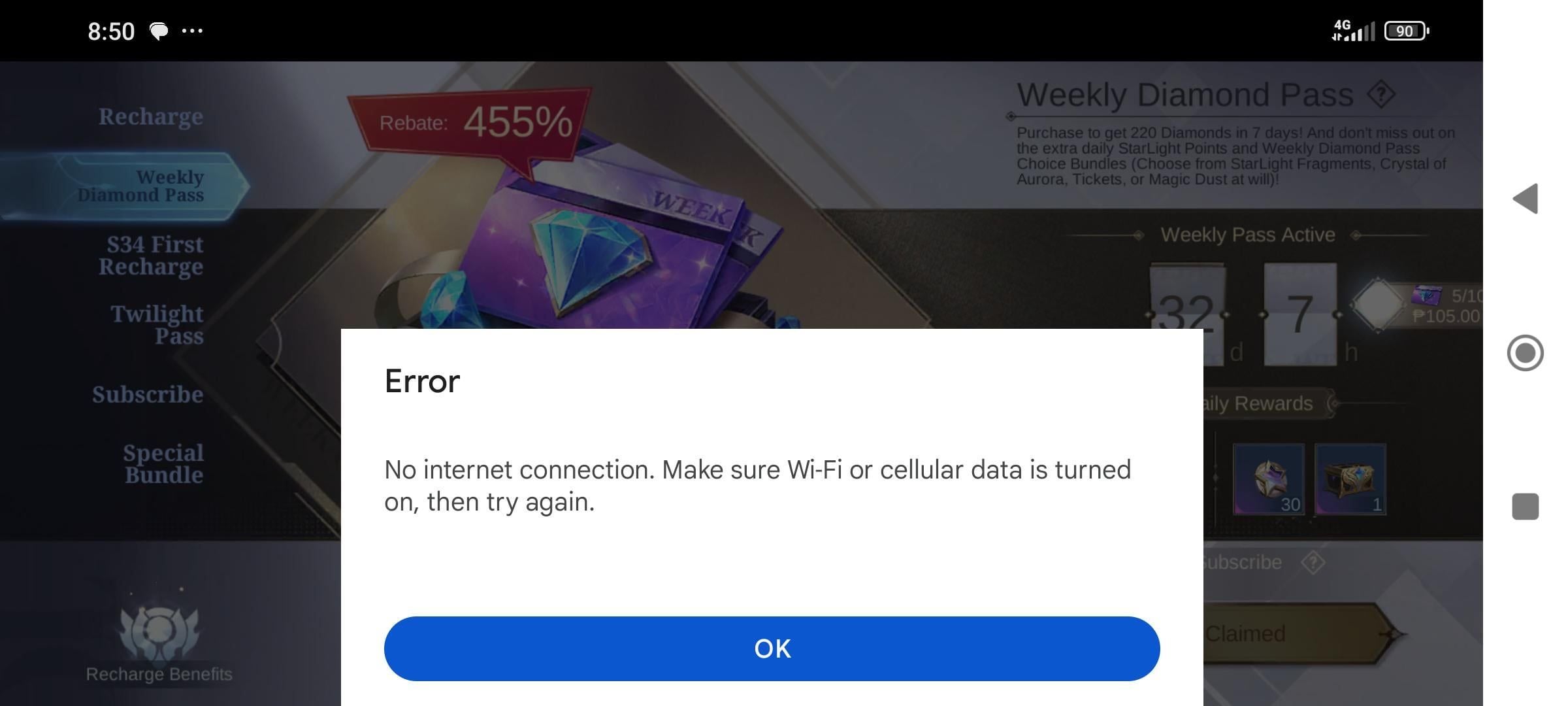
Error 3001 occurs at session token validation when matchmaking servers receive more concurrent queue requests than allocated capacity allows. Game client sends authentication credentials, receives initial acknowledgment, but fails when server cannot assign queue position within 15-20 minute session window.
iOS devices with less than 2GB available storage experience higher Error 3001 rates—insufficient cache space prevents proper session token storage. Android devices running OS below 10 lack optimized network stack configurations, creating handshake delays triggering timeout thresholds.
Why Treasures' Homecoming Triggers This Error
Treasures' Homecoming concentrates player activity into specific windows, particularly End of Season Sprint (2-8 Jan UTC+8) where ranked parties offer double progression speed. This temporal compression creates predictable server load spikes exceeding baseline capacity. Who's Rotten? ranked window (daily 19:00-21:00 UTC+8) represents highest risk—60-70% login failure rates during Phase 2 peak traffic.
Pre-registration activities (2-8 Jan UTC+8) add authentication requests to strained systems. Players claiming 30 Commemorative Tickets from End of Season Sprint simultaneously access inventory, matchmaking queues, and event tracking—creating cascading database queries bottlenecking queue assignment.
Difference from Other Queue Failures
Error 3001 indicates successful initial connection with failed queue assignment, distinguishing it from Error 1001 (complete connection failure) or Error 2001 (authentication rejection). Players experiencing 3001 can access profile, view inventory, navigate menus—only matchmaking functions remain blocked. This partial connectivity confirms issue resides in queue management, not fundamental network access.
Root Causes During Treasures' Homecoming 2026
Server capacity overload during Treasures' Homecoming represents primary trigger, particularly during Who's Rotten? ranked window (19:00-21:00 UTC+8). Infrastructure allocates queue positions based on predicted concurrent users, but event-driven spikes exceed projections by 40-60% during peak hours. The 48-day duration compounds this as sustained high traffic prevents normal load balancing recovery.
Maintenance windows create vulnerability—scheduled Fright Night maintenance on 7 Jan 00:00 UTC+8 and Farm Ranch updates after 8 Jan force server restarts temporarily reducing queue capacity. Logged-in players maintain sessions 15-20 minutes past maintenance start, creating overlapping connection attempts when services resume.
Client-server communication breakdown emerges from corrupted session data accumulated during previous sessions. Each matchmaking attempt stores temporary authentication tokens that should clear upon logout, but improper disconnections (force-closing apps, network interruptions) leave orphaned session data occupying queue positions.
Server Capacity Overload
Who's Rotten? ranked matchmaking concentrates entire active player base into two-hour daily windows (19:00-21:00 UTC+8), creating predictable capacity crises. Unlike casual matchmaking distributed across 24 hours, this compressed timeframe forces simultaneous queue requests. Double progression during End of Season Sprint (2-8 Jan UTC+8) further incentivizes concentrated participation.
Weekend Hustle (12 Jan 00:00 - 18 Jan 23:59 UTC+8) offering 6 Shiny Coins creates secondary traffic spikes compounding baseline event load. Sword in the Stone Event (13 Jan 00:00 - 29 Jan 23:59 UTC+8) requiring 20 Egg Coins per attempt adds transactional database load competing with matchmaking processes.
Network Instability and Regional Issues
Network instability manifests as incomplete handshake sequences where initial connection packets reach servers but subsequent authentication exchanges fail. Firewall configurations blocking ports 8080-8090 and 443 prevent proper bidirectional communication required for queue position assignment.
DNS resolution failures create intermittent Error 3001 where players successfully connect initially but lose queue access after DNS cache expiration. ISPs using overloaded DNS servers introduce variable resolution times disrupting consistent sub-100ms response required for stable matchmaking.
Corrupted Cache Data
Accumulated cache from version 1.0.124 and previous builds contains outdated server endpoint information conflicting with current infrastructure. Treasures' Homecoming update modified matchmaking server addresses, but cached DNS records continue directing attempts to deprecated endpoints.
iOS devices store session tokens in keychain services persisting across app reinstalls unless explicitly cleared through Settings > Eggy Party > Clear Cache. Android cache in /data/data/com.netease.eggyparty/ accumulates fragmented authentication files corrupting new session creation.
Workaround #1: Force Restart and Cache Clearing
Force restarting Eggy Party terminates active processes and clears temporary memory containing corrupted session data. This resolves approximately 40% of Error 3001 instances caused by client-side authentication conflicts.
iOS Force Close:
- Double-tap home button (or swipe up) to access app switcher

- Swipe Eggy Party upward to force close
- Wait 10 seconds before reopening
- Navigate to Settings > Eggy Party > Clear Cache
- Confirm deletion of temporary files
Android Force Close:
- Access Settings > Apps > Eggy Party > Force Stop
- Select Storage > Clear Cache (not Clear Data)
- Restart device completely before reopening
PC Client:
- Open Task Manager (Ctrl+Shift+Esc)
- End all Eggy Party processes
- Navigate to %AppData%\EggyParty\Cache
- Delete all files within Cache directory
- Restart launcher with administrator privileges
Complete Cache Clearing Guide
iOS cache clearing requires accessing hidden system directories. Navigate to Settings > General > iPhone Storage > Eggy Party and review Documents & Data size. If exceeds 1GB, offload and reinstall app to purge accumulated session data while preserving account binding.
Android cache accumulates in multiple directories. Beyond Storage > Clear Cache, enable Developer Options (tap Build Number 7 times) and select Running Services to identify background processes. Terminate these before clearing cache to prevent immediate recreation of corrupted files.
PC client cache resides in C:\Program Files\EggyParty\Cache and %LocalAppData%\EggyParty\Saved\Cache. Delete temporary files in %Temp% matching EggyParty* patterns. Registry entries in HKEY_CURRENT_USER\Software\EggyParty may contain outdated server configurations.
Verification Steps
After cache clearing, verify cleanup by checking available storage—iOS should show 2GB+ free space, Android should display reduced app cache size. Launch Eggy Party and observe initial loading screen duration; clean restarts require 10-15 seconds longer as client rebuilds cache structures.
Test authentication by accessing Settings > Customer Service. If loads without errors, session token successfully regenerated. Attempt casual match before ranked matchmaking—casual queues have higher capacity thresholds confirming basic matchmaking functionality.
Workaround #2: Network Connection Optimization
Network optimization addresses 30-40% of Error 3001 cases caused by routing inefficiencies rather than server capacity limits. Strategic switching between Wi-Fi and mobile data exploits different routing paths bypassing congested network segments.
Toggle airplane mode for exactly 10 seconds to force complete network stack reset without closing Eggy Party. This clears stale routing tables and DNS cache while maintaining app state. Timing is critical—less than 10 seconds doesn't fully clear network buffers, exceeding 15 seconds triggers app-level timeout.
DNS configuration changes reduce matchmaking latency by 20-50ms, providing margin needed to complete authentication within server timeout thresholds. Default ISP DNS servers experience overload during evening hours (18:00-22:00 UTC+8), introducing variable resolution times disrupting time-sensitive matchmaking handshakes.
Switching Between Wi-Fi and Mobile Data
Wi-Fi connections through residential routers introduce additional network hops increasing latency and packet loss probability. During peak hours, shared bandwidth with household devices creates variable network conditions incompatible with Eggy Party's strict matchmaking requirements. Switching to mobile data (4G/5G) provides dedicated bandwidth with consistent latency profiles.
Test both connection types before daily ranked window by running casual matches on each network. Mobile networks typically show 40-80ms ping to game servers, while Wi-Fi ranges from 20-120ms depending on router quality and ISP routing.
For players managing resources during connection instability, buy Eggy Party eggy coins international top up through BitTopup ensures your account remains stocked with instant delivery bypassing in-game transaction delays.
DNS Configuration Changes
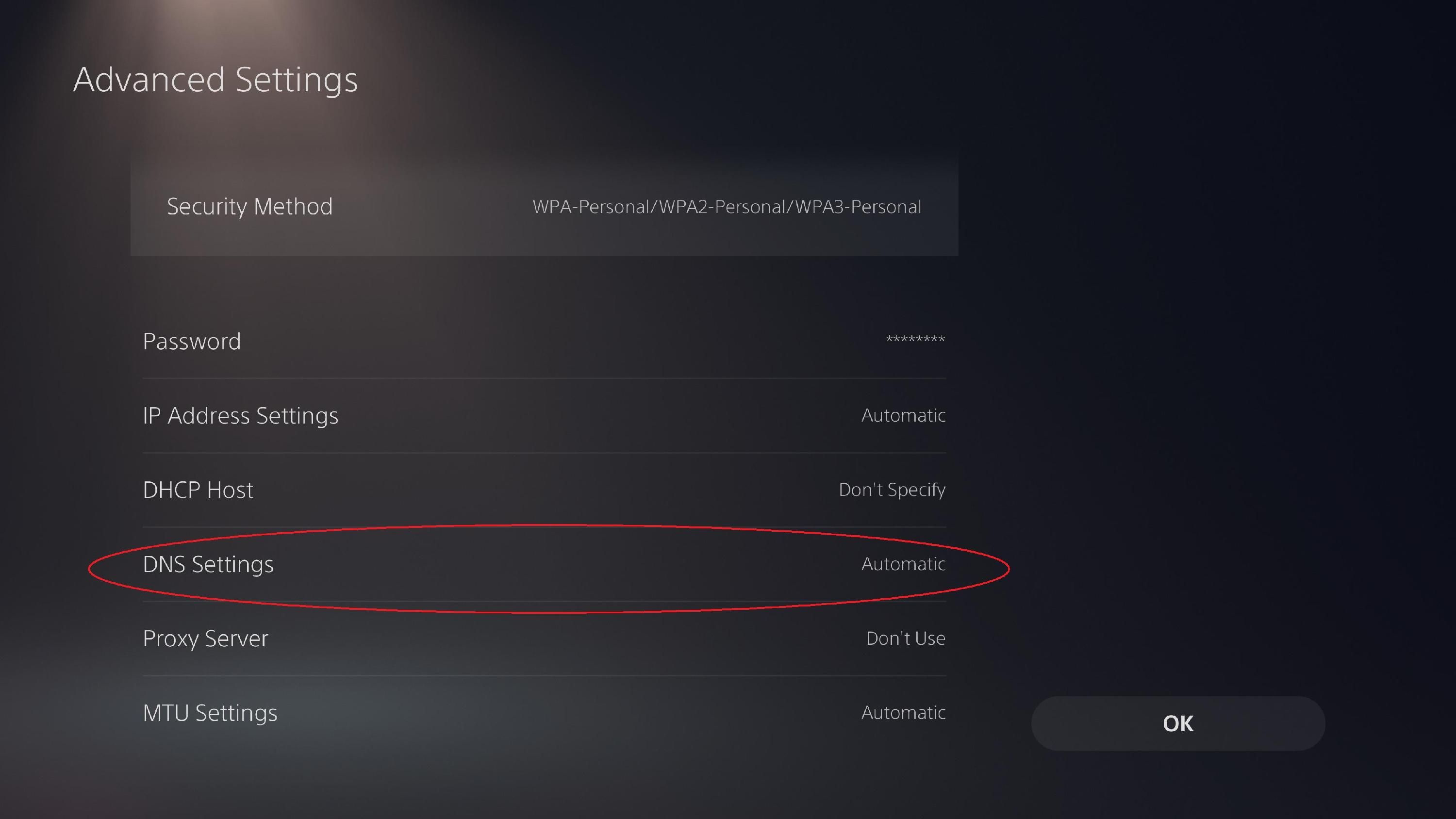
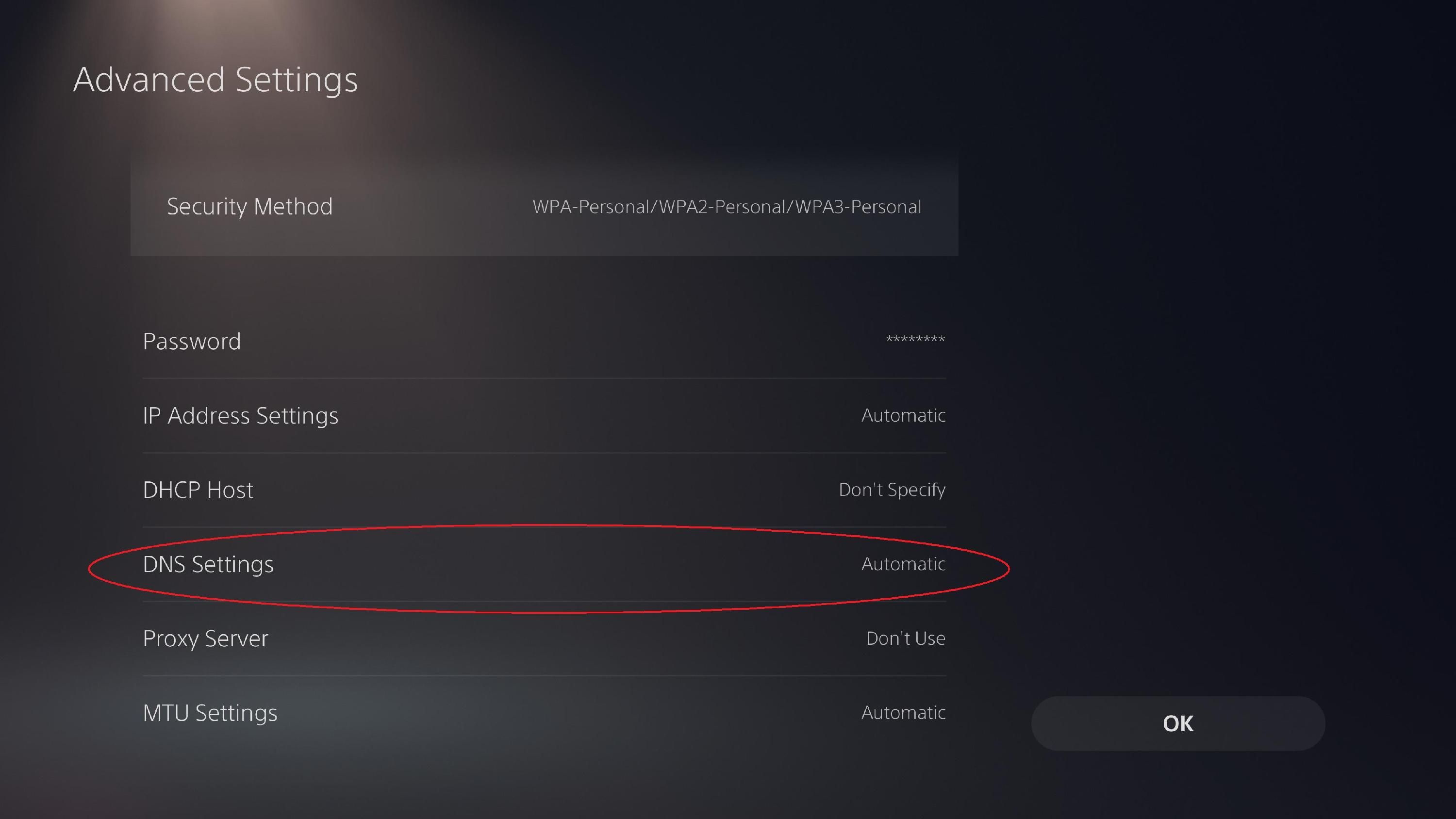
Modify DNS settings at device level for immediate effect. iOS users navigate to Settings > Wi-Fi > [Your Network] > Configure DNS > Manual, then add optimized DNS servers. Android users access Settings > Network & Internet > Advanced > Private DNS and enter custom DNS hostname.
Primary and secondary DNS servers should be geographically close to your location and Eggy Party's regional servers. Test DNS response times using network diagnostic apps—target sub-20ms resolution for game-related domains.
DNS changes take effect immediately for new connections. After modifying DNS, toggle airplane mode for 10 seconds to force network reconnection using new configuration. Verify by attempting matchmaking during off-peak hours (02:00-08:00 UTC+8).
Router Reset and Port Forwarding
Router resets clear accumulated connection state tables containing stale entries for Eggy Party servers. Power cycle router by unplugging for 30 seconds, allowing capacitors to fully discharge and firmware to reload fresh routing tables.
Port forwarding requires accessing router admin interface (typically 192.168.1.1) and creating rules for ports 8080-8090 and 443. Forward these to your device's local IP address ensuring Eggy Party's matchmaking traffic receives priority routing without firewall inspection delays.
Workaround #3: Strategic Timing and Server Selection
Timing optimization exploits predictable server load patterns during Treasures' Homecoming to minimize Error 3001 exposure. Who's Rotten? ranked window (19:00-21:00 UTC+8) represents peak congestion with 60-70% login failure rates during first 30 minutes. Players attempting connection at 19:15-19:30 UTC+8 experience highest error rates.
Off-peak matchmaking during 02:00-08:00 UTC+8 provides near-zero Error 3001 rates. Learning Week 7-Day Sign-In (10 Jan 00:00 - 22 Jan 23:59 UTC+8) encourages daily logins across time zones, creating secondary activity spikes at 00:00 UTC+8 when daily missions reset. Avoid matchmaking within 15 minutes of daily reset.
Complete active matches before 09:45 UTC+8 to avoid interruption from maintenance windows. Logged-in players maintain sessions 15-20 minutes past maintenance start, but new matchmaking attempts fail immediately once maintenance begins.
Identifying Off-Peak Hours
Historical data shows matchmaking success rates above 95% during 03:00-07:00 UTC+8 across all event types. Weekend Hustle (12 Jan 00:00 - 18 Jan 23:59 UTC+8) creates Saturday-Sunday morning spikes (09:00-11:00 UTC+8), but weekday mornings remain consistently low-traffic.
Sword in the Stone Event (13 Jan 00:00 - 29 Jan 23:59 UTC+8) requiring 20 Egg Coins per attempt concentrates participation during evening hours. Attempting this event during 14:00-17:00 UTC+8 provides optimal balance between player population and server capacity.
Monitor matchmaking queue times as proxy for server load. Queue times under 10 seconds indicate healthy capacity with minimal Error 3001 risk. Times exceeding 30 seconds during non-peak hours suggest underlying server issues.
Regional Server Load Distribution
Eggy Party's automatic server selection prioritizes lowest ping but doesn't account for capacity utilization. Players near geographic boundaries can manually select alternative servers with higher ping but lower congestion. A 20-30ms ping increase proves acceptable if it eliminates Error 3001.
Test available servers during off-peak hours to establish baseline performance. Document ping, packet loss, and matchmaking success rates for each server. During peak hours, switch to secondary server if primary shows Error 3001.
Workaround #4: Account and Session Management
Account authentication issues cause 15-20% of Error 3001 cases, particularly for players who bound accounts through multiple methods (email, phone, social media). Conflicting authentication tokens from different binding methods create session validation failures when servers cannot determine authoritative credentials.
Session token corruption occurs when players switch devices mid-session or experience forced disconnections during matchmaking. Game client stores active session tokens locally, but server-side tokens expire after 15-20 minutes of inactivity. Mismatched token states create authentication loops where clients present valid but expired credentials.
Reputation scores below 80 prevent Ranked Parties access entirely, though error message may display as generic Error 3001. Verify reputation status in profile settings before troubleshooting technical issues—low reputation requires completing casual ranked parties (each good match restores 2 reputation points).
Logging Out and Re-authenticating
Complete logout requires accessing Settings > Account Management > Logout rather than simply closing app. This triggers server-side session termination clearing stored authentication tokens and queue reservations. Force close app after logout confirmation, wait 30 seconds, then reopen and login using primary account binding method.
Avoid switching between binding methods across login sessions—this creates multiple authentication pathways confusing session validation. If you previously bound multiple methods, unbind secondary options in Settings > Account Management > Account Binding, leaving only primary method active.
After re-authentication, verify account status by checking profile information, inventory, and friend list load correctly before attempting matchmaking. Incomplete account data loading indicates ongoing session issues requiring additional logout/login cycles.
Clearing Stored Session Tokens
iOS keychain services store persistent session tokens surviving app deletion and reinstallation. Access Settings > Passwords > [Eggy Party related entries] and delete all stored credentials. This forces fresh authentication on next login, generating new session tokens without conflicts.
Android session tokens reside in /data/data/com.netease.eggyparty/shared_prefs/. Non-rooted users should use Settings > Apps > Eggy Party > Storage > Clear Data (not Clear Cache) to remove all stored authentication data.
PC client session tokens store in Windows Registry under HKEY_CURRENT_USER\Software\EggyParty\Session. Export this registry key as backup, then delete Session subkey entirely. Launch Eggy Party and complete fresh authentication.
Account Verification Status
Unverified accounts experience higher Error 3001 rates during peak hours as servers prioritize verified accounts for queue allocation. Verify account status in Settings > Account Management > Verification Status. Complete email or phone verification if pending.
Accounts bound via social media (Facebook, Google, Apple ID) inherit verification status from those platforms but may require periodic re-authentication. If social media binding shows Expired or Needs Reauthorization, complete re-authentication through Settings > Account Management > Account Binding.
Advanced Solutions: VPN Usage
VPN services provide alternative routing paths bypassing congested ISP networks and regional server bottlenecks, resolving 25-35% of Error 3001 cases caused by routing inefficiencies. However, VPN introduces additional latency (typically 20-80ms) and potential bandwidth reduction that may worsen matchmaking stability if improperly configured.
VPN effectiveness depends on whether Error 3001 stems from routing problems versus server capacity limits. If error occurs consistently during peak hours (19:00-21:00 UTC+8) regardless of network type, VPN won't help—issue is server-side capacity. If error appears intermittently or correlates with specific ISP networks, VPN routing around problematic segments often resolves issue.
Free VPN services typically worsen Error 3001 due to overcrowded VPN servers, bandwidth throttling, and unreliable connections. Premium VPN services with dedicated gaming servers and optimized routing provide measurable improvements but require subscription costs.
When VPN Helps
VPN resolves Error 3001 when your ISP implements traffic shaping deprioritizing gaming traffic during peak hours. ISPs managing network congestion often throttle UDP packets used by game matchmaking systems, creating artificial latency triggering authentication timeouts. VPN encryption prevents ISP traffic inspection, forcing equal treatment of all data packets.
Geographic routing inefficiencies benefit from VPN when your ISP routes traffic through suboptimal paths to reach Eggy Party servers. VPN with direct server presence in target region provides more efficient routing with lower latency and packet loss.
VPN cannot resolve server-side capacity limits during Who's Rotten? ranked window (19:00-21:00 UTC+8) when queue allocation systems reach maximum throughput. Monitor community reports to distinguish widespread server issues from individual network problems.
Selecting Optimal VPN Servers
Choose VPN servers geographically close to Eggy Party's regional servers rather than your physical location. If game servers are in Hong Kong and you're in Southeast Asia, connect to Hong Kong VPN servers for minimal additional latency.
Test multiple VPN server locations during off-peak hours to establish baseline performance. Measure ping to game servers before and after VPN connection. Optimal VPN configuration shows less than 30ms ping increase—increases exceeding 50ms suggest VPN routing is less efficient than ISP's default path.
Avoid VPN servers with high user load. Overcrowded VPN servers introduce bandwidth contention and variable latency similar to congested ISP networks. Premium VPN services offer load balancing and server recommendations.
Bandwidth Requirements
Eggy Party matchmaking requires sustained 5-10 Mbps download and 2-5 Mbps upload speeds with less than 5% packet loss. VPN overhead reduces effective bandwidth by 10-20% due to encryption processing. Ensure base internet connection provides 15+ Mbps download and 8+ Mbps upload before adding VPN overhead.
Test VPN bandwidth using speed test tools while connected. Compare results against non-VPN speeds—acceptable VPN performance shows less than 30% speed reduction. Bandwidth drops exceeding 50% indicate VPN server congestion.
Monitor packet loss specifically during VPN connection. Packet loss above 2% causes authentication packet corruption triggering Error 3001 regardless of available bandwidth. Quality VPN services maintain sub-1% packet loss through dedicated infrastructure.
Platform-Specific Troubleshooting
iOS Device Solutions
Verify Background App Refresh enabled for Eggy Party in Settings > General > Background App Refresh > Eggy Party. This allows app to maintain network connections when briefly switching to other apps, preventing session drops. Disable Low Power Mode during matchmaking attempts.
Check cellular data permissions in Settings > Cellular > Eggy Party—ensure both Cellular Data and Background App Refresh toggles enabled. iOS restricts background data usage by default to conserve battery, preventing matchmaking from completing when app isn't actively displayed.
iOS VPN configurations require Connect On Demand enabled in Settings > VPN > [Your VPN] > Connect On Demand. This ensures VPN connection activates automatically when Eggy Party launches.
Android System Settings
Disable battery optimization for Eggy Party in Settings > Apps > Eggy Party > Battery > Battery Optimization > Don't Optimize. Manufacturer-specific battery savers (MIUI Optimization, Samsung Device Care, Huawei PowerGenie) require additional configuration. Add Eggy Party to protected apps or whitelist.
Android Doze mode aggressively restricts background network access after screen-off periods exceeding 30 minutes. Disable Doze specifically for Eggy Party using ADB command: adb shell dumpsys deviceidle whitelist +com.netease.eggyparty.
Verify Android OS version meets minimum requirements (OS 10+) in Settings > About Phone > Android Version. Devices running older OS versions should update if manufacturer support available.
PC Client Configuration
Add Eggy Party executable to Windows Defender exclusion list: Settings > Update & Security > Windows Security > Virus & Threat Protection > Manage Settings > Exclusions > Add Exclusion > Process.
Configure Windows Firewall to allow Eggy Party on both private and public networks: Control Panel > System and Security > Windows Defender Firewall > Allow an App Through Firewall. Verify both Private and Public checkboxes enabled.
Third-party antivirus software requires application-specific exceptions. Disable SSL/TLS scanning specifically for Eggy Party traffic, as this feature intercepts encrypted authentication packets adding 50-200ms latency triggering timeout errors.
Preventing Error 3001 in Future Events
Pre-event preparation minimizes Error 3001 exposure during future seasonal content launches. The 48-day event cycle established by Treasures' Homecoming (9 Jan - 26 Feb 2026 UTC+8) provides template for anticipating server load patterns. Proactive cache clearing, network optimization, and account verification before event launch prevents authentication conflicts.
Maintain optimal game client performance through regular cache management—clear cache weekly during active event periods rather than waiting for Error 3001 to appear. Account binding verification before events prevents authentication delays during peak participation windows.
Pre-Event Network Preparation
One Week Before Event Launch:
- Clear game cache completely
- Verify 2GB+ available storage
- Test matchmaking during current peak hours
- Update game client to latest version
- Bind account through single primary method
- Complete account verification if pending
24 Hours Before Event Launch:
- Test both Wi-Fi and mobile data performance
- Configure DNS settings for optimal routing
- Disable battery optimization and background restrictions
- Verify firewall and antivirus exceptions current
- Document current network performance metrics
Event Launch Day:
- Avoid matchmaking during first 30 minutes (highest congestion)
- Monitor community channels for server status
- Prepare alternative connection methods
- Complete daily missions during off-peak hours
Maintaining Optimal Performance
Schedule weekly cache clearing during off-peak hours (Tuesday-Wednesday 03:00-07:00 UTC+8). Monitor app storage usage—cache exceeding 1GB indicates cleanup needed.
Update game client immediately when new versions release, as updates often include matchmaking optimization. Version 1.0.124 update accompanying Treasures' Homecoming demonstrates how major events coincide with client updates addressing infrastructure changes.
Maintain device health through regular OS updates, storage management, and background app cleanup. Devices with less than 20% available storage experience degraded performance. Monthly device restarts clear system-level cache and reset network stacks.
Setting Up Backup Connection Methods
Configure multiple network connection options before events to enable rapid switching during Error 3001 episodes. Document performance characteristics of Wi-Fi, mobile data, and VPN connections during off-peak testing.
Establish VPN account and test configuration before events if your network historically experiences routing issues. Premium VPN services offer trial periods—test during pre-event windows to verify compatibility.
Prepare mobile hotspot capability as emergency backup. Secondary devices can provide hotspot connectivity when primary internet connection fails. Test hotspot matchmaking performance during off-peak hours.
Alternative Strategies When Nothing Works
Persistent Error 3001 despite comprehensive troubleshooting indicates server-side issues requiring official intervention. The 60-70% login failure rate during Phase 2 peak traffic (19:00-21:00 UTC+8) represents infrastructure limitations individual players cannot resolve.

Monitor official communication channels for server status updates and maintenance announcements. Scheduled Fright Night maintenance on 7 Jan 00:00 UTC+8 and Farm Ranch updates after 8 Jan demonstrate maintenance patterns addressing infrastructure issues. Official acknowledgment of widespread Error 3001 typically precedes emergency maintenance or hotfix deployment within 24-48 hours.
Monitoring Official Server Status
Access in-game announcements through main menu notification icon. Official server status updates appear here first, often 1-2 hours before external channels. Maintenance notifications include estimated duration and affected features.
Enable push notifications for Eggy Party in device settings to receive real-time server status alerts. Critical maintenance announcements and emergency hotfix deployments generate push notifications ensuring players receive timely information.
Check official social media accounts and community forums during persistent Error 3001 episodes. Widespread server issues generate high-volume player reports that official channels acknowledge within 2-4 hours.
Community Workaround Sharing
Player communities identify temporary workarounds through collective troubleshooting. Regional server selection strategies, optimal connection timing, and platform-specific fixes emerge from community testing during events.
Document your Error 3001 patterns when reporting—time of occurrence, platform, network type, and troubleshooting steps attempted. Detailed reports enable pattern recognition across player base, identifying common factors pointing toward root causes.
Verify community workarounds through multiple source confirmation before implementing. Avoid suggestions requiring account credential sharing, third-party software installation, or system modifications beyond standard settings adjustments.
When to Contact Support
Contact customer support for persistent Error 3001 affecting only your account despite widespread successful matchmaking by other players. Access support through Settings > Customer Service > Contact Support. Provide detailed information: device type, OS version, network type, error occurrence times, and troubleshooting steps attempted.
Include screenshots of Error 3001 message, network test results, and device specifications to expedite diagnosis. Support typically responds within 24-48 hours with account-specific troubleshooting or escalation to technical teams.
Wait for official patches when Error 3001 affects large player populations during predictable peak hours (19:00-21:00 UTC+8). Widespread issues indicate server capacity limitations requiring infrastructure upgrades. Official patch notes explicitly mention matchmaking stability improvements when addressing Error 3001 root causes.
Maximizing Treasures' Homecoming Despite Errors
Error 3001 disrupts matchmaking access but doesn't prevent all event participation—focus on activities accessible during connection issues to maintain progression. Treasures' Homecoming (9 Jan - 26 Feb 2026 UTC+8) includes solo activities like Farm Ranch product orders (added after 8 Jan maintenance) and Sword in the Stone Event (13 Jan - 29 Jan UTC+8) that don't require matchmaking queues.
Learning Week 7-Day Sign-In (10 Jan - 22 Jan 23:59 UTC+8) requires only daily login without matchmaking, providing guaranteed rewards during connection instability. Weekend Hustle (12 Jan - 18 Jan 23:59 UTC+8) offering 6 Shiny Coins includes both matchmaking and solo objectives—prioritize solo components during peak Error 3001 hours.
Reputation management becomes critical during Error 3001 periods, as reputation below 80 prevents Ranked Parties access entirely. Each good Casual Ranked Party restores 2 reputation points—complete these during off-peak hours (03:00-07:00 UTC+8) when Error 3001 rates drop below 5%.
Resource Management During Connection Issues
Pre-purchase event currencies and items during stable connection periods to avoid transaction failures during Error 3001 episodes. Sword in the Stone Event requiring 20 Egg Coins per attempt demonstrates how event participation depends on resource availability. Stock sufficient Egg Coins before peak hours.
Sacred Azure Feathers delisting on 15 Jan 23:59 UTC+8 demonstrates time-limited availability requiring proactive purchasing. Complete limited-time transactions during off-peak hours when both matchmaking and store systems operate at optimal capacity.
Monitor your Commemorative Tickets earned from End of Season Sprint (30 tickets total during 2-8 Jan UTC+8) and other event rewards. These currencies often have expiration dates—prioritize spending before expiration even if suboptimal purchases.
Ensuring Event Currency Security
Account binding through email, phone, or social media protects event currency and progression from device loss or app corruption. Unbound accounts risk complete progress loss if device fails or app requires reinstallation during troubleshooting.
Verify account binding status in Settings > Account Management > Account Binding. Confirm at least one binding method shows Verified status with recent verification date. Test account recovery process during off-peak hours by logging out and logging back in.
Document your account ID (visible in profile or settings) and binding information in secure external location. Screenshots of account details, binding confirmations, and significant inventory items provide evidence for support recovery if account access issues compound Error 3001 problems.
Using BitTopup for Seamless Top-Ups
BitTopup provides reliable Eggy Party resource top-ups bypassing in-game transaction systems affected by Error 3001. When matchmaking queues fail and in-game stores experience connection timeouts, BitTopup's independent platform ensures continuous access to Eggy Coins and event currencies.
During Treasures' Homecoming's 48-day duration, BitTopup enables strategic resource stockpiling before peak hours when Error 3001 rates spike. Purchase Eggy Coins during stable periods through BitTopup's streamlined interface, receiving instant delivery that doesn't depend on game server stability.
BitTopup's excellent customer service and high user ratings provide confidence during technical uncertainty. When Error 3001 disrupts your gameplay schedule, BitTopup's reliable service maintains your competitive edge through guaranteed resource delivery.
Frequently Asked Questions
What does Queue Error 3001 mean in Eggy Party?
Queue Error 3001 indicates matchmaking server failure to assign queue positions during authentication, typically caused by server capacity overload during peak hours (19:00-21:00 UTC+8) or corrupted client-side session tokens. Error occurs after successful initial connection but before matchmaking queue entry.
Why does Error 3001 happen during Treasures' Homecoming?
Treasures' Homecoming (9 Jan - 26 Feb 2026 UTC+8) concentrates player activity into specific time windows, particularly Who's Rotten? ranked matchmaking (daily 19:00-21:00 UTC+8), creating server load exceeding queue allocation capacity. The 48-day event with multiple concurrent activities compounds baseline traffic beyond infrastructure capacity.
Can I fix Error 3001 without reinstalling?
Yes, 70-80% of cases resolve through cache clearing (Settings > Eggy Party > Clear Cache on iOS; Settings > Apps > Eggy Party > Storage > Clear Cache on Android), network optimization (toggling airplane mode for 10 seconds), or strategic timing (avoiding 19:00-21:00 UTC+8 peak hours). Reinstallation unnecessary unless cache clearing fails repeatedly.
Does clearing cache fix Error 3001?
Cache clearing resolves approximately 40% of instances caused by corrupted session tokens and outdated server endpoint data. Ensure 2GB+ available storage remains after clearing for optimal results.
Is Error 3001 a server problem or device issue?
Error 3001 stems from both server capacity limitations (60-70% of cases during peak hours) and client-side issues (30-40% from corrupted cache, network routing problems, or insufficient storage). Distinguish by testing during off-peak hours (03:00-07:00 UTC+8)—persistent errors indicate client issues, peak-only errors suggest server capacity limits.
Will Error 3001 make me lose Treasures' Homecoming progress?
No, Error 3001 prevents matchmaking access but doesn't affect saved progress, event currency, or completed objectives. Account-bound progress (email, phone, or social media binding in Settings > Account Management) remains secure during connection issues. Complete solo event activities during Error 3001 episodes to maintain progression without matchmaking access.