


Genshin Impact Delete Audio Language: Save 10GB Guide 5.4
Deleting unused voice-over packs in Genshin Impact frees 3-9 GB per pack on PC/console and 3-4 GB on mobile—essential space for Version 5.4's 16.75 GB patch. Japanese audio (6.28 GB) and Chinese audio (5.32 GB) offer the largest savings. This guide covers platform-specific deletion steps and optimization strategies.



What Are Audio Language Packs?
Genshin Impact features nine fully voiced languages: English, Japanese, Korean, Simplified Chinese, Traditional Chinese, French, German, Russian, and Spanish. Every character has complete voice acting for combat, attacks, idle animations, and Friendship levels.
The launcher downloads your system's default language automatically. Many players add multiple packs without realizing each consumes gigabytes. These audio files store separately from core game data, making them removable without affecting gameplay, visuals, or text translations.
For efficient resource management, explore genshin impact genesis crystals top up at BitTopup for secure, fast transactions.
Storage Breakdown Per Language
PC/console: 8-9 GB per pack
- Japanese: 6.28 GB
- Chinese: 5.32 GB
Mobile: 3-4 GB per pack (compressed)
Version 5.4 adds:
- Japanese: 486 MB
- Korean: 410 MB
- Chinese: 426 MB
- English: 355 MB
Deleting unused packs saves 4-10+ GB immediately. PC Version 5.1 totals 85-115 GB, making audio management critical for limited storage.
Why Version 5.4 Makes Deletion Essential
Version 5.4 requires 16.75 GB across all platforms. This creates challenges for 64-256 GB devices, especially with existing files and other apps.
Updates need temporary space for compressed downloads and unpacked files. Without adequate storage, installation fails mid-process, potentially corrupting files and requiring complete reinstallation. Proactive deletion prevents this.
Impact on Device Performance
Deleting unused audio doesn't affect performance, frame rates, or loading times. The game only loads active language files—unused packs sit dormant.
However, freeing storage prevents slowdowns. Devices near full capacity experience reduced read/write speeds, affecting overall system responsiveness beyond Genshin Impact.
Version 5.4 Storage Requirements by Platform
PC Players
16.75 GB patch + one audio pack matching Windows default language. Installation temporarily needs 1.5x download size for extraction and verification.
Starting from Version 5.1's 85-115 GB, maintain 30-40 GB free space before updating.
Mobile (iOS/Android)
Same 16.75 GB patch despite smaller audio packs. iOS/Android need 20-30% buffer beyond stated download size.
Mobile's 3-4 GB packs offer greater proportional relief. Deleting two languages recovers 6-8 GB—often sufficient for 128GB devices.
PlayStation 5
Same 16.75 GB download with 8-9 GB audio packs. PS5's unified storage means Genshin competes with other games for space.
Players with extensive libraries should delete audio or archive less-played titles before major updates.
Pre-Download vs Regular Update
Pre-download requires full storage upfront but enables immediate access at launch. Regular updates download and install simultaneously, needing less peak storage but extending installation time.
For constrained devices, pre-downloading after audio deletion balances preparation and space management.
How to Delete Audio Languages on PC
Method 1: Official Launcher (Recommended)
- Launch Genshin Impact and wait for full load
- Open Paimon's Menu (ESC or menu icon)
- Navigate to Settings > Language
- Select Manage Voice-Over Files (bottom right)
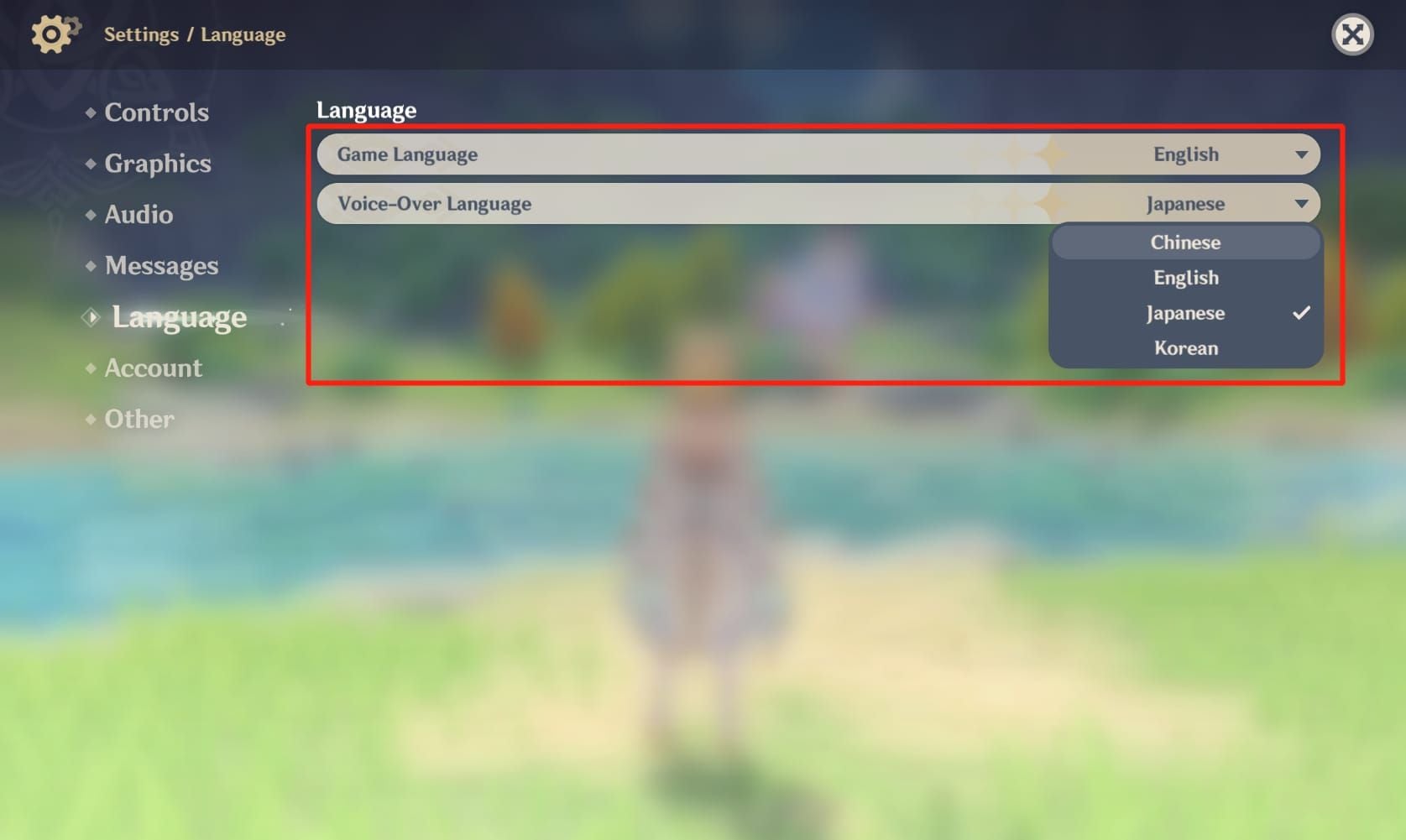
- Review installed packs with file sizes
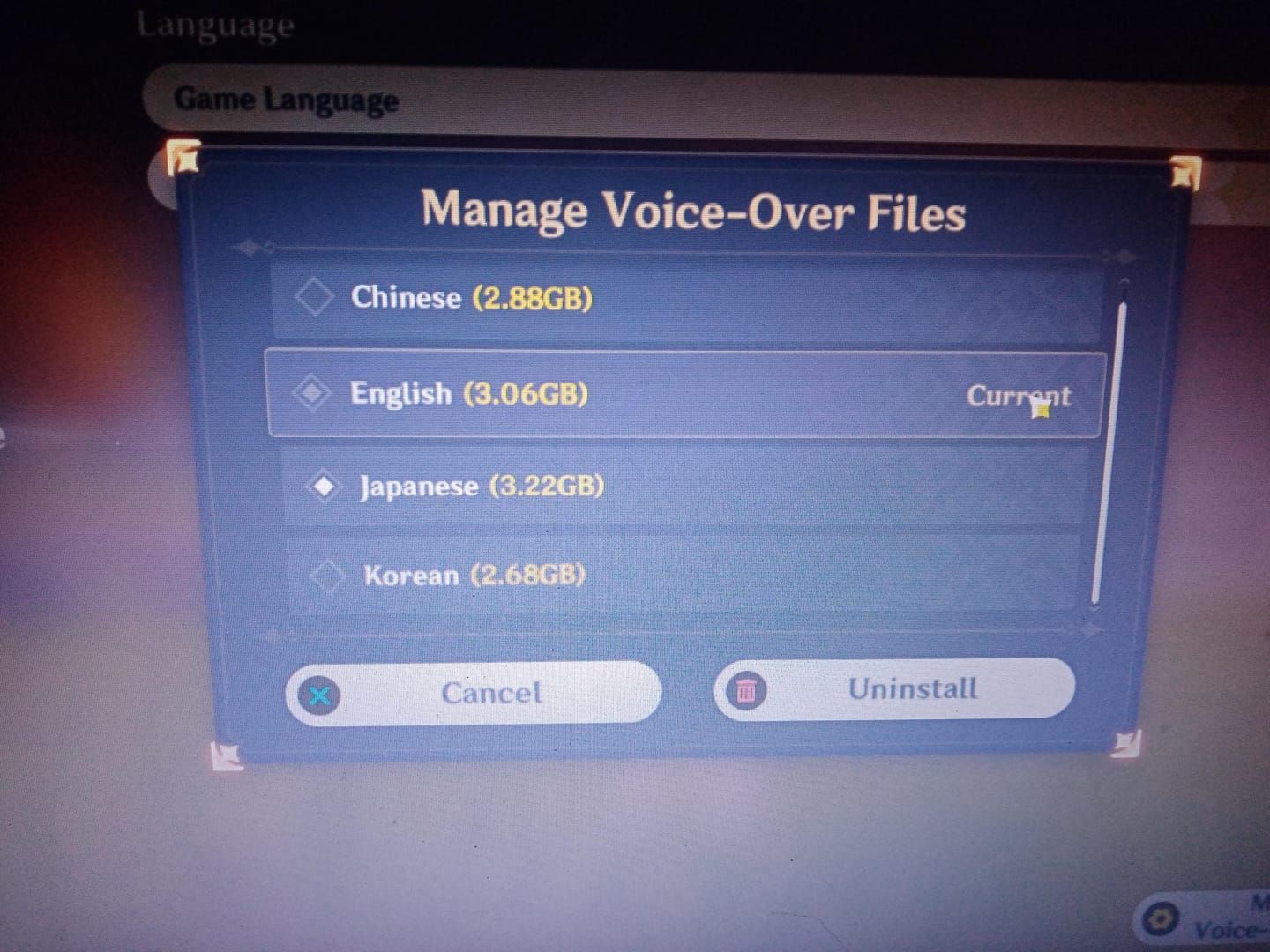
- Check unwanted packs
- Click Uninstall and confirm
- Wait for completion—progress indicators display
This method automatically updates configuration files, preventing errors. Works identically across PC, console, and mobile.
Method 2: Manual File Deletion
Advanced users only—higher risk of configuration mismatches:
- Close Genshin Impact and HoYoPlay launcher
- Navigate to C:\Program Files\Genshin Impact\Genshin Impact Game\
- Locate audio language folders
- Delete unwanted language folders
- Remove associated files from Chunk folder
- Relaunch HoYoPlay for file integrity verification
Incorrect deletions trigger full redownloads. Always backup first.
Verifying Deletion
Check storage recovery via file explorer. Right-click Genshin Impact folder > Properties to view updated size. Reduction should match deleted pack sizes.
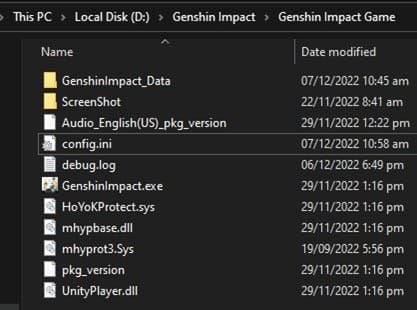
Launch game and test audio with retained language. Navigate to character menus and trigger voice lines. If voices fail, redownload correct pack through Manage Voice-Over Files.
Common Errors and Fixes
Failed to delete voice-over files: Close all processes including background launchers. Check Task Manager and end lingering processes.
Launcher redownloads deleted files: Manual deletion didn't update configuration. Use in-game method.
No audio after deletion: You removed your active language. Redownload through Manage Voice-Over Files.
Mobile Deletion (iOS & Android)
iOS Steps
- Launch Genshin Impact
- Tap Paimon icon (upper-left)
- Settings > Language
- Tap Manage Voice-Over Files
- Review installed packs (3-4 GB each)
- Tap unwanted packs to select
- Confirm deletion
- Verify via iOS Settings > General > iPhone Storage
Mobile deletion completes faster due to smaller files. Space becomes immediately available.
Android Guide
- Open Genshin Impact > Paimon's Menu
- Settings > Language > Manage Voice-Over Files
- Select and uninstall unwanted packs
- Confirm deletion
- Verify via Android Settings > Storage > Internal Storage
Android's file system allows granular inspection through file manager apps, though unnecessary for standard operations.
Mobile Storage Considerations
128GB smartphones with system files, photos, and apps may have only 20-30 GB for Genshin Impact. Deleting all but one pack recovers 9-12 GB, often doubling free space.
Preventing Auto Re-Downloads
Genshin respects your selections across updates. Deleted packs stay removed unless manually redownloaded. The game never auto-reinstalls during updates.
Changing device system language may prompt matching audio download. Decline if maintaining minimal storage.
PlayStation 5 Management
Accessing Settings
- Launch Genshin from PS5 home
- Press Options for Paimon's Menu
- Navigate to Settings (D-pad/left stick)
- Language > Manage Voice-Over Files
- Highlight unwanted packs with D-pad
- Press X to select, confirm removal
- Wait for completion—SSD enables faster processing
8-9 GB packs consume proportionally more on PS5's 667 GB usable storage vs multi-terabyte PC drives.
Console Limitations
PlayStation Network caches deleted files for faster redownload. Cache doesn't count against quota but may confuse space checks.
PS5 auto-manages temporary files. You can't manually access installation directory. Trust in-game storage indicators.
Alternative Optimization
Archive less-played games to external USB storage. Genshin can't run from external drives, but moving other titles frees internal SSD space.
Delete captured screenshots/videos through Media Gallery. Photo mode generates high-res images accumulating several gigabytes over time.
Which Languages to Keep vs Delete
Audio Quality Comparison
All nine languages feature professional voice acting with comparable quality. Choice depends on personal preference, not objective fidelity.
Japanese (6.28 GB) praised for emotional range. Chinese (5.32 GB) provides original creative vision. English (355 MB for 5.4 additions) offers accessibility with less update space.
Community Preferences
Surveys show Japanese and English most retained, with Chinese gaining popularity among lore fans. Korean maintains dedicated following.
Many keep only preferred language, deleting all alternatives. This recovers 24-36 GB on PC (three packs at 8-9 GB each).
Story Impact
Voice acting enhances story immersion during quests. Subtitles display in selected text language regardless of voice choice, ensuring comprehension.
Deleting all audio forces text-only gameplay with sound effects. Functional but diminishes emotional impact. Retain at least one language for balance.
Strategic Selection
For minimum footprint, keep only English (smallest updates at 355 MB for 5.4) and delete others. Recovers maximum space while maintaining voiced gameplay.
Download additional languages temporarily for specific content, then delete afterward. Manage Voice-Over Files enables quick redownloads for flexibility.
Maximizing Storage Beyond Audio
Clearing Cache
Genshin generates cache for faster loading, accumulating 2-5 GB on PC.
PC: Navigate to C:\Users[YourUsername]\AppData\LocalLow\miHoYo\Genshin Impact and remove output_log.txt and crash logs. Game regenerates necessary cache.
Mobile: iOS Settings > General > iPhone Storage > Genshin Impact > Offload App or Android Settings > Apps > Genshin Impact > Storage > Clear Cache.
Managing Captures
In-game camera saves screenshots to installation directory. High-res captures at 1920x1080+ consume 2-5 MB each. Hundreds accumulate 500 MB to 1 GB.
Transfer favorites to cloud/external drives, delete local copies. PC: Genshin Impact\ScreenShot folder. Mobile: device photo gallery.
Optimal Settings
Reduce download cache size in launcher settings. Disable automatic screenshots if rarely used. Prevents unnecessary accumulation.
Lower texture quality on mobile prevents future updates from downloading highest-res packs, reducing subsequent patch sizes.
Full Reinstallation
If PC installation exceeds 120 GB despite deletions, corrupted/duplicate files may exist. Clean reinstallation recovers 10-20 GB.
Before reinstalling, link account to email, phone, or third-party accounts. Download only preferred language during fresh install.
Troubleshooting
Deletion Fails
Close all processes including launcher. Check Task Manager (Windows) or Activity Monitor (Mac) for background processes.
Antivirus may block deletions. Temporarily disable real-time protection, delete through in-game menus, re-enable antivirus.
Accidental Complete Removal
If all languages deleted, game displays text without voices. Fix via Manage Voice-Over Files:
- Paimon's Menu > Settings > Language
- Manage Voice-Over Files
- Select preferred language
- Click Download
- Restart game
Download completes in 10-30 minutes. Progress unaffected—only audio temporarily disabled.
Re-Downloading Packs
Freely download previously deleted languages without penalties. Manage Voice-Over Files shows all nine with download buttons for uninstalled packs.
Download Japanese for Inazuma quest, delete afterward. Game remembers primary selection across changes.
Preventing Future Crises
Pre-update routine: Two weeks before major releases, delete unused audio and clear cache.
Monitor total storage monthly. When free space drops below 30 GB (PC) or 15 GB (mobile), initiate cleanup regardless of updates.
Long-Term Strategy
Future Updates
HoYoverse releases major updates every six weeks, adding 10-20 GB. Maintain 40-50 GB free (PC) and 20-25 GB (mobile) as permanent buffers.
Version 5.5 arrives ~six weeks after 5.4, likely requiring similar 16-17 GB. Mark calendar and perform maintenance one week before.
Monthly Checklist
- Review and delete unused voice-over packs
- Clear game cache
- Transfer screenshots/videos to external storage
- Check total installation size vs baseline
- Verify 40+ GB free space
- Update launcher and client
15-minute monthly investment prevents emergencies. For Genesis Crystals, buy genesis crystals online through BitTopup's secure platform with competitive pricing.
Platform Migration
Switching mobile to PC or vice versa requires planning. PC needs 85-115 GB total, mobile 30-50 GB depending on audio.
Cross-save preserves progress, but requires complete reinstall. Download only essential audio initially, add others if storage permits.
Optimize Experience: Storage and Resources
Balancing Storage with Quality
Retain at least one preferred voice language for narrative immersion. 6-8 GB for single audio pack provides value through enhanced story engagement.
Visual settings impact storage less than audio. Maintain high texture/model quality while managing audio strategically.
Efficient Resources Through BitTopup
Beyond storage, efficient resource management extends to in-game currency. BitTopup offers secure Genesis Crystal and Welkin Moon purchases with competitive pricing, fast delivery, and excellent ratings.
Combine storage optimization with smart purchasing. Free 10 GB through audio deletion, invest savings in smooth 5.4 installation while securing Genesis Crystals through BitTopup.
Personalized Plan
Assess specific needs:
- Limited (64-128 GB): One language, monthly cache clearing, 30%+ free space
- Moderate (256-512 GB): 1-2 languages, quarterly maintenance, 20%+ free space
- Ample (1 TB+): Multiple languages, semi-annual cleanup, 15%+ free space
Adjust based on usage patterns and content interests.
FAQ
How much space does each audio language take? PC/console: 8-9 GB per pack (Japanese 6.28 GB, Chinese 5.32 GB). Mobile: 3-4 GB. Version 5.4 adds 355-486 MB per language.
Can I delete audio without affecting gameplay? Yes. Zero impact on mechanics, visuals, combat, or text. Game only needs one language pack for voiced content.
How to delete voice files on PC? Paimon's Menu > Settings > Language > Manage Voice-Over Files. Select unwanted packs, click Uninstall, confirm. Takes 2-5 minutes per pack.
Does deletion improve performance? Doesn't directly improve frame rates/loading. Freeing storage prevents device-wide slowdowns when drives approach full capacity.
How big is the 5.4 update? 16.75 GB across all platforms. PC needs additional space for audio pack (8-9 GB) and temporary files. Total requirement: 30-40 GB during installation.
Can I re-download deleted languages? Yes. Access Manage Voice-Over Files anytime to redownload. Takes 10-30 minutes. No penalties, costs, or limitations.
Need Genesis Crystals or Welkin Moon? Visit BitTopup for instant, secure top-ups with the best rates. Free up storage, power up your account—get your resources now at BitTopup!
Recommended News



Recommend products



Table of Contents
- Understanding Audio Language Files: What Takes Your 10GB
- What Are Audio Language Packs?
- Storage Breakdown Per Language
- Why Version 5.4 Makes Deletion Essential
- Impact on Device Performance
- Version 5.4 Storage Requirements by Platform
- PC Players
- Mobile (iOS/Android)
- PlayStation 5
- Pre-Download vs Regular Update
- How to Delete Audio Languages on PC
- Method 1: Official Launcher (Recommended)
- Method 2: Manual File Deletion
- Verifying Deletion
- Common Errors and Fixes
- Mobile Deletion (iOS & Android)
- iOS Steps
- Android Guide
- Mobile Storage Considerations
- Preventing Auto Re-Downloads
- PlayStation 5 Management
- Accessing Settings
- Console Limitations
- Alternative Optimization
- Which Languages to Keep vs Delete
- Audio Quality Comparison
- Community Preferences
- Story Impact
- Strategic Selection
- Maximizing Storage Beyond Audio
- Clearing Cache
- Managing Captures
- Optimal Settings
- Full Reinstallation
- Troubleshooting
- Deletion Fails
- Accidental Complete Removal
- Re-Downloading Packs
- Preventing Future Crises
- Long-Term Strategy
- Future Updates
- Monthly Checklist
- Platform Migration
- Optimize Experience: Storage and Resources
- Balancing Storage with Quality
- Efficient Resources Through BitTopup
- Personalized Plan
- FAQ
Recommend products



Recommended News
Zenless Zone Zero Controller Not Working: Fixes and Best Keybinds
KR Gift Card vs Credit: Why Digital Cards Win for KR Play Store
Best Free Fire Characters Tier List and Meta Builds for 2026

Free Fire EU Event Schedule 2026 Reset Times and What to Skip
How to Change Keybinds in Lineage W PC: Client Setup Guide

Cheapest Slam Dunk Mobile Top Up Options and Pack Math 2026

How to Fix Naver Pay Overseas Identity Verification Error

How to Farm Rare Skin Fragments in MLBB | August 2026




























































































