Fix your Zenless Zone Zero controller not working errors on PC and mobile with step-by-step troubleshooting, custom keybinds, and ideal camera sensitivity.
Nothing breaks combat flow in Zenless Zone Zero faster than pressing an attack button only for your agent to stand idle. HoYoverse built native gamepad support into the client across PC, iOS, and Android, yet players frequently encounter unresponsive analog sticks, greyed-out options, or missing button prompts.
Most controller failures stem from three common issues: an unswapped UI mode on mobile, a virtual input device conflict on PC, or a Windows audio sample-rate mismatch killing haptics. Here is how to fix each failure point, remap your controls for high-tier combat, and dial in stick sensitivity.
Step-by-Step Fixes for Unresponsive Controllers
Before reinstalling the client, work through these troubleshooting steps in order to isolate device conflicts and setting overrides on PC and mobile:
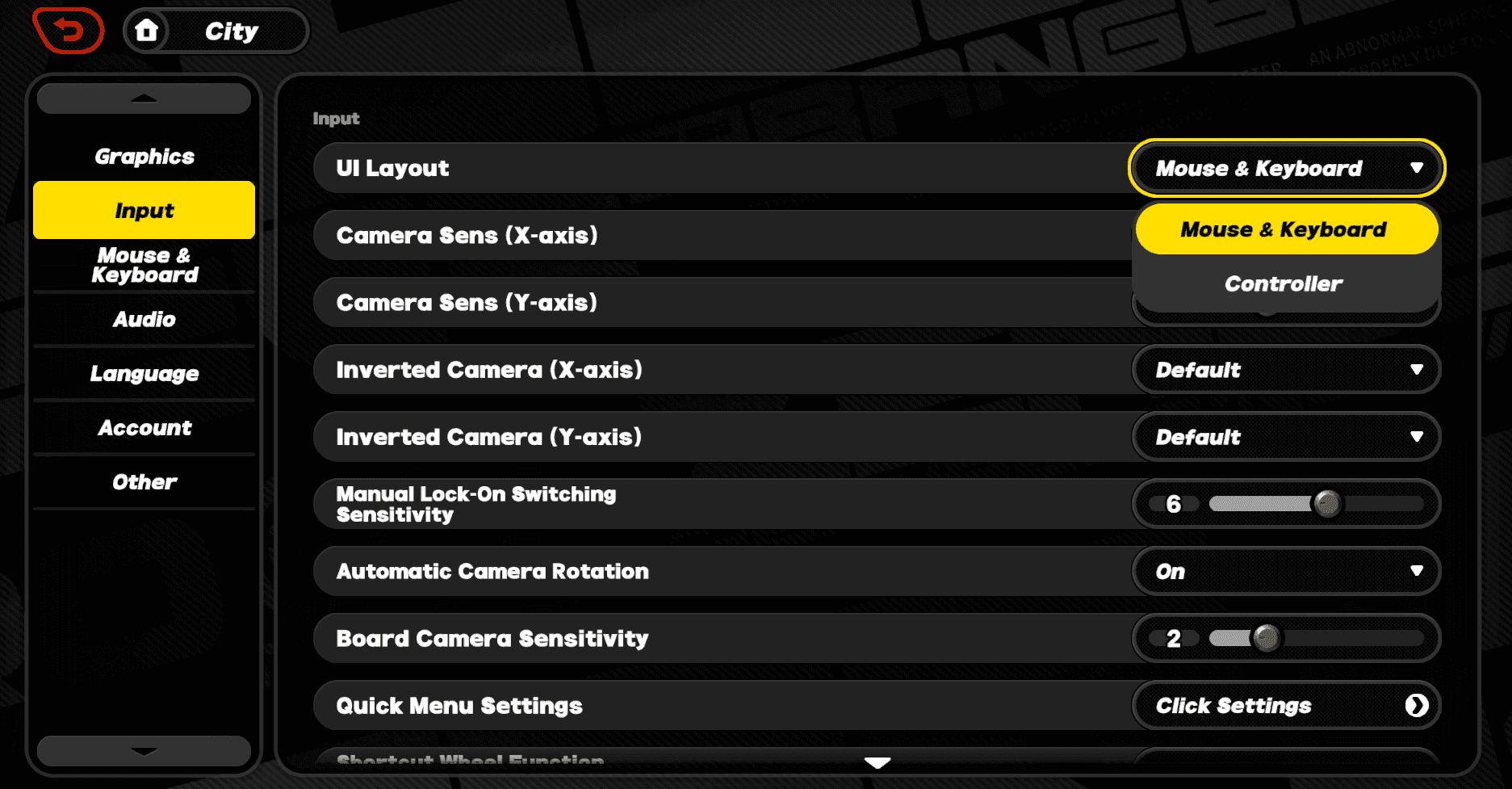
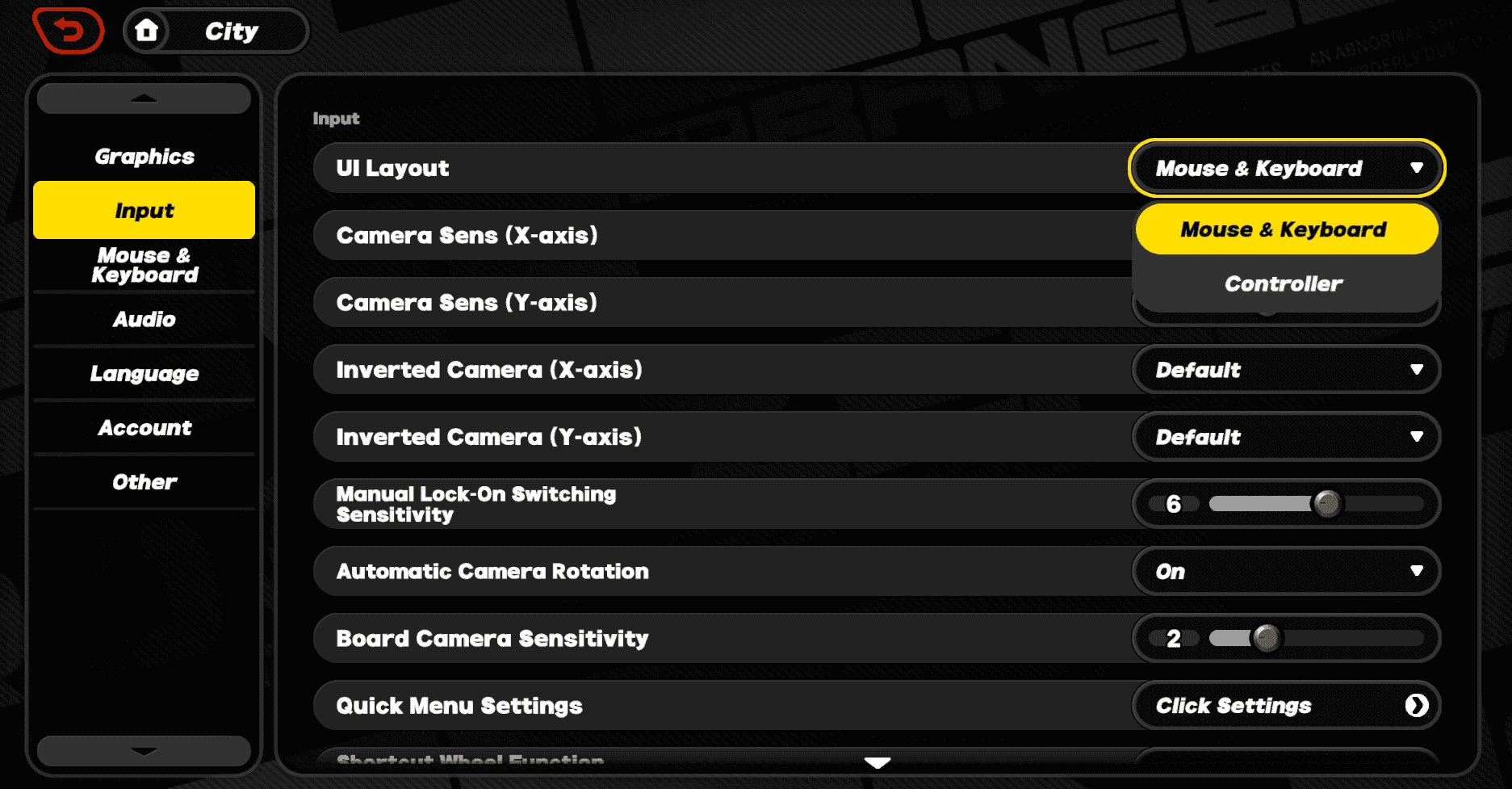
- Switch UI Layout to Controller on Mobile: On iOS and Android, the game does not always switch automatically when a gamepad connects. Open the pause menu or tap the title screen gear, select Options, open the Input tab, and switch UI Layout from Touch to Controller.
- Force PC Input Re-Detection: If your PC client ignores your gamepad, press the Menu (or Options) button on the controller. Zenless Zone Zero uses active polling: pressing ESC defaults active input to keyboard/mouse, while pressing Menu on your gamepad pulls active input back to the controller.
- Reconnect via USB-C OTG or Re-Pair Bluetooth: For wireless mobile setups, unpair the controller in system settings, power cycle the gamepad, and pair it again. If latency persists, switch to a direct USB-C OTG wired connection for zero input lag.
- Clear Device Conflicts on PC: Disconnect secondary gamepads, flight sticks, racing wheels, or virtual input emulators (such as vJoy). The game engine can latch onto secondary or virtual USB devices, ignoring your primary Xbox or PlayStation controller.
- Reset Windows Audio Haptic Settings: If button inputs register but vibration is dead, open the Windows Sound Control Panel. Right-click your active audio device, select Properties, go to the Advanced tab, and test the Default Format sample rate. This resets the direct audio channel that transmits rumble data.
Platform Comparison: PC, Android, and iOS Controls
Input polling and glyph displays vary across operating systems. PC dynamically listens for hardware inputs, whereas mobile builds require a manual UI swap.
The following table outlines the functional differences across all supported operating systems.
| Platform | Input Detection Method | Supported Connection Types | Button Glyphs | Touch/Overlay Behavior |
|---|
| PC (Windows) | Dynamic auto-swap (ESC for KB/M, Menu for Gamepad) | USB-C Wired, Wireless Bluetooth | Xbox & PlayStation icons | Full mouse cursor integration in menus |
| Android | Manual setting toggle (Options > Input > UI Layout) | Bluetooth, USB-C OTG Direct | Dynamic depending on gamepad | Touch overlay disabled when controller is active |
| iOS | Manual setting toggle (Options > Input > UI Layout) | Bluetooth, Lightning / USB-C | Dynamic / Xbox default | Touch overlay disabled when controller is active |
Takeaway: Mobile clients require manual UI activation, whereas PC dynamically swaps inputs the second you press a relevant key or button.
Default Controller Layout and Button Mappings
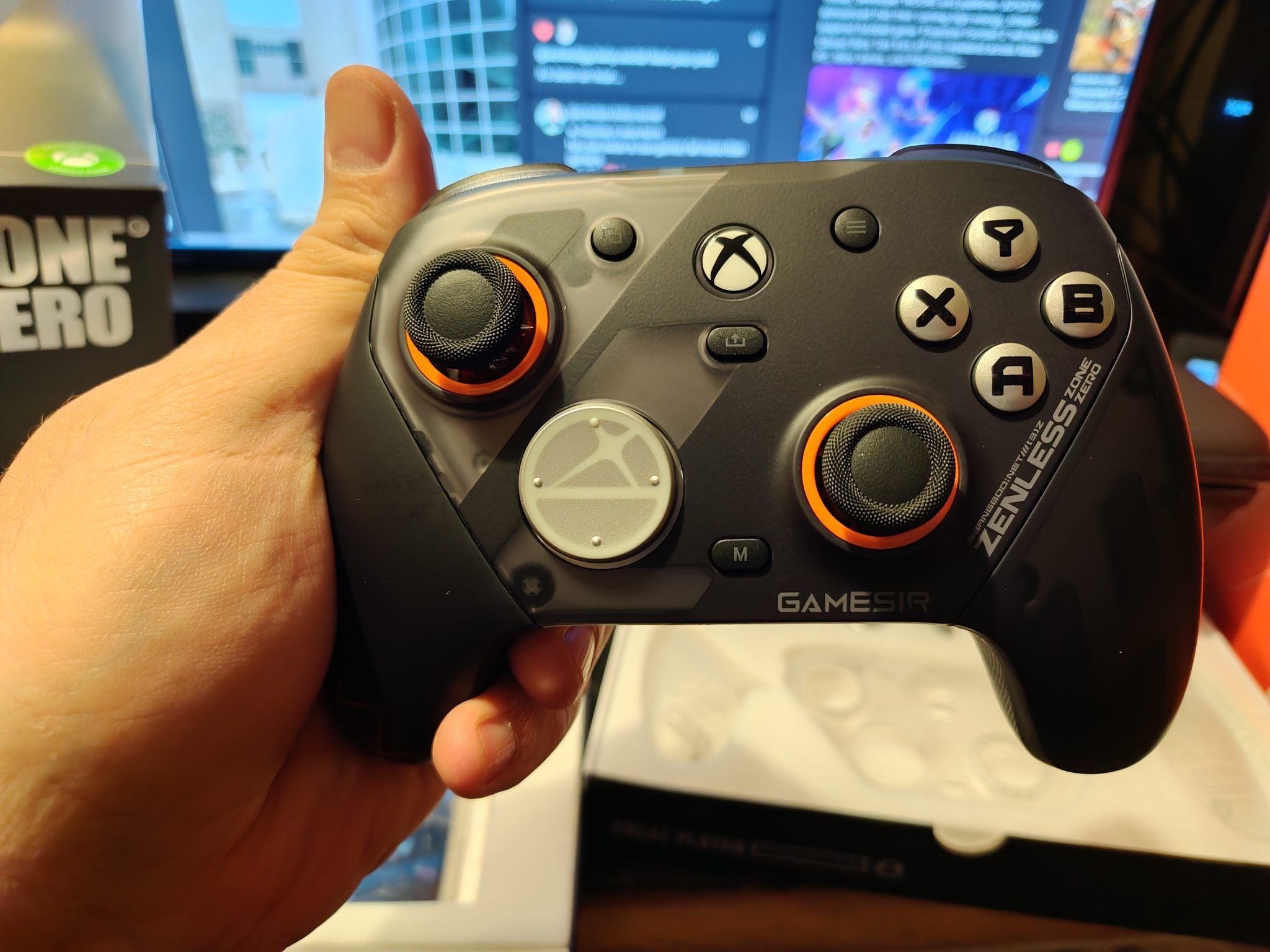
The default layout mirrors standard action RPG configurations, grouping attacks on face buttons and defensive maneuvers on shoulder buttons.
Here is how the default control scheme maps across standard Xbox and PlayStation controllers.
| Action | Xbox Controller Binding | PlayStation Controller Binding | Function in Combat |
|---|
| Basic Attack | X Button | Square Button | Executes standard melee or ranged attack strings |
| Special / EX Attack | Y Button | Triangle Button | Spends energy to unleash EX special moves |
| Dodge / Sprint | A Button | Cross Button | Defensive evasive dash and initiates sustained sprinting |
| Ultimate Ability | RT (Right Trigger) | R2 (Right Trigger) | Triggers decibel-powered ultimate agent burst |
| Switch Character (Next) | RB (Right Bumper) | R1 (Right Bumper) | Swaps to next squad member and picks right chain attack |
| Switch Character (Prev) | LB (Left Bumper) | L1 (Left Bumper) | Swaps to previous squad member and picks left chain attack |
| Lock-On Target | RB (Hold) / Right Stick Click | R1 (Hold) / R3 Click | Locks camera perspective onto primary enemy |
Takeaway: The default layout groups offensive moves on face buttons and squad rotations on shoulder bumpers for standard play.
Recommended Custom Layouts for High-Speed Combat
The default scheme has one major limitation: mapping Basic and Special attacks to face buttons pulls your right thumb away from the camera stick during attack strings.
Moving core attacks to shoulder bumpers and triggers keeps your thumb anchored to the right stick, maintaining full camera tracking during intense Hollow Zero encounters.
The Trigger-Attack Layout (Six-Finger Grip)
This setup shifts primary combat functions to the triggers and bumpers, freeing your right thumb to remain permanently on the camera stick.
- Basic Attack: RB (R1)
- Special / EX Attack: RT (R2)
- Dodge / Sprint: LT (L2)
- Ultimate Ability: Y Button (Triangle)
- Switch Next Character: B Button (Circle)
- Switch Previous Character: LB (L1)
Index and middle fingers manage attack strings and evasions while your right thumb stays glued to the camera. When testing team rotations in late-game stages, you can get Polychromes for new agents to expand your squad and master these remapped inputs across different agent kits.
The D-Pad Swap Layout (Four-Finger Grip)
If you prefer keeping your attacks on the face buttons, optimize party swapping instead to prevent accidental bumper inputs during chain attacks:
- Next Agent / Right Chain Assist: D-Pad Right / Up
- Previous Agent / Left Chain Assist: D-Pad Left / Down
- Lock-On: Right Stick Click (R3)
This leaves shoulder buttons free for dedicated dodge and ultimate triggers while making character assists an intentional, snappy input on the directional pad.
Fine-Tuning Camera and Aim Sensitivity Settings
Slow camera rotation lets fast bosses escape your field of view, while overly high sensitivity leads to overshooting target locks.
Adjust these values under Options > Input to maintain consistent tracking:
| Setting Parameter | Recommended Value | Mechanical Purpose |
|---|
| Camera Sensitivity (Horizontal) | 65% | Allows rapid 180-degree turns during multi-target encounters |
| Camera Sensitivity (Vertical) | 65% | Matches horizontal speed to prevent disorienting diagonal drift |
| Aim Sensitivity (Special Modes) | 70% | Smooths out reticle tracking for ranged agent abilities |
| Action Sensitivity | 50% | Balances responsiveness for lock-on tracking without erratic snapping |
| Camera Auto-Rotate | OFF | Prevents the in-game camera from fighting your manual stick adjustments |
Takeaway: Equalizing your horizontal and vertical camera values to 65% ensures smooth, predictable tracking across all combat encounters.
Equalizing horizontal and vertical sensitivity to 65% prevents uneven diagonal drift when tracking airborne enemies. Disabling Camera Auto-Rotate stops the camera from snapping behind your back mid-sprint, preserving manual aim during lateral dodges.
Configuring Touch Controls and Mobile Screen Layout
For touch-screen play on mobile, compact default layouts frequently cause misinputs during fast defensive assists and parry windows.
Refining button placement prevents dropped taps during tight combat chains:
- Increase Button Spacing: Open the touch layout editor in settings and separate Dodge and EX Attack to eliminate accidental evades during specials.
- Fix Joystick Positioning: Switch from a floating virtual stick to a static anchor. Floating joysticks drift based on initial thumb contact, causing missed directional inputs during dodge counters.
- Clear the Screen for Controllers: When connecting a gamepad, toggling UI Layout to Controller removes touch HUD elements, opening up peripheral visibility for parry flash tells.
When gearing up your squad for Shiyu Defense on mobile, you can recharge your Zenless Zone Zero account on BitTopup to secure master tapes and engine upgrades quickly.
Resolving In-Game Contradictions and Audio Haptic Glitches
Cross-platform releases often generate conflicting advice across forums regarding input compatibility.
Myth 1: "Keyboard and Mouse is Unsupported on PC"
Early forum posts claimed the PC client lacked mouse-and-keyboard support due to mobile-first development. In reality, the PC version includes native, fully rebindable mouse and keyboard profiles under the Input tab.
Myth 2: "iOS Only Displays Xbox Button Prompts"
While some players report only seeing Xbox glyphs on iOS, the client identifies connected hardware over Bluetooth. If a DualSense or DualShock 4 shows ABXY prompts, updating iOS or power cycling the controller connection restores native PlayStation icons.
The Windows Audio Vibration Bug
On PC, controller rumble relies directly on Windows audio haptic channels. When Windows audio output is set to extreme sample rates (such as 192,000 Hz 24-bit), the client fails to transmit vibration signals to gamepad motors.
To restore vibration:
1. Open the Windows Sound Control Panel (press Win + R, type mmsys.cpl, and hit Enter).
2. Select your default audio playback device and click Properties.
3. Navigate to the Advanced tab.
4. Under Default Format, select 24-bit, 48000 Hz (Studio Quality) or 16-bit, 44100 Hz (CD Quality).
5. Click Apply, restart Zenless Zone Zero, and verify that in-game vibration is enabled.
Optimizing Keybind Settings for PC Keyboard and Mouse
For PC players who prefer mouse precision over analog sticks, open Options > Input by pressing ESC.
The default PC configuration maps:
* Movement: W / A / S / D
* Basic Attack: Left Mouse Button
* Special / EX Attack: E Key
* Dodge / Sprint: Right Mouse Button / Left Shift
* Switch Next Character: Spacebar
* Switch Previous Character: C Key
* Ultimate Ability: Q Key
The Recommended Mouse Remap
If you have side mouse buttons (Mouse 4 and Mouse 5), move Special Attack and Character Swaps to your mouse hand:
- Basic Attack: Left Mouse Button
- Dodge: Right Mouse Button
- Special Attack: Mouse Button 4 (Thumb)
- Switch Character: Mouse Button 5 (Thumb) / Spacebar
- Ultimate: Q Key
This concentrates active combat inputs on your right hand, leaving your left hand purely focused on WASD movement and directional positioning.
While mastering these keybinds and tackling endgame bosses, you can explore Zenless Zone Zero top up on BitTopup to grab resource bundles and pull the latest S-Rank agents without missing a beat.
Frequently Asked Questions
Why is my controller not working in Zenless Zone Zero on mobile?
You must manually enable it by tapping the settings gear on the title screen or in the pause menu, opening the Input tab, and switching UI Layout from Touch to Controller. Ensure your controller is paired via Bluetooth or USB before launching the game.
Does Zenless Zone Zero on Android have native controller support?
Yes, Zenless Zone Zero includes native controller support on Android alongside iOS. You simply need to pair your gamepad and toggle the input mode to Controller in the game settings.
How do I switch between keyboard/mouse and controller on PC?
Press the Menu or Options button on your connected gamepad to activate controller mode, or press the ESC key on your keyboard to instantly revert to keyboard and mouse. The game detects active inputs and swaps button prompts automatically.
Can I remap my buttons and keybinds in Zenless Zone Zero?
Yes, you can customize your layout by going to Options > Input from the main menu or pause screen. This menu allows you to reassign attack, dodge, chain assists, and character swap commands to any button you prefer.
What should I do if my controller vibration is not working on PC?
Verify that Controller Vibration is enabled in the in-game Input settings. If it still does not vibrate, open Windows Sound Control Panel, select Speaker Properties, navigate to Advanced, and set your Default Format to 24-bit 48000 Hz.
Which controllers are officially supported in Zenless Zone Zero?
Zenless Zone Zero officially supports Xbox One, Xbox Series X|S, DualShock 4, and DualSense controllers across PC and mobile platforms. Standard USB-C mobile gamepads and XInput Bluetooth controllers are also fully compatible.
Final Verdict on ZZZ Input Customization
Input issues in Zenless Zone Zero almost always stem from a mobile UI toggle left on Touch or a secondary USB peripheral claiming priority on PC.
Remapping primary attacks to triggers, locking horizontal and vertical camera sensitivity to 65%, and clearing virtual deadzones frees your right thumb for continuous camera control. Once your inputs are cleanly mapped, parrying multi-hit boss strings in New Eridu becomes second nature.