Stop Astra Knights of Veda crashing on startup PC with our fast fix for anti-cheat errors, black screens, missing runtime libraries, and corrupt game files.
Launching ASTRA: Knights of Veda only to stare at a black screen or get thrown straight back to your Windows desktop usually points to a failed boot handshake. FLINT's 2D action MORPG relies on strict anti-cheat verification, specific visual C++ runtimes, and system-level permissions. When any of these components fail during startup, the client terminates silently without an error code.
Most startup crashes stem from three core issues: security software locking anti-cheat drivers, background overlays hooking into the 2D renderer, or corrupted local installation files. This guide details the exact technical fixes required to stabilize the client, organized from quick operational steps to system-level repairs.
Hardware Baselines and Technical Prerequisites
Before modifying system files, verify that your PC meets the engine's technical baseline. Despite its stylized 2D presentation, the game requires a 64-bit instruction set and dedicated VRAM to decode high-resolution sprite sheets and real-time lighting.
Hardware specifications for Windows 10 and 11 environments:
| Specification | Minimum Requirement | Recommended Target |
|---|
| Operating System | Windows 10 64-bit | Windows 10 / 11 64-bit |
| Processor (CPU) | Intel Core i3 8th Gen / AMD equivalent | Intel Core i5 10th Gen / AMD equivalent |
| System Memory (RAM) | 8 GB RAM | 16 GB RAM |
| Graphics Card (GPU) | NVIDIA GeForce GTX 750 Ti (2 GB VRAM) | NVIDIA GeForce GTX 1050 Ti (4 GB VRAM) |
| DirectX Target | DirectX Shader 5.0+ compatible | DirectX 11 / 12 compatible |
| Storage Space | 15 GB available space | 20 GB available space (SSD recommended) |
Meeting these baselines ensures your graphics hardware supports Shader 5.0+ instructions during boot.
Systems with less than 8 GB of RAM or legacy integrated GPUs lacking 2 GB of dedicated memory will fail silently while allocating the initial rendering pool. If your hardware meets these targets, proceed directly to software conflict troubleshooting.
Quick Troubleshooting Sequence for Instant Boot Crashes
Work through these initial operational steps first before modifying deeper system settings.
[Step 1: End Ghost Tasks] ──> [Step 2: Admin Rights] ──> [Step 3: Verify Assets] ──> [Step 4: Clear Cache]
Step 1: Terminate Lingering Ghost Processes
When the game closes abruptly, its background security service or executable often remains active in memory. Relaunching causes Easy Anti-Cheat to detect duplicate instances and block initialization.
- Press
Ctrl + Shift + Esc to open the Task Manager. - Select the Details tab.
- Locate any active instances of the game executable or anti-cheat services.
- Highlight the process and click End Process Tree.
- Restart your PC if the process refuses to terminate.
Step 2: Grant Administrator Permissions
Windows User Account Control (UAC) can block the game client from modifying essential runtime files in system directories, forcing an immediate desktop crash.
- Right-click your desktop client launcher or main game executable.
- Select Properties and switch to the Compatibility tab.
- Check Run this program as an administrator.
- Click Apply, then OK.
- Repeat this configuration for the primary launcher executable in your installation folder.
Step 3: Run the File Integrity Verification Tool
Corrupted sprite archives, missing sound banks, or incomplete patches trigger instant crashes right after the splash screen. Your PC client's verification tool repairs damaged files without requiring a full reinstallation.
- Open your PC game client and locate the game in your library.
- Right-click the title and select Properties.
- Open the Installed Files or Local Files tab.
- Click Verify integrity of game files.
- Allow the validation scan to finish; missing or corrupted assets download automatically.
Step 4: Clear Temporary Client Download Cache
If verification stalls at 0% or game updates fail to apply, the launcher's download index is likely corrupted.
- Open your desktop client settings menu.
- Navigate to the Downloads section.
- Click Clear Download Cache and confirm.
- Allow the client to restart and log back in.
- To remove stale tokens manually, delete leftover files inside the
appcache or depotcache directories in your client root.
Once your client launches reliably, you can explore Astra: Knights of Veda top up options for direct access to premium currency.
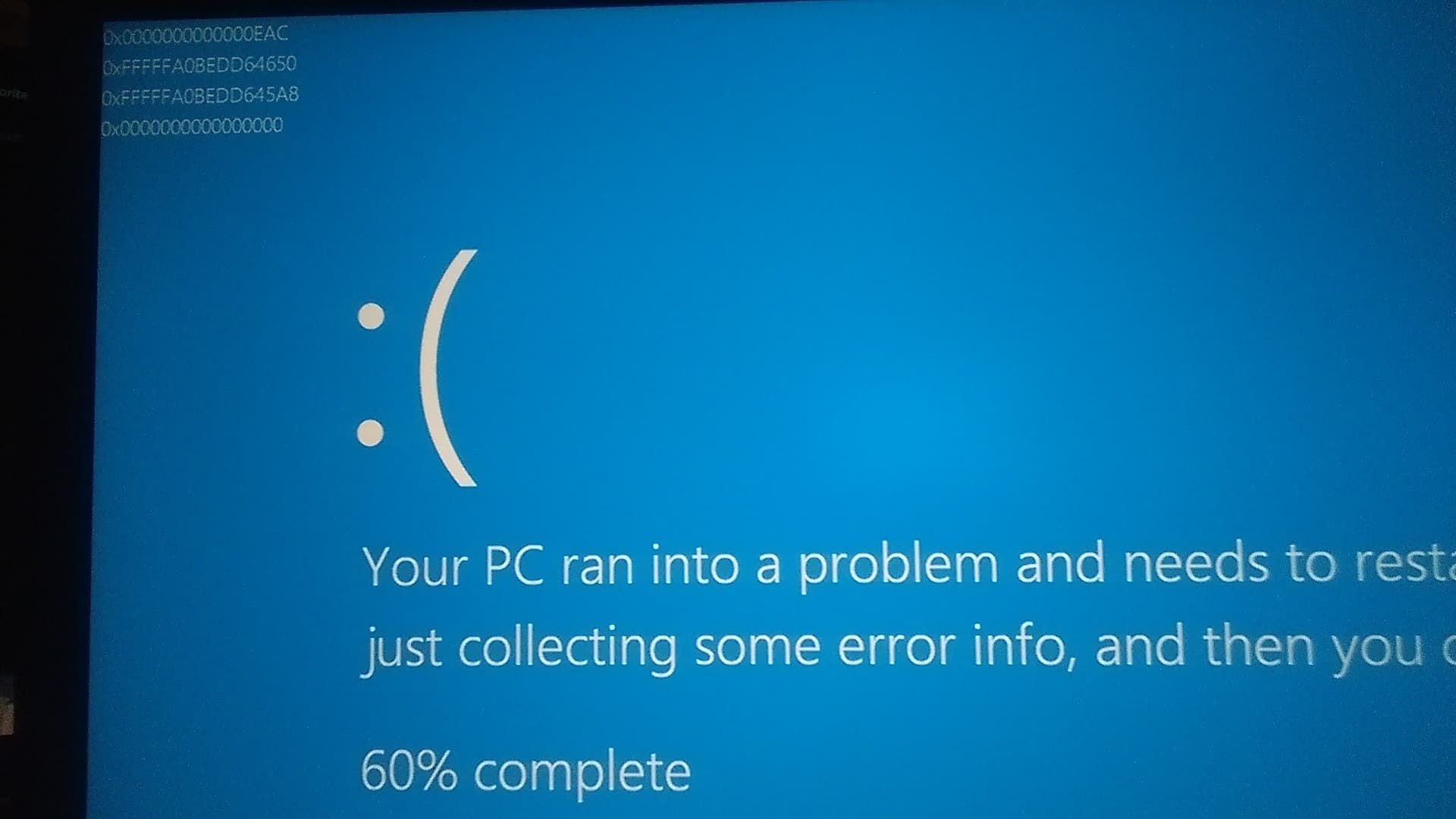
Repairing Easy Anti-Cheat and Resolving Error 30005
ASTRA: Knights of Veda uses Easy Anti-Cheat (EAC) for multiplayer verification. If the driver fails to initialize, encounters locked system files, or finds altered security certificates, the game terminates before the title screen.
Fixing Error 30005 (CreateFile Failed with 32)
Error 30005 indicates that EasyAntiCheat.sys is locked by a lingering background service, blocking driver initialization.
- Close all active game launchers and background tasks.
- Open File Explorer and go to
C:\Program Files (x86)\EasyAntiCheat (or EasyAntiCheat_EOS). - Locate
EasyAntiCheat.sys. - Delete
EasyAntiCheat.sys. (If locked by Windows, reboot into Safe Mode to delete it). - Launch the game normally. The client automatically generates a fresh, unlocked driver.
C:\Program Files (x86)\EasyAntiCheat\EasyAntiCheat.sys ──> Delete ──> Relaunch Game
Manual Anti-Cheat Repair via Command Shell
If the service is missing registry bindings, run a manual repair through an elevated terminal.
- Open the game root directory.
- Navigate to the
EasyAntiCheat or EasyAntiCheat_EOS folder. - Hold
Shift, right-click inside the folder, and select Open in Terminal or Open Command Window here as Administrator. - Enter the command:
EasyAntiCheat_EOS.exe repair - Wait for the confirmation prompt verifying service registration.
Clearing Corrupt AppData Security Certificates
Corrupted authentication certificates in your user profile can cause silent crashes right after the anti-cheat splash window closes.
- Press
Windows Key + R to open Run. - Type
%appdata% and press Enter. - Locate the
EasyAntiCheat folder in both Roaming and Local directories. - Delete the certificate subfolders.
- Relaunch your PC client and verify game files to download fresh certificates.
Resolving the Anti-Cheat File Modification Dilemma
Troubleshooting forums often recommend deleting the entire anti-cheat folder when startup errors occur. However, official developer guidelines warn that removing core configuration files breaks launcher handshake keys, requiring a complete 15 GB reinstallation.
Only delete the dynamic .sys driver file or clear certificate caches in AppData. Leave the primary .exe and .dll files in the installation directory intact unless executing a repair command.
Eliminating Software Injections and Background Clashes
Because the game uses kernel-level driver monitoring, applications that inject code into running processes can trigger false positives or crash the rendering pipeline.
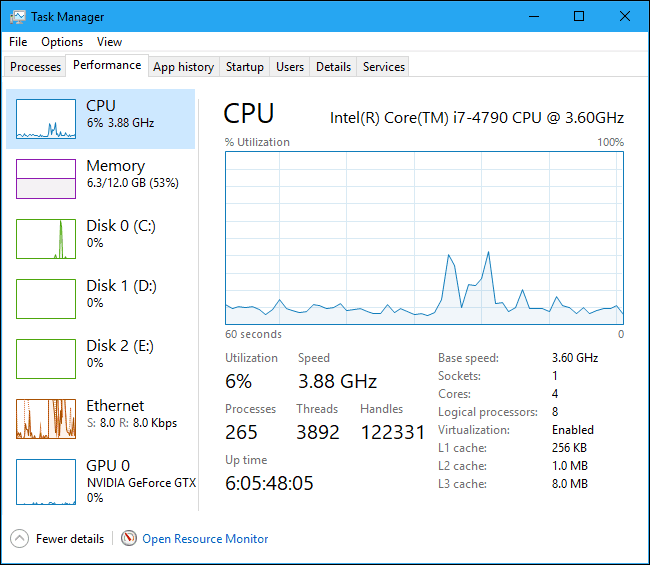
Disabling In-Game Overlays
Overlays place rendering layers over the game window, which frequently corrupt the graphics device context during startup.
- Discord Overlay: Open Discord Settings > Registered Games / Game Overlay > Toggle off "Enable in-game overlay".
- GeForce Experience / ShadowPlay: Open GeForce Experience Settings > General > Toggle off "In-Game Overlay".
- RivaTuner Statistics Server (RTSS): Set Application Detection Level to "None" for the game executable, or close RTSS.
- MSI Afterburner: Close the utility prior to launching to disable its DirectX injection hook.
Closing Peripheral and RGB Lighting Software
LED management utilities use low-level system hooks to synchronize lighting profiles with active game processes. Anti-cheat engines frequently flag these hooks as untrusted code, triggering "Game Security Violation Detected" crashes.
Open Task Manager and end the following background tasks:
* Lightservices.exe
* Asus Armoury Crate / Aura Sync
* Razer Synapse
* Corsair iCUE
* Logitech G HUB (temporarily disable game integration)
To prepare resources for character advancement once your installation is stable, check available Astra: Knights of Veda pack options.
Updating Core Runtimes and Repairing System Files
Missing .dll errors or immediate black screens right after the publisher logo indicate absent C++ runtime packages or corrupted Windows system dependencies.
Installing Visual C++ Redistributable Runtimes
ASTRA: Knights of Veda relies on Microsoft Visual C++ (MSVC) dynamic libraries. Without the latest v14 runtime architecture, the game executable cannot load.
- Download the latest Microsoft Visual C++ Redistributable (v14) package.
- Install both the x86 and x64 architectures (the package bundles Visual Studio 2015 through 2026 runtimes).
- Run installers with Administrator privileges.
- Reboot your PC after installation finishes.
Visual C++ v14 (2015-2026) x64/x86 Installation ──> Reboot System ──> Launch Game
Running System File Checker (SFC)
Damaged Windows system files break the trust chain required by anti-cheat drivers, producing "Untrusted System File" errors during startup.
- Press
Windows Key + S, type cmd, right-click Command Prompt, and select Run as administrator. - In the console, enter:
sfc /scannow - Allow the verification scan to reach 100%.
- If Windows Resource Protection repairs corrupted files, restart your PC immediately.
Performing a Clean Boot
A Clean Boot isolates third-party software conflicts by starting Windows with only core drivers and services.
- Press
Windows Key + R, type msconfig, and hit Enter. - Under the General tab, select Selective startup and uncheck Load startup items.
- Open the Services tab.
- Check Hide all Microsoft services.
- Click Disable all.
- Re-check the EasyAntiCheat service to keep the security driver operational.
- Click Apply, select OK, and restart your PC.
Diagnostic Matrix for Launch Faults
Match your specific startup crash symptom to its confirmed root cause and technical fix using the diagnostic matrix below.
| Symptom / Error Code | Probable Root Cause | Verified Solution |
|---|
| EAC Error 30005 (CreateFile 32) | EasyAntiCheat.sys driver locked by background task | Delete EasyAntiCheat.sys in Program Files (x86) and reboot |
| Black screen after publisher logo | Missing MSVC runtimes or GPU driver handshake failure | Install Visual C++ 2015-2026 Redistributable & update GPU drivers |
| Game Security Violation Detected | RGB lighting tool or overlay hook flagged by security | End Lightservices.exe, iCUE, Synapse, or RTSS processes |
| Crash back to desktop with no error | Multiple ghost processes running or missing admin rights | End tasks in Task Manager and set executable to Run as Admin |
| Untrusted System File (.dll) error | Corrupted Windows system library | Run sfc /scannow in an elevated Administrator command prompt |
| Launcher update stuck at 0% | Corrupted download cache or launcher tokens | Clear client download cache and delete temporary cache directories |
After resolving client instability, use secure Astra: Knights of Veda purchases to keep your account ready for new story content.
Platform Differences and Stability Comparison
While ASTRA: Knights of Veda runs across multiple platforms, technical points of failure differ between PC and mobile architectures.
| Operational Factor | PC Client Environment | Mobile Operating Systems |
|---|
| Anti-Cheat Layer | Kernel-level driver service (Easy Anti-Cheat) | App-level sandbox verification |
| Primary Crash Trigger | Background software overlays & RGB driver clashes | Low RAM termination & thermal throttling |
| Graphics Pipeline | Dedicated DirectX Shader 5.0+ / Vulkan | OpenGL ES / Metal rendering API |
| File Repair Options | Client-level integrity verification & manual file pruning | In-app asset redownload or full app reinstall |
| Permission Model | User Account Control (UAC) & Admin privileges | OS-level application permission prompts |
| Storage Footprint | 15 GB to 20 GB dedicated storage | 8 GB to 12 GB compressed package |
Because the desktop client relies on kernel-level driver calls and hardware acceleration hooks, troubleshooting startup crashes requires system-level permission and driver adjustments.
Windows Security and Core Isolation Adjustments
Windows security safeguards can occasionally block legitimate anti-cheat drivers from loading into memory.
Adjusting Memory Integrity (Core Isolation)
Hypervisor-protected Code Integrity (HVCI), known as Memory Integrity, stops low-level drivers from executing if security handshakes fail. If the anti-cheat driver clashes with your CPU virtualization settings, Windows may crash during launch.
- Press
Windows Key + I to open Settings. - Go to Privacy & Security > Windows Security > Device Security.
- Click Core isolation details.
- If the game crashes during driver initialization, set Memory integrity to Off temporarily.
- Restart your computer and test game boot.
(Note: Re-enable Memory Integrity if this adjustment does not resolve the crash).
Adding Antivirus and Firewall Exclusions
Overzealous real-time antivirus scans can quarantine game files or block communication between Easy Anti-Cheat and authentication servers.
- Open Windows Security.
- Select Virus & threat protection > Manage settings.
- Scroll down to Exclusions and click Add or remove exclusions.
- Click Add an exclusion and select Folder.
- Add the game's installation folder and
C:\Program Files (x86)\EasyAntiCheat_EOS.
FAQ
Startup crashes are typically caused by Easy Anti-Cheat initialization failures, corrupted local game files, or software conflicts with background overlays and RGB controllers. Verifying file integrity through your client and closing third-party overlays resolves the majority of startup issues.
How do I fix Easy Anti-Cheat Error 30005 when launching the game?
Error 30005 is resolved by navigating to C:\Program Files (x86)\EasyAntiCheat and deleting the locked EasyAntiCheat.sys file before relaunching the client. You should also restart your PC to clear any lingering file handles locked by background processes.
How do I verify game file integrity for Astra: Knights of Veda?
Open your PC game client, right-click the game title in your library, select Properties, and navigate to the Installed Files tab. Click the option to verify the integrity of game files to allow the client to scan and automatically redownload any missing or damaged assets.
Can background apps like Discord or MSI Afterburner cause startup crashes?
Yes, third-party overlays and hardware monitoring utilities inject hooks into the graphics pipeline that frequently clash with the game's 2D rendering engine. Disable the in-game overlay feature in Discord and close utilities like MSI Afterburner, RivaTuner, and RGB lighting suites before launching the game.
What should I do if the game crashes right after publisher splash screens?
Update your graphics card drivers to the latest version and verify that Microsoft Visual C++ Redistributable (x64) is fully up to date. You should also run the game executable directly as an administrator from its installation folder.
Does Windows Core Isolation prevent Astra: Knights of Veda from launching?
Memory Integrity under Windows Core Isolation can block low-level anti-cheat drivers from initializing properly on certain hardware setups. Temporarily disabling Memory Integrity in Windows Security settings can resolve persistent driver initialization blocks.
Final Verdict on PC Crash Resolution
Resolving ASTRA: Knights of Veda launch issues on PC does not require an operating system wipe. In almost every case, crashes stem from locked anti-cheat driver files (Error 30005), overlay injection conflicts, or outdated Visual C++ runtimes.
Terminate lingering background tasks and remove locked EasyAntiCheat.sys files first. If crashes continue, verify your game files and shut down background overlays to clear launch blockers and return to Veda without further interruption.