Fix the MLBB payment canceled by system error on Android and iOS. Learn why app stores block diamond checkouts and follow proven steps to restore purchasing.
You tap the recharge icon in Mobile Legends: Bang Bang, select your diamond bundle or the Weekly Diamond Pass, confirm your biometric scan, and wait. Instead of credited diamonds, a gray pop-up kills the transaction: "Payment canceled by the system." It gives no error log. It does not clarify whether your balance was charged.
This stop halts time-limited recharge events and skins before banner pools rotate out. While the prompt looks like an internal game crash, Moonton rarely generates it alone. It is an automated freeze triggered by Google Play, the Apple App Store, or your card issuer's fraud prevention framework. Here is what breaks the flow and how to clear the blockage.
Why the Payment Canceled by System Error Happens in MLBB
Every in-app purchase initiates a three-way handshake between Moonton's servers, your operating system payment client (Google Play Billing or Apple StoreKit), and your bank. If any node drops the connection or spots an account irregularity, checkout halts to prevent unauthorized transfers.
Payment gateways classify these errors into two groups: soft declines and hard declines. Soft declines represent transient issues—network dropouts, gateway rate limits, or heavy server loads. These can clear on their own. Hard declines stem from structural blocks like an expired payment method, mismatched regional regulations, or a fraud prevention freeze. Retrying repeatedly during a hard decline only flags the account for suspicious activity.
Simple balance deficits and mismatched account profiles cause most drops. Check the standard failure codes below before modifying system configurations.
| Decline Cause | Underlying Failure Mechanism | Resolution Step |
|---|
| Code 51 (Insufficient Funds) | Card balance exhausted or limit exceeded | Check balance or verify if 15-day merchant authorization holds exist. |
| Code 54 (Expired Card) | Card expiration date passed | Register a valid replacement card in app store billing settings. |
| Code 96 (System Error) | Gateway or switch communication failure | Soft decline; pause attempts and wait 15 to 30 minutes before retrying. |
| Error OR-FGEMF-20 | Google Play cache or account mismatch | Clear Play Store cache and align billing country profiles. |
The codes above represent universal banking and gateway triggers that halt diamond purchases before Moonton receives payment. Retrying an order under these conditions without adjusting account details will produce the same cancellation.
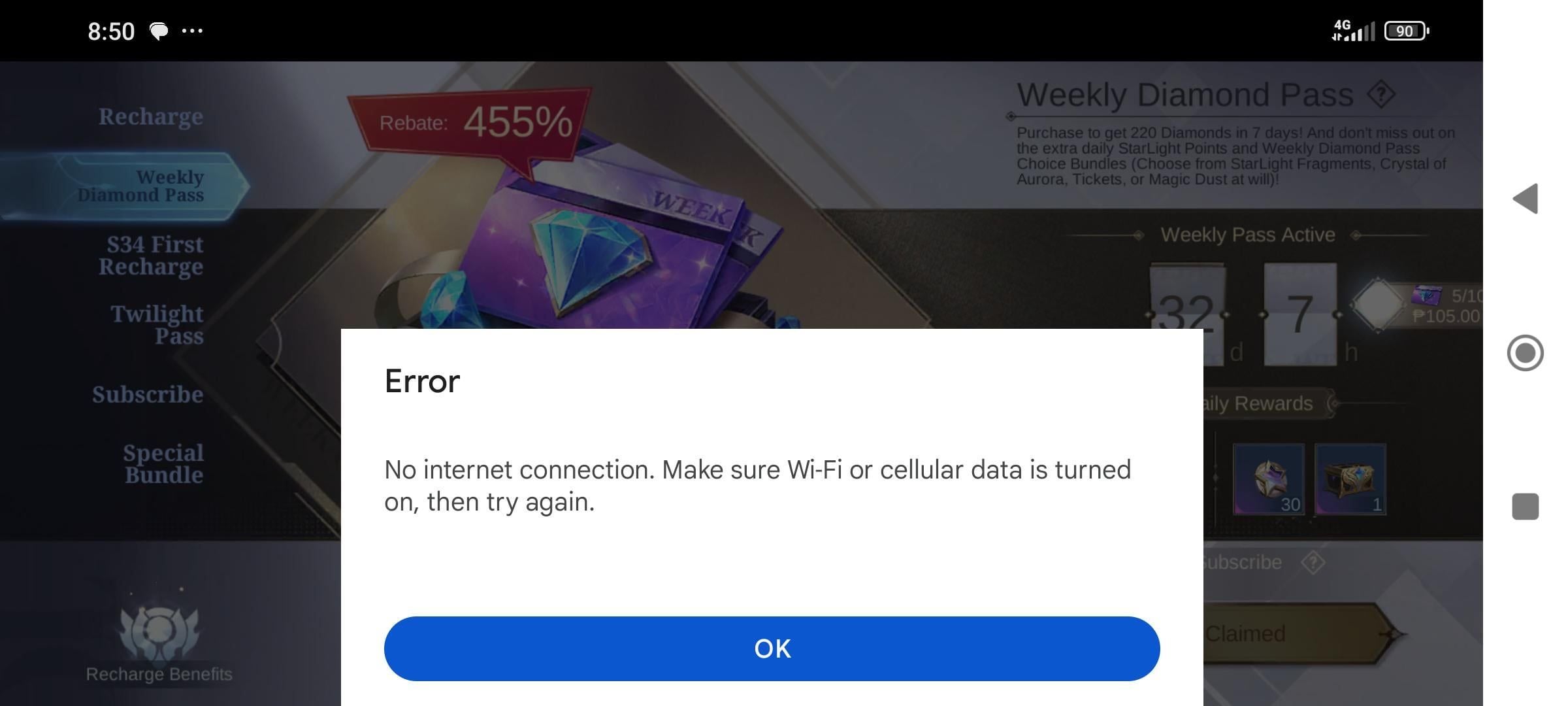
Fix 1: Resolve Google Play Billing Conflicts on Android
Android users encounter this error most frequently because Google Play Billing runs continuous device and account integrity sweeps. Outdated cached data routinely corrupts the purchase tokens exchanged between MLBB and the Play Store, outputting error OR-FGEMF-20.
Start by purging corrupt tokens. Shut down Mobile Legends entirely. Navigate to your device Settings > Apps > Google Play Store > Storage, then tap Clear Cache. Clear the cache for Google Play Services immediately afterward. Play Services handles backend token verification for all microtransactions; leaving its cache uncleared leaves the conflict active.
Next, check location settings. The Play Store billing client throws an instant cancellation (resultCode -1, responseCode 1) if Google Play Services cannot verify device location during checkout. Open Settings > Apps > Google Play Services > Permissions > Location, and set it to allow while using the app with precise location active.
Finally, reconcile billing records at payments.google.com. Google Play rejects the checkout if the street address or postal code registered on your Google account conflicts with your bank's file. Abbreviation differences like "Street" versus "St." or an outdated billing address from a previous residence are enough to force an automatic decline.
If Google Play continues to stall, you can buy your Mobile Legends diamonds via an external web checkout to bypass the Play Store client entirely.
Fix 2: Rectify Apple App Store Purchase Blocks on iOS
Apple routes transaction failures without detailed decline descriptions. When an iOS purchase aborts, StoreKit indicates that the transaction could not be completed without exposing the payment gateway's decline code.
Start by checking your account for past-due balances. If a previous subscription renewal, app download, or cloud service failed to clear, Apple locks all subsequent in-app checkouts across all installed apps until that balance is paid.
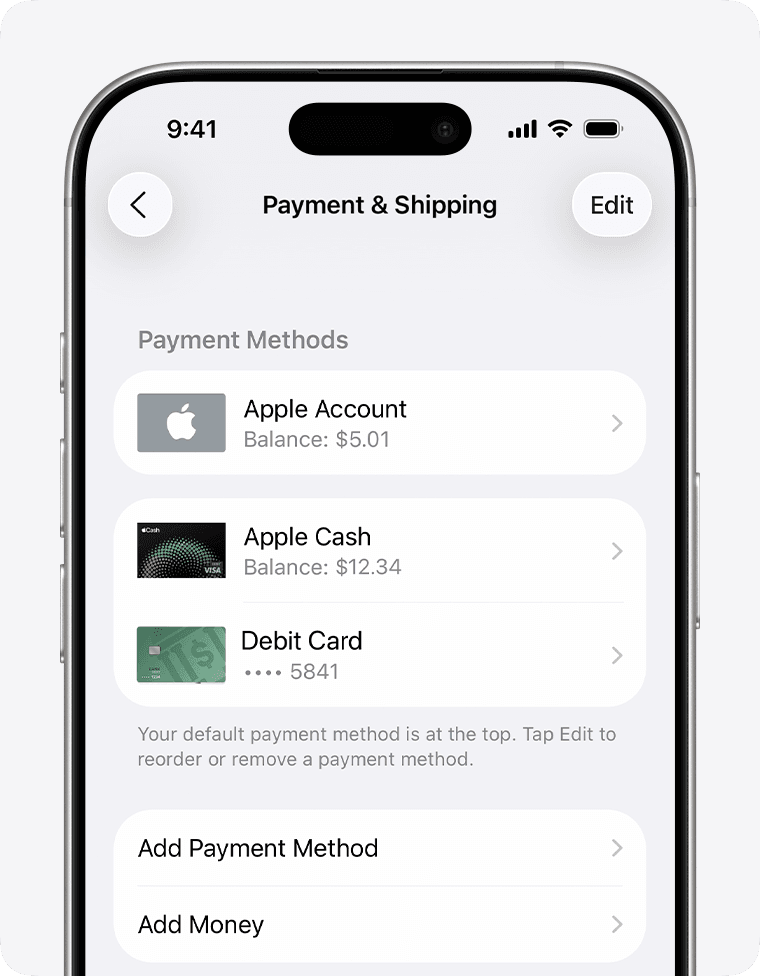
To audit your payment credentials:
- Open the Settings app on your iPhone or iPad.
- Tap your Apple ID banner at the top of the menu.
- Tap Payment & Shipping, then authenticate.
- Review the listed cards; remove or update any method highlighted in red.
- Verify with your financial institution that the active card authorizes international digital merchant codes.
Because the App Store suppresses bank rejection reasons, call your card issuer if valid methods fail. Request a manual review for blocked gaming merchant categories or foreign billing channels. Card issuers routinely flag recurring app microtransactions as suspect until the cardholder authorizes the merchant profile directly.
Fix 3: Eliminate Regional, VPN, and Profile Discrepancies
Mobile Legends enforces localized distribution channels. If your live IP address points to one region while your payment method is registered in another, fraud detection rules abort the purchase immediately.
Disable every VPN, proxy, and private DNS relay before loading the recharge menu. Running an active connection through an overseas node while billing against a domestic bank card generates a critical security conflict. Both Google and Apple check checkout coordinates against the account profile; conflicting origins cancel the order.
Updating an out-of-region Play Store account requires strict platform lead times, as outlined below.
| Regional Metric | Requirement or Propagation Window | Impact on Billing |
|---|
| Country Change Cooldown | 90 days between updates | Prevents frequent store hopping to chase regional pricing tiers. |
| Payment Gateway Sync | Up to 48 hours to propagate | New profiles decline checkouts if attempted immediately after swapping. |
| Family Group Restriction | Blocked while enrolled | Active family members cannot alter store country until leaving the group. |
| Temporary Merchant Hold | Up to 15 days on balances | Merchant pre-authorizations restrict available funds unexpectedly. |
Regional profile updates require technical propagation time before billing networks align properly. If you altered your Play Store country today, purchases can fail intermittently until the 48-hour database sync completes.
Membership in a Google Family group blocks manual store country changes. You must leave the family group or have the organizer dissolve it before the platform unlocks regional store modifications.
Fix 4: Manage Account Security Freezes and Card Verifications
Security stops can also originate from Moonton. The game's risk engine monitors accounts for credential theft, account trading, and unauthorized device recovery. Substantial account updates—including linked email changes, password updates, new third-party bindings, or logins from unknown hardware—trigger an automated security hold.
This security status lasts 14 days. Matches run normally, but profile modifications, skin gifting, and direct diamond purchases remain restricted. If you recently modified primary security bindings, you must wait out the 14-day hold before in-game checkouts process.
On Android, unverified credit cards stall Google Play transactions. When Google flags a card for routine identity confirmation, it posts a temporary line item labeled "GOOGLE TEST" to your online statement. This charge contains an 8-digit verification code that clears within two days. In-app billing remains paused until you submit that code at payments.google.com.
Pending merchant holds also mimic insufficient balance errors. Car rental deposits, hotel holds, or gas pump pre-authorizations lock funds for up to 15 days. Even if your ledger shows a sufficient total balance, reduced available funds will trigger Code 51 declines.
When device-level client errors persist, securing an MLBB diamond top up through an external web portal routes around operating system failures.
Server Delays and Queue Backlogs in Mobile Legends
Not all cancellations stem from account flags. Moonton's servers manage severe traffic spikes during peak evening hours in the UTC+8 zone, which aligns with prime gaming time in Southeast Asia. The launch of limited gacha events, 515 promotions, or collector skins concentrates millions of checkout requests simultaneously.
During traffic surges, Moonton's transaction endpoints time out. The local billing client attempts to confirm the purchase, hits an upstream gateway timeout, and outputs a soft decline. Code 96 indicates this type of switch dropout.
Spamming the purchase button during slowdowns creates further problems. Pushing multiple checkout requests through a backlogged server can flag your card for duplicate fraud, turning a temporary soft delay into a hard card lock. Step away for 15 to 30 minutes. In heavily congested queues, diamond delivery and receipt processing can lag anywhere from 5 minutes to 2 hours.
If funds leave your balance without delivering diamonds, avoid filing immediate disputes. Backlogged server queues resolve most missing items within 30 minutes. If your balance does not update after 24 hours, take your store receipt, record your Player ID and Zone ID from your in-game profile, and file a manual escalation ticket under Payment Issues.
| Decline Behavior | Root Category | Expected Timeframe / Action |
|---|
| Soft Decline (Code 96) | Gateway timeout or switch dropout | Wait 15 to 30 minutes before reattempting the order. |
| Soft Decline (Peak Lag) | Moonton server congestion (UTC+8) | Delivery delays run 5 minutes to 2 hours; do not spam buy. |
| Hard Decline (Code 51) | Insufficient balance / limit hit | Settle holds or add funds; retry only after funding. |
| Hard Decline (Code 54) | Expired payment instrument | Register a replacement card; previous card is permanently blocked. |
Distinguishing soft gateway timeouts from hard payment rejections prevents your card from receiving automated fraud locks. When connectivity drops, let the queue clear.
To skip app store token validation during major release windows, order your Weekly Diamond Pass through a web checkout that credits your Player ID directly.
Verified Troubleshooting Checklist for MLBB Recharges
Run through these diagnostic checks before attempting another transaction:
- [ ] Examine available balance: Insufficient funds cause 44% of online card declines. Confirm available headroom beyond the base price to cover localized digital taxes.
- [ ] Verify payment data: Simple typos—including incorrect CVV numbers, bad expiration dates, or transposed digits—account for 20% of checkout rejections.
- [ ] Disable networking tools: Shut off VPNs, proxies, and ad-blocking DNS profiles to ensure your IP matches your store's native territory.
- [ ] Clear Google caches: Purge cache files for both Google Play Store and Google Play Services to wipe corrupted session tokens.
- [ ] Check location access: Confirm that Google Play Services has precise location permission enabled in system settings.
- [ ] Review pending orders: Settle unresolved charges or failed subscription bills inside your Apple ID or Google account.
- [ ] Wait out recent updates: If you altered primary Moonton credentials in the last 14 days, wait for the security hold to clear.
FAQ
Why does Mobile Legends show 'Payment canceled by system'?
The error triggers when Google Play, the Apple App Store, or your bank halts the checkout due to fraud flags, address mismatches, or temporary server timeouts. It indicates that the transaction was blocked before funds could be transferred to Moonton.
How do I fix the payment canceled error on Android?
Clear the cache of Google Play Store and Google Play Services, then check payments.google.com to verify your card details and billing address. Ensure all VPNs are turned off and grant Google Play Services precise location permissions.
How do I resolve the payment canceled error on iOS?
Open your iPhone Settings, tap your Apple ID profile, and review Payment & Shipping to ensure your card is active and has international online transactions enabled. Settle any unpaid App Store orders before retrying the diamond purchase.
Does using a VPN cause MLBB payment cancellations?
Yes, active VPNs or proxies create an IP mismatch against your Google Play or Apple ID home country that triggers automated anti-fraud cancellations. Turn off your VPN and purchase over your standard local mobile or Wi-Fi network.
Can server delays in Mobile Legends cause purchase errors?
Yes, peak server hours (evenings in UTC+8) can overload Moonton's transaction API and cause billing timeouts between the store and game servers. If checkout stalls, wait 15 to 30 minutes rather than making repeated purchase attempts.
Will I be charged if the system cancels my payment?
No, a canceled payment means the charge was stopped, though your bank may place a temporary authorization hold that drops off within a few business days. If a deducted charge does not deliver diamonds within 24 hours, contact customer support with your order ID.
How long does a Google Play region change take to fix billing errors?
A Google Play country profile update can take up to 48 hours to fully sync across backend payment processors. Google also enforces a 90-day cooldown period between country changes.
Best Path Forward for Clean Diamond Recharges
A "Payment canceled by the system" alert points to an external authorization failure rather than corrupted game files. On Android, the issue typically traces back to stale cached tokens in Google Play Services or address discrepancies on your Google Payments profile. On iOS, unacknowledged App Store balances or bank merchant filters are the common blockers.
Avoid repeated checkout attempts when a transaction aborts. If clearing cache files and checking your balance do not resolve the error, stop retrying. Repeated checkout prompts risk Code 96 gateway freezes and bank fraud locks that take days to release. Verify your billing profile, allow server traffic in UTC+8 peak hours to stabilize, and let verification processes clear before attempting another purchase.