



Identity V Skill Delay Fix: LDPlayer 9 vs PC (Sub-200ms)
Skill cast delay costs ranked matches. This guide compares LDPlayer 9 emulator vs official PC client, with proven optimization to reduce input lag from 900ms to sub-200ms. Learn configurations competitive players use for zero-lag gameplay and improved terror shock timing, pallet drops, and ability activation.


What Is Skill Cast Delay
Skill cast delay is the time gap between pressing an ability button and on-screen execution. In Identity V, this directly impacts critical moments—300ms delay means missing terror shocks as survivors vault to safety. Competitive players need sub-200ms ping: hunters require ~150ms, survivors function at 200ms.
Delay components: input processing, network latency, server response, client rendering. Network optimization reduces latency from 900ms to 190-250ms on wired connections, but platform choice adds local input lag. Players experience issues with Photographer blink timing, Forward dash precision, Priestess portal placement—abilities requiring frame-perfect execution.
For competitive edge, identity v echoes top up through BitTopup provides fast access to premium characters with secure transactions and instant delivery.
How Delay Affects Hunters vs Survivors
Hunter abilities suffer more from cast delay due to precision requirements. Photographer blinking through pallets needs exact timing—100ms extra delay lets survivors complete vault animations. Soul Weaver's web spinning had specific issues fixed in November 6, 2025 hotfix (08:00-10:30 UTC+8).
Survivor actions like pallet drops tolerate slightly higher latency but still benefit from optimization. Peddler's energy charge required a November 13, 2025 hotfix (08:00 UTC+8) for activation inconsistencies. Jitter around 30ms and packet loss above 1% create unpredictable skill responses.
Measuring Current Delay
Test actual delay in controlled conditions. Enter Custom Match (typically 500ms ping vs 400ms Quick Match) and perform repetitive actions while recording at 60 FPS. Count frames between button press and activation, multiply by 16.67ms per frame.
Network latency: wired connections achieve 190-250ms, WiFi typically 220-300ms. Server compensation has 300ms limit—beyond this, delays become unmanageable. Test regional servers: Singapore (Southeast Asia), Hong Kong (Chinese regions), Japan (alternatives with varying latency).
LDPlayer 9 vs Official PC Client: Architecture
Emulator Virtualization Impact
LDPlayer 9 uses Android emulation, creating virtualization between hardware and game. This adds overhead—translating Android ARM to x86 CPU commands, processing graphics through multiple pipelines, managing memory across two operating systems.
Virtualization adds 10-20ms when configured properly, but misconfiguration increases delays substantially. Requires DirectX rendering mode for optimal performance, GPU acceleration for intensive workload. Set Background Process Limit to No More than 1 Process.
Native PC Client Benefits
Official PC client runs natively on Windows, eliminating virtualization overhead. Available free on Steam, communicates directly with GPU/CPU without translation layers. Provides inherently lower input lag and consistent frame times.
Limitations: requires minimum Intel Core i3, 4GB RAM, 1GB VRAM. Recommended specs: Intel Core i5, 8GB RAM, 2GB VRAM. Demands proper Windows configuration—compatibility mode, administrator rights, firewall exceptions.
Performance Benchmarks
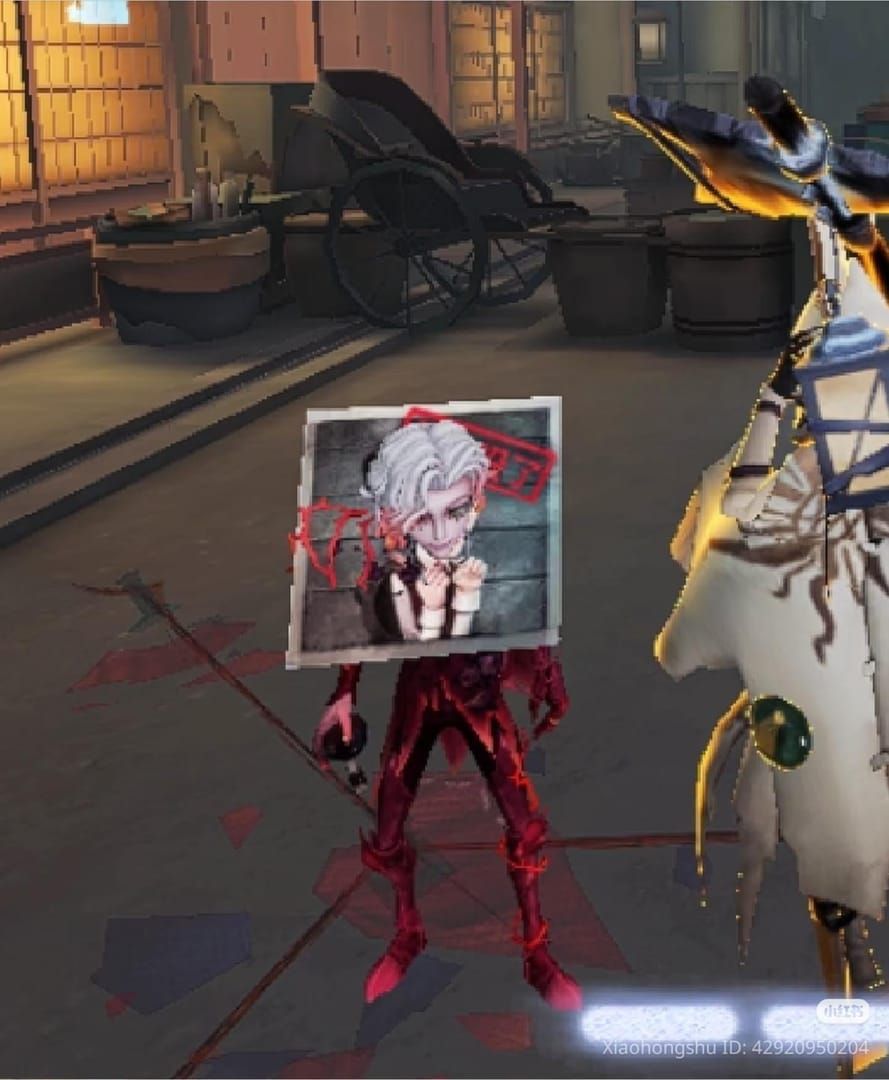
Optimized LDPlayer 9 with 4GB RAM achieves competitive performance approaching native levels. Both maintain 60 FPS lock on low graphics. Critical difference: native clients show less frame-to-frame timing variance, resulting in smoother ability activation.
Network affects both equally. UDP ports 10000-20000 must stay open, with 5 Mbps download/1 Mbps upload reserved. Regional selection sometimes outperforms geographically closest servers.
LDPlayer 9 Optimization for Zero-Lag
CPU Core Allocation
Allocate 4+ CPU cores through Settings > Performance > CPU allocation. Assign half your physical cores (8-core processor = 4 cores). Enable virtualization (VT-x for Intel, AMD-V for AMD) in BIOS—most significant performance improvement.
Verify in Task Manager > Performance > CPU: Virtualization: Enabled. Without hardware virtualization, emulator uses software translation, multiplying input lag.
RAM Configuration
Allocate exactly 4GB RAM minimum. Navigate Settings > Performance > Memory, set to 4096MB. Insufficient RAM causes stuttering during ability activation as system swaps to disk.
Monitor RAM usage with built-in overlay. If usage exceeds 90%, close background apps or increase to 6GB (if system has 16GB+ total). Don't allocate over 50% total system memory.
Graphics Renderer
Set DirectX in Settings > Graphics > Rendering mode. Better compatibility with Identity V's engine and lower latency than OpenGL on most GPUs.
Enable Force 4X MSAA and Force GPU Rendering in developer options (tap build number 7 times in About Emulator). Offloads rendering from CPU to GPU. Disable VSync to eliminate frame buffering.
Resolution and Frame Rate
Configure 1280x720 resolution instead of 1080p. Lower resolution reduces GPU workload, maintaining 60 FPS during intensive scenes. Access Settings > Display > Resolution.
Lock frame rate to 60 FPS through Settings > Graphics. Higher rates provide no advantage (server caps at 60 FPS) while consuming GPU resources causing thermal throttling.
Advanced Settings
Enable Root Mode in Settings > Advanced for deeper system access and performance optimizations. Bypasses Android security restrictions adding overhead.
Increase disk cache to 2048MB minimum to reduce loading stutters. Clear cache monthly through Settings > Advanced > Clear cache.
Official PC Client Optimization
Installation Best Practices
Install to primary SSD, not HDD. Right-click executable > Properties > Compatibility > Run as administrator. Grants permissions without Windows security interruptions.
Verify file integrity through Steam: Library > Identity V > Properties > Local Files > Verify integrity. Corrupted files cause ability activation delays.
Graphics Settings
Set all to Low: Texture Quality, Shadow Quality, Effect Quality. Reduces GPU rendering time to sub-50ms on capable hardware.
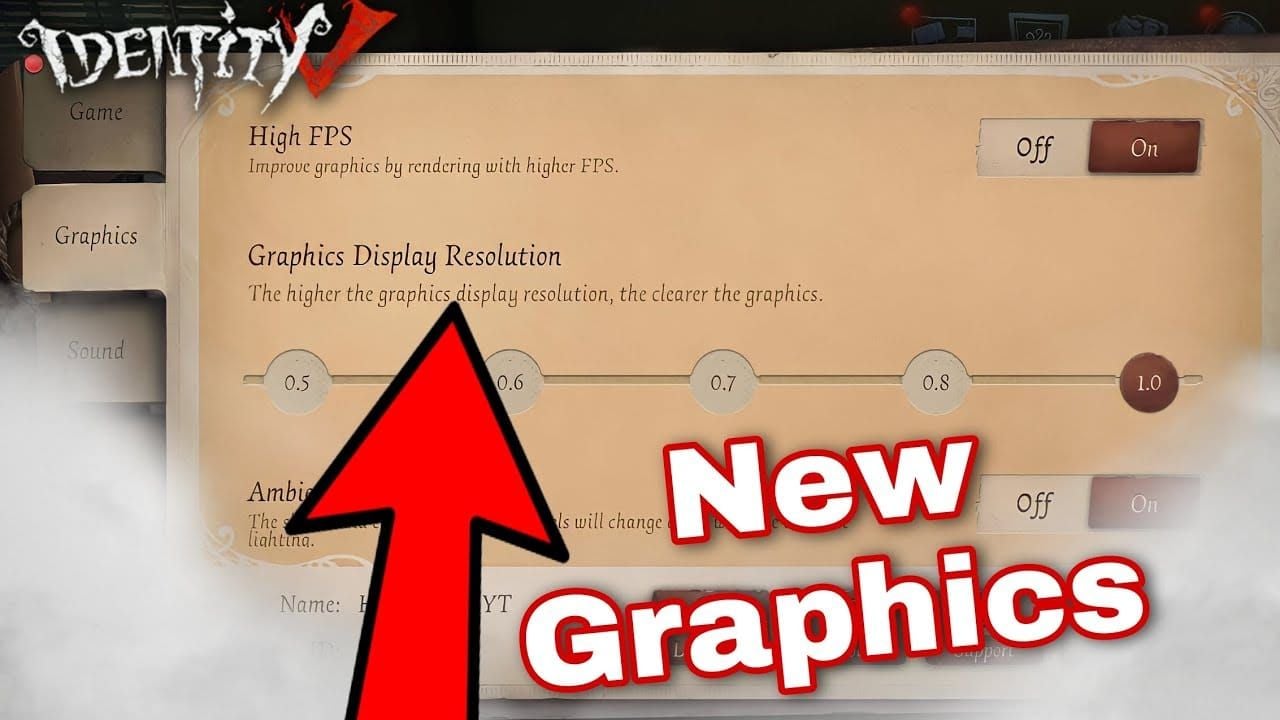
Disable motion blur, depth of field, ambient occlusion—post-processing adds rendering stages. Enable FPS counter to monitor 60 FPS consistency.
Windows Compatibility
For Windows 10 delays, configure compatibility for Windows 8: right-click executable > Properties > Compatibility > Run in compatibility mode > Windows 8. Resolves DirectX 11 rendering issues.
Disable fullscreen optimizations in same tab. Windows 10 optimization adds composition layer introducing 1-2 frames latency.
Firewall and Antivirus
Add installation folder to Windows Defender exclusions: Windows Security > Virus & threat protection > Exclusions > Add folder.
Configure Windows Firewall for UDP ports 10000-20000: Advanced settings > Inbound Rules > New Rule > Port > UDP > 10000-20000 > Allow. Repeat for Outbound Rules.
System-Level Windows Optimizations
Game Mode and GPU Scheduling
Activate Game Mode: Settings > Gaming > Game Mode > On. Prioritizes CPU/GPU resources, prevents Windows Update during gameplay.
Enable Hardware-Accelerated GPU Scheduling (Windows 10 2004+): Settings > System > Display > Graphics settings. GPU manages own memory, reducing CPU overhead by 5-10%.
Background Process Management
Close Discord, browsers, streaming software before launching. Use Task Manager (Ctrl+Shift+Esc) to end processes using >5% CPU.
Disable Windows Search indexing: Win+R > services.msc > Windows Search > Stop > Startup type: Disabled. Prevents disk activity spikes interrupting asset loading.
Power Plan
Switch to High Performance: Control Panel > Power Options > High Performance. Prevents CPU frequency scaling causing inconsistent frame times. Maintains max clock speed, eliminating 50-100ms ramp-up delay.
Laptops: connect AC power, disable battery-saving in manufacturer utilities. Battery modes throttle CPU/GPU unpredictably.
Mouse Configuration
Set polling rate to 1000Hz through mouse software. 125Hz reports every 8ms, 1000Hz every 1ms—7ms advantage for activation.
Configure DPI 800-1600 for optimal precision. Extremely high DPI (3200+) introduces sensor jitter causing missed clicks. Test with rapid pallet drops in Custom Matches.
Character-Specific Delay Impact
Hunters Most Affected
Photographer: Blink requires frame-perfect timing. 50ms delay lets survivors complete vaults before blink registers. November 6, 2025 hotfix addressed Soul Weaver's spinning attack timing.

Geisha: Dash-through-obstacles needs precise directional input during animation. Lag sends dash into walls instead of through them.
Sculptor: Statue placement demands exact cursor positioning. Delay spawns statues in suboptimal locations, reducing map control.
Survivor Abilities
Forward: Rugby ball dash has startup animation where delay compounds. 200ms+ delay causes dash activating after hunters land hits. Requires anticipatory timing above 150ms.
Priestess: Portal placement unreliable with high delay—spawns where you aimed 200-300ms ago. Causes portals facing walls during kiting.
Perfumer: Rewind has fixed 3-second lookback, but activation delay rewinds to slightly earlier position, potentially worse placement.
For competitive advantage, buy idv echoes online through BitTopup for full character roster access with reliable service.
Cipher and Pallet Interactions
Calibration Great zone lasts ~200ms. Input delay above 100ms makes consistent Greats nearly impossible, reducing decode speed. November 13, 2025 Peddler hotfix shows interaction timing importance.
Pallet drops most delay-sensitive. Drop animation takes ~300ms, hunters can still hit. Combined with 200ms input delay, must initiate 500ms before swing range. Delay above 250ms makes safe pallet usage extremely difficult.
Advanced Troubleshooting
Network vs Local Delay
Test in offline/Custom Matches with bots. If delays persist with stable ping, issue is local processing. Network lag shows variable delay (150-400ms), local lag stays consistent.
Run ipconfig /flushdns in Command Prompt (Admin). Set DNS to 1.1.1.1 (Cloudflare) through Network Adapter settings > IPv4 > Properties. Reduces routing overhead 10-20ms.
GPU Drivers
Update to latest from NVIDIA/AMD official sites. Drivers include game-specific optimizations reducing rendering latency. If delays appeared after update, rollback: Device Manager > Display adapters > Properties > Driver > Roll Back.
Clean install using DDU (Display Driver Uninstaller) in Safe Mode. Removes conflicting remnants causing inconsistent frame times.
Disable VSync and Limiters
Disable VSync in game settings and GPU control panel (NVIDIA Control Panel > Manage 3D Settings > Vertical sync: Off). VSync buffers frames, adding 16-33ms delay. Causes tearing but prioritizes responsiveness.
Disable frame limiters in GPU control panel and MSI Afterburner. Allow game to render frames as fast as possible—reduced buffering lowers input lag.
Hardware Upgrades
CPUs older than Intel 4th gen (Haswell) or AMD Ryzen 1000 struggle with emulator virtualization. Modern 6-core CPU provides substantial improvements.
RAM below 8GB forces disk swapping. Upgrade to 16GB allows comfortable 4GB emulator allocation. SSDs reduce asset loading times causing temporary stutters.
Network hardware: routers older than 5 years lack proper QoS. Enable UPnP for automatic port forwarding UDP 10000-20000. Consider gaming router with latency optimization.
Platform Comparison for Ranked
LDPlayer 9 Pros/Cons
Pros: Keyboard/mouse superior to touchscreen, macro recording for complex combos, larger screen for awareness. Optimized with 4GB RAM and DirectX achieves playable performance Tier IV-VI.
Cons: Virtualization adds unavoidable baseline latency. Consumes more resources—requires i5 and 8GB vs official client's i3 and 4GB minimum. Updates sometimes break compatibility temporarily.
Official Client Advantages
Lowest possible input lag. Native Windows execution eliminates virtualization, delivering consistent frame times. Receives updates simultaneously with mobile.
Disadvantages: Less flexible control customization, occasional optimization issues on specific hardware. Some older GPUs perform better on emulators. Requires careful Windows configuration—firewall, compatibility, admin permissions.
Pro Player Preferences
Tournaments typically allow both official clients and approved emulators. Professionals generally prefer official PC client for ranked due to lower baseline latency and update reliability. Sub-200ms ping requirement easier to achieve.
Some pro survivors use emulators for superior keyboard schemes, particularly characters requiring rapid camera manipulation (Seer, Mechanic). Choice depends on hardware capabilities and control preferences.
FAQ
What causes skill cast delay in Identity V on PC?
Combined input processing, network latency, and rendering lag. Emulators add 10-20ms virtualization overhead, network contributes 190-300ms depending on connection, GPU/CPU adds 16-50ms. Total ranges from sub-200ms optimized to 900ms misconfigured.
Is LDPlayer 9 better than official PC client?
Official client provides lower baseline lag via native Windows execution. Optimized LDPlayer 9 with 4GB RAM, DirectX, and virtualization enabled achieves competitive performance approaching native levels. High-end systems benefit from official client, mid-range may perform better with emulator optimization.
How do I reduce emulator input lag?
Allocate 4GB RAM, enable hardware virtualization in BIOS, set DirectX renderer, limit background processes to one. Disable VSync, enable Force GPU Rendering and Force 4X MSAA, reduce resolution to 1280x720. Configure Game Mode, High Performance power plan, 1000Hz mouse polling.
Why do hunter abilities activate late?
Input lag exceeding 200ms. Check network ping (190-250ms wired, under 300ms WiFi), verify 60 FPS stability, test mouse polling. Hunters need ~150ms optimal vs 200ms survivors. November 6 and 13, 2025 hotfixes addressed Soul Weaver and Peddler timing issues.
Best graphics settings for Identity V PC?
All options to Low, disable motion blur and depth of field, lock 60 FPS, disable VSync. Use 1280x720 on emulators or 1920x1080 on official client with capable GPUs. Enable FPS counter to monitor consistency. Minimizes GPU rendering to sub-50ms.
Can delay affect ranked performance?
Directly impacts ranked, especially hunters requiring precise timing. Delays above 200ms make terror shocks unreliable, reduce blink effectiveness, cause missed hits during vaults. Survivors experience failed pallet drops and mistimed abilities. Competitive players maintain sub-200ms total latency.
Eliminate skill delays and dominate ranked! Need Echoes for S-Tier skins or limited essence? BitTopup offers instant, secure top-ups with exclusive payment methods and competitive pricing. Upgrade your Identity V experience with fast delivery, excellent service, and high ratings—visit BitTopup for reliable Echoes top-up!
Recommended News

Recommend products


Table of Contents
- Understanding Skill Cast Delay in Identity V
- What Is Skill Cast Delay
- How Delay Affects Hunters vs Survivors
- Measuring Current Delay
- LDPlayer 9 vs Official PC Client: Architecture
- Emulator Virtualization Impact
- Native PC Client Benefits
- Performance Benchmarks
- LDPlayer 9 Optimization for Zero-Lag
- CPU Core Allocation
- RAM Configuration
- Graphics Renderer
- Resolution and Frame Rate
- Advanced Settings
- Official PC Client Optimization
- Installation Best Practices
- Graphics Settings
- Windows Compatibility
- Firewall and Antivirus
- System-Level Windows Optimizations
- Game Mode and GPU Scheduling
- Background Process Management
- Power Plan
- Mouse Configuration
- Character-Specific Delay Impact
- Hunters Most Affected
- Survivor Abilities
- Cipher and Pallet Interactions
- Advanced Troubleshooting
- Network vs Local Delay
- GPU Drivers
- Disable VSync and Limiters
- Hardware Upgrades
- Platform Comparison for Ranked
- LDPlayer 9 Pros/Cons
- Official Client Advantages
- Pro Player Preferences
- FAQ


Recommended News
Free Fire Beginner Guide: What to Unlock and What to Skip in 2026

Guild Fest Rewards Worth It? 2026 Selection Priority Guide
Are Microsoft Rewards Milestones Worth It for Office in 2026?
How to Get Free Gold in Marvel Snap in 2026 (All F2P Methods)
Never After Free Gift Packs: Active Codes and Drops Guide (2026)
How to Reach Eggsecutive VP Salmon Run in Solo Freelance Matches
How to Farm Rare Skin Fragments in MLBB | August 2026
Genshin Impact Stygian Onslaught 7.0 Teams | August 2026




























































































