Packet Loss Impact on Performance
Packet loss creates inconsistent gameplay where actions don't register immediately. When packets containing movement commands or shooting inputs fail to reach the server, the game predicts your actions, creating rubber banding where your character snaps back to previous positions.
The game displays connection quality indicators in the upper corner. Yellow or red network icons signal active packet loss or high latency. Pro mobile players maintain packet loss below 1% for competitive viability. Even 2-3% creates noticeable disadvantages in firefights.
4G Network Architecture Effects
4G LTE routes gaming data through significantly more infrastructure than wired connections. Your device connects to the nearest cell tower, which forwards data to your carrier's mobile switching center, then through internet backbone before reaching servers. Each routing point adds 5-15ms latency.
Network congestion at cell towers during peak hours (6-10 PM) compounds this latency. When hundreds of users simultaneously stream video or download files, available bandwidth decreases and ping increases. Blood Strike requires consistent low-latency connections rather than high bandwidth.
Signal strength directly correlates with stability. Weak signals force your device to boost transmission power and request packet retransmissions, both increasing latency and packet loss. Moving closer to windows or elevated positions often improves signal by 1-2 bars, translating to 10-20ms ping reductions.
Visual Connection Indicators

Network icon color coding:
- Green: Stable connections under 50ms
- Yellow: 50-100ms with potential issues
- Red: Severe problems exceeding 100ms or active packet loss
Enemy teleporting short distances, stuttering movement, or killing you after taking cover suggests packet loss. Hit registration delays—shots connecting visually but damage registering 200-300ms later—indicate high ping preventing real-time server confirmation.
Why 4G Has Higher Ping Than WiFi
Mobile data connections produce 20-40ms higher baseline latency than WiFi to the same servers. This stems from network architecture, not carrier throttling or device limitations.
Wired Ethernet cuts 10-20ms ping versus WiFi, while WiFi typically beats 4G by similar margins. This hierarchy reflects wireless transmission hops and routing complexity.
Mobile Network Routing
Your Blood Strike packets traverse significantly more network hops on 4G than WiFi. WiFi routes through your router directly to your ISP, then to game servers. Mobile data adds cell tower transmission, carrier switching centers, and often additional internet exchange points.
Each hop introduces processing delays as routers examine packet headers. While individual hops add only 2-5ms, cumulative latency from 3-5 extra hops explains why mobile players measure 15-25ms higher ping than WiFi users in the same location.
Tower Congestion and Peak Hours
Cell tower capacity creates predictable ping spikes during peak hours. Most carriers experience maximum congestion 6-10 PM when users stream video, browse social media, and game simultaneously. During these windows, ping can increase 30-50ms compared to off-peak hours.
Tower congestion affects packet loss more severely than baseline ping. When towers reach capacity, they prioritize certain traffic types and may drop gaming packets. Urban areas with high tower density distribute users across more infrastructure, reducing per-tower congestion.
Signal Strength vs Quality
Signal strength bars provide only approximate connection quality. Full bars guarantee device-tower communication but don't ensure low latency or high bandwidth. Network congestion, tower backhaul capacity, and carrier routing all affect gaming performance independently of signal strength.
Weak signals below 2 bars force error correction modes that increase latency. The device requests packet retransmissions for corrupted data and reduces transmission speeds. These protective measures prevent disconnections but add 20-40ms latency.
Diagnosing Connection Issues
Accurate diagnosis separates fixable mobile data issues from carrier-level problems. Blood Strike provides built-in diagnostic tools, while phone network settings reveal detailed connection metrics.
Packet loss below 1% indicates acceptable quality, while sustained loss above 2-3% requires immediate troubleshooting. Intermittent spikes suggest tower congestion; consistent packet loss points to signal strength or device configuration issues.
In-Game Network Indicators
Blood Strike displays real-time ping and packet loss in settings during matches. The network quality indicator updates every few seconds, providing trend data. Ping gradually increasing suggests thermal throttling or background app interference; sudden spikes indicate tower congestion or signal drops.
Compare ping across different server regions. If all servers show similarly high ping, your mobile data or device settings cause the problem. If specific regions show significantly higher ping, server selection optimization offers the most effective solution.
Phone Diagnostic Tools
Android: Developer options reveal real-time signal strength in dBm. Values above -85 dBm indicate strong connections suitable for gaming. Values below -100 dBm suggest signal strength issues requiring repositioning.
Network signal apps display tower connection details including band, frequency, and carrier aggregation status. Active carrier aggregation combines multiple frequency bands for higher bandwidth and often reduces latency by 5-10ms.
iOS: Field test mode reveals numerical signal measurements more precise than bar indicators. Monitor during gameplay to correlate signal strength changes with ping fluctuations.
Packet Loss vs High Ping vs Jitter
Distinct symptoms require different solutions:
- Packet loss: Rubber banding and teleportation as missing data forces position resynchronization
- High ping: Consistent delays where all actions register late but in correct sequence
- Jitter: Variable delays where actions sometimes register quickly, sometimes slowly
Packet loss above 1% demands immediate attention. Ping below 80ms remains playable for most content. Jitter above 20ms creates inconsistent experiences harder to compensate for than stable high ping.
Step-by-Step 4G Optimization
Systematic optimization follows a priority hierarchy. Device-level configurations provide 10-20ms improvements, while network settings and app management contribute additional 5-15ms reductions. Implementing all optimizations cumulatively reduces ping from typical 120-180ms to competitive 80-100ms ranges.
Network Mode Configuration
Switch to LTE/4G only mode in network settings rather than automatic switching. This prevents mid-game disconnections when your device drops to 3G in weak signal areas.
Some carriers offer 5G connections reducing latency by 10-20ms versus 4G. However, 5G coverage remains limited and devices often switch between 5G and 4G, causing instability. For Blood Strike, consistent 4G often outperforms intermittent 5G.
Disable automatic network selection and manually choose your carrier. This prevents roaming onto partner networks with inferior routing that adds 20-30ms latency.
Gaming Mode Features
Modern gaming phones include dedicated modes that prioritize network traffic and disable background processes. Enable gaming mode to allocate maximum system resources to Blood Strike, preventing background apps from consuming bandwidth or processing power. This typically reduces ping variability by 10-15ms.
Disable power-saving mode to prevent CPU throttling that increases input latency and frame processing delays. Gaming on full performance mode ensures consistent 60fps rendering and sub-20ms input latency.
Close background apps before launching Blood Strike. Streaming apps, cloud sync services, and social media continuously transmit data even when not actively used. Terminating these processes ensures Blood Strike receives full available bandwidth.
Background Data Restrictions
Android and iOS allow per-app background data restrictions. Restrict background data for all apps except Blood Strike to eliminate bandwidth competition from automatic updates, cloud backups, and push notifications.
Disable automatic app updates to prevent large downloads starting mid-game. Switch to manual updates or WiFi-only updates.
System updates, sync services, and notification delivery collectively create network noise that increases packet loss. Disable sync for email, photos, and cloud storage during gaming sessions to reduce packet loss by 0.5-1%.
Device Performance
Maintain 10GB free storage to prevent performance degradation. Devices with less than 10% free storage experience slower app loading, increased thermal output, and degraded network performance.
Keep device temperature below 40°C to prevent thermal throttling. Extended gaming sessions heat devices, triggering automatic performance reductions. Ventilate your device with external cooling or periodic breaks.
Clear cache monthly. Blood Strike accumulates cache data over time, eventually consuming several gigabytes. Monthly cache clearing maintains optimal loading speeds.
In-Game Settings for Stability
In-game configuration complements network optimization by reducing bandwidth requirements and prioritizing connection stability over visual fidelity.
Players can recharge blood strike gold through BitTopup's secure platform for fast delivery and competitive rates.
Server Selection Strategy
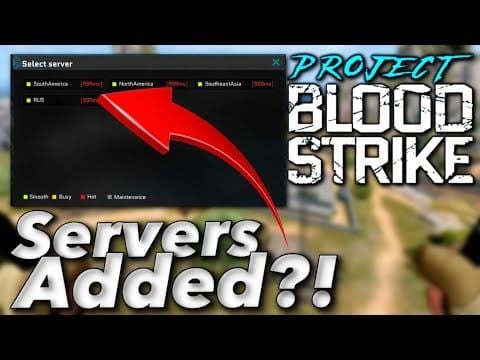
Connect to servers under 50ms ping. Blood Strike displays server ping before match entry. Choose the lowest ping server available, even if outside your geographic region.
Server population affects match quality but not connection performance. Prioritize ping over population for optimal connection quality.
Time zone differences affect server congestion. Playing on servers in time zones experiencing off-peak hours reduces congestion-related ping spikes. Asian servers at 3 AM local time often provide better performance than geographically closer servers during peak hours.
Graphics Settings
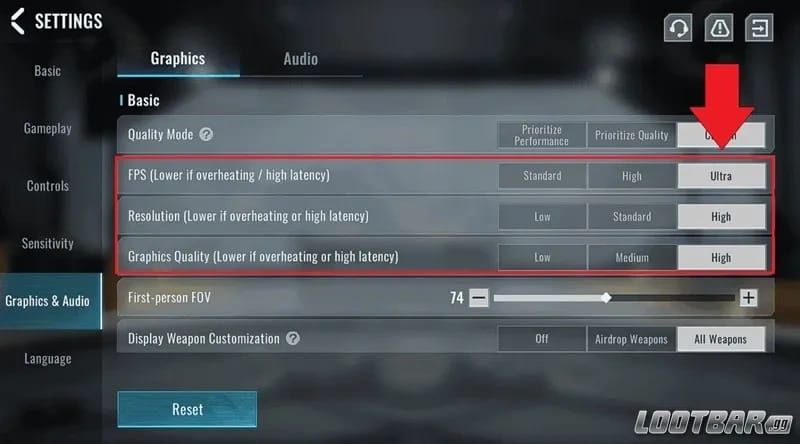
Reduce graphics quality, textures, shadows, effects, and resolution to decrease processing load. Lower graphics settings prevent thermal throttling and maintain consistent frame rates, indirectly improving network performance by ensuring your device can process incoming packets without frame-time delays.
Disable motion blur, bloom, and particle effects to reduce rendering complexity. While these don't directly affect network bandwidth, they free processing resources for network packet handling.
Resolution scaling to 80-90% of native significantly reduces GPU load while maintaining visual clarity. Reduced GPU load lowers device temperature and power consumption, indirectly stabilizing network performance.
Audio and Voice Chat
Voice chat consumes 20-40 kbps continuous bandwidth, potentially causing packet loss on congested connections. Disable voice chat when not essential for team coordination. Text communication eliminates this bandwidth requirement.
Reduce audio quality settings to decrease CPU load for audio processing. Disable haptic feedback and vibration to eliminate non-essential features and maximize resources for network communication.
Advanced Optimization Techniques
Network Refresh
For mobile hotspot mode, unplug router power for 30 seconds, wait 1-3 minutes before replugging. This refreshes network connection and clears temporary routing tables.
For direct mobile data, toggle airplane mode for 30 seconds. This forces device reconnection to cell tower, potentially connecting to a less congested tower or different frequency band.
Network refresh proves most effective when experiencing sudden ping increases during previously stable sessions.
DNS Configuration
Custom DNS servers can reduce domain name resolution latency by 5-10ms. Configure your device to use optimized DNS servers through network settings. However, DNS optimization provides smaller improvements than other techniques and should be implemented only after exhausting higher-impact optimizations.
Monitoring and Maintenance
Record ping and packet loss before and after each optimization step to quantify improvements. This data-driven approach prevents wasting time on ineffective optimizations.
Maintain a performance log over weeks to reveal patterns. If ping consistently spikes at specific times, tower congestion rather than device configuration causes the issue.
PC-Specific Optimizations
Players using PC with mobile hotspot benefit from additional optimizations.
Windows Defender Firewall
Allow Blood Strike through Windows Defender Firewall for both Private and Public networks. Browse to the Blood Strike executable, add it to exceptions, and check both network options. This ensures the firewall doesn't inspect or delay game packets.
Temporarily turn off Windows Defender Firewall to test whether firewall inspection causes latency. If ping decreases with firewall disabled, add proper exceptions.
Driver and System Updates
Update Blood Strike and GPU drivers monthly. Outdated drivers often contain network stack bugs that increase latency or cause packet loss.
Blood Strike requires minimum 8GB RAM with i3 8300 and GTX 960, while recommended specs include 16GB RAM with i7 7700K and GTX 1070. Systems below minimum specs benefit from virtual memory optimization.
Troubleshooting Persistent Issues
When to Contact Your Carrier
Persistent high ping after implementing all optimizations suggests carrier-level routing issues. Submit a ticket via in-game Support for Blood Strike developers, while contacting carrier technical support addresses network-side issues. Provide specific ping measurements and times when issues occur.
Some carriers throttle gaming traffic during congestion or after exceeding data caps. Review your plan's terms of service. Upgrading to unlimited plans or gaming-specific packages often resolves throttling-related issues.
Acceptable Performance Metrics
Competitive Blood Strike requires ping below 80ms and packet loss below 1%. Ping between 80-120ms remains playable for casual content but creates disadvantages in competitive modes. Ping above 120ms makes precise aiming difficult.
Packet loss above 2% fundamentally breaks gameplay regardless of ping. Even 50ms ping with 3% packet loss creates worse experience than 100ms ping with 0% packet loss. Prioritize packet loss reduction over ping minimization.
Real-World Performance Expectations
Achievable Ping Reductions
Typical 120-180ms ping on unoptimized 4G reduces by 10-20ms through comprehensive optimization, bringing most players into 100-120ms range—playable for casual content but still disadvantaged versus wired players.
5G networks offer theoretical 10-30ms lower latency than 4G, though real-world improvements vary significantly by carrier and location.
Competitive Viability
Mobile players can compete effectively in casual Blood Strike modes with optimized connections achieving 80-100ms ping and sub-1% packet loss. Ranked competitive modes favor wired connections, though skilled mobile players compensate through positioning and game sense.
Professional competitive play requires wired connections for consistent sub-50ms ping. Mobile data's inherent latency variability creates unpredictable performance disadvantaging players in high-stakes matches.
FAQ
What causes high ping in Blood Strike on mobile data?
Cellular network architecture requires data to travel through cell towers, carrier switching centers, and multiple routing points before reaching game servers. Each hop adds 5-15ms latency. Tower congestion during peak hours, weak signal strength, geographic distance from servers, background apps consuming bandwidth, and device thermal throttling compound this baseline latency.
How much packet loss is acceptable?
Below 1% provides acceptable performance with minimal rubber banding. Between 1-2% creates noticeable disruptions but remains playable. Above 2% fundamentally breaks gameplay with severe rubber banding, teleportation, and delayed actions. Competitive play requires maintaining below 0.5%.
Can you play competitively on 4G data?
Competitive play on 4G is viable for casual and mid-tier ranked modes when optimized connections achieve 80-100ms ping with sub-1% packet loss. Professional competitive play requires wired connections for consistent sub-50ms ping. Mobile data's inherent latency variability creates disadvantages in high-stakes matches.
Why does Blood Strike lag more on mobile data than WiFi?
Mobile data adds 3-5 additional network hops versus WiFi, routing through cell towers and carrier infrastructure. Each hop introduces 5-15ms latency. Tower congestion, signal interference, and carrier routing inefficiencies compound this, creating 20-40ms higher baseline ping on mobile data.
What ping is good for mobile?
Below 50ms provides optimal performance. Between 50-80ms remains highly competitive. Between 80-120ms is playable for casual content but creates competitive disadvantages. Above 120ms makes precise aiming difficult. Mobile players should target sub-100ms for satisfactory competitive experience.
How to fix rubber banding on 4G?
Rubber banding stems from packet loss. Monitor packet loss during matches and implement optimizations to maintain loss below 1%. Switch to stable mobile data, disconnect other devices, close background apps, enable gaming mode, reduce graphics settings to prevent thermal throttling, connect to servers under 50ms ping, and avoid peak congestion hours.
Optimize your Blood Strike experience! Top up your Battle Pass and get exclusive skins at BitTopup—the trusted platform for mobile gamers. Fast delivery, secure payments, and the best rates for Blood Strike in-game currency make BitTopup the preferred choice for players worldwide.