Wrong UID vs Region Mismatch Explained
Wrong UID entry occurs when you manually type or paste an incorrect numeric identifier. MICO Live's delivery system routes coins exclusively to the UID specified at checkout—not your logged-in account or username. Even a single digit error sends your purchase to a completely different user's account.
Region mismatch happens when your MICO Live account operates on one regional server (Global or MENA), but you purchase coins through a platform configured for a different region. MICO Live maintains separate server infrastructures for different geographical markets with distinct coin pricing:
- Global region: 110 coins per dollar
- MENA region: 143 coins per dollar
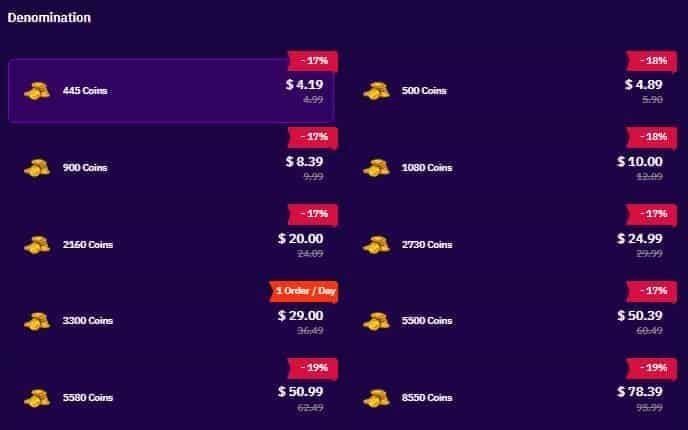
This pricing difference creates technical barriers preventing cross-region deliveries.
Real Impact Statistics
- 90% of missing coin cases result from wrong UID or region mismatch
- 95% of card/digital wallet payments complete within 5 minutes
- Remaining 5% finish within 30-minute standard delivery window
- Cryptocurrency top-ups require full 30 minutes for blockchain confirmations
- Bank transfers take 1-4 hours depending on banking network processing
Why UID Verification Matters
Your MICO UID serves as the absolute identifier for coin delivery—assigned at account creation and never changes, unlike your username. Payment systems don't recognize profile pictures, display names, or login credentials; they exclusively use this numeric string to locate the correct account.
Verifying your UID before payment takes 30 seconds but prevents hours of recovery efforts.
What Is MICO Live UID and Why It Matters
The MICO UID functions as your account's permanent address within the platform's server infrastructure. Without the precise code, your purchase goes elsewhere regardless of the name on the label.
MICO Live Numeric User ID: The Definitive Identifier
Your MICO UID appears as a numeric string displayed directly under your profile nickname in the app. Generated when you first create your account, it remains unchanged throughout your account's lifetime, even if you change username, profile photo, or other customizable elements.
The UID exists independently of your login method. Whether you access MICO Live through phone number, email, or social media authentication, the underlying UID stays constant.
Common Misconception: Username vs UID vs Display Name
Three distinct account identifiers often confuse new users:
- Username: Customizable text handle you choose during registration; can change anytime
- Display name: Visible name shown to other users; appears at top of your profile
- UID: Numeric identifier that never changes; appears in smaller text below display name
Top-up platforms require the UID specifically because usernames aren't unique—multiple users might choose identical usernames. The numeric UID guarantees uniqueness across the entire MICO Live user base.
How Top-Up Systems Use UID
When you submit a top-up order, the payment platform sends a delivery request to MICO Live's API containing your UID and purchased coin amount. MICO Live's server searches its database for the exact UID match, then credits the specified coin amount to that account's wallet balance.
This process happens automatically within seconds. The system doesn't verify whether the UID belongs to the person who made the payment—it simply executes delivery to whatever UID was provided.
How to Find Your Exact MICO Live Numeric UID
Locating your UID requires accessing your MICO Live profile through the mobile app. The desktop version doesn't display UID information.
Step-by-Step UID Location
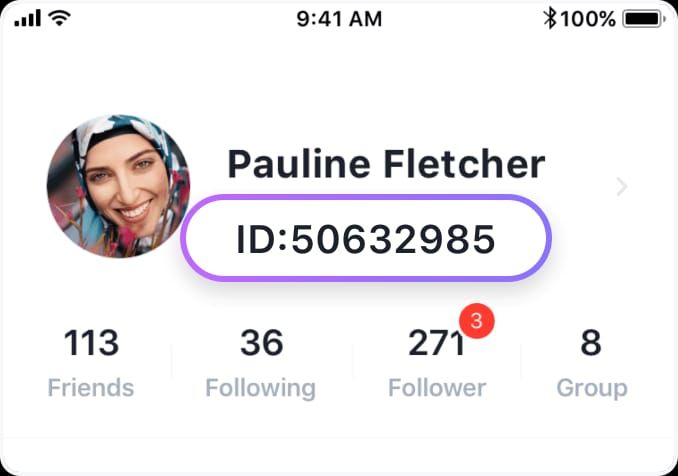
- Open MICO Live app and ensure you're logged into the account you want to top up
- Tap the profile icon in bottom right corner
- Look directly under your display name for a smaller numeric string labeled as your MICO UID
- Long-press this numeric string until Copy appears, then tap Copy
- Open your device's notes app and paste the UID to verify you copied the complete number
- Count digits and check for unexpected characters—your UID should be purely numeric
Never manually type the number. Transcription errors account for a significant portion of wrong UID entries.
Verifying UID Accuracy Before Payment
After copying your UID, paste it into the top-up platform's UID field. Before confirming purchase, perform digit-by-digit comparison:
- Paste your copied UID into a notes app where you can see the full number clearly
- Look at the UID field in the payment form
- Compare first three digits, then middle digits, then final digits
- Verify total digit count matches between copied UID and payment form entry
- Check for accidental spaces, periods, or other characters
Clipboard managers, auto-formatting features, and app-specific text handling can occasionally introduce errors. 15 seconds spent on visual verification prevents hours required for recovery.
Taking Screenshots for Documentation
Before submitting payment, capture two critical screenshots:
Screenshot 1: Your MICO Live Profile Page

- Show profile photo, display name, and UID clearly visible
- Ensure UID is in focus and all digits are readable
Screenshot 2: The Payment Form
- Capture UID field with your entered number fully visible
- Include coin package amount and total price
- Show platform name or logo
These screenshots serve as evidence if you need to contact support for recovery.
For reliable transactions with built-in verification, platforms like buy MICO Live coins online offer UID confirmation steps that display your entered UID back to you before processing payment.
Wrong UID Entry: Symptoms and Immediate Actions
Wrong UID delivery creates a unique problem: your payment succeeded, coins were delivered successfully, but they went to someone else's account.
How to Tell If You Entered Wrong UID
Check your MICO Live wallet history: Profile > Wallet > History. This section displays all coin transactions with timestamps. If your recent top-up doesn't appear within 30 minutes of payment confirmation, you likely entered an incorrect UID.
Compare your payment receipt's timestamp with your wallet history. Successful deliveries appear in your transaction log within 5 minutes for most payment methods. The absence of a matching entry indicates coins were delivered elsewhere or are still pending.
Verify the UID you entered by checking your payment confirmation email or the platform's order history. Most top-up services include the destination UID in order details. Compare this UID digit-by-digit against your actual MICO UID from your profile.
What Happens to Coins Sent to Incorrect UID
When coins are delivered to the wrong UID, they immediately credit to that account's balance. The recipient receives coins without any notification about who sent them or why.
MICO Live's terms classify virtual currency purchases as final transactions. The platform's automated delivery system has no mechanism to reverse completed coin deliveries. Once coins enter an account's balance, they become that account's property.
Recovering Coins From Wrong Account Top-Ups
Recovery requires documentation and support intervention. Gather these materials immediately:
- Payment Receipt: Confirmation email showing payment amount, transaction ID, and timestamp
- Transaction ID: Unique identifier assigned to your payment
- Incorrect UID Entered: Exact UID you entered (from order history or confirmation email)
- Correct UID: Your actual MICO UID from your profile (screenshot proof)
- Screenshots: Visual evidence showing both UIDs and payment confirmation
Submit recovery request to contact@micous.com with all documentation attached. Include clear explanation: I purchased [amount] coins on [date] at [time], but entered UID [wrong number] instead of my correct UID [right number]. Transaction ID: [ID number]. Please review for possible recovery.
90% of cases with complete documentation resolve within 48 hours when the error is clearly documented. However, recovery isn't guaranteed—it depends on whether the recipient account has already spent the coins.
Prevention: Double-Verification Checklist
Before every top-up:
- Open MICO Live app and navigate to your profile
- Long-press and copy your UID directly from profile page
- Paste UID into your device's notes app to verify complete number copied correctly
- Navigate to top-up platform and paste UID into designated field
- Visually compare pasted UID in payment form against UID in notes app, checking every digit
- Take screenshot of payment form showing entered UID
- Take screenshot of MICO Live profile showing actual UID
- Confirm both UIDs match exactly before clicking payment button
This process takes less than one minute but eliminates the primary cause of missing coins.
Region Mismatch Issues: Why Location Settings Block Delivery
MICO Live operates separate server infrastructures for different geographical markets, each with region-specific pricing, payment methods, and account databases.
How MICO Live Regional Servers Work
The platform maintains distinct server clusters for major markets including Global, MENA (Middle East and North Africa), and other regional divisions. When you create a MICO Live account, the app automatically assigns you to a regional server based on your location during registration or selected region in account settings.
Each regional server maintains its own user database, coin pricing structure, and payment processing systems. Top-up platforms configure their coin packages for specific regions. When you purchase a Global region coin package, the delivery system sends coins to MICO Live's Global server database. If your account exists on the MENA server instead, the Global server has no record of your UID, causing delivery to fail.
Identifying Your Current Account Region
Check your region by examining your coin pricing history:
- Navigate to Profile > Wallet > History in MICO Live app
- Look at previous coin purchases or receipts
- Calculate coins-per-dollar ratio from any past transaction
- 110 coins per dollar = Global region
- 143 coins per dollar = MENA region
Cross-Region Top-Up Restrictions
Attempting to top up a MENA account using a Global region payment platform creates a mismatch. The payment processes successfully, but coin delivery fails because the platform sends the delivery request to the wrong regional server.
This mismatch doesn't generate error messages during checkout because the payment platform and MICO Live's servers don't communicate in real-time during purchase. You complete payment, receive confirmation, but the backend delivery request goes to a server that doesn't recognize your UID.
Region mismatch issues are particularly common for users who:
- Created their account while traveling or using a VPN
- Relocated to a different region after account creation
- Use payment platforms that don't clearly indicate which region they serve
Verifying Region Compatibility Before Purchase
Before purchasing coins, confirm the payment platform's supported region matches your account region:
- Check platform's product description for region specifications
- Look for phrases like Global region only or MENA accounts only
- Verify coin-per-dollar ratio matches your account's pricing structure
- Contact platform's customer service to confirm compatibility if unclear
MICO Live Coin Delivery Timeline: Normal vs Problematic
Understanding standard delivery timeframes helps you distinguish between normal processing delays and genuine delivery failures.
Standard Delivery Times
Payment method significantly impacts delivery speed:
- Credit/Debit Cards: 95% complete within 5 minutes, remaining 5% within 30 minutes
- Digital Wallets (PayPal, etc.): Instant to 15 minutes
- Cryptocurrency: Up to 30 minutes due to blockchain confirmation requirements
- Bank Transfers: 1-4 hours depending on banking network processing
These timeframes assume correct UID entry and region compatibility. The delivery clock starts when the payment platform receives payment confirmation, not when you click purchase.
When to Start Worrying: Red Flags
Wait 15 minutes before troubleshooting for card or wallet payments. For cryptocurrency payments, wait the full 30 minutes for blockchain confirmations.
After these standard windows pass, check for warning signs:
- No transaction appears in Profile > Wallet > History after 30 minutes
- Payment was confirmed but coin balance hasn't changed
- Payment platform shows Delivered status but coins aren't in your account
- No delivery notification despite payment confirmation
Server Load and Peak Time Delays
MICO Live experiences peak usage during evening hours (7-11 PM in each regional timezone). During these periods, server load increases significantly.
Peak period deliveries may extend toward the upper end of standard timeframes. A card payment that normally completes in 3 minutes might take 8-10 minutes during peak hours. This delay is normal.
However, even during peak periods, deliveries should complete within 30 minutes. If your coins haven't arrived after 30 minutes regardless of server load, the delay indicates a technical issue.
Step-by-Step Diagnostic Process
When coins don't arrive within expected timeframes, follow this systematic diagnostic process.
Step 1: Verify Payment Confirmation
Check your email for payment confirmation from your payment processor. Look for:
- Transaction ID or reference number
- Exact amount charged in your currency
- Timestamp of payment processing
- Payment method used
If you don't have a payment confirmation email, check your bank statement or payment app transaction history. Confirm the charge appears as completed, not pending.
Step 2: Check Current Coin Balance and Transaction History
Navigate to Profile > Wallet to view your current coin balance. Then access Profile > Wallet > History to view all coin transactions with timestamps.
Look for an entry matching your purchase amount and timestamp. Successful deliveries appear here within 5 minutes for most payment methods. Each entry shows:
- Coin amount received
- Transaction timestamp
- Transaction type
Step 3: Confirm UID Used During Purchase
Access your order history on the top-up platform. Most platforms provide an order details page showing:
- Order number
- Purchase date and time
- Coin package purchased
- Destination UID entered
Copy the UID from your order details and compare it digit-by-digit against your actual MICO UID from your profile.
If even one digit differs, you've identified wrong UID entry as the cause.
Step 4: Validate Account Region Settings
Determine your account region using the coin pricing method. Then check the top-up platform's product description or contact their support to confirm which region their service supports.
If your account is MENA region but you purchased from a Global region platform (or vice versa), you've identified region mismatch as the cause.
Step 5: Assess Normal Delivery Timeframes vs Actual Delay
Calculate elapsed time since payment confirmation:
- Card/wallet payments: If more than 30 minutes have passed, delay is abnormal
- Cryptocurrency: If more than 30 minutes have passed since blockchain confirmation, delay is abnormal
- Bank transfer: If more than 4 hours have passed, delay is abnormal
For delays beyond these windows with correct UID and region compatibility, wait an additional 30 minutes, then attempt a logout/login cycle—this resolves 60% of missing coin cases by forcing the app to refresh your account data.
Preventing Future Top-Up Issues
Implementing systematic verification procedures eliminates the majority of top-up problems before they occur.
Pre-Purchase Verification Checklist
Before every MICO Live coin purchase:
- Copy UID directly from MICO Live app (never type manually)
- Paste UID into notes app first to verify complete number copied correctly
- Verify account region matches top-up platform's supported region
- Check platform region support explicitly
- Compare UID digit-by-digit in payment form vs copied UID
- Screenshot both UIDs for documentation
- Verify logged-in account by checking follower counts or wallet history
This checklist takes less than two minutes but prevents hours of recovery effort.
Why Using BitTopup Ensures Accurate UID Matching
BitTopup implements multi-stage verification systems that cross-check your entered UID before processing payment. The platform displays your entered UID back to you during checkout, requiring explicit confirmation before proceeding.
Additional BitTopup advantages:
- Region auto-detection: System identifies your account region and only displays compatible coin packages
- UID format validation: Automatic checking ensures entered UID matches MICO Live's numeric format requirements
- Pre-delivery verification: Platform confirms UID validity with MICO Live's servers before charging payment
- Fast delivery infrastructure: Direct API integration enables 95% of deliveries within 5 minutes
- 24/7 support availability: Immediate assistance if any delivery issues occur
These safeguards significantly reduce the 90% failure rate from wrong UID and region mismatch issues.
Keeping Account Information Updated
Maintain a secure note on your device containing:
- Your exact MICO UID (copy-paste from profile, not manually typed)
- Your account region (Global, MENA, etc.)
- Your account creation date
- Your registered email or phone number
Store this information in a password-protected notes app or password manager—never in plain text files.
What to Do If Coins Still Don't Arrive
When diagnostic steps confirm a delivery failure, systematic recovery procedures maximize your chances of successful resolution.
Gathering Required Information for Support
Compile a complete documentation package:
Payment Documentation:
- Payment confirmation email with transaction ID
- Bank statement or payment app screenshot showing completed charge
- Receipt from top-up platform showing order details
Account Documentation:
- Screenshot of MICO Live profile showing correct UID
- Screenshot of wallet history showing no delivery entry
- Screenshot of payment form showing UID you entered (if available)
Transaction Details:
- Exact date and time of purchase
- Coin package amount purchased
- Total amount paid in your currency
- Payment method used
Error Identification:
- Clear statement of problem (wrong UID, region mismatch, or unknown cause)
- Incorrect UID if you entered wrong number
- Your correct UID for reference
How to Contact MICO Live Support Effectively
Send recovery request to contact@micous.com with clear subject line: Coin Delivery Failure - Transaction ID [your transaction ID]
Structure your email:
Opening paragraph: I purchased [amount] MICO Live coins on [date] at [time] but did not receive the coins in my account.
Transaction details: Provide transaction ID, payment amount, purchase timestamp, and payment method.
Problem identification: I entered UID [wrong number] instead of my correct UID [right number] or I purchased from a Global region platform but my account is MENA region.
Documentation: List all attached files.
Requested action: Please investigate this transaction and deliver the coins to my correct UID [number] or Please process a refund as the region mismatch prevents delivery.
Keep the email professional and factual.
Expected Response Times
MICO Live support typically responds within 24-48 hours. Initial responses often request additional documentation, so monitor your email and respond promptly.
For cases with complete documentation showing clear wrong UID entry, 90% resolve within 48 hours. Region mismatch cases take longer (5-7 business days) because they require coordination between the top-up platform and MICO Live.
If you don't receive a response within 48 hours, send a follow-up email referencing your original ticket.
When and How Refunds Are Processed
MICO Live's virtual currency policy states all purchases are final, but exceptions are made for documented technical failures like wrong UID entry or region mismatch.
Refunds process through original payment method:
- Credit/debit cards: 5-10 business days
- Digital wallets: 3-5 business days
- Cryptocurrency: 1-3 days depending on blockchain network
- Bank transfers: 7-14 business days
The refund timeline starts when MICO Live or the top-up platform approves your refund request, not when you first reported the problem.
Frequently Asked Questions
Where do I find my MICO Live UID number?
Open MICO Live app, tap profile icon in bottom right corner, and look directly under your display name. Your UID appears as a numeric string below your nickname. Long-press this number and tap Copy to save it to your clipboard.
How long does MICO Live coin delivery take after top-up?
95% of card and digital wallet payments complete within 5 minutes, with all standard payments finishing within 30 minutes. Cryptocurrency top-ups require up to 30 minutes for blockchain confirmations, while bank transfers take 1-4 hours.
What happens if I enter the wrong UID during MICO Live top-up?
Coins deliver immediately to whatever UID you entered, even if it's not your account. The system cannot reverse completed deliveries automatically. Contact support at contact@micous.com with payment documentation, incorrect UID entered, and your correct UID to request recovery. 90% of documented cases resolve within 48 hours.
Can region mismatch cause MICO Live top-up failure?
Yes. MICO Live operates separate servers for Global (110 coins per dollar) and MENA (143 coins per dollar) regions. Purchasing coins for the wrong region prevents delivery because your UID doesn't exist in that region's database. Always verify the top-up platform supports your account's specific region before purchasing.
What should I do if MICO Live coins don't arrive after 30 minutes?
First, verify your payment was confirmed by checking your email or bank statement. Then check Profile > Wallet > History for a delivery entry. If no entry appears, compare the UID you entered against your actual profile UID digit-by-digit. If they match and your region is correct, try logging out and back in—this resolves 60% of cases. If coins still don't appear, contact support with full documentation.
How do I know if my MICO Live coins are pending or missing?
Check Profile > Wallet > History for transaction entries. Pending deliveries don't appear in history until they complete. If 30 minutes have passed since payment confirmation and no entry appears, coins are likely missing due to wrong UID or region mismatch rather than pending. Pending status only applies during the standard delivery window (5-30 minutes for most payment methods).
Avoid top-up headaches entirely—use BitTopup for guaranteed accurate MICO Live coin delivery. Our system automatically verifies your UID and region before processing, ensuring coins arrive in your account every time. With multi-stage verification, region auto-detection, and 95% of deliveries completing within 5 minutes, BitTopup eliminates the guesswork from coin purchases. Top up safely now at BitTopup and get your coins in minutes, not hours, with 24/7 support standing by if you need any assistance.