Unlike platforms with an internal toggle, Likee does not provide an official, documented in-app Data Saver switch inside its account preferences. To curb cellular consumption while streaming short videos or live broadcasts, you must manage bandwidth through system-level controls: Android 7.0 and newer offers a platform Data Saver that signals apps to reduce bitrates, while iOS uses Low Data Mode to lower video quality and restrict background refreshes.
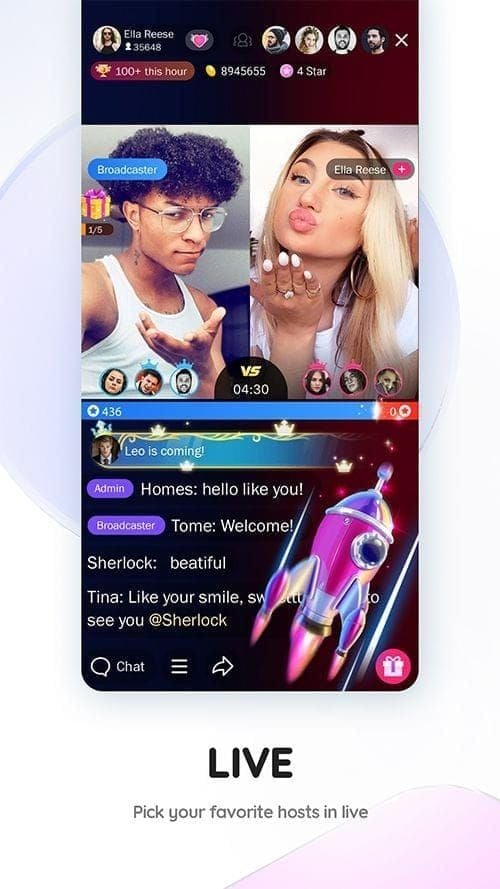
Likee operates as a global short-video creation and live streaming platform where creators and viewers connect in real time, utilizing Likee Diamonds as the virtual currency across the ecosystem. Constant high-definition video playback and background activity can quickly deplete monthly cellular allowances if left unrestricted.

Mobile OS Data Controls for Likee Playback
Because Likee lacks an internal data-conservation slider, your device's operating system must govern how much network throughput the app receives. Both major mobile operating systems provide built-in network restrictions designed to curb media consumption on cellular networks.
| Operating System Feature | Configuration Path | Network Impact | Source |
|---|
| Android System Data Saver | Settings > Network & Internet > Use Data Saver (Toggle On) | Restricts background transfers and signals apps to lower resolution | Android Open Source Project |
| Android App Background Block | Settings > Connections > Data Usage > Mobile data usage > Likee > Allow background data usage (Toggle Off) | Blocks Likee from sending or receiving data when closed | Astound Broadband |
| iOS Low Data Mode | Settings > Cellular > Cellular Data Options > Low Data Mode (Toggle On) | Lowers video streaming quality and halts background sync | Astound Broadband |
| iOS Background App Refresh | Settings > General > Background App Refresh (Toggle Off or select Likee) | Prevents feed updates and tracking from pulling cellular data off-screen | Astound Broadband |
How to Enable Data Saver on Android
Android operating systems from version 7.0 onward include Data Saver to manage bandwidth at the kernel and network layer. When activated, the OS signals active video apps to tune their feeds for lower consumption while blocking non-essential background tasks.
Turning On Platform Data Saver
- Open the Android Settings menu.
- Tap Network & Internet.
- Select Data Saver (or Use Data Saver).
- Switch the toggle to the On position.
If you need specific critical tools (such as work messaging apps) to bypass this restriction, tap Unrestricted data in that same menu and enable access for those individual applications, keeping Likee toggled off so it remains throttled.
Disabling Likee Background Data Usage
Even when you close the feed, apps can execute network requests in the background. Stop this behavior with these steps:
- Open your device Settings.
- Tap Connections, then select Data Usage.
- Tap Mobile data usage located under the Mobile section.
- Scroll below the graph to find and tap Likee.
- Turn off the toggle next to Allow background data usage (Astound Broadband).
Once disabled, Likee only exchanges data over cellular when it is actively open on your screen.
How to Turn On Low Data Mode on iPhone
Apple devices handle cellular media restrictions through Low Data Mode. Enabling this setting automatically lowers streaming quality across network-aware media apps and halts automated background updates.
Activating iOS Low Data Mode
- Open the iPhone Settings app.
- Tap Cellular (or Mobile Data, depending on your carrier and region).
- Tap Cellular Data Options (or Mobile Data Options).
- Turn on the switch for Low Data Mode (Astound Broadband).
Turning Off Background App Refresh
To ensure Likee does not silently refresh its feeds or notifications over cellular:
1. Open Settings on iOS.
2. Tap General > Background App Refresh.
3. Set the global toggle to Wi-Fi only, or scroll down to Likee in the list and toggle its individual switch to Off.
Recommended Settings Profiles
Choose the configuration that matches your current mobile plan.
Strict Cellular Conservation Profile (Capped Plans)
- Android Data Saver: Enabled.
- Likee Background Data: Disabled.
- iOS Low Data Mode: Enabled.
- Background App Refresh: Wi-Fi only.
- When to use: On limited metered data plans or when roaming outside your primary coverage area.
Unrestricted Performance Profile (Unlimited Plans)
- Android Data Saver: Disabled.
- iOS Low Data Mode: Disabled.
- Likee Background Data: Allowed.
- When to use: When connected to home Wi-Fi or operating on uncapped cellular connections where higher streaming bitrates will not trigger carrier throttling or overage charges.
Frequently Asked Questions
Does Likee have a dedicated in-app Data Saver switch?
Documented app specifications do not list an internal Data Saver toggle inside Likee's in-app settings menu. Users must apply operating system toggles like Android Data Saver or Apple Low Data Mode to force bandwidth economy (Astound Broadband).
How does Android Data Saver signal video apps to lower quality?
Beginning in Android 7.0, the operating system introduced an API that checks if Data Saver is active. When enabled, compliant applications read this state and adjust media bitrates and resolutions downward to limit overall consumption (Android Open Source Project).
Will turning on Low Data Mode affect live streaming on Likee?
Yes. Enabling Low Data Mode on iOS or Data Saver on Android lowers playback bitrate and restricts background processing. This can cause live streams to buffer at standard definition rather than higher resolutions on mobile networks.