PUBG Mobile DNS codes in August 2026 are encrypted hostnames you type into Android Private DNS:one.one.one.one,dns.google, ordns.quad9.net. Bookmark this page. We rewrite the tables when a resolver hostname or an in-game region label changes.
Updated on 2026-08-24: Version 4.5 is live through 7 September 2026. Krafton scheduled Version 4.6 for 9 September. DNS only translates names. It does not sit on the UDP path once a match has an IP.
Need UC for Royale Pass or a 4.5 crate before 4.6 lands? Top up PUBG Mobile UC on BitTopup with Player ID. No password.
What Private DNS changes (and what it does not)
Item | Fact in August 2026 |
|---|
Job | Turns a hostname into an IP (login, lobby, matchmaking, patch CDN) |
In-match ping number | Round-trip to the game server IP. DNS is out of that loop after the lookup |
Realistic win | Faster connect screens, fewer “cannot connect” errors when ISP DNS is slow or hijacked |
Fake win from the old draft of this page | “10–20 ms lower in-game ping on every Asia / ME match” |
pubg-as.amazonaws.com
| PC PUBG AWS probe. PUBG Mobile runs on Lightspeed / Tencent. Do not ping that host and call it your mobile server |
India | Global PUBG Mobile is a different app from BGMI. BGMI uses its own region list |
Target feel | Under 60 ms and 0% loss for ranked. 60–90 ms is playable. 150 ms+ is distance or routing |
Type one hostname. Test 10 matches at the same hour before you switch again.
Provider | Android Private DNS hostname | IPv4 (Wi-Fi static only) | IPv6 | Start here if |
|---|
Cloudflare | one.one.one.one (alias:1dot1dot1dot1.cloudflare-dns.com)
| 1.1.1.1 / 1.0.0.1 | 2606:4700:4700::1111 / 2606:4700:4700::1001 | You want one setting on Wi-Fi and cellular |
Google Public DNS | dns.google
| 8.8.8.8 / 8.8.4.4 | 2001:4860:4860::8888 / 2001:4860:4860::8844 | Cloudflare times out or a site you need fails |
Quad9 | dns.quad9.net
| 9.9.9.9 / 149.112.112.112 | 2620:fe::fe / 2620:fe::9 | You want malware blocking more than raw lookup speed |
AdGuard | dns.adguard.com
| 94.140.14.14 / 94.140.15.15 | n/a | You accept that some captive-portal Wi-Fi will break |
Android Private DNS uses DNS-over-TLS (some builds use DNS-over-HTTP/3). Cloudflare’s current Android steps live on the 1.1.1.1 Android setup page. Skip the 1.1.1.1 app’s default WARP toggle. WARP is a VPN hop and adds latency.

Why ISP DNS feels slow
Your carrier hands you a resolver it owns. That box can be close and sit in a queue at 20:00 local when half the city opens PUBG Mobile. A stale cache or a hijack that rewrites answers adds failed logins, not a prettier ping graph.
A public resolver with anycast (Cloudflare, Google, Quad9) answers from a nearby city and encrypts the query. That helps the handshake. After Lightspeed gives the client a match IP, packets skip DNS.
The December 2025 draft of this article treated lookup time as in-match ping and published “500+ session” before/after tables. Those numbers were marketing, not a lab log. Keep them off your notes.
Region start list (Asia, KRJP, Middle East)
The in-game picker shows Asia, Korea / Japan (KRJP), and Middle East, plus Europe, North America, and South America. You do not pick “Singapore” versus “Mumbai” as two Asia servers. Community traceroute talk about Singapore-area or Gulf-area nodes. Krafton does not publish a city map.
You play from | First region | First DNS hostname | Notes |
|---|
Singapore, Malaysia, Indonesia | Asia | one.one.one.one
| Evening load 19:00–23:00 SGT |
Thailand, Vietnam, Philippines | Asia | one.one.one.one, thendns.google if connect stalls
| Same region, different resolver path |
Pakistan, Bangladesh, Nepal, Sri Lanka | Asia | dns.google orone.one.one.one
| Global client. Not BGMI |
India (BGMI) | BGMI’s own list | Same hostnames on the phone | Separate app, separate store |
Korea, Japan | KRJP | one.one.one.one
| Peak 20:00–01:00 KST / JST |
UAE, Bahrain, Kuwait, Qatar | Middle East | one.one.one.one
| Shortest hop for most Gulf Wi-Fi |
Saudi Arabia, Oman | Middle East | dns.google if Cloudflare is blocked
| Some Gulf ISPs filter DoT. Swap hostnames |
Egypt, Libya, Tunisia | Middle East | one.one.one.one
| Distance to the ME cluster sets the floor |
Levant (Jordan, Lebanon, Iraq) | Middle East | one.one.one.one
| 150 ms+ after DNS means routing, not the hostname |
OpenDNS IPs (208.67.222.222) work on a Wi-Fi static form. Android Private DNS wants a TLS hostname. Cisco does not ship a drop-in hostname as clean asdns.google, so this page no longer lists OpenDNS as a Private DNS code.

How to set Private DNS on Android 9–16
Pixel and stock Android 15/16 keep the control under Network. Samsung nests it under Connections. Search Private DNS in Settings if the path moved on a skin.
Open Settings.
Open Network & internet (Samsung: Connections → More connection settings).
Open Private DNS. On some builds you tap Advanced first.
Select Private DNS provider hostname.
Typeone.one.one.one ordns.google. Save.
Confirm the row reads Connected.
Open PUBG Mobile, sit in the lobby, then run Training Ground and one Classic match.
Wi-Fi-only static DNS (older Android, or a ROM with no hostname field):
Long-press the SSID → Modify → Advanced.
IP settings: Static. Write down the current IP, gateway, and prefix first.
DNS 1:1.1.1.1. DNS 2:1.0.0.1.
Save and reconnect.
Static IP breaks many café captive portals. Prefer the hostname method.
iPhone
iOS has no system-wide Private DNS hostname box. For one SSID: Settings → Wi-Fi → i → Configure DNS → Manual → add1.1.1.1 and1.0.0.1. That change dies when you leave that network. Encrypted DNS on iOS needs a configuration profile. Do not install a random profile from a “PUBG ping” site.
Verify the resolver
For Cloudflare, open one.one.one.one/help. You want “Using DNS over TLS” or “Using DNS over HTTPS” on Yes. For Quad9, openon.quad9.net in the browser. Then launch the game. A green Connected badge in Android Settings is the phone check. The in-game ms number is the server check.
Errors
Cannot connect after Save: retype the hostname. Try the other provider. Reboot. Some carriers block port 853 (DoT). If both Cloudflare and Google fail, set Private DNS to Automatic and use Wi-Fi static IPs.
Connected, no internet: turn Private DNS Off, join a portal Wi-Fi, then turn it back on. Skip Static IP on that SSID.
Lobby is faster, match ping is the same: expected. DNS finished its job at connect.
Match ping stays 150+: change region, move to 5 GHz or 5G with bars, or read the legal ping methods. A hostname will not shorten the fibre.
How to measure the change
PUBG Mobile shows ping, loss, and a colour bar in the match HUD (Settings during a game on most builds). Record those three numbers. DNS shows up more on lobby load and reconnect than on the HUD average.
Metric | Use it for |
|---|
Ping (ms) | Distance + ISP path to the match IP |
Packet loss % | Drops. 1–2% already feels like stutter. DNS does not repair loss |
Jitter | Swing in ping. A flat 70 ms beats a 40–90 ms sawtooth |
Week 0: 10 matches on your current DNS, same region, same clock window (for example 20:00–22:00). Write ping / loss / jitter and whether the lobby hung.
Week 1: set Private DNS. Repeat the same window. Compare lobby time and failed connects first. Treat a 2–3 ms HUD move as noise.

Private DNS versus a VPN
| Private DNS | VPN |
|---|
What it changes | Name lookup only | Whole path through an extra city |
Extra hop after connect | None | One (20–100 ms on many exits) |
Encryption cost on game UDP | None | Yes |
Price | Free public resolvers | Paid for a usable exit |
Use when | ISP DNS is slow, broken, or hijacked | The ISP route is the problem, and you timed a better exit |
A Dubai phone that VPNs through Singapore to reach a Middle East match adds a detour. A VPN also replaces device DNS, so Private DNS goes idle. Pick one tool.
The 1.1.1.1 Android app defaults to WARP. That is the VPN case. For this game, typeone.one.one.one in system Private DNS and leave WARP off.
Pick the server before you chase DNS
Open the lobby gear → Server (wording varies by build) → Asia, KRJP, or Middle East. Confirm. Many builds lock a change for about 24 hours. Read the timer in-game before you tap.
Example | Closer pick | Far pick |
|---|
Bangkok | Asia | KRJP or Middle East |
Dubai | Middle East | Asia or Europe |
Cairo | Middle East | Europe if the HUD is lower on three test matches |
Karachi | Asia | Middle East |
A 20 ms gap between two regions beats any DNS tweak. Pakistan on Asia versus Middle East is a region problem. Test three matches each, same hour, then lock the lower median.

If the HUD stays high
DNS is one switch. The rest of the stack is radio, bufferbloat, and background apps.
5 GHz Wi-Fi inside about 10 m of the router, or 5G with four or five bars. Weak 5G that falls back to 4G mid-fight is worse than a flat LTE bar.
One device on the SSID while you queue. Pause cloud backups and store downloads.
Airplane mode for 10 seconds, then Wi-Fi only, before the first ranked game of the night.
Router QoS: put the phone MAC at high priority and cap the line a little under the plan so the buffer does not swell. Full steps sit on the ping article linked above.
GFX tools,UserCustom.ini edits, and “ping booster” APKs are ban bait. Stay on Settings and the router.
UC buys while the path is stable
A drop during checkout can leave you refreshing mail. Do the top-up on the connection you tested, with Private DNS Connected, and with the correct 10–12 digit Player ID.
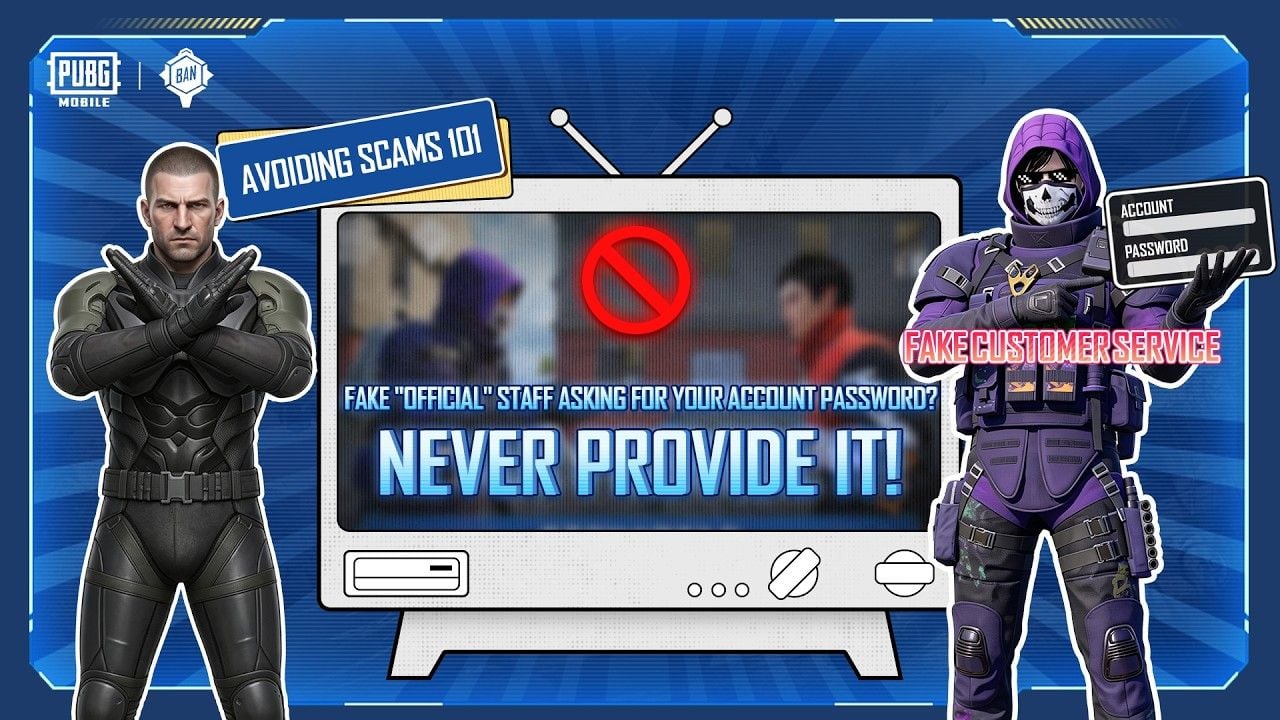
BitTopup credits UC to that ID through the official Midasbuy partner route. You never type the account password. Official staff will not ask for it either.
Elite Royale Pass is the first UC spend for a season grind. Check the live price in the Pass screen (builds have sat at 720 UC for Elite and 1,920 UC for Elite Plus). Version 4.5 Season 31 runs with the current client. 4.6 on 9 September starts the next cycle. Copy the Player ID before you pay.
FAQ
What is the best Private DNS for PUBG Mobile in 2026?
Start withone.one.one.one. If Android says Connected but the lobby hangs, switch todns.google for a week and keep the better median. Quad9 (dns.quad9.net) is the malware-filter pick, not a ping pick.
How do I set Private DNS on Android?
Settings → Network & internet → Private DNS → Private DNS provider hostname →one.one.one.one ordns.google → Save. Samsung: Settings → Connections → More connection settings → Private DNS.
Can Private DNS cut Asia server ping?
It can cut the time to resolve login and matchmaking hosts. The HUD ms in a live Classic match is the path to the match IP. Players at 40–50 ms see little HUD change. Players at 150 ms need a closer region or a better ISP path.
Does Private DNS lower in-game ping?
It lowers lookup time. Guides that promise a flat 10–20 ms HUD drop on every Asia and ME account oversold that. Time the lobby and the fail rate. Then read the HUD.
How much can DNS reduce ping?
Lookup itself sits in the 10–30 ms band on a tired ISP resolver and under 20 ms on Cloudflare or Google near a city POP. That slice is the connect screen. It is not 15–25% of an 80 ms match.
Why is ping still high after I change DNS?
The remaining latency is distance, peering, Wi-Fi interference, or a full server. Change Asia / KRJP / Middle East first. Then radio. Then the router. Official patch and event notes stay on PUBG MOBILE News.
Conclusion
PUBG Mobile DNS codes in August 2026 are three hostnames:one.one.one.one,dns.google, anddns.quad9.net. Set one in Android Private DNS, confirm Connected, and judge the lobby. Leave the in-match number to region and radio. Version 4.5 closes 7 September; 4.6 is dated 9 September. Save this page for the next resolver or server-label change. If a Pass or crate is the missing piece, buy PUBG Mobile UC on BitTopup with Player ID only.