What Is Social Media Binding in PUBG Mobile
Social media binding creates authentication pathways between PUBG Mobile and external platforms. The system supports multiple simultaneous bindings: Twitter/X, Facebook, Google, and Apple ID. This redundancy ensures account access even if one platform becomes unavailable or compromised.
The binding operates through OAuth authentication protocols, granting PUBG Mobile limited access to verify identity. When you log in using Twitter, the game stores an authentication token, not your Twitter password. This token-based system means compromised Twitter credentials grant hackers direct game access without triggering password alerts.
Each linked account appears in Settings > Account > Linked Accounts, displaying active connections with platform-specific icons. The system tracks when each account was linked—important for the 21-day minimum linkage requirement.
Why Twitter/X Logins Become Security Vulnerabilities
Twitter/X accounts face unique security challenges impacting linked gaming accounts. Data breaches, phishing campaigns targeting gaming communities, and third-party app vulnerabilities create multiple attack vectors. When hackers compromise a Twitter account linked to PUBG Mobile, they gain immediate game access without additional credentials.
Error code 611,1 indicates issues with linked Twitter accounts, appearing when the platform detects suspicious authentication attempts or Twitter API disruptions. This error signals your Twitter account may have been accessed from unauthorized locations or devices.
The Apps and Sessions section in Twitter Settings reveals all applications with account access. PUBG Mobile appears here when linked, showing permissions granted and last access time. Hackers exploit these permissions by maintaining persistent access even after password changes, making complete unlinking the only guaranteed solution.
The Difference Between Unlinking and Account Deletion
Unlinking removes a specific login method while maintaining your account and all associated data. Your Player ID remains active, inventory stays intact, and UC balance transfers seamlessly to remaining login methods. The process eliminates one authentication pathway without affecting the account.
Account deletion permanently erases your entire PUBG Mobile presence including purchases, progress, achievements, and social connections. This irreversible action requires contacting customer service through in-game Help. Deletion takes 7-30 days and requires verification of account ownership through multiple security checks.
The unlinking system includes safeguards preventing accidental lockouts. You must maintain at least one active login method at all times—you cannot unlink your only remaining social media binding.
Signs Your Twitter/X Login Has Been Compromised
Unauthorized login notifications: PUBG Mobile sends push notifications when your account logs in from new devices or unusual locations. If you receive alerts about logins you didn't initiate, especially from different countries or unfamiliar devices, your Twitter-linked account is likely compromised.
Suspicious in-game activity: Unexpected UC transactions, missing inventory items, or changed account settings. Check purchase history in the UC section for unauthorized transactions. Hackers often spend UC on crates, weapon skins, or gift items. Your Account Activity log in Settings shows recent logins, device types, and IP addresses.
Changed account settings: Modified privacy settings, altered friend lists, removed clan memberships, or changed in-game names. Account Security Settings displays recently logged-in devices with timestamps and locations. Any unfamiliar entries indicate compromised access requiring immediate action.
Unauthorized Login Notifications and Alerts
PUBG Mobile's security system triggers alerts when detecting login attempts from new devices or locations significantly different from usual play patterns. Notifications appear as push alerts on your registered device and in-game messages accessible through the mailbox icon, including timestamp, device type, and approximate location.
The notification system operates independently of Twitter's security—you'll receive PUBG Mobile alerts even if Twitter doesn't detect the compromise. This dual-layer notification provides early warning when hackers use linked Twitter credentials.
Enable two-factor authentication for both Twitter and PUBG Mobile accounts to receive additional verification requests for every login attempt. This secondary verification prevents unauthorized access even when hackers obtain Twitter credentials.
Suspicious In-Game Activity and UC Transactions
UC transaction history reveals unauthorized spending patterns. Access through Settings > Account > Purchase History, displaying all UC expenditures with timestamps and item details. Hackers typically purchase high-value crates, premium weapon skins, or gift items to transfer value.
Inventory changes appear in your Items section, showing recently acquired or missing items. Compromised accounts often show unexpected crate openings, traded items, or gifted skins to unfamiliar Player IDs. The transaction log includes recipient information for gifts.
Check Account Activity in Account Settings for comprehensive login history including device types, operating systems, IP addresses, and session durations. This detailed log helps identify the exact timeframe when unauthorized access occurred.
Changed Account Settings You Didn't Authorize
Unauthorized settings changes typically target privacy controls, friend lists, and clan memberships. Hackers often modify privacy settings to hide activities, remove friends who might notice suspicious behavior, or leave clans to avoid detection.
Account Security Settings shows recently logged-in devices with specific details including device model, operating system version, login timestamp, and geographic location. Remove unfamiliar devices immediately by tapping the device entry and selecting Remove Device to terminate active sessions.
In-game name changes, avatar modifications, or altered profile information also signal compromise. The system logs all profile changes with timestamps in Account Activity. Any modifications you didn't make indicate someone accessed your account.
Pre-Unlinking Preparation: Essential Security Steps
Before unlinking Twitter/X, verify current login methods to ensure account access after removal. Navigate to Settings > Account > Linked Accounts to view all active social media bindings. You must have at least two login methods active before unlinking one.
Document your Player ID, character name, current level, UC balance, and notable inventory items. This information becomes critical if you encounter issues during unlinking and need to contact customer service. Screenshot your Linked Accounts section showing all active bindings before making changes.
Secure alternative login methods by linking Facebook, Google, or Apple ID if you haven't already. Each additional binding strengthens account security and provides backup access options. The linking process requires logging into each platform through the Linked Accounts interface, granting PUBG Mobile authentication permissions, and confirming the connection.
Verify Your Current Login Methods and Backup Options
Access Linked Accounts by tapping Settings (gear symbol) in the upper-right corner of the main lobby, selecting Account, then choosing Linked Accounts. This interface displays all currently connected social platforms with visual indicators showing active bindings through colored icons.
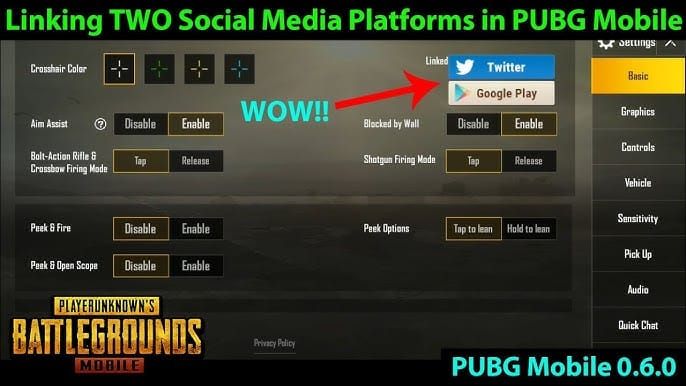
Each linked platform shows connection status, link date, and platform-specific icon. Active connections display in full color while available but unlinked platforms appear grayed out. The interface supports simultaneous connections to Twitter/X, Facebook, Google, and Apple ID—up to four concurrent login methods.
Test each existing login method before unlinking Twitter by logging out completely and attempting to log back in using each platform individually. This verification ensures all backup methods function correctly and prevents accidental lockouts. Testing takes approximately 5 minutes.
Document Your Player ID and Account Information
Your Player ID appears in multiple locations: main profile screen (tap your avatar), Settings > Account section, and Account Information submenu. This unique numerical identifier serves as the primary reference for customer service interactions and account recovery requests.
Record your current UC balance from the main lobby screen where it displays next to the UC icon in the upper-right corner. Screenshot your inventory's most valuable items including legendary weapon skins, rare outfits, and limited-edition items. These records prove ownership during recovery processes.
Note your current Royal Pass tier, season achievements, and clan membership details. Store these screenshots securely outside the game, preferably in cloud storage or email, ensuring access even if you lose device access.
Secure Alternative Login Methods Before Removal
Link at least one additional social platform before unlinking Twitter to maintain uninterrupted account access. Navigate to Settings > Account > Linked Accounts, select an unlinked platform icon, and follow authentication prompts. Facebook and Google represent the most stable alternatives with robust security features.
Each new linking requires logging into the chosen platform through PUBG Mobile's authentication interface. The system requests permission to access basic profile information and verify identity. Grant these permissions to complete linking, which typically takes 30-60 seconds per platform.
After linking a new platform, immediately test the login by completely logging out of PUBG Mobile and logging back in using the newly linked account. This verification confirms the binding succeeded. Only proceed with Twitter unlinking after successfully testing at least one alternative login method.
Step-by-Step Guide: Remove Twitter/X Login from PUBG Mobile
The primary unlinking method operates through PUBG Mobile's in-game Account Settings, accessible from the main lobby screen. This official pathway provides the safest and most reliable unlinking process, with built-in verification steps preventing accidental removal.
Select Settings using the gear icon on the right side of the lobby screen. This opens the comprehensive settings menu where all account management functions reside. The interface organizes options into categories: Basic, Graphics, Audio, Controls, and Account.
Tap the Account option in the settings menu to access account-specific configurations. This section displays your Player ID, current level, linked accounts status, and security settings. The Linked Accounts subsection shows all connected social platforms with individual management options.
Method 1: In-Game Account Settings Navigation
Navigate to Linked Accounts where all connected social platforms appear with respective icons. Twitter/X displays with its distinctive bird logo or X symbol. Each linked platform shows a small icon indicating active connection status through color coding.
Tap the Twitter logo in Linked Accounts to access platform-specific management options. This opens a submenu displaying connection details including link date, last login timestamp, and the unlink option. The interface clearly labels the unlinking function.

Before proceeding, the system verifies you have at least one other active login method. If Twitter represents your only linked account, the unlink option appears grayed out with an explanatory message requiring you to link another platform first.
Method 2: User Center Social Binding Management
The User Center provides an alternative unlinking pathway through the Unlinking Accounts tool, accessible from the main account management interface. This method offers identical functionality to the Settings approach but organizes options differently.
Access User Center by tapping your profile avatar in the lobby's upper-left corner, then selecting Account Management from the dropdown menu. This interface consolidates all account-related functions including social bindings, security settings, and privacy controls.
The Social Binding Management section within User Center displays all linked platforms with detailed connection information. Tap the Twitter/X entry to reveal management options including connection status, permissions granted, and the unlinking function.
Method 3: Emergency Unlinking Through Support Channels
When you cannot access your account through normal login methods due to compromise, use the emergency unlinking procedure through PUBG Mobile's official support system. This pathway requires submitting an account recovery request that includes unlinking compromised social media accounts.
Submit the recovery request by tapping Help on the login screen, selecting Login Issue from the category menu, then choosing Account Recovery. The system prompts you to submit a claim with detailed information proving account ownership including Player ID, purchase receipts, device information, and description of the compromise.
Alternatively, access the support portal at https://pubgmobile.live/support for web-based recovery submissions. This method allows one request per account and requires comprehensive documentation of ownership. PUBG Mobile support typically replies via email within 7 business days.
Detailed Unlinking Process: Account Settings Method
Access Settings from the lobby by tapping the gear icon on the right side of the screen. This opens the comprehensive settings interface where all game configurations and account management functions reside.
Select Account from the settings menu's left-side navigation panel. This section consolidates all account-related functions including Player ID display, linked accounts management, security settings, and privacy controls.
Navigate to Linked Accounts which displays all currently connected social platforms. The interface shows Twitter/X, Facebook, Google, and Apple ID options with visual indicators distinguishing linked from unlinked platforms.
Accessing the Settings Menu from Lobby
The Settings icon appears as a gear symbol consistently positioned in the upper-right corner of the main lobby screen, adjacent to the UC balance display and notification icons. This standardized placement ensures accessibility regardless of screen size or device type.
Tapping Settings triggers a smooth transition animation opening the full settings menu interface. The menu overlays the lobby screen with a semi-transparent background, allowing you to see your character and lobby environment while accessing settings.
The settings menu organizes options into tabbed categories along the left edge: Basic, Graphics, Audio, Controls, and Account. The Account tab, marked with a user profile icon, contains all social media binding and security functions.
Navigating to Social Media Binding Section
Within the Account tab, scroll down to locate Linked Accounts, typically positioned below Player ID display and above privacy settings. This section uses a grid layout displaying all supported social platforms with respective logos.
Each platform icon in Linked Accounts includes a small status indicator showing connection state. Linked platforms display a checkmark or colored border, while unlinked options appear with a plus symbol or grayed-out appearance.
The interface provides touch-responsive feedback when you tap any platform icon, highlighting the selection and opening platform-specific management options.
Verification Requirements and Security Checks
Before allowing unlinking, the system verifies you've maintained the Twitter link for at least 21 days. This minimum linkage requirement prevents rapid account switching that could facilitate account theft. If you linked Twitter within the past 21 days, the unlink option appears grayed out with a countdown showing remaining days.
The system also confirms you have at least one other active login method before permitting Twitter removal. This critical safeguard prevents accidental account lockouts. If Twitter represents your only linked account, the interface displays a warning message requiring you to link another platform first.
Log in with your social media account is required to unlink it from PUBG Mobile, serving as final identity verification. This ensures only the legitimate account owner can remove login methods.
Confirming Twitter/X Removal and Success Indicators
After tapping the unlink button on the top-left of the social platform icon, the system displays a confirmation prompt explaining unlinking consequences. This dialog clearly states that removing Twitter login won't affect your game data, UC balance, or inventory, but will eliminate this specific access pathway.
Tap continue to confirm unlinking the social media account. The system processes the request immediately, displaying a progress indicator while updating server-side account bindings. This process typically completes within 2-3 seconds.
The account unlinks on first login after 7 days from the unlinking request, implementing a grace period that allows you to withdraw the unlink by logging in with the social media account within the 7-day window.
After successful unlinking, the Twitter icon in Linked Accounts changes from full-color to grayed-out, indicating the platform is now available for linking but currently disconnected. Restart PUBG Mobile to verify unlinking completed successfully.
Troubleshooting Common Unlinking Issues
Error messages during unlinking typically indicate: insufficient linked accounts, minimum linkage period not met, or server-side authentication problems. Error code 611,1 specifically points to Twitter account authentication issues, often requiring you to clear PUBG Mobile cache and data before attempting unlinking again.
When the unlinking option appears grayed out, check two critical requirements: whether you've maintained the Twitter link for 21 days or longer, and whether you have at least two total linked accounts. The interface usually displays a tooltip explaining why unlinking is unavailable when you tap the grayed-out option.
The minimum login method requirement prevents removing your last remaining access pathway. If you see this error, you must link another social platform before unlinking Twitter.
Error Messages and Their Solutions
Error code 611,1 indicates an issue with the linked Twitter account, typically caused by authentication token expiration or Twitter-side permission changes. Resolve this by going to Twitter Settings and Privacy > Security and Account Access > Apps and Sessions, locating PUBG Mobile in the connected apps list, and either refreshing permissions or revoking access entirely before attempting unlinking through the game.
Network connectivity errors during unlinking manifest as timeout messages or unable to connect to server notifications. These issues require stable internet connection for the unlinking request to reach PUBG Mobile's authentication servers. Switch to reliable Wi-Fi or ensure strong mobile data signal before retrying.
Authentication failures occur when the system cannot verify your identity through the Twitter account. Clear PUBG Mobile app cache through your device's application settings, then clear app data if cache clearing doesn't resolve the issue. Note that clearing data logs you out, requiring you to log back in using an alternative linked account.
What to Do When Unlinking Option Is Grayed Out
The grayed-out unlink option most commonly indicates you haven't met the 21-day minimum linkage requirement. Check when you originally linked the Twitter account by reviewing account activity logs or email confirmations from PUBG Mobile. The system displays the exact date when unlinking becomes available if you tap the grayed-out option.
If you linked Twitter more than 21 days ago but the option remains grayed out, verify you have at least one other active login method. Attempt logging out completely and logging back in using a different linked platform like Facebook or Google.
Server-side synchronization delays occasionally cause the unlinking option to remain grayed out despite meeting all requirements. Force-close PUBG Mobile completely, wait 5 minutes for server synchronization, then relaunch and check Linked Accounts again.
Handling 'Minimum Login Method' Requirements
The system enforces a minimum of one active login method at all times to prevent account lockouts. If you attempt unlinking Twitter while it's your only linked account, the interface displays a clear warning message requiring you to link another platform first.
Link a secondary platform by selecting an available option in Linked Accounts, such as Facebook or Google. Tap the grayed-out platform icon, follow authentication prompts to log into that platform, and grant PUBG Mobile the requested permissions. Linking completes within 30-60 seconds.
After successfully linking the secondary platform, verify it works by logging out of PUBG Mobile completely and logging back in using the newly linked account. Only proceed with Twitter unlinking after confirming the backup login method functions correctly.
Account Locked During Unlinking Process: Recovery Steps
If your account becomes locked during unlinking, immediately contact customer service in-game through Settings > Help menu. Select Account Issue category, then choose Account Access Problem. Provide your Player ID, description of the issue, and any error messages received.
Submit an account recovery request through Help > Login Issue > Account Recovery if you cannot access the in-game help system. This process requires submitting a claim with comprehensive ownership proof including Player ID, purchase receipts, device information, and detailed account history.
The Account Recovery tool unlinks login methods upon claim submission, allowing customer service to remove problematic Twitter bindings as part of the recovery process. Recovery submissions receive responses via email within 7 business days, with most cases resolved within 3-5 business days.
Post-Unlinking Security Measures
After successfully unlinking Twitter, verify complete disconnection by checking both PUBG Mobile's Linked Accounts section and Twitter's Apps and Sessions settings. In PUBG Mobile, the Twitter icon should appear grayed-out in Linked Accounts, indicating no active connection. On Twitter's side, PUBG Mobile should no longer appear in your connected applications list.
Enable two-factor authentication for your PUBG Mobile account through Settings > Account > Security Settings. This adds an extra verification layer requiring a time-sensitive code for every login attempt, preventing unauthorized access even if someone obtains your remaining login credentials.
Enable secondary verification for your PUBG Mobile account, which requires additional identity confirmation for sensitive actions like UC purchases, item trades, or account settings changes.
Verifying Complete Twitter/X Disconnection
Access Linked Accounts in PUBG Mobile Settings > Account to confirm Twitter no longer shows as connected. The Twitter icon should display in grayed-out state without any connection indicators like checkmarks or colored borders.
On Twitter's platform, navigate to Settings and Privacy > Security and Account Access > Apps and Sessions to view all connected applications. PUBG Mobile should not appear in this list after successful unlinking. If it still appears, manually revoke access by tapping the PUBG Mobile entry and selecting Revoke app permissions.
Uninstalling the X app from your device provides additional security by completely removing the authentication pathway, though this step is optional.
Setting Up Enhanced Account Protection
Enable two-factor authentication for your Twitter account through Twitter Settings > Security and Account Access > Security > Two-Factor Authentication. This prevents future compromises of your Twitter account from affecting any services.
Update both PUBG Mobile app and Twitter app to their latest versions, as updates frequently include security patches addressing known vulnerabilities. Enable automatic updates in your device's app store settings.
Check account activity in Account Settings regularly, reviewing login history for unfamiliar devices or locations. Remove recently logged-in devices in Account Security Settings by tapping each suspicious entry and selecting Remove Device.
Monitoring for Suspicious Activity After Removal
Establish a regular security audit schedule, checking your account activity logs at least weekly for the first month after unlinking Twitter. Review login timestamps, device types, and IP addresses for any patterns suggesting unauthorized access attempts.
Monitor your UC balance and inventory for unexpected changes. Set up a simple spreadsheet or note documenting your current UC amount and most valuable items, checking these against actual account status weekly.
Enable all available notification settings for account activity, including login alerts, purchase confirmations, and security setting changes. These real-time notifications provide immediate warning of suspicious activity.
Recommended Login Method Combinations for Maximum Security
The optimal security configuration combines two different platform types: one major social platform (Facebook or Google) and one device-specific method (Apple ID for iOS users). This diversity ensures you maintain access even if one platform experiences service disruptions or security issues.
Avoid linking multiple accounts from the same ecosystem, as compromises affecting one platform often impact related services.
Consider linking your phone number as an additional verification method if your region supports this feature. Phone number verification provides a platform-independent access pathway that remains functional even during social media outages.
Protecting Your Account and Progress After Unlinking
Implement best practices for multiple social login management by maintaining exactly two to three linked accounts from different platforms. This balance provides sufficient backup access options without creating excessive security surface area.
Unlinking Twitter has zero impact on your UC balance, skins, Royal Pass status, or any in-game items. All purchases, progress, achievements, and inventory remain completely intact because these elements are tied to your Player ID, not to any specific login method.
Your friends list and clan data persist unchanged after unlinking Twitter. These social connections are stored server-side and associated with your Player ID rather than your login methods.
Best Practices for Multiple Social Login Management
Review your linked accounts quarterly, verifying each platform remains secure and actively used. Remove any linked accounts you no longer use or that have experienced security incidents.
Never share login credentials for any linked social platform, as this grants indirect access to your PUBG Mobile account. Use unique, strong passwords for each linked platform, avoiding password reuse across services.
Document which platforms you've linked and store this information securely outside the game. This record helps you quickly identify which accounts to secure if you suspect compromise.
How Unlinking Affects Your UC, Skins, and Royal Pass
Your UC balance remains completely unchanged by unlinking any social media account. The UC system ties currency to your Player ID, which persists regardless of login methods. All purchased UC, earned UC from events, and pending UC transactions continue normally after unlinking Twitter.
Weapon skins, character outfits, vehicle skins, and all other inventory items remain in your possession. The inventory system stores items server-side associated with your Player ID.
Royal Pass subscriptions, tier progress, and rewards continue uninterrupted. Your Royal Pass status is tied to your Player ID and the subscription's time period, not to any specific login method.
Maintaining Access to Friends Lists and Clan Data
Friends lists persist across all login methods because friendships are established between Player IDs, not social media accounts. Your entire friends list remains intact after unlinking Twitter, and friends can still find you, send messages, and invite you to matches using your Player ID or in-game name.
Clan memberships and clan data remain completely unchanged. Your clan rank, contribution points, clan war statistics, and clan chat history all persist because these elements are tied to your Player ID.
Social features like Crew challenges, team invitations, and voice chat partnerships continue functioning normally. These systems operate independently of login methods, relying instead on Player ID associations.
Regular Security Audits for Your PUBG Mobile Account
Conduct comprehensive security audits monthly by reviewing all linked accounts, checking login history, verifying UC balance and inventory, and confirming security settings remain properly configured.
During each audit, check Account Activity log for unfamiliar devices or suspicious login patterns. Review the last 30 days of login history, noting any entries from unexpected locations or device types. Remove any unrecognized devices immediately through Account Security Settings.
Verify your email address and phone number associated with the account remain current and accessible. These contact methods are critical for receiving security alerts and account recovery communications.
Common Misconceptions About Social Login Removal
The most persistent myth claims unlinking social media accounts deletes all game progress, UC, and inventory. This misconception causes many players to avoid necessary security actions. In reality, unlinking only removes an authentication pathway while preserving all account data tied to your Player ID.
Another widespread myth suggests you can only maintain one login method at a time. PUBG Mobile actually supports up to four simultaneous social media bindings, allowing you to link Twitter, Facebook, Google, and Apple ID concurrently.
Many players believe removed logins can never be re-added to the same account. While the system implements a 7-day grace period after unlinking, you can relink the same social media account after this period expires.
Myth: Unlinking Deletes All Your Game Progress
This misconception stems from confusion between unlinking and account deletion. Unlinking removes a login method while account deletion permanently erases all data. The game clearly distinguishes these actions in separate menu sections with different confirmation prompts.
Your Player ID serves as the permanent identifier for all game progress, purchases, and achievements. This unique number remains constant regardless of which login methods you add or remove.
Testing this claim is straightforward: check your Player ID before unlinking, complete the unlinking process, then log in using an alternative method and verify your Player ID remains identical.
Myth: You Can Only Have One Login Method
PUBG Mobile's architecture supports multiple simultaneous login methods specifically to provide account security through redundancy. The Linked Accounts interface clearly displays four platform options, all of which can be active concurrently on a single account.
This multi-platform support serves critical security purposes: if one platform experiences service disruptions or security compromises, you maintain account access through alternative methods.
The only restriction is the minimum requirement: you must maintain at least one active login method at all times. Beyond this baseline, you can link as many supported platforms as desired, up to the maximum of four concurrent bindings.
Myth: Removed Logins Can Never Be Re-Added
While the system implements a 7-day grace period after unlinking during which the account remains in a pending unlink state, you can relink the same social media account after this period completes. The relinking process follows identical steps to initial account linking.
You can withdraw the unlink by logging in with the social media account within the 7-day grace period, which cancels the unlinking request and maintains the existing connection.
After the grace period expires and unlinking completes, the platform becomes available for relinking immediately. There's no waiting period or penalty for relinking a previously removed account.
Truth: What Actually Happens to Your Account Data
Account data remains stored on PUBG Mobile's servers associated with your unique Player ID. This server-side storage ensures data persistence regardless of login method changes, device switches, or platform migrations.
The unlinking process modifies only the authentication table that maps social media accounts to Player IDs. When you unlink Twitter, the system removes the entry connecting your Twitter account to your Player ID, but leaves the Player ID and all associated data completely intact.
This architecture allows seamless transitions between devices and platforms. You can log in on an Android device using Facebook, switch to an iOS device using Apple ID, and access identical account data.
Alternative Login Methods and Account Recovery
Facebook and Google represent the most stable alternative login platforms, both offering robust security features including two-factor authentication, login alerts, and comprehensive activity monitoring. Facebook provides social integration benefits like friend discovery, while Google offers seamless integration with Android devices.
Apple ID delivers exceptional security for iOS users through biometric authentication, device-specific tokens, and Apple's privacy-focused architecture. The platform's Sign in with Apple feature includes email privacy protection and mandatory two-factor authentication.
Guest account binding serves as an emergency backup option, though it offers limited security compared to social platform logins. Guest accounts tie to your device's unique identifier, providing access only from that specific device.
Comparing Facebook, Google, and Apple ID Security
Facebook login provides extensive account recovery options through trusted contacts, photo identification, and detailed account history verification. Security features include login alerts, active session management, and third-party app permission controls accessible through Settings > Security and Login.
Google accounts benefit from integration with Google's advanced security infrastructure including Security Checkup tools, suspicious activity detection, and comprehensive device management. The platform supports hardware security keys, advanced protection programs, and detailed account activity logs.
Apple ID leverages device-level security through biometric authentication (Face ID or Touch ID), device-specific authentication tokens, and mandatory two-factor authentication for new accounts. The platform's privacy-focused design limits data sharing with third-party apps.
Setting Up Guest Account Binding as Backup
Guest account binding creates a device-specific login method by generating a unique identifier tied to your device's hardware. Access this option through Settings > Account > Linked Accounts, where Guest Account appears alongside social platform options.
The system generates a unique guest account ID and associates it with your current device. This binding allows you to log in using the guest account option on the login screen, but only from the specific device where you created the binding.
Guest account security depends entirely on device security. Enable device-level protections including screen lock, biometric authentication, and device encryption. Consider guest binding as a temporary or emergency backup rather than a primary login method.
Phone Number Verification for Enhanced Protection
Phone number verification adds an additional security layer by requiring SMS code confirmation for sensitive account actions. Enable this feature through Settings > Account > Security Settings > Phone Verification.
This verification method operates independently of social media logins, providing security even if all linked platforms become compromised. The phone-based verification creates a physical security requirement that remote attackers cannot easily bypass.
Update your registered phone number immediately if you change numbers, as outdated contact information prevents you from receiving verification codes.
When to Contact Official Support for Assistance
Contact customer service when you cannot access your account through any linked login method, when you encounter persistent error messages during unlinking, or when you suspect your account has been compromised beyond your ability to secure it independently. Access support through the Help button on the login screen or the in-game Settings > Help menu.
Submit detailed support requests including your Player ID, description of the issue, screenshots of error messages, and any relevant account history.
For account recovery situations, provide purchase receipts for any UC transactions, screenshots showing your character and inventory, and detailed information about recent gameplay activity. This documentation proves account ownership and expedites the recovery process, which typically completes within 7 business days.
FAQ
How do I unlink Twitter from PUBG Mobile without losing progress?
Navigate to Settings > Account > Linked Accounts, tap the Twitter icon, select the unlink option, and confirm. Your Player ID, UC balance, inventory, and all game progress remain intact because these elements are tied to your Player ID, not to any specific login method. Ensure you have at least one other login method active before unlinking Twitter.
Can I remove a hacked social login from PUBG Mobile?
Yes, remove compromised Twitter logins through Settings > Account > Linked Accounts by tapping the Twitter icon and confirming unlinking. For severely compromised accounts where you cannot access the game, submit an account recovery request through the Help button on the login screen or at https://pubgmobile.live/support. Support responds within 7 business days.
What happens to my UC when I unlink Twitter from PUBG Mobile?
Your UC balance remains completely unchanged when unlinking any social media account. UC is tied to your Player ID, which persists regardless of login methods. All purchased UC, earned UC, and pending transactions continue normally. Your inventory, skins, Royal Pass status, and all purchases also remain intact.
How long does it take to remove Twitter login from PUBG Mobile?
The unlinking process completes immediately when you confirm the action in Settings > Account > Linked Accounts, but the account unlinks on first login after 7 days from the unlinking request. This 7-day grace period allows you to withdraw the unlink by logging in with the social media account within this timeframe. You can only unlink social media accounts that have been linked for 21 days or longer.
Will unlinking Twitter delete my PUBG Mobile account?
No, unlinking Twitter only removes that specific login method while preserving your entire account. Your Player ID, game progress, UC balance, inventory, friends list, clan membership, and all achievements remain completely intact. Account deletion is a separate action requiring customer service contact and multiple verification steps.
Can hackers access my PUBG Mobile through compromised Twitter?
Yes, if hackers gain access to your Twitter account and it's linked to PUBG Mobile, they can log into your game account without needing your game credentials. Immediately unlink Twitter if you suspect compromise, enable two-factor authentication for both platforms, remove logged-in devices through Account Security Settings, and check your account activity for unauthorized logins or UC transactions.
Secured your PUBG Mobile account? Protect your gaming investment with safe UC top-ups from BitTopup. Trusted by millions of players worldwide, BitTopup offers instant delivery, competitive prices, and guaranteed account safety. Buy pubg uc cheap now and get back to dominating the battleground with peace of mind!